
 Below is detailed explanation of each item in the GMass Settings box, which is accessible by clicking the “up” arrow next to the GMass button.
Default Settings and Saving Your Settings
Some of the settings you see when you open the Settings box for a campaign will be the same as your most recent sent campaign. (For instance, if you turned off open and click tracking on your last campaign, they’ll be turned off by default on this one.)
GMass does this for your convenience — our bet is if you changed a setting for one campaign, you’re more likely to use it the same way for the next. Of course, if that isn’t the case, you can always change any of those settings in your new campaign.
And GMass auto-saves your settings as you work on them for the campaign. So if you close your draft then re-open it later, your settings will be just how you left ’em.
The Three Buttons Across the Top
Spam Solver
GMass’s one-of-a-kind Spam Solver tests whether your email is likely to end up in your recipients’ inboxes, spam folders, or promotions folders.
It works by sending this email out as a test to several test email addresses across a variety of accounts and seeing which of these three types of folders your email landed in. You can then make tweaks to the email in the Spam Solver and retest to see if your deliverability improves.
We recommend running Spam Solver on every campaign before you send it — especially if you’re using a newer email address or domain.
Link Checker
Link Checker checks all the links in your message and generates screenshots of each so you can easily see which links go where.
It’s great for ensuring you didn’t make a copy/paste mistake when setting your links.
Email Analyzer
GMass’s Email Analyzer sends a copy of your email to our email tester, which then tells you what IP sent the email, whether the email passed SPF and DKIM, and gives you full access to the headers and MIME parts of the email.
Testing
Send Test
 This button sends a test email to the address(es) of your choice.
Additionally, the test email message will include personalization if there is personalization information available for the test email address. Meaning, if you’re connecting to a Google Sheets spreadsheet to do a mail merge, and the test address is one of the addresses in the spreadsheet, then the test email will include personalization.
Or, if the test address is a Gmail contact, and the address is part of the To field already in your composed message, then sending a test to the address will include First and Last Name personalization.
Send Test options
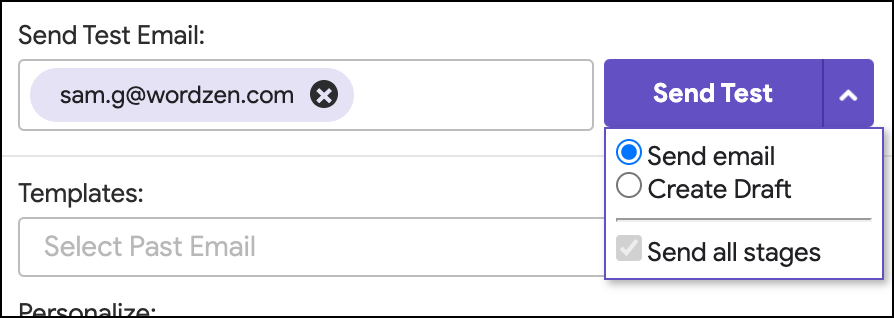
You can choose to send a test email to your address or to create a draft of a test email (which you can then examine in your Gmail Drafts folder).
The Send all stages option is great for campaigns with auto follow-ups. When you check that box, your test will include the entire email sequence so you can see exactly how each email in your series will look to recipients.
Message Creation Options
Templates

This dropdown shows all of your past GMass campaigns and how many people they were sent to.
Choose any past campaign and the Subject/Message of your Compose window will be set to that campaign.
ChatGPT assistance
GMass has a built-in, ChatGPT-based AI writing assistance feature. You can access it by clicking the green ChatGPT icon.

From here, you’ll see a few options.
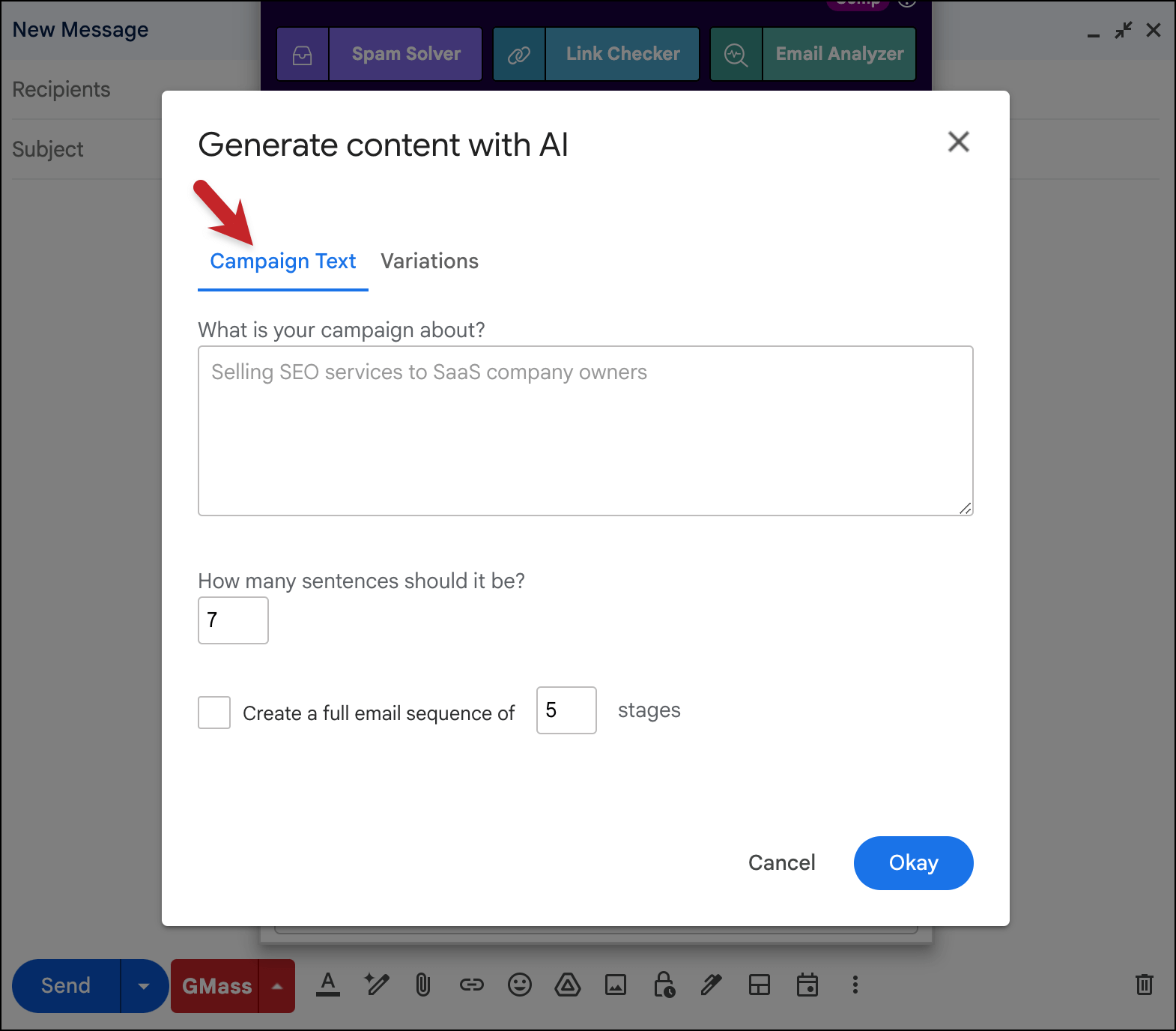
In the Campaign Text option, you can have AI generate a rough draft of a template as well as your auto follow-ups. GMass will even handle all the settings for those auto follow-ups as it inserts them into the campaign.
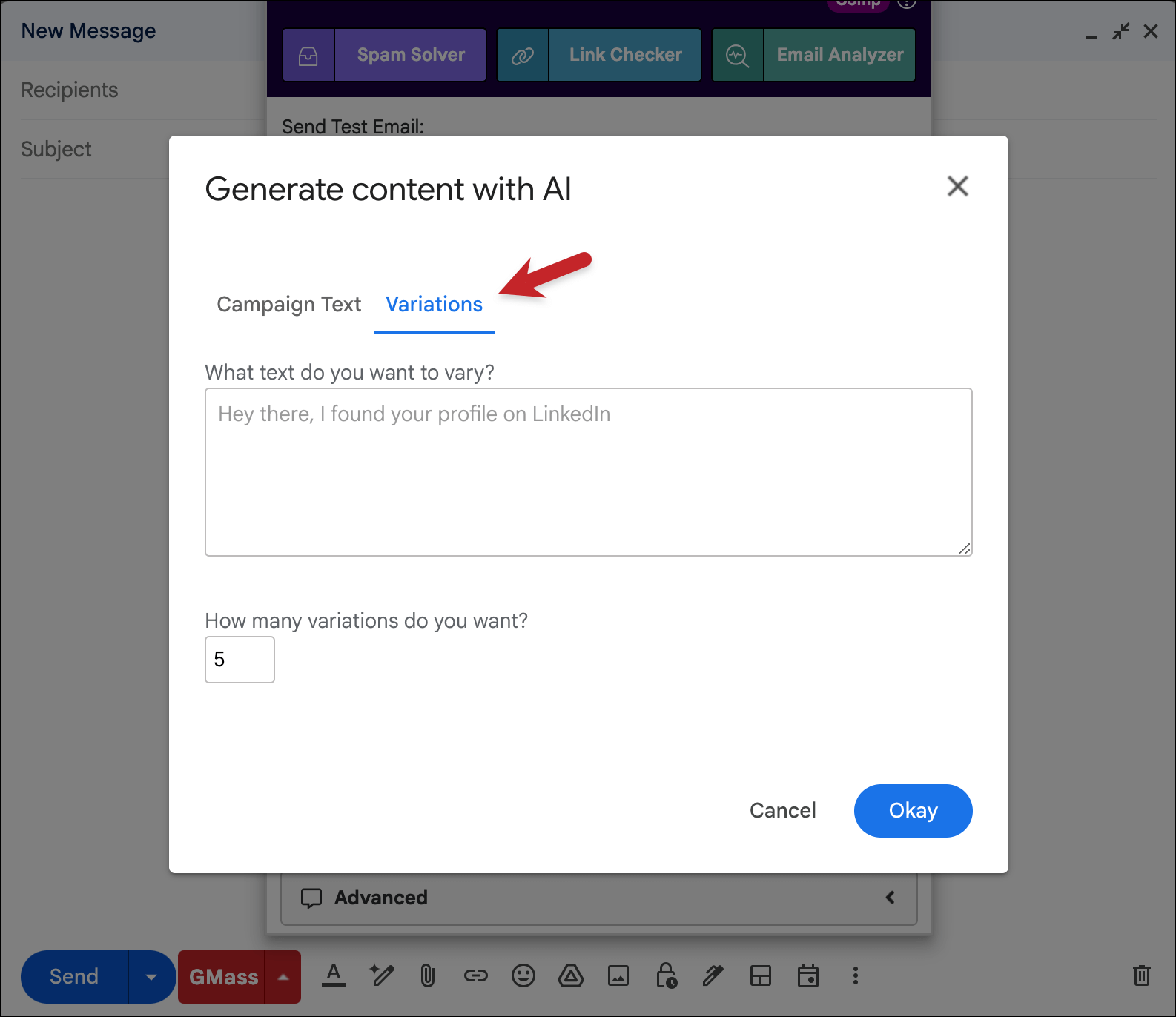
In Variations, GMass will create spintax variations of a sentence or two — as many as you like. This is helpful if you want to vary up the contents of every email you send in a campaign (so every one isn’t identical).
HTML

Gmail doesn’t have a native way for you to edit the HTML for your emails.
That’s not going to fly if you want to send something with any sort of design.
GMass adds HTML editing capabilities to Gmail. Just click the HTML link and you’ll be able to edit the underlying code behind your email (or paste in your own templates).
Personalize

These buttons insert personalization variables into your Message in the format of {Variable}. When you choose a personalization tag, it gets copied to your clipboard so that you can easily paste it into your Subject or Message. For more information, see the GMass Personalization Guide.
Unsubscribe Link
Inserts an unsubscribe link into your message, wherever the cursor is. The language of the unsubscribe link can be customized, but the actual URL should remain unaltered. For example, if you want to change the language to:
Please unsubscribe if you wish to never hear from us again
You can do that, but just link the appropriate words to this URL:
https://www.gmass.co/gmass/u?u=OUTBOUND
You can also click the “copy” icon to the right to copy the unsubscribe URL to the clipboard, to make it easier to set whatever text you like to the unsubscribe link.
Tracking
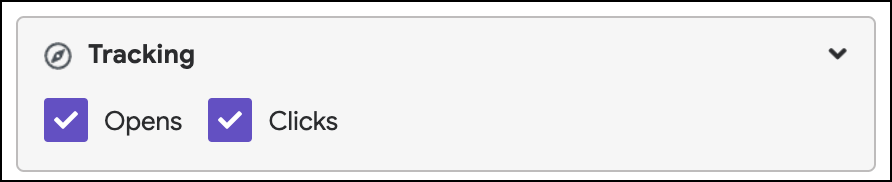
Choose whether you’d like to track opens and clicks. By default, both are selected. If you choose tracking options, you can view who opened or clicked an email by accessing the GMass reports after you send your campaign.
Action

Send emails vs Create Drafts
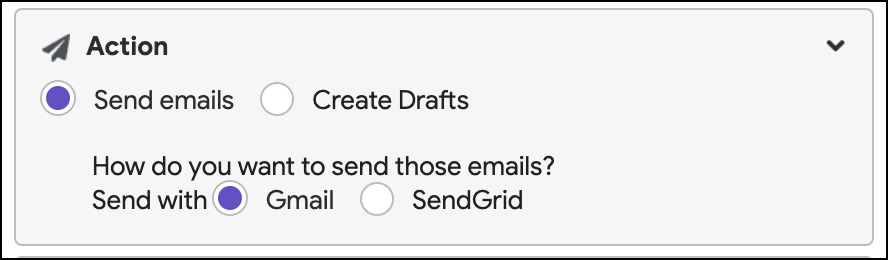
By default, clicking the GMass button will send your campaign, sending one email to each address in the To field.
However, if you want to spot check your messages before they are sent, you can choose “Create Drafts.” Only Drafts will be created, and no emails will be sent.
You can then review them in your Drafts folder, and GMass will email you a link to click to either send or delete the drafts.
How do you want to send those emails?

If you’ve connected an external SMTP server to your GMass account for virtually unlimited sending (breaking Gmail’s limits), this option will appear in the settings. Otherwise, this option will not appear because then all emails are sent natively through Gmail.
If you have connected an SMTP server, you’ll have the option to send each campaign natively through Gmail or through the SMTP server.
Also, when you shrink this section, you’ll see whether you’re sending via Gmail or an external service. That should be handy for quick reference as you work on your campaigns.
Auto Follow-Up
 Have automated follow-up emails sent at designated intervals to those people that don’t reply to the message you’re sending. You can choose the trigger (no open, no reply, no click, no reply or click, or send to everyone for drip campaigns) as well as the interval between emails and sending time.
Type in a plain text message, or use rich text to send emails in new threads (or the same threads).
Schedule
Time
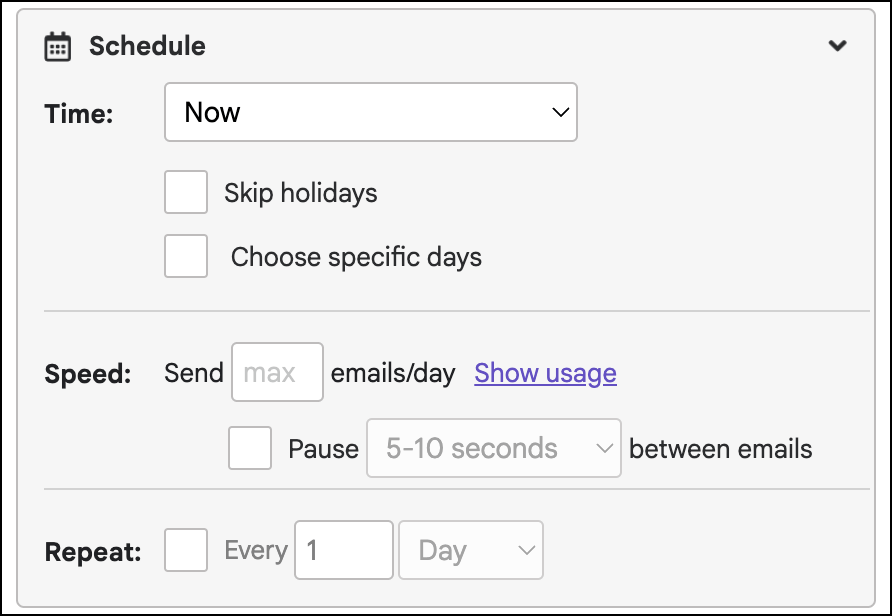
Choose whether to send this current email NOW or at some time in the future.
You can also choose to skip holidays or choose specific days of the week to send (for instance, only weekdays) — which might be preferable for cold email campaigns.
Speed
GMass has complete throttling capabilities. You can space your email so they send over a number of days rather than sending them all at once. You can set this to as few as 1 email per day if you wish. If left set to “max”, which is the default, GMass will send as many emails as your account allows and save the rest for future days.
You can also choose to add a delay after each email is sent — from a few seconds to a longer delay of several minutes. Some cold emailers feel setting a delay better simulates the process of manually sending messages.
Repeat
If selected, GMass will send your campaign on a recurring schedule.
This is useful for email reminders to a group of people or for setting up an automated campaign that sends your campaign to only new rows in a Google Sheet.
Additionally, if you connected to a Google Sheets spreadsheet, an additional checkbox called “Repeat daily…” will also be shown. Checking this box will enable the automated recurring campaigns feature.
You can even set up a recurring campaign to go out instantly.
Advanced
Send as: New messages vs. Replies
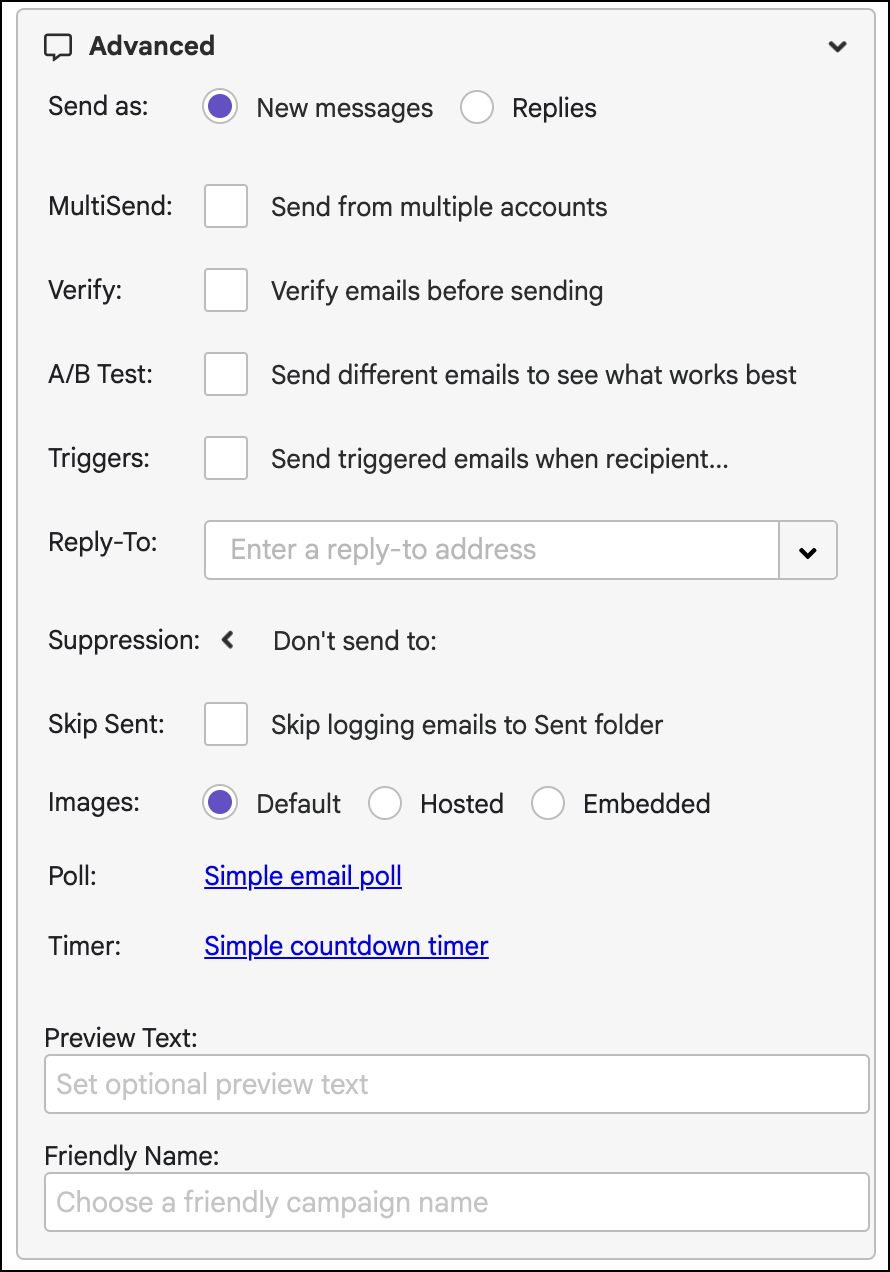
The default choice is “New Messages”, which means that your email marketing campaign will send as a new email thread.
If you choose “Replies”, your message will be tacked onto the last thread you had with each recipient. If you have never emailed a particular recipient in the past and therefore have no prior conversation, then the email will go out as a new thread. Here’s more on sending as new messages versus replies.
MultiSend
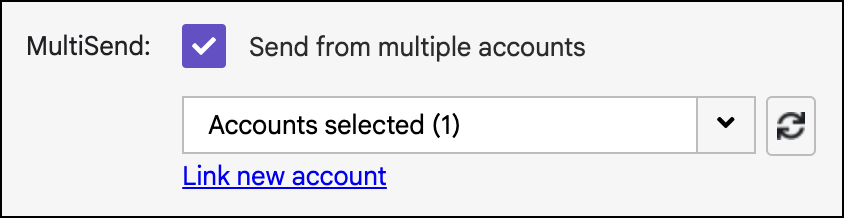
MultiSend is GMass’s inbox rotation feature, which allows you to distribute a campaign across multiple sending accounts.
Inbox rotation is a popular technique with cold emailers, as it’s a way to send high volume campaigns while keeping the sending volume low from each individual mailbox.
Here in the Settings box you can add new sending accounts, choose which sending accounts to use, and even set daily limits for each individual account.
Verify
GMass has built-in email verification, which tests each address for validity before sending to them.
This is a great way to keep bounces low, as those can hurt your deliverability.
A/B Test
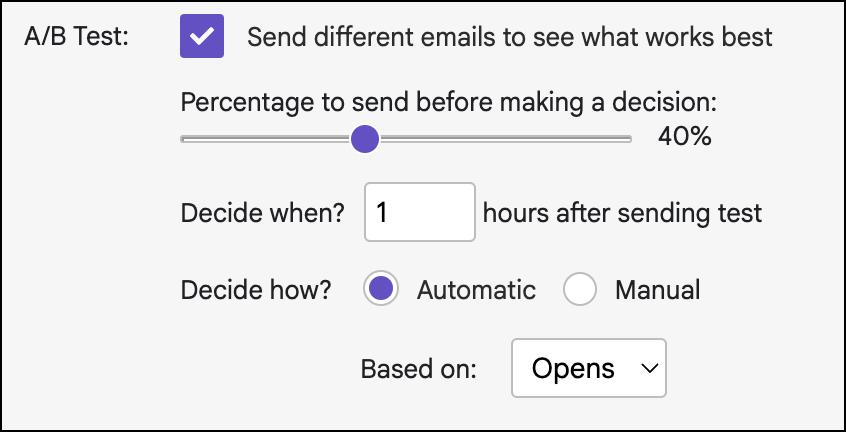
You can A/B test your campaigns with this setting. GMass will send one variation to one portion of your list and another variation to another portion. Then it can automatically send the “winning” variation to the rest of the list (or you can send the winner manually).
Triggers
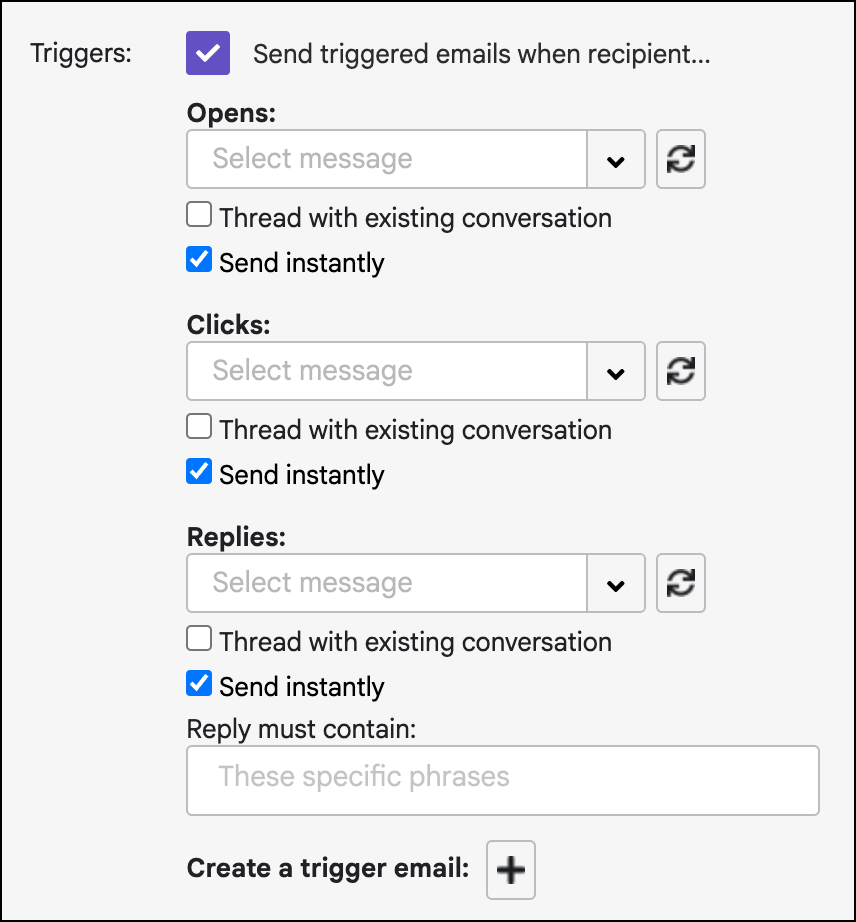
Triggered emails are an innovative GMass feature that automatically send a message to recipients when they open, click, or reply on your campaign — so you know they’re in their inbox.
In the Settings box you can create your triggered messages and fine-tune their sending options.
Reply-To
If you want replies to your campaign to go to an address other than your “from” address, set it here.
Suppression (Don’t send to)
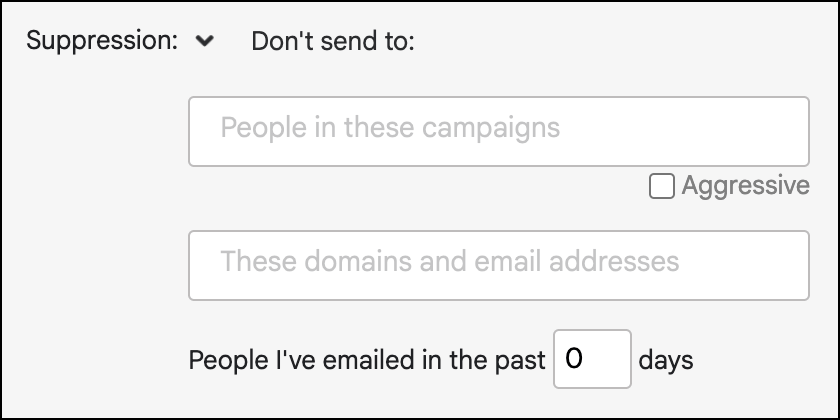
GMass can suppress emails to certain recipients in your campaign based on different criteria. This way you don’t have to remove them from your Google Sheets of contacts; you can just have GMass skip sending to them.
Suppression by Campaign
To set a suppression list for a campaign, just select the past campaigns whose recipients you want to eliminate from your current campaign. Any past campaign can be used as a suppression list for the current campaign.
You can select a single campaign or multiple campaigns from the dropdown. Use the CTRL key on Windows or the Command key on a Mac to select multiple lists from the Suppression select box. Any email address that was part of the chosen campaign will be suppressed, or eliminated from, this current campaign.
When the Aggressive box is checked, GMass will suppress messages to everyone who’s received the suppression campaign AND anyone who is scheduled to receive it will be suppressed in the current campaign.
Suppression by domains or email addresses
To suppress emails to specific users, or an entire domain (like all recipients at uber.com), enter them in the “These domains and email addresses” field.
Suppression by days
You can suppress recipients by the number of days since they last received an email from you.
Skip Sent
The skip logging option deletes all the emails from your “Sent” folder after your campaign sends, in order to prevent your “Sent” folder from feeling cluttered.
Images
Choose how images should be included in your campaign, hosted (by an external server) or embedded (in Gmail). If you’re not sure and don’t have any specific preferences, leave this set as Default.
Poll
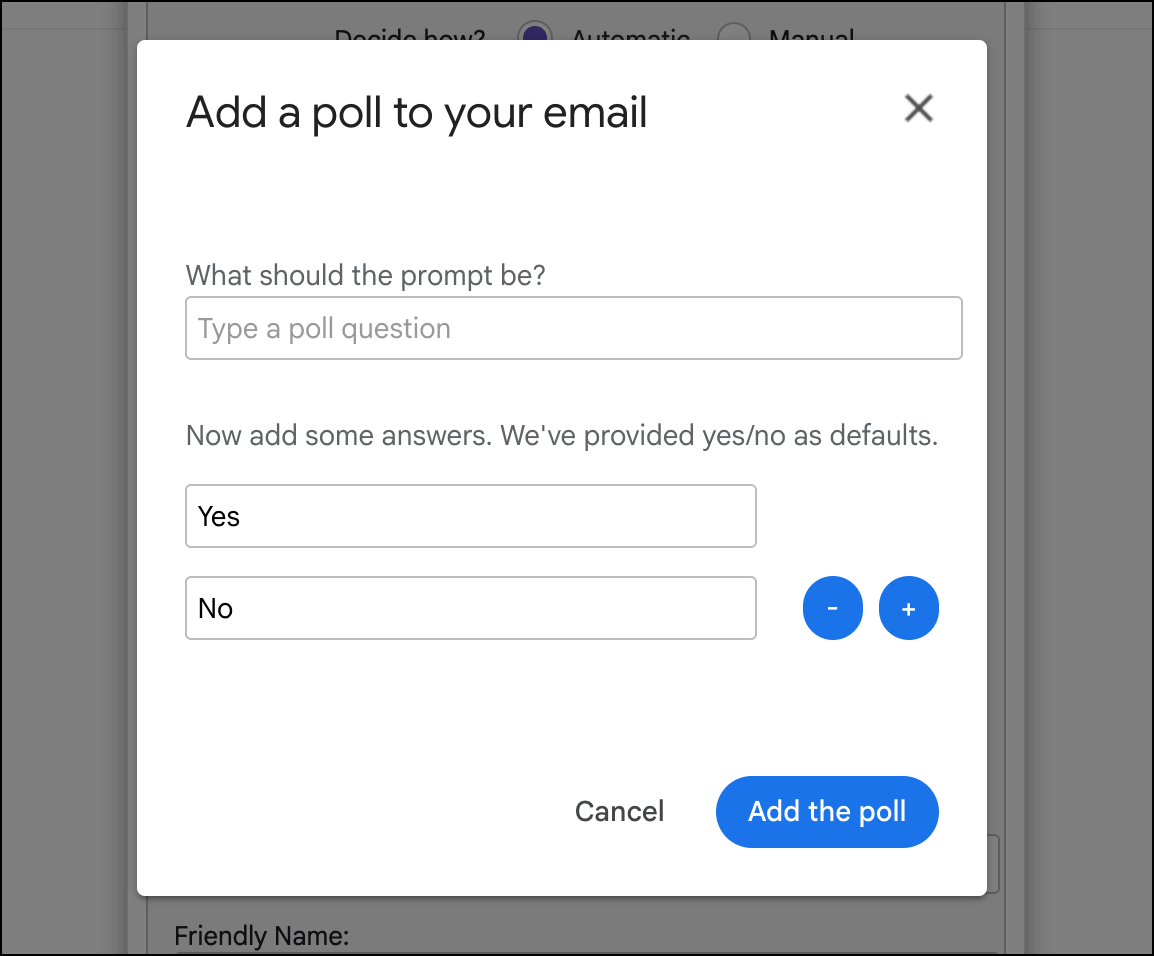
GMass allows you to run simple, one-question polls in your campaigns. You can configure the poll for your email by clicking the “Simple email poll” link.
Timer
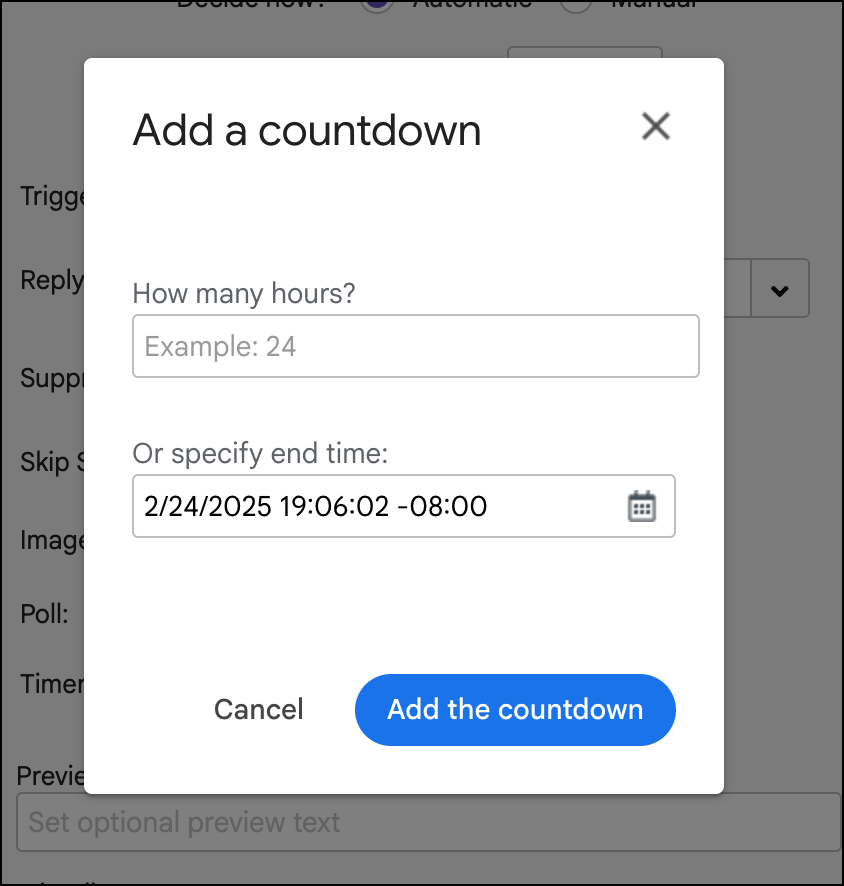
You can add a countdown timer to a GMass campaign, counting down a certain number of hours or to a specific date and time.
Preview Text
Set the preview text that appears in the inbox either next to or under the subject line (depending on the email client). This is a popular feature for email marketing.
Friendly Name
A friendly name by which to remember this campaign. This name will appear in reports and various notifications about the campaign.
Learning More About How GMass Works
The GMass settings box is a compact but incredibly powerful tool for fine-tuning your campaigns.
Want to learn about the rest of GMass?
- Quickstart Guide – step-by-step instructions to set up GMass and send your first mail merge campaign.
- Startup Guides – learn everything you need for success on GMass with cold email, email marketing, mail merge, or even sending all your emails through GMass.
- GMass dashboard – while you’ll use the settings box to control an individual campaign, you handle account-level changes and management on the GMass dashboard.
And of course, if you haven’t tried out GMass yet, just install the Chrome extension to get started.
You’ll get a free trial — no credit card required — and then, after you’ve seen what GMass can do, you can subscribe to one of our paid plans.
This is a living document and is updated when new features are added to the Settings box.
Only GMass packs every email app into one tool — and brings it all into Gmail for you. Better emails. Tons of power. Easy to use.
TRY GMASS FOR FREE
Download Chrome extension - 30 second install!
No credit card required

Ajay is the founder of GMass and has been developing email sending software for 20 years.