"Spam Solver" tweaks your email until it hits the inbox

You’re preparing an email campaign, and you send it to a few of your own test addresses, only to find that it’s going to Spam. What do you do? If you’re like millions of other email marketers, you might try a different Subject line, or you might turn off tracking, or you might take out images, all in a trial-and-error attempt to bypass Gmail’s filters and make it to the Inbox.
This manual trial-and-error process is exhausting — changing your message, then sending to your test addresses, then waiting to see where the email lands — this is the least fun part of an email marketer’s job.
Our new and improved Spam Solver automates this process, and reports Inbox vs. Promotions vs. Spam placement across 20 different Gmail and Google Workspace accounts, with different filters in place. You can see how your email campaign performs across a range of accounts that have corporate filters from Barracuda, Sophos, and ProofPoint.
And it will even give you AI-powered advice on how to tweak your settings and email template in order to improve your inbox rate.
Let’s say across the 20 seed accounts, your email hits 4 Inboxes, 4 Promotions, and 12 Spam folders.
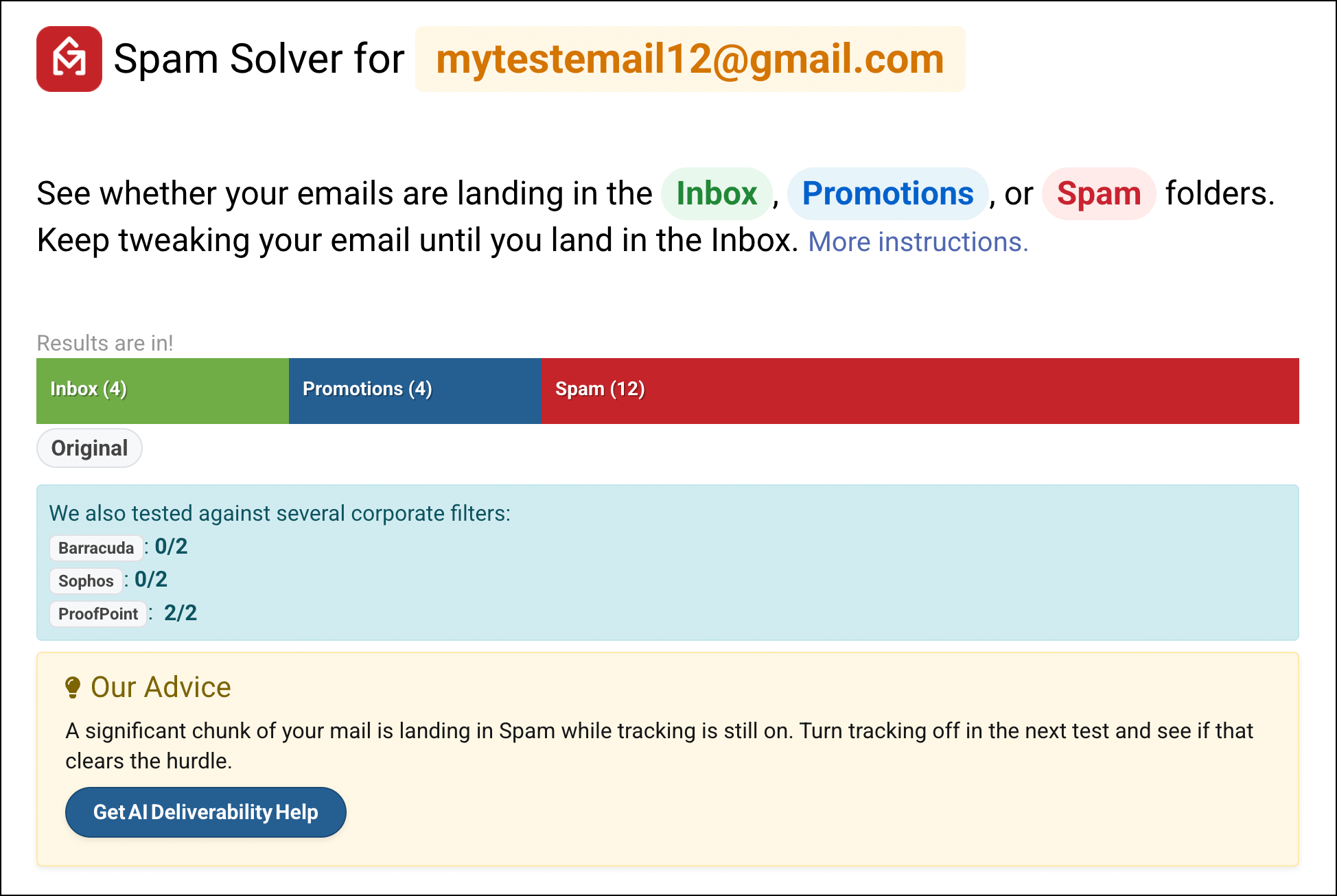
Spam Solver suggests I try turning off tracking, so I do that for the next round.
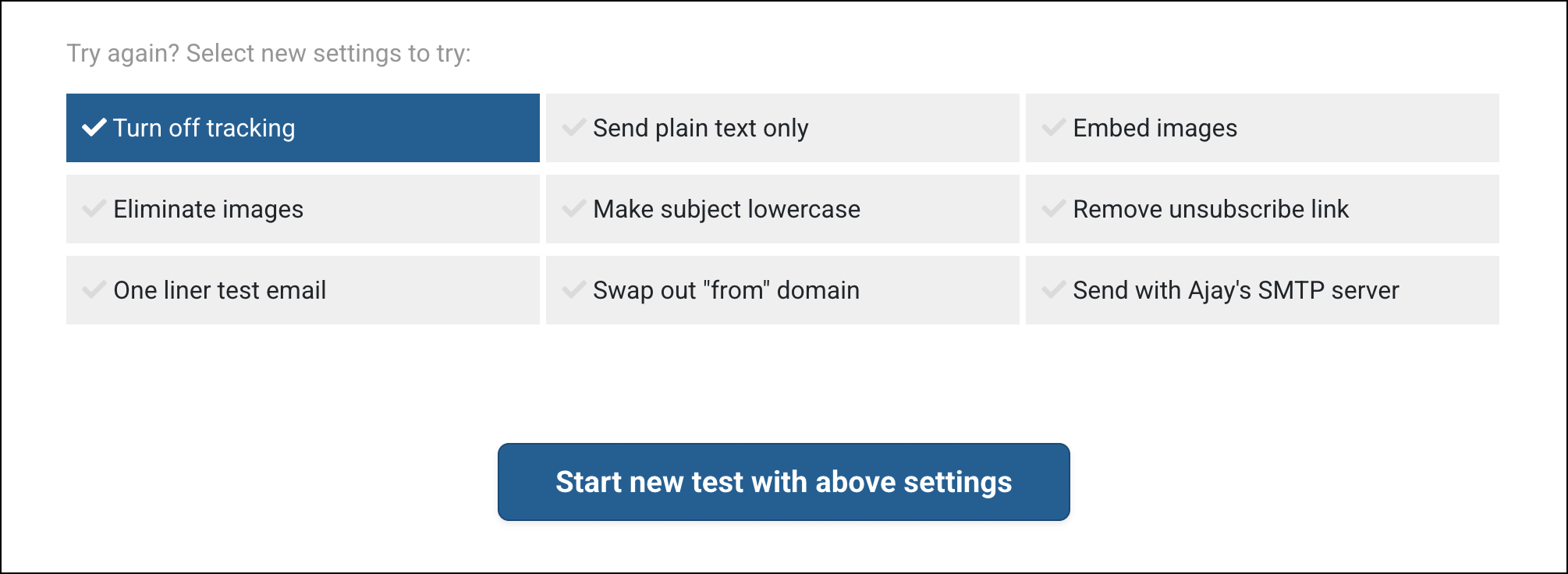
Then I run the test again.
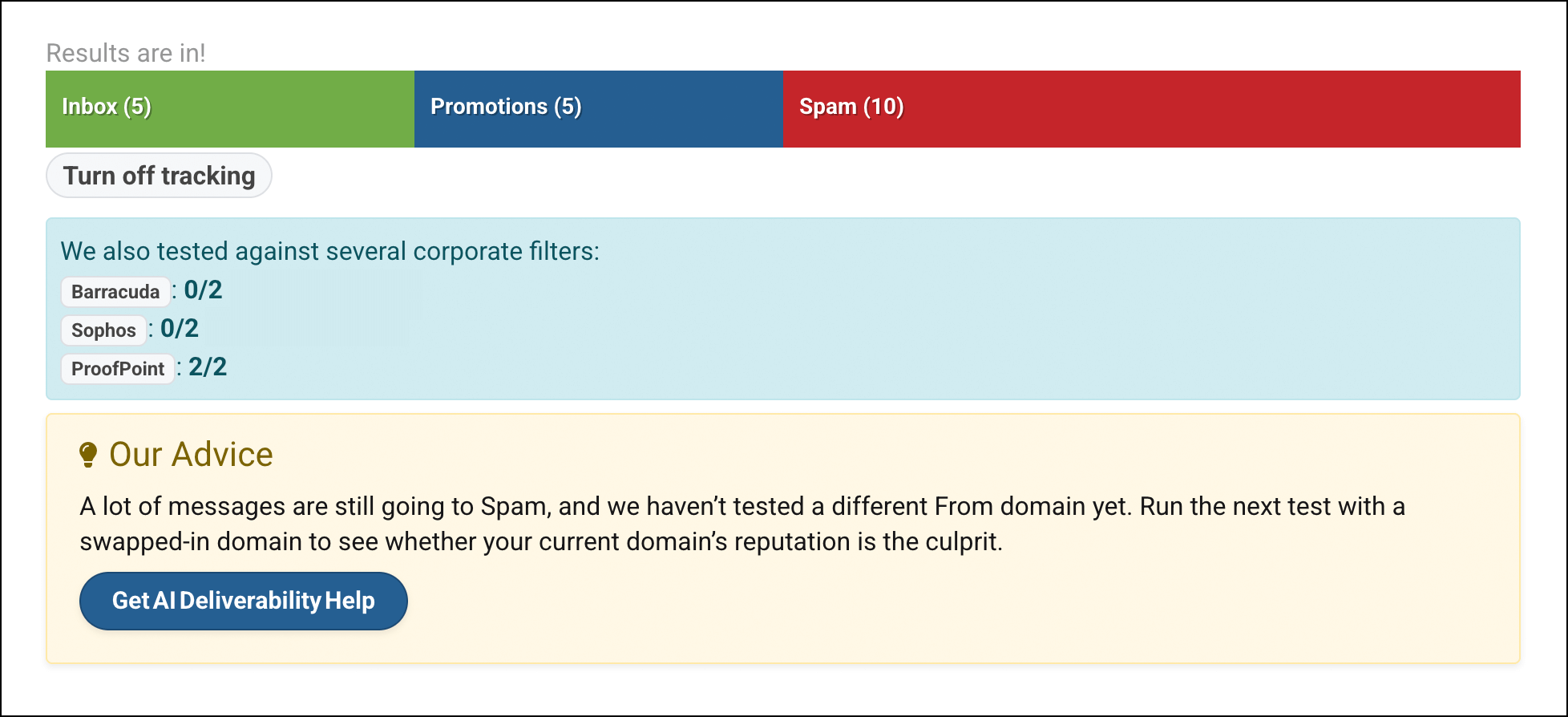
I’m still having a pretty high spam rate. I try a few more of the suggestions, and, after that, I’m going to get the AI Deliverability help now.
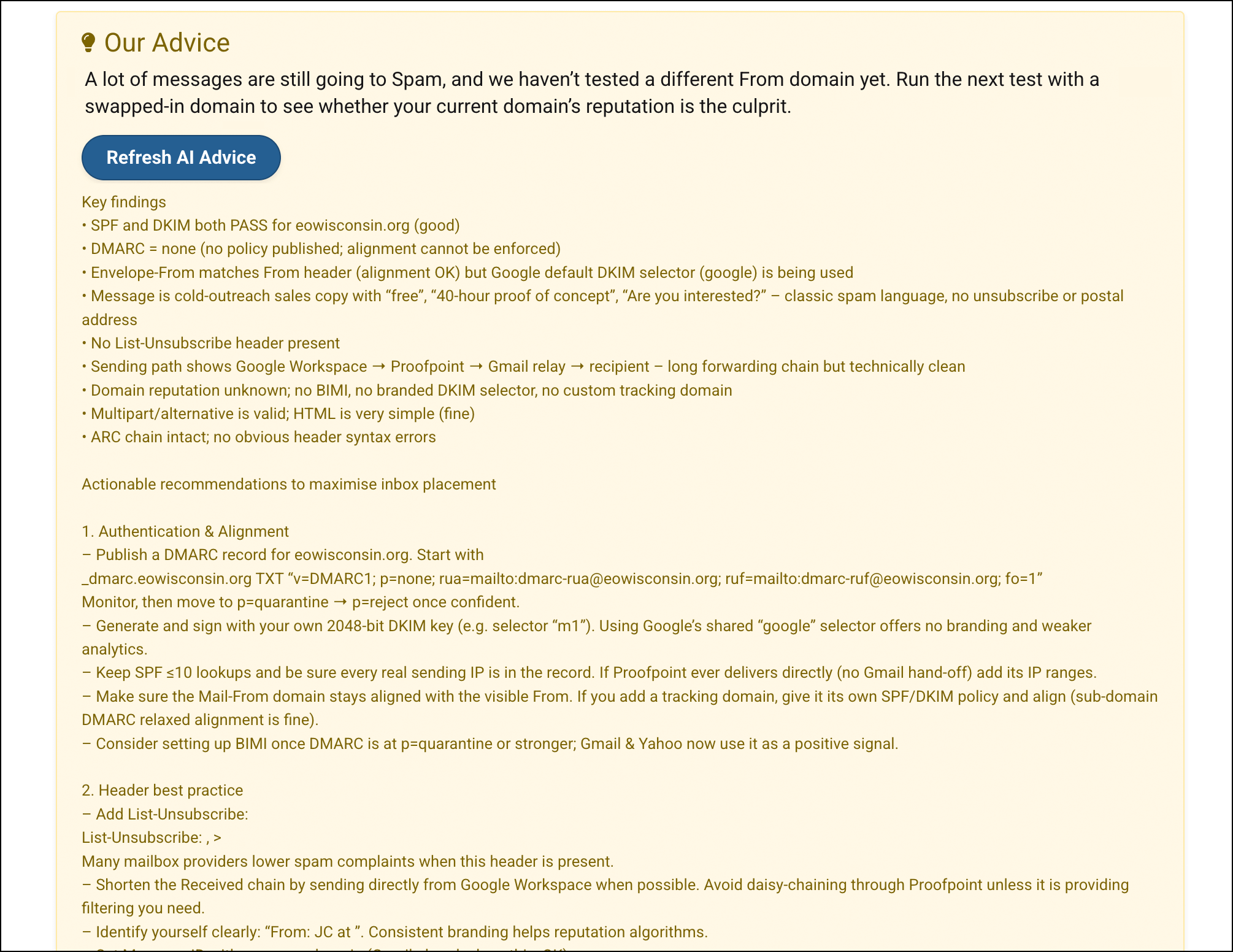
The AI assessment gives me a lot of ideas to try, including some formatting changes around my email. I make those changes, now I run Spam Solver on my improved draft.
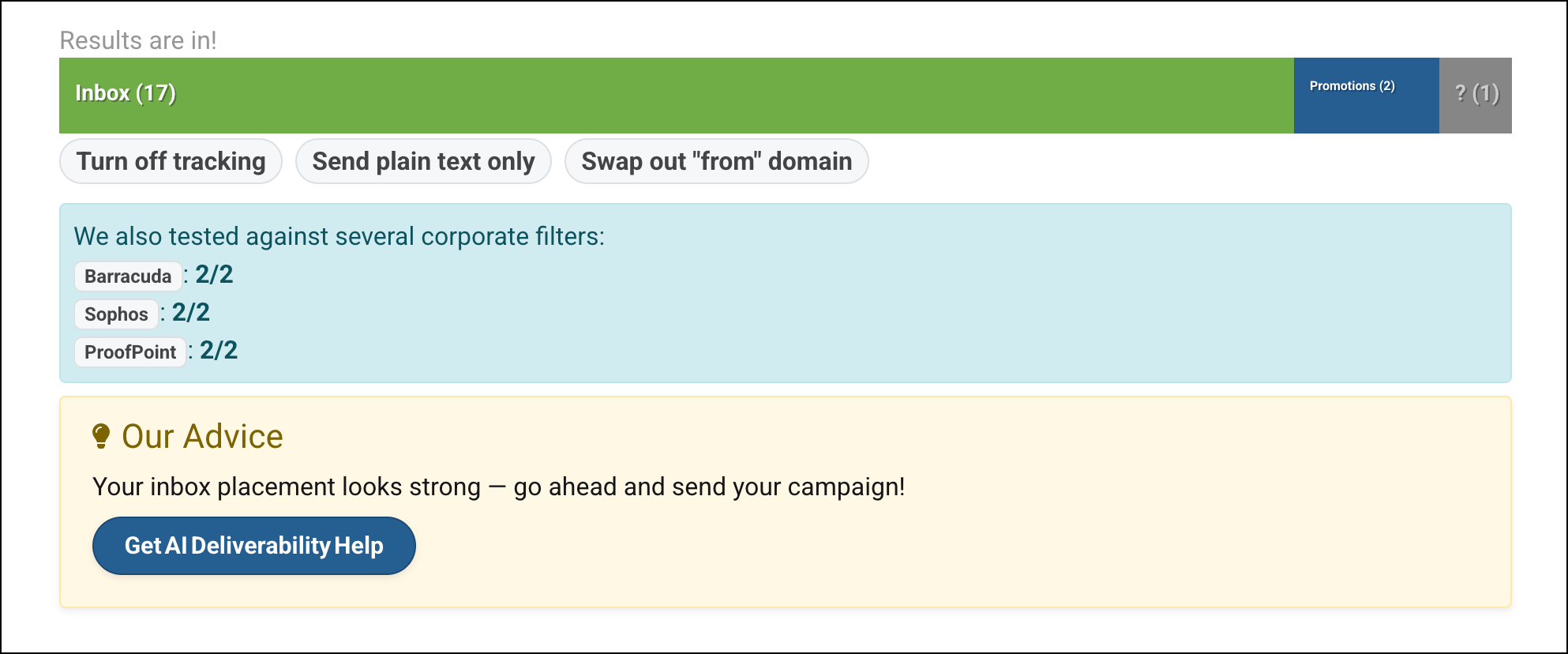
Great news! I’m now overwhelmingly hitting the inbox and had no spam placements. Plus I’m passing all the corporate filters as well. This email is good to go.
Keep tweaking your email until you get the Inbox placement rate that you want.
How do you use the Spam Solver?
After you’ve composed your campaign in a regular Gmail Compose window, just click the “Spam Solver” button in the GMass Settings box. That’s it … just one click, and you’re off to the races.

If you’ve been a longtime GMass user, you’ll notice that we’ve replaced the button “Inbox or Spam” with the new “Spam Solver” button. The old “Inbox or Spam” button would launch the classic Inbox, Spam, or Promotions tool, which showed a feed of emails going into the 20 seed addresses. You can still view that raw feed by going directly to gmass.co/inbox or by clicking the “raw feed” link from the Spam Solver tool. The Spam Solver tool uses the Inbox, Spam, or Promotions tool behind the scenes.
The list of tests and their meanings
Here’s a list of the tests that you can run to vary your email.
Turn Off Tracking
Open and click tracking will be turned off. Tracking is often the culprit when you’re going to spam due to tracking domain issues.
Eliminate Images
All <img> tags are removed and replaced with the ALT text, if available. If your email contains inline images, the inline image MIME part is removed from the message.
Embed Images
Image content is embedded into the email body, as opposed to images being downloaded from a server. Detailed explanation on embedded vs hosted images.
Plain Text Only
Instead of sending a standard HTML and Plain Text email, we send only the Plain Text version. This also has the effect of eliminating open and click tracking, and this will also eliminate images, since plain text emails don’t have links or images.
Remove Unsubscribe Link
If you’re using the GMass-provided unsubscribe link, this variation will remove that link and the sentence containing that link. For example, if at the bottom of your email, you have a sentence that reads:
Click here to unsubscribe.
that is hyperlinked to the generic GMass unsubscribe URL of
https://www.gmass.co/gmass/u?u=OUTBOUND
then that whole sentence and link will be removed.
Send with Ajay’s SMTP server
This will route your emails through our one of our internal SMTP servers rather than through Gmail’s servers. The emails will still show in your “Sent Mail” folder though.
One-liner Test Email
This test replaces your Subject and Message with a simple one line statement to see if your email content might be what’s causing your problem.
Swap Out “From” Domain
This test replaces your actual From address with an entirely different address that we control and that doesn’t send outreach emails. This test is used to determine if your From address or From domain has a reputation problem. Because this test causes a different From address to be used, the emails are NOT sent from your Gmail account. They are sent from the Gmail account associated with our internal From address used for this test.
Make Subject Lowercase
Exactly what it says. It takes your Subject line and makes all the characters lowercase.
What about testing for SPF, DKIM, and DMARC?
If you’re sending your email from your Gmail or Google Workspace account, your emails are usually already SPF and DKIM compliant automatically, without any extra setup on your end. That’s because Google handles this for you.
The Spam Solver can’t “test” a different version of your SPF or DKIM setup for you, but the AI deliverability advice will let you know if there might be a problem.
After you’ve made changes, you can use our Email Analyzer to ensure your emails are passing SPF and DKIM. In most cases, however, the reason for ending up in Promotions or Spam is NOT because of SPF or DKIM.
What happens when you send a set of emails?
The emails are sent from your Gmail account to the seed address listed on our core Inbox, Spam, or Promotions tool. You can see the emails being sent by watching your “Sent Mail” folder. You can also see the emails arriving in real-time by having a separate browser tap opened to gmass.co/inbox.
All emails will show in your “Sent Mail” folder except if you run the “Swap out from domain” test. In this case, we take your email content, exactly as it is, but send it through an entirely separate Google Workspace account that we control. The From address, and therefore the From domain, will be among those that we control. The purpose of this test is to determine if your deliverability issue is caused by sending from a domain with a poor reputation. If you find that your email hits the Inbox by using this test, there’s a good chance that your from domain is the culprit in your Spam placement problem. What from address do we use to send your email? We don’t reveal that, but it changes at random — we use domains that we control that don’t typically send email campaigns, and therefore have no risk of being associated with spam. Lastly, because the emails are sent through a G Suite account that we control, you won’t see these emails in your “Sent Mail” folder.
You run a test and most of your emails land in Spam. What should you try first?
The first two tests you should try if you have a Spam problem are:
1. Turn off tracking: If turning tracking off lands your emails in the Inbox, you likely have a problem with your tracking domain. If you’re a cold emailer, keep tracking off in general, since opens/clicks don’t mean as much to you as getting replies.
2. Swap out “from” domain: If this test yields better results, it likely means you have a reputation problem with the domain in your “from” address.
Note: If you haven’t set up a custom tracking domain, we highly recommend it; that’s a good way to keep tracking without putting deliverability at risk.
You’ve run a variation that lands your email in the Inbox. Hooray! How do you apply those settings to your actual campaign?
Every set of tests that you run is actually a new “campaign” as far as GMass is concerned. Because every campaign you send is saved, once you’ve sent a variation that lands in the Inbox, if you want to send your actual campaign to your actual email list in the same way, you can easily emulate what the “spam solver” did in your campaign settings.
For example, if the test that landed you in the Inbox was “Turn off tracking,” then in your actual campaign in your GMass settings, uncheck Open Tracking and Click Tracking to mimic the same behavior. If “Remove unsubscribe link” resulted in the Inbox placement you want, then you can just select the last campaign from the “Prior Content” dropdown, and that will load the exact Subject/Message used in the most recent test.
What do you think?
The “Spam Solver” is a tool unlike any other in the email marketing industry. Please provide your feedback below. Also, if you have ideas for additional “tests” that should be included, mention that too.
Send incredible emails & automations and avoid the spam folder — all in one powerful but easy-to-learn tool
TRY GMASS FOR FREE
Download Chrome extension - 30 second install!
No credit card required

Ajay is the founder of GMass and has been developing email sending software for 20 years.