What Is a Custom Tracking Domain and How Does It Improve Email Deliverability?

Setting a custom tracking domain on your outreach emails:
- improves deliverability, preventing email blocking and spam folder issues
- improves the branding of your links
- increases your click-through rate
- protects you from reputation issues caused by spammers.
If you want to skip the article because you already know you want to set up a tracking domain, here’s how:
- Create a sub-domain of your domain, like link.domain.com, and set a CNAME record in your DNS system to point it to x.gmtrack.net.
- Test your tracking domain by “pinging” it and ensuring it “pings” x.gmtrack.net. You can use a web-based ping tool.
- Go to the GMass tracking settings in the GMass dashboard and enter your tracking domain.
- GMass will automatically obtain an SSL certificate for your tracking domain to serve secure tracking links.
Keep on reading if you want to fully understand the importance of a tracking domain.
And/or check out our video…
Custom Tracking Domains: An Overview
I’ve written extensively in the past about the importance of having a dedicated tracking domain for your GMass account. And you can set your tracking domain all on your own. You’ll just need to implement the DNS setup for it first.
What is a custom tracking domain?
A custom tracking domain is your own, unique domain or subdomain which you use exclusively to track opens and clicks in your emails. Custom tracking domains help preserve your sender reputation, increase deliverability, and can even help improve click-through rates.
If you don’t have a tracking domain set up and you’re tracking opens or clicks in your emails, you’re using a shared tracking domain. While we work tirelessly at GMass to keep these shared tracking domains clean and reputable, occasionally a bad actor can slip through the cracks and may use the shared tracking domains in a spam campaign. That can affect your reputation — since your email will now contain the same tracking domain as the spammer.
That scenario won’t happen with a custom tracking domain. The only emails with the custom tracking domain are your own — so no one else can drag down your reputation. Plus, as we’ll cover later in this article, there are plenty of other benefits as well.
Checking your tracking domain
If you’re a Google Workspace (formerly G Suite) or Gmail user using GMass for your email marketing campaigns, you may notice that one of several domains, including gmreg.net, gmapp.net, or amazonaws.com is used in your emails’ open tracking, click tracking, and unsubscribe link elements.
That means: If you hover over a tracked link before clicking it, and observe the URL that it points to, you’ll see that it points to amazonaws.com, and then this redirects to the actual destination URL.
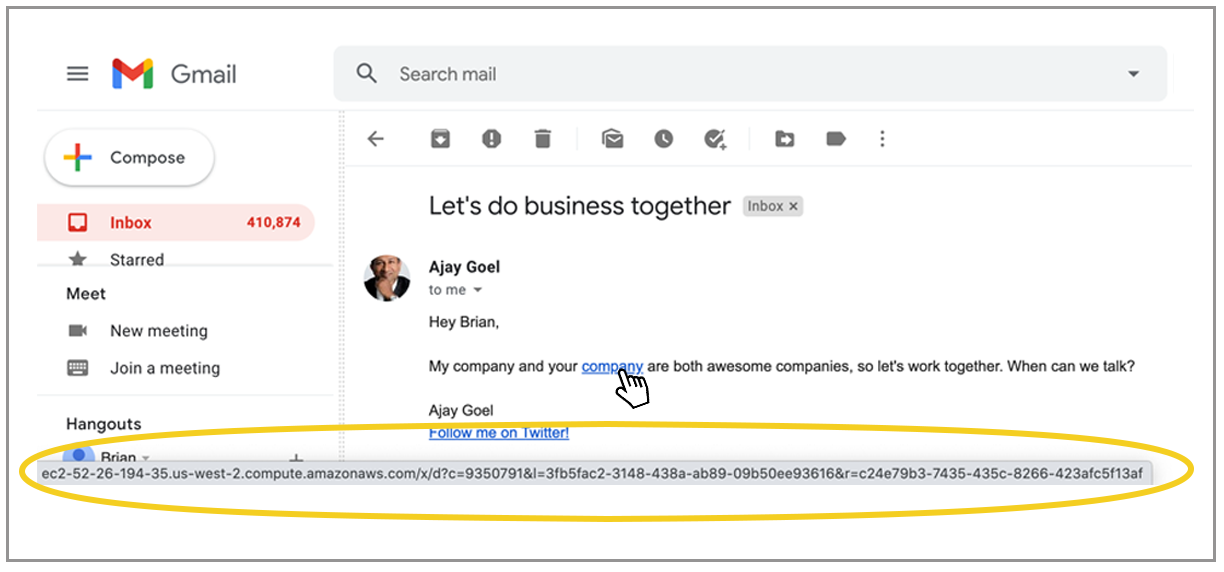
You should swap out the default tracking domain for your organization’s own domain. If your domain is mycompany.com, for example, you should set up link.mycompany.com, or x.mycompany.com or news.mycompany.com and use that branded tracking domain with GMass.
There is some technical setup required to make this happen though. Specifically you have to add a DNS record (a CNAME record) with your chosen host aliasing to “x.gmtrack.net.”
See the “How to set up” section below for instructions on how to do that.
What will my recipients see?
The tracking domain is only visible by people receiving your email if they hover/click on any of your tracked links or if they hover/visit your unsubscribe link. The tracking domain is also present in the open-tracking pixel, but this isn’t visible to recipients, unless they take a deep look at your email by viewing its source, but hardly anybody does that.
If you’re a rare user who will be turning both open and click tracking off, and if you’re not placing an unsubscribe link in your emails, then you can ignore this guide, because a tracking domain will never appear in your emails. If you’re like 99% of mailers though, you’re using at least one of those three features, and so a tracking domain is relevant.
What Are the Benefits of Setting Up Your Own Tracking Domain?
There are two major benefits to setting up a branded tracking domain:
1. A branded tracking domain creates a more trustworthy impression to your email recipients. Savvy Internet users hover over links before clicking them, and seeing the domain with which they’re familiar (your organization’s domain) as opposed to GMass’s default tracking domain can go a long way in increasing trust, and ultimately increasing your click-through rate.
The world’s biggest brands use ESPs (Email Service Providers) to send their email marketing campaigns, and they all employ branded tracking domains instead of the default Email Service Provider tracking domain. (Here’s an example I just grabbed from my inbox.)
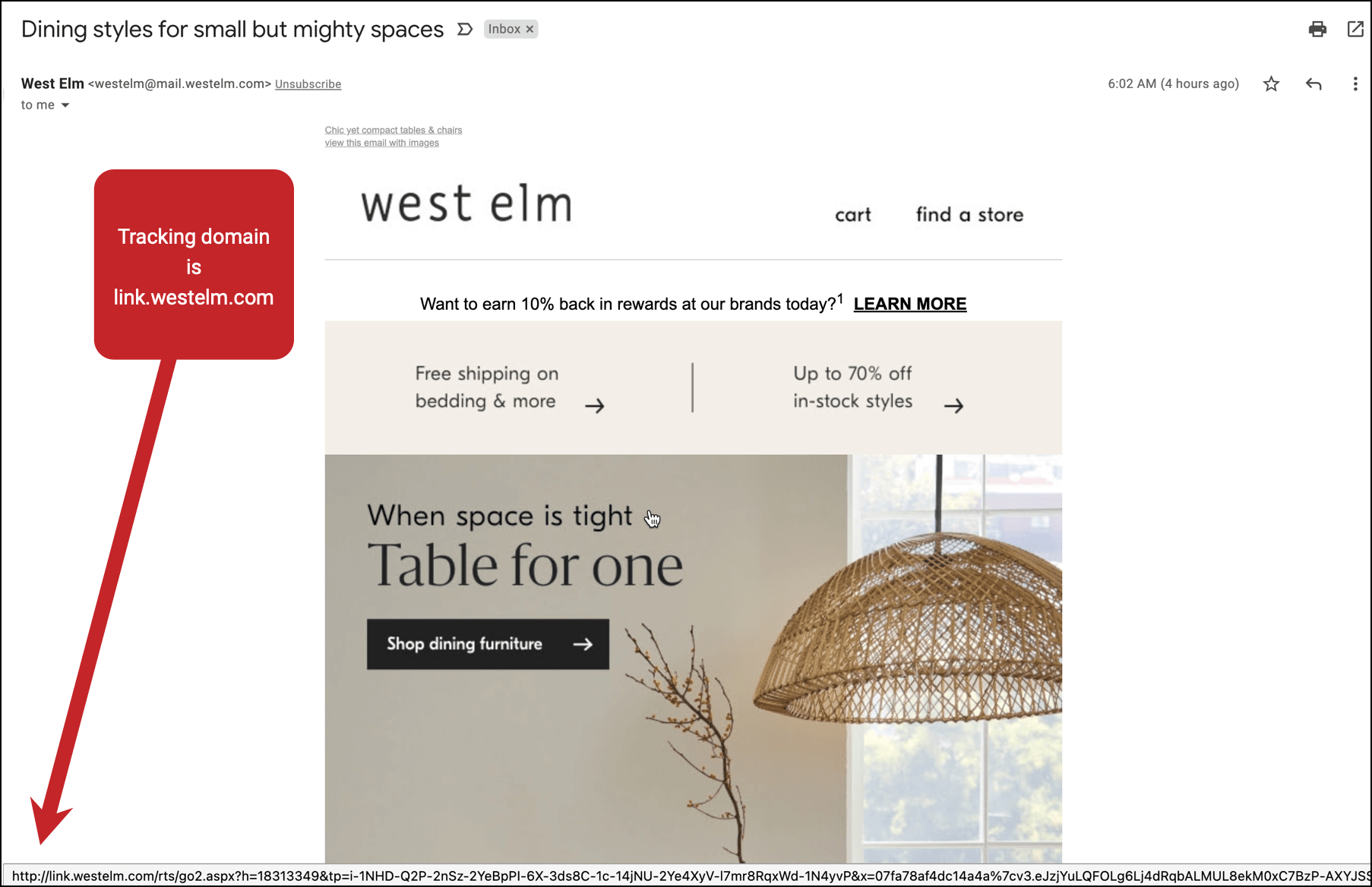
2. Setting up a branded tracking domain isolates your reputation from the reputation of other GMass users for deliverability purposes.
Meaning, if a spammer slips through the cracks and sends a campaign with GMass… and the spammer’s emails contain the default GMass tracking domain…. and this causes the default tracking domain to be listed by a domain-based spam blacklist… and if your emails contain the same tracking domain… that could affect the deliverability of your emails. If, however, you set up a branded tracking domain, that only your users use, you can protect yourself from being adversely affected by another user’s actions.
Are you a regular Gmail user, not a Google Workspace (G Suite) user?
Even if you’re not a Google Workspace user, you can take advantage of this feature if you manage your own domain and send email campaigns with GMass from a regular Gmail account (your email address is @gmail.com or @googlemail.com).
The default tracking domain used for regular Gmail accounts is “gmreg.net”, but if you manage your own domain, you can assign a branded tracking domain to an individual Gmail account similarly to how you can assign a branded tracking domain to an entire Google Apps domain. Follow the same setup procedures outlined next in this article.
How to Set Up Your Custom Tracking Domain
Decide whether you’ll use a subdomain or register a tracking domain from scratch
The best practice for setting up a tracking domain is to create a subdomain of a domain that has already been in existence for a while, because then it also has reputation associated with it. (A subdomain would be something like “link.yourdomain.com” or “x.yourdomain.com”.)
If you don’t have a domain that you can use for your tracking domain, or if you are unable to modify the DNS for your existing domain, then you can register a new one to use for this purpose.
Here is how you do that:
- Choose a domain name registrar. Our favorites are Namecheap and Hover, but feel free to use a more popular service like Register.com or GoDaddy if you’re more familiar with them. In my experience, Hover and Namecheap are simple, have intuitive user interfaces, are inexpensive, and provided good support. I would avoid Gandi.net.
- Pick the domain that you want to create as your tracking domain. If your organization is ABC Company, and your existing company domain is abccompany.com, you might pick abccompany.net (if it’s available), or abccompany.us. If the exact name isn’t available, you could pick a name like abccompanyemail.net. You can really pick any domain name that you like. While you can certainly pick a cheaper alternative like a .us domain, I recommend choosing a .net name because it’s shown to have the fewest issues with blacklistings.
- You don’t need any supplemental services offered by the domain registrar, like email hosting or a website. You just need the domain. You can choose the WHOIS protection if you want to protect your contact information, and most domain name registrars offer this for free.
- Once your name is registered, you are ready to set a CNAME record for your domain. You will find this in the “DNS Settings” of the registrar you’ve chosen. (See our list below for specific instructions for the most popular domain registrars.) It’s easier than it sounds! You’ll need to choose the “host”, which is the word before the domain you just registered. For example, if you choose a host of “view” and you registered abccompany.net, then your tracking domain will be view.abccompany.net. Whatever host you choose, set its CNAME to point to x.gmtrack.net (it used to be track.gmass.co but we’ve changed this now to x.gmtrack.net). After you’re done, your tracking domain will be host.yourdomain, or in this example, view.abccompany.net. You can test the tracking domain by going to it in the web browser, and it should immediately redirect to the GMass homepage or show you a message like “hello.”
- Once you know your tracking domain is working, the final step is to apply it to your GMass account.
You can use HSTS domains like .app and .dev
Most email service providers can’t handle HSTS domains, like .app and .dev, for tracking links. These are domains that force the use of HTTPS and don’t allow any requests to be served over HTTP — and most email providers only serve tracking links over HTTP.
GMass is one of the few email service providers — and, we believe, the only cold email platform — that serves tracking links over HTTPS. So feel free to use any of the HSTS domains for your tracking links.
Adding a CNAME record with your domain registrar, web host, or DNS provider
It’s time to create a CNAME record for your chosen host and set it up so the tracking domain aliases to x.gmtrack.net.
If you don’t know what a CNAME record is, you may need to consult your webmaster or domain administrator. Here’s a Google Support page on how to set up a CNAME record.
Here are instructions for setting up a CNAME record at some of the most popular registrars:
- Google Domains
- GoDaddy
- Namecheap
- Domain.com
- DreamHost
- HostGator
- Bluehost
- Hover
- Dynadot
- For Cloudflare… see below
How to do this with Cloudflare
Cloudflare is our least favorite DNS provider, because it takes some trickery to set up proper DNS records with them. Cloudflare attempts to rewrite the Domain Name System’s rules, and it usually causes trouble for users who want to create simple DNS records with them.

If you set up your CNAME record with Cloudflare, be sure to click the “orange cloud” icon to make it gray. That removes Cloudflare as a proxy and makes your CNAME a true CNAME record. No other DNS provider requires this extra step — only Cloudflare. What’s my favorite DNS provider? We use DNSMadeEasy for all of our domains, including gmass.co.
Test your tracking domain to make sure it’s working
After you’ve set up the new CNAME record, visit your new tracking domain in the browser. You should see a page that looks like this, or maybe one just saying “hello.”
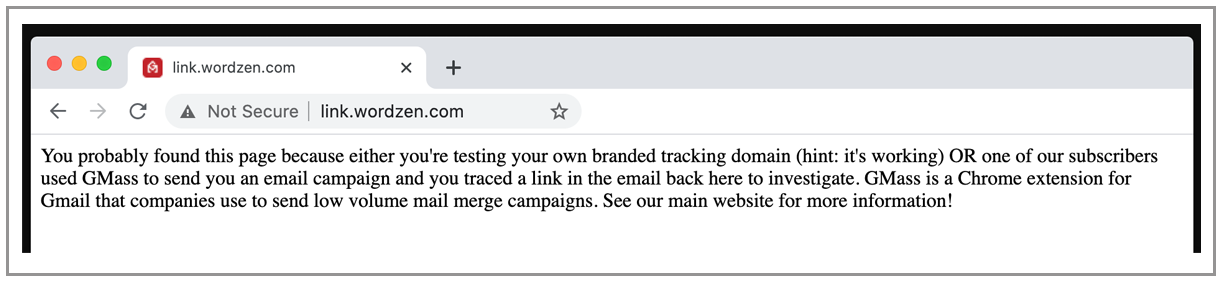
You can also “ping” your tracking domain and see if the x.gmtrack.net IP address is pinged. On Windows, open up a Command Prompt and type “ping your-tracking-domain”. On a Mac, open up Terminal and do the same. I’ve set up link.wordzen.com to be the tracking domain for my own GMass account, for example, so I “ping link.wordzen.com” and see if the ping shows a connection to x.gmtrack.net:
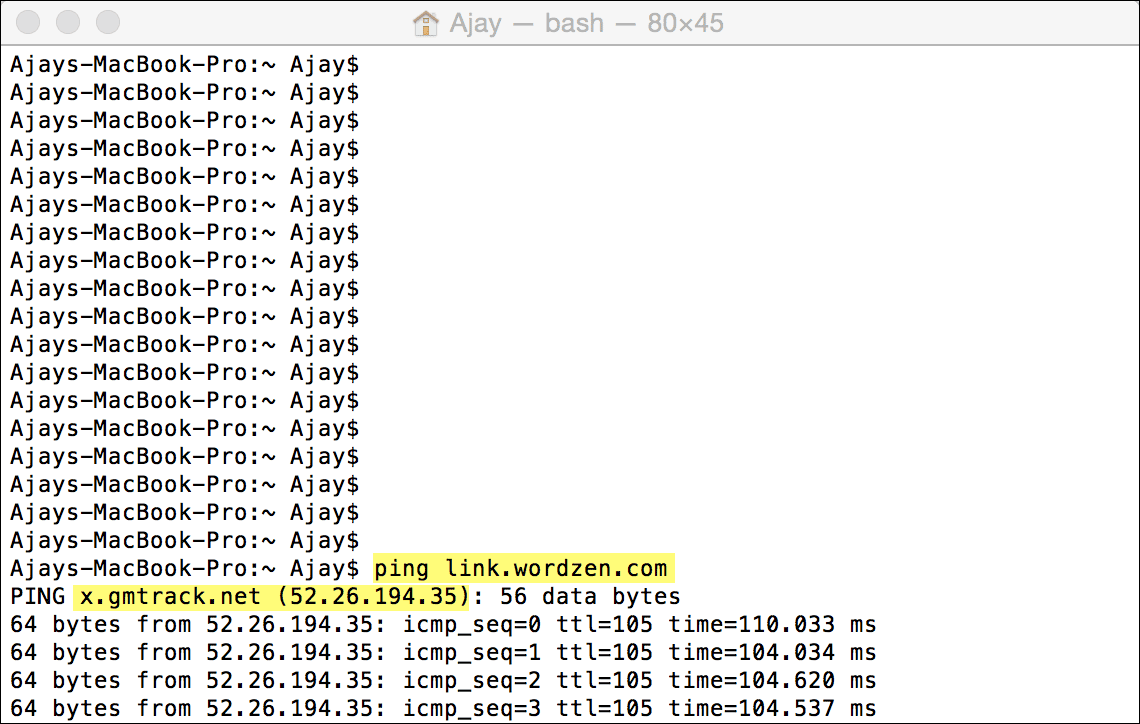
If it’s not working yet, try giving it a few hours. DNS records like CNAME can sometimes take a few hours (even up to eight hours) to propagate.
After you’ve completed the DNS setup, you must submit your tracking domain to GMass.
Set your dedicated tracking domain in GMass
Set your tracking domain in the GMass dashboard.
Just go to this direct tracking domain link. Login if you’re not already logged in, and you’ll be taken to the Tracking section.
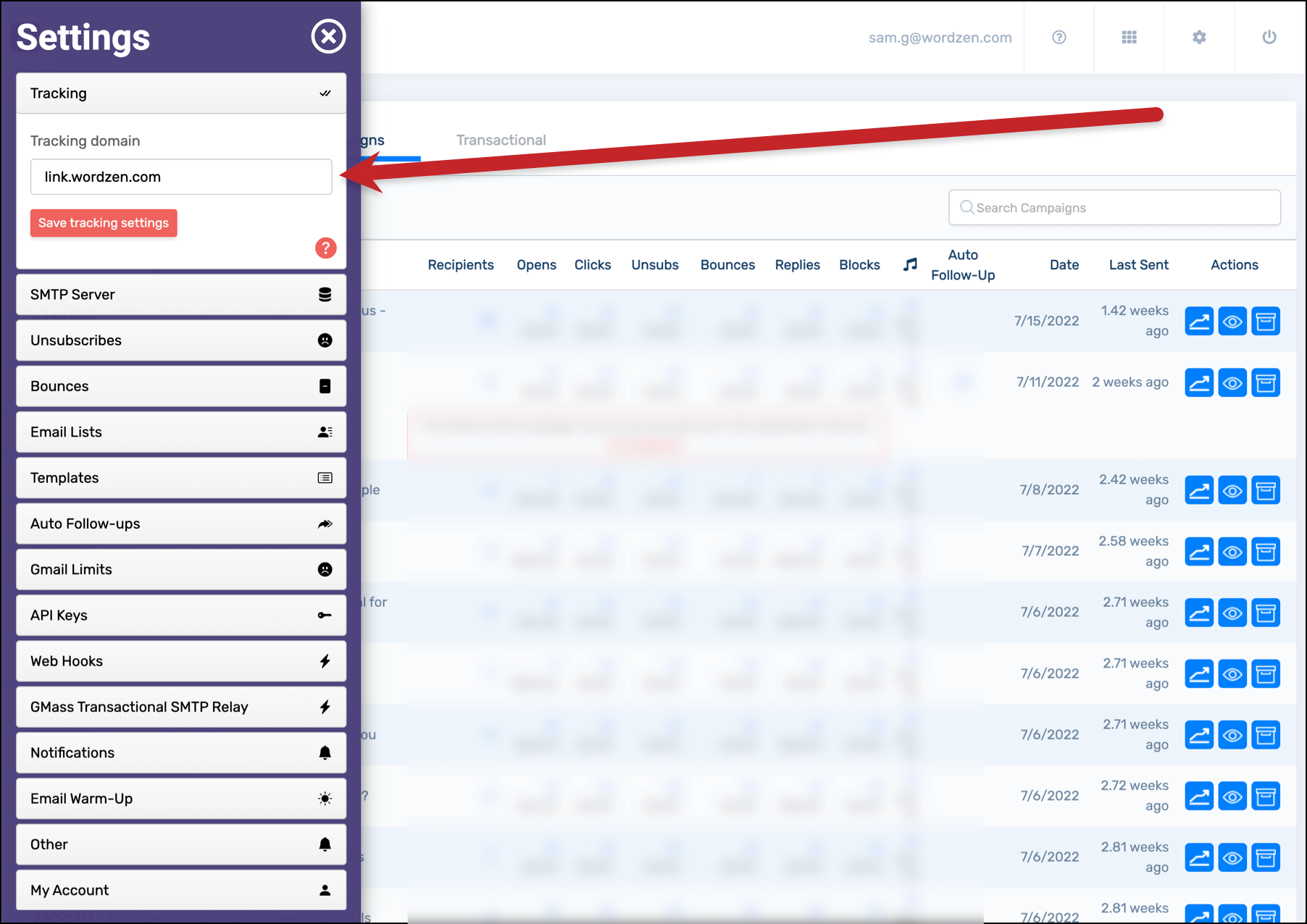
Note: For instant approval, your tracking domain must either be new to the system or contain the domain of your Google Workspace email address. Meaning, if you are john@abcwidgets.com, your tracking domain should be something like link.abcwidgets.com. If your email address domain and your tracking domain don’t match and the tracking domain has already been assigned to at least one other user, your request will be sent for approval to users who are already assigned to that tracking domain. One of those users must then approve your request.
If you want to clear your custom tracking domain so your mailings revert to the system shared tracking domain, use the “clear” option next to the form where your tracking domain is set.
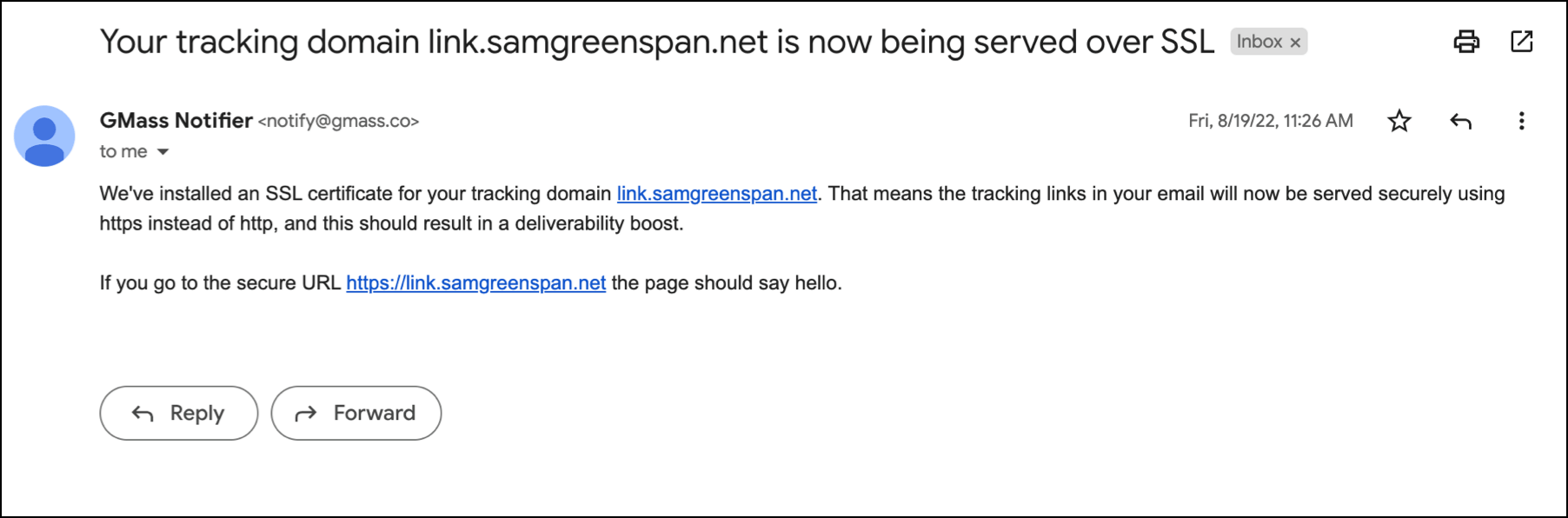
After you’ve set up your tracking domain, GMass will start the process of acquiring an SSL certificate, so your links are served securely. You’ll get an email once everything is set up. (In my test, it took seven minutes from inputting my custom tracking domain to getting the email.)
We monitor blacklists for you
Now that your custom tracking domain is set up, there’s really nothing else you have to do. GMass will automatically use that domain for your open tracking pixel, your tracked links, and your unsubscribe link.
And GMass will also watch for blacklists.
Domains used in bulk email sometimes end up on domain blacklists, and as soon as you set your custom tracking domain with GMass, we add it to our monitoring system. GMass checks blacklists for our users’ tracking domains every few hours. Specifically, we check the URIBL, SURBL, and Spamhaus DBL lists for your tracking domain and receive a notification within hours if your tracking domain is listed. We will then manually reach out to you with some recommended measures. See our comprehensive guide on domain blacklists to learn more.
Additionally, if you haven’t set up a custom tracking domain, in order to prevent abuse of our default tracking domains, we check every URL in your campaign against the SURBL and Spamhaus DBL. Why do we do this? Sometimes phishers and scammers attempt to mask a known phishing domain by using the click-tracking feature of an email service provider like GMass, which replaces the phishing domain with the tracking domain and making the link look legitimate.
This is abusive, so we monitor our users to ensure that domains used in click-tracked links are not on blacklists. If our systems detect you have a domain in your email that’s on a blacklist, we’ll reach out to you. We are aware that sometimes domains appear on blacklists that aren’t involved in spam.
Note to Users Who Were Part of GMass’s Old Tracking Domain Setup
A while back, we sunsetted our program where we provide dedicated tracking domains to users who are unable to set one up based on their own domain. We decided to stop doing this because:
- The logistics of managing thousands of domains has become very difficult. Registering them and keeping track of renewals is time consuming.
- The renewal costs for domains has become cost-prohibitive. Typically we chose inexpensive domain extensions like .us, .info, and .website, where we’d be able to register a domain for a user for as little as $0.88 USD, but while registration is inexpensive, the renewal in the subsequent year is often $8 USD or more. Since we’ve never charged users for a dedicated tracking domain, the renewal cost is too much to bear.
- While using a dedicated tracking domain is still important to protect your reputation from that of all other GMass users and achieve high deliverability, we think that it’s much easier, and better for your reputation, if you set this up based on your own domain or register a new one from scratch.
Along with no longer registering domains for users, we will also be letting existing tracking domains that were provided by us to our users, to expire. In order to coordinate a seamless transition back to the GMass shared tracking domains, and so open and click tracking continues to work seamlessly for your email campaigns, we will be removing the dedicated tracking domain assignment from your accounts approximately one month BEFORE the domain expires, so that the lag time between when the most recent campaign with the tracking domain was sent and when the domain expires is enough that it won’t affect people clicking on links.
We Can Set Up a Custom Tracking Domain For You
If you’re already a paying subscriber, for a flat fee of $50, our support reps will set this up for you so you don’t need to busy yourself with the technical details. Just fill out this form to get started.
Email marketing. Cold email. Mail merge. Avoid the spam folder. Easy to learn and use. All inside Gmail.
TRY GMASS FOR FREE
Download Chrome extension - 30 second install!
No credit card required

Ajay is the founder of GMass and has been developing email sending software for 20 years.