Skip logging emails to the Gmail Sent folder

It’s like a vacuum cleaner for your Gmail Sent folder.
Overview
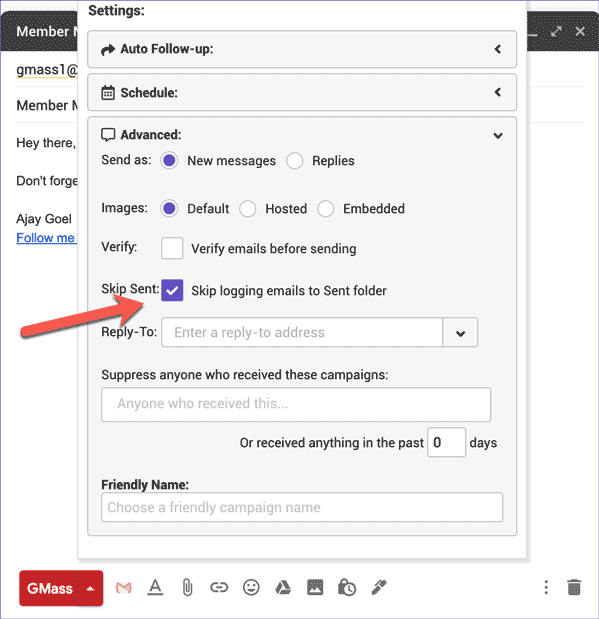
We’ve recently heard from users who don’t like the idea that if you send 500 emails to your list, there are then 500 emails in your Sent folder. That is the nature of email in general, to put every email you send in your Sent folder, and that’s how GMass has always operated. To satisfy the needs of these users, though, there’s now an option to skip having mass emails go to the Sent folder when you send a campaign.
Just check this box in the Settings panel:
Try to avoid using this setting
Generally, we don’t recommend using this setting unless the number of emails in your Sent folder is really bothering you. If you don’t like your Sent folder clutter because you need to find non-campaign emails in your Sent folder with ease, we recommend learning to search better, using Gmail’s powerful search feature.
For example, let’s say you send a campaign to 500 people and the Subject Line is:
Member Meeting this Friday
And now, you’d like to see your Sent folder without the 500 emails for this campaign. You can search your Gmail account like this:
in:sent -subject:"Member Meeting this Friday"
This means, show me all the emails in my Sent folder except for the emails with a Subject containing the words “Member Meeting this Friday.”
If, however, you don’t want to bother with searching like this, and you don’t want your campaign to crowd your Sent folder, then use this setting.
Consequences of skipping logging to the Sent folder
If your campaign’s sent emails don’t show up in the Sent folder, there are several things that will be different in your email flow:
- Replies to your emails won’t be “threaded.” Meaning, when a reply arrives, if you have conversation view turned on in Gmail as most users do, the original email message won’t be below the reply because it no longer exists in your Sent folder.
- As a result of #1, Gmail might think that a reply is Spam or Promotions. One of the ways Gmail decides which emails go to your Inbox versus elsewhere is by determining if an email is a reply to an email you’ve already sent. Since the “sent” email is now missing, Gmail will have a tougher time deciding which emails are replies to emails you’ve already sent. So be extra vigilant about monitoring your Spam and Promotions folders if you’re expecting replies.
- You can’t use the auto follow-up feature. This feature is especially popular among cold emailers, so if you’re using GMass for cold email, definitely do not enable this setting.
- GMass can’t track bounces. Because bounces are threaded with the original email, if the original email isn’t present in your Sent folder, GMass can’t determine what campaign a bounce is associated with, and so bounce notifications will just be ignored.
Then, when should you use this setting?
- Use it when you’re emailing members of a private club with an announcement, and you don’t need to follow up.
- Use it for any email announcement where you’re not expecting replies.
This option replaces the “Fast SMTP” option, which is no longer present
Previously, if you chose to send a campaign via SMTP, like SendGrid, rather than native Gmail, you would see an additional checkbox called “Fast SMTP.” Enabling this sent your campaign faster than normal, but only if your campaign was sending over SMTP. The way it sent your campaign faster was by skipping logging emails to the Sent folder. Herein lies the irony of sending natively via Gmail versus sending with a third-party SMTP service.
Skipping logging to the Sent folder makes sending with Gmail natively slower, while skipping the Sent folder makes sending with SMTP faster.
How is that possible?
When you send any email natively with Gmail, whether it’s with the normal Gmail Send button or the GMass Send button, Gmail automatically logs that email to the Sent folder. It requires an extra step for GMass to delete that email, if you enable that setting. When you send using GMass and a third-party SMTP service, by default, the email isn’t logged to the Sent folder; so now, if you want the email to appear in the Sent folder, it’s an extra step to log it there. That’s why skipping the logging slows native Gmail sending down while speeding SMTP sending up.
How it works
If you have this setting enabled while sending natively with Gmail, at first, the campaign is logged to the Sent folder, but then, after the campaign is done sending, GMass starts deleting the emails one by one from the Sent folder. So, while your campaign is in the middle of sending, you will still see the Sent folder filling up with your emails, but then, you’ll eventually see those rows disappear.
Delete permanently or place in Trash?
In most cases, GMass doesn’t have permission to delete emails permanently from your account. Therefore, when using this setting, the emails are placed in your TRASH, where they are normally deleted automatically after 30 days. Of course, you can also manually delete emails in your TRASH as well.
If you wish to grant GMass permissions to delete emails from your Sent folder permanently, bypassing the TRASH, then re-connect your account here.
Email marketing, cold email, and mail merge all in one tool — that works inside Gmail
TRY GMASS FOR FREE
Download Chrome extension - 30 second install!
No credit card required

Ajay is the founder of GMass and has been developing email sending software for 20 years.