No More Fear: Preview your emails as Drafts, then send them with one click

We just eliminated the fear of sending an email marketing campaign.
Afraid that personalization won’t work? Afraid your tracked links won’t work? Afraid the unsubscribe link won’t work? Afraid the images won’t show? Fear no more!
We just launched a new capability that allows you to create all of your emails as Drafts first, and then after you’ve reviewed them to make sure they look okay, you can send them with one click.
How to use
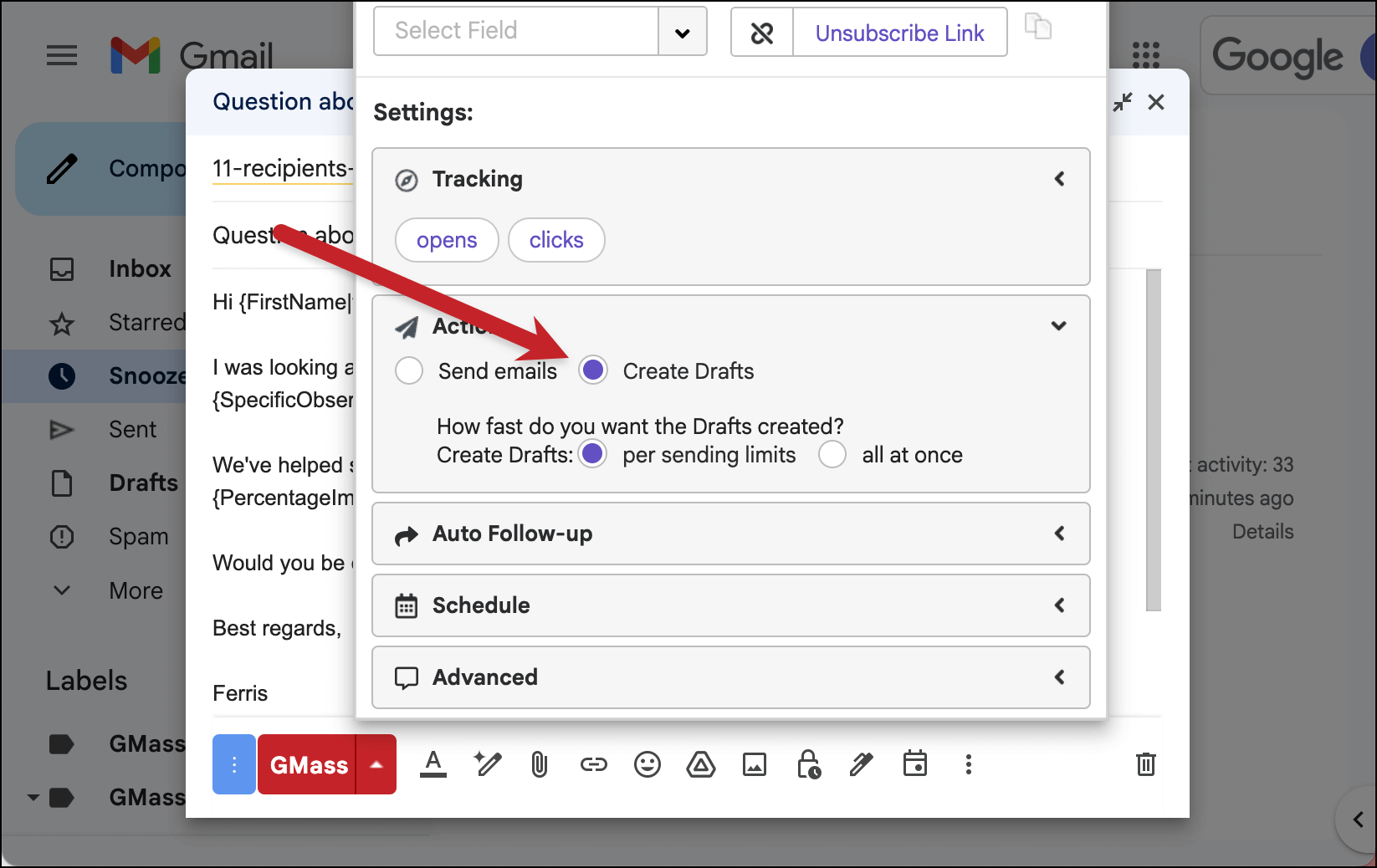
GMass has always had the ability to Just create Drafts rather than send actual emails. The setting is in the settings box next to the main GMass button:
Until now, however, there was no way to do anything with those Drafts. You could open up each Draft and hit the Send button manually, but that is a time-consuming process. If you didn’t want to send the Drafts, and instead wanted to delete them, then you would have to select all the Drafts, and click the Gmail Trash icon to remove them, and then go to the next page and repeat the process.
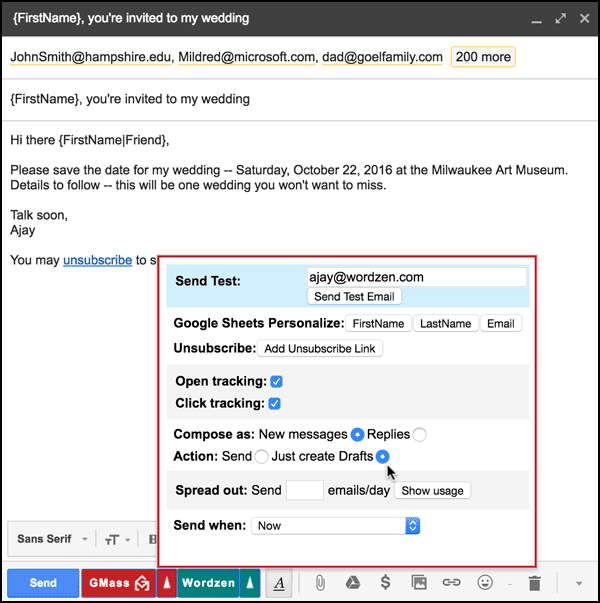
Now, after GMass creates your Drafts, you can either SEND them if they look how you want, or DELETE them if you wish to start over. Either option requires simply clicking a link that GMass will send you after your Drafts are created.
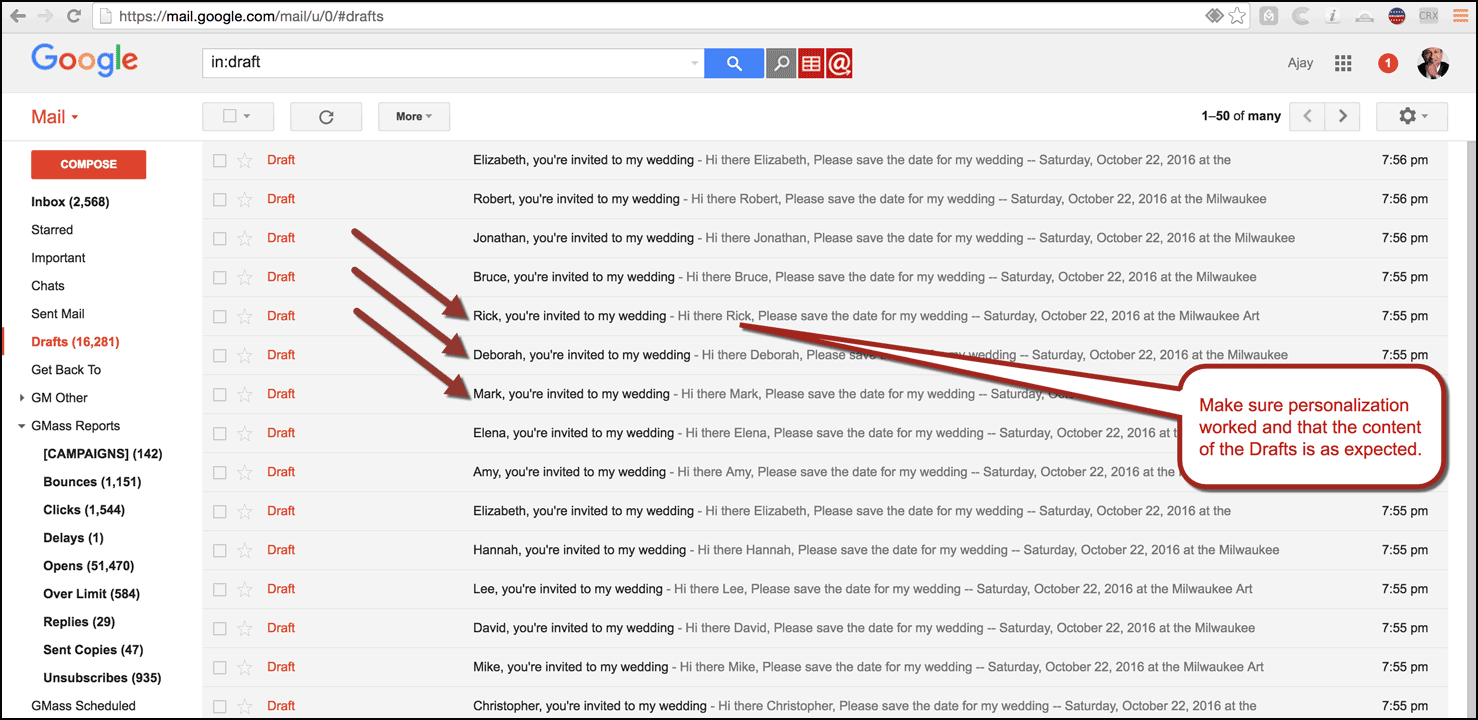
First, review the Drafts to make sure you approve:
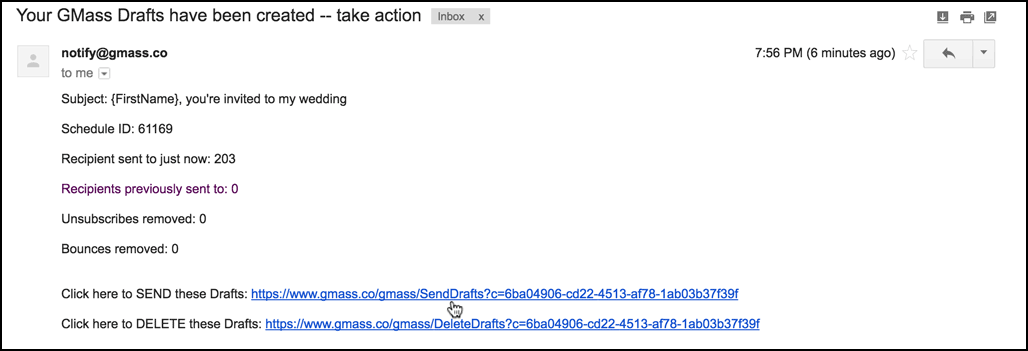
 Here’s the email you will get if you choose the Just create Drafts option when using GMass. You can choose to SEND the Drafts or DELETE them if you made a mistake:
 Clicking the link to SEND will take you to this page:
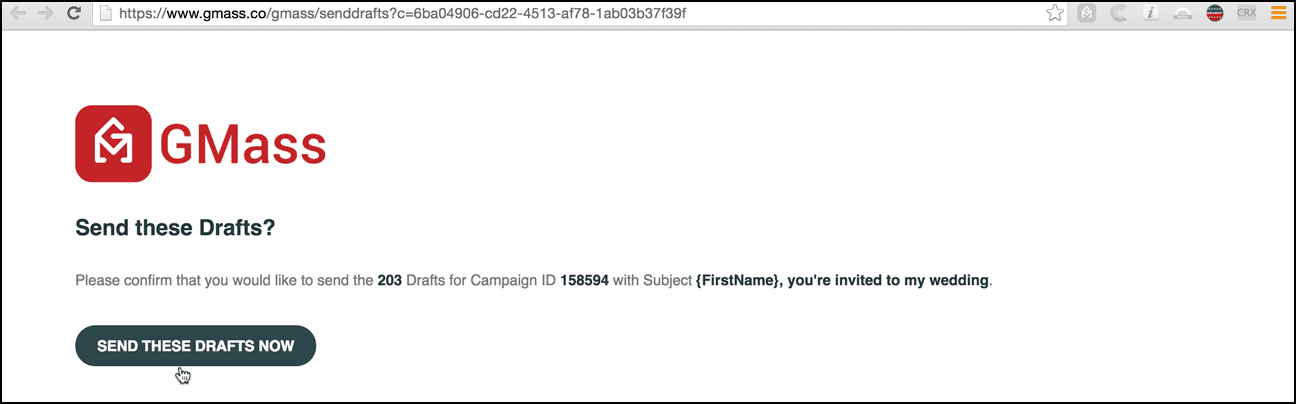 From here just click the button to confirm, and within a few minutes, all of your Drafts will send.
Should you use the GMass link to send the Drafts, or can you open them up and send them on your own?
The answer is: Use the GMass link.
While you could open up each Draft individually and hit the regular Gmail Send button, that would prevent GMass from recording that each Draft has been sent. That would also prevent GMass from being able to track certain metrics on the email, like detecting if the recipient replied, which would have repercussions if you’re also using auto follow-up emails based on replies.
Whatever you do, do not open up each draft and click the GMass button. Since the Drafts were already created by GMass, they already have open tracking, click tracking, and other attributes incorporated into them, if those options were chosen. If you click the GMass button on each individual Draft to send it, then not only will they be double open and click tracked, but then each individual recipient email will be treated as a separate email campaign, which will muddle your Reports with extraneous and meaningless data.
Technical Details for High Volume Senders
- If you enter a value for Schedule when other than Now and select Just create Drafts, then the schedule will be honored and your Drafts won’t be created until the specified time.
- When you send normally, without choosing Just create Drafts, GMass employs a number of tactics to distribute large campaigns over multiple days and prevent your account from sending beyond its allowed limits. These same tactics apply when you choose Just create Drafts. Only the allowed number of Drafts will be created, based on how many emails you’ve sent in the last 24 hours, while the rest will be scheduled for creation on subsequent days.
- When you click the SEND THESE DRAFTS NOW button, all Drafts for the campaign, regardless of number or schedule, will attempt to send. For example, if you initiate a campaign to 3,600 recipients from a Google Workspace account, and you set it to distribute 1,800 emails/day, then 1,800 Drafts will be created the first day and 1,800 Drafts will be created the second day. If you don’t click the SEND THESE DRAFTS NOW button between the first and the second day, and only click it after the second day, GMass will attempt to send all 3,600 Drafts, and this will result in you exceeding your Gmail account limits.
- As of July 2024, we’ve made sure the “Send these drafts now” link only sends the drafts referenced in the notification that contains the link. This is important for high-volume daily recurring campaigns. In those cases, it’s possible clicking the “Send these drafts now” link would send drafts — but not all would be set due to limits. Then, 24 hours later, when the next day’s drafts are created, those would be sent without review along with the first day’s leftover drafts. We fixed that so now, you’ll have a chance to review all drafts before sending.
Only GMass packs every email app into one tool — and brings it all into Gmail for you. Better emails. Tons of power. Easy to use.
TRY GMASS FOR FREE
Download Chrome extension - 30 second install!
No credit card required

Ajay is the founder of GMass and has been developing email sending software for 20 years.