How to Send a Drip Campaign From Your Gmail Account

Using only Gmail and GMass, you can easily set up a series of “drip” emails to be sent in a timed sequence to new people who sign up for your software, your email list, or indicate interest in your product or service.
For example, let’s pretend you own an email proofreading service, and you want to welcome all of your new subscribers with a 5-part email series on writing more effective emails, with each of the five emails containing one important tip and dripped on a set schedule.
First, what is a drip campaign?
A drip email campaign is any automated series of emails sent to your email list either on a set schedule or triggered on the behavior of the people on your list.
In GMass terminology, we refer to a “drip campaign” as a series of emails sent to your list on a set schedule that continues through to the last email, even if someone replies or clicks along the way. (The emails would stop, however, if they unsubscribe.)
That’s in contrast to an auto follow-up sequence, which is a series of emails sent to someone on a set schedule until they take an action, like reply or click.
A drip campaign is used for communicating information in a steady stream to your customers and prospects to train or educate them. It sends to your entire contact list on a set schedule, and it doesn’t break the flow until each contact has received each email in the sequence. Drip campaigns are common for welcome series and onboarding email sequences.
An auto follow-up campaign, which is common for a cold email campaign, is used to persuade the members of your list to take some action, like replying, or clicking a link. These campaigns do stop after the recipient has taken some action, like replying.
Step 1: Compose your email series
I’ll assume you’ve already got GMass installed for this. If not, hit up our quickstart guide to get started ASAP (it just takes a few minutes and you won’t even need to pull out your credit card).
Write the first email in the series
Open a regular compose window in Gmail and type in the first message in your drip series.
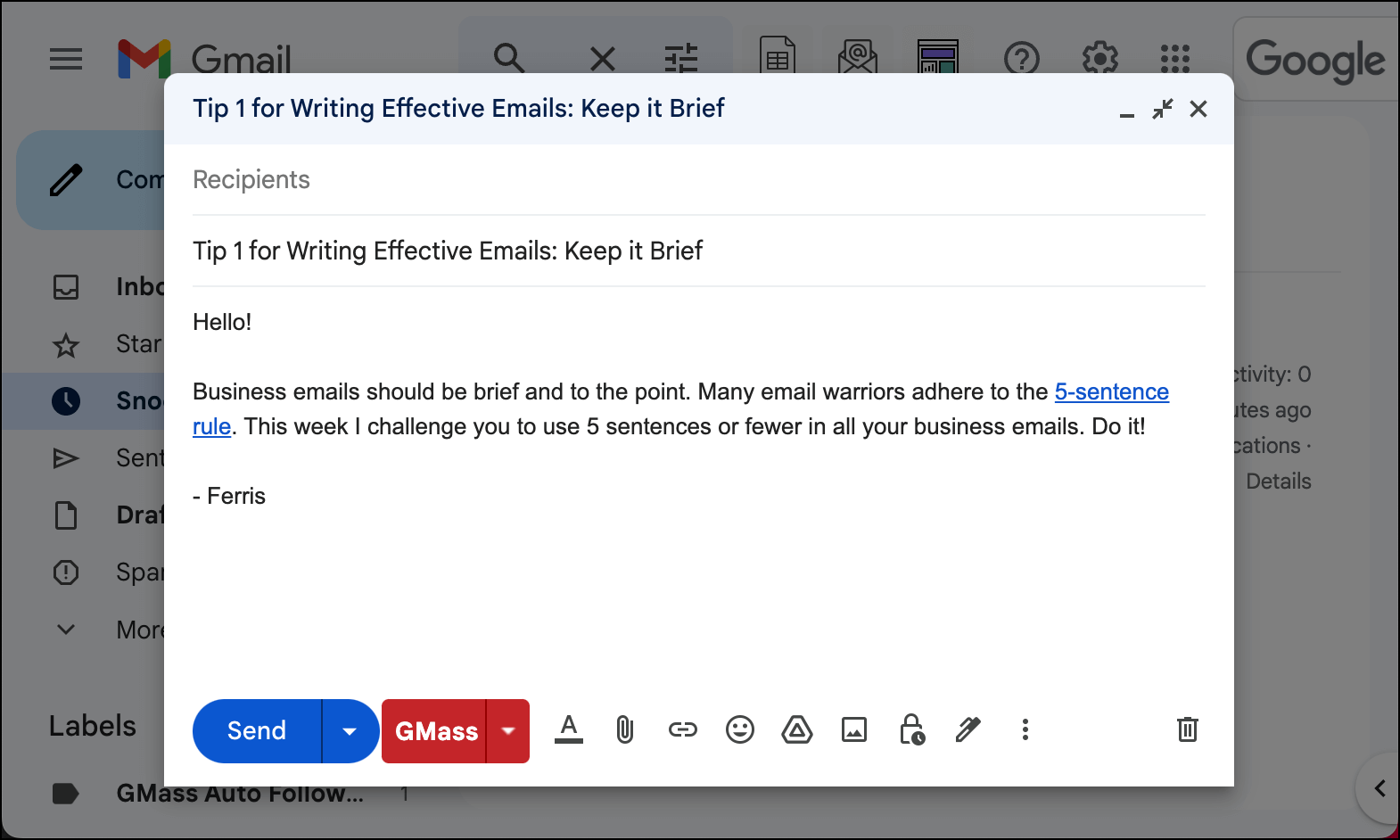
Compose the rest of the emails in the series
Now click into the GMass settings for the campaign (click the arrow next to the red GMass button).
Go to the Auto Follow-up section. Yes, even though this is a drip series and earlier I laid out the difference between a drip series and what we call an “auto follow-up” series, we’ll still use the same mechanism to set them up.
Check the box for Stage 1. Make sure the “If” dropdown is set to Everyone — that’s how we make this a drip series. We send it to everyone regardless of any actions they may take. And finally, set the delay between your initial email and this email. You can also set the time to send.
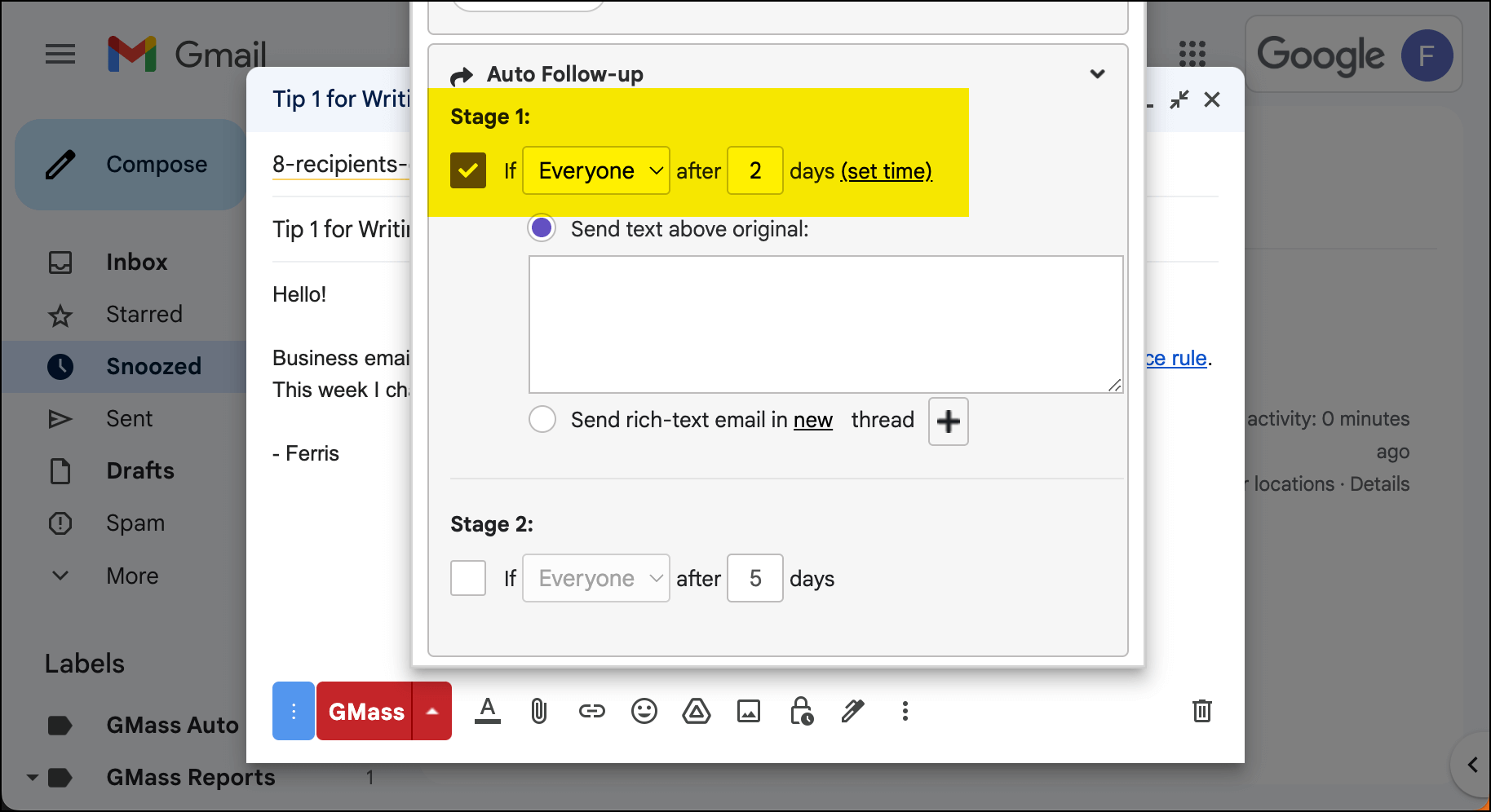
If you want the email to be plain text, you can type it in the text box and skip all the instructions on rich text emails below.
If you want the email to be rich text, select the radio button for Send rich-text email. You can either send it in a new thread (with a new subject line) or in the same thread (without a new subject line).
Then click the + button. That will bring up a Gmail compose window where you can type your auto follow-up. Type in your message (give it a subject line as well) and click the GMass button when you’re done to save the template.
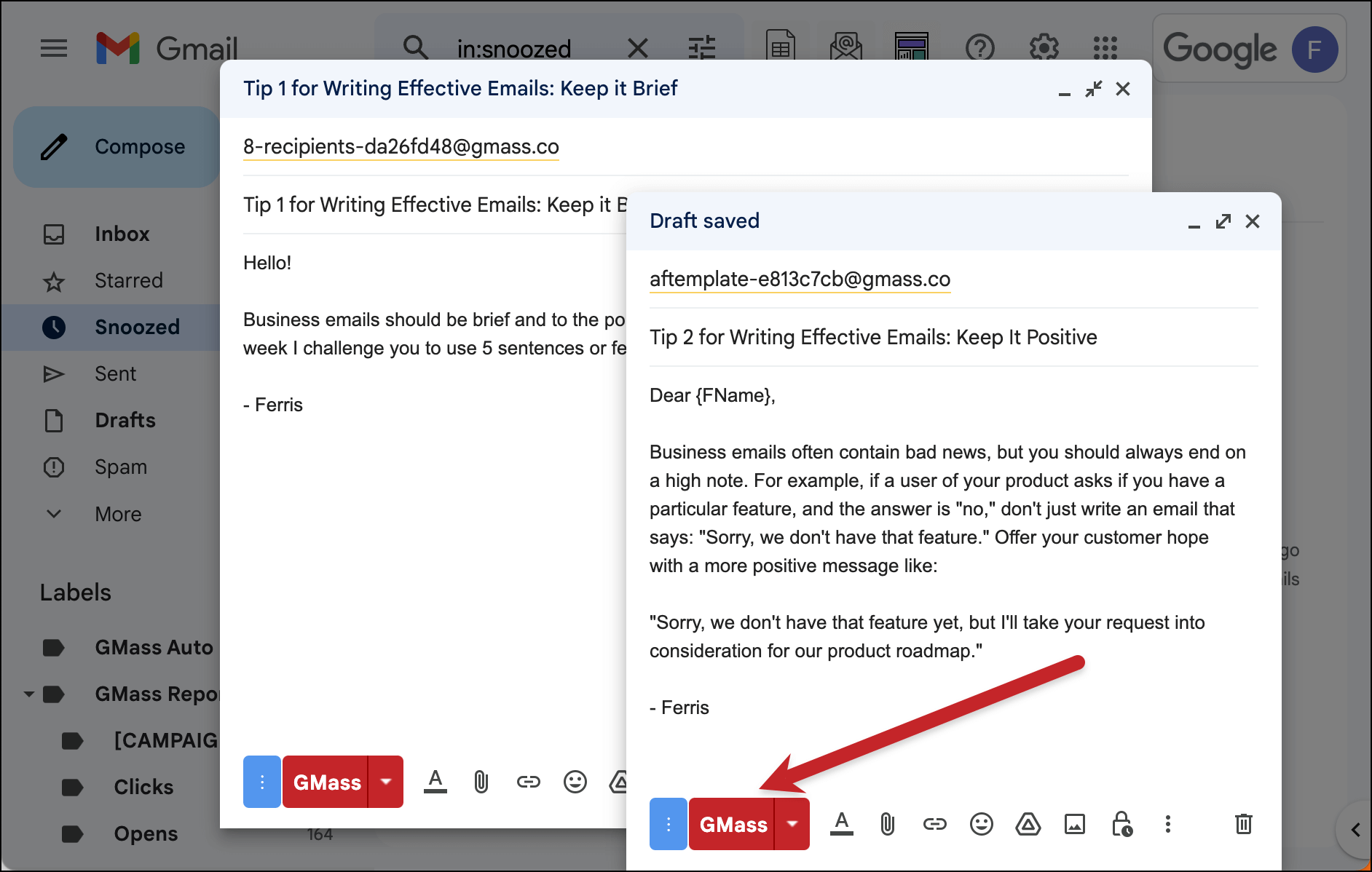
Now back in the Auto Follow-up settings for your initial campaign, hit the refresh icon next to the template dropdown in the Stage 1 area. And choose the template you created from the list.
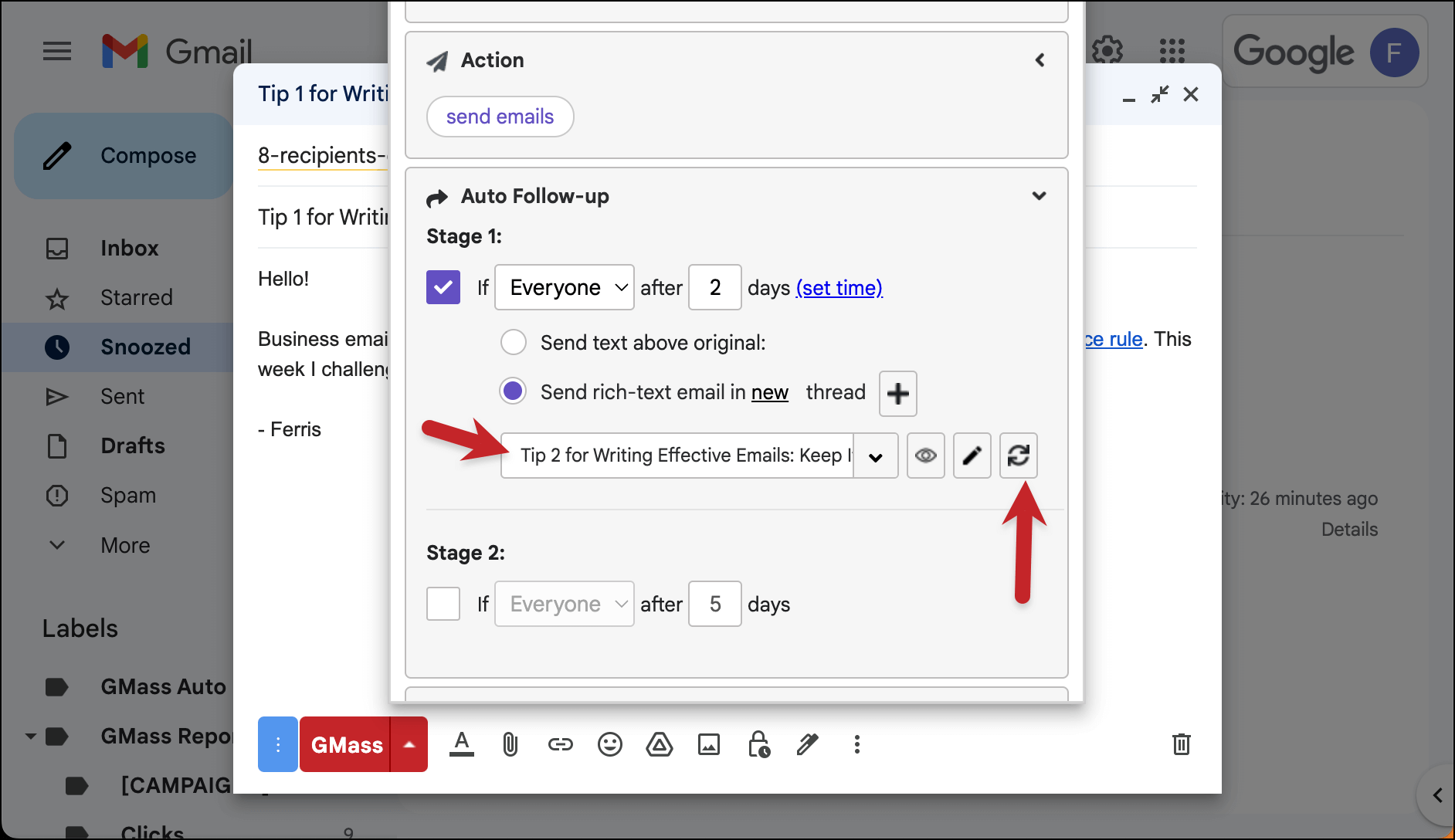
You should now repeat this process for every email in the drip series.
With GMass, you can use unlimited drip series stages, so make your sequence as long as you need.
One thing to note: The number of days between drip emails always refers to the number of days from the initial campaign. So as you can see in the screenshot above, I have the first drip follow-up going out 2 days after the initial email and the second drip email going out 5 days after the initial email. (NOT five days after the prior drip.)
Step 2: Determine who will receive the drip series
Is this drip series a one-time thing, or are you planning to send it regularly to new subscribers or other contacts?
Either way, your best bet is to connect to a Google Sheet with your initial group (or entire group) of recipients. Make the first row of your Google Sheet your column headers; you’ll be able to use those for mail merge.
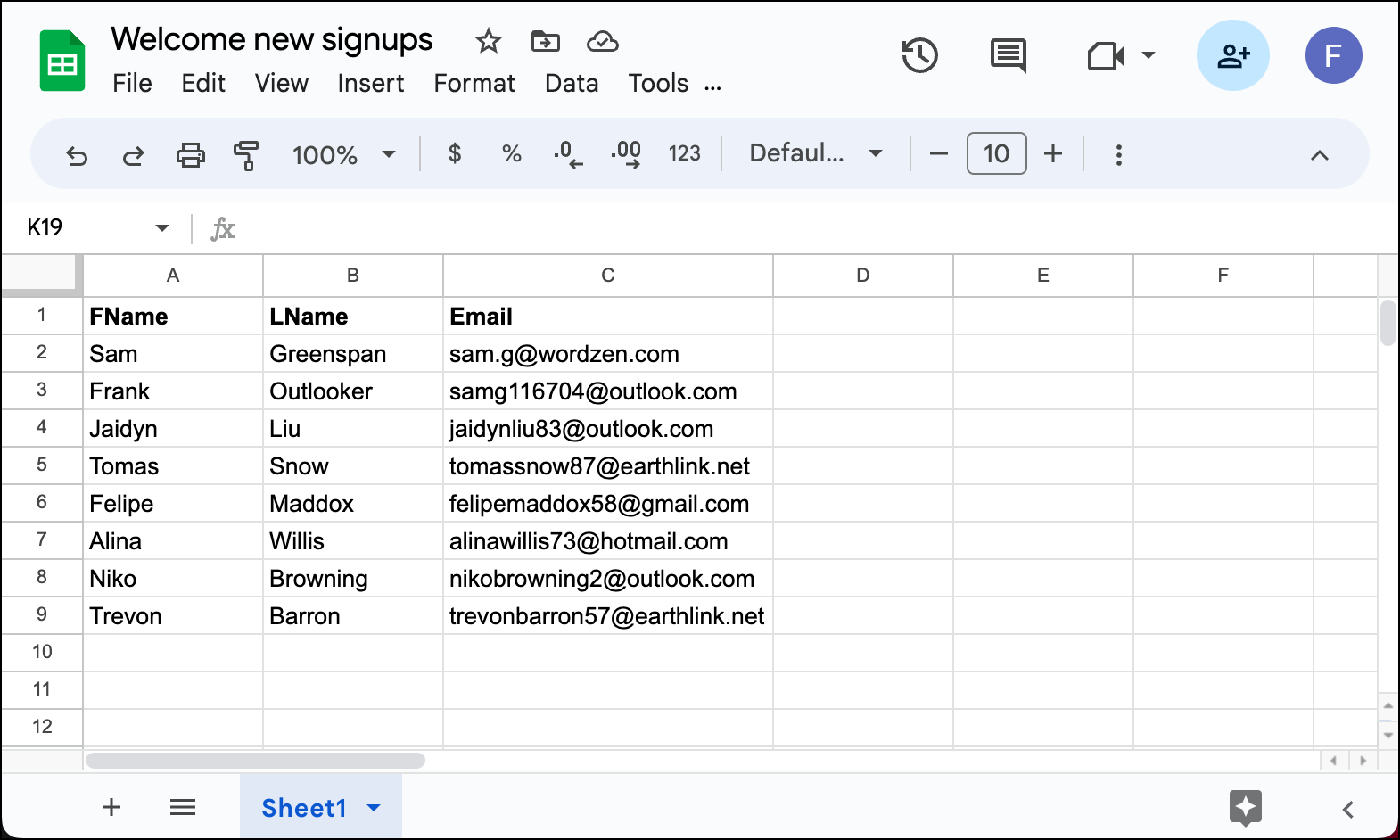
You can now connect that Google Sheet to your GMass drip campaign.
Click into the To field of your email and click the GMass icon.
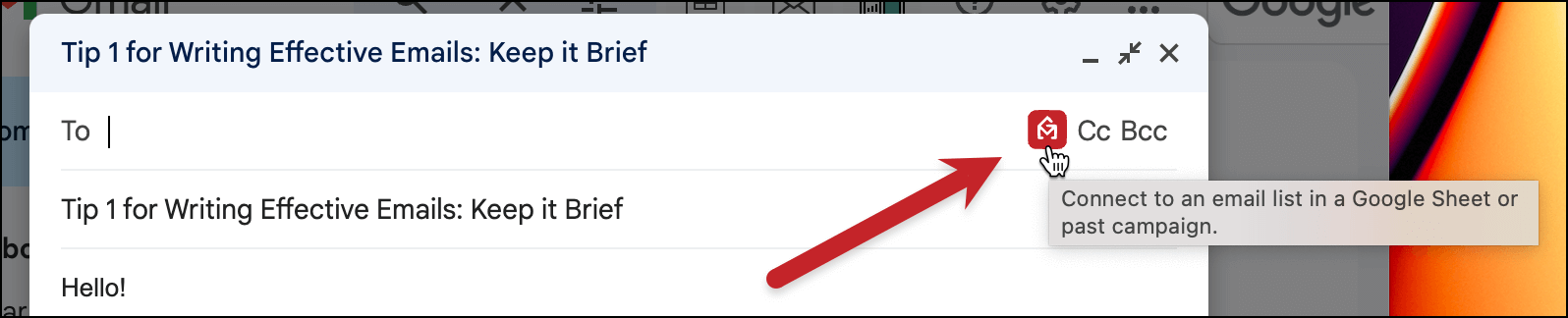
Then choose to add recipients From a Google Sheet and pick your Sheet in the dropdown box.
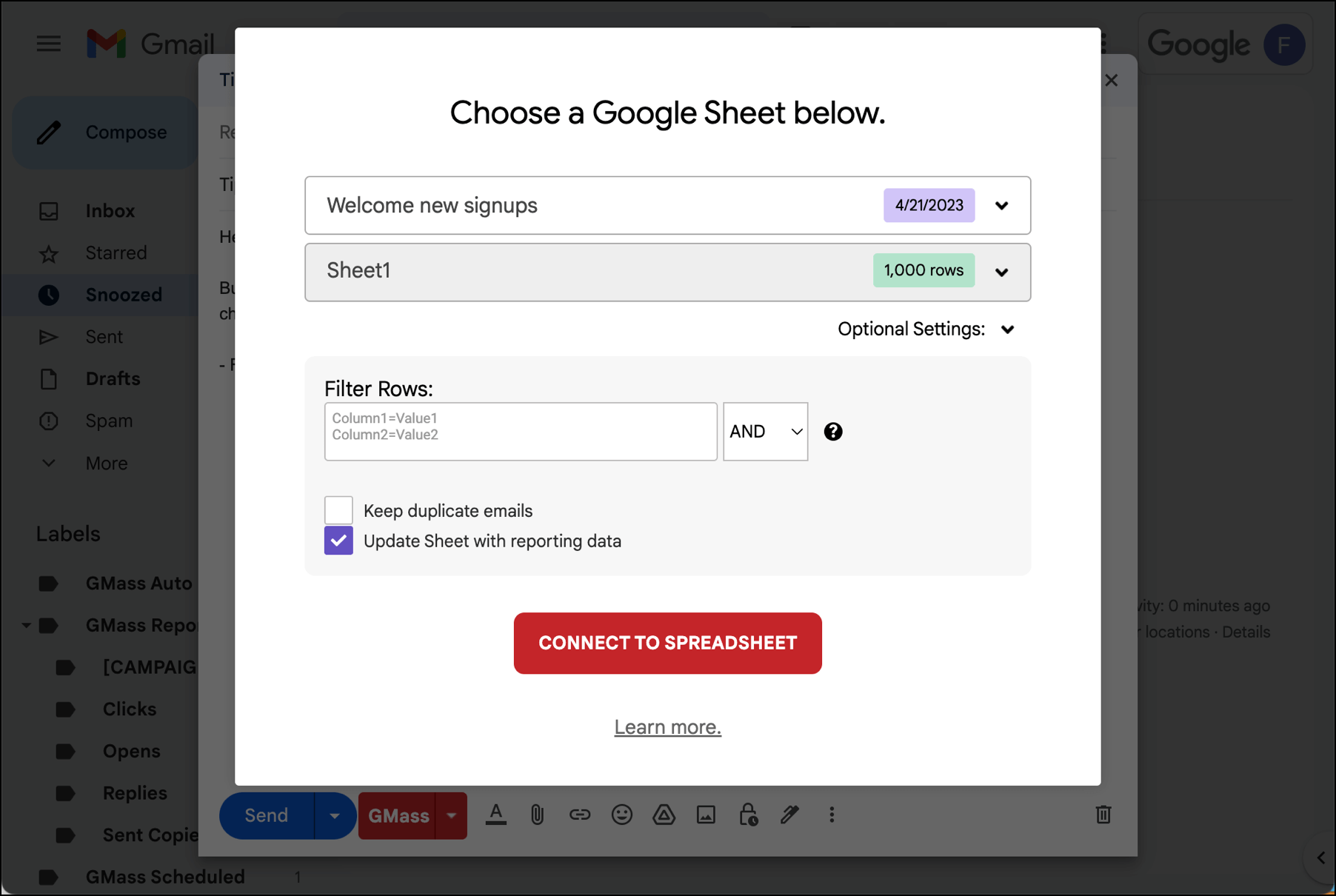
If you’re only sending this drip campaign to the group currently on the Google Sheet, that’s all you’ll need to do. If you want this to be a recurring campaign, there’s another step…
Setting this up as a recurring campaign
If you want your drip series to go out to new subscribers, customers, or others in the future, you’ll need to use GMass’s recurring campaigns feature.
Re-open the GMass settings for the campaign.
Then, in the Schedule section, check the box for Repeat.
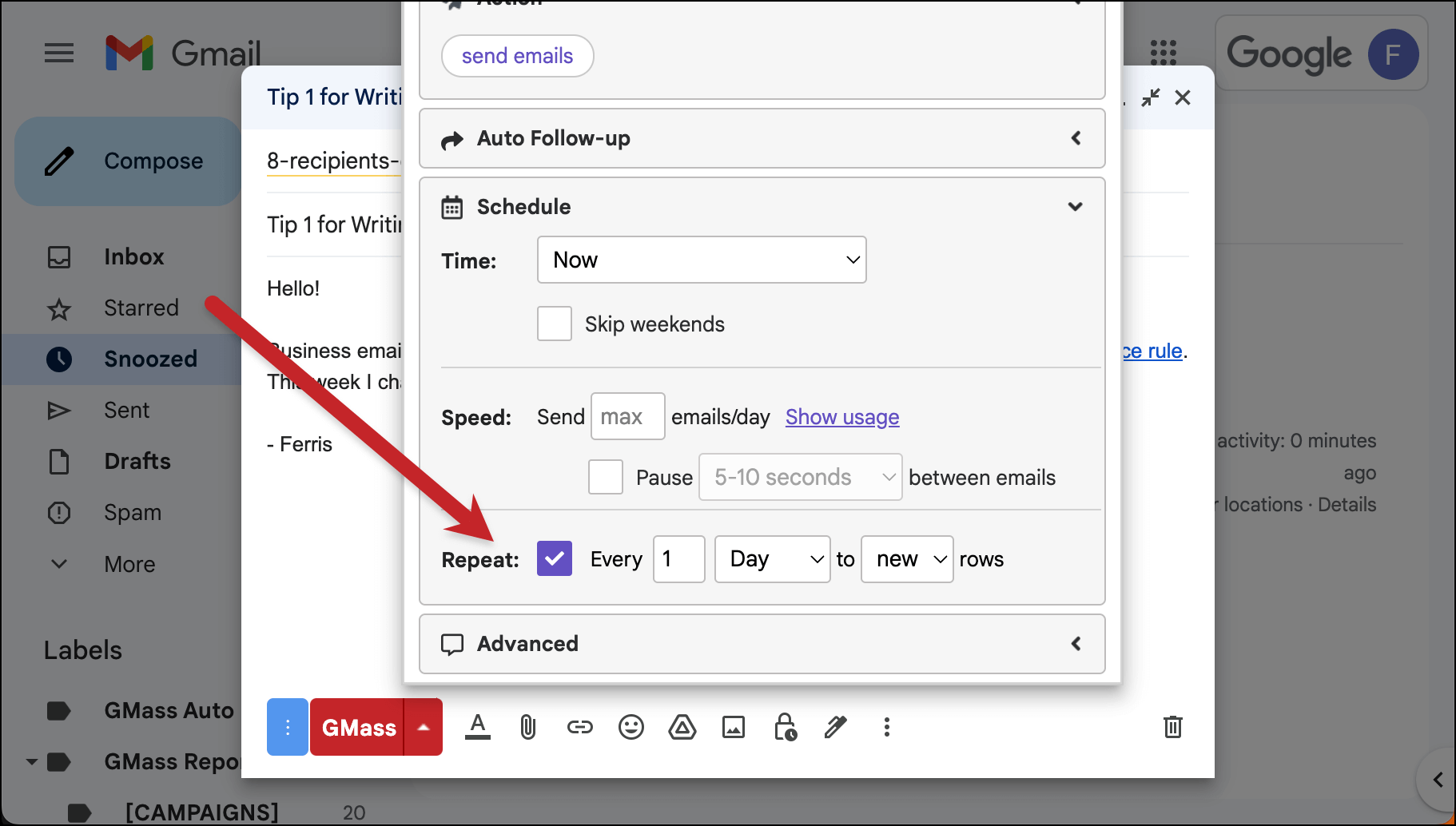
What I’ve done here is I’ve set this up to repeat daily. Once a day, GMass will check your Google Sheet to see if there are any new contacts. If so, it will begin them on your drip sequence. You can change this to repeat hourly, weekly, monthly, or any variation therein (e.g., every 4 days).
If you’re interested in automatically adding contacts to your sheet, you can check out GMass/Google Sheets’s Zapier integration to add new contacts from virtually any source.
You can also check out this technique for getting subscribers from a form on your site into a Google Sheet.
Step 3: Test the campaign
You can tweak any other settings for your campaign now.
And once everything is set, you can send yourself a test of the entire sequence.
At the top of the settings box, click the arrow next to the Send Test button. Then check the box to Send all stages. Now click the Send Test button to send yourself the series.
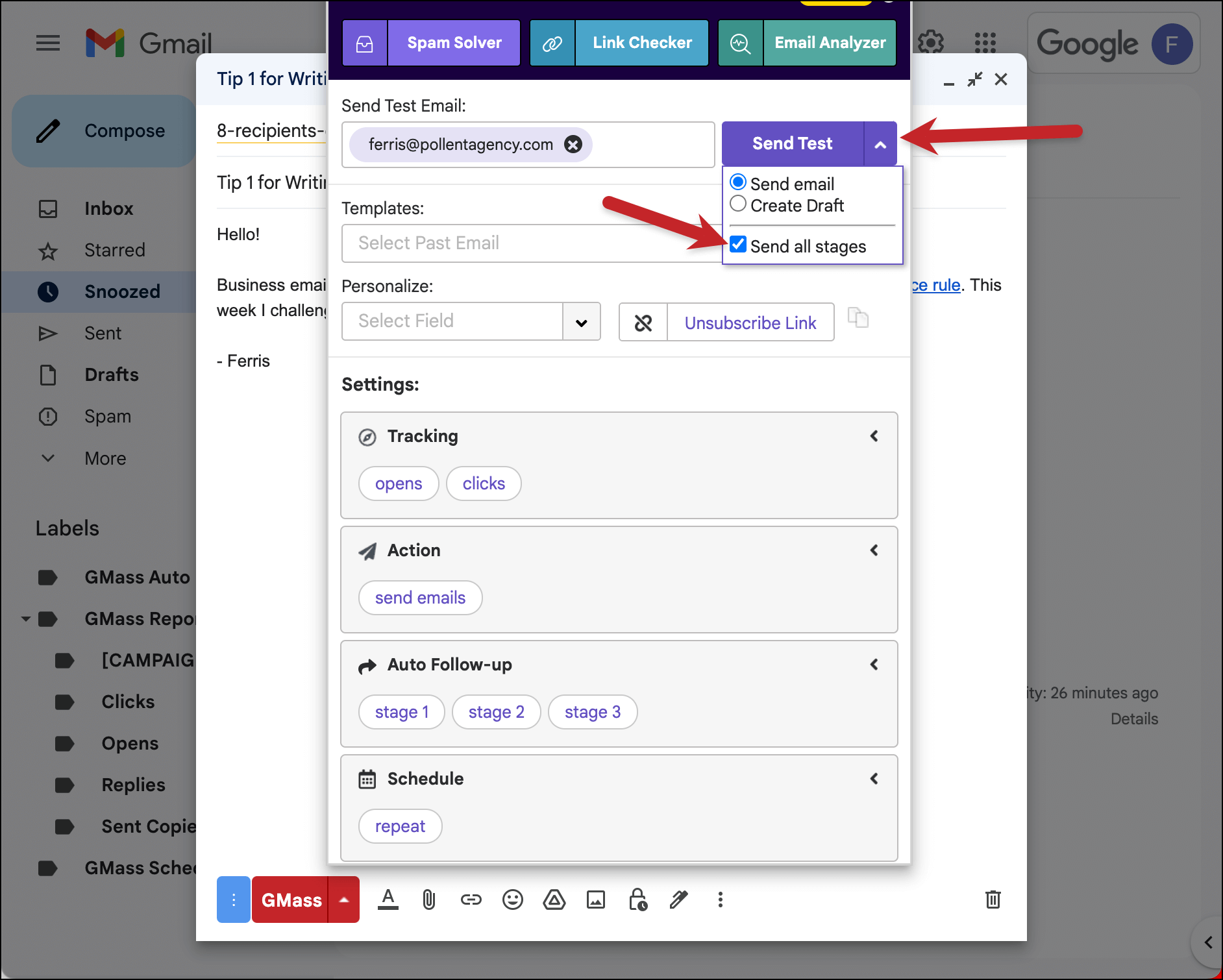
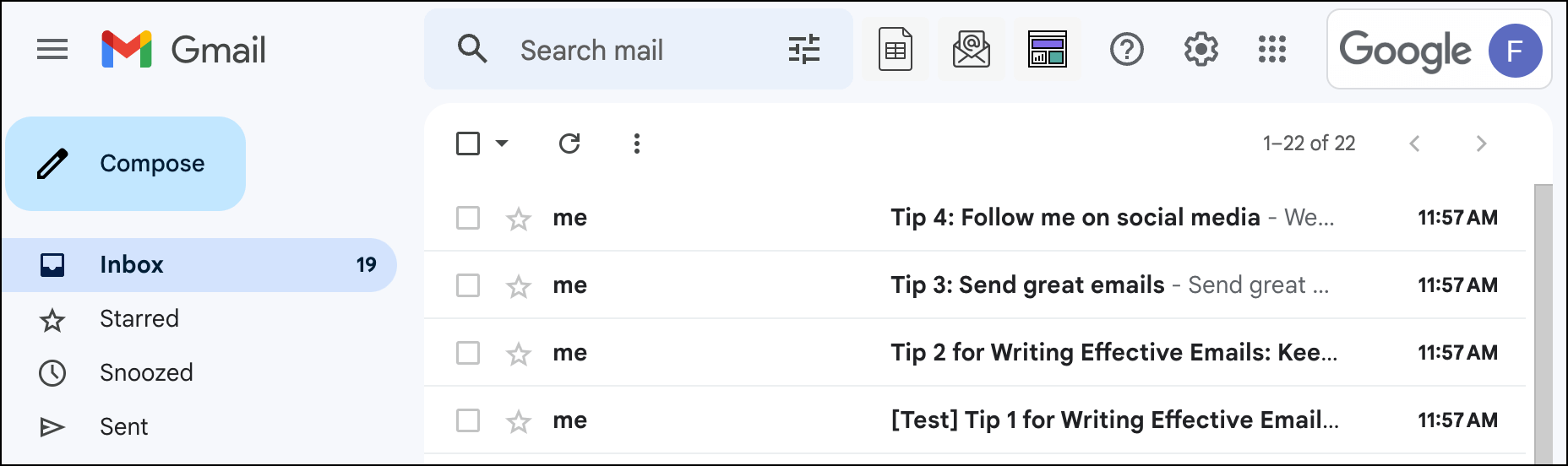
You’ll get every email in the drip sequence in your inbox right away (the test will ignore the “days between” you’ve chosen). You can make sure everything looks right from there.
Summary
Using Gmail and GMass you can put everyone who signs up for your product, your email list, or your webinar into an automated drip email campaign, where every email is sent from your Gmail account.
We’re pretty sure there’s no easier or faster way to set up an email drip series.
The advantages of sending the emails from Gmail are many, including the world’s highest deliverability and using a tool which with you’re already familiar and love.
You can try GMass for free by downloading the Chrome extension (no credit card required)! You’ll be up and running in a matter of minutes and sending your first drip campaign by this afternoon.
GMass is the only tool for marketing emails, cold emails, and mail merge — all inside Gmail. Tons of power but easy to learn and use.
TRY GMASS FOR FREE
Download Chrome extension - 30 second install!
No credit card required

Ajay is the founder of GMass and has been developing email sending software for 20 years.