Send recurring automated email campaigns with Gmail and Google Sheets

With GMass, you can send emails automatically to new rows added to your Google Sheet.
This is the second most powerful feature we have ever built (the most powerful feature is auto follow-ups). Now, with automated recurring email campaigns, you can connect a campaign to a particular Google Sheet, and have your email campaign send to any new email addresses in the spreadsheet at the time interval of your choosing (weekly, hourly, instantly, and so on). Additionally, you can set auto follow-ups on a campaign, for a fully automated drip campaign system. Just add your new prospects to your spreadsheet, and the prospects will automatically start receiving your sequence of emails, including any auto follow-ups.
You can also configure a recurring campaign to send to all addresses in the Sheet, instead of just new addresses, to conduct a recurring reminder-style email campaign to the same set of people.
Set up an automated email campaign
Just check this one magical box when setting up your mail merge campaign…the one that says “Repeat every 1 Day.” You can set it to repeat hourly, daily, weekly, monthly, or instantly.
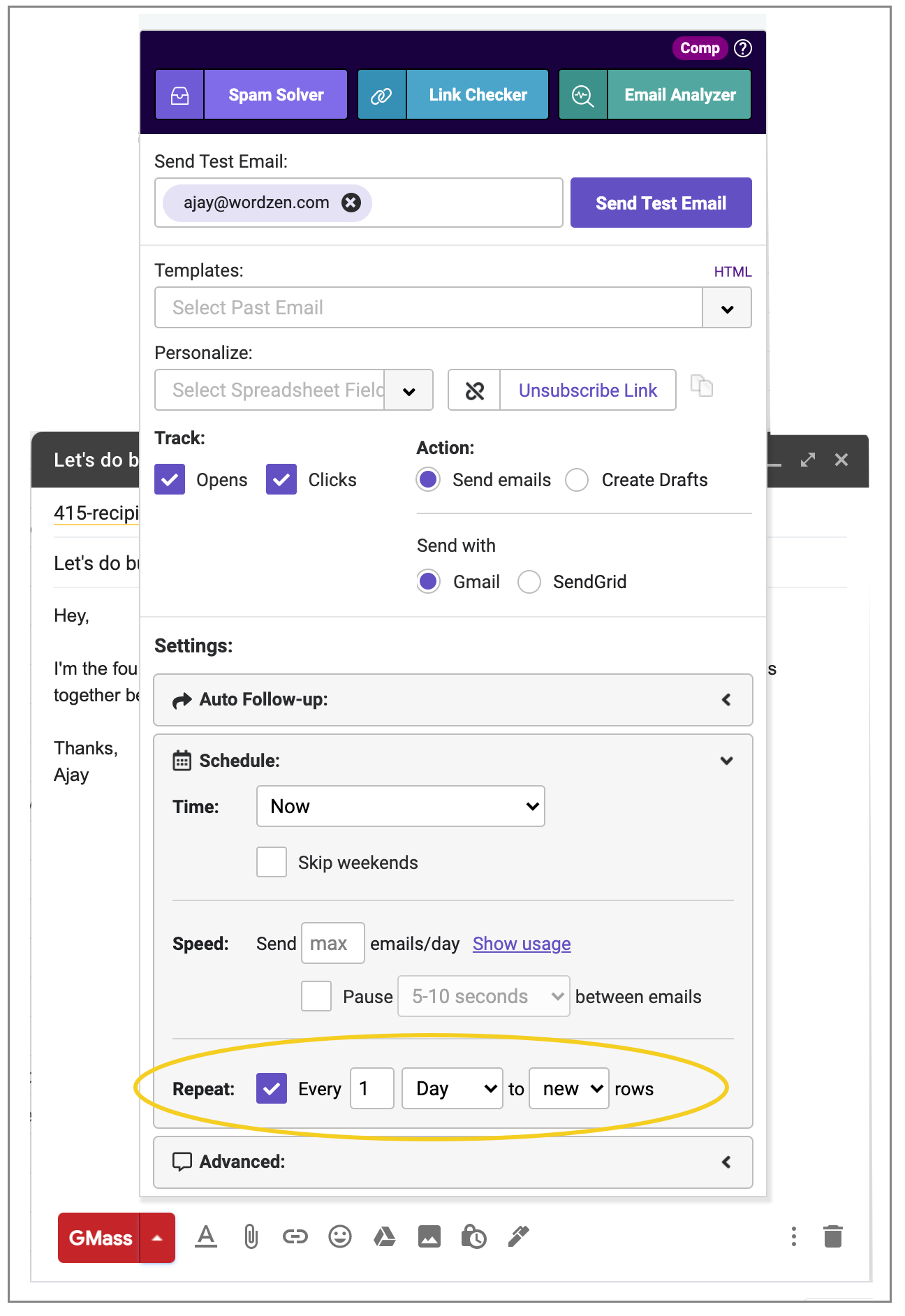
This checkbox will show up anytime you compose a campaign after connecting it to a Google Sheets. It will cause the campaign to send daily or hourly, based on the time the campaign is first sent, and it will send to any new email addresses found in the spreadsheet every day or hour. If you set your campaign to have auto follow-ups, then each new email address in the spreadsheet will get the original campaign and the sequential automatic follow-up emails, based on their behavior.
Note: If you choose “instantly,” there is another step you’ll need to take to set that up. Here are instructions for using instant row detection in recurring campaigns.
Get new email addresses into the spreadsheet
You can enter them manually, or you can use a number of automated systems available, like Zapier, to tie your Google Sheet to any number of outside databases or CRM systems.
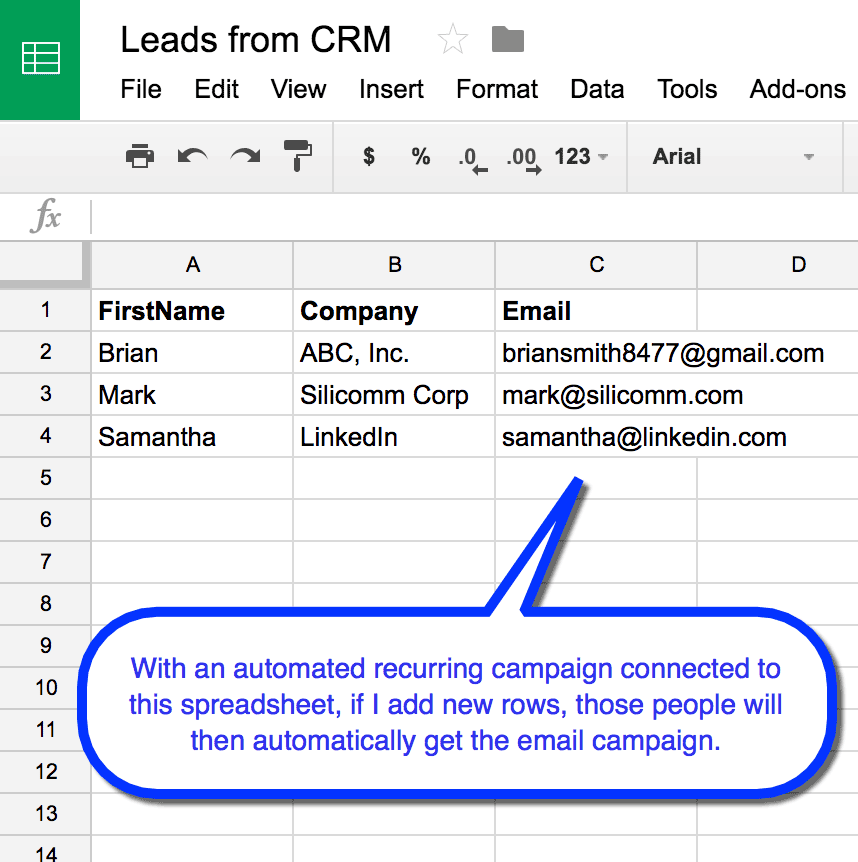
Here at my company, we house our data in a SQL Server database, and we use Zapier to push data from SQL Server into a Google Sheets daily. We then have a daily recurring GMass campaign set to email new GMass users every day. The campaign connects to the spreadsheet every day, finds any new rows, and sends the mail merge campaign.
The auto follow-up option to send to “all”
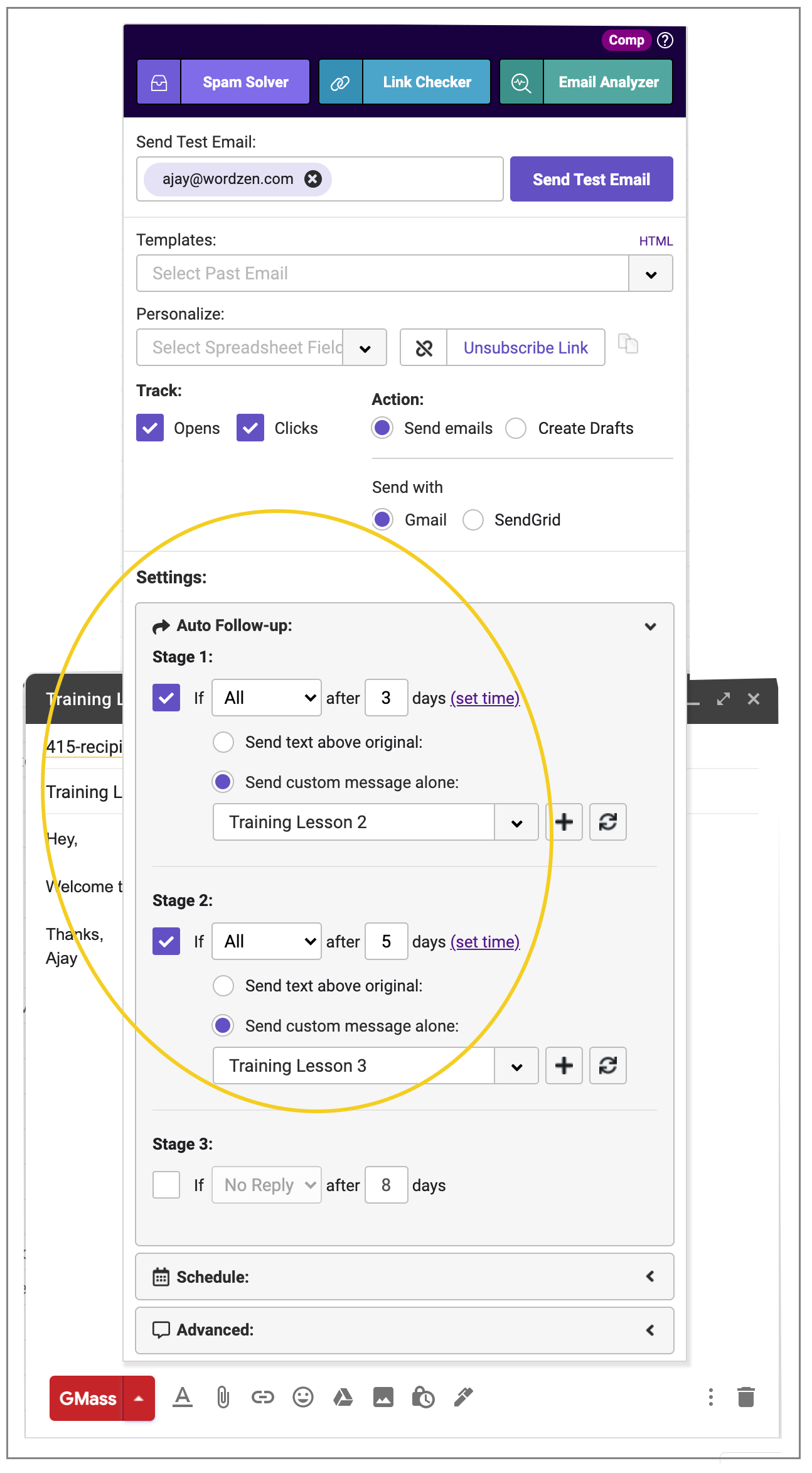
Now, in addition to setting auto follow-ups based on those who didn’t reply and who didn’t open, you can also set the follow-up to go to everyone who received the original email by choosing All, regardless of their behavior. This is useful for creating for example, a series of welcome emails designed to introduce various features of your product or service to a new subscriber. You can use this new option, with a spreadsheet, to fully automate a “welcome series” campaign, if your new customers are added to the Sheet automatically every day.
Practical Examples
What can you do with an automated campaign?
I’m using the hourly recurring campaign feature to ask free GMass users to subscribe to a paid account. In GMass, if you’re a free user and you attempt to send more than 50 emails, you get a popup asking you to subscribe. Each time that happens, your account is logged to a table in our database. Every few minutes, the data from that table is copied over to a Google Sheet, via an internal tool we wrote. Then, every hour, GMass checks that spreadsheet for new addresses, and sends an email asking the user to subscribe.
What else can you use it for?
Continuous lead flow
If you update your spreadsheet throughout the day with new leads, you can set up a daily recurring cold email pitch which will send to any new addresses every day.
After-purchase coupon offer
If you have everyone that has purchased from your website synced into a spreadsheet, you can send them a coupon for their next purchase. Sending these emails about an hour after the purchase can be advantageous, because if you send the coupon immediately after purchase, the shopper will wish they could have applied it to the current purchase. Delaying the email by an hour or so, however, will make the coupon more attractive.
Asking for reviews
Whether you’re a restaurant with a Yelp review page, a mobile app company, or even a Chrome extension developer, there’s likely a place online where users can post reviews. Setting up an automatic email flow asking for a review after a user has taken some action (downloading your app, taking an important step in your software onboarding process), can greatly increase the chances of a user writing a positive review. Ask them when you’re product is top of mind and when they’ve just had a pleasant experience with it, but don’t ask them immediately after. An hour or so may be the perfect delay.
Frequently Asked Questions
Q: What’s the big deal about recurring automated email campaigns?
A: The big deal is that now instead of creating and sending a new campaign every day or every week to your new prospects, you can set your campaign up just once and still have it sent to new prospects, just by adding the new prospects to your spreadsheet. You control who gets your sequence of emails by who you add to your spreadsheet.
Q: I’ve set my campaign to recur daily, but now I’ve changed my mind and want to stop it. How do I do that?
A: Just find the campaign in your GMass Scheduled Label, open the Draft, click the GMass Settings arrow and click the red Cancel button.
Q: I’ve set my campaign to recur daily, but now I want to change the spreadsheet it’s connected to. How do I do that?
A: Once you’ve set up an automated recurring email campaign, you can’t alter the spreadsheet or the spreadsheet filter it uses. You will need to cancel the campaign and create a new one that is connected to the new spreadsheet.
Q: How are auto follow-ups related to this new capability?
A: If you create a recurring automated email campaign with auto follow-ups configured, then every day when the email campaigns sends to new rows in the spreadsheet, those new email addresses will also receive a sequence of auto follow-up emails based on whether or not they open, reply, or are just a part of the campaign.
Q: If I set a filter when connecting to my Google Docs spreadsheet, when the campaign recurs, will it only send to new rows that match the original spreadsheet filter?
A: Yes, it will. For example, let’s say you have a spreadsheet with a column called “DripCampaign” and you’ve set each row to “yes” or “no” for this column. When you use GMass to connect to the spreadsheet, you set a spreadsheet filter of “DripCampaign=yes”. When you set your campaign, you set it to repeat daily. When the campaign looks for new additions to the spreadsheet every day, it will only look for rows where DripCampaign=yes.
Q: How does this feature “know” which addresses in the spreadsheet are new?
A: When GMass checks the spreadsheet for “new” addresses, it actually grabs ALL of the email addresses and then removes the ones that have already received an email from that particular campaign. That’s how it finds all of the “new” addresses. Therefore, you can rearrange your spreadsheet in the middle of a campaign, move rows around or delete rows, and you won’t have to worry about GMass sending to an email address for a second time.
Q: I’ve sent the campaign at 4:00 PM, but I want it to recur daily at 2:00 PM instead of 4:00 PM. How can I change that?
A: Just find the campaign under the GMass Scheduled Label, click the GMass Settings arrow, and change the scheduled time to the next day at 2:00 PM, and then hit the GMass main button.
Q: My recurring campaign has a daily start time of 1:00 P.M. and an end time of 4:00 P.M. What happens if my recurring campaign gets a new row and is scheduled to send outside that window.
If you’re using GMass’s end time feature, and have a recurring email that would fall outside of your daily sending window, GMass will hold that email until the next allowed time and then send it.
This is also true if you are using scheduling features like skipping certain days of the week or holidays; GMass will hold recurring campaigns until the next allowable send time.
Q: Can I send a recurring campaign if my campaign uses multiple lists?
A: Yes. If you’re using multiple lists in a single campaign with GMass Multi Merge, you can run recurring campaigns. Set up your recurring campaign as normal. GMass will monitor all the connected Google Sheets for new rows and send accordingly.
Q: Why are some people still getting this email even though I removed them from the Google Sheet?
A: Often it’s because you set the campaign to recur to “ALL” and the initial emails in the sheet are still receiving your recurring campaign. Here’s an explanation of why that’s happening and a workaround.
Email marketing. Cold email. Mail merge. Avoid the spam folder. Easy to learn and use. All inside Gmail.
TRY GMASS FOR FREE
Download Chrome extension - 30 second install!
No credit card required

Ajay is the founder of GMass and has been developing email sending software for 20 years.