Manually Import or Remove Unsubscribe Addresses and the GMass Unsubscribe Features

In case you didn’t know, you can easily add email addresses to your account’s Unsubscribe List in GMass.
With GMass’s unsubscribe management, any email addresses on your Unsubscribe List will be suppressed from your GMass campaigns. That means they will be eliminated from any campaign you send with the GMass button. Additionally, if you’re a Google Workspace user or on a Team plan, anyone on your domain or team who’s enabled Global Unsubscribes will have the addresses on your unsubscribe list suppressed in their campaigns.
Here’s how to manually edit your unsubscribe list.
How to Add or Remove Emails from Your GMass Unsubscribe List
Unsubscribe list management all takes place in the GMass dashboard. (You may remember the old method of adding and subtracting by sending emails to a specific GMass address. That method still works, and we’ll cover it later in this article, but the dashboard management is far more efficient.)
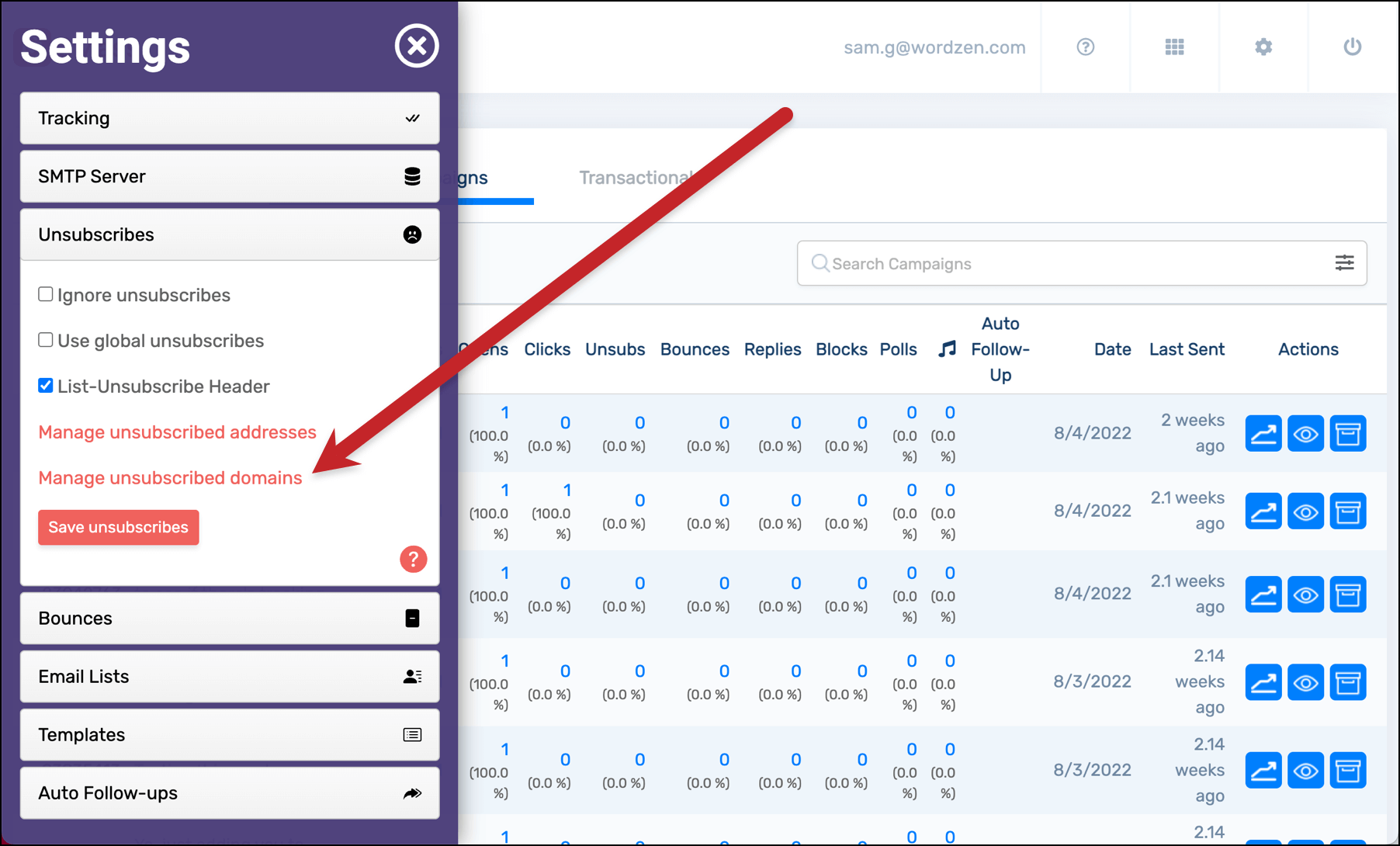
Head to your GMass dashboard. Click on the Settings, then go to the Unsubscribes section and click “Manage unsubscribed addresses.” Or, for a shortcut, just go directly to this link.

How to add email addresses to your Unsubscribe List
Click the “Add unsubscribes” link at the bottom of your list of unsubscribed addresses in the GMass dashboard.
You’ll get a pop-up window where you can paste in email addresses to add to your unsubscribe list. You can also upload a text, Excel, or CSV file of unsubscribed addresses (useful when you’re switching from another platform to GMass).
If you’re typing or pasting in your list, make sure every email address is on its own line. Then click the “Add these unsubscribes” button.

Those addresses are now added to your unsubscribe list.
How to remove email addresses from your Unsubscribe List
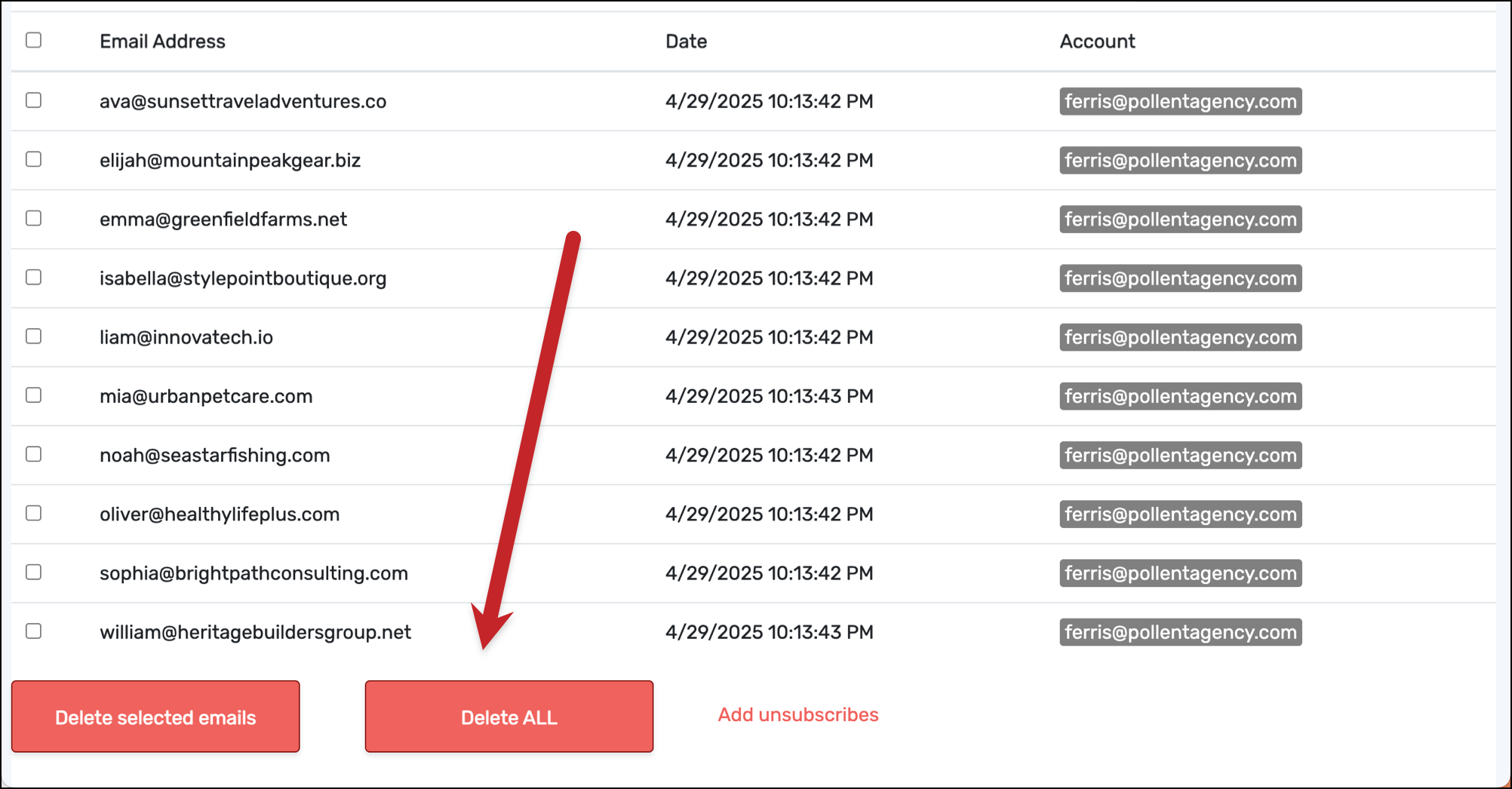
To remove email addresses from your unsubscribe list, check the boxes next to each address. Then click the “Delete these emails” button.

You can also select email addresses to remove in bulk by clicking the checkbox at the top of the column.
 Then click the Delete these emails button to remove all the selected addresses from your unsubscribe list.
As of April 2025, you can also now delete all with a single click.
Unsubscribing an entire domain
You can also unsubscribe an entire domain. Follow the same instructions as above, but go to the “Manage unsubscribed domains” section in the dashboard.
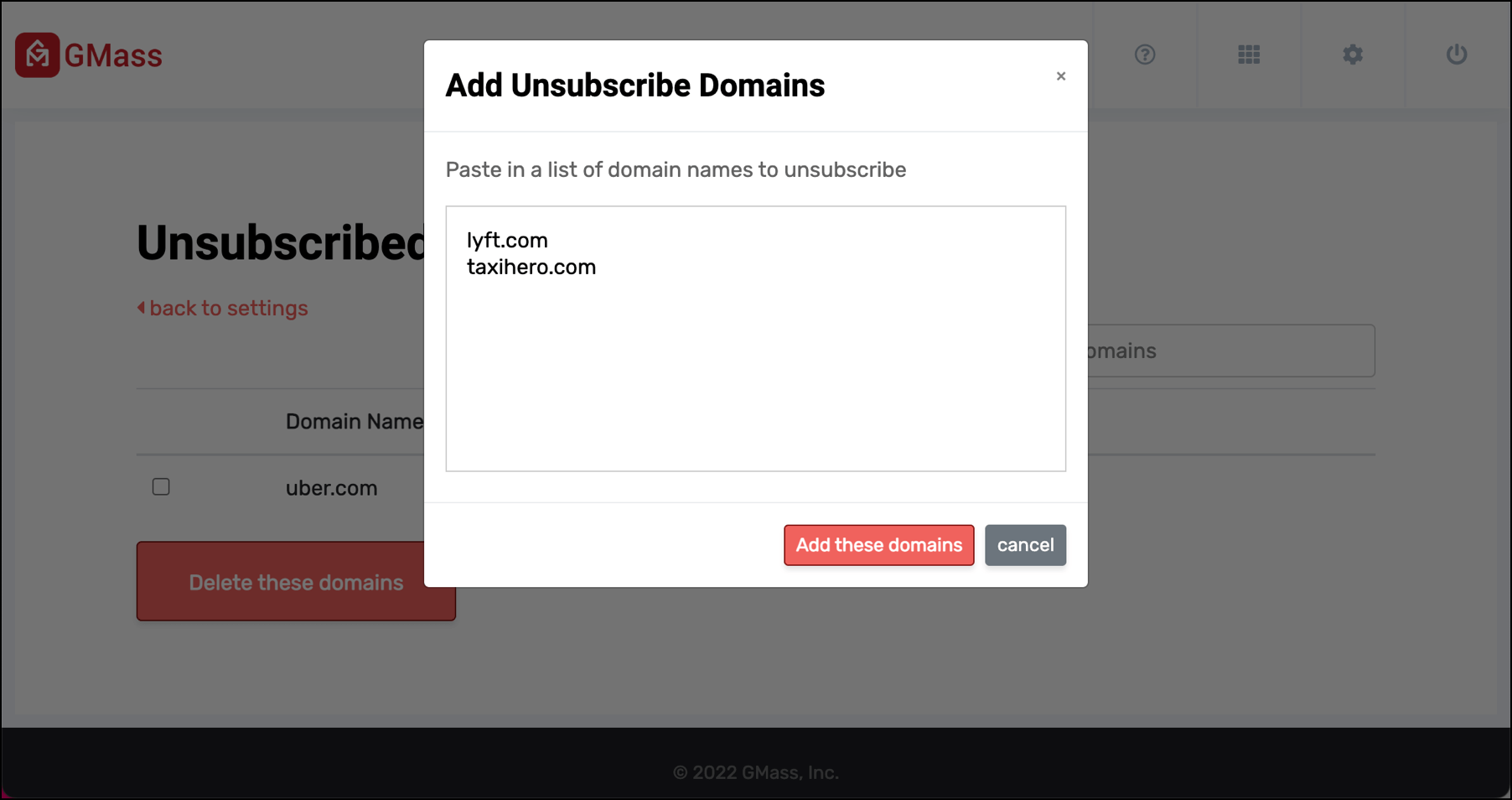
Then paste in the domains you want to add to your unsubscribe list.
You can also use this area of the dashboard to remove unsubscribed domains. Check the boxes next to those domains, then click the “Delete these domains” button to re-subscribe them.
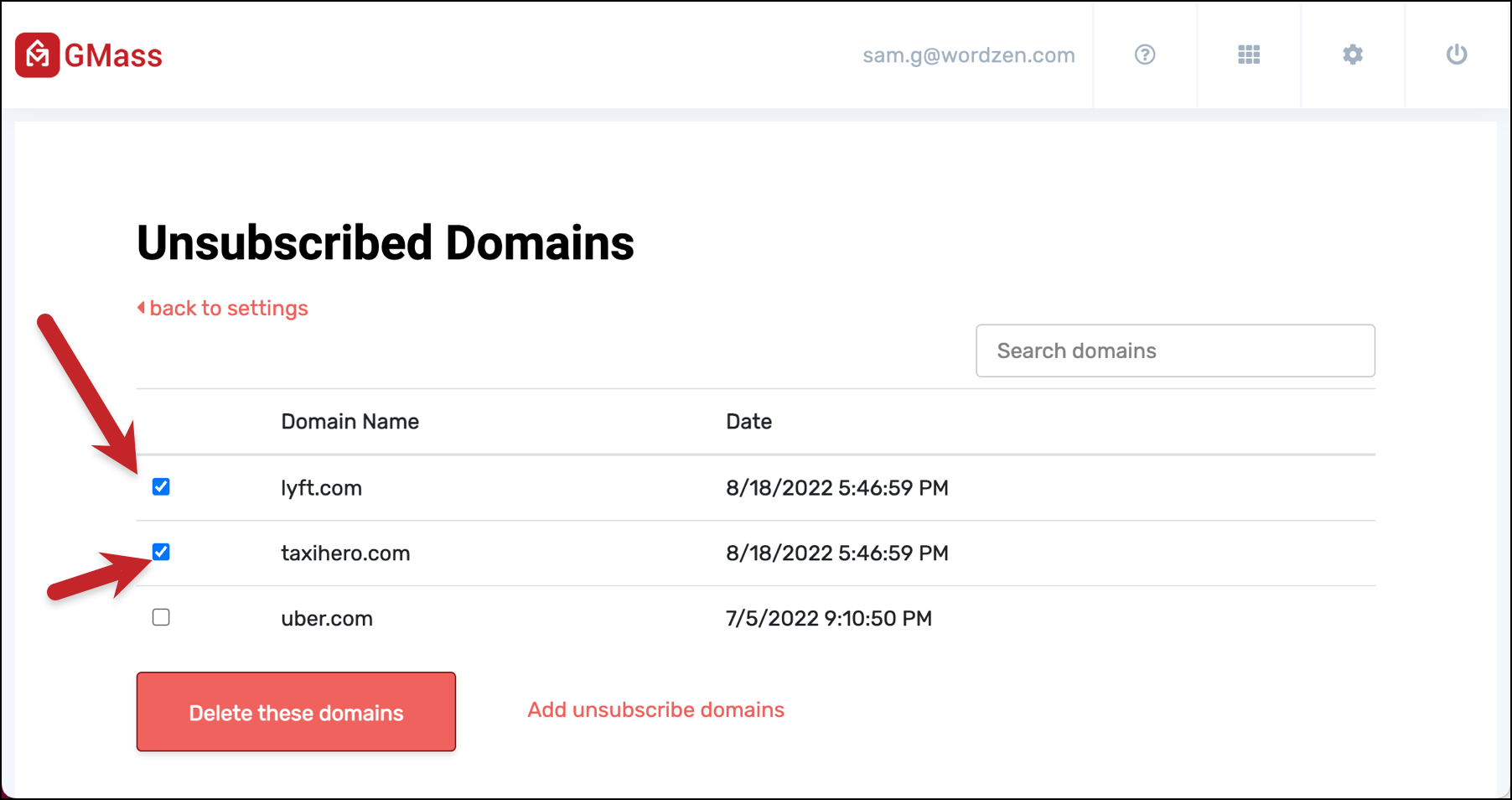
Once again, you can select all the checkboxes on screen by clicking the box at the top of the column.

If you’re curious, here’s even more information on unsubscribing domains.
Unsubscribe management for teams
If you’re a team master, you can now see the unsubscribes (and bounces) for just your account, any individual team member, or your entire team.
At the top of your unsubscribe list, you’ll see a dropdown menu where you can view:
- Just your unsubscribed addresses
- The unsubscribed addresses for you and everyone on the team
- Any individual team member’s unsubscribed addresses
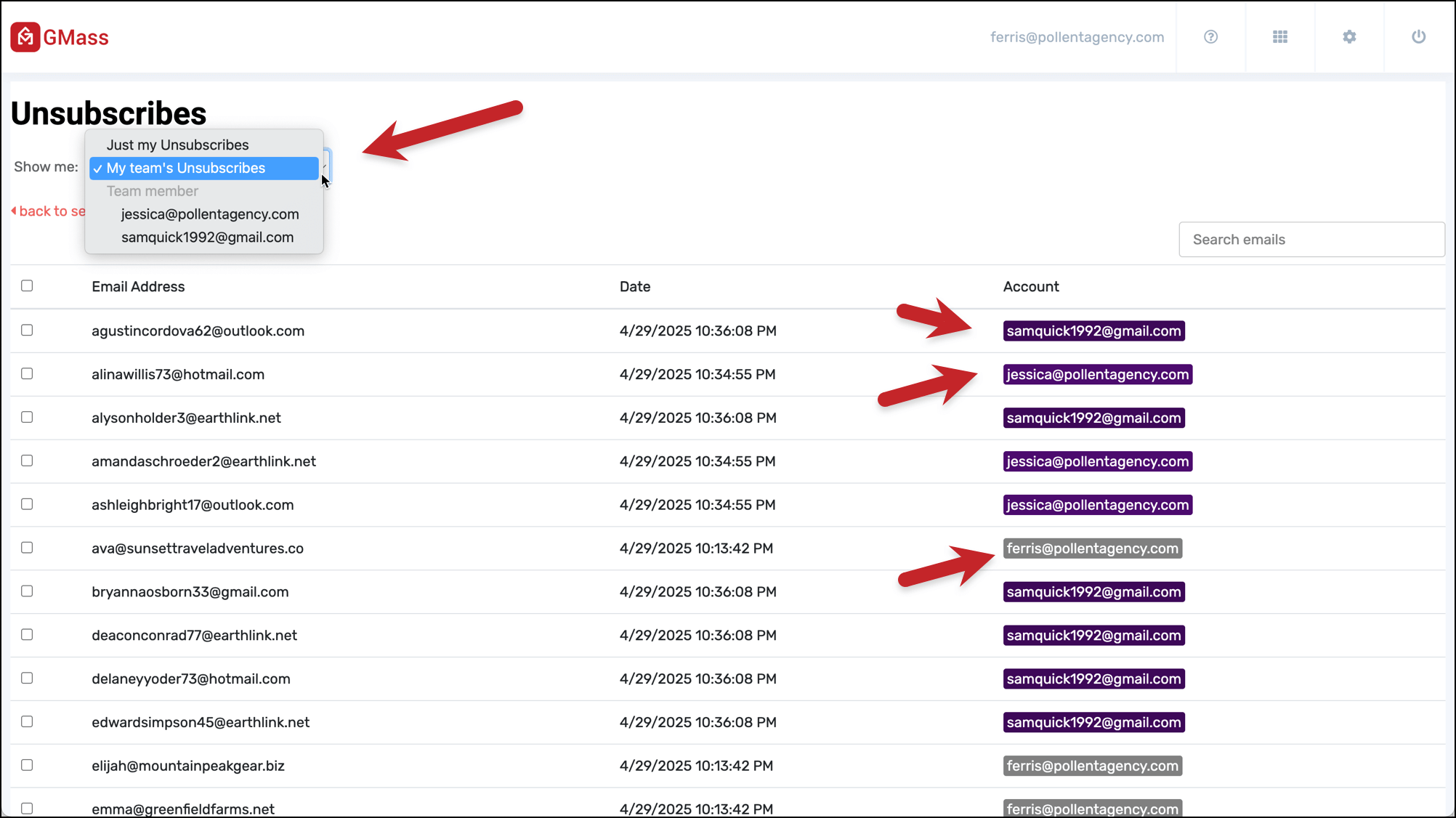
And from here, you can manage these addresses as well.
(Remember: If you use global unsubscribes, anyone unsubscribed from one team member’s account will be unsubscribed from every team members’ account.)
The old method for adding and removing unsubscribes: Sending an email
Here’s the original GMass method for adding and removing emails from your unsubscribe list. To add/remove, you’d send a special email to a specific GMass address. This method still works if you want to use it; however, we recommend the dashboard method.
To add to your unsubscribe list via an email:
1. Launch a regular Gmail Compose Window.
2. Set the To field to unsubscribe@gmass.co.
3. Type anything you like in the Subject Line, so long as it’s not blank.
4. Paste in a list of email addresses to unsubscribe as the body of the message, with each email address on one line.
5. Click the red GMass button.
To remove addresses, follow the same instructions, but send the email to resubscribe@gmass.co.
GMass Dashboard Unsubscribe Options: Ignore, Global, List-Unsubscribe
There are three other options in the Unsubscribes settings area of the GMass dashboard: Ignore unsubscribes, use global unsubscribes, and List-Unsubscribe header. Here’s a look at how to use all three.
Ignoring your unsubscribe list
It’s possible to ignore your unsubscribe list if, for whatever reason, you want to send an email to everyone on a list regardless of whether or not they’ve unsubscribed.
This is a global setting, not one on a campaign-by-campaign basis, so you need to turn it on or off in the GMass dashboard.
To ignore unsubscribes, check the “Ignore unsubscribes” box in the Unsubscribes section of the GMass dashboard settings.

Using global unsubscribes across your Google Workspace domain
If you’re using GMass for teams or there are multiple people with your Google Workspace domain using GMass, you can share unsubscribe lists.
For instance, let’s say you cold email a contact and they unsubscribe. If your coworkers have global unsubscribes turned on, GMass will automatically suppress their future emails to that contact.
And if you have global unsubscribes turned on, GMass will suppress emails you send to addresses on the unsubscribe lists of everyone at your domain or on your team plan.
To turn on global unsubscribes, check the box next to “Use global unsubscribes” in the Unsubscribes section of the GMass dashboard settings.

Adding a list-unsubscribe header to your emails
When you add the list-unsubscribe header to your emails, email clients like Gmail, Outlook, and Apple Mail will add an “Unsubscribe” link or message at the top of your emails. Basically, it makes it easier for people to unsubscribe — which can cut down on people marking your emails as spam and hurting your deliverability in the process.
To add list-unsubscribe headers to your emails, check the “List-Unsubscribe Header” box in the Unsubscribes area of the GMass dashboard settings.
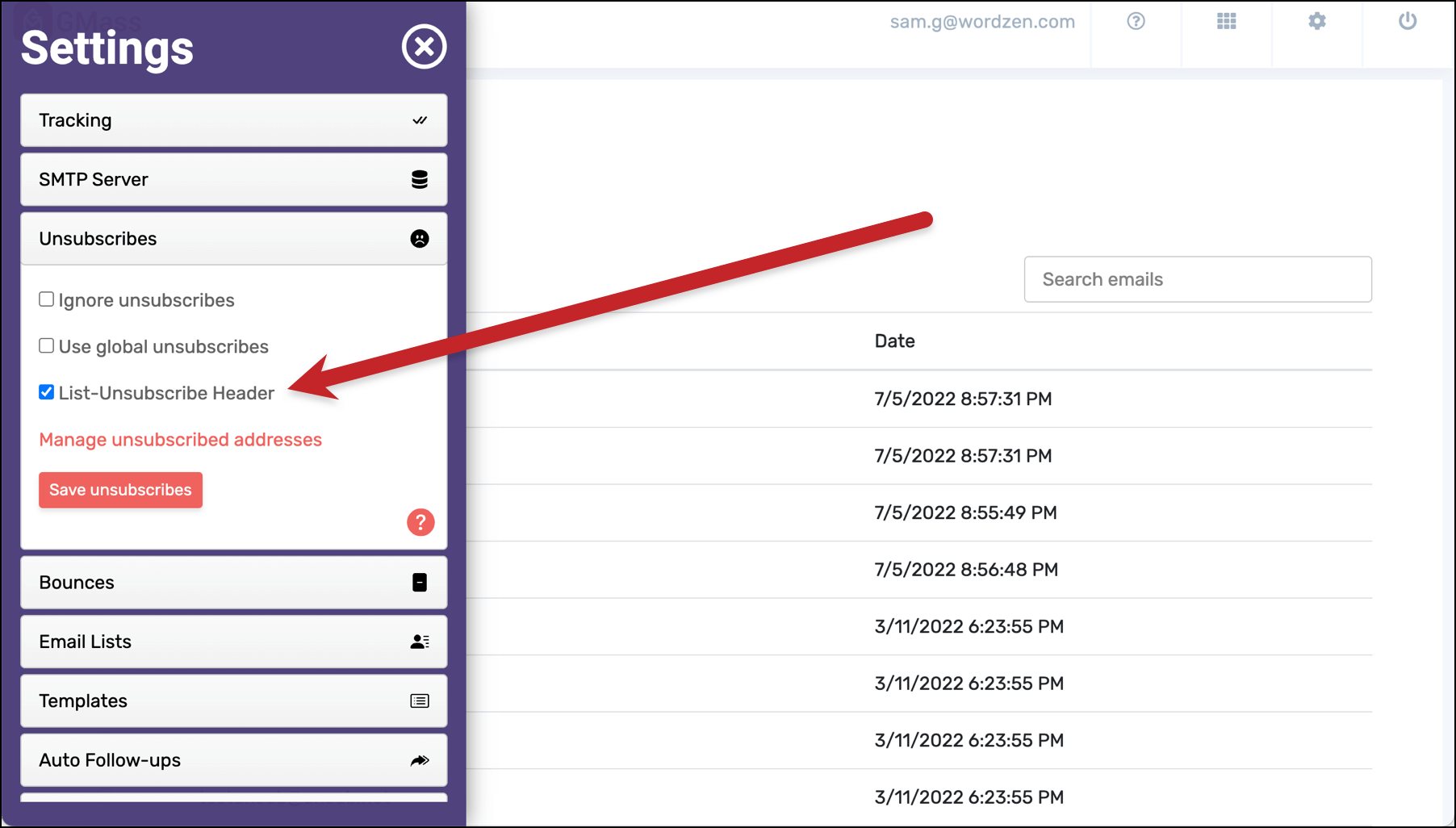
You can read lots more about the list-unsubscribe header in GMass in our article about the feature.
How to “Unsubscribe” an Address From One Specific Campaign
What do you do if you want to “unsubscribe” an address, multiple addresses, or a domain from a specific campaign — but you don’t want to add those addresses to your unsubscribe list? GMass’s campaign-specific suppression features can help.
As you’re creating your campaign in the Gmail compose window, open the GMass settings box and go to the Advanced section. There you’ll see the Suppression options.
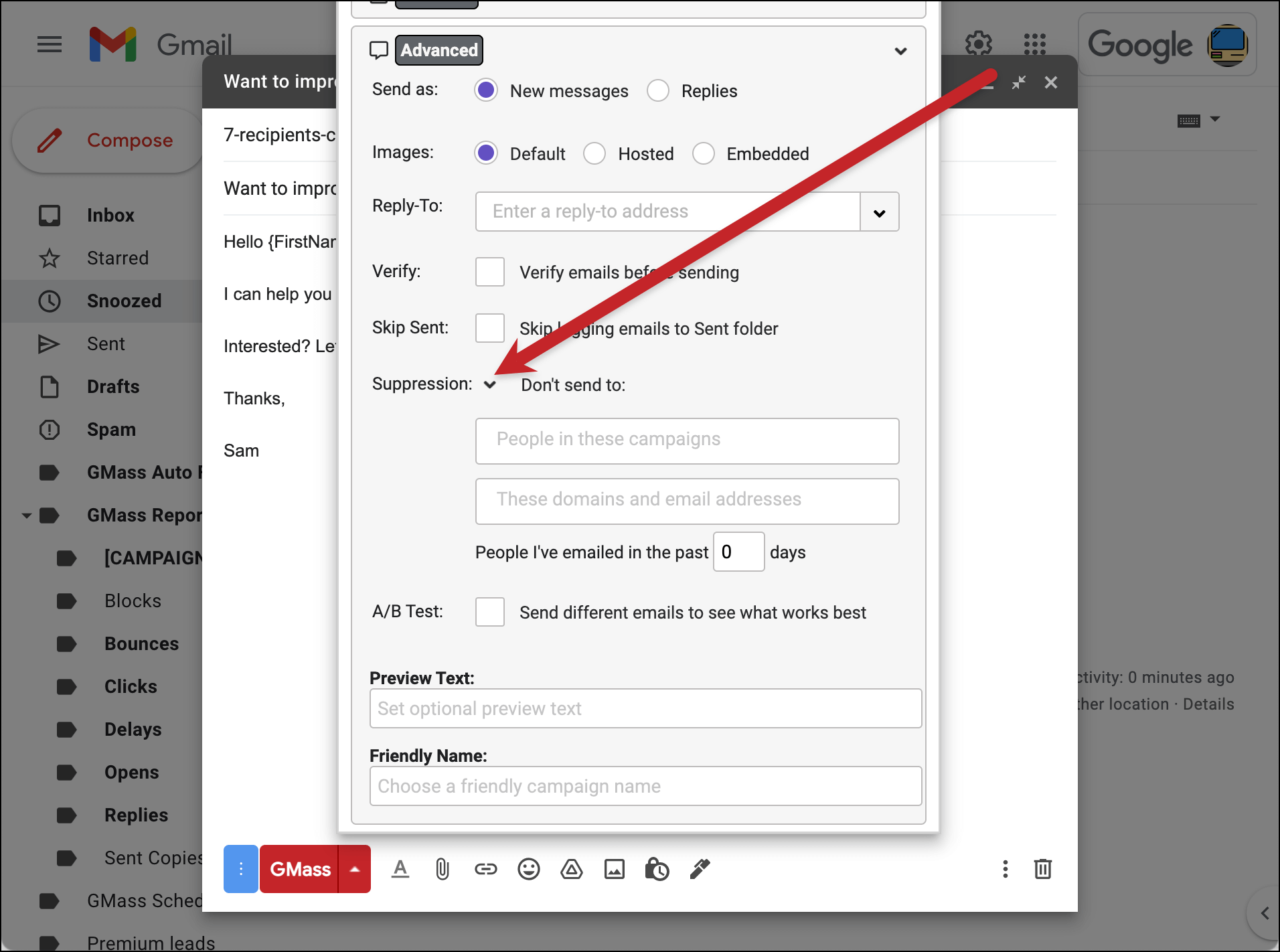
You have three different options here:
- You can suppress emails to people who have been part of other specific past campaigns. Pick one or more campaigns by clicking into the “People in these campaigns” field and choosing the campaigns from the dropdown.
- You can suppress emails to people at specific domains or email addresses. Type or paste the domains and/or email addresses into the “These domains and email addresses” field. Emails in the new campaign will not go out to those domains/contacts.
- You can suppress emails to people you’ve recently emailed. Set the number of days in the “People I’ve emailed in the past
ndays” field.
These suppressions are the equivalent of “unsubscribing” someone just for one specific campaign. Those people will still be eligible to receive all of your other emails — and will not be added to your unsubscribe list.
Final Thoughts on Unsubscribing in GMass
GMass has sophisticated unsubscribe management features; ideally, you won’t have to think about unsubscribe management because GMass handles it all for you.
To learn more, check out our article on how to add an Unsubscribe Link to your mail merge campaigns in Gmail. Or read up on all of GMass’s unsubscribe management features.
Only GMass packs every email app into one tool — and brings it all into Gmail for you. Better emails. Tons of power. Easy to use.
TRY GMASS FOR FREE
Download Chrome extension - 30 second install!
No credit card required

Ajay is the founder of GMass and has been developing email sending software for 20 years.