
You can now unsubscribe an entire domain from your Gmail mail merge campaigns sent with GMass. Unsubscribing a domain is similar to manually unsubscribing a list of email addresses, only in this case, you’d be unsubscribing an entire company or organization. For instance, if you want to suppress any future emails to Uber, you could unsubscribe uber.com.
How to Unsubscribe a Domain
Head to the GMass dashboard. You can get there through this link, or by clicking the dashboard icon by the Gmail search bar.

Click the Settings icon to open the left panel with your account-level settings.
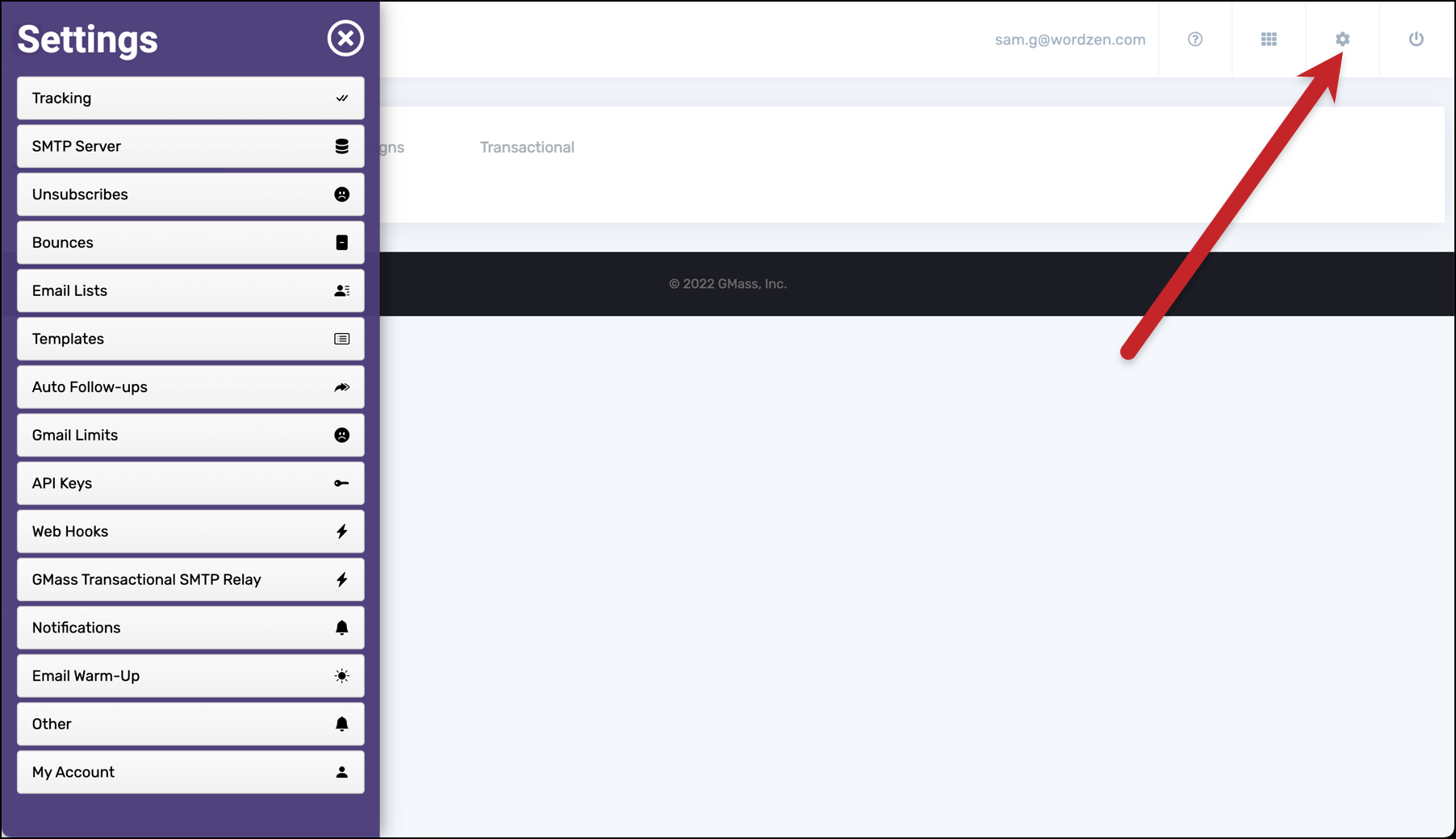
Click into the Unsubscribes settings in the left panel. Then click “Manage unsubscribed domains.”
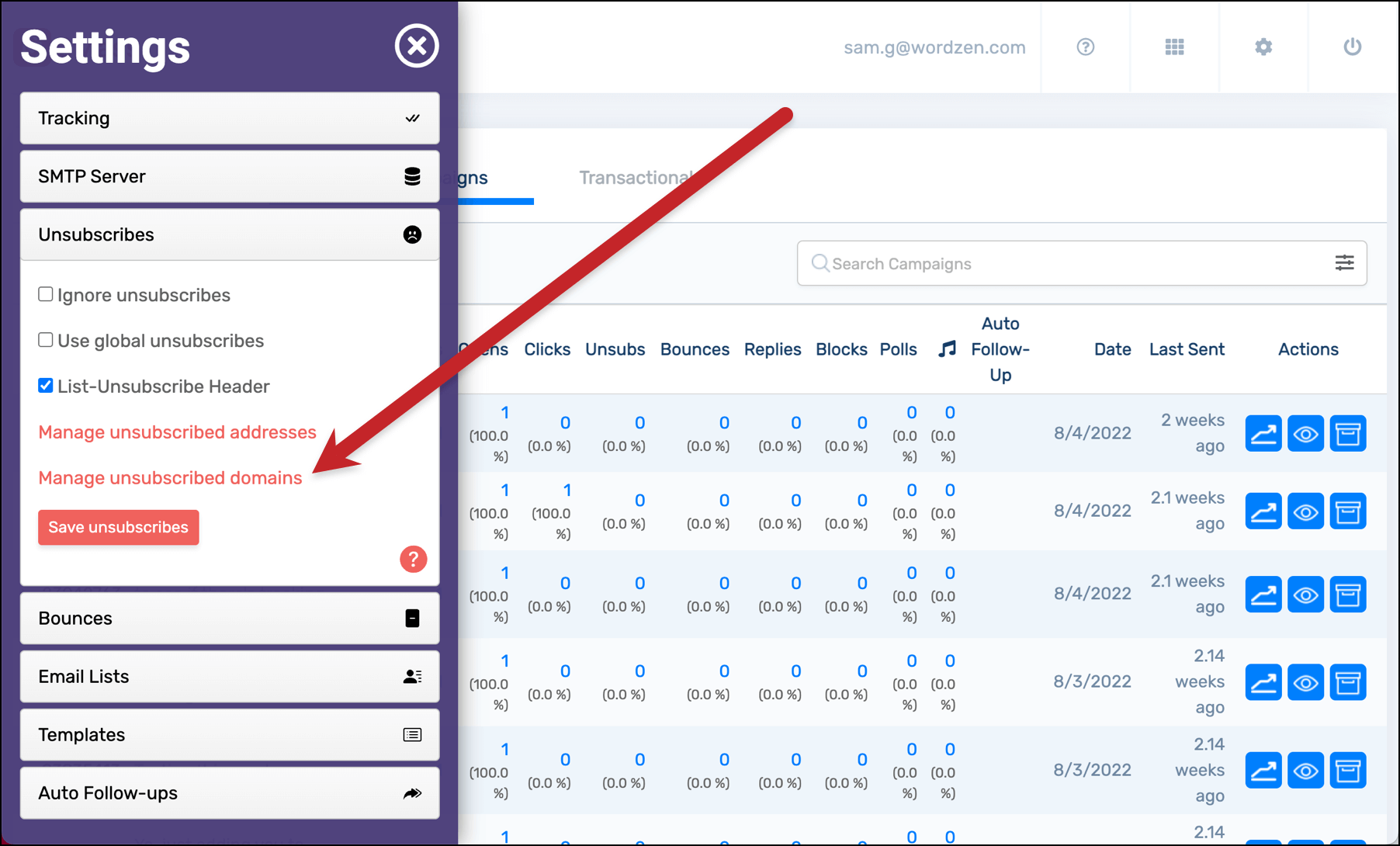
Now you’ll see any domains you’ve unsubscribed.
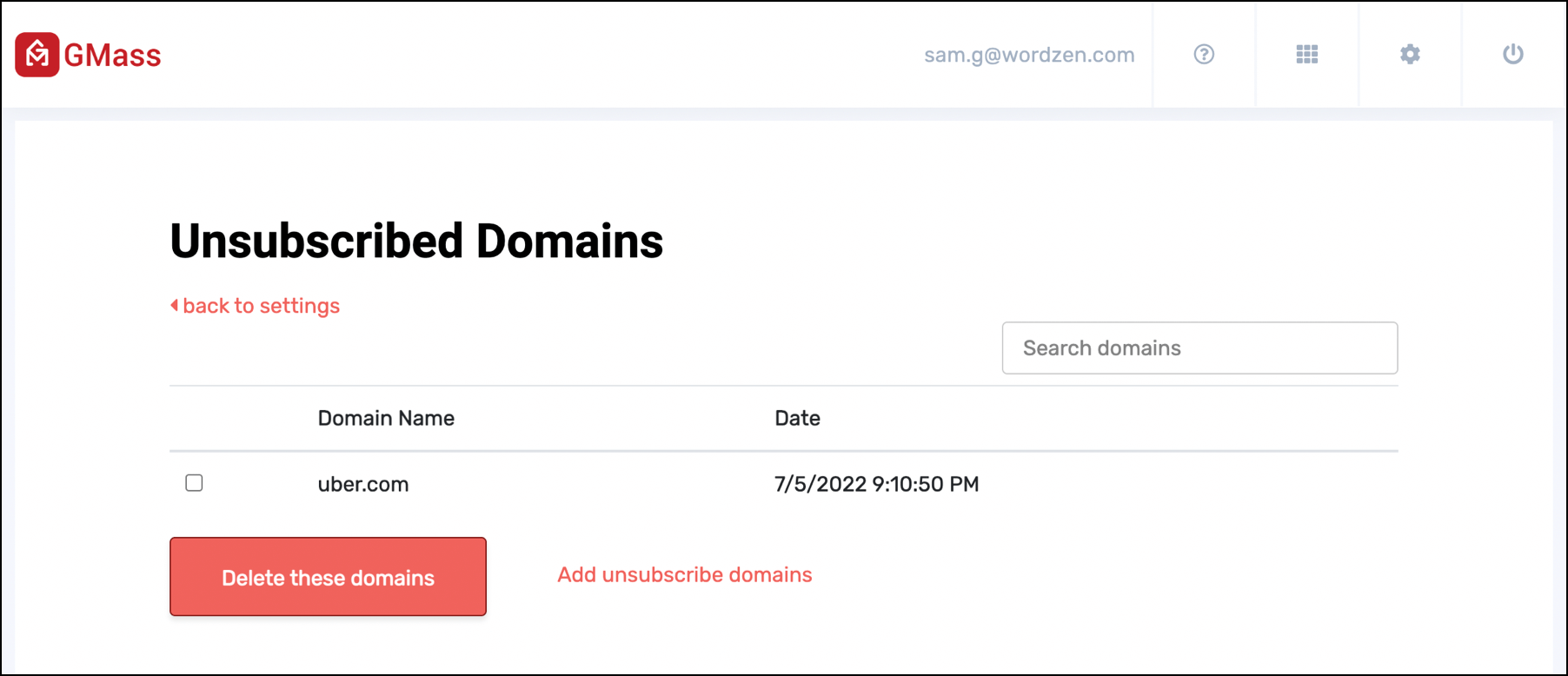
You can unsubscribe a new domain (or multiple new domains) by clicking “Add unsubscribe domains.”
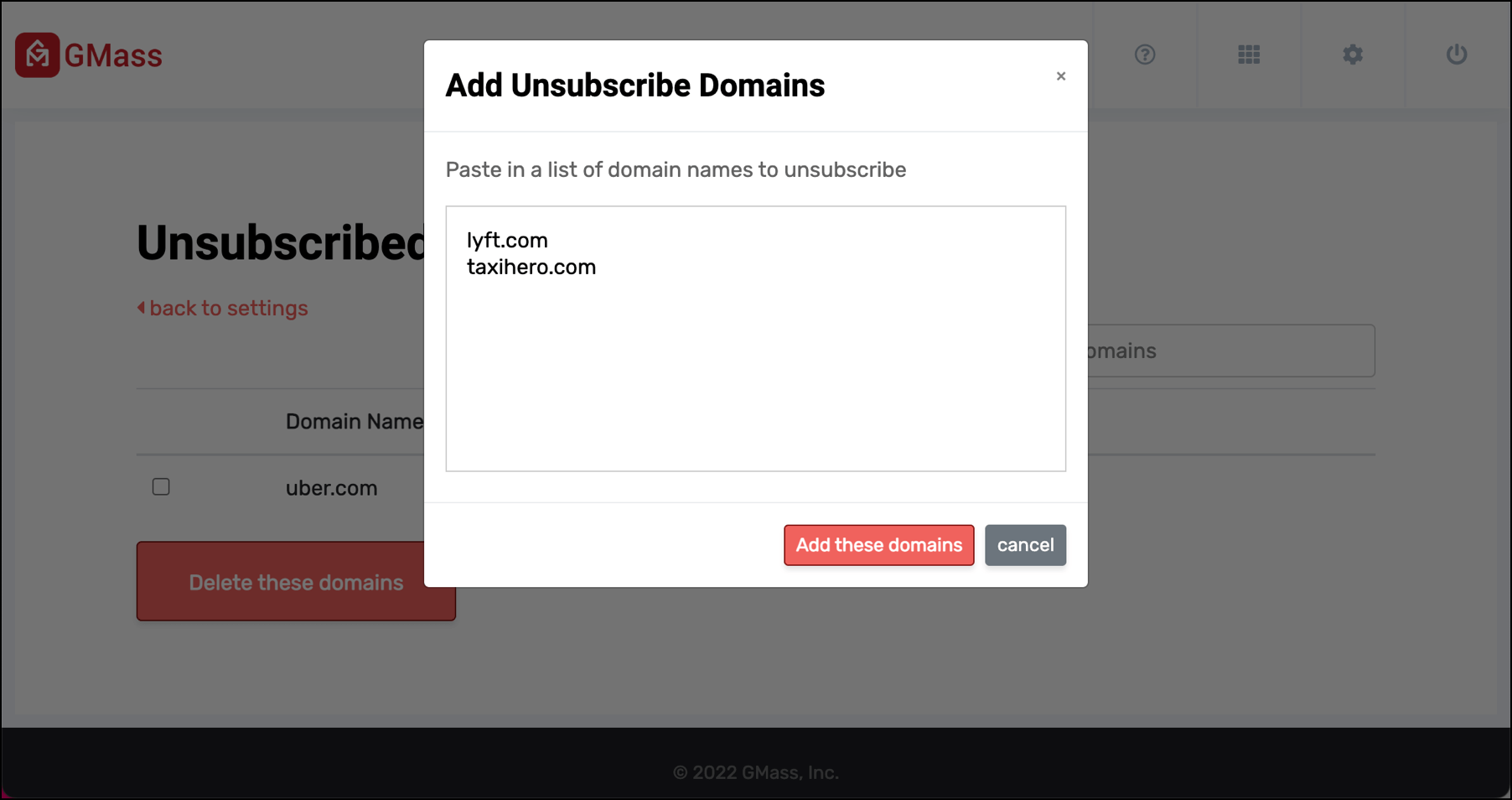
Click the “Add these domains” button and you’re all set.
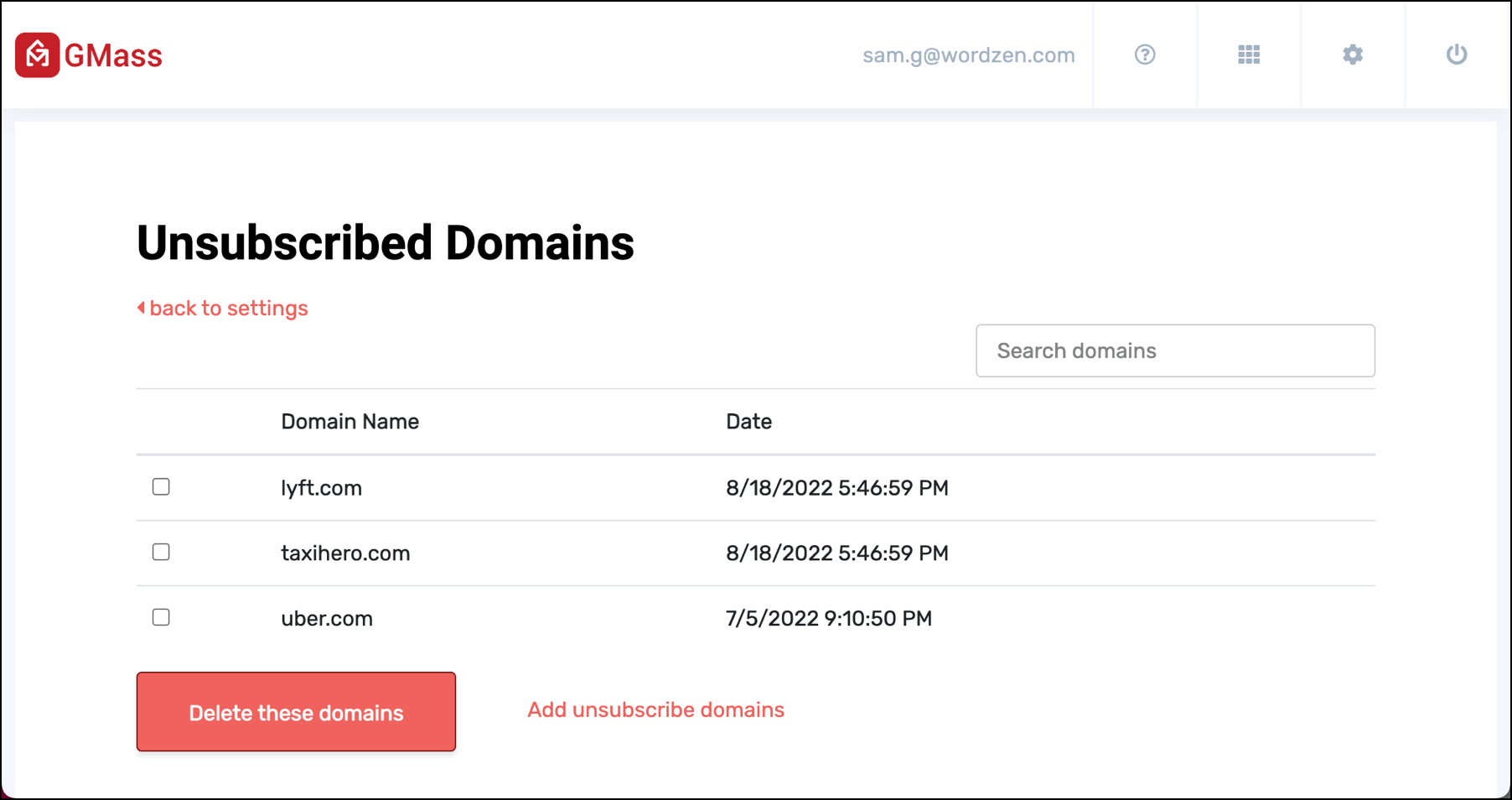
Future campaigns will be cross-checked against your domain unsubscribe list and matching recipients will be suppressed from the campaign.
(Note: If you’re a long-time GMass user, you can still use the old method to unsubscribe a domain. Compose an email to unsubscribe@gmass.co, put the domains you want to unsubscribe in the body, then click the GMass button. Those domains will now be unsubscribed.)
Unsubscribed domains will be shared with your team members and other senders on your domain if you’re using global unsubscribes. Also, unsubscribed domains in any connected MultiSend accounts will be shared if you’re using global unsubscribes.
How to Resubscribe a Domain (aka How to Remove Domains from Your Unsubscribe List)
To remove a domain from your domain unsubscribe list, also known as resubscribing a domain, follow the same instructions above to get to the Unsubscribed Domains area of the GMass dashboard.
Check the boxes next to the domains you want to remove from your unsubscribe list.
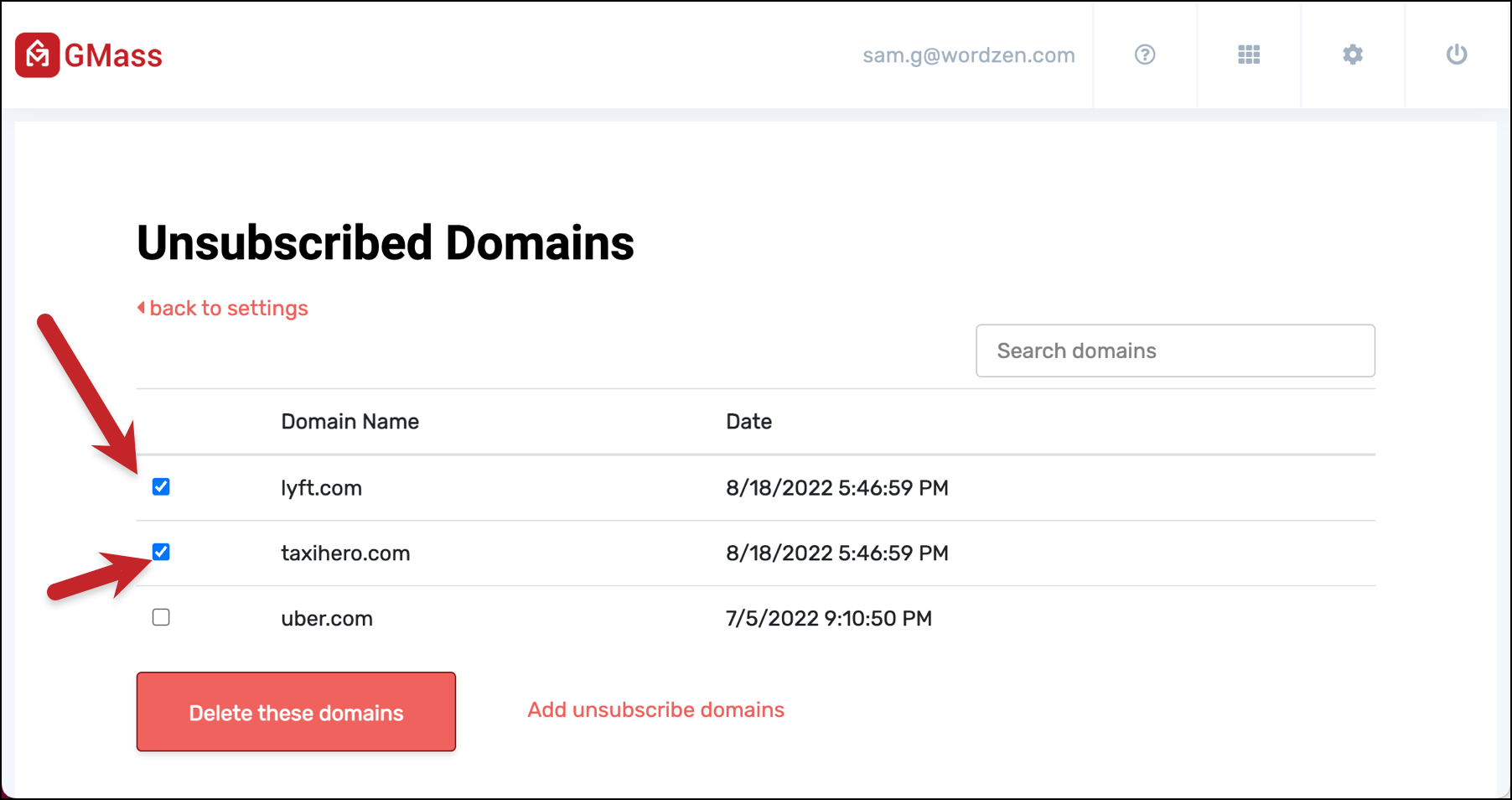
Then click the “Delete these domains” button. The result:
You can also check all the checkboxes by clicking the box at the top of the column to do unsubscribe management in bulk.

Downloading your Domain Unsubscribe List
To download a CSV with your unsubscribed domains (as well as your other unsubscribed emails), go to any web-based campaign report, and click the download all unsubscribes link at the bottom.
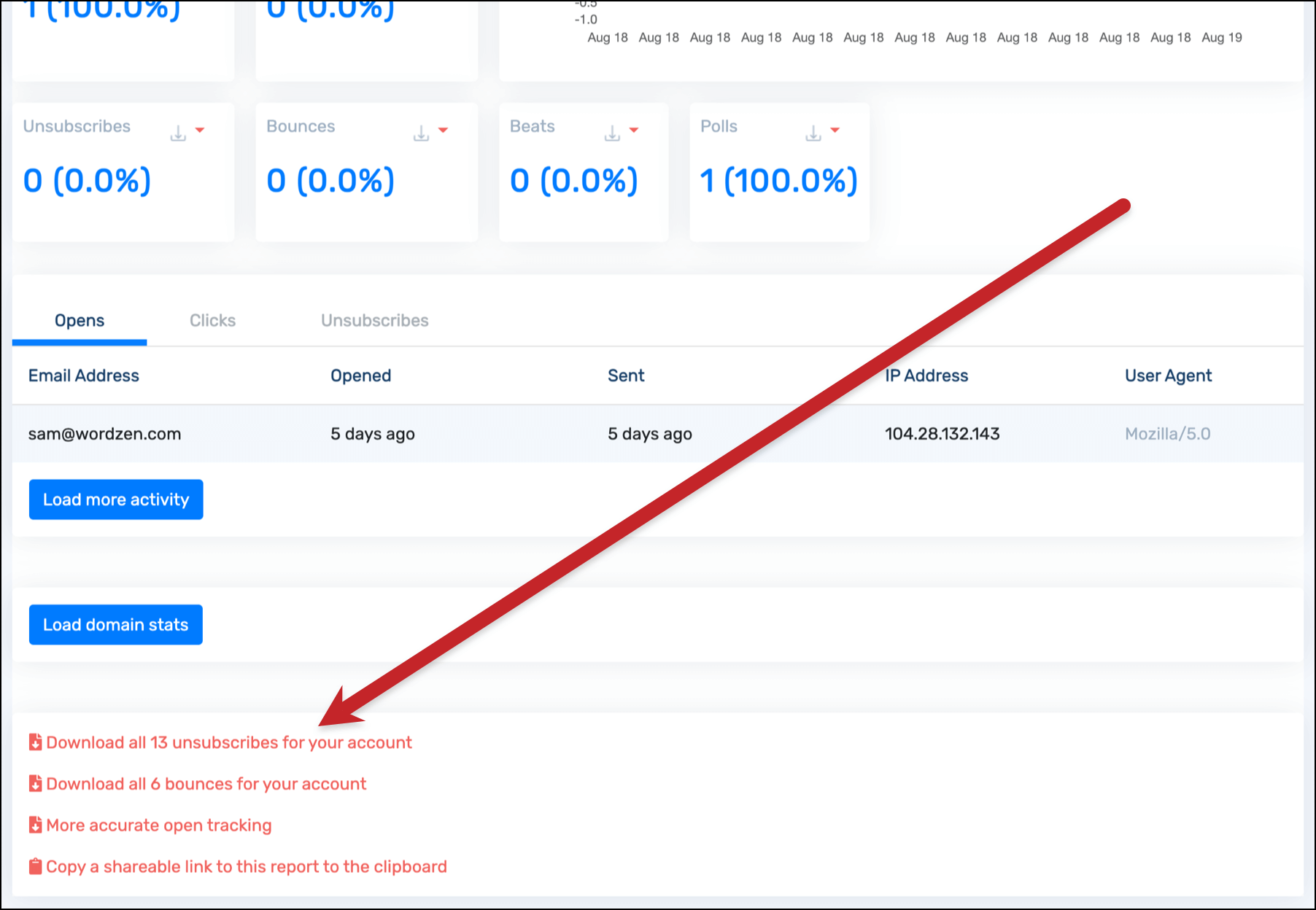
This will download a CSV report of all of your unsubscribed email addresses and unsubscribed domains. Your unsubscribed domains will appear at the top of the list.
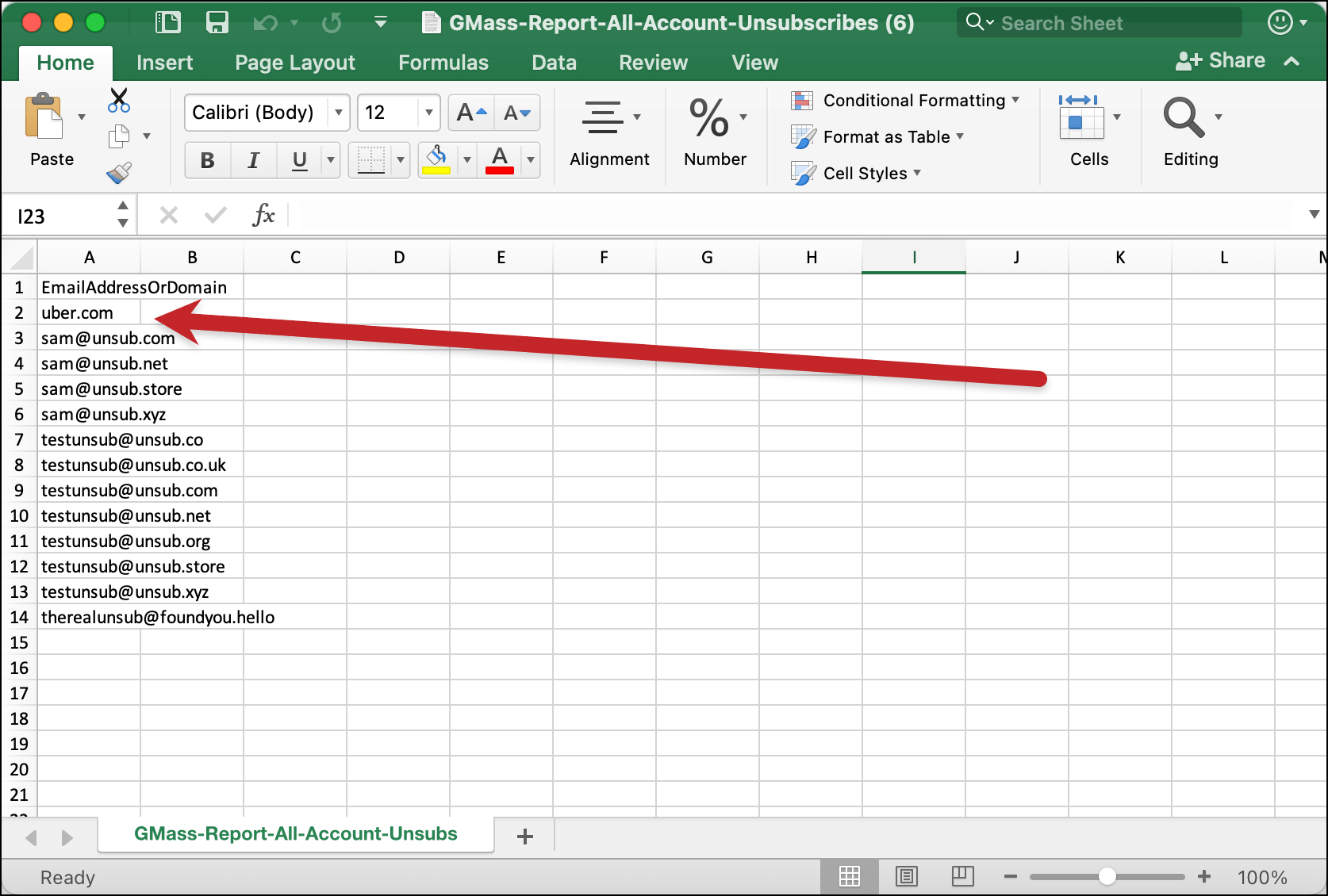
That’s it! You’re now set to unsubscribe domains, resubscribe domains, and download a report with those domains.
Only GMass packs every email app into one tool — and brings it all into Gmail for you. Better emails. Tons of power. Easy to use.
TRY GMASS FOR FREE
Download Chrome extension - 30 second install!
No credit card required

Ajay is the founder of GMass and has been developing email sending software for 20 years.