Here is a live list of the top 10 most popular SMTP servers used by our users. This does not include users who we assign to our own internal SMTPs.
This list was last updated on June 12 and udpates daily at midnight GMT.
| SMTP Server | Number of Users |
|---|
| smtp.sendgrid.net | 14,649 |
| smtp.gmail.com | 1,421 |
| smtp.sparkpostmail.com | 1,316 |
| in-v3.mailjet.com | 1,304 |
| smtp.mailgun.org | 1,253 |
| smtp-relay.brevo.com | 720 |
| smtp-relay.sendinblue.com | 501 |
| email-smtp.us-east-1.amazonaws.com | 490 |
| send.smtp.com | 387 |
| mail.smtp2go.com | 250 |
Step 1: Setting up your SMTP service
Option A: Getting your own SMTP service
An SMTP server is simply an email sending server. There are many well-known SMTP service providers, including SendGrid, JangoSMTP, Mailgun, Mailjet, and others. Pricing for SMTP services range from free plans which let you send a few hundred emails/day to around $20 USD/month for thousands of emails/month. Each service has its own advantages and disadvantages, and you’re free to use any SMTP service you like.
In our testing, we’ve found that SendGrid and JangoSMTP are the two SMTP services that are most compatible with GMass, because of their flexibility in not requiring domain-based verification in order to start relaying email through them. This is especially important if you’re connecting a user@gmail.com GMass account to an SMTP service.
If you choose SendGrid, here is a detailed guide to configuring your SendGrid account for GMass use.
Option B: Request to use our in-house SMTP servers
If you’re sending strictly opt-in email, you might be eligible to use our opt-in SMTP server.
And if you’re sending cold outreach, you can apply to use our cold email SMTP server.
Step 2: Linking your GMass account to the SMTP service
New way
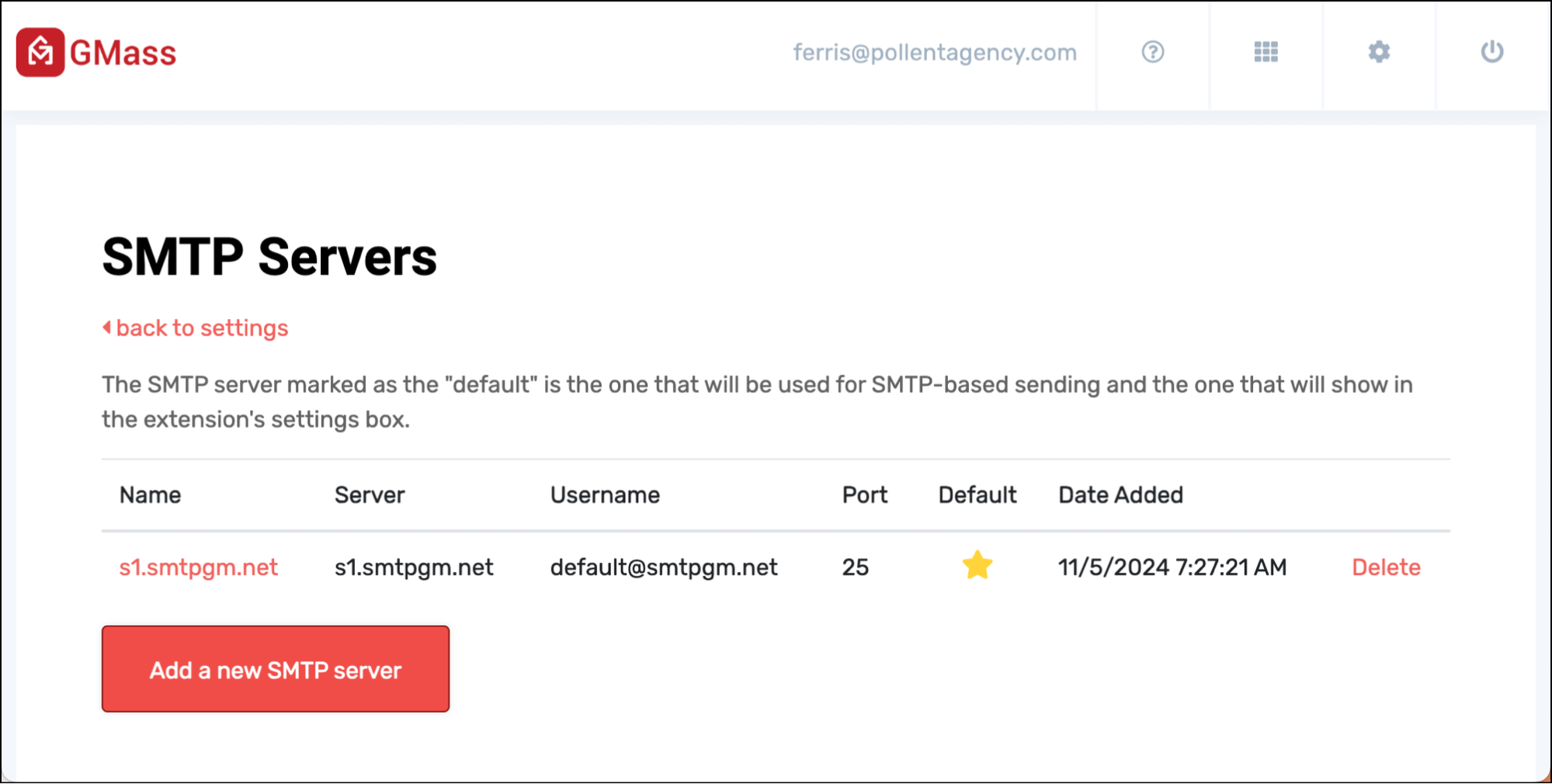
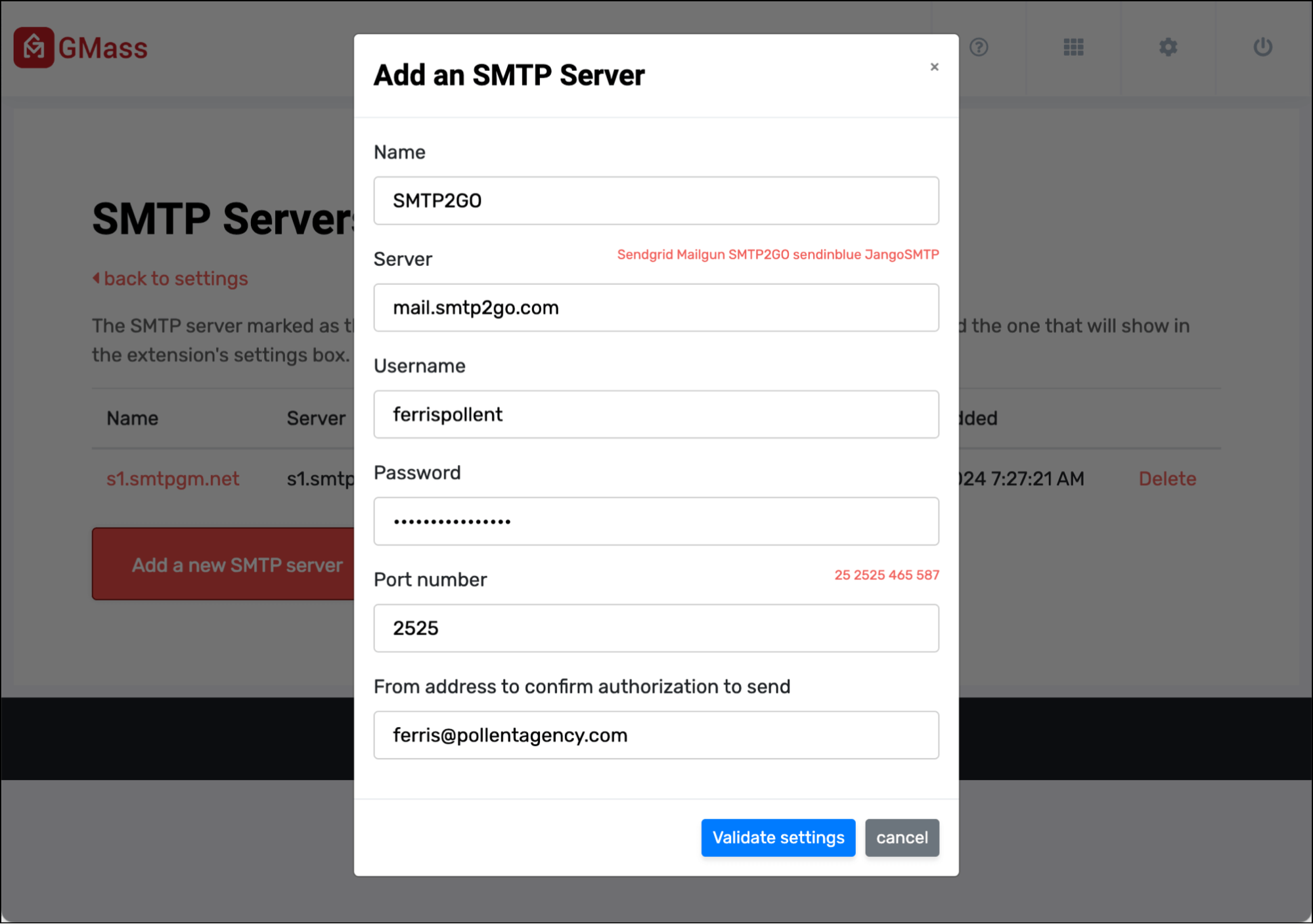
You can easily set your SMTP servers in your GMass account dashboard. You can use this direct link to your SMTP settings.

Then click the red button to add a server.

If you have any trouble with the dashboard, you can still set your SMTP server the old way.
Old way
If you set up your own SMTP service, this is how to link the SMTP service to your GMass account. Note that if you’ve been approved to use our SMTP service, you will skip this step.

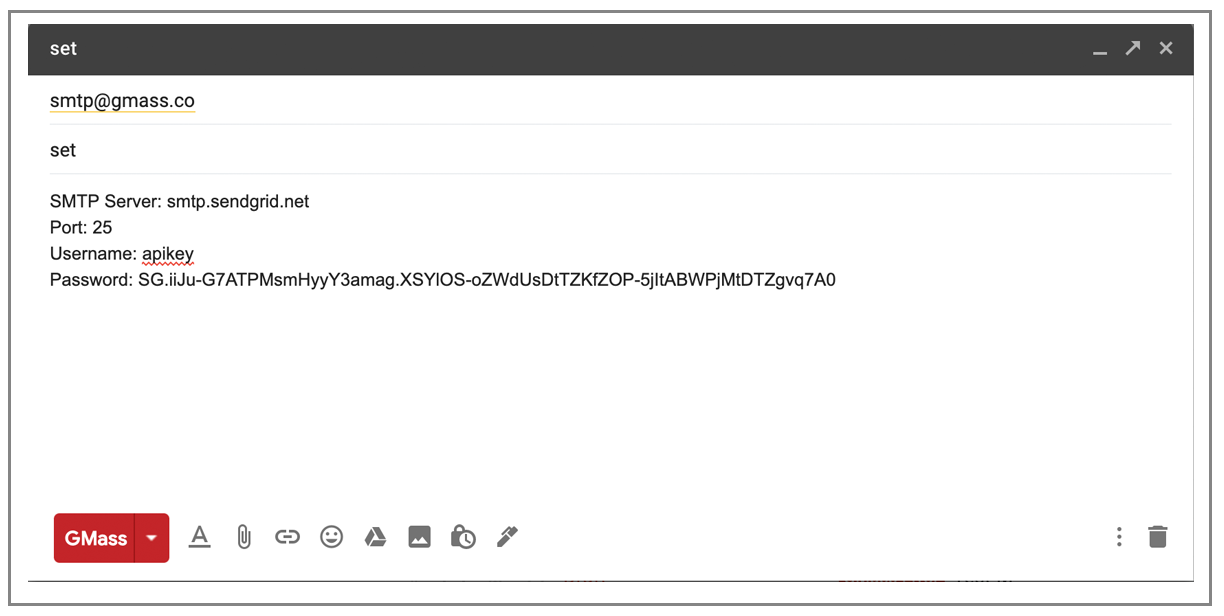
Configure your GMass account to send via an external SMTP server instead of your Google account. The SendGrid credentials show above are not real.
- First, reload Gmail in your Chrome browser to make sure you have the latest version of GMass.
- Click Compose to launch a new window.
- Set the To field to smtp@gmass.co.
- Set the Subject to the word set. Wait a second for the form to appear in the Message area.
- Enter the SMTP server, port, username, and password after the colons. If your server does not require authentication, set the Username to “noauth” (without the quotes) and leave the Password blank.
- Hit the GMass button. Do not hit the Send button.
GMass will relay a test email through the server to yourself. If successful, the SMTP server will be set for your account and you will now see that setting appear in the Settings box.
To clear out the SMTP settings, set the Subject to “clear” and hit the GMass button. To view the SMTP setting currently on your account, set the Subject to “status” and hit the GMass button.
Step 3: Sending through the SMTP server

You’ll notice an option in the GMass Settings box that allows you to set, on a per-campaign basis, whether the emails should be routed through the SMTP server for unlimited sending, or through your Google account, in which case you’d be subject to Gmail’s sending limits.
Note: This option will only appear if you have connected an SMTP account to GMass.
Note that sending over SMTP is subject to usage-based billing, outlined here. Pricing is different for ColdSMTP, which uses a flat rate.
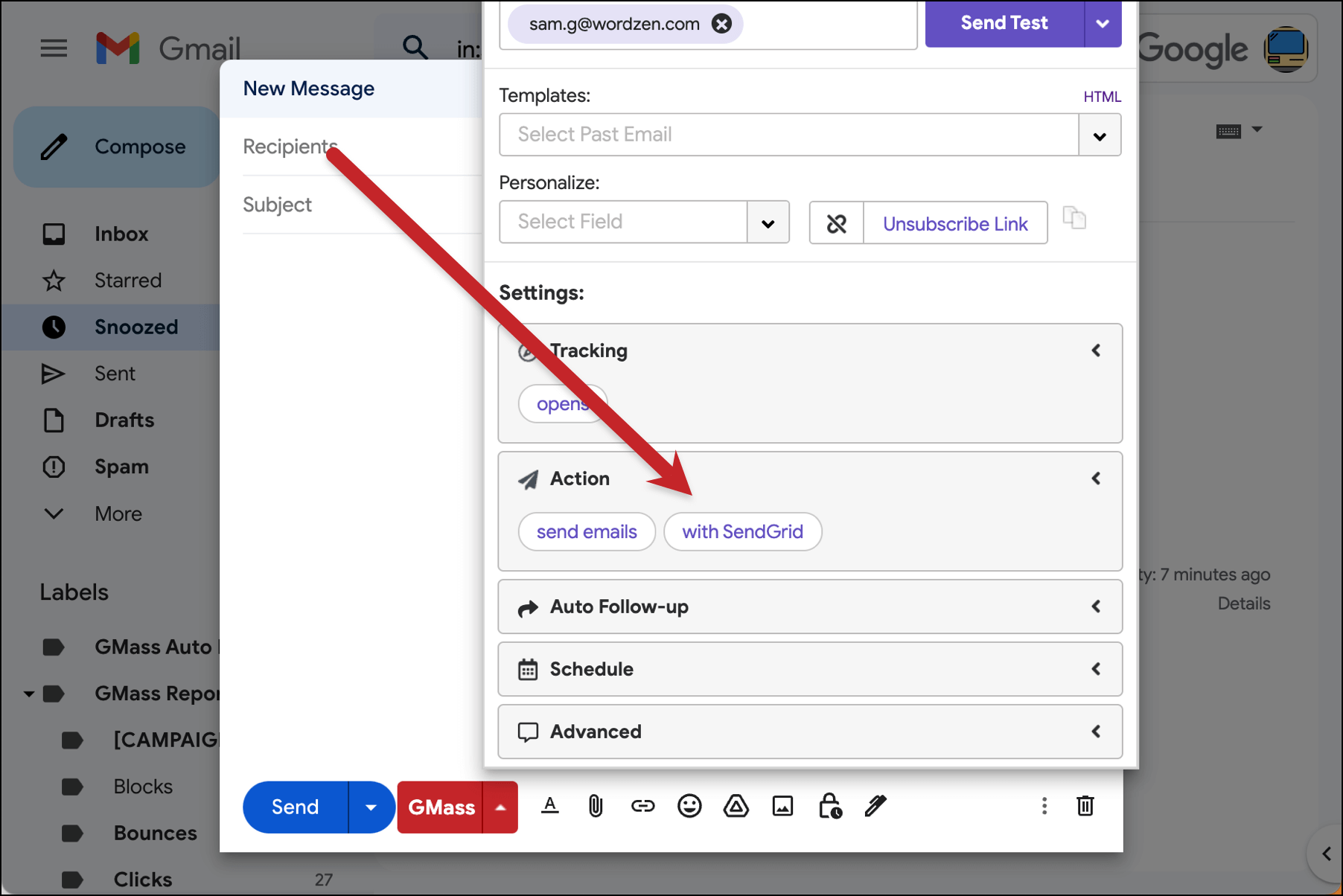
You’ll also be able to quick reference whether you’re sending your campaign through Gmail or your third-party SMTP server if you collapse the Action settings. For instance, here’s what it’ll look like if you’ve connected a SendGrid account and you’ve chosen to send your campaign through that SMTP server.

Choosing an SMTP server
You have three choices to connect your GMass account to an SMTP server:
- If your email sending meets certain criteria, you can use my SMTP server for opt-in emails or my cold email server. These are high volume servers we’ve built and maintain internally. For the opt-in server, your email sends must be either a) non-commercial in nature (like school groups, membership clubs, social causes, churches) or b) completely organically developed. For the cold email server, you must have a demonstrated history of cold emails with strong engagement.
- If your email does not match the criteria, or you just want to use your own SMTP service(s), then feel free to set up an account on your own with SendGrid, JangoSMTP, Mailjet, or any other SMTP service provider. Your company may even have its own SMTP server that you can use. In a future post, I’ll be analyzing the popular SMTP providers, also known as transactional email services, and explaining which ones I think are the best and worst. Once you set up an account with an SMTP service provider, you’ll have to configure the account in certain ways.
- If you’re technically inclined, you can set up your own SMTP server on your own server. If you’re running Linux, here’s how to set up an SMTP service from scratch on a Linux server.
Configuring your SMTP service account
- GMass will connect without TLS/SSL to the SMTP server on the port of your choice. Most SMTP services allow you to connect on ports 25 and 2525 at a minimum.
- Ensure that open and click tracking are turned OFF with the SMTP server service. In fact, the SMTP server shouldn’t alter the message at all. It should just pass it through. This is because GMass will add the tracking for you if you set your tracking this way, and we don’t want the emails to be “double” tracked. Screenshot from SendGrid:

- Ensure there are no quota restrictions on your SMTP account, or if there are, that they are sufficient to handle your GMass campaigns.
- Check to see what Envelope From, also known as MAIL-FROM or RETURN-PATH address your SMTP service will use when relaying your email. Most transactional email services like SendGrid use a sendgrid.net domain by default, which makes it so you don’t necessarily have to alter your SPF records. Some SMTP services require domain verification, because the domain in your From Address will be the domain in the MAIL-FROM. Just be aware of this. You may need to alter your SPF, DKIM, and DMARC records.
- Ensure that Bounce Notifications are on. Set them to go to the From Address. This will allow GMass to process your bounces, just like normal. Not all SMTP services have this capability. SendGrid and JangoSMTP do. Mailgun and Mailjet do not. Screenshot from SendGrid:

FAQ
Q: What’s going on here? How do I use an external SMTP server and send unlimited emails from my Gmail account?
A: You simply set up an SMTP account with a popular provider like SendGrid, Mailgun, Mailjet, or JangoSMTP. Then, you link your SMTP account to your Gmail account. Finally, for each campaign you send with GMass, you can choose whether to send the campaign through Gmail or through the SMTP server. If you send through Gmail, you’ll be constrained by Gmail’s limits, but if you send through the SMTP server, you’ll be able to send virtually unlimited emails.
Q: I’m so confused. I would love to be able to send unlimited emails from my Gmail account, but I’m not very technical and I know nothing about SMTP.
A: If you’re sending non-commercial or opt-in email campaigns, you can apply to use our in-house SMTP server — and you can be instantly approved to use it if your account qualifies. If you’re sending cold email, you can apply to use our in-house cold email sending server. Otherwise, please consult your organization’s IT person for further help. Setting up an SMTP account and linking it to GMass can be accomplished by any IT person with a basic knowledge of how email works.
Q: Doesn’t sending through an SMTP service eliminate the deliverability advantage GMass “normally” has, since normally GMass sends email through Google’s servers, which are the highest deliverability email servers in the world?
A: Theoretically, your deliverability may drop slightly if you switch from sending via Gmail to sending via an SMTP server. In our testing with several hundred users though, we have not seen a noticeable difference in deliverability, as measured by open and click rates. You should monitor your own campaign statistics though once you switch to SMTP sending, to ensure this is the case for you.
Q: It sounds like you’re getting around Google’s rules by sending this way. Won’t Google get upset with me if I use my Gmail account in this manner?
A: Sending email campaigns like this doesn’t violate any of Google’s terms. Additionally, thousands of users have set this up and found success. What we are offering here is simply a way to use the Gmail user interface to create, launch, and track an email campaign, while the emails are actually sent by a non-Gmail server.
Q: Do you charge more for sending via SMTP?
A: As of November 15, 2021, we bill for usage of SMTP-based message sending. There is a generous monthly allowance for sent messages before billing begins, and after that, a usage charge is assessed. The details for SMTP-based billing are here. Additionally, you’ll have the cost with the SMTP service provider, which may be an additional $10+/month USD, based on what kind of account you get. For your low-volume campaigns, you could still elect to send natively through your Google Workspace account, allowing for another 1,500-2,000 emails/day, which would not incur SMTP usage-based billing.
For ColdSMTP, billing is done via a monthly charge of $99, with unlimited emails.
Q: Is the SMTP option available for free trial GMass accounts, or do I need to be subscribed to GMass?
A: It will work with a free trial GMass account as well, but using this option with a free trial GMass account defeats the purpose. GMass already limits free trial accounts to sending 50 emails per 24 hours, which is well under Gmail’s own limits, so connecting to an SMTP server to send high volume campaigns wouldn’t solve anything, since a GMass free trial account will already limit you to 50 emails per rolling 24 hours.
Q: Why should I use two services, yours and an external SMTP provider, when I could use one service like SendGrid, which also supports sending newsletters?
A: You are free to use any service you like, but we think that GMass with an external SMTP service makes for a powerful combination for email marketing and email automation. The ease and familiarity of the Gmail interface makes sending an email campaign a time efficient process. Additionally, by combining GMass and an external SMTP service, you can send virtually unlimited emails with the auto follow-up feature, a feat that would be impossible without GMass, since GMass integrates with your Gmail Inbox. Using just SendGrid in a standalone fashion won’t accomplish that.
Here’s our full explanation of why GMass + SendGrid is better than SendGrid alone.
Q: I’ve read that Gmail doesn’t allow its users to send “from” their Gmail accounts using outside servers. So how are you getting away with this?
A: That’s correct. People have been speculating since 2017 about Gmail not allowing free gmail.com users to send using outside servers. And they finally made a change in their DMARC policy in early 2024 that made it so.
Fortunately, we at GMass came up with a unique solution to enable gmail.com users to continue to send via a SMTP server. Check out the full instructions here in our doc on how GMass helps gmail.com + SMTP users achieve DMARC compliance.
If you are sending from your Google Workspace address, then you don’t need to worry about this policy at all, because you get to set your own policy for your domain!
See also: real-time stats of campaigns sent “from” a gmail.com address but routed through an external SMTP server.
Q: In my Gmail Settings under “Send mail as”, I can add another From Address to use, and then Gmail asks me to specify an SMTP server. How is that different from specifying an SMTP server this way?
A: When you set up a new From Address in your Gmail account, if the From Address is a non-Gmail address, then yes, you are asked to set an SMTP server. However, even in that case, the Gmail sending limits still apply because it is still Gmail that is relaying the emails through your SMTP server. With this new method of linking the SMTP account to your GMass account, Gmail isn’t “handling” any of the email sending and isn’t “aware” of what’s being sent, so the limits won’t apply.
Q: I want to send a 100,000 email campaign using GMass and SendGrid. How long will it take my campaign to send?
A: Admittedly, because of how we are sending these emails, we have not optimized this process for speed. If you need to send 100,000 emails in an hour, then this isn’t the right solution. The rate of sending will be around 3,500 emails/hour. Why so slow? Because the processing power of both sending the email through an external SMTP service AND making sure your Gmail account knows about it is a “costly” procedure, from a computing perspective. So, if you need to send 25,000 emails throughout the course of the day, then this could work well for you. But if you need to send 25,000 emails in the next ten minutes, this is not the solution for you.
Q: Do I need to worry about SPF, DKIM, and DMARC?
A: It depends on which SMTP service you choose and whether you’re sending from an @gmail.com address or a Google Workspace address.
If sending from an @gmail.com account, you don’t need to worry about any of this, because Gmail handles it for you.
If sending from a Google Workspace account, then it depends on the SMTP service you choose.
The default setup with SendGrid is such that you do NOT have to worry about SPF, DKIM, and DMARC. This is because in the default setup the MAIL-FROM used in email sending is a sendgrid.net address, so the SPF and DKIM signing is taken care of by SendGrid’s DNS records and infrastructure.
If you opt for SendGrid’s “whitelabel” option though, then the MAIL-FROM can be based on your own domain, and then you would need to ensure that SPF is set up to allow sending from your domain through SendGrid, and you can then have emails DKIM-signed by your own domain as well. For other providers, like Mailgun, for example, you have to “whitelabel” your domain from the outset, and handle SPF/DKIM from the outset. Therefore we can conclude that getting set up on SendGrid is easier because they don’t require this setup.
Q: Do you recommend certain SMTP services over others?
A: There are many SMTP services to choose from, including SendGrid, JangoSMTP, Mailgun, Mailjet, SparkPost, Amazon SES, and others. Each has its strengths and weaknesses. Personally, I’m most familiar with SendGrid and JangoSMTP, as well as our in-house servers. Full disclosure: I created JangoSMTP back in the early 2000s, and it was acquired in 2013, but I’m still close to the JangoSMTP team.
Common Scenarios
When you link an SMTP account to your GMass account, you may encounter these common scenarios.
- You are sending a campaign with Gmail when before your campaign finishes sending, you start to get “You’ve exceeded your limit” bounces and GMass pauses the sending of your campaign. If you then link an SMTP account to your GMass account, GMass will switch any pending campaigns to SMTP sending so that you don’t get these bounces anymore.
- You’ve just linked your SMTP account, or we’ve just approved you to use ours. When you compose your next campaign, the option in the Settings box will default to SMTP sending. You can of course switch it to Gmail sending. The Gmail vs SMTP option in the Settings box will remember whatever you last set it to.
- You set your campaign to just create Drafts rather than send right away. When you then click the link to send the Drafts, you’ll be given a choice of whether to send them via Gmail or via the SMTP server linked to your account.
More Resources
If you’d like to dive deeper into Gmail, SMTP sending, and the correct configuration for an SMTP account, you might be interested in:
Using SendGrid? The recommended SendGrid configuration.
If you’re setting up an SMTP account, we generally recommend against getting a dedicated IP. Here’s why.
What is an SMTP server? Here’s the Wikipedia article on SMTP.
See why GMass has 400k+ users and 9,000+ 5-star reviews
Email marketing. Cold email. Mail merge. Avoid the spam folder. Easy to learn and use. All inside Gmail.
TRY GMASS FOR FREE
Download Chrome extension - 30 second install!
No credit card required
Ajay is the founder of GMass and has been developing email sending software for 20 years.
Love what you're reading? Get the latest email strategy and tips & stay in touch.