
It might seem strange that 18 months after I launched GMass I’m writing a post about how to create a GMass account, but with our ever-growing user base, we find that people are sometimes confused about which of their Gmail accounts have GMass accounts versus which are just “aliased” to a Gmail account that has a GMass account. So let’s clear up the confusion.
To create a GMass account:
1. Install the GMass Chrome extension
You can install the extension either from the GMass website or from the Chrome Web store. To install it from our website, just go to www.gmass.co and click on any of the big ADD GMASS TO GMAIL buttons.
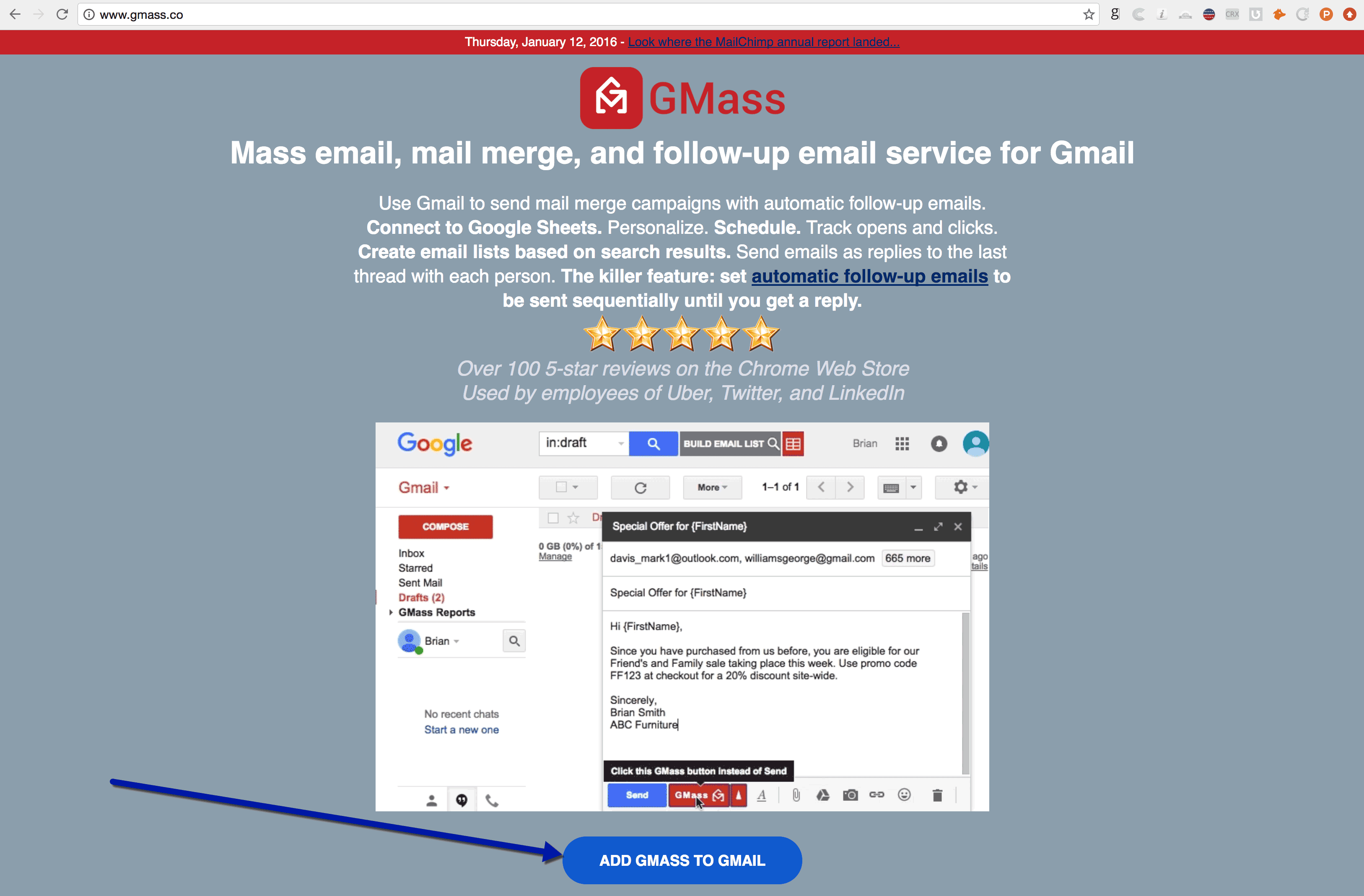
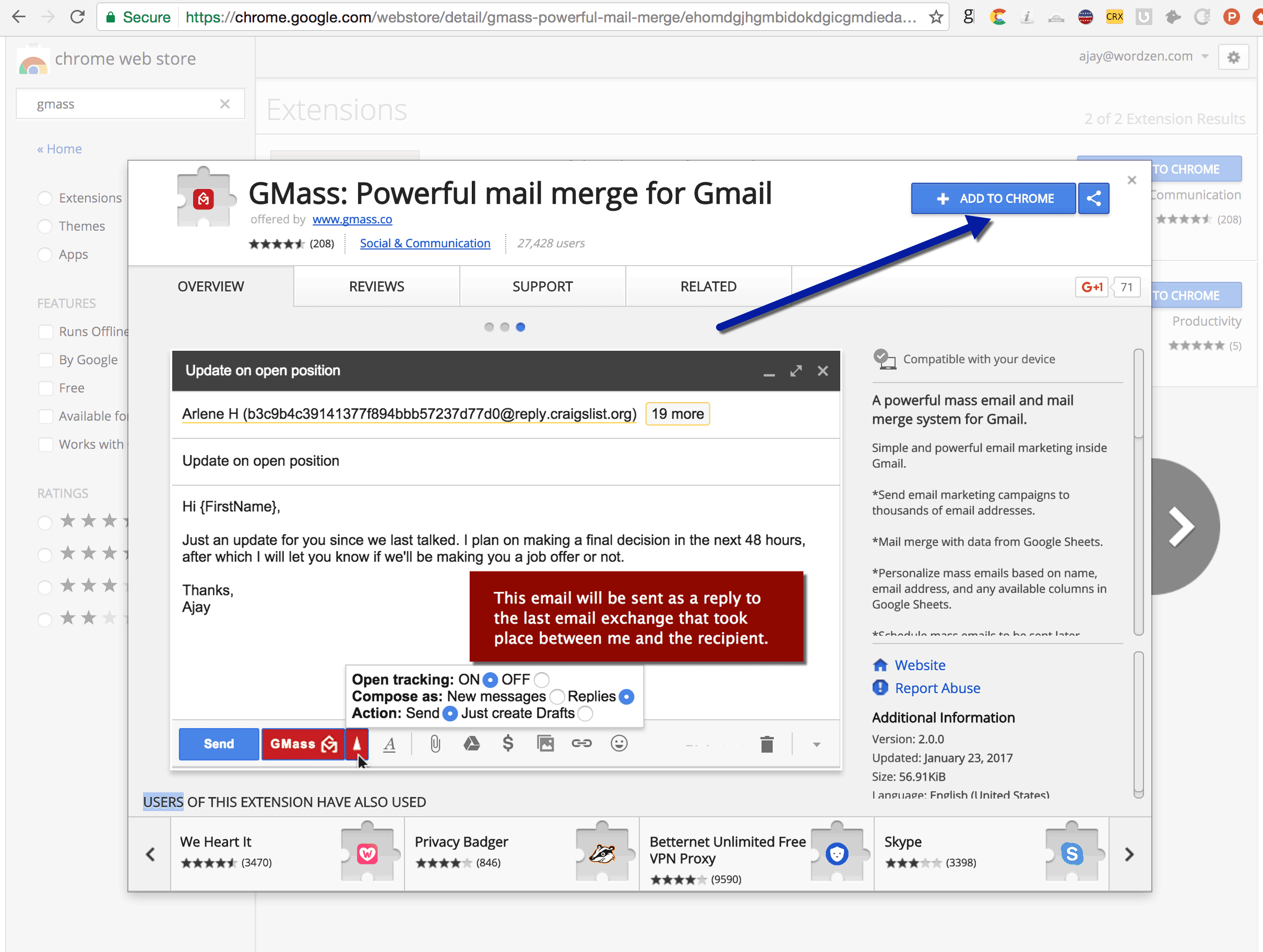
Remember to use Chrome. To install it from the Chrome Web Store, go here and click on the ADD TO CHROME button in the upper-right.
2. Connect your Gmail account to GMass
Log into the Gmail account for which you want to use GMass. When you login to Gmail, click any GMass button, and you’ll be prompted to link your Gmail account to GMass.

This is actually the step that creates your GMass account. Simply installing the GMass extension doesn’t create a GMass account. It only makes the buttons appear in your Gmail account.
If you want to bypass the step of logging into Gmail and clicking on the GMass popup, you can also directly link your Gmail account to GMass (just log in to Gmail), which will instantly create a GMass account. Just make sure you install the GMass extension at some point as well.
Items to note:
- If you login to a different Gmail account that you own, and the GMass buttons show up, that does not mean that you have a GMass account for that Gmail address. You can easily create one though, by clicking any GMass button, and following the prompts to link that new Gmail account to GMass.
- Many people use various aliases within a single Gmail account. For example, if your Gmail account is johnsmith@gmail.com, you may have an alias address of johnsmith@company.com set up inside your johnsmith@gmail.com account. In this case, as far as GMass is concerned, you need only create a GMass account for johnsmith@gmail.com, since that is the actual Google account GMass is connecting to. You will then be able to use GMass to send from either johnsmith@gmail.com or johnsmith@company.com. Now, if johnsmith@company.com is also a G Suite account, you may additionally want to create a separate GMass account for johnsmith@company.com. Make sure you have the GMass extension installed, and then log out of any other Gmail accounts and then log in directly to the johnsmith@company.com G Suite account.
Only GMass packs every email app into one tool — and brings it all into Gmail for you. Better emails. Tons of power. Easy to use.
TRY GMASS FOR FREE
Download Chrome extension - 30 second install!
No credit card required

Ajay is the founder of GMass and has been developing email sending software for 20 years.