All articles
How to configure a Sendgrid SMTP account for GMass
Gmail Limits·October 25, 2017·By Ajay Goel·3 min read

If you’re using the GMass unlimited sending option by connecting an SMTP service to GMass, you may have chosen Sendgrid as your SMTP service provider. If so, here is how you we recommend that you configure your Sendgrid account.
- If you created your SendGrid account after 9/17/2020… Accounts created after this date are required to have set up domain authentication before they can upgrade their free plan. More information on SendGrid’s website here: https://docs.sendgrid.com/ui/account-and-settings/upgrading-your-plan#upgrade-your-sendgrid-plan. This also means you cannot use a free Gmail account with a paid SendGrid account unless that SendGrid account predates 9/17/2020 — because, as a gmail.com account, you cannot set up domain authentication. (It’s Google’s domain.) As soon as you log in to your SendGrid account, you’ll be directed to verify a sender, so proceed with that before the rest of this setup. If your SendGrid account was created before September 17th, 2020, then you can skip ahead to step 2.
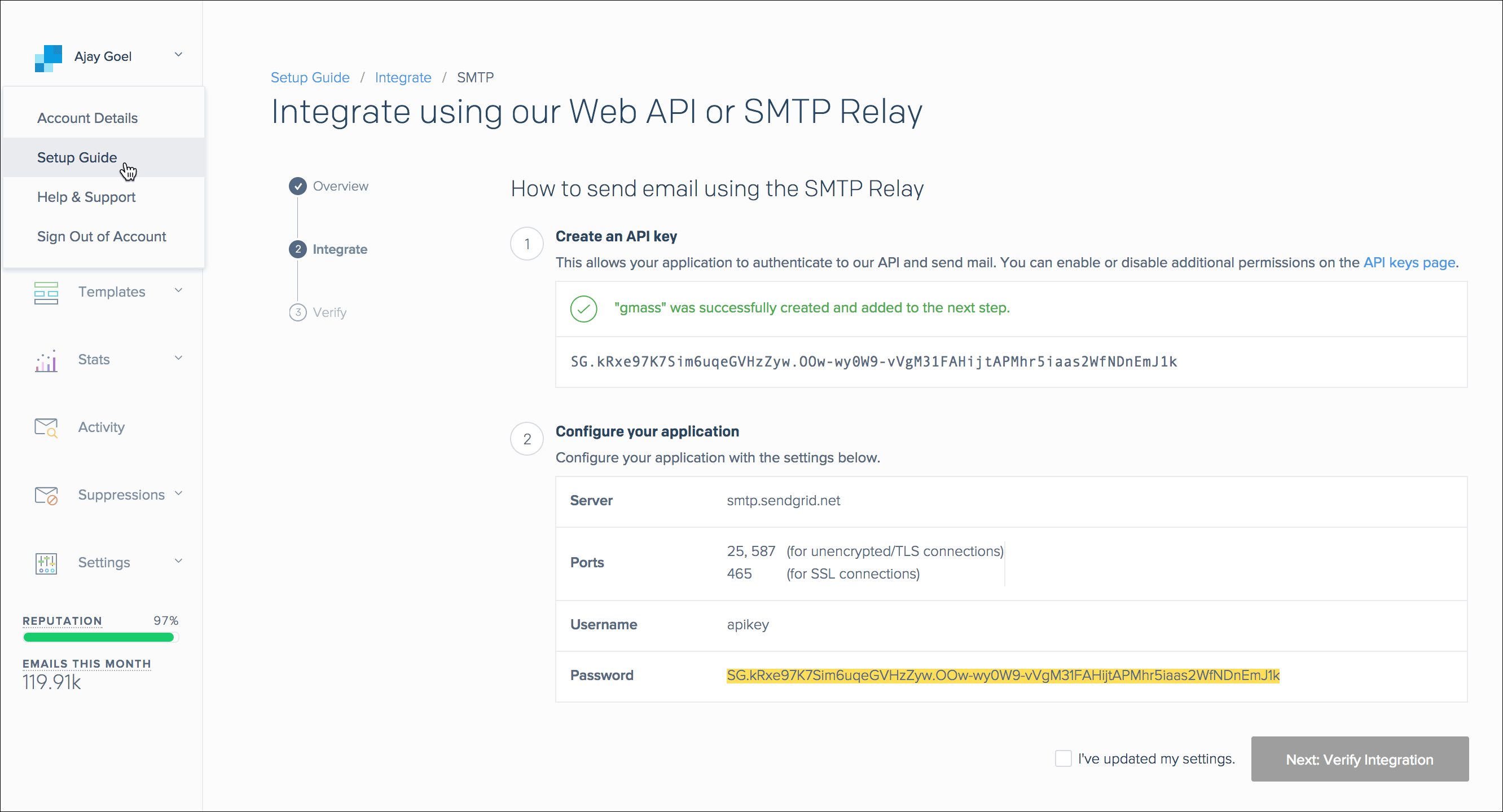
- GMass will connect without TLS/SSL to the SMTP server on the port of your choice. Sendgrid allows you to connect on ports 25 or 587. As of October 2020, you must authenticate into the Sendgrid SMTP relay with the username “apikey” (this is the same for everyone) and then your actual API key that you create from inside the SendGrid interface. Note that you cannot use the username/password that you use to log in to the SendGrid website. See below for an example. Remember: the SMTP username is always “apikey.” The SMTP server is smtp.sendgrid.net.
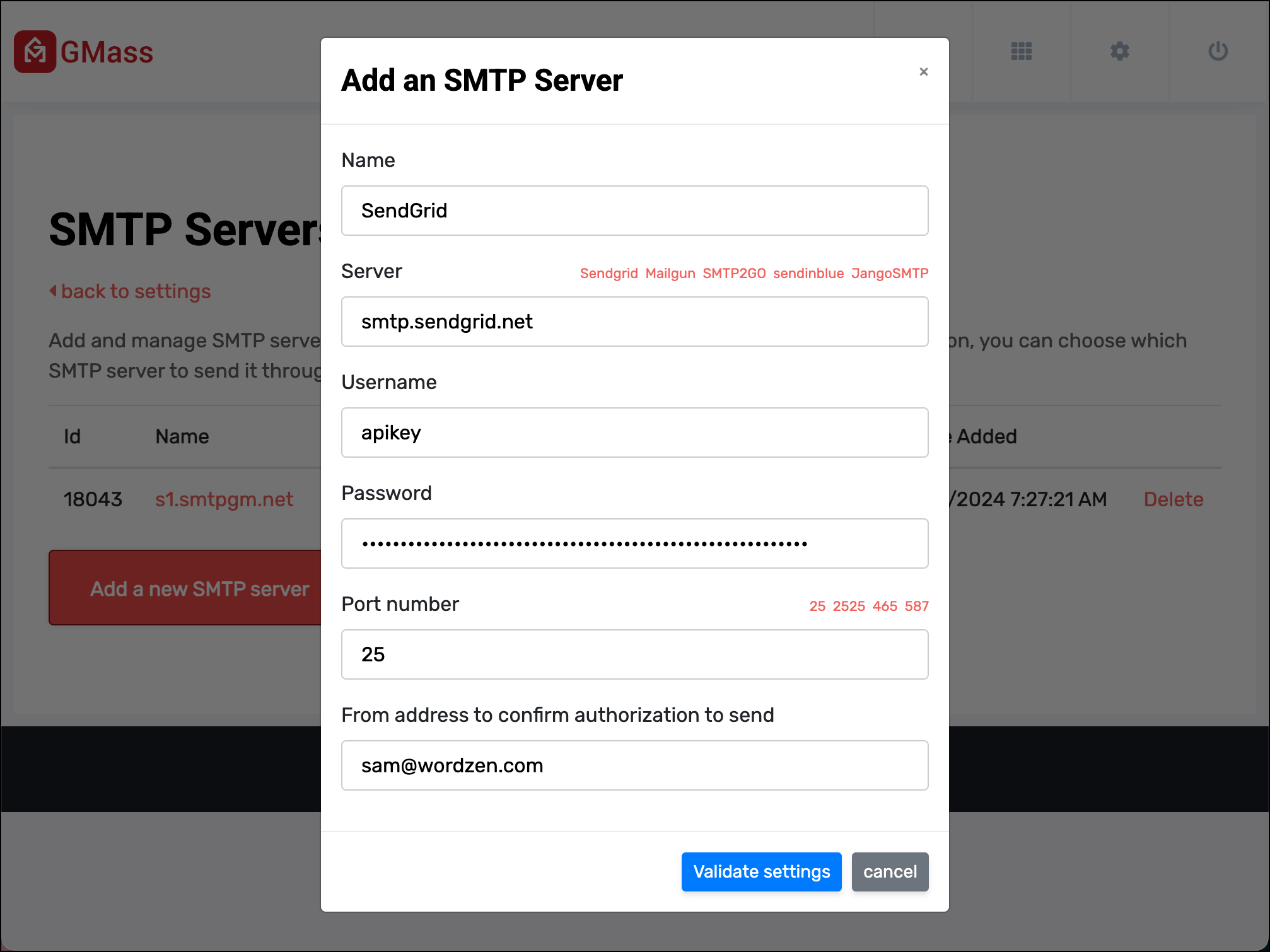
Go to your GMass dashboard to add the SendGrid server to your list of SMTP servers.This is how you will set the Sendgrid server to be used in GMass.

Configure your GMass account to send with Sendgrid. You must set the username and password to be “apikey” and your actual API key. Do not enter the username/password you use to log in to SendGrid. - Ensure that open and click tracking are turned OFF. This is because GMass will add the tracking for you if you check the box for open and click tracking under Settings, and we don’t want the emails to be double tracked. Here is how the “Tracking” section of Sendgrid should look:

- Ensure that Bounce Notifications are on. Set them to go to the From Address. This will allow GMass to process your bounces, just like normal. Not all SMTP services have this capability. Sendgrid and JangoSMTP do. Mailgun and Mailjet do not. Therefore this is what your Mail Settings screen in Sendgrid should look like:

- We generally recommend users do NOT get a dedicated IP address with Sendgrid. We’ve spoken to high level staff at Sendgrid who have explained that dedicated IPs start off as cold IP addresses with no sending reputation. That means that initially, with a dedicated IP you’re likely to see more deliverability issues than if you use an IP address from Sendgrid’s shared pool. Here’s an article explaining the pitfalls of dedicated IPs.

We recommend that you do not get a dedicated IP with Sendgrid. - Similarly, we recommend that you do NOT whitelabel your domain either. Sendgrid highlights the deliverability advantages of a whitelisted domain, but because they force you to create a sub-domain of your domain, and don’t let you use your actual domain for the sending and signing of emails, your sub-domain will start off with no reputation and will likely cause delivery issues. Note: Some Sendgrid accounts require you to whitelabel your domain. Here’s how to get around that.
Since our beta launch a few weeks ago, several users who set up a domain whitelabel have had spam and deliverability issues, specifically where Gmail highlights the white-labeled sub-domain as the source of the spam problem.
We recommend that you do NOT set up a domain whitelabel in your Sendgrid account. - Lastly, do not set up an white-label email link either. This is equivalent to the branded tracking domain feature of GMass. Since we previously turned OFF Sendgrid’s open and click tracking in to avoid double-tracking, there’s no need to customize email links with Sendgrid.

Setting up link whitelabels is irrelevant because you should have turned OFF open and click tracking in Sendgrid, since this will be handled by GMass.


Ready to transform Gmail into an email marketing/cold email/mail merge tool?
Only GMass packs every email app into one tool — and brings it all into Gmail for you. Better emails. Tons of power. Easy to use.
TRY GMASS FOR FREE
Download Chrome extension - 30 second install!
No credit card required
Only GMass packs every email app into one tool — and brings it all into Gmail for you. Better emails. Tons of power. Easy to use.
TRY GMASS FOR FREE
Download Chrome extension - 30 second install!
No credit card required

Ajay is the founder of GMass and has been developing email sending software for 20 years.
Love what you're reading? Get the latest email strategy and tips & stay in touch.