Triggered Emails in GMass: Send When a Prospect Is in Their Inbox

Want to send an email when you know the person is in their inbox and has you top-of-mind?
Triggered emails are a GMass feature in Premium plans and higher that enable you to do just that.
With triggered emails, GMass can send a new email immediately to a prospect when they open, click, or reply to your original campaign.
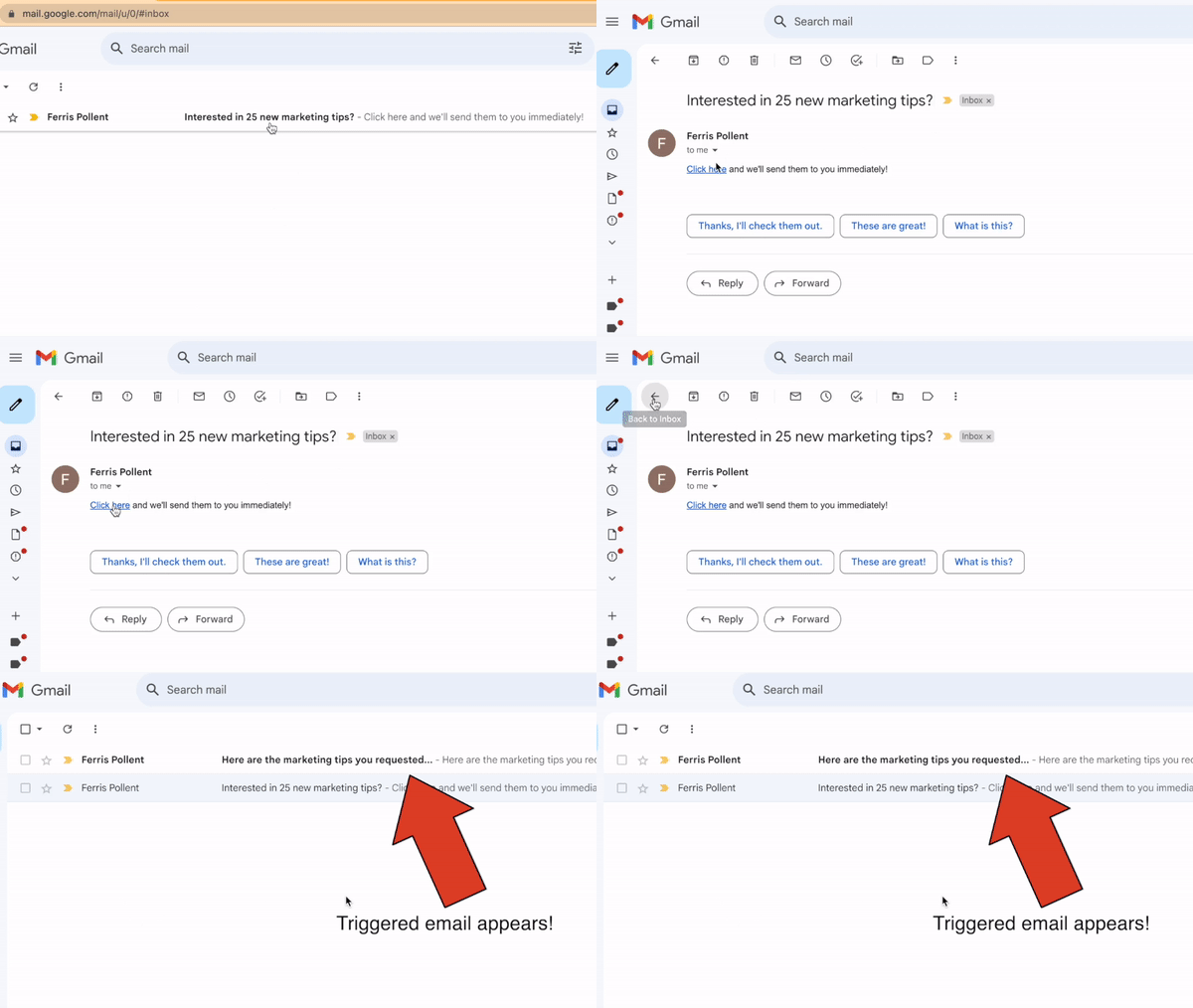
You can still use mail merge personalization in your triggered messages, as GMass’s triggered emails are connected to the same Google Sheet you used for your initial campaign.
In fact, this is the only triggered email solution in the world that works directly with Google Sheets!
Here’s everything you need to know about using triggered emails in GMass.
Triggered Emails: Table of Contents
- How to Set Up Triggered Emails in GMass
- More Things to Know About Triggered Emails in GMass
- Example Scenarios for Triggered Emails
- Triggered Emails in GMass: Next Steps
How to Set Up Triggered Emails in GMass
You’ll set up your triggered emails in GMass inside the settings box for your campaign.
So once you’ve connected a Google Sheet, an email list, or multiple lists in a multi-merge campaign, you can now create your triggers.
Prepping a campaign for triggered emails
Here’s my initial campaign email…
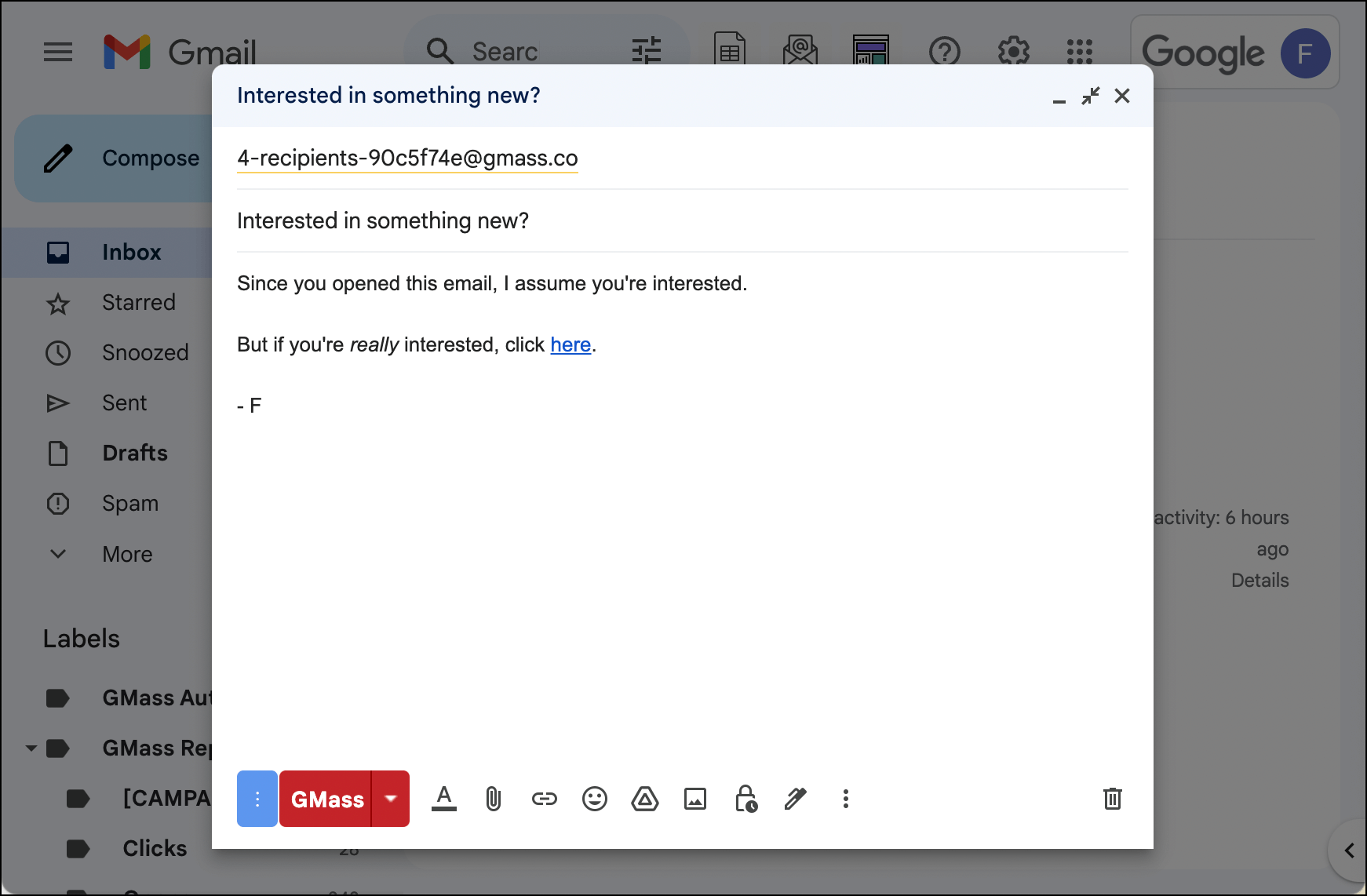
Now click the arrow next to the GMass button to go into the GMass settings.
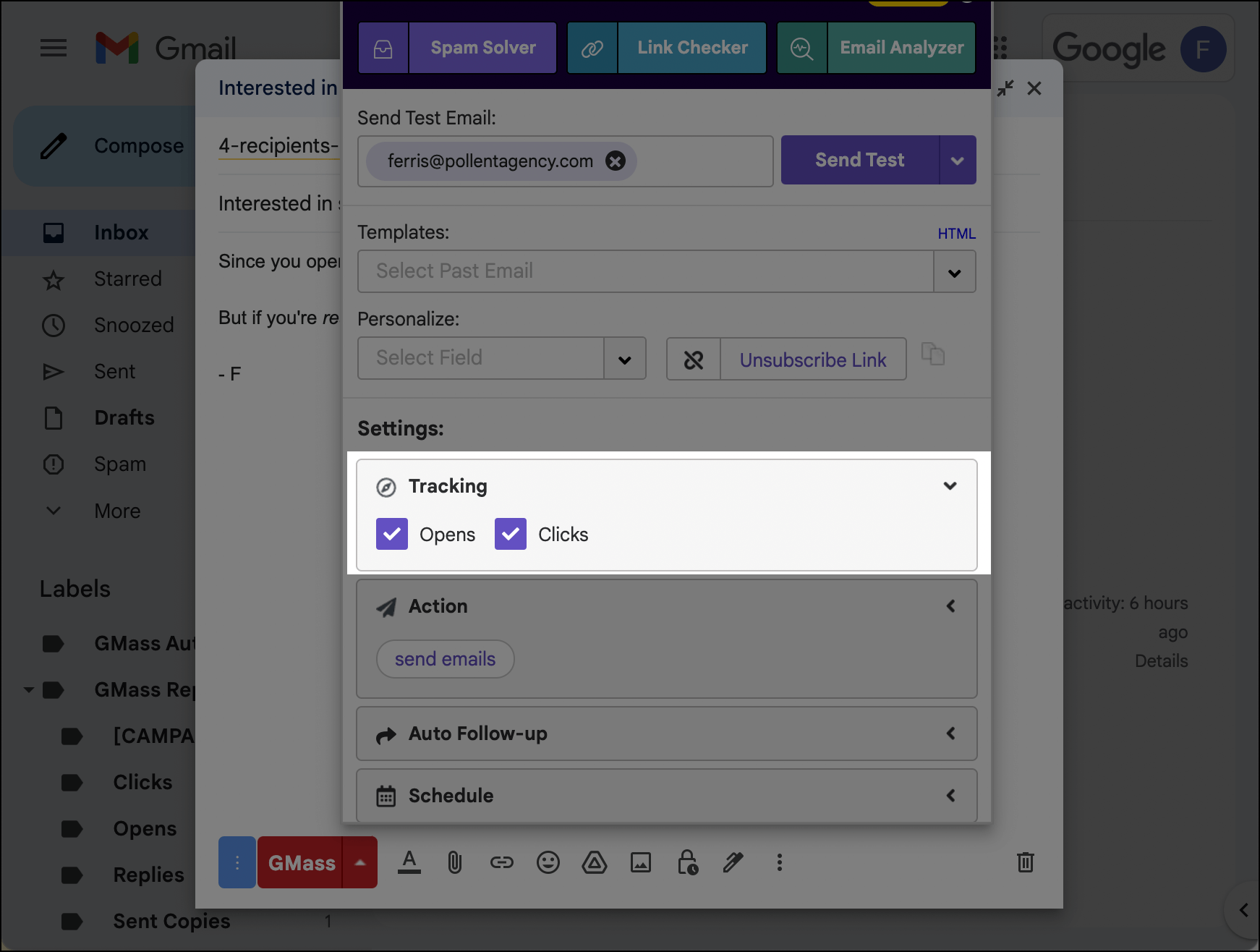
If you want to send a trigger on an opened message, you’ll need open tracking; if you want to send a trigger on a clicked message, you’ll need click tracking. In either case, make sure open and/or click tracking are on. Also note that whatever open and click settings you choose here will carry over to your triggered emails (so if you track opens on your main campaign, you’ll track opens on your triggered email as well).
If you want to send a trigger on a reply, you don’t need to have open or click tracking on.
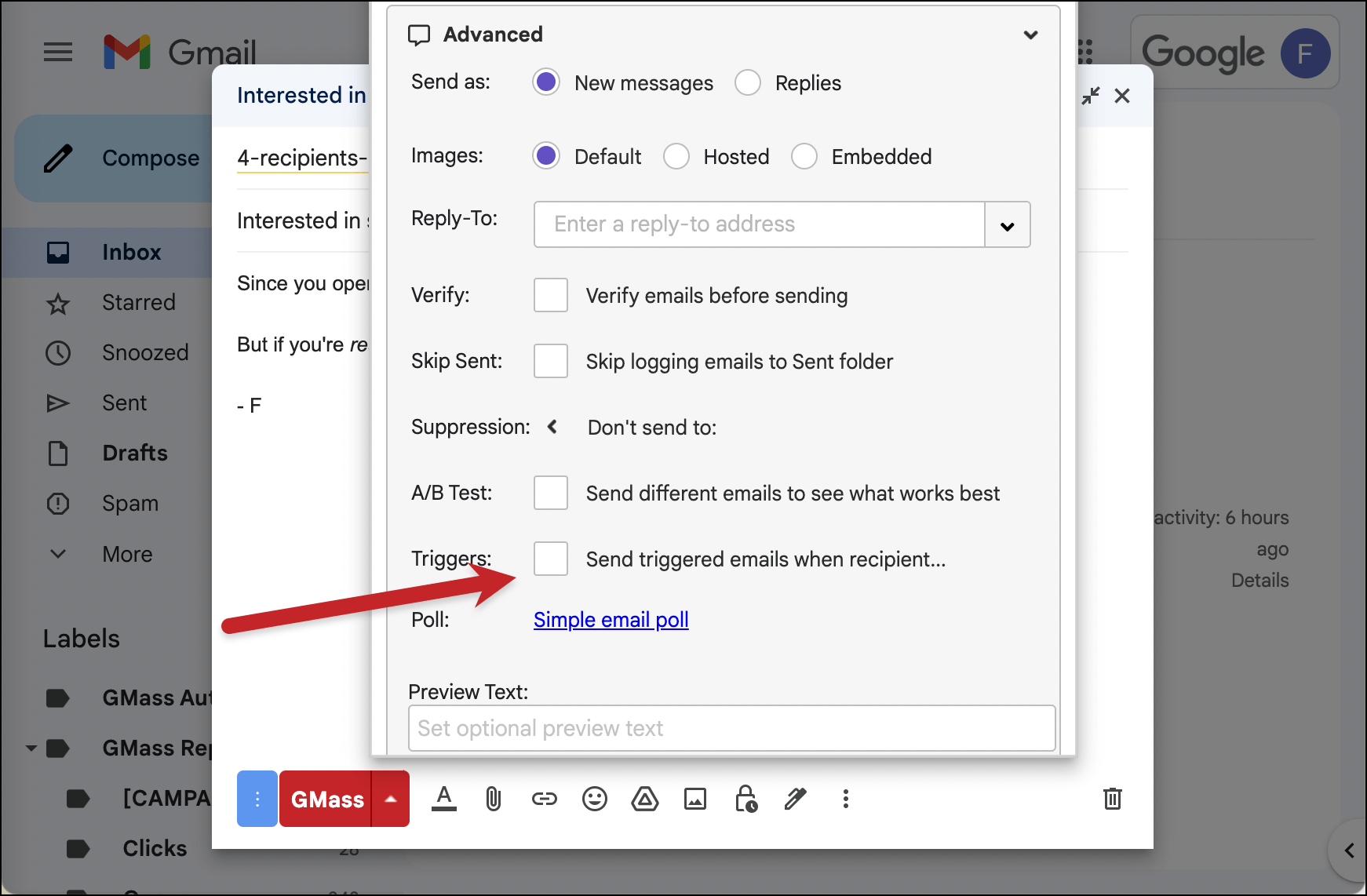
Then head down to the Advanced section in the settings.
Click on the check box next to Triggers.
Creating your new triggered message
Creating your triggered email message works similarly to creating a rich-text auto follow-up message in GMass.
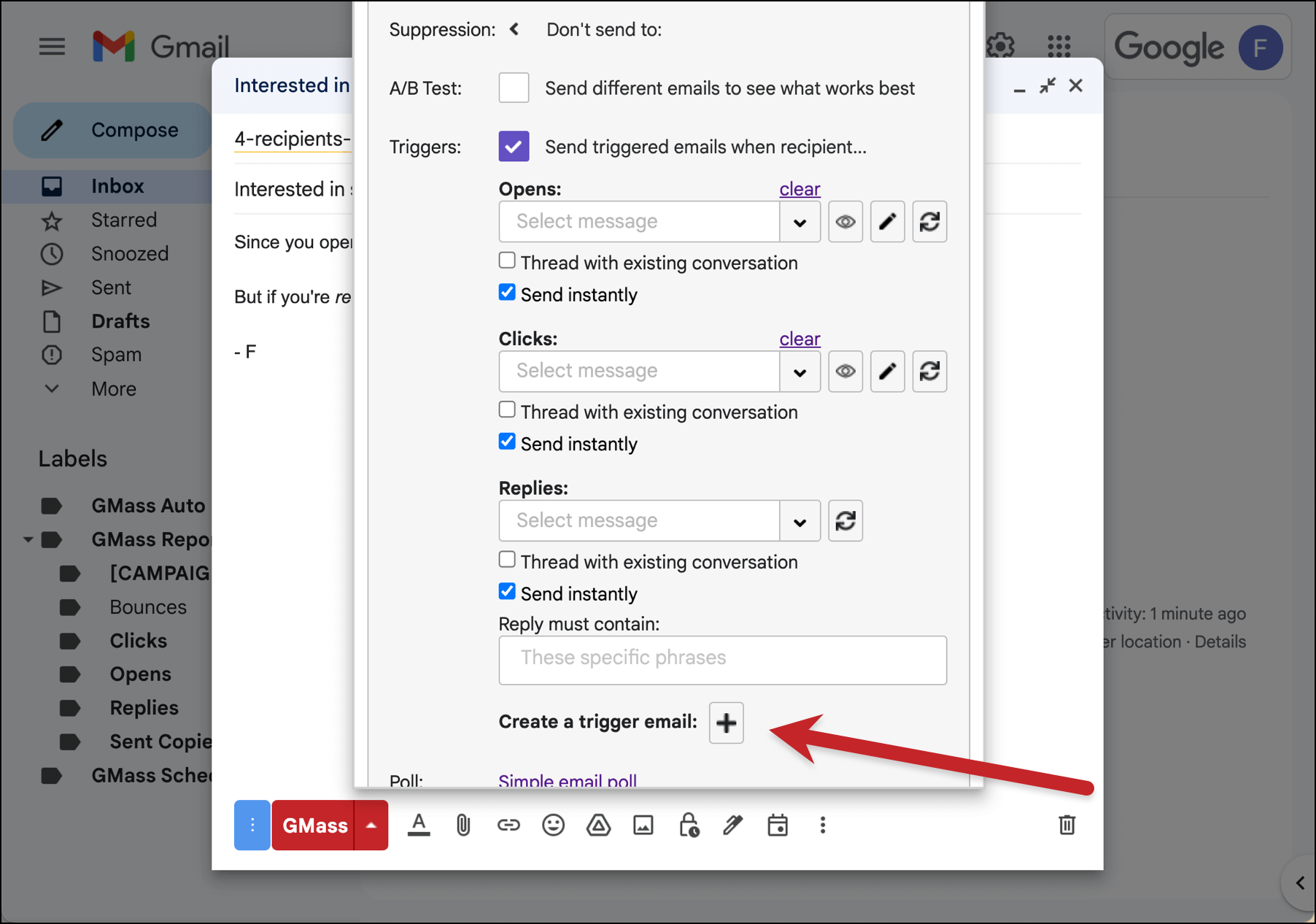
You can create a new trigger email template by clicking the ➕ button.
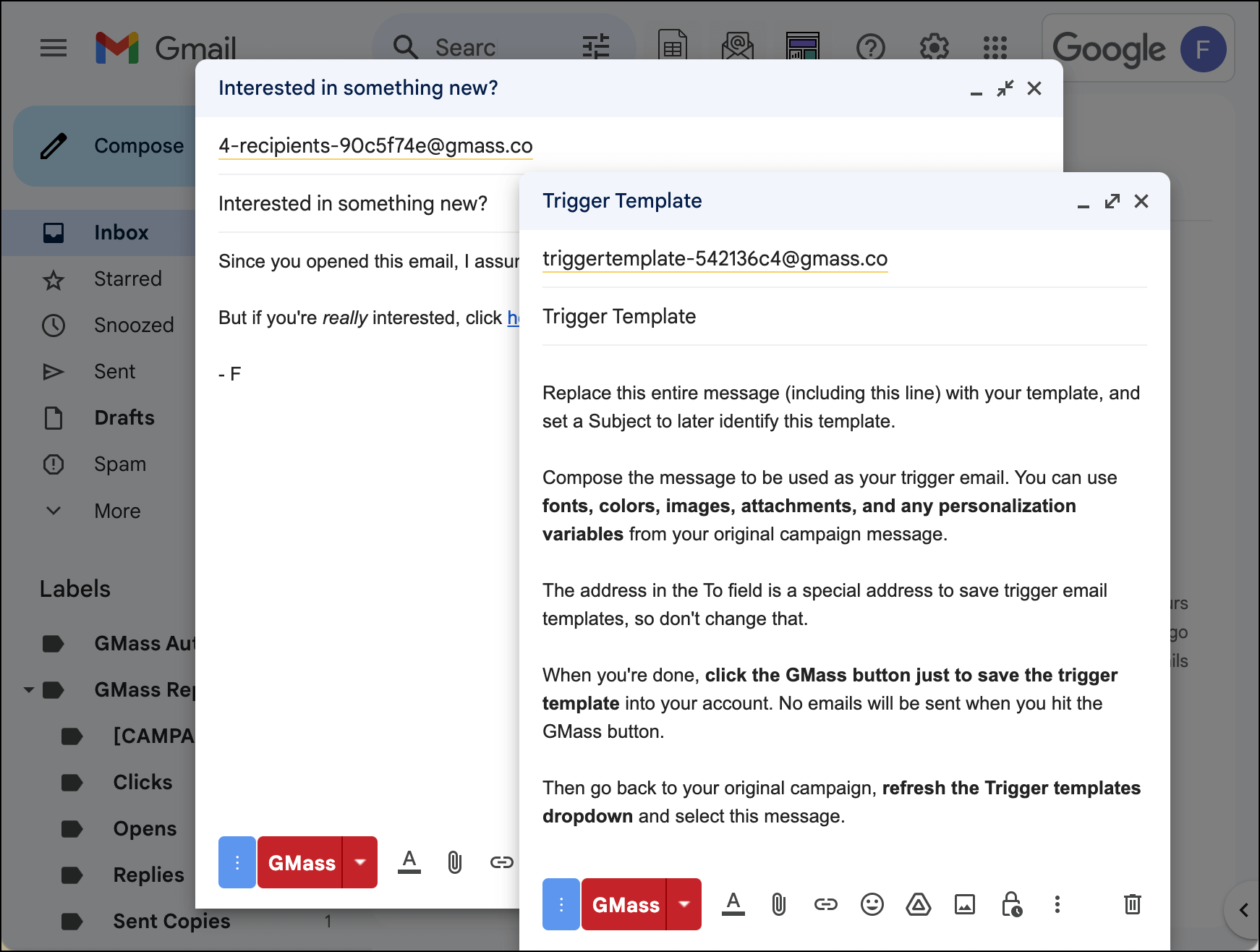
A new Gmail compose window will appear. In the To field, you’ll see an email address that includes the words “trigger template.” The message has some default text in it, giving you a refresher on the instructions.
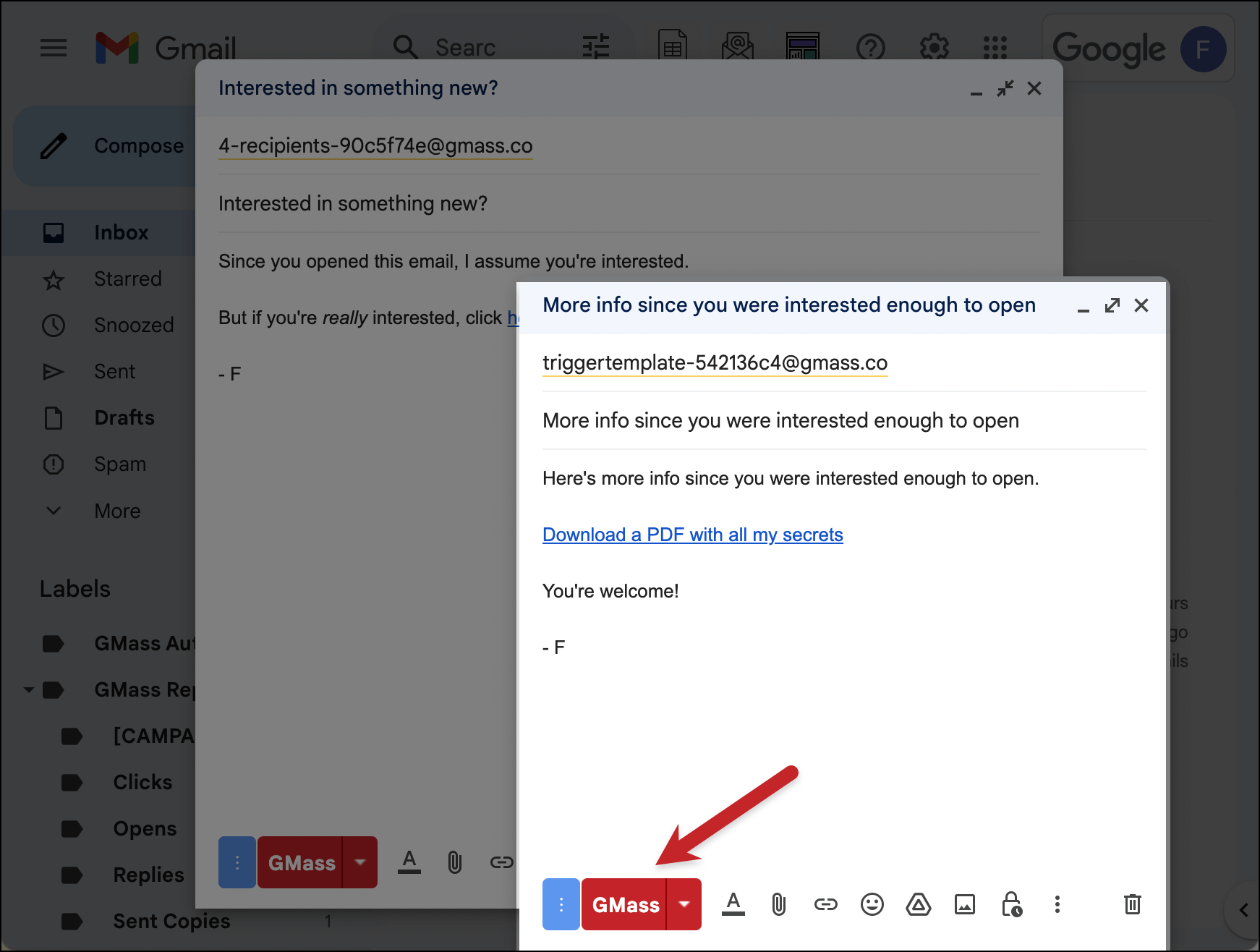
Delete everything inside that email and compose your triggered follow-up message. (Do not delete the email address, though.)
And when you’ve finished, click the GMass button in the triggered email’s compose window to save it to GMass.
Settings for your new triggered email
Now you’ll be back in the compose window for your initial campaign. Go back into the GMass settings and back to the Advanced > Triggers section.
Click the button next to the Opens, Clicks, or Replies dropdown menus to refresh.
Then select your triggered email from the dropdown.
(You can also search in the dropdown by typing in a phrase, or by using GMass’s search filters. In this case, if you search is:template, the list will only show you specific triggered emails and auto follow-up templates you’ve created. Here’s more about searching GMass templates.)
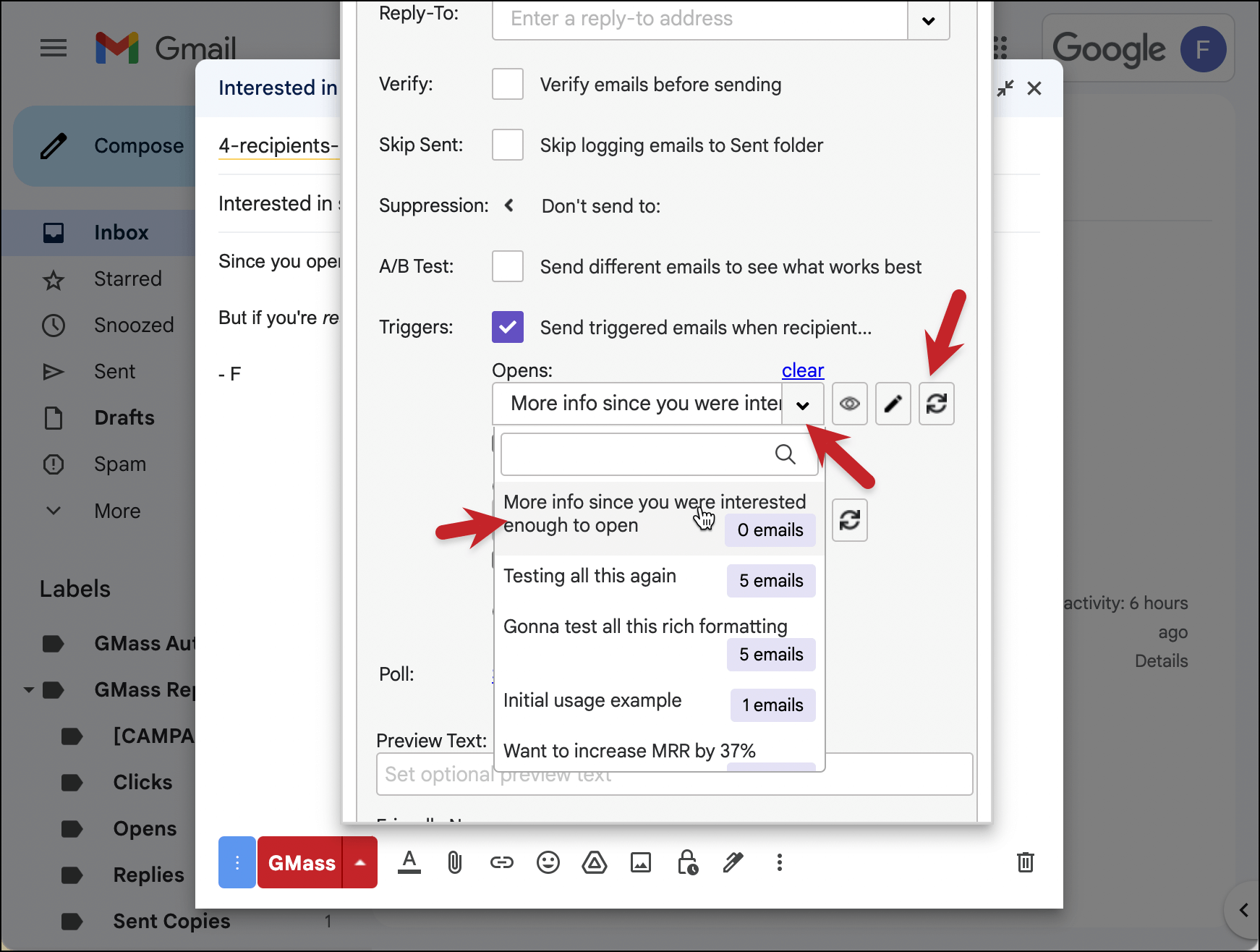
If you check the box for Thread with existing conversation, that will send the triggered email in the same thread as your campaign (meaning it won’t get its own subject line). If you have that box unchecked, your triggered email will go out with its own subject line in a separate thread.
You can repeat this process if you’d like to use different triggered messages for opens, clicks, and/or replies.
You can also send yourself a test email from the top of the settings box and try out the open/click/reply triggers when your test messages arrive.
And if you change your mind about using an open, click, or reply trigger, click the Clear link above the dropdown box.
Add a delay before your triggered messages
By popular demand, after less than one month of triggered emails going live, we added another feature: Delays.
If you don’t want your triggered emails to go out immediately, now you can set a delay of anywhere from one minute to, well, however many minutes you’d like.
The delay settings appear under both your open and click trigger. By default, they’re sent to “Send instantly“.
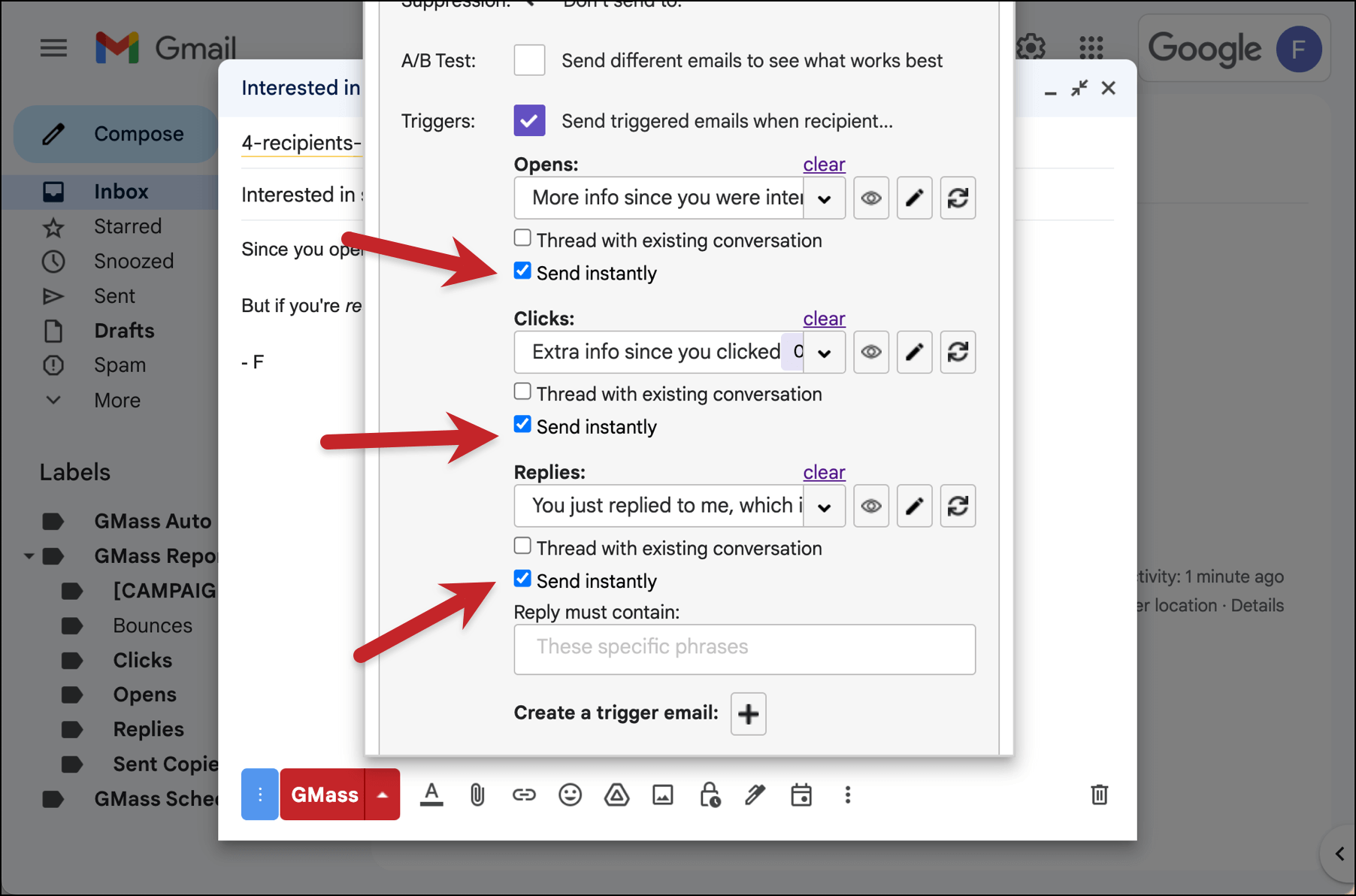
If you uncheck any of the “Send instantly” boxes, you’ll have the option to set a delay before your triggered email goes out.
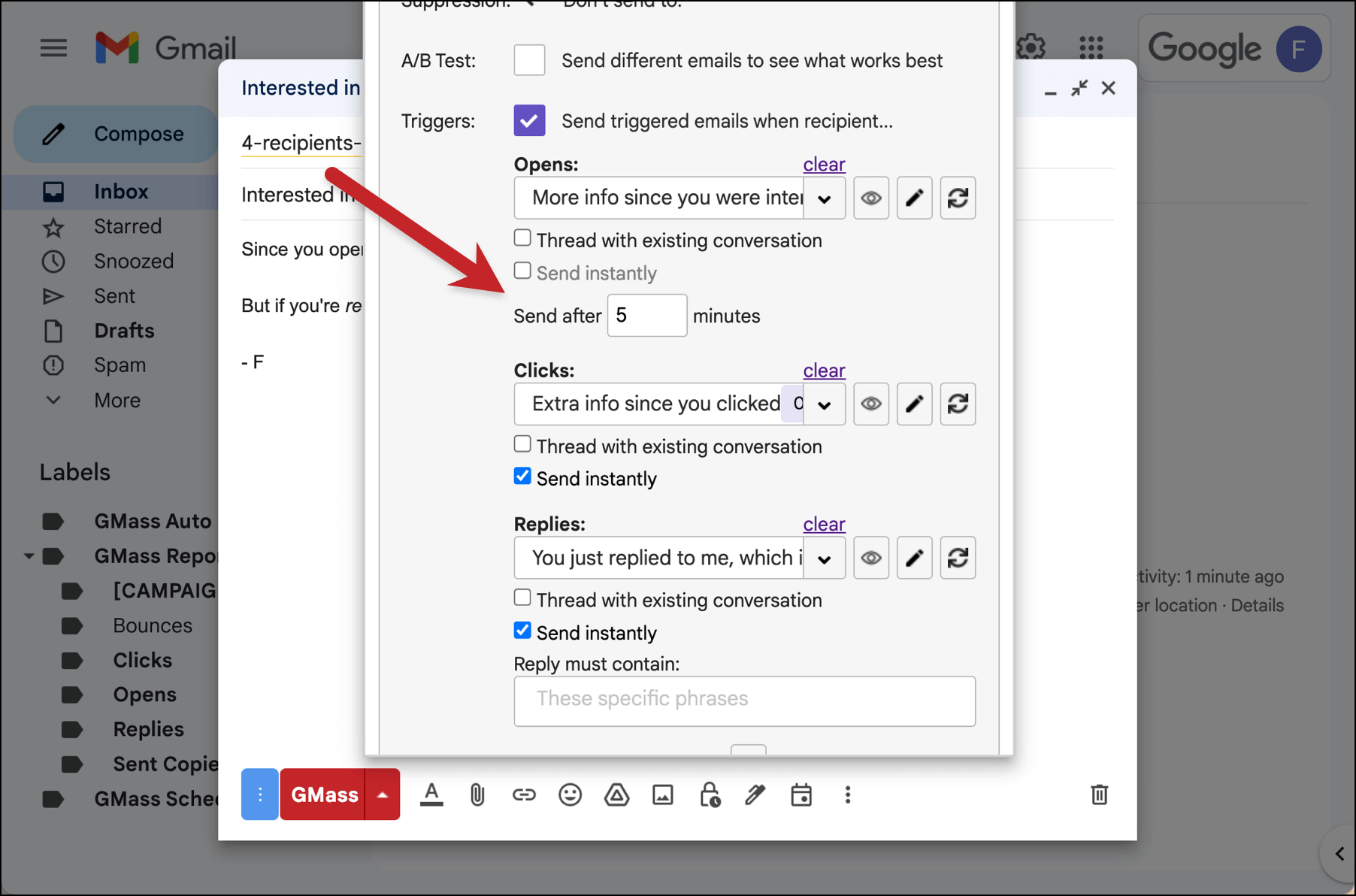
One more thing to note: If you send yourself a test email, your triggers will ignore that delay on the test. They’ll fire immediately when you open/click/reply your test email, regardless of your specified delay.
NEW! Triggered messages on replies
When we launched triggered emails at GMass, initially they only worked when someone opened or clicked an email.
However, after we re-engineered our reply detection system to find replies immediately (as opposed to on a delay) — that opened the door to triggered emails based on replies.
Triggered emails on replies work similar to triggered emails on opens and clicks: You create a template for your triggered email… choose it from the dropdown menu… and decide whether or not to thread it and/or send it with a delay.
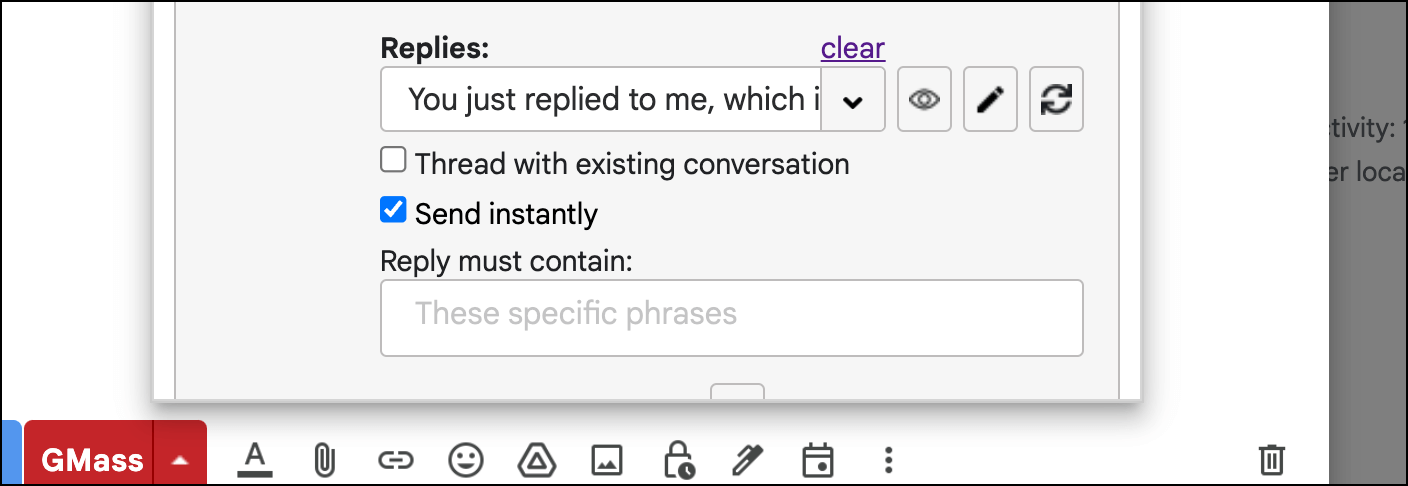
Replies also have an extra option, though. You can specify if you only want your triggered email to go out if someone includes a specific phrase in their reply.
For example, let’s say you sent a campaign and asked people to let you know if they were interested in receiving a PDF.
You could make sure the reply only triggered if people’s responses contained the word “interested.”
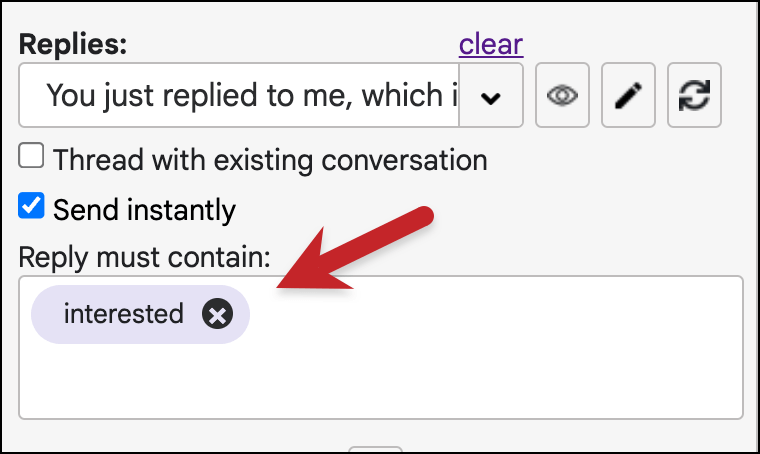 You also might want to throw in a few other words, just in case someone uses different language.
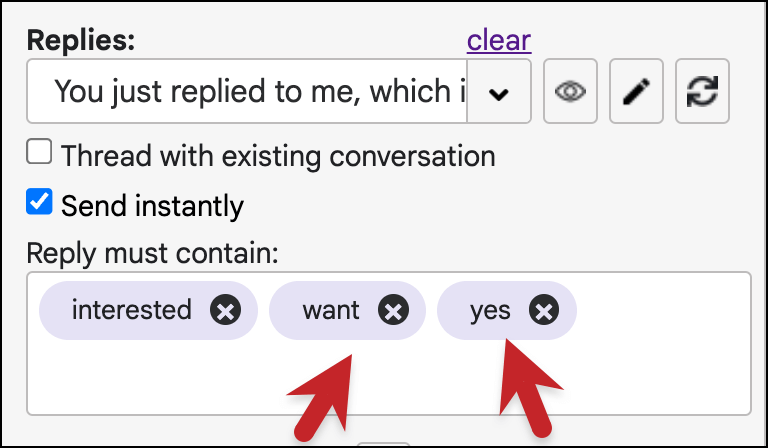
Now when someone replies using any of the words in that field, they’ll receive your triggered message. If their response does not contain one of those words, they won’t receive the triggered email.
The results
Once you’re done creating any other settings for your campaign, you can send by clicking the GMass button.
Here’s the open trigger email going out immediately after I opened the campaign:
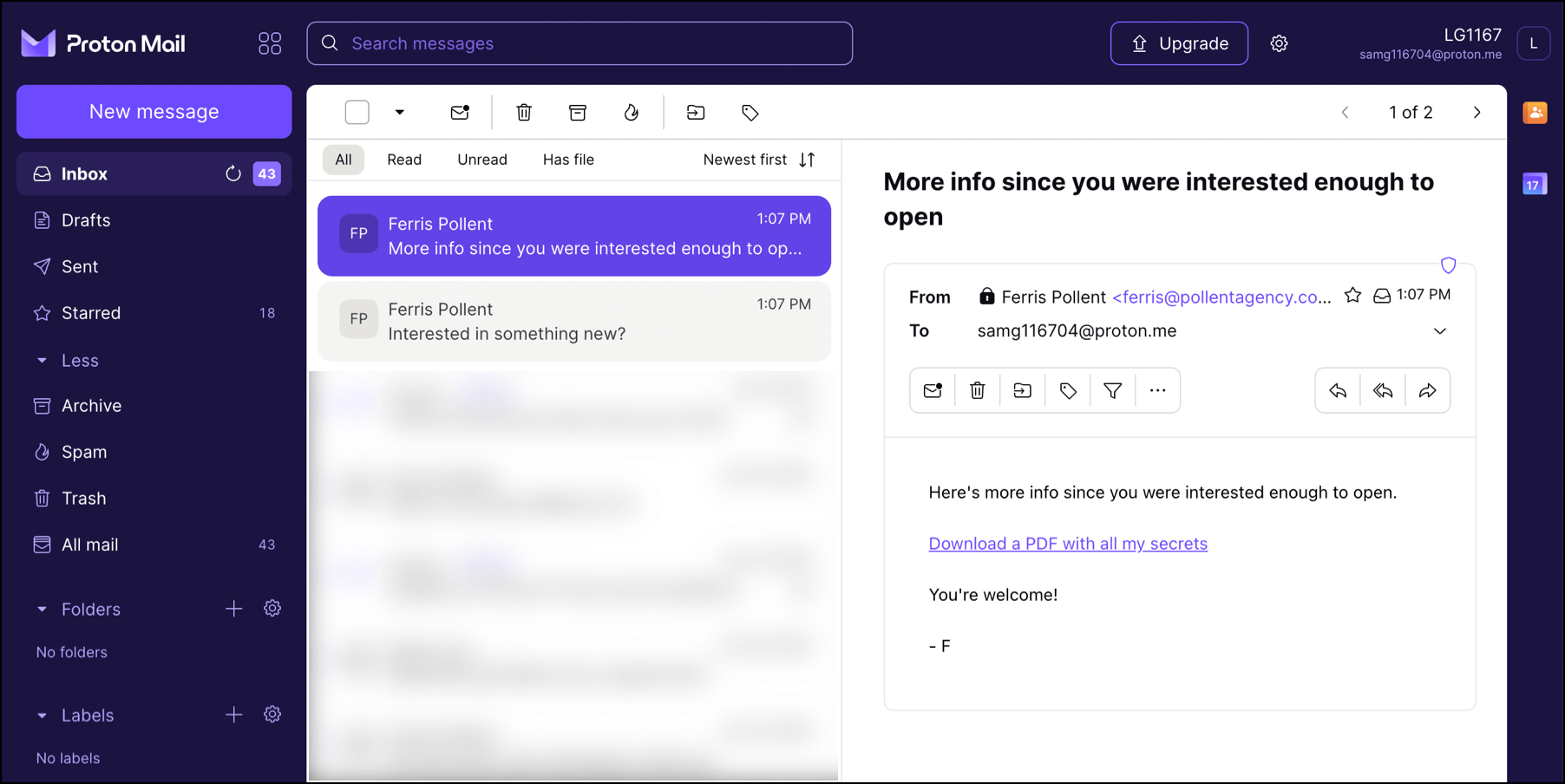
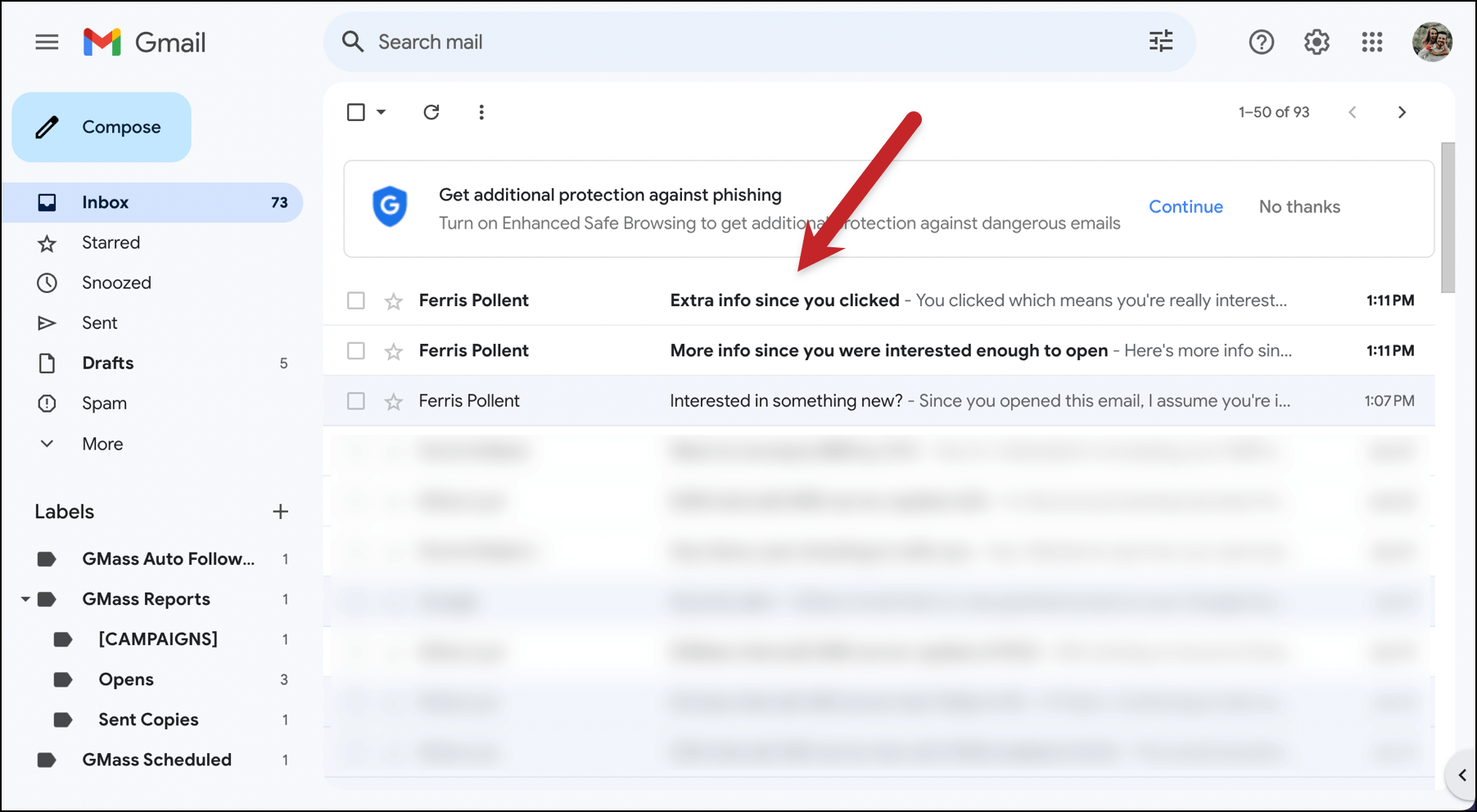
Here’s the click trigger email going out immediately after I clicked on the campaign. (But do notice that I also got the triggered email for opening the email; which is why you might want to choose one trigger or the other.)
Here’s the reply trigger email which went out right after I replied to the campaign.
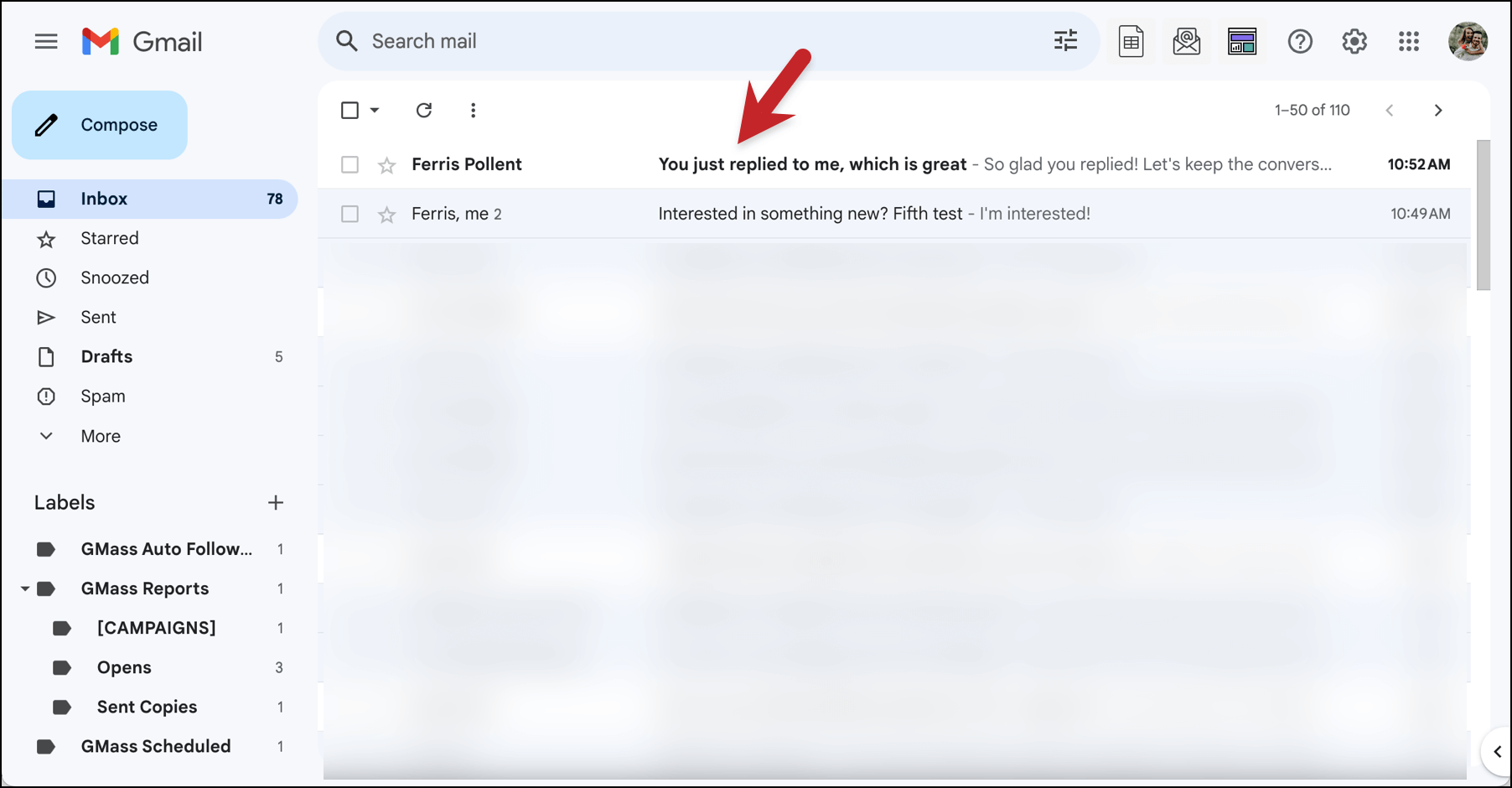
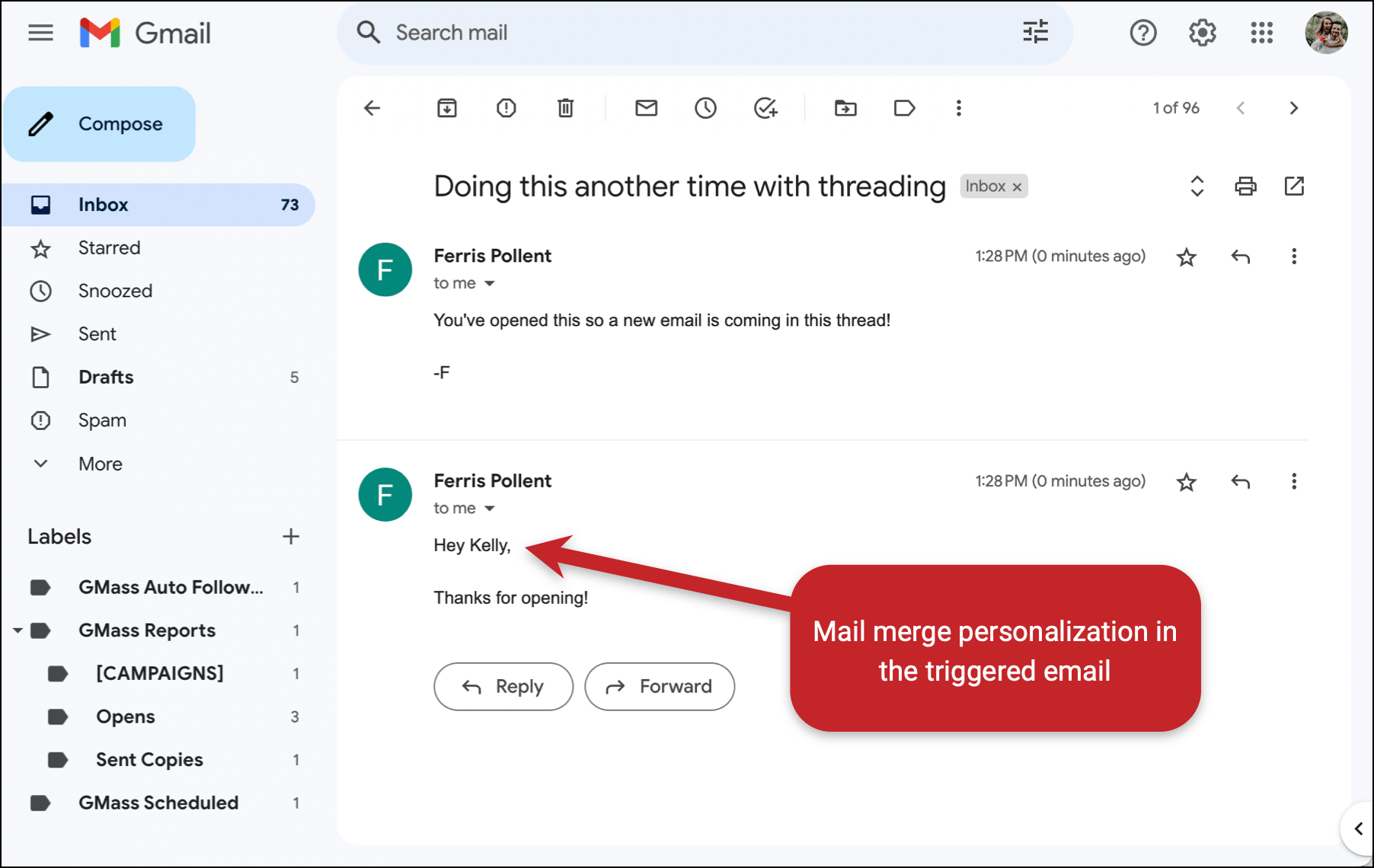
And here’s an example of what it would look like if you check the box to send a triggered email in the same thread.
I also used mail merge personalization in this test to show how that can be done.
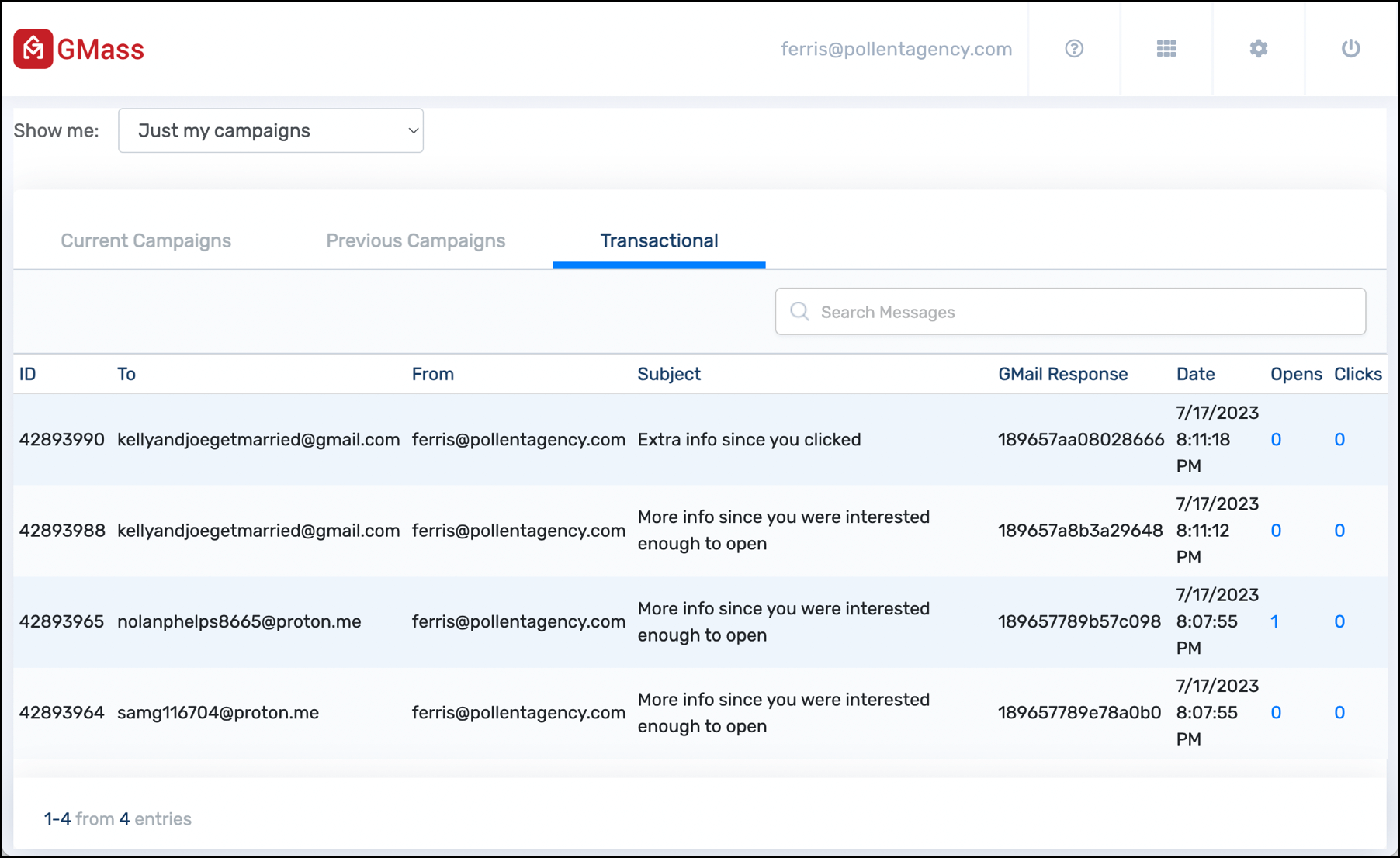
You can see analytics on triggered emails in your GMass dashboard, under the Transactional tab. That’s because these emails are sent via GMass’s transactional email system.
And all the triggered emails appear in your Sent folder back in Gmail, where you can keep an eye on them. (Or even use them to generate future campaign email lists using a Gmail search.)
More Things to Know About Triggered Emails in GMass
Here are more details for you on how the triggered emails system works in GMass,
What about “false opens” in Apple Mail? Will open trigger emails go out on those?
No. Open triggered emails will only go out if GMass can confirm the email was opened legitimately. So Apple’s Mail Privacy Protection “fake” opens will NOT fire the open trigger.
What if someone opens an email more than once? Or clicks or replies more than once?
The triggered emails will only go out once per event, per recipient. So even if they open your email 20 times, they’ll only get the open trigger email the first time.
Does this work with the other GMass email list types, not just Google Sheets?
Yes, triggered emails work with all the various ways you can put together mailing lists in GMass: Google Sheets, segmented campaigns, Gmail search-driven lists, reusing prior lists, and simply entering email addresses into the To field.
Triggered emails also work if you use GMass’s multi-merge feature to send from multiple Google Sheets or multiple types of lists.
What GMass plans include triggered emails?
Premium, Professional, and Team plans all include triggered emails. Standard plans do not.
Triggered emails are included during your free trial.
What happens if I delete the draft of my campaign?
If you delete the draft of your campaign, triggers will stop.
Note this is different from auto follow-ups in GMass. With auto follow-ups, even if you delete your initial campaign draft, recipients can still receive your auto follow-up stages. That’s not the case with triggers.
Also… normally, GMass will delete a campaign draft after it’s done sending. But in this case, GMass will not delete the draft — so you’ll always have access to edit the trigger settings forever.
What can I include in a triggered email?
You can use mail merge personalization in a triggered email, using the fields from your Google Sheet. You can also use conditional logic in your triggered email.
And you can include an unsubscribe link in the triggered emails you send.
A triggered email cannot have its own triggers. So you couldn’t set up a trigger to go out on an open/click/reply of a triggered email.
Can I send myself a test email to make sure my triggered emails work?
Yes, triggers work with test emails you send to yourself via the GMass settings box.
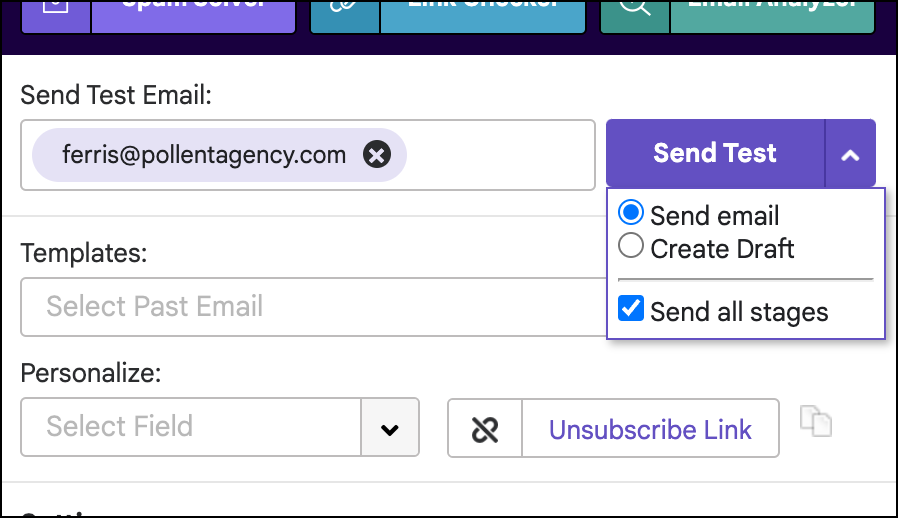
You can test out your open, click, and/or reply triggers on your test email.
If you send yourself a test including all your follow-up stages, since triggers carry over to auto follow-up stages, you can also test on those. (For example, clicking a link in the second follow-up to trigger the click triggered email.)
Why are these emails sent as transactional emails?
Transactional emails are, at their core, triggered emails — they’re automated messages that go out when someone takes an action.
GMass’s transactional email system sends messages instantly — and sends them through Gmail’s high-deliverability servers. (However, if you sent your campaign through a third-party SMTP service, GMass will send your triggered emails through that as well.)
Plus, with GMass’s transactional email system, your messages go into the Sent folder (which you can use to build future email lists based off Gmail searches).
So the transactional system was a natural fit for triggered emails.
Do my transactional email open/click settings affect my triggered emails?
No. Even though triggered emails go through GMass’s transactional email system, they inherit their open and click tracking settings from their parent campaign.
So even if you have open and click tracking turned off on transactional emails in the GMass dashboard, your triggered emails will overrule those settings and still track opens and/or clicks based on what your campaign is tracking.
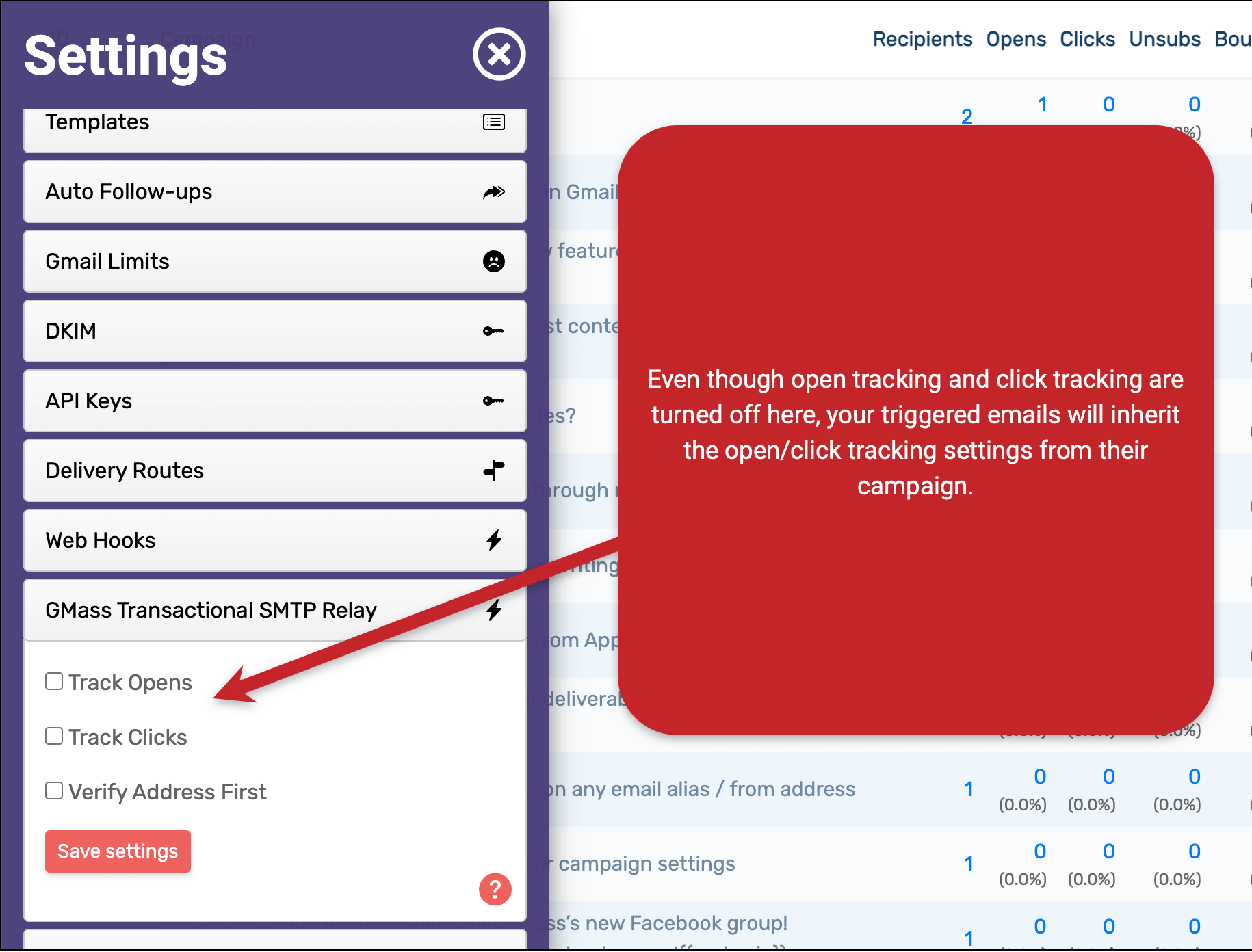
This keeps things less confusing, since most GMass users will send triggered emails and not have fine-tuned transactional settings.
Plus, if you have auto follow-ups that are based on “no open” or “no click,” then you need open/click tracking on your triggered emails to keep things accurate.
How do triggered emails work with regular auto follow-ups?
In a way, triggered emails are like the opposite of auto follow-ups. Triggered emails go out immediately when a recipient takes an action; auto follow-ups go out when a recipient does not take an action.
And we’ve built triggered emails to work well with your auto follow-up sequences.
Triggers carry over to auto follow-up stages
When you set triggers on your campaign, those triggers will all carry over to your auto follow-ups.
So if you have a click trigger in place and someone clicks a link in Stage 2 of your auto follow-up sequence, that’s when they’ll receive the click triggered email.
But… as I mentioned before, triggers will only fire once per method, per recipient. So if they clicked a link in your initial campaign and got the triggered email, then clicked a link in Stage 2, they won’t get the triggered email a second time.
A recipient’s actions on a triggered email can stop an auto follow-up sequence
Anything a recipient does on a triggered email “counts” toward stopping an auto follow-up sequence.
So if you have an auto follow-up sequence that stops when someone replies, and a recipient replies to a triggered email they got for opening/clicking, that will stop the auto follow-up sequence.
Auto follow-ups cannot have different triggers
You cannot set up different triggers for different auto follow-up stages.
The triggers for your initial campaign carry over to the auto follow-up stages; you can’t set up new triggers for the different auto follow-ups.
Example Scenarios for Triggered Emails
So how might you use triggered emails in your own campaigns?
Here are some examples we thought of — and we’d love to hear how you’re using them as well!
Cold email
- Send an immediate message (since you know the person’s in their inbox) with an even more enticing CTA or special offer when someone opens or clicks.
- Send a follow-up addressing some of the most common sales objections.
- Send a scheduling link when someone replies — and you know they’re in their inbox and you’re top of mind.
- Send a new “idea” or other attention-grabbing email.
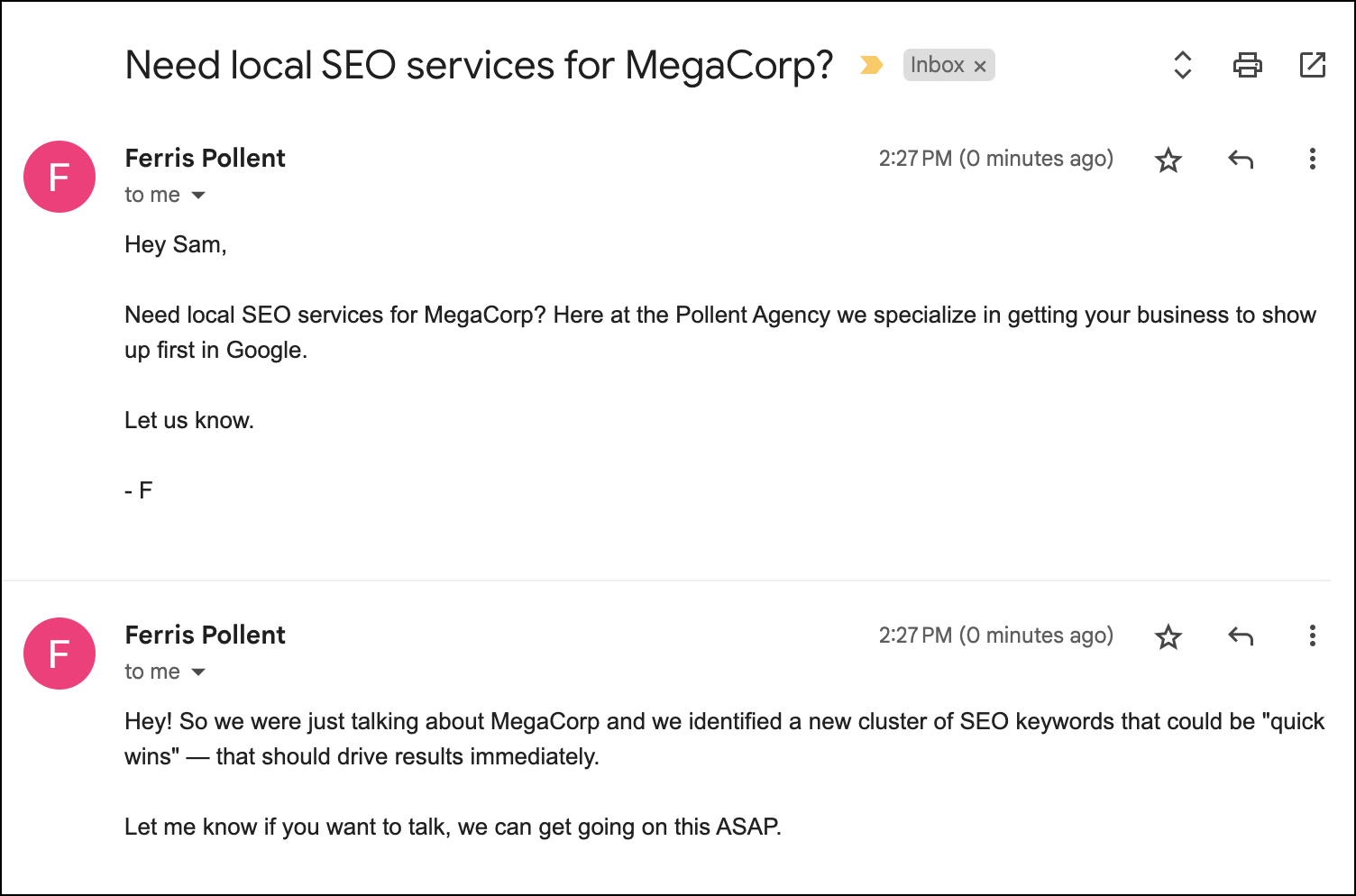
- Send a case study.
- Send a personalized PDF when someone replies.
- If someone clicks on your email (like on your company’s website or your LinkedIn profile), send another message aiming to get them to reply.
- If someone replies to your email but you want them to schedule a meeting, send another message aiming to get them to click the link.
Email marketing
- Ask for a review while you know the person is in their inbox and engaging with your content.
- Send an instant download link when someone clicks or replies.
- Use as a substitute for double opt-in when someone subscribes.
- Send a coupon code when they open.
- Send a coupon code as a bonus for replying.
- Send a winback campaign.
- Send a triggered email off an abandoned cart message with updated inventory numbers to reiterate scarcity.
- Send an instant offer as part of your welcome series.
- Send bonus content when newsletter subscribers reply. (You can also make sure they reply with a specific word, like “WANT” or “COURSE.”)
- If someone opens/clicks on a newsletter, send another campaign with an offer (since you know they’re engaging with you at that moment).
Other communications
- Thank people for voting in an email poll.
- Thank people for their feedback when they reply.
- Let someone know you’ve received their response when they reply to a question.
- If someone clicks a link to get more information, also send that information in a triggered email.
- Confirm you received a reply to give your recipients peace-of-mind.
- Send bonus material in an email-based course.
- If you’re trying to get people to respond by a certain date, send a triggered email really driving home that urgency.
- Send more info after someone clicks on your invitation.
- Send a fake correction email, “correcting” a mistake in your initial email to increase the chance of the person deciding to take action.
Triggered Emails in GMass: Next Steps
Triggered emails are a great way to engage with your recipients — and to do it when you know they’re in their inbox, checking out what you’ve sent.
We’ve aimed to make the process for setting up triggered emails as simple as possible so you can start including them in your campaigns right away.
And, as we said at the top, GMass is the only email platform that has triggered emails which work directly with Google Sheets. We aren’t importing the data from your Google Sheet into GMass. Anything you do in your Google Sheet (like changing a recipient’s name) will be reflected in your triggered emails.
If you aren’t using GMass, triggered emails are just one of the many, many easy-to-use features you’ll have at your disposal right inside your Gmail account.
It’s free to sign up for a trial — with no credit card required — and you can send up to 50 emails a day as you test out GMass. Triggered emails will work in your trial; however, after your trial, triggered emails are available on Premium, Professional, and Team plans.
Whether you send cold outreach, marketing emails, internal communications, or anything else with mail merge, give it a shot — join the 400,000+ others using GMass who give it an average of 4.8 stars in the Chrome Web Store.
Email marketing. Cold email. Mail merge. Avoid the spam folder. Easy to learn and use. All inside Gmail.
TRY GMASS FOR FREE
Download Chrome extension - 30 second install!
No credit card required