
You now have the option to insert an Unsubscribe link into your email marketing campaigns with GMass.
Adding an unsubscribe link in GMass
To insert an unsubscribe link, just click the Unsubscribe Link button in the Settings box, and a link will be added at the cursor in the body of the message.
We recommend that an unsubscribe link be added to all mass emails containing promotional or marketing content, but the decision is up to you. If you don’t have regular back-and-forth email correspondence with the people whom you’re emailing, it’s wise to include an unsubscribe link.
If a recipient clicks the link, their email address will be placed on your GMass account’s Unsubscribe List. You’ll also be notified via a report that will appear in the GMass Reports –> Unsubscribes Label in your Gmail account. (You can also check unsubscribes on a per-campaign basis in the reports in the GMass dashboard and on the web.)

When you send future mass emails with GMass, your email list will be checked against your Unsubscribe List, and anyone found on the unsubscribe list will be removed automatically as a recipient. You don’t have to manually remove people that have unsubscribed from your source email list because GMass handles the elimination of unsubscribed addresses from campaigns for you.
Changing the default unsubscribe link text
By default, when you click the Unsubscribe Link button in the GMass settings, GMass will insert “You may unsubscribe to stop receiving our emails.” The link on the word “unsubscribe” is takes the recipient to the unsubscribe confirmation page.
You can change that default text in the GMass dashboard.
In the dashboard, click on Settings, then Unsubscribes. Then click on Set custom unsubscribe link.

If you’re editing your custom unsubscribe link for the first time, you’ll see the default text in there. You can then change it to make your unsubscribe link text/section whatever you want. (You could also include things like regulatory text in here.)

Click the Save unsubscribe link button.
Now, whenever you click Unsubscribe Link in the GMass settings box for a campaign, your new text will appear.
And you can always edit your custom unsubscribe link by returning to this area in the dashboard.
What your recipient will see
When your recipient clicks on the Unsubscribe Link, he/she will be taken to an unsubscribe page that looks like this and asks for confirmation:
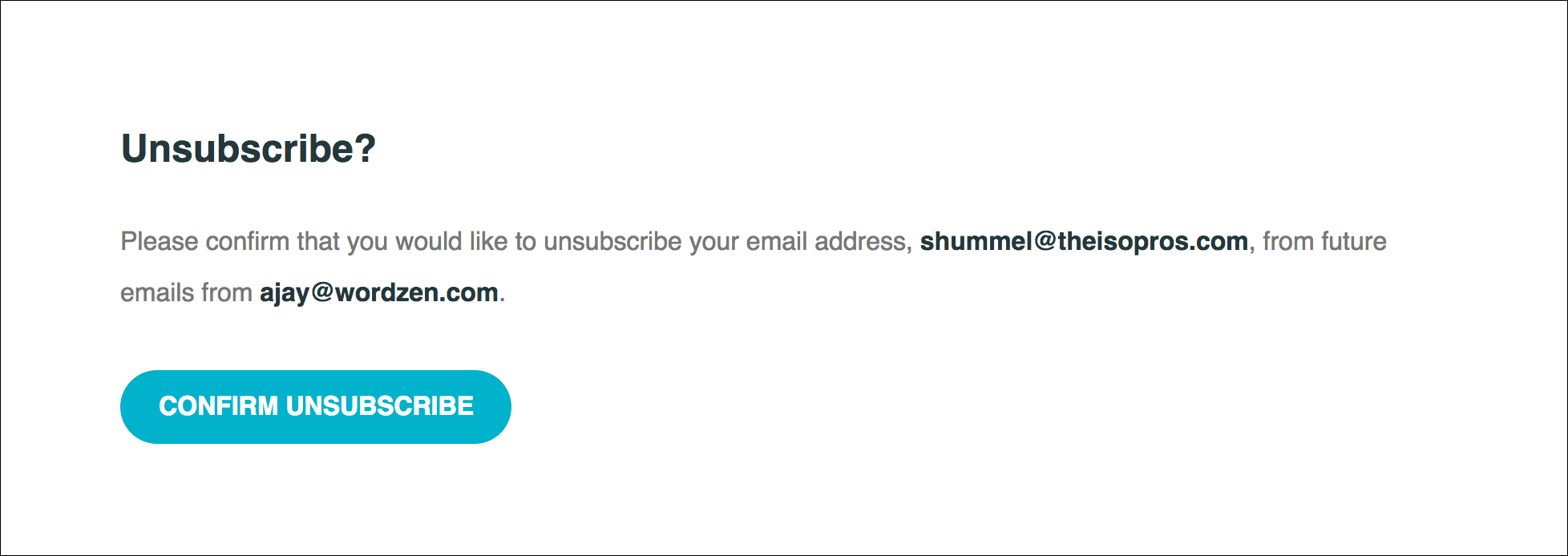
For free accounts, a text link to GMass is also included on this page. For paid accounts, as shown in the screenshot above, there is no link to GMass.
Important notes about the GMass unsubscribe link
- To re-subscribe an address, the subscriber must click on the re-subscribe option after unsubscribing. One can re-subscribe anytime by clicking on any unsubscribe link from any past GMass email. Note that deleting an unsubscribe report from the GMass Reports section will not remove an address from your unsubscribe list.
- If you wish to manually insert the unsubscribe link into the body of your emails, so that it flows with your email design, create a link to:https://www.gmass.co/gmass/u?u=OUTBOUNDThe “OUTBOUND” part will be replaced with a unique identifier at the time the email is sent, and the “www.gmass.co” part will be replaced with your account’s tracking domain. It’s highly recommended you set a custom tracking domain to use here.
Managing your unsubscribe list in the GMass dashboard
You can manage your unsubscribe list by going to the GMass dashboard, clicking Settings, then going into the Unsubscribes section.
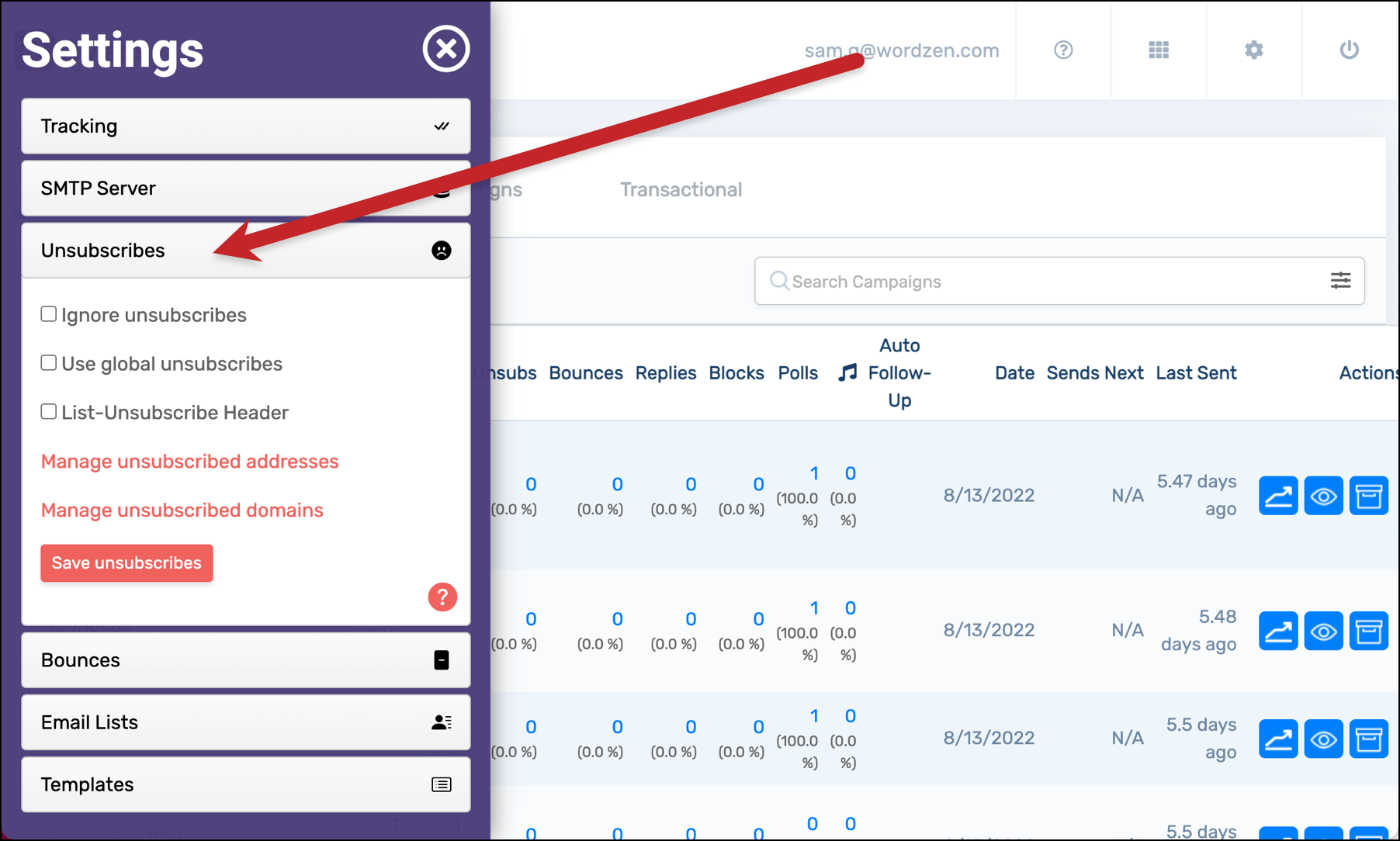
In the Manage unsubscribed addresses section you can search to see if certain addresses are on your unsubscribe list, add new addresses to that list, or remove addresses so they’ll begin receiving your emails again.
The Manage unsubscribed domains level allows you to unsubscribe entire domains (like unsubscribing everyone at uber.com). You can also remove unsubscribed domains so emails to those companies or organizations will resume.
Also note that in the unsubscribe settings, you can choose “Ignore unsubscribes”, “Use global unsubscribes”, and/or “List-Unsubscribe Header”.
“Ignore unsubscribes” tells GMass to ignore your unsubscribe list and send your emails to everyone, even if they’ve opted out.
“Use global unsubscribes” activates GMass’s global unsubscribe feature. When that feature is activated, GMass will suppress any emails you try to send to addresses that are on the unsubscribe lists for everyone else in your Google Workspace organization and/or on your Team plan.
And “List-Unsubscribe Header“ allows email clients to add an easy unsubscribe option at the top of your sends.
What if you just want to “unsubscribe” addresses from one specific campaign?
What happens if you want to remove some contacts from one specific campaign — but don’t want to add them to your unsubscribe list to keep them from receiving all emails?
Rather than unsubcribing those email addresses, you can do campaign-level unsubscribing with GMass’s suppression features.
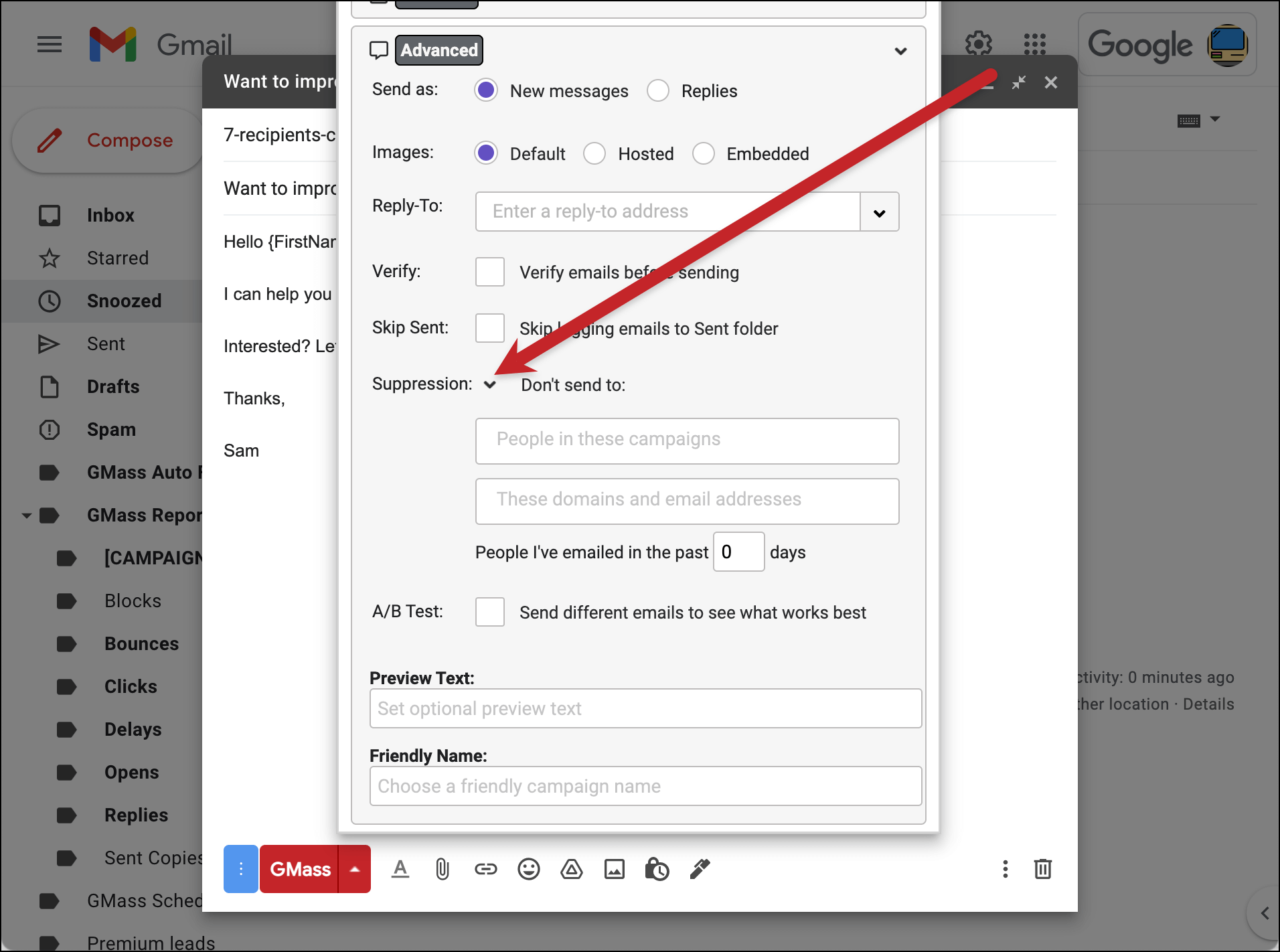
You can find the suppression options for your campaign in the Advanced section of the GMass settings box.
Here, you can suppress recipients for that campaign in three different ways:
- Suppress emails to people who were part of prior campaigns. You can choose a prior campaign or multiple prior campaigns from the dropdown box that appears when you click into the “People in these campaigns” field.
- Suppress emails to specific domains or email addresses. You can manually enter domains and/or email addresses in the “These domains and email addresses” field.
- Suppress emails to people you’ve recently emailed. Set the number of days in the “People I’ve emailed in the past
ndays” field. GMass will only send your new campaign to contacts who haven’t received anything else from you in the specified time frame.
Now you’ve temporarily “unsubscribed” people from one campaign — but you can still email them in the future with no problems.
—
Our goal with unsubscribes in GMass is to make everything as simple for you as possible. Add an unsubscribe link to your emails with one click. Manage addresses from your dashboard. And never worry about manually removing people who unsubscribe from your lists — GMass will just automatically suppress emails to those contacts.
Download GMass from the Chrome web store to get started for free and let us take on a huge chunk of your unsubscribe management.
Only GMass packs every email app into one tool — and brings it all into Gmail for you. Better emails. Tons of power. Easy to use.
TRY GMASS FOR FREE
Download Chrome extension - 30 second install!
No credit card required

Ajay is the founder of GMass and has been developing email sending software for 20 years.