How to Mail Merge CC and BCC in Gmail with Google Sheets

Sometimes it’s not enough to send a mail merge email blast “to” your list — you also need to mail merge CC or BCC addresses in there as well.
GMass makes that simple to do in your Gmail or Google Workspace account.
Most GMass users know you can send a personalized mail merge campaign using GMass and your Gmail account with a Google Sheets spreadsheet . Any of the columns in the spreadsheet can be used to personalize the Subject and Message.
And… you can also personalize the CC and BCC fields. Meaning: You can have each individual message CCed or BCCed to one or more email addresses associated with each person you’re sending to.
Below, we’ll cover the ways you can use GMass for mail merge CC and BCC emails in Gmail.
Mail Merge CC and BCC Table of Contents
- Preparing your Google Sheet to Send Emails with Personalized CC and BCC
- You Can Put Multiple Email Addresses in the CC and BCC Columns of Your Google Sheet to CC/BCC Multiple People
- Sending Your Mass Email with Mail Merged CCs and BCCs
- But What If I Want to CC or BCC the Same Address on Every Email?
- CC and BCC with the GMass API
- Mail Merge CC and BCC: Takeaways, and Personalizing Your Emails Even Further
Preparing your Google Sheet to Send Emails with Personalized CC and BCC
Here’s how to create your Google Sheet of contacts to include CC and BCC options.
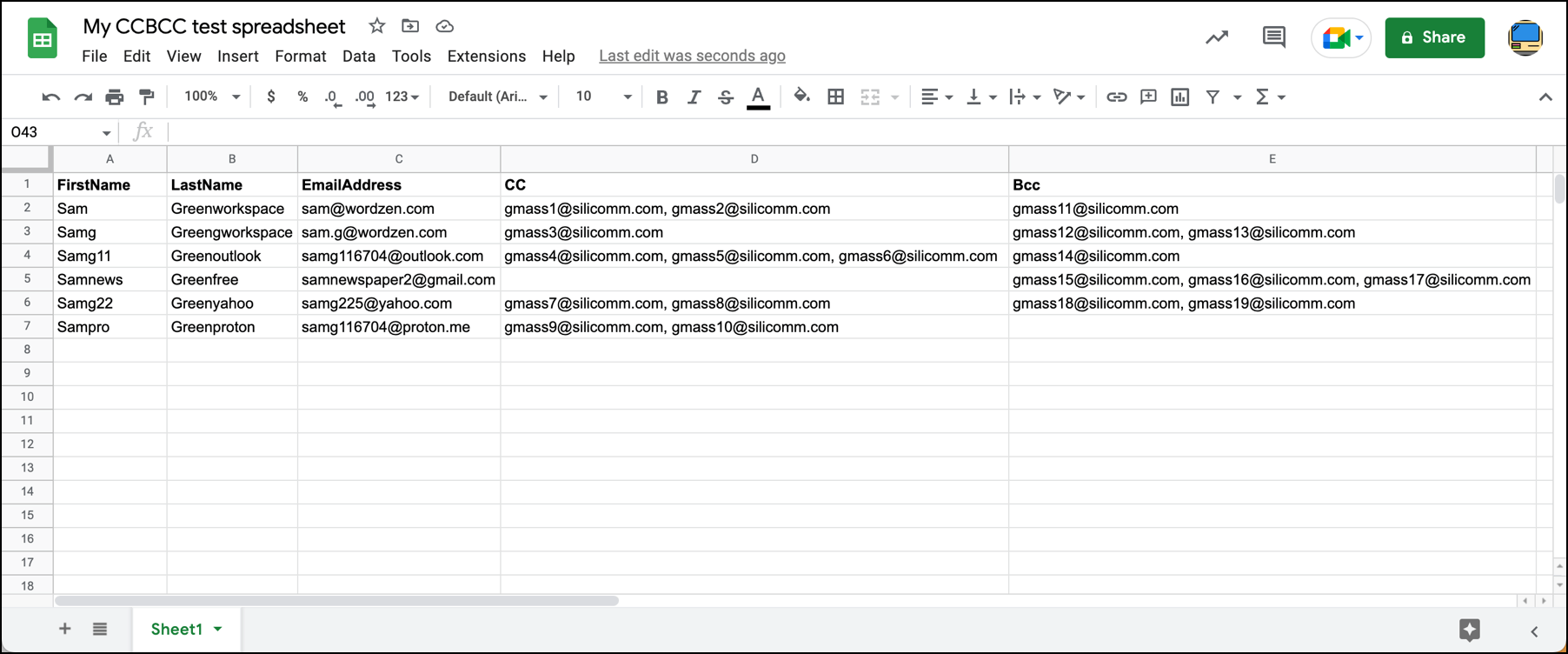
- Add a column for CC and/or a column for BCC after your email address column. Make sure your CC and BCC columns come after the email address column. GMass uses the first column of email addresses in a Google Sheet for the “To” field.
- The CC and BCC columns are case insensitive. You can call the columns CC, Cc, cc, BCC, bCC, and so on. Case doesn’t matter. But other words do — so don’t call the columns something like CCaddresses.
- Include as many emails as you want in the CC and BCC columns. In the past, GMass was only set up to allow for one CC and one BCC address per email. Now you can include as many addresses as you want for both. And you can separate the emails with a comma, semicolon, space, or any other non-email character.
Now you’re ready for your merge.
You Can Put Multiple Email Addresses in the CC and BCC Columns of Your Google Sheet to CC/BCC Multiple People
One frequent question we get is: Can I put multiple email addresses in the CC and/or BCC columns of my spreadsheet to CC and/or BCC multiple people?
The answer is yes, yes you can.
As we demoed in the example above, and you can see in this spreadsheet, you can include as many email addresses as you want in both the CC and BCC columns. Just separate the emails with a comma, semicolon, space, or any other non-email character.
Sending Your Mass Email with Mail Merged CCs and BCCs
Head over to Gmail and connect your Google Sheet to your new campaign. (If you are new to GMass and don’t know how to do that, check out our GMass quickstart guide to get rolling in a matter of minutes.)
You’ll notice the CC and BCC fields in your email are blank. That’s ok. GMass will fill them in later as long as you have them in the Google Sheet you connected.
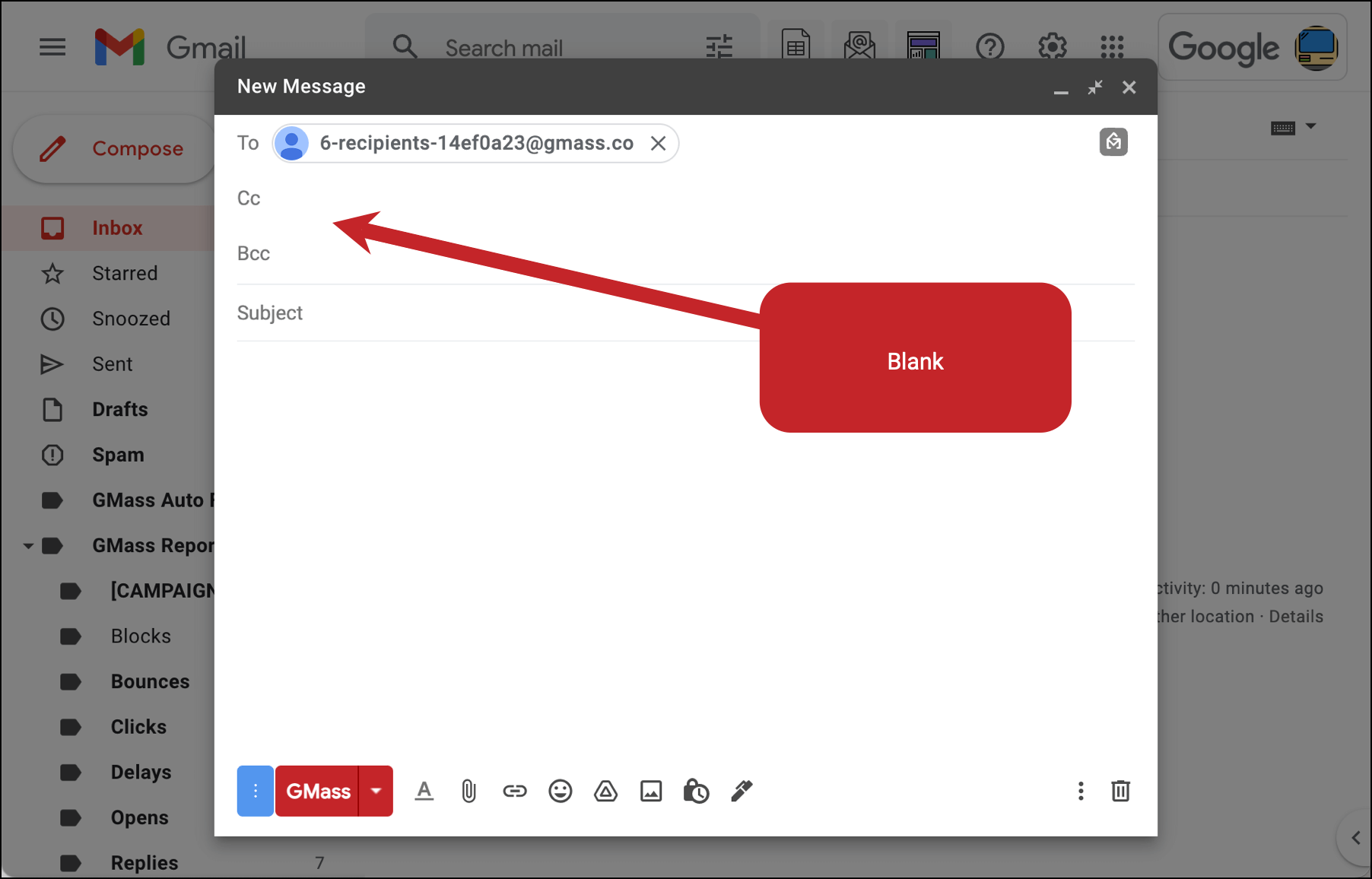
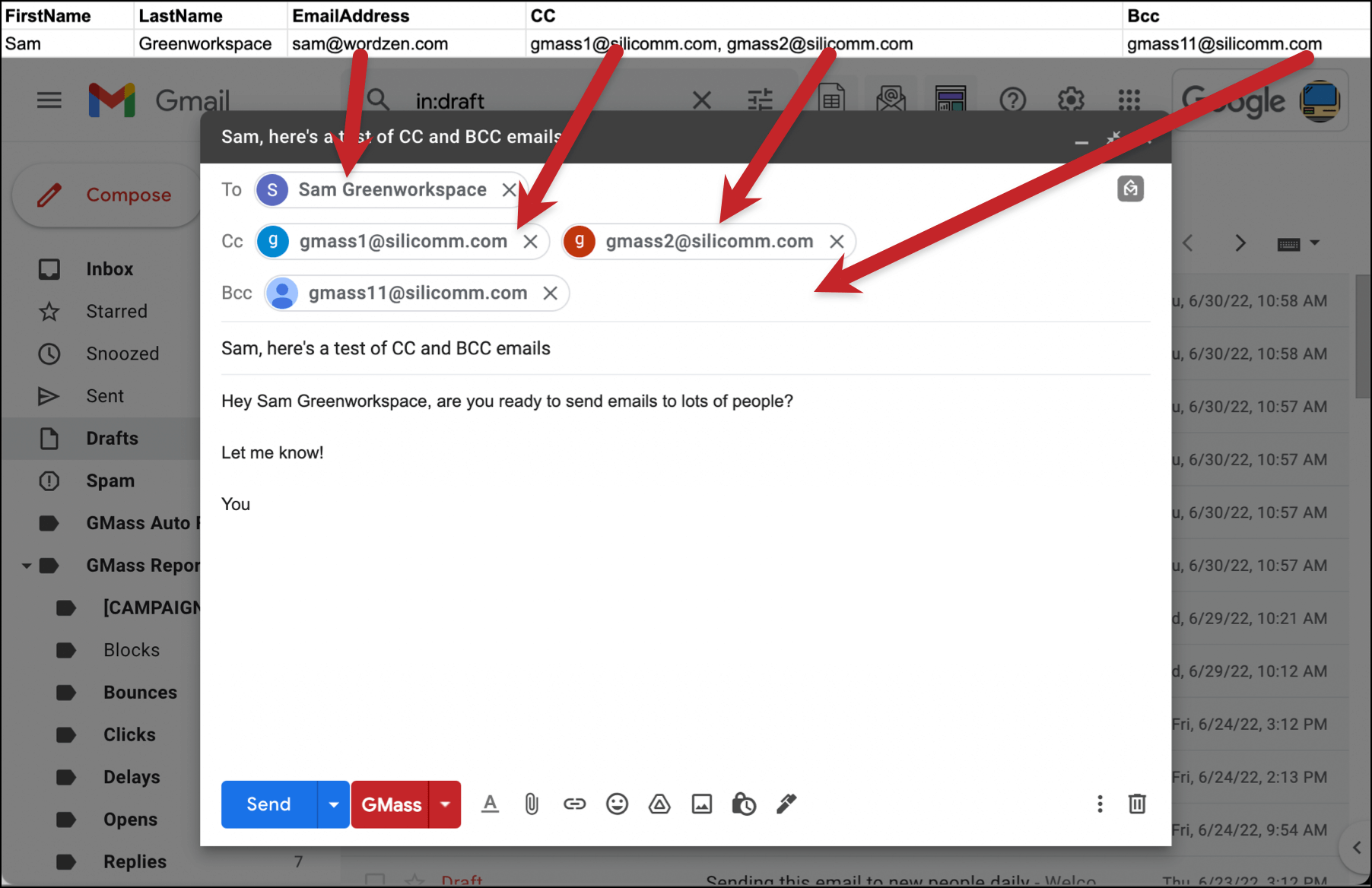
That’s it. Your email is ready to go. I created drafts of mine so I could make sure the CC and BCC fields were all set.
And from the drafts, I can see everything matches my spreadsheet perfect. For example:
But What If I Want to CC or BCC the Same Address on Every Email?
The technique above works great if you want a different mail merge CC and/or mail merge BCC for every email on your list.
But what if you want to CC or BCC the same address on every email? For example, you use Salesforce and want to BCC your Salesforce email address on everything you send to log those messages? Or what if you want to include your same sales team member on every one of your emails?
You can do that with GMass — and don’t even need to get your Google Sheet involved.
Just add the “static” CC or BCC address in the Gmail compose window.
For example:
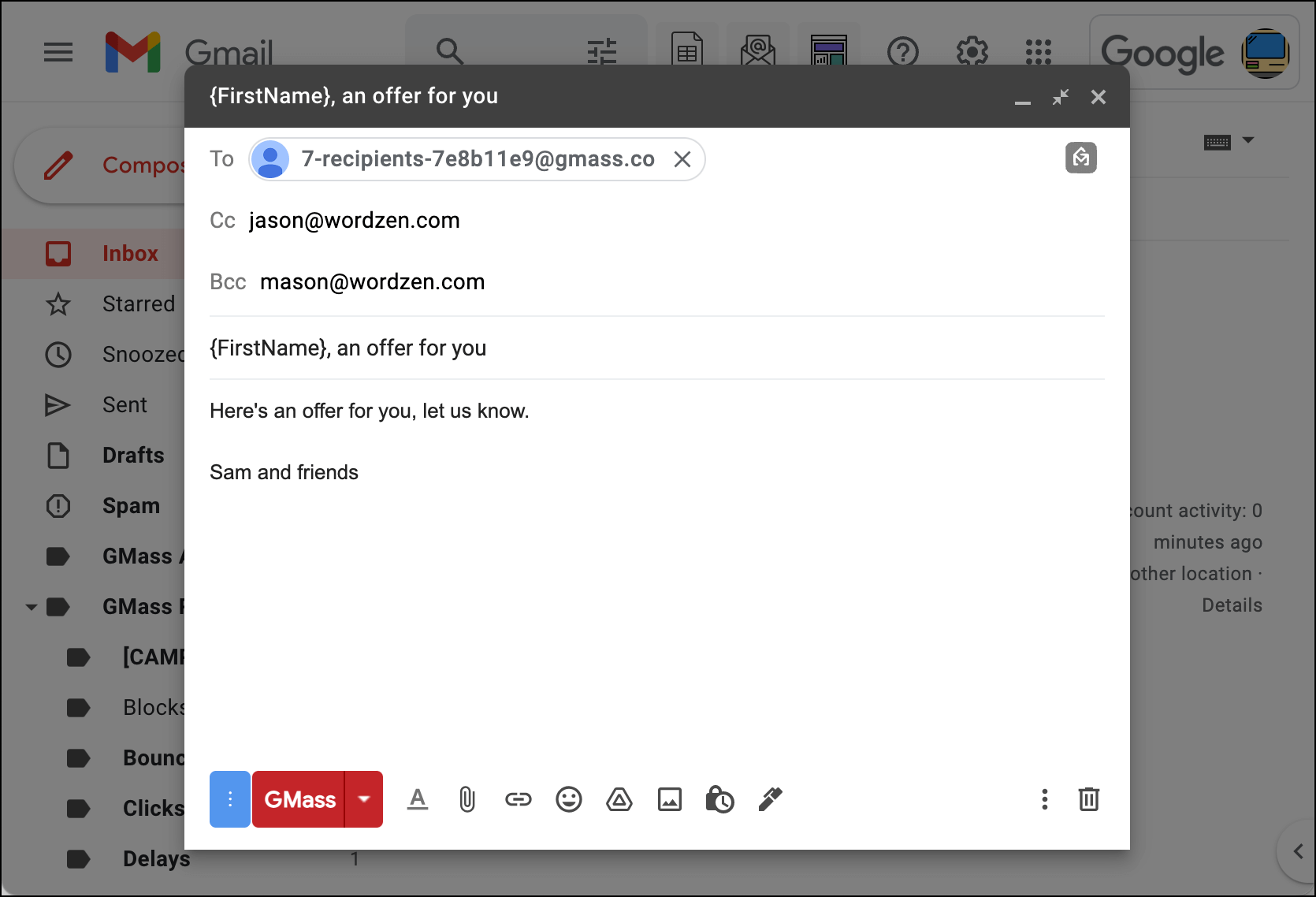
And here’s what those emails look like when I hit the GMass button to create drafts. Here are two of the drafts — you can see they’re both using the same CC and BCC addresses.
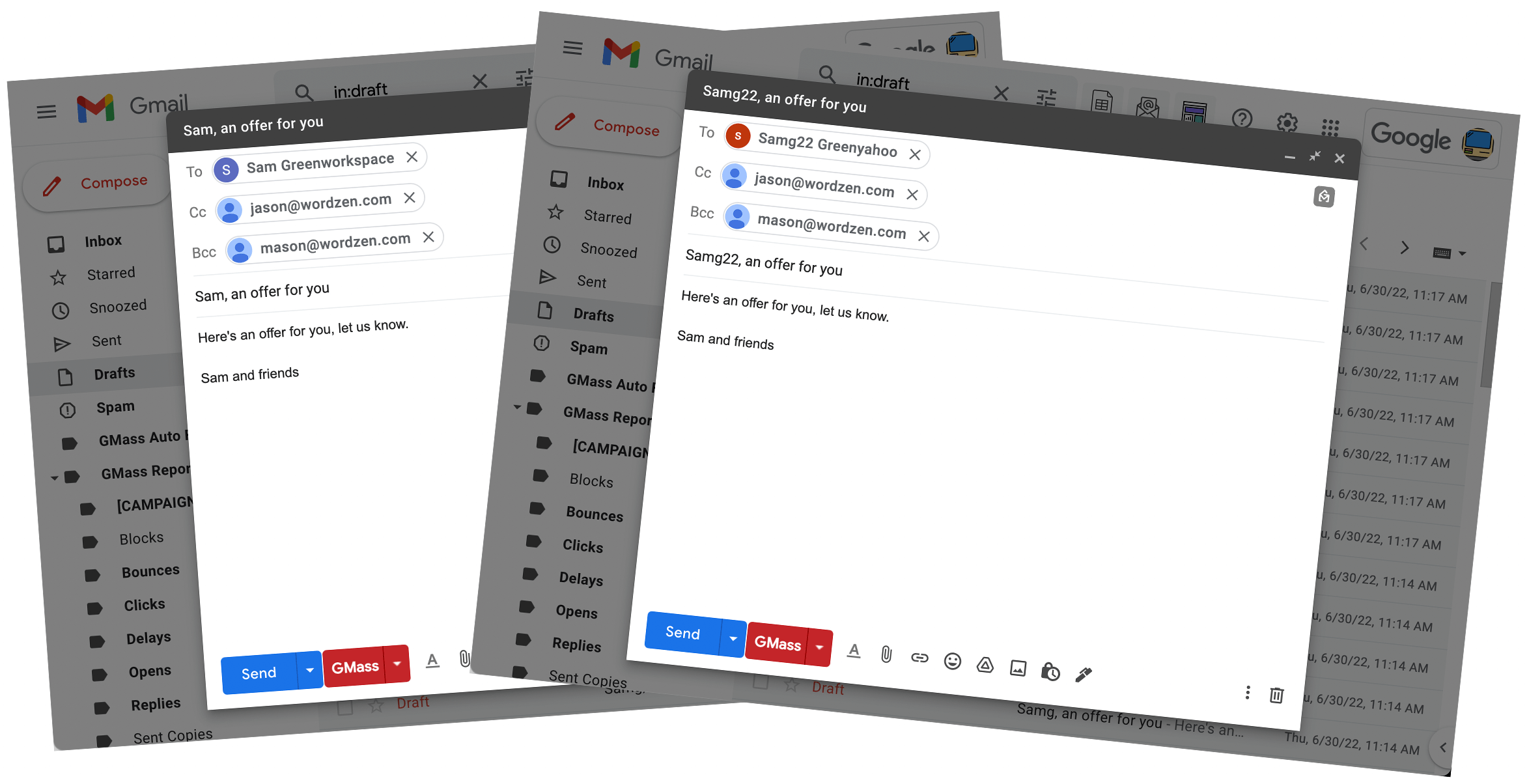
This technique also works if you’re sending emails with GMass and not connecting a Google Sheet. (For instance, if you just type addresses into the To field. Or if you generate lists from a Gmail search or label.)
How to blend “static” CCs/BCCs and mail merge CCs/BCCs
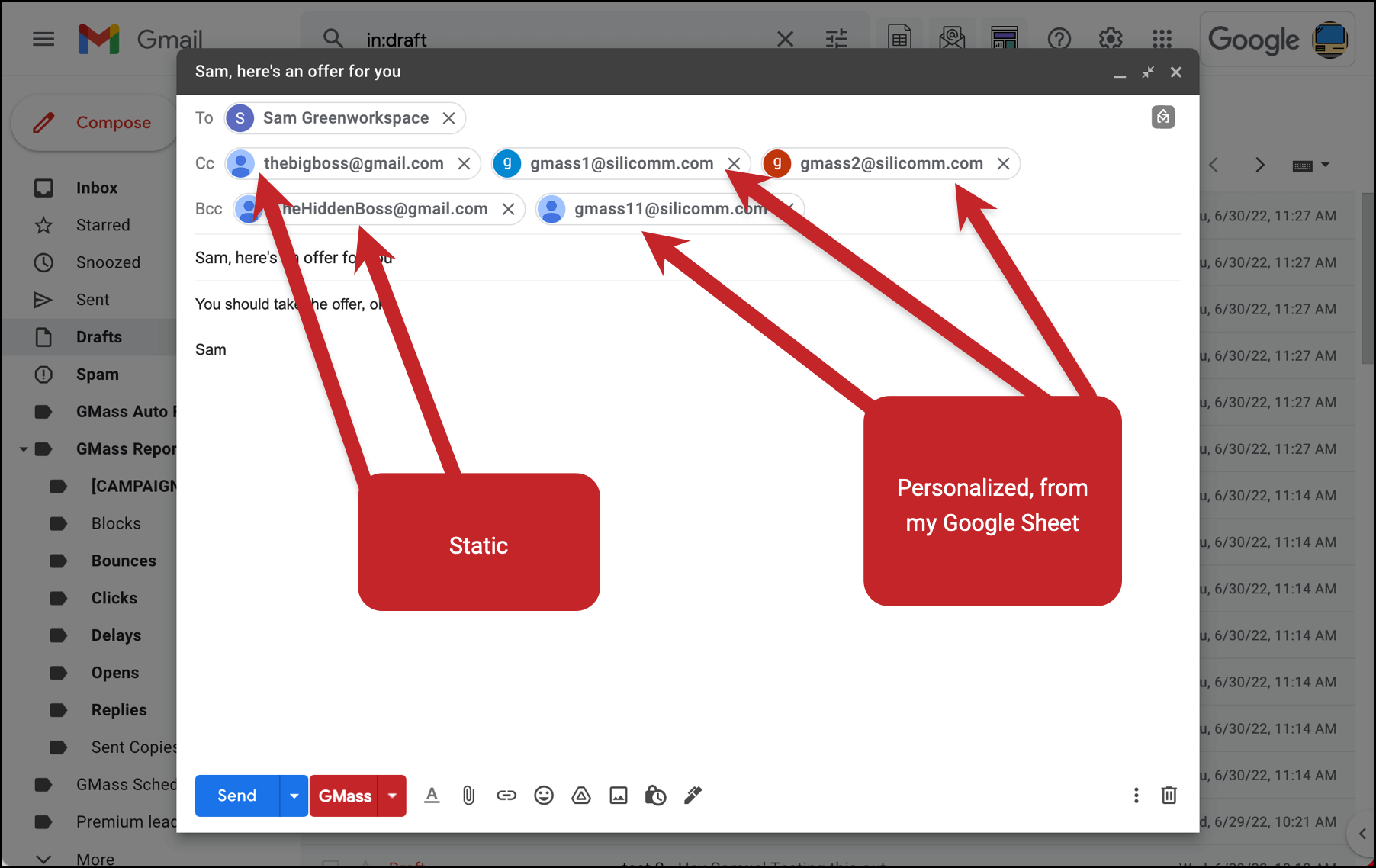
Putting this all together, you can send emails with both static CCs/ BCCs and mail merge CCs/BCCs.
For example, let’s say you want to use personalized CCs on every email and CC your manager on all of them as well.
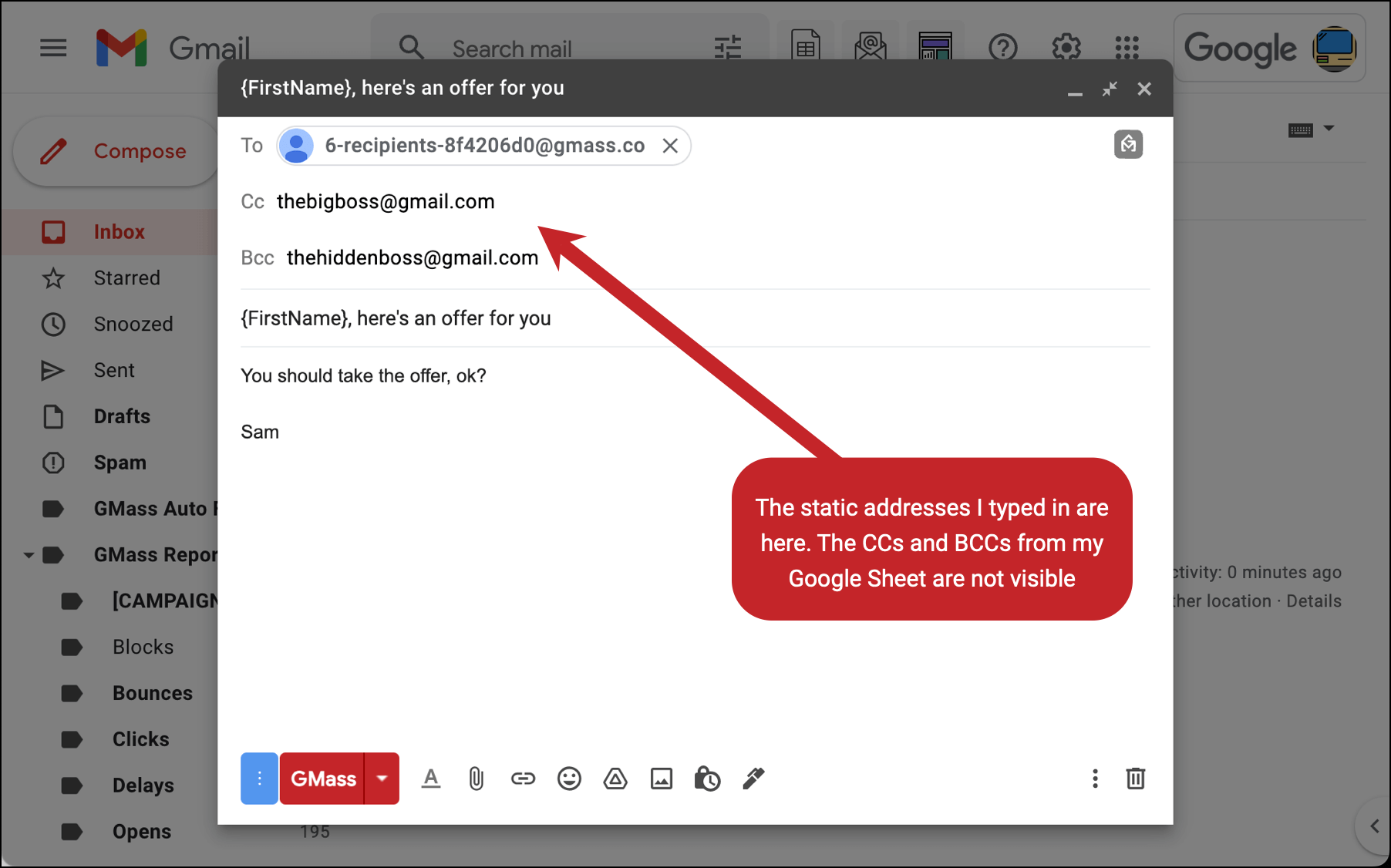
Connect your Google Sheet with the columns of CCs/BCCs. Type the static CC(s) and / or BCC(s) into their respective fields in the Gmail compose window.
Here’s a sample:
And here’s what one of the emails looks like when I create drafts. I have both static and personalized CCs and BCCs in this email:
CC and BCC with the GMass API
You can set static CC and BCC parameters when you create a campaign draft via the GMass API.
You can add your static CC and/or BCC address(es) as your parameters in the CampaignDrafts method. Those addresses will be CCed or BCCed on every email in the campaign.
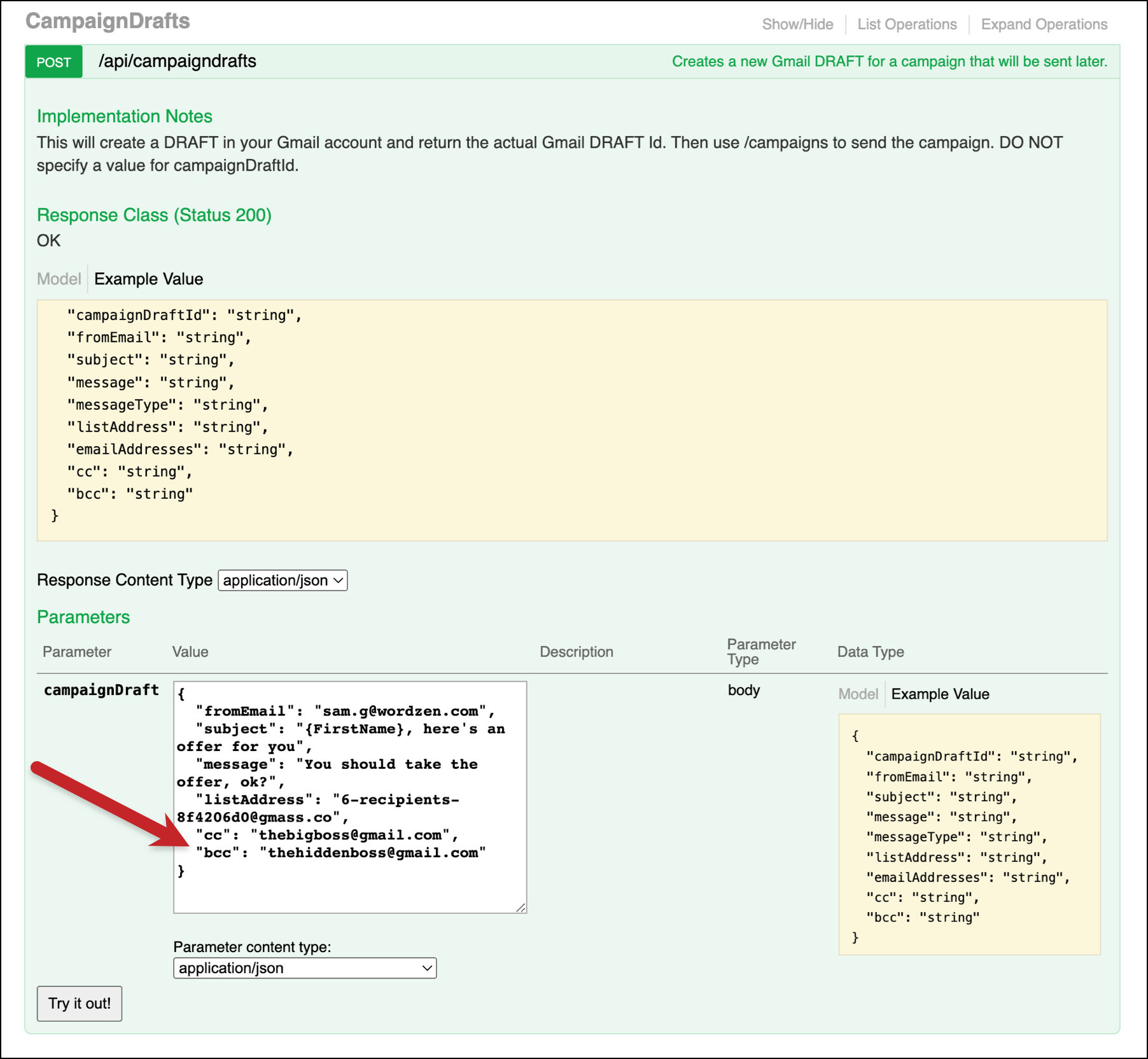
And here’s the result in my Drafts folder.
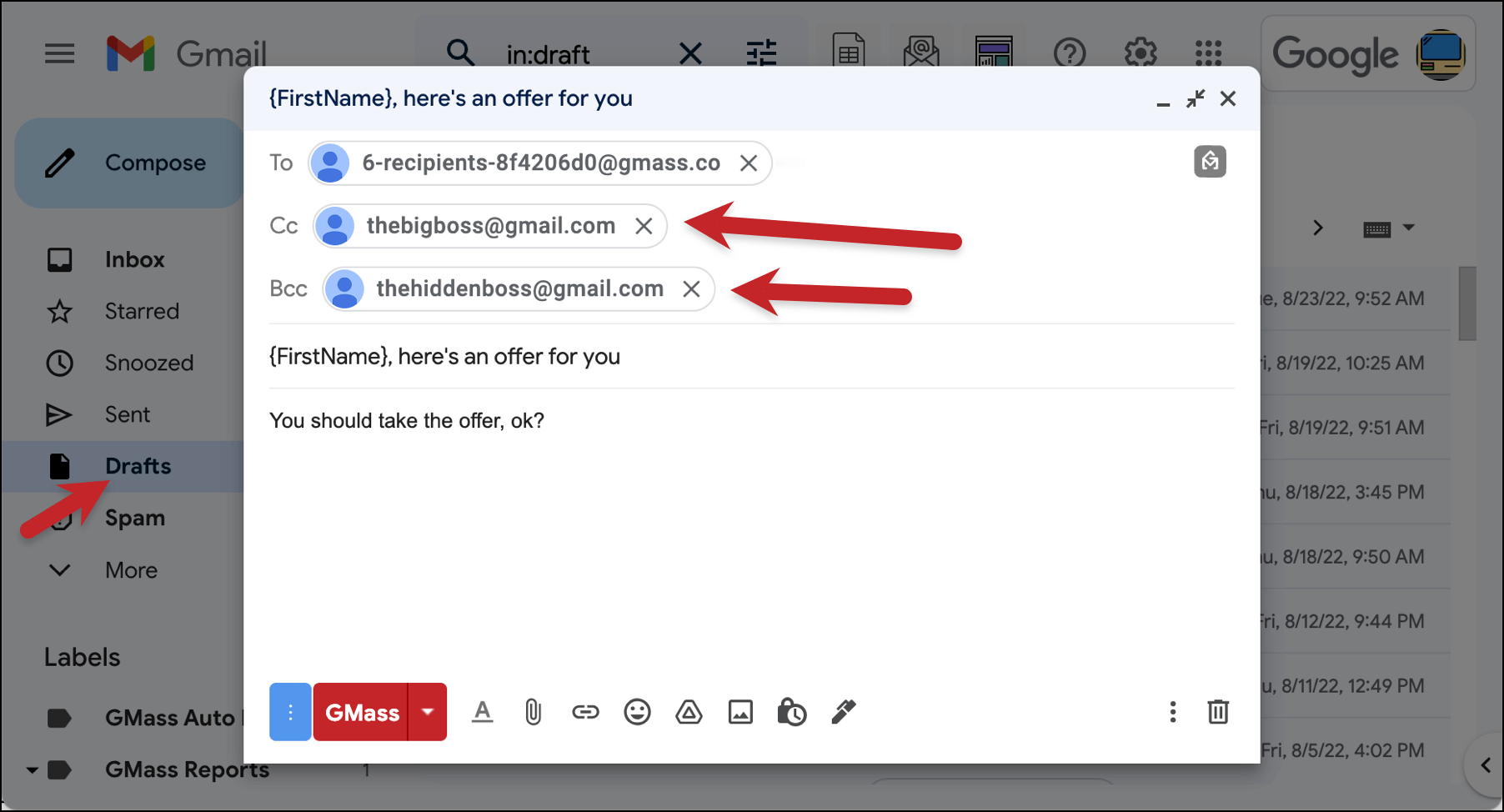
You can now send the campaign using the Campaigns method in the API.
Mail Merge CC and BCC: Takeaways, and Personalizing Your Emails Even Further
The mail merge CC and BCC techniques in this article allow you to send a mail merge to multiple people per row in your spreadsheet.
If you’re still confused about CC and BCC and need a better understanding of how CC and BCC work in Gmail, please see my CC in Gmail guide and my BCC in Gmail guide.
Now that you know how to personalize the Cc and Bcc fields, you might also be interested in:
- personalizing attachments
- auto detecting the first name based on the email address
- personalizing links
Our Gmail mail merge personalization engine is among the industry’s most powerful and dynamic. Read about all personalization capabilities in our complete guide.
Email marketing. Cold email. Mail merge. Avoid the spam folder. Easy to learn and use. All inside Gmail.
TRY GMASS FOR FREE
Download Chrome extension - 30 second install!
No credit card required

Ajay is the founder of GMass and has been developing email sending software for 20 years.