How to include a personalized link in a Gmail email marketing campaign

GMass, the ultimate email marketing tool for Gmail, offers lots of mail merge personalization options, from simple mail-merge personalization to fallback values and even automatic first name detection. Sometimes, you may need to get a little more sophisticated and include a personalized link or URL for each recipient of your email marketing campaign.
The best practice for including a personalized URL is to include the full URL, with personalization in place, or an HTML code snippet of the link, as a column in your Google Docs spreadsheet.
Raw URL Example
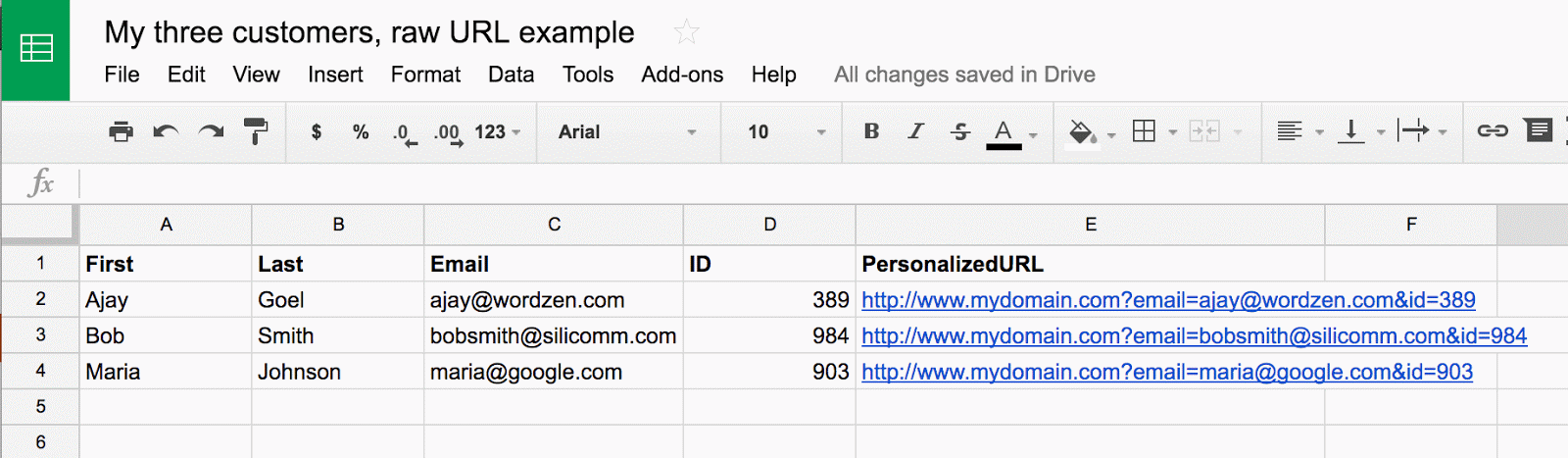
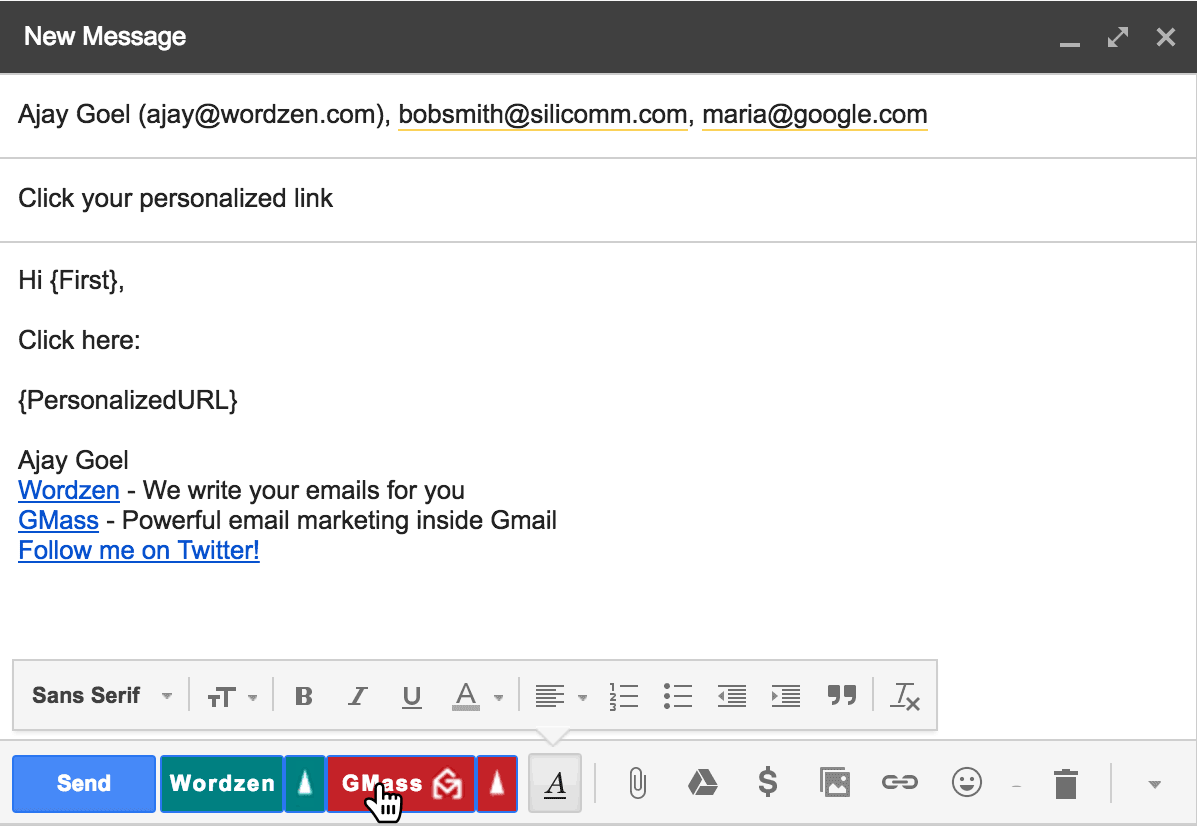
After using GMass to connect to your spreadsheet, the Compose window launches, and your message might look like this:
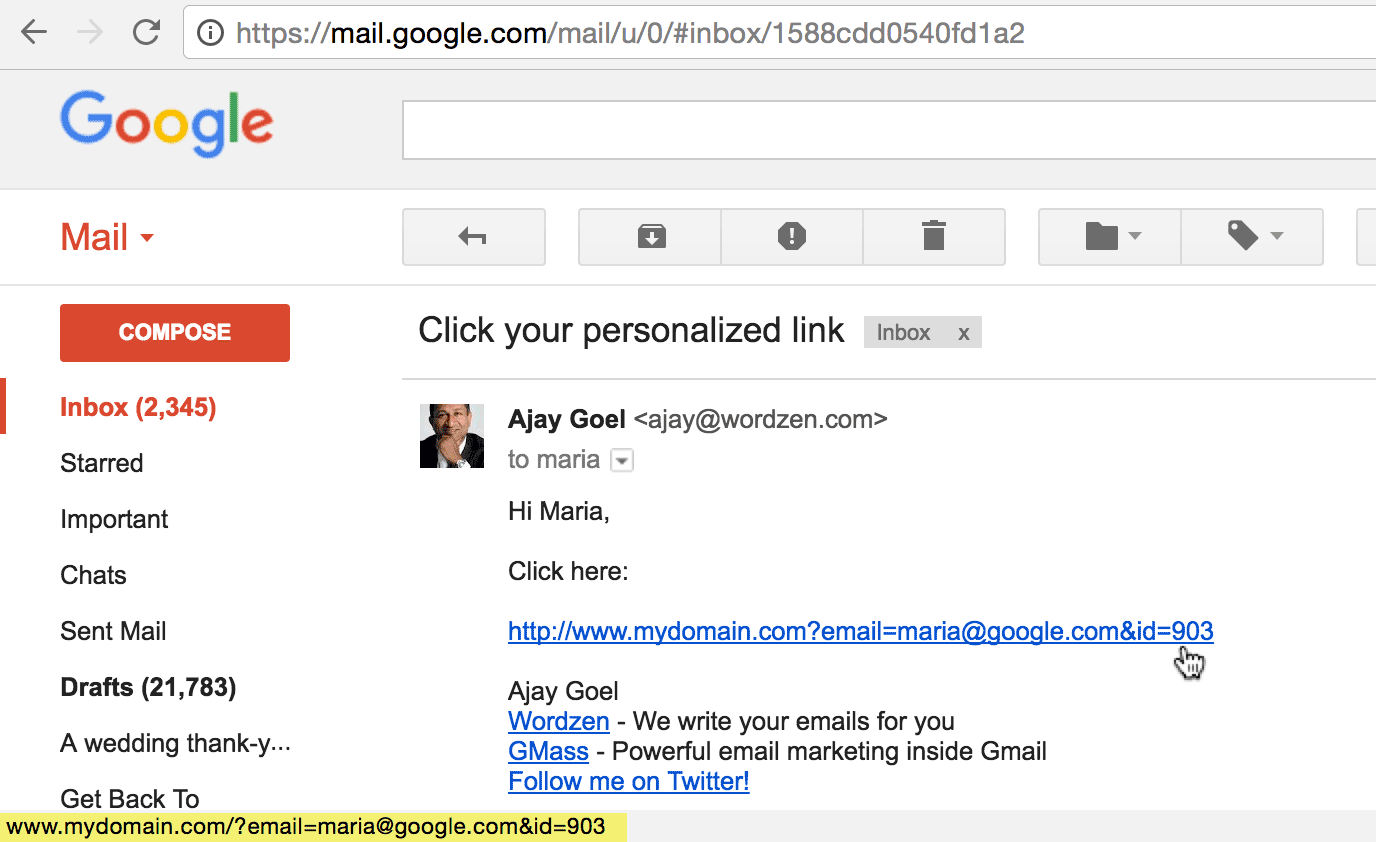
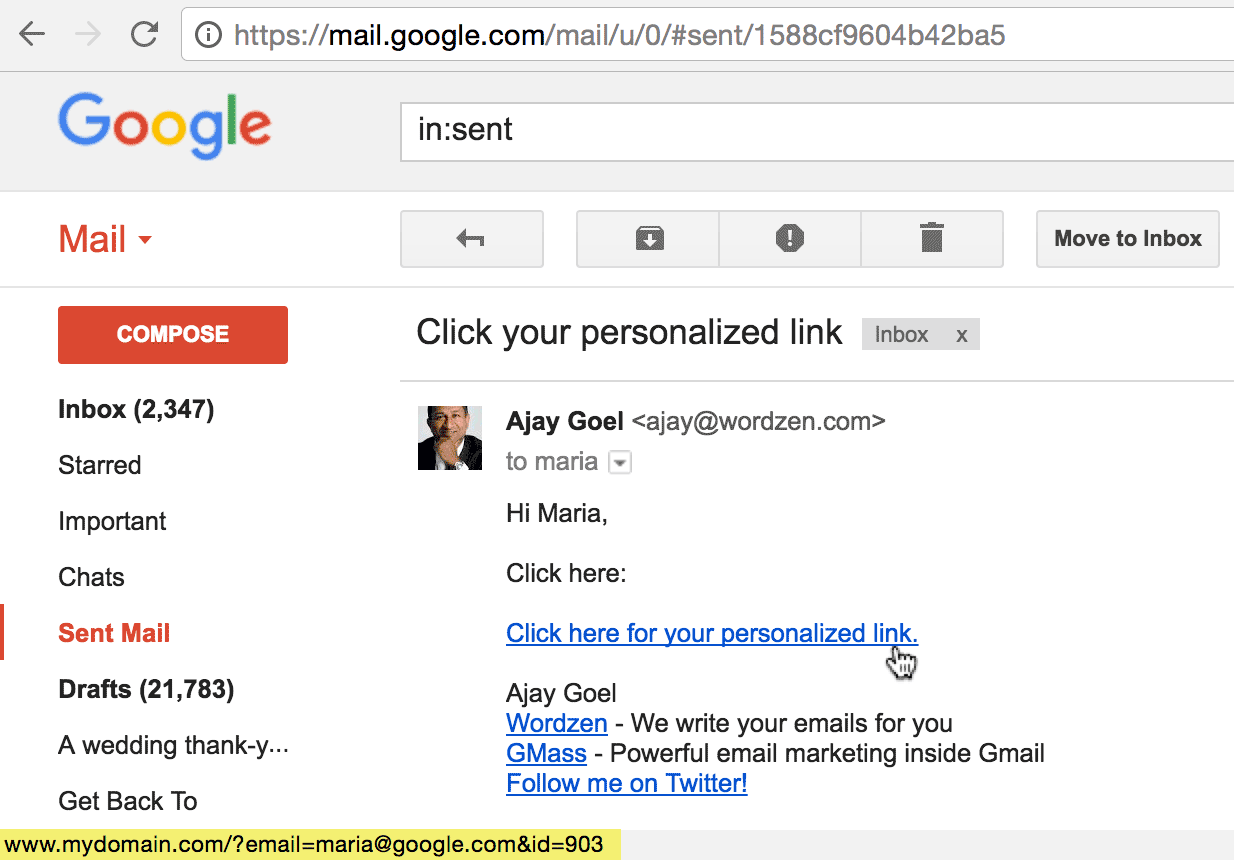
When your email is sent, the recipient, maria@google.com, will get a message that looks like this:
URL with Anchor Text Example
Next is an example of a spreadsheet where the personalized link is part of an HTML anchor tag, such that meaningful text is displayed that, when clicked, will take the user to the personalized URL. The full <a href> anchor tag will be inserted into the HTML message at the point designated by the {PersonalizedURL} mail merge tag.
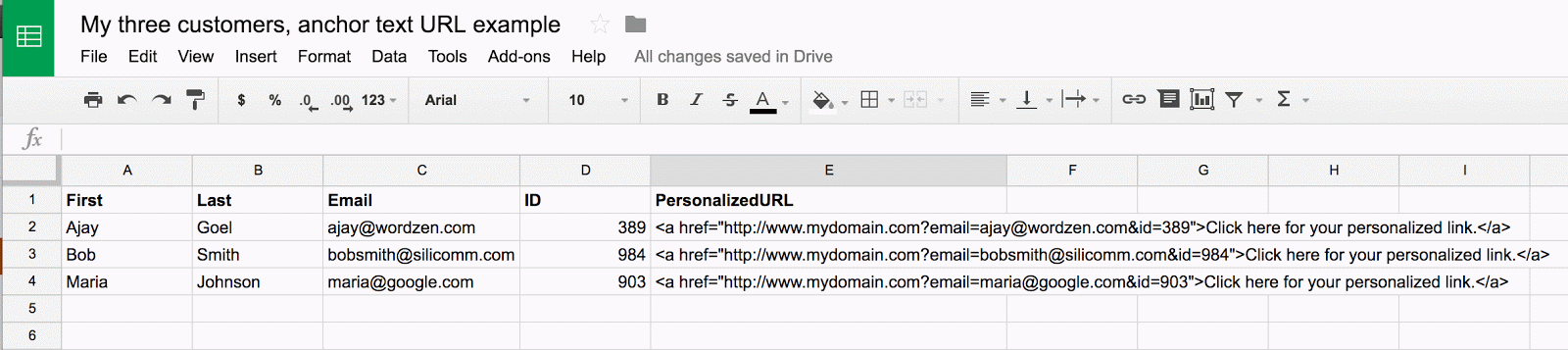
After using GMass to connect to your spreadsheet, the Compose window launches, and your message might look like this:

When your email is sent, the recipient will get a message that looks like this:
Click tracking will not be applied
If you enable click tracking in GMass settings, these particular links will not be modified, regardless of whether you use the raw URL or anchor text approach. That’s because GMass applies click tracking to links before it applies mail merge personalization, so by the time the links are personalized, the click tracking process has already finished altering links in the campaign. In addition, theoretically, because these links are unique to each recipient in the first place, it’s not necessary for GMass to click-track them since they are trackable on the web server of the domain in the personalized URL.
Do not personalize links directly in the Compose window
The reason we advocate placing the full personalized URL as a column in your spreadsheet is because the Gmail Compose window is prone to altering a personalized link and rendering it a broken link. This is due to how Gmail encodes a message behind the scenes.
In this example:
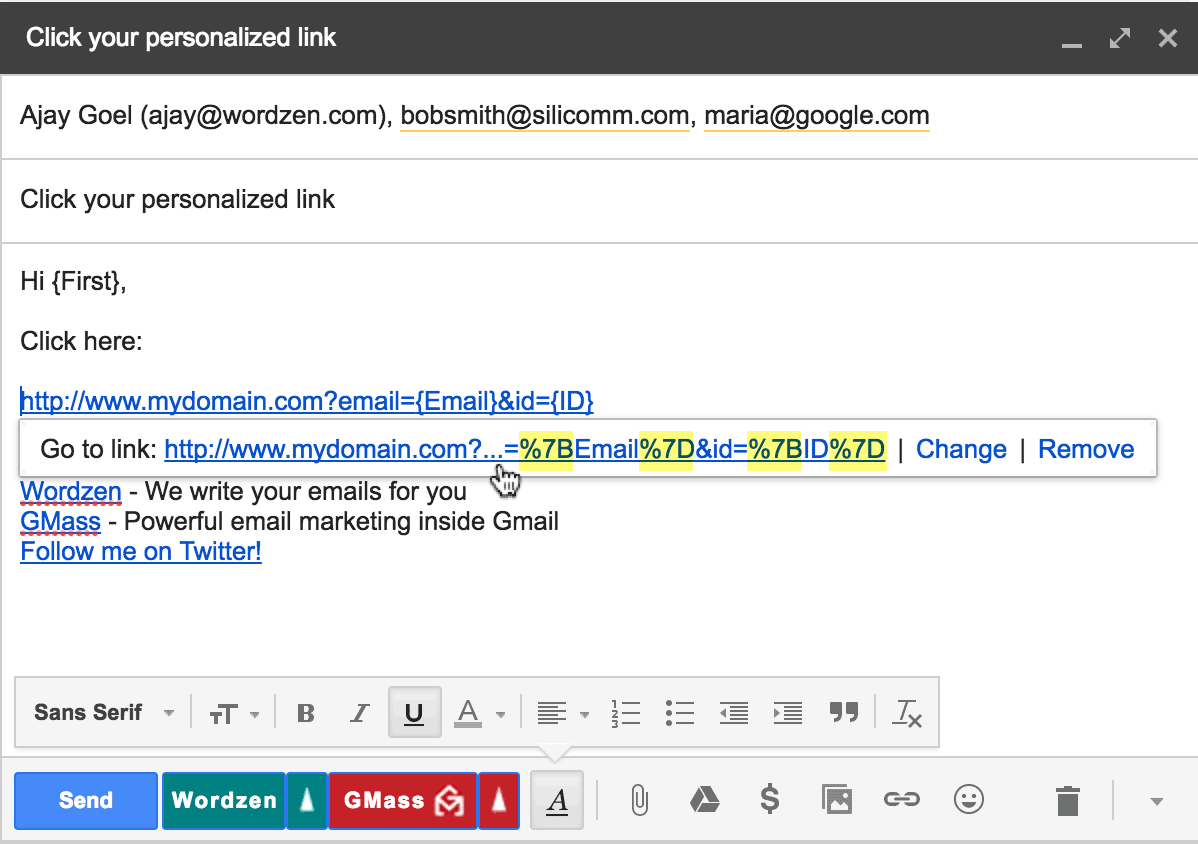 |
| Do NOT personalize URLs as shown above. |
The user has attempted to personalize a URL directly inside the Gmail Compose window, by inserting the mail merge personalization variables as part of the URL. In theory this should accomplish the same objective as placing the full personalized link in the spreadsheet cell, but this actually does not work because Gmail encodes the curly brackets into their HTML-encoded form, replacing the left curly bracket with %7B and the right curly bracket with %7D. This encoding would break the GMass personalization process, causing these merge tags to not be replaced with their appropriate values.
Summary
If you need to send personalized URLs as part of a Gmail-based email marketing campaign, include the full personalized URLs, one for each recipient, in your Google Docs spreadsheet rather than including the mail merge personalization variables as part of the link in the Compose window.
Send incredible emails & automations and avoid the spam folder — all in one powerful but easy-to-learn tool
TRY GMASS FOR FREE
Download Chrome extension - 30 second install!
No credit card required

Ajay is the founder of GMass and has been developing email sending software for 20 years.