How to Run a CSV Mail Merge in Gmail (GMass Guide)

Here at GMass, we regularly have people ask us: How do I run a CSV mail merge in Gmail?
We know why people ask.
Mail merges just kinda feel like something you’d do with a CSV (Comma-Separated Values). It’s a vibes thing. CSVs are also how some word processing software or more rudimentary email sending platforms handle mail merge.
At GMass, though, we run Google Sheets mail merges. You put your contact list and data into a Google Sheet, connect it to your campaign, and mail merge from there.
In this article, I’ll explain why we use Sheets for mail merge rather than CSVs.
But more important: If you DO have a CSV and want to run a mail merge, I’ll show you how to use your CSV for a mail merge in GMass as well. (It’s quite simple.)
Want to skip right to the instructions? Go here now.
CSV Mail Merge in GMass: Table of Contents
- Why GMass Uses Google Sheets, Not CSV, For Mail Merge
- How to Use a CSV with GMass for Mail Merge
- There’s a Whole Lot More to GMass Than CSV Mail Merge
Why GMass Uses Google Sheets, Not CSV, For Mail Merge
CSVs absolutely have their benefits.
- They’re simple.
- They’re broadly compatible across platforms and with virtually all spreadsheet apps and programming languages.
- They’re lightweight files.
- They’re easily human-readable, unlike many other data structures.
However, at GMass, we have you use Google Sheets as the data source for mail merges and not CSVs. Why?
It’s because of two main factors:
- Natively operating inside Google Apps.
- Being able to connect to a data source for two-way, ongoing communication.
In fact, the reason our founder created GMass in 2015 was because there wasn’t a way to run a mail merge in Gmail with Google Sheets.
Natively operating inside Google Apps
One of the things people love most about GMass is that it works inside Gmail.
That means GMass can slot perfectly into your usual email workflow.
We want to make sure GMass feels as close as possible to “part” of Gmail.
And that includes using Google Sheets so you can go back and forth between the two apps seamlessly.
Google products are built to work together — so there’s no reason for GMass to fight against that current.
With that natural integration between Gmail and Google Sheets, it gives GMass even more powers — which brings me to the second reason for using Sheets rather than CSV.
GMass uses Google Sheets for ongoing, two-way communication
If you look carefully — and I mean ridiculously carefully — at the language we use at GMass, we never tell you to “upload” your contacts. We have you “connect” a Google Sheet of contacts.
There’s a precision to the language there for a reason.
When an email platform uses CSVs, you have to upload your CSV. The file lives somewhere on your computer (or in the cloud), and you upload it to your email sending software to get your contacts into an email campaign.
There’s no two-way communication after that. You can’t make alterations to your contacts in your CSV and have them dynamically and automatically updated on your email platform. This is a one-time move.
But with GMass, you connect your Google Sheet.
That means:
- If you make changes to a contact’s data in the Sheet before your campaign sends, GMass’s mail merge will reflect those changes.
- You can set up recurring campaigns, where GMass automatically sends out the campaign to new contacts you add to the Sheet.
- You can also set up recurring campaigns where GMass emails everyone on the Sheet at an interval you choose, and those new emails reflect changes you’ve made in the Sheet.
- GMass can write data back to the Sheet, like campaign analytics (opens, replies, clicks, and more).
- GMass doesn’t have to store your contacts and/or force you to use it as a lite CRM — instead, you can continue to do all your contact management in the Google Sheet where you’re comfortable. (Google Sheets itself is actually a great CRM option — and we even have a free Google Sheets CRM template built to work with GMass.)
But… what if you have your contacts in a CSV?
Not to fear.
It adds roughly two minutes or less to the entire process to get you rolling in GMass.
Here’s how.
How to Use a CSV with GMass for Mail Merge
It’s a two-step process to run a CSV mail merge in GMass.
- Import the CSV to Google Sheets.
- Connect that Google Sheet to your new campaign.
Importing a CSV into Google Sheets
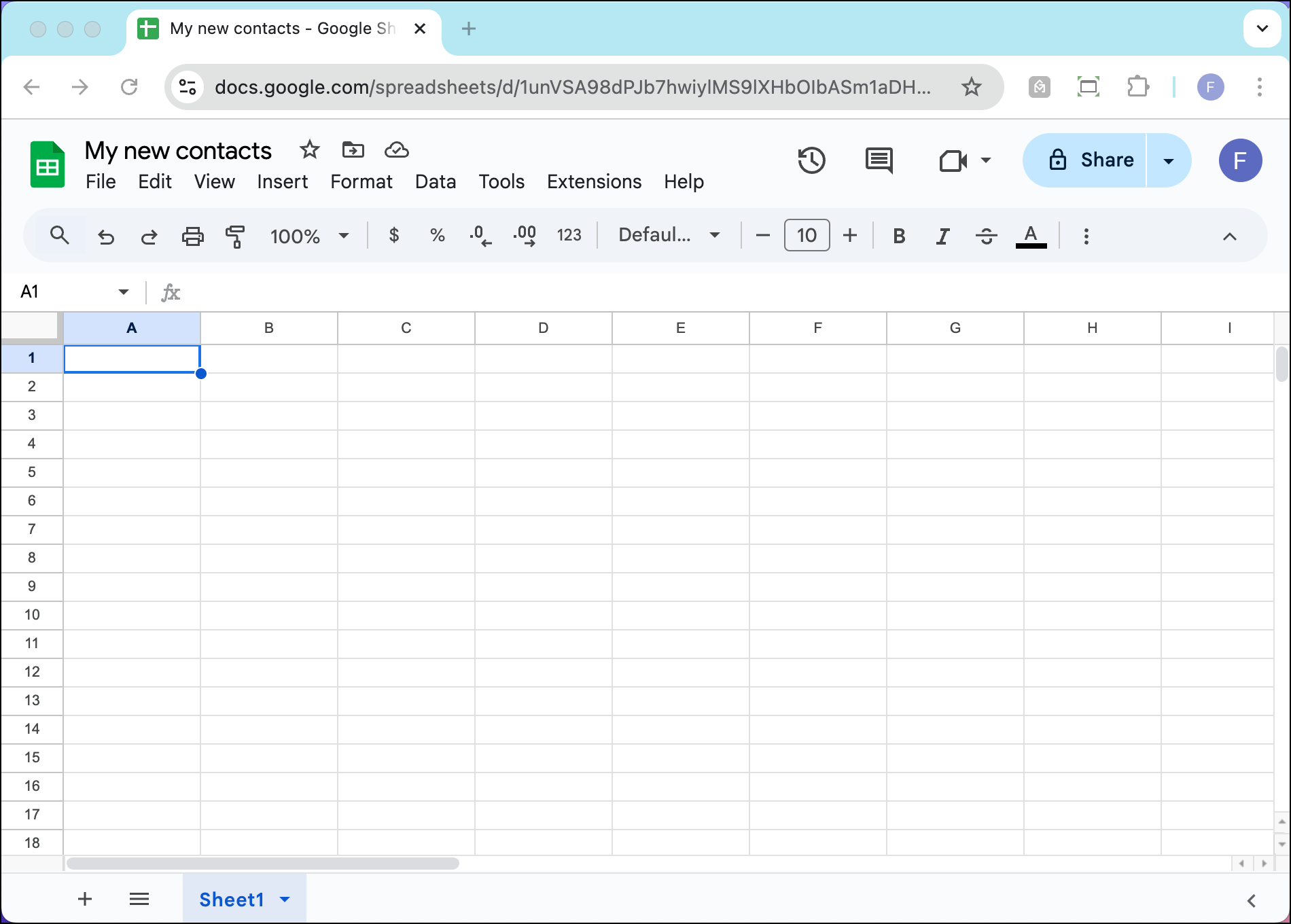
Open a new Google Sheet and give it whatever title you want. (You can also open a new worksheet inside a Google Sheet that exists; for this example, I’m going with the basics.)
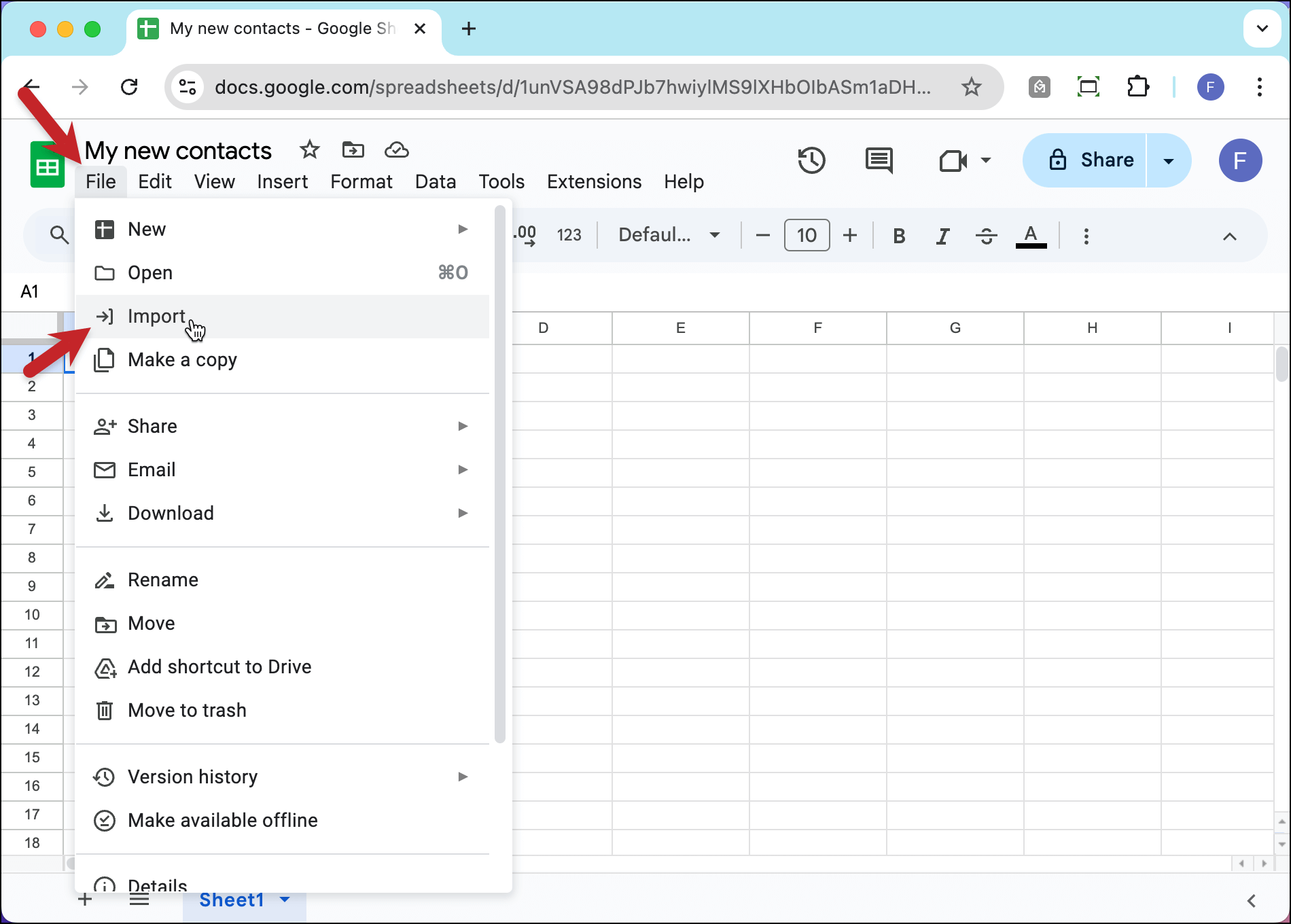
Now go to File > Import.
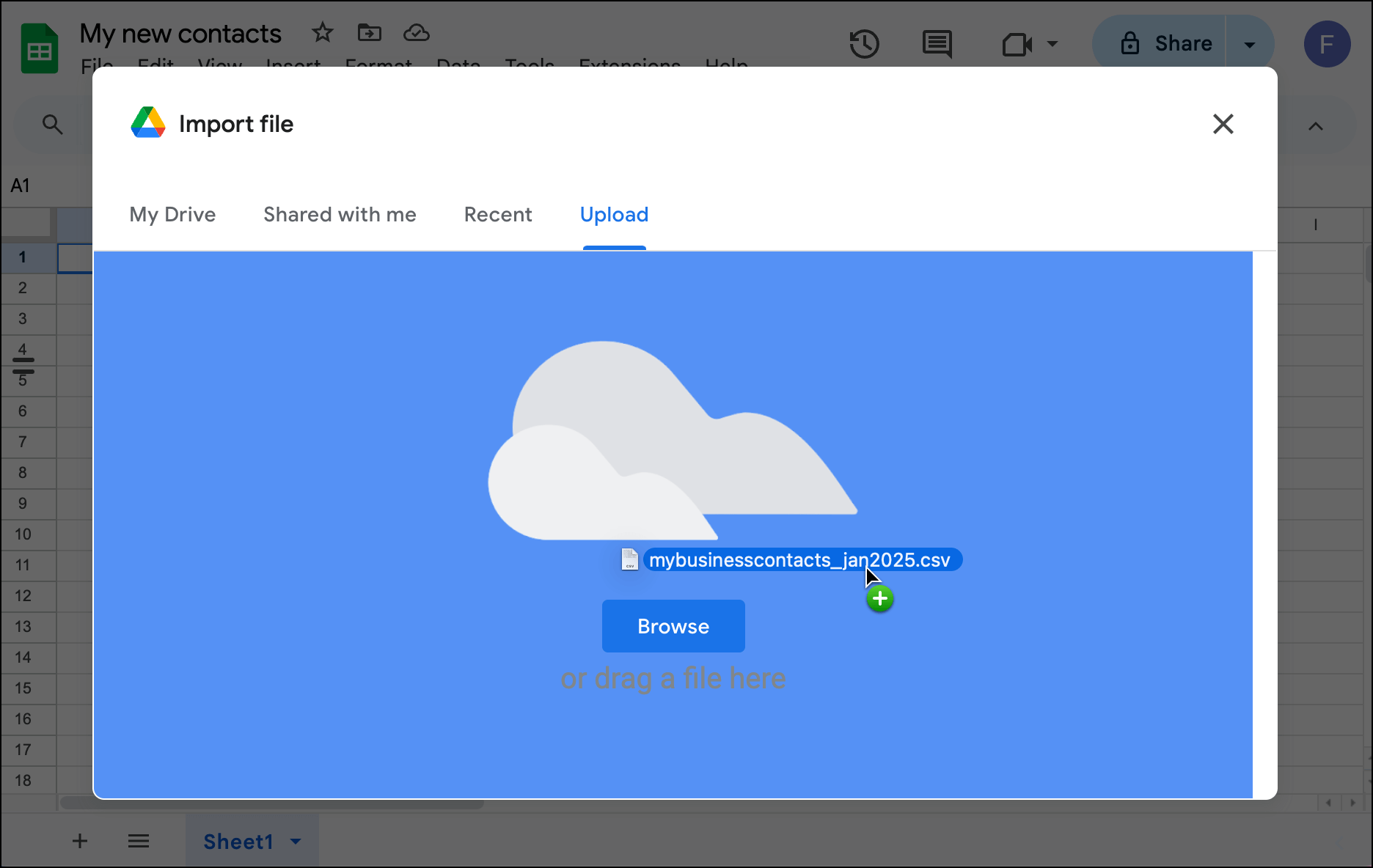
Go to the Upload tab. Then drag the CSV file into this window to upload it.
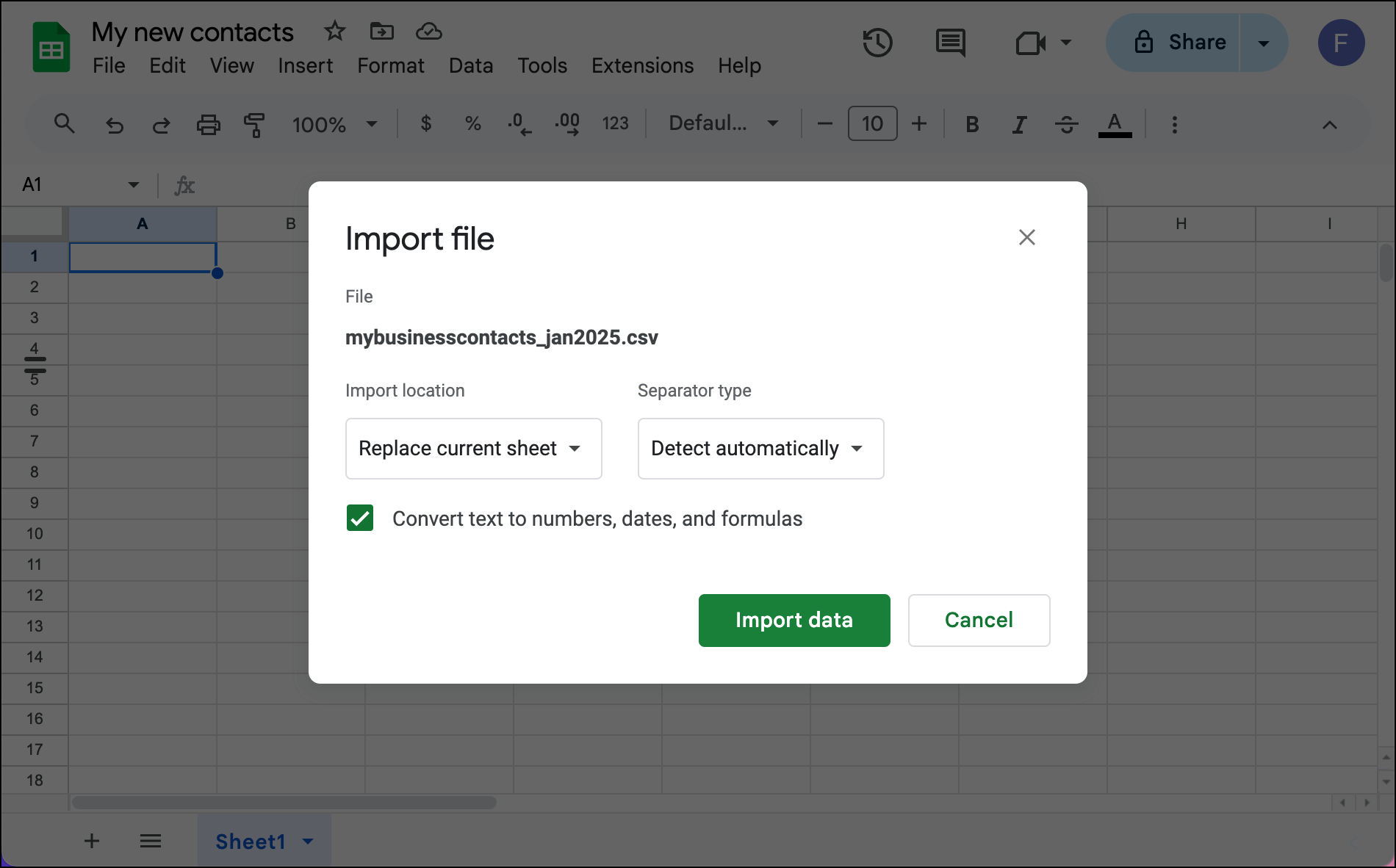
Now, in the options box, for Import location choose Replace current sheet and for Separator type choose Detect automatically.
NOTE: If you are importing this CSV into a Google Sheet that already exists, I recommend making your Import location Insert new sheet(s) instead.
And… that’s the whole process for importing. Your data is now inside your Google Sheet — and all nicely organized too.
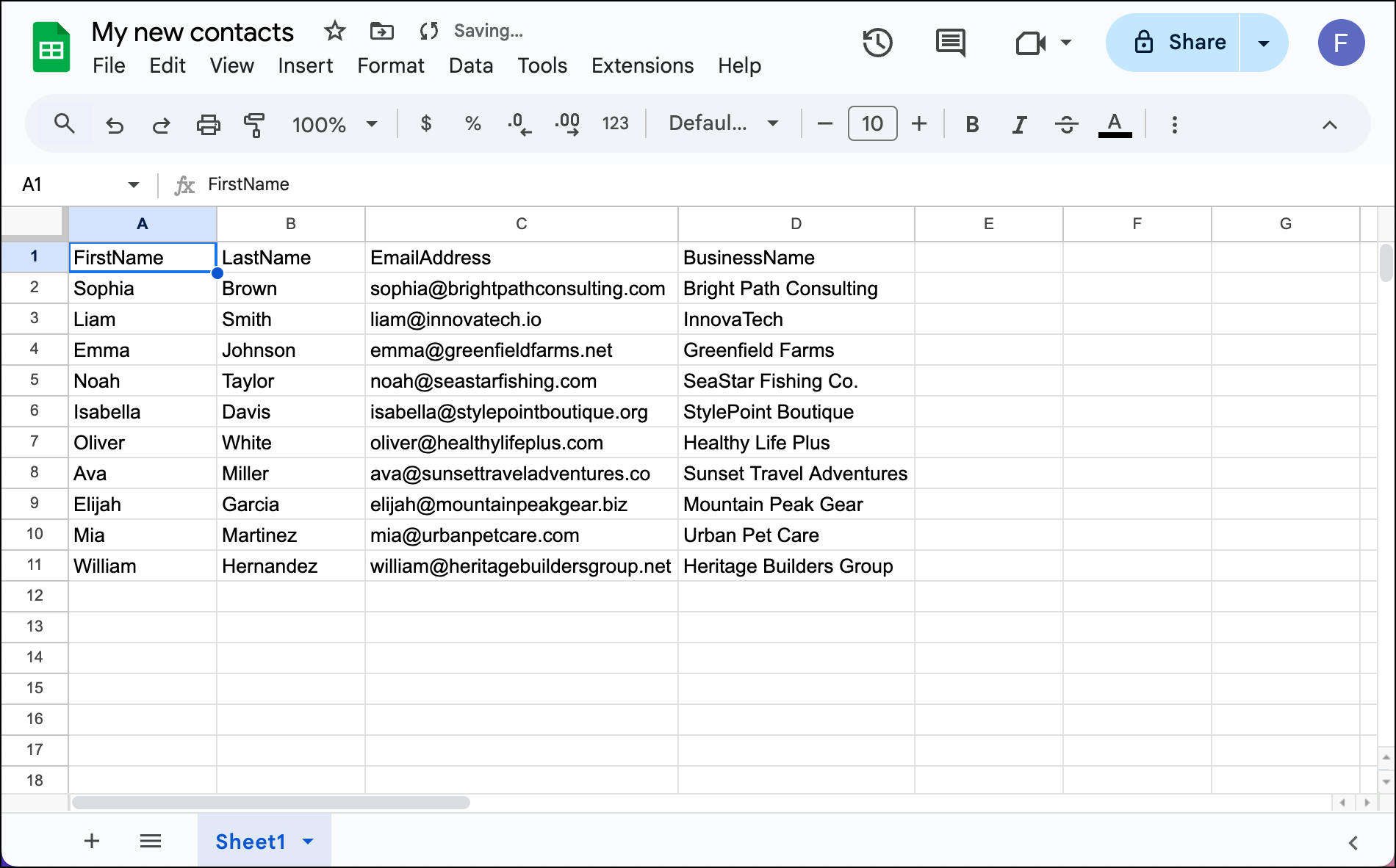
Now we can connect it to our GMass campaign.
Connecting to a GMass campaign
I won’t cover all the details of connecting a Google Sheet to a GMass mail merge campaign — if you need that walkthrough, it’s here — but I’ll give you the speed run version.
Assuming you have the GMass Chrome extension installed and you’re up and running (if not, hit up the quickstart guide)…
Click the Sheets icon in Gmail to connect to your Google Sheet.
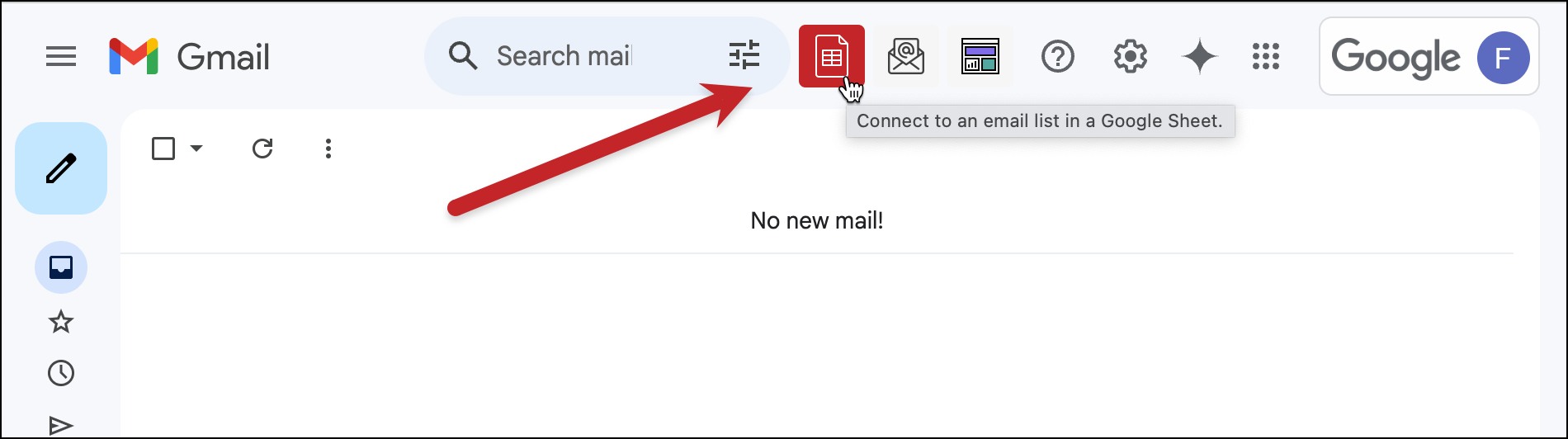
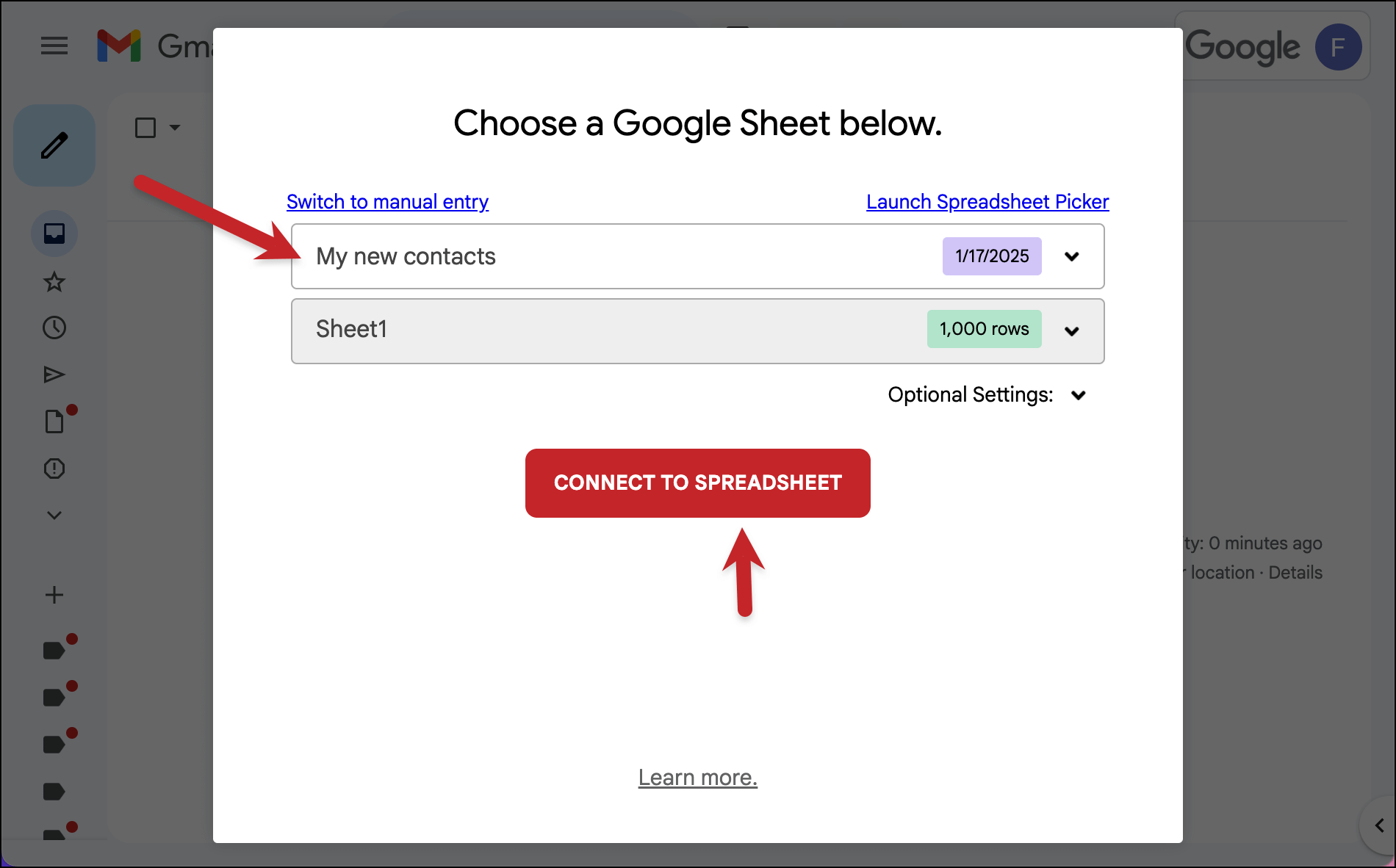
Choose your new Google Sheet (that used to be your CSV) from the dropdown menu.
Then click the Connect to Spreadsheet button.
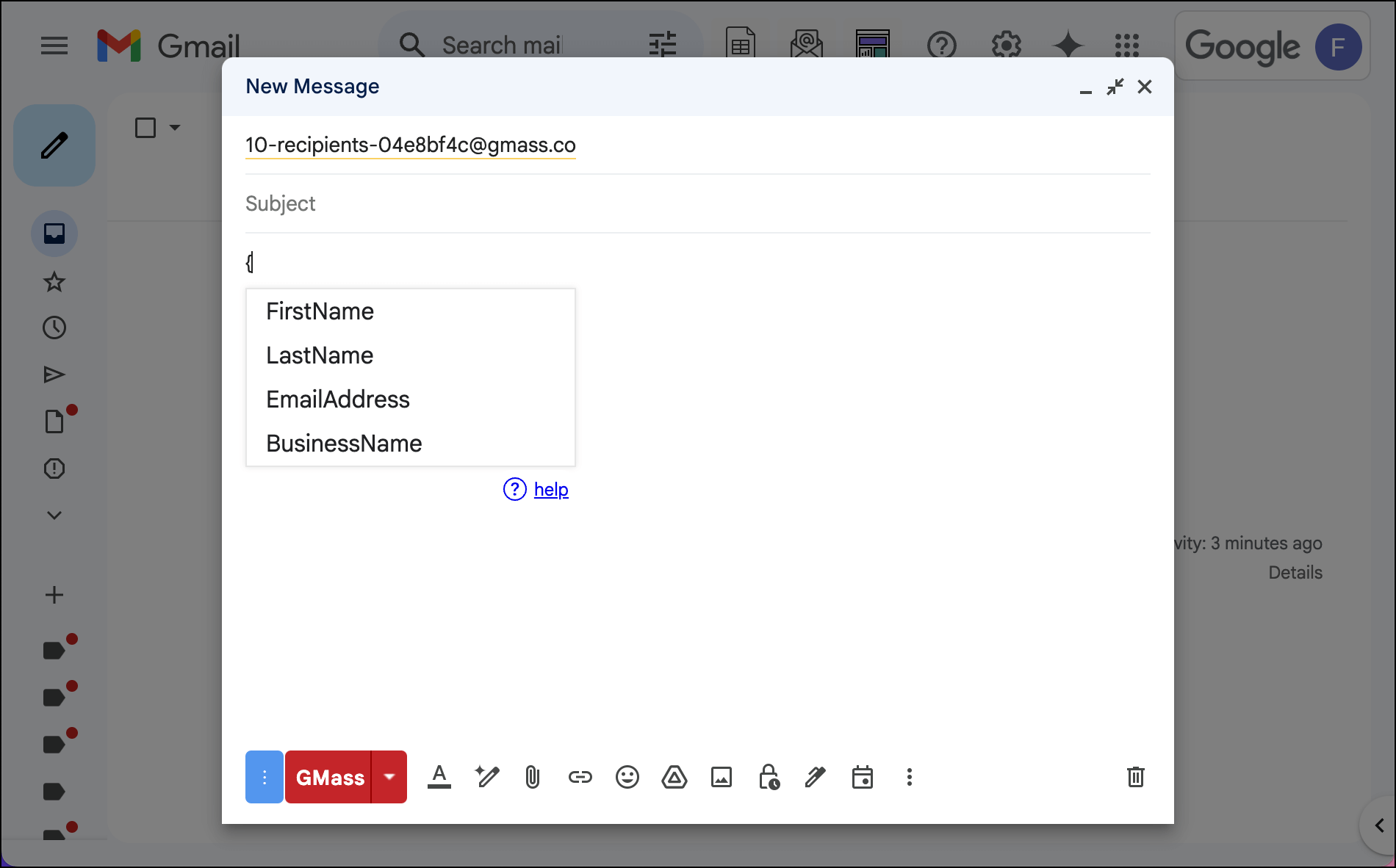
Now you can create your mail merge template; all the column headers from your Google Sheet are available as your merge tags.
And now, as I discussed earlier, you have all the power that comes from connecting to a Google Sheet in GMass rather than uploading a CSV: two-way communication, the ability to update the sheet, recurring campaigns, writing your campaign results inside the sheet, and more.
There’s a Whole Lot More to GMass Than CSV Mail Merge
Yes, in this article we’ve focused on CSV mail merges for Gmail using GMass — and how to turn your CSVs into more dynamic Google Sheets to pull that off.
But there’s SO much more to GMass than the basic mail merge topics I’ve covered in this article.
GMass literally transforms Gmail into an email marketing, cold outreach, and mass email platform.
Almost 400,000 people use GMass to send everything from sales emails to newsletters to internal communications to wedding invitations.
With GMass you get unlimited emails, contacts, and campaigns… a special suite of deliverability tools to get you to the inbox… auto follow-ups, A/B testing, email polls, and more.
Plus, you can get started with no credit card required.
Just install the Chrome extension and you’ll be sending your first campaign — possibly with all those contacts from your CSV — within minutes.
Only GMass packs every email app into one tool — and brings it all into Gmail for you. Better emails. Tons of power. Easy to use.
TRY GMASS FOR FREE
Download Chrome extension - 30 second install!
No credit card required