Email Click Tracking: How to Track Email Clicks with GMass?

What is Email Click Tracking and How Does it Work?
With email click tracking, you can measure how many times recipients click on links within email messages.
One way to track email links is by using UTM parameters in Google Analytics, but setting them up can be difficult. GMass simplifies the process with its built-in click tracking capabilities and easy Gmail integration.
GMass converts standard email links to trackable links in its campaigns. When a person clicks on these links in an email, GMass will automatically track them and report them into the GMass Reports -> Clicks section of your Gmail account. (You can also see clicks in the other GMass reports, including the report in the GMass dashboard as well as the web-based report.)
This article will guide you through the steps required to enable email click tracking using GMass. You will also learn how to set up email URL tracking using Google Analytics and its limitations.
The Benefits of Click Tracking
Click tracking provides real feedback, which can be used to continually hone your email marketing strategies. With click tracking, you have the data necessary to determine whether or not your emails are being opened and clicked on – allowing you to pinpoint what works and what doesn’t work in order to improve performance over time:
1. Monitor your email strategy by seeing what happens with clicks
One benefit of tracking email clicks is reduced guesswork and a greater understanding of ROI. Tracking link click-through rates in email campaigns will give you a good idea of which content your audience prefers and what messaging resonates with them best. This information can be used to create more targeted campaigns or set up automation so customers who engage with your messages receive relevant content based on their preferences.
You can also use this information to A/B test different subject lines and content for maximum engagement. You can then send out emails that resonate more with your audience.
2. Boost your conversion rates by following up on leads that are more likely to convert.
It’s challenging to follow up with people without knowing if your email was opened or if the recipients clicked on any links in your email.
With click tracking, you can improve your email list conversion rate because you can manage follow-ups more accurately. Click tracking reveals how interested each recipient was in your email and you can use that information to create better follow-up sequences.
Click tracking allows you to identify interested customers by monitoring link clicks, so you can follow-up only after someone has shown interest. This means you won’t waste your time by sending messages and follow-up emails to uninterested people.
Implementing click tracking in your emails can also give you insight into how leads are viewing the content of your messages. If you included links or attachments in an email, prior to a meeting, you can see if your contact has viewed them.
3. Know the best time to follow up with a prospect.
Reach the right customers at the right time by sending emails only when they’re relevant or needed.
Timing can be a crucial factor in the success of an email campaign. If you send different types of emails, some hours fit better than others. Click tracking helps you find the best window to send your follow-up.
4. Create automated workflows
If you want to set up a comprehensive and robust email marketing funnel, you need automated workflows. Using data from the email click tracking system, you can build workflows that are triggered by different behaviors in your outgoing emails, like clicks on specific links.
This gives you the power to be creative at a deeper, more strategic level of your email marketing funnel.
For example: You can email a contact with a personalized follow-up only after they’ve clicked a particular link.
How to Enable Email Click Tracking with GMass
Mail merge campaigns sent via GMass can now be click-tracked. To turn on click-tracking for a mail-merge campaign, just check the box in the Settings box before clicking the main GMass button. Note that click-tracking is turned on by default.
All hyperlinks will be converted to trackable hyperlinks, though certain links will be left alone and not tracked, including “mailto:” links and “tel:” links. All other regular web hyperlinks will be converted to trackable links if click tracking is on.
Additionally, previously tracked URLs will not be tracked again. For example, if you track a link in one campaign, and you copy/paste that tracked URL into another campaign, it will be left alone and not converted again.
Skipping certain links
There are cases where you may not want a particular link tracked. Learn more here.
Reporting
When someone clicks on a link in an email campaign, a report will go into the GMass Reports -> Clicks label in your Gmail account.
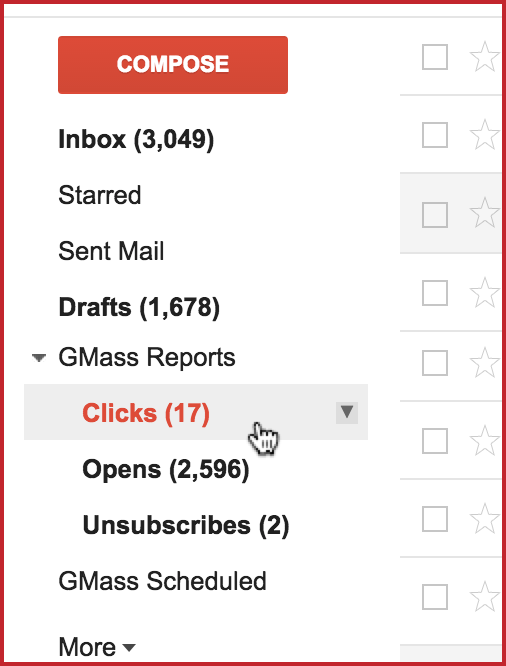
You’ll also be able to check click tracking data in your other reports, in the GMass dashboard:

and your web-based report:

And when you click on the number of clicks in either of those reports, the fly-out panel on the right will show you how each link in your campaign performed. You can also see the raw data on who clicked what.
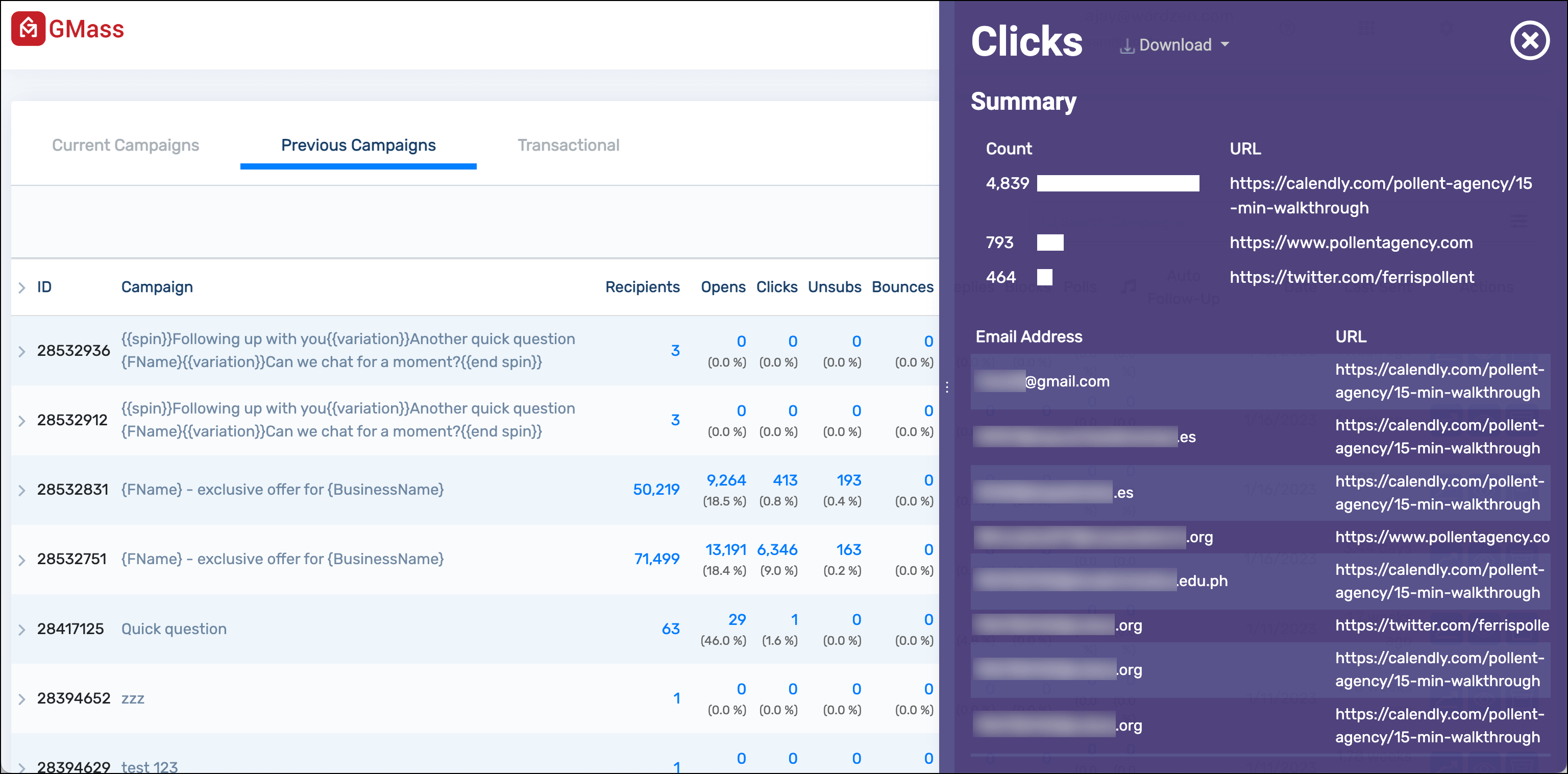
Not all links are tracked
If you’ve sent mail merge campaigns with your Gmail account and have used GMass’s click-tracking feature, you’re used to having all of your clickable URLs altered to be tracked. In certain cases, however, phishing scanners were flagging the tracked links when a URL was used for the anchor text. Many email marketing experts have already written about this issue, so I won’t expound upon the history of phishing in this post.
The important change to be aware of is that GMass’s click tracking feature now skips tracking on links where the anchor text itself is a URL rather than a word or a phrase.
Meaning, if your links looks like this:
Go to http://www.wordzen.com for an awesome email editing service!
where the links is a URL itself, then we won’t track that link.
If your links looks like this, however:
Go to Wordzen for an awesome email editing service!
the anchor text is now “Wordzen” instead of “http://www.wordzen.com”, and so GMass will track this link.
You’ll also notice that if you’re a Google Apps user, the clickable links now point to our new domain gm.ag instead of gmass.co.
Interestingly enough, we tested other popular email marketing services to assess how their click tracking functions worked, including MailChimp, Constant Contact, and Campaign Monitor. Surprisingly, none of these services skip click-tracking on links where the anchor text is a URL, meaning emails sent from those services will get flagged by phishing scanners if click tracking is enabled and links with URLs as anchor text are present in the message.
I believe GMass, despite doing it differently than these other popular email marketing tools, is now implementing click-tracking the proper way. We hope that the rest of the email marketing industry will soon follow suit.
Using a custom tracking domain
We recommend you set up a custom tracking domain for click tracking — as a shared tracking domain can often be the biggest reason for deliverability issues. Plus a custom domain is better for branding and can ultimately improve your click-through rate.
You can follow our instructions for setting up a tracking domain here — it’s usually a pretty simple process that includes adding one DNS record, then pasting your tracking domain into the GMass settings.
GMass is also one of the handful of email service providers — and (we believe) the only cold email platform — that serves tracking links securely over HTTPS rather than HTTP. That step helps deliverability even more.
We filter out certain User Agents
A few years back, we noticed false clicks of links in email campaigns from the Yahoo! Slurp User Agent, and in the since then we’ve noticed a new bot clicking links in users’ mail merge campaigns: BLEXBot.
The User agent for BLEXBot looks like:
Mozilla/5.0 (compatible; BLEXBot/1.0; +http://webmeup-crawler.com/)
We are now filtering out clicks from this bot, meaning they won’t count towards your campaign clicks. We aren’t sure yet how the BLEXBot is getting access to the unique tracking links that are included in click-tracked email campaigns sent by GMass users, but we’re working on finding out. It might be the result of a data sharing agreement between Google and the folks who control BLEXBot.
As for Yahoo!’s Slurp Search Bot, it has the User Agent:
Mozilla/5.0 (compatible; Yahoo! Slurp; http://help.yahoo.com/help/us/ysearch/slurp)
or a click notification that looks like this:
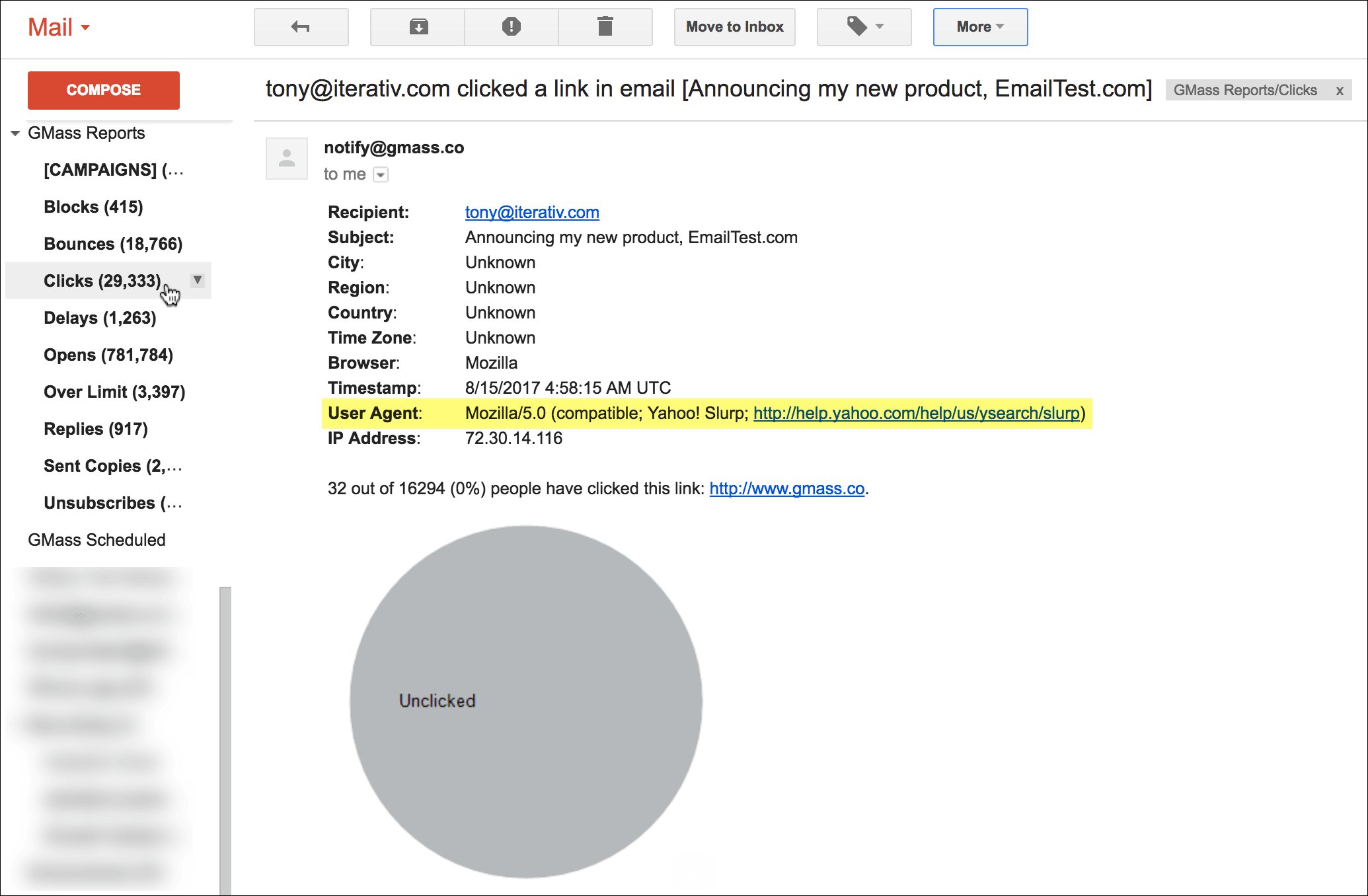
Why is this happening?
Yahoo!’s Slurp search spider has been around for a while but a few years ago, Yahoo! made a change so the spider is now clicking the links in the email messages of all Yahoo! Mail users, where it previously did not auto click all the links within emails. So if you’re sending email campaigns to @yahoo.com users or any address hosted by Yahoo! Mail, or to an address that forwards to such an address, you may be getting false clicks from the Slurp spider.
What change did we make?
On August 14, 2017, we modified our click tracking handler to ignore clicks from the Slurp search spider, so you shouldn’t see any more clicks generated by the spider.
And we’ll continue to monitor for “bad bots” that inaccurately inflate click track counts to continue to filter them out.
Email Click Tracking with Google Analytics
Google Analytics is not the perfect solution for email tracking; it has some limitations. It won’t be able to generate reports as comprehensive as GMass.
With Google Analytics, you won’t be able to:
- Know who opened your email (except for some demographic data). GMass provides click tracking data, which typically includes the email ID, time, and IP address.
- Check the total number of email addresses that clicked at least one link in your campaign (If you turned on click tracking in GMass).
- Get immediate notifications and instant reports of email click activity in real-time
- Easily check email click tracking reports using Gmail on your desktop or on your mobile device.
If you’re still interested in tracking email clicks with Google Analytics, then here are the steps:
Google Analytics tracks activity via a series of UTM tags linked-to URLs. When someone clicks on an assigned URL, Google records the click with data collected from UTM parameters.
For this, please navigate to Campaign URL Builder tool
Here’s how to fill out these form fields:
- Campaign Source (utm_source): Use this to identify the origin of the traffic, whether it is coming from a search engine, email campaign, or any other source. (Type “Newsletter” here, for example.)
- Campaign Medium (utm_medium): utm_medium is used to identify a medium such as email or PPC campaign. (Enter “Email” here, for example.)
- Campaign Name (utm_campaign): This is used to identify a specific campaign. (Enter the name of your email marketing campaign here, for example.)
- Campaign Content (utm_content): Use utm_content to differentiate links that point to the same URL on a website. You can also use this to A/B test the content-targeted ads.
Use GMass to track your email clicks with its dedicated reporting dashboard and real-time notifications. You’ll also be able to easily check your email click tracking reports using Gmail on your desktop or mobile device or with any of the other GMass reports.
To start using GMass, download the Chrome extension and sign up for free using your Gmail account.
Only GMass packs every email app into one tool — and brings it all into Gmail for you. Better emails. Tons of power. Easy to use.
TRY GMASS FOR FREE
Download Chrome extension - 30 second install!
No credit card required

Ajay is the founder of GMass and has been developing email sending software for 20 years.