How to Manage Unsubscribes with the GMass API

At GMass we try to make things as hands off as possible for you with our unsubscribe management system. But sometimes, you still need to do a bit of manual work on your list.
With the GMass API, you can both add and remove email addresses or entire domains from your account’s unsubscribe list.
You can also use the API to temporarily “unsubscribe” someone to suppress emails to them from just a single campaign.
In this guide, I’ll expand on our docs to get deeper into the unsubscribe list management you can do with the GMass API.
Managing Unsubscribes with the GMass API: Table of Contents
- Step 0: Making a Key and Using It to Authenticate Into the GMass API
- Adding an Email Address or Domain to Your Unsubscribe List
- Removing an Email Address or Domain From Your Unsubscribe List
- Suppressing an Email Address for a Particular Campaign (Temporary “Unsubscribing”)
- Ready to Use the GMass API for Your Applications?
Step 0: Making a Key and Using It to Authenticate Into the GMass API
The first step (or, I guess, pre-first step) when you want to use the GMass API is creating a key.
Making a new GMass API key (or retrieving an existing one)
You can do that in the GMass dashboard.
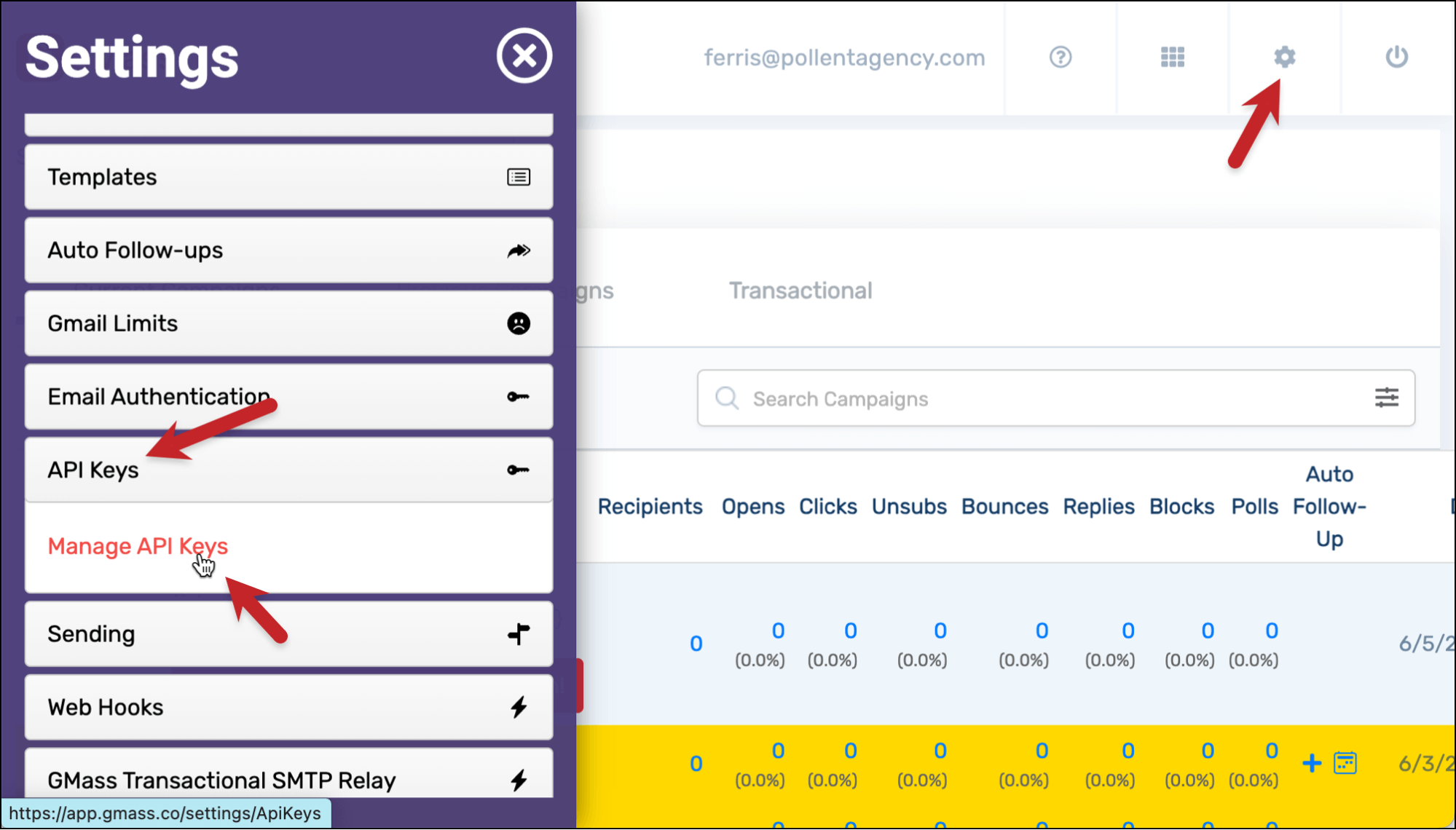
Once you’re in the dashboard, click the gear-shaped Settings icon on the top right. Then click on API Keys, and then Manage API Keys.
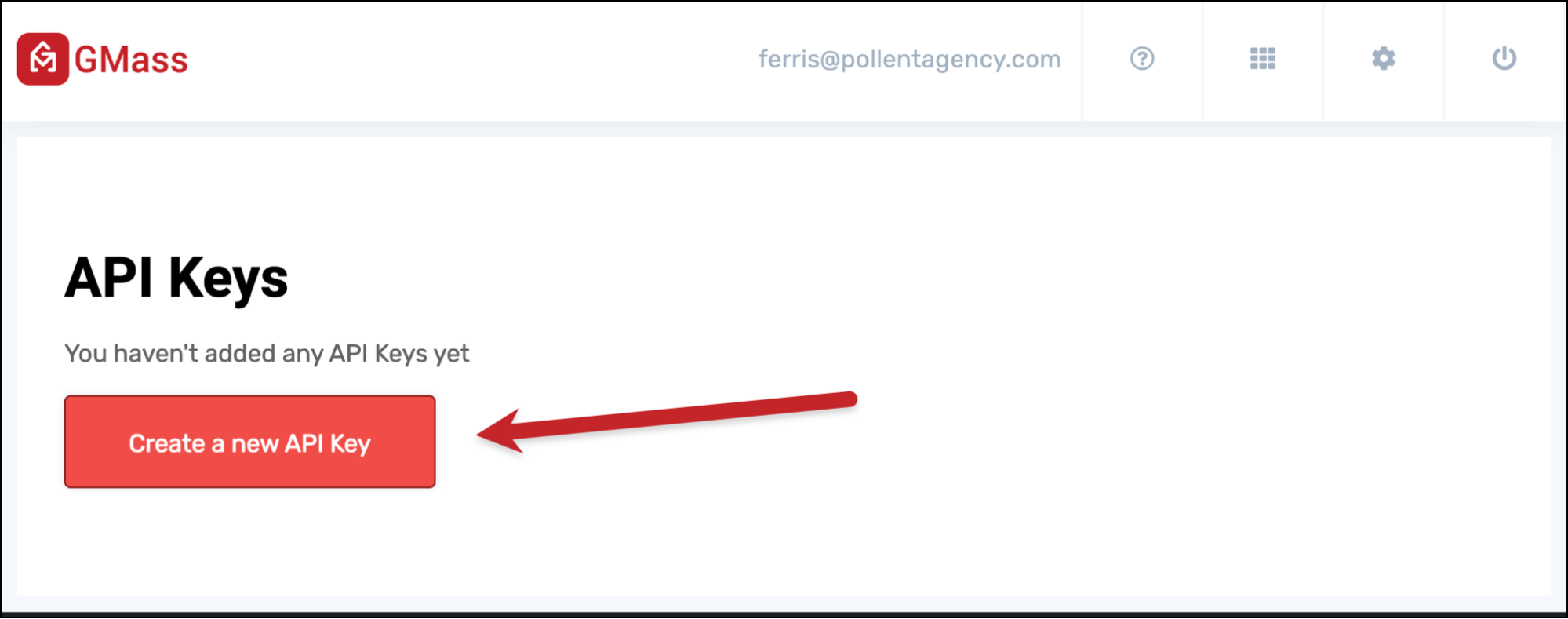
If you’ve never created a key before (or if you just want a new one for this project), click the Create a new API Key button.
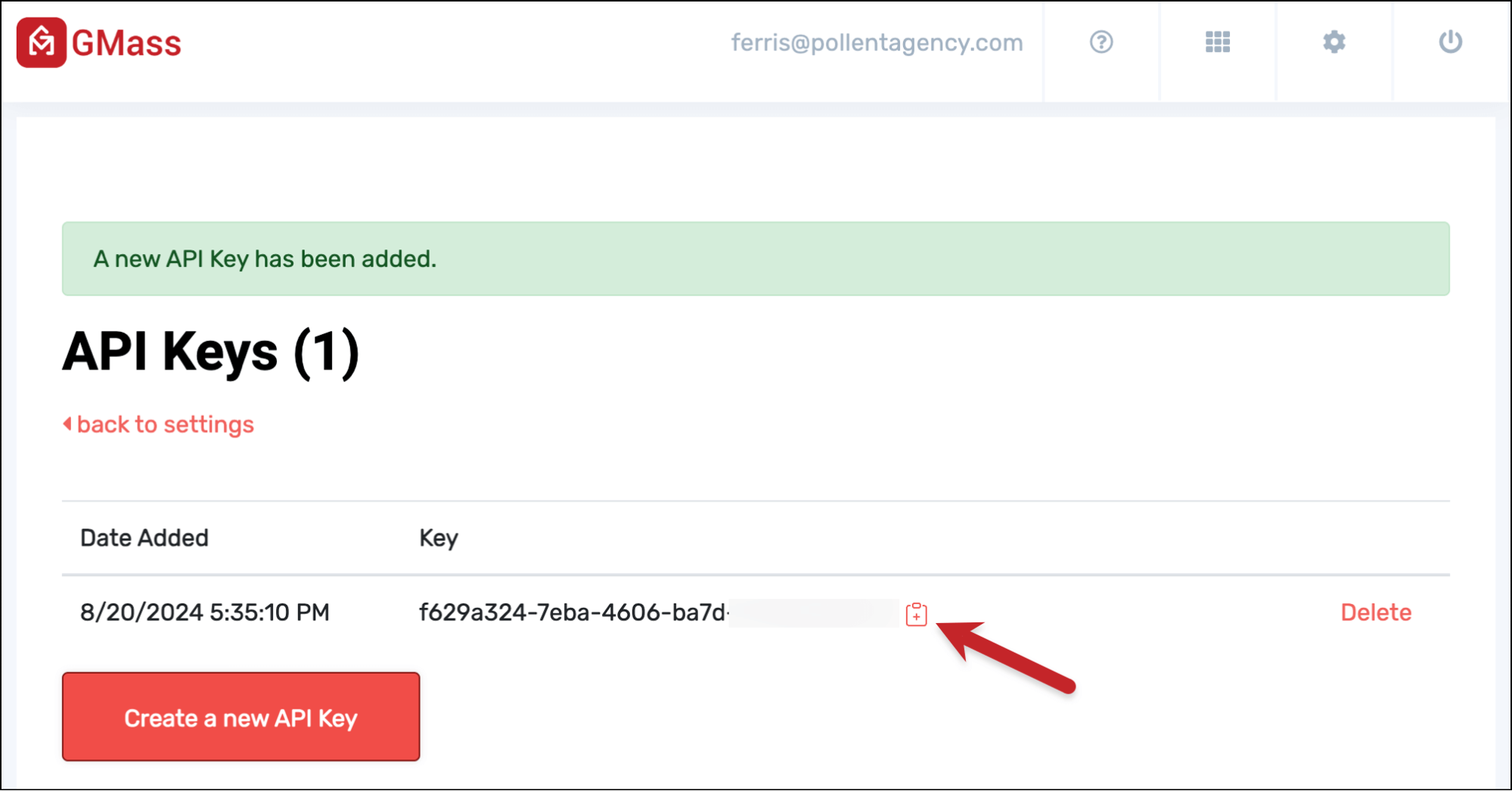
Click the clipboard icon next to the key to copy it. If you need to retrieve it again at any point in the future, you can come back to this area in the dashboard.
Using your API key
Once you’ve copied your API key you can use it to authenticate into the GMass API.
There are two ways you can do that.
One is including it in a query string after you call any of the GMass API endpoints.
So in the case of unsubscribes, if you were retrieving your list of unsubscribed domains, it would be: https://api.gmass.co/api/unsubscribes/domains?apikey=f629a324-e31s-34234-23423.
The other way to authenticate into the API is to pass your key through a HTTP header, using X-apikey.
In this article, I’ll be demoing the API using GMass’s Swagger test site. You can also use that site for testing by pasting your API key into the top bar of the page.
Adding an Email Address or Domain to Your Unsubscribe List
First up we’ll cover adding addresses to your unsubscribe list.
When you add an address or domain to your list, it’s an account-level unsubscribe. That means: As long as that address/domain stays on your list, any time in the future you try to send them a campaign, GMass will suppress the message.
Also: If any GMass users on your same email domain or your team plan have global unsubscribes turned on, any of their emails to your unsubscribed addresses and domains will also be suppressed.
Adding an individual email address to your unsubscribe list
We’ll use the /api/unsubscribes endpoint to add an address to our list.
You can pass the email address you want to unsubscribe with the emailAddress parameter.
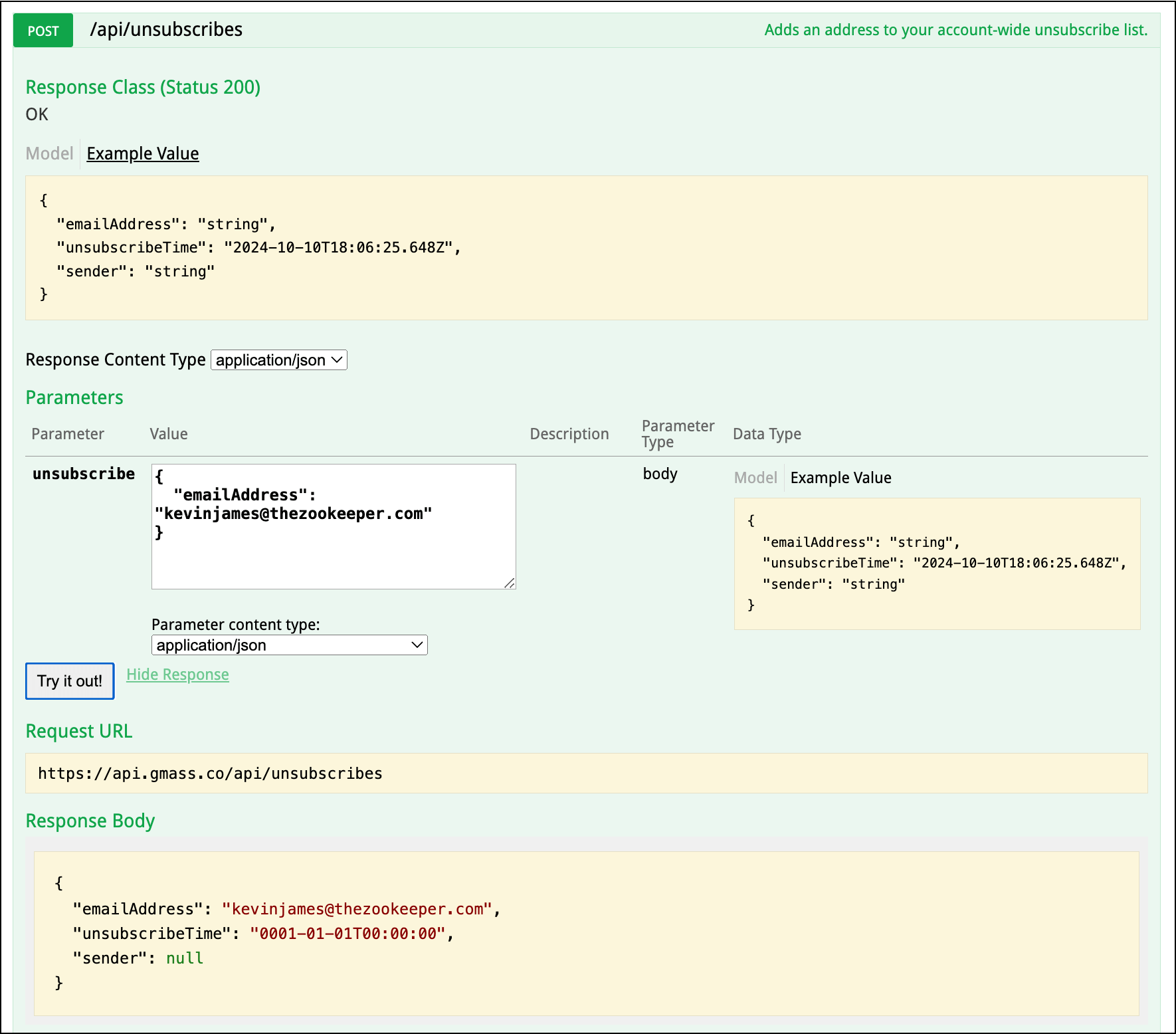
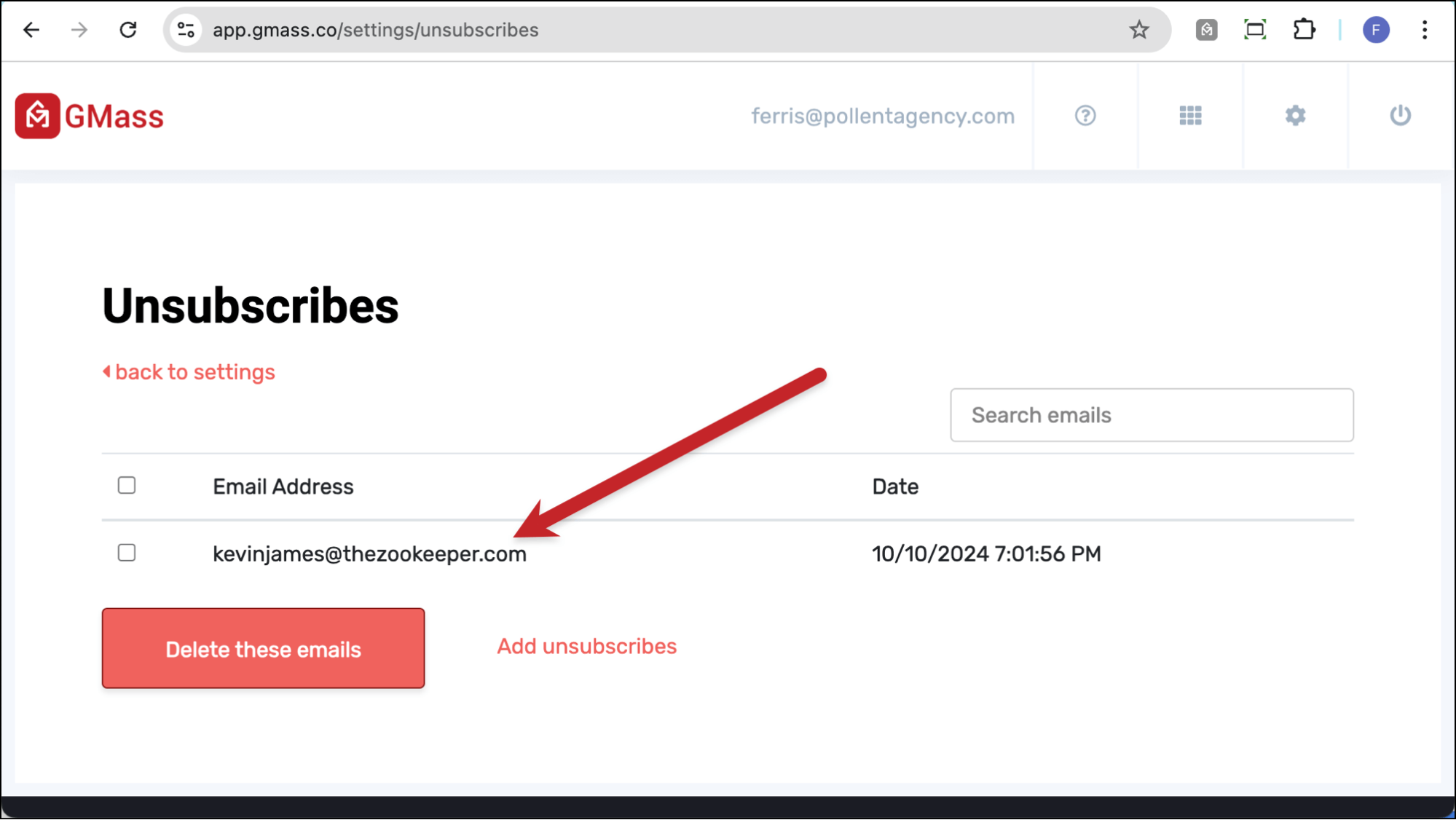
And now, checking my unsubscribe list over at the GMass dashboard, I see this address is now on my list.
Adding an entire domain to your unsubscribe list
Sometimes you want to unsubscribe an entire domain (or company) from your campaigns.
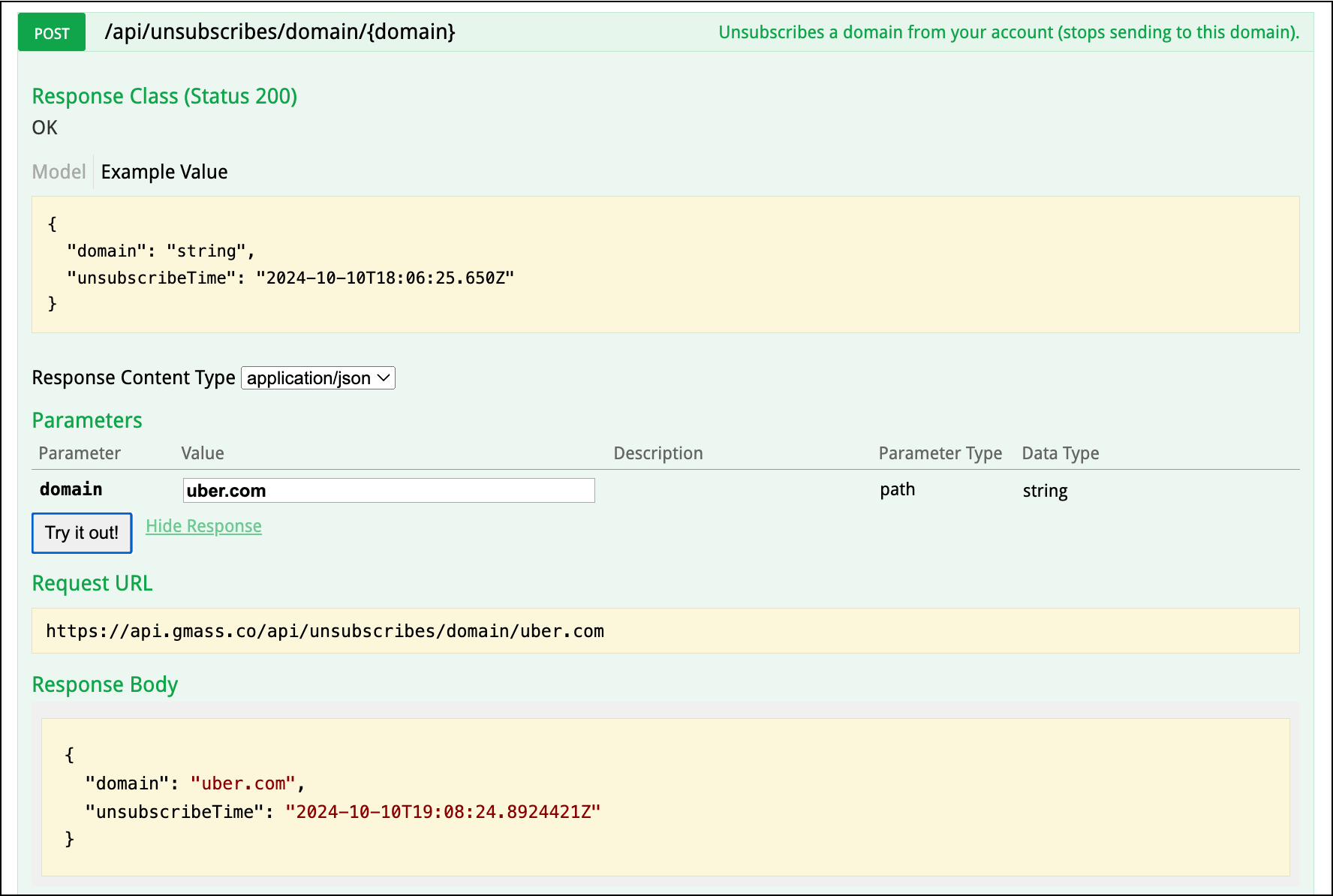
For instance, if you reached out to someone at Uber and they said “Don’t ever contact us again,” you’d want to make sure you never email anyone with an @uber.com email address.
To unsubscribe a domain, we’ll use /api/unsubscribes/domain/{domain}.
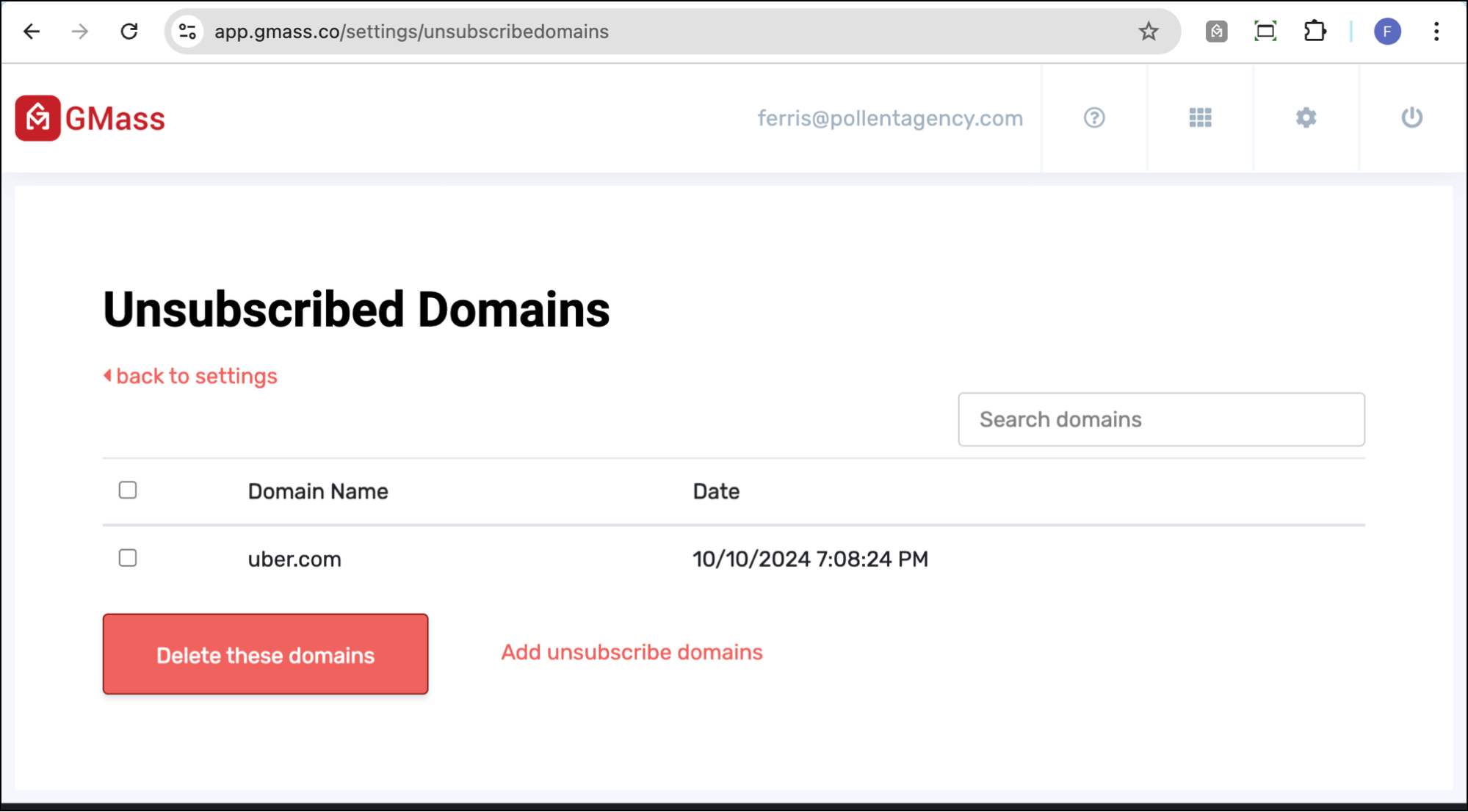
And now, in the GMass dashboard, I see that uber.com is unsubscribed at the account level.
Now let’s cover how to remove email addresses or domains from your unsubscribe list using the GMass API.
Removing an Email Address or Domain From Your Unsubscribe List
You may, at some point, need to remove unsubscribed email addresses and domains (for legitimate reasons, let’s keep things legal over here) to start sending to them again.
Here’s how to do it.
Removing an individual email address from your unsubscribe list
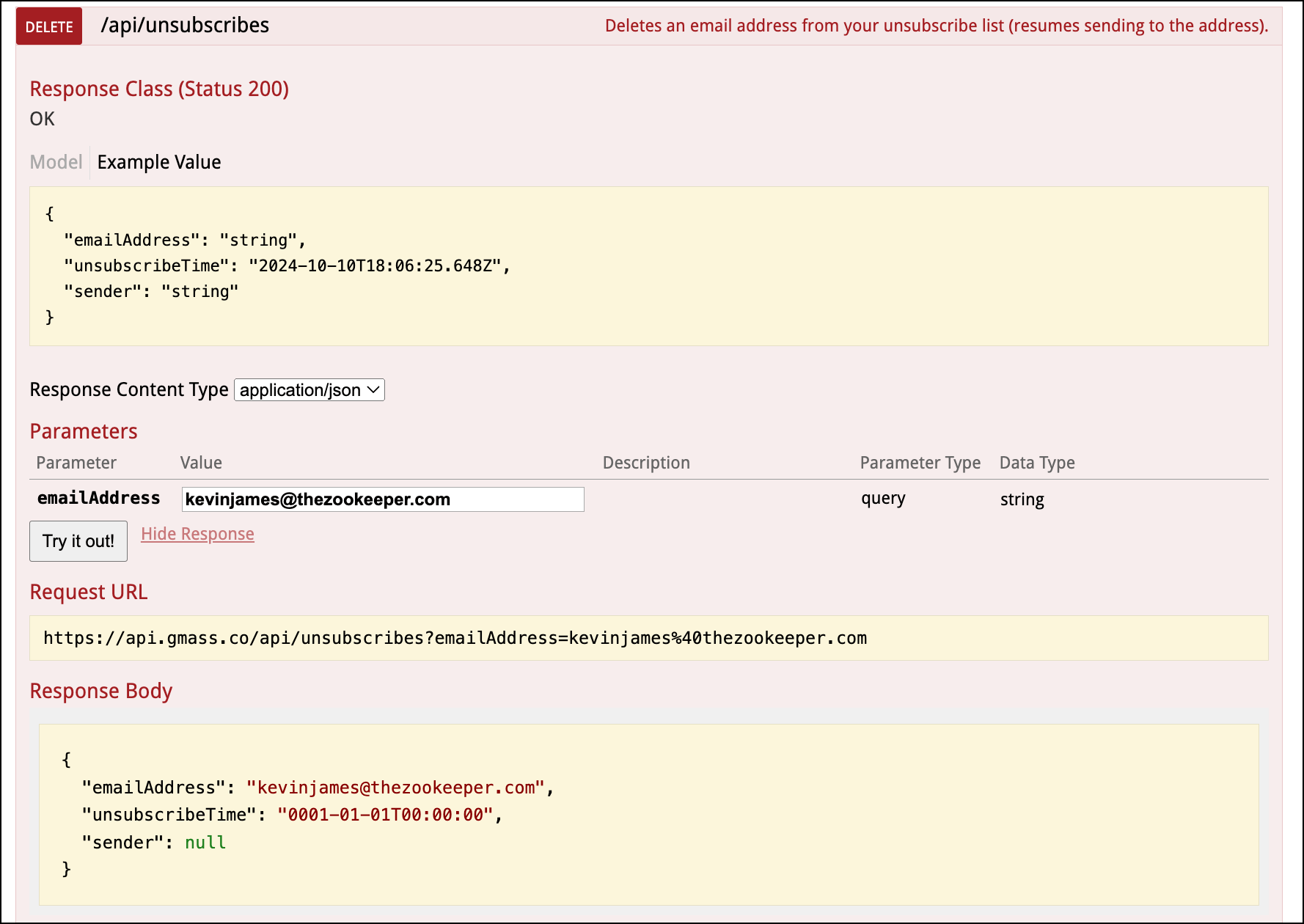
To remove a single email address, we’ll also use the /api/unsubscribes method. Only in this situation, it will remove the address from your unsubscribe list.
Here, we pass along the email address to remove with a query string (https://api.gmass.co/api/unsubscribes?emailAddress={address}).
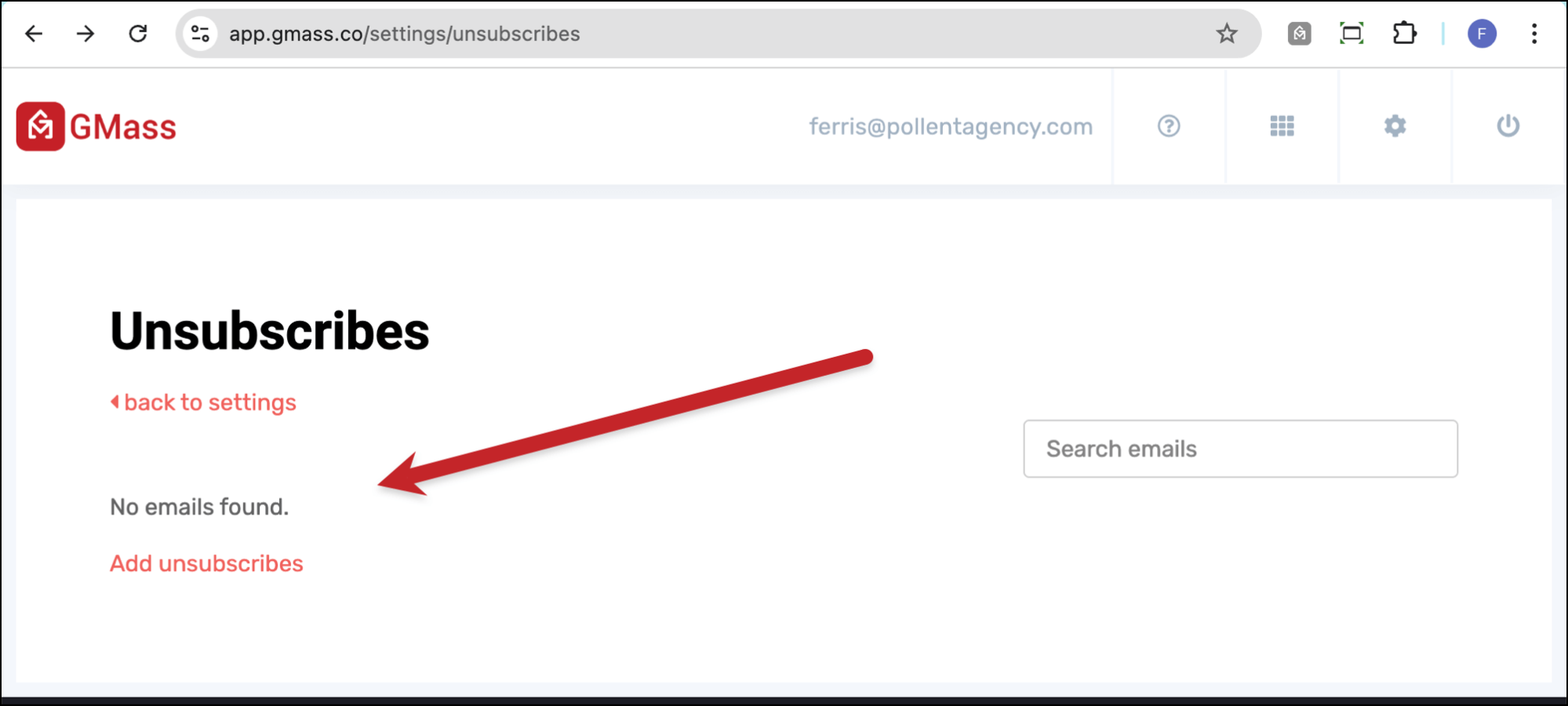
And when I check my unsubscribe list, that email address is no longer there.
Removing an entire domain from your unsubscribe list
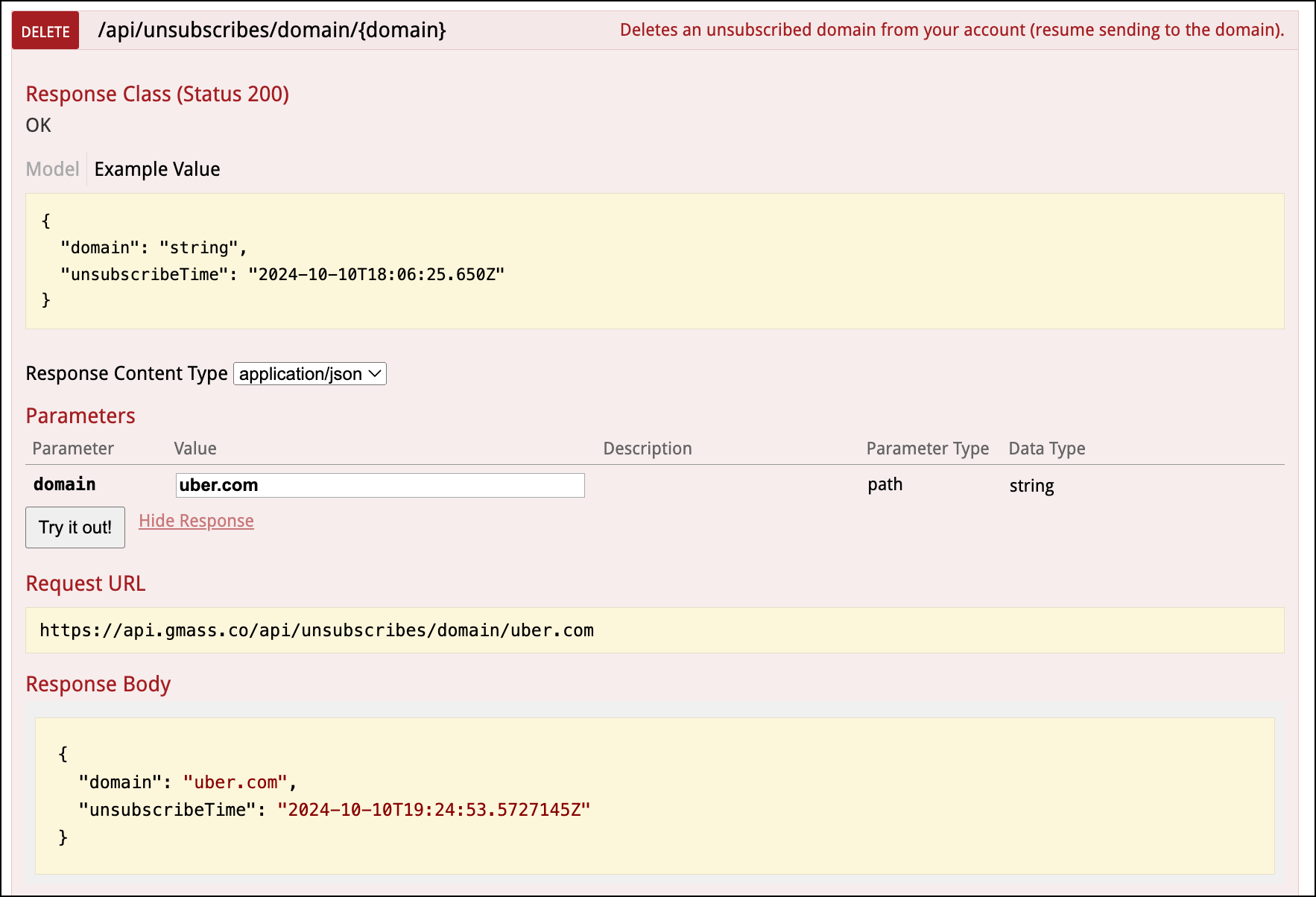
You can remove a domain similar to how you added one, using the /api/unsubscribes/domain/{domain} method.
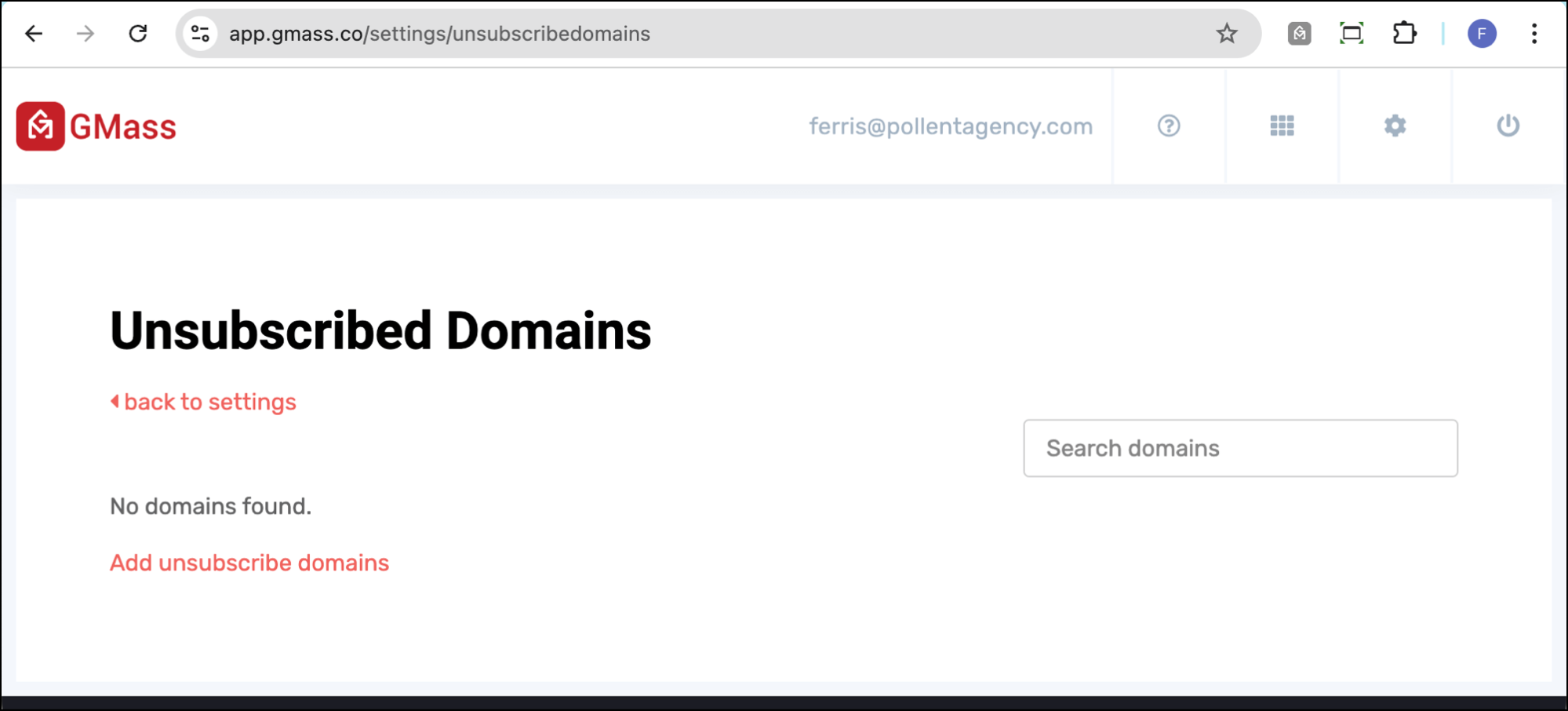
And now that domain is removed from my list.
You can also check out all your unsubscribed domains with the /api/unsubscribes/domains endpoint.
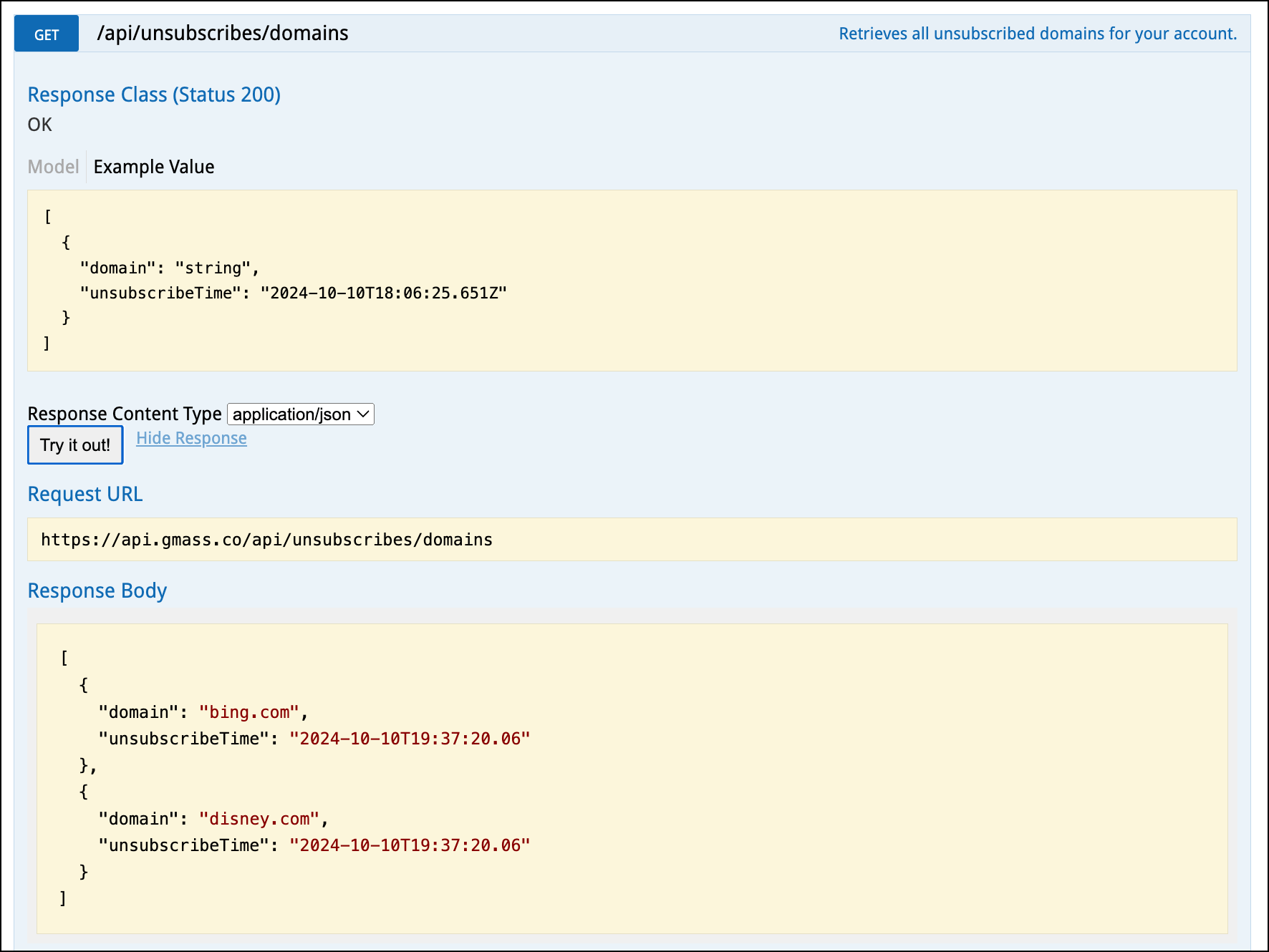
You can use that to check if you have a domain on your list before you add or remove it.
Suppressing an Email Address for a Particular Campaign (Temporary “Unsubscribing”)
There’s one more way you can use the unsubscribes method.
You can use the GMass API unsubscribes method to suppress an email address from a single email campaign. In other words, to temporarily “unsubscribe” someone for one specific campaign.
(If you’ve used the GMass Chrome extension, you’ll notice this feels a little different. In the GMass app, suppression is done in the settings box and isn’t semantically connected with unsubscribing.)
To suppress an email address from a campaign, you’ll use /api/unsubscribes/{campaignID}.
I’ll pass both the email address and the campaign ID to do so.
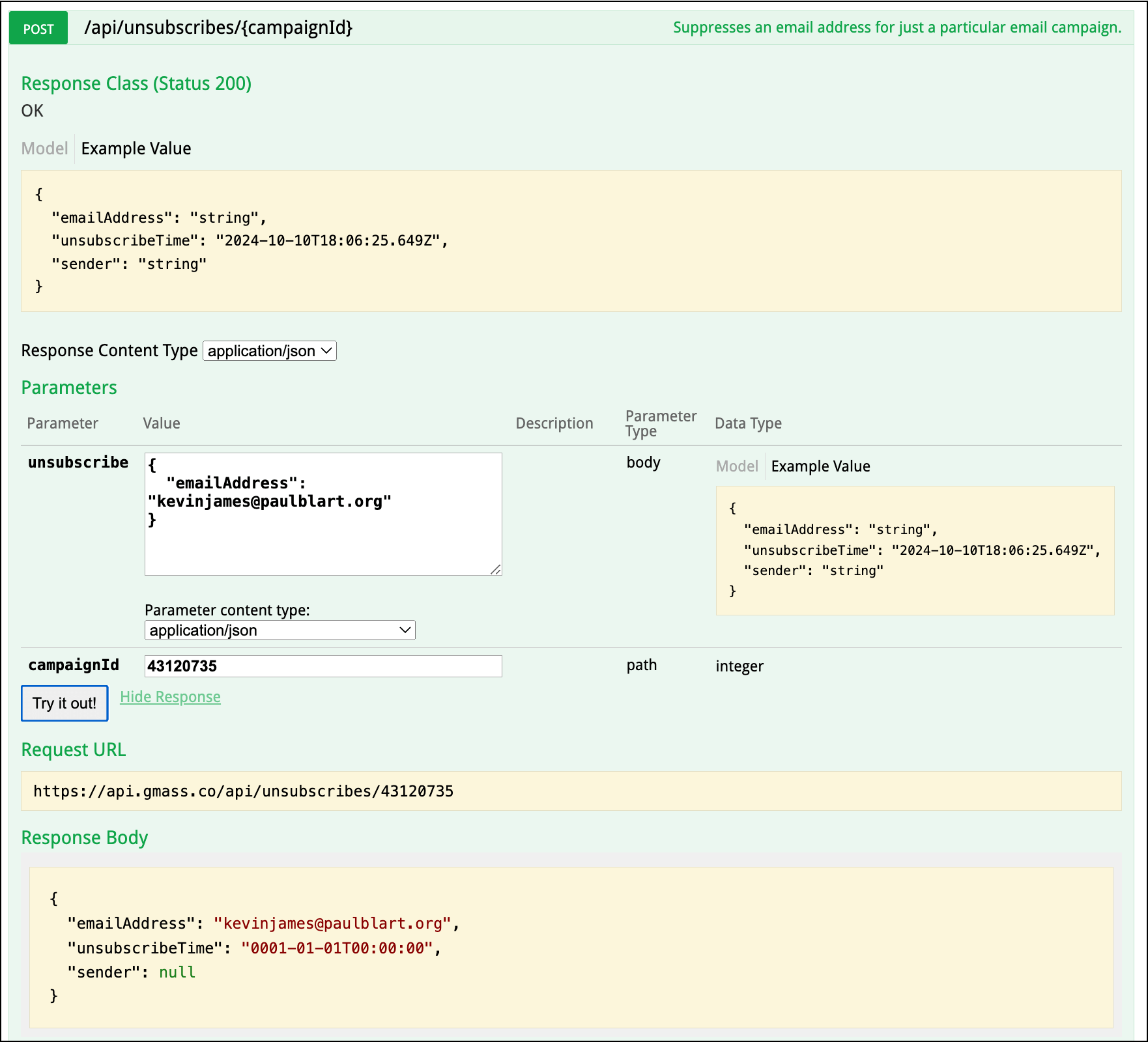
And now, when I go to that campaign’s draft in Gmail, I see the email address has been put on the suppression list.
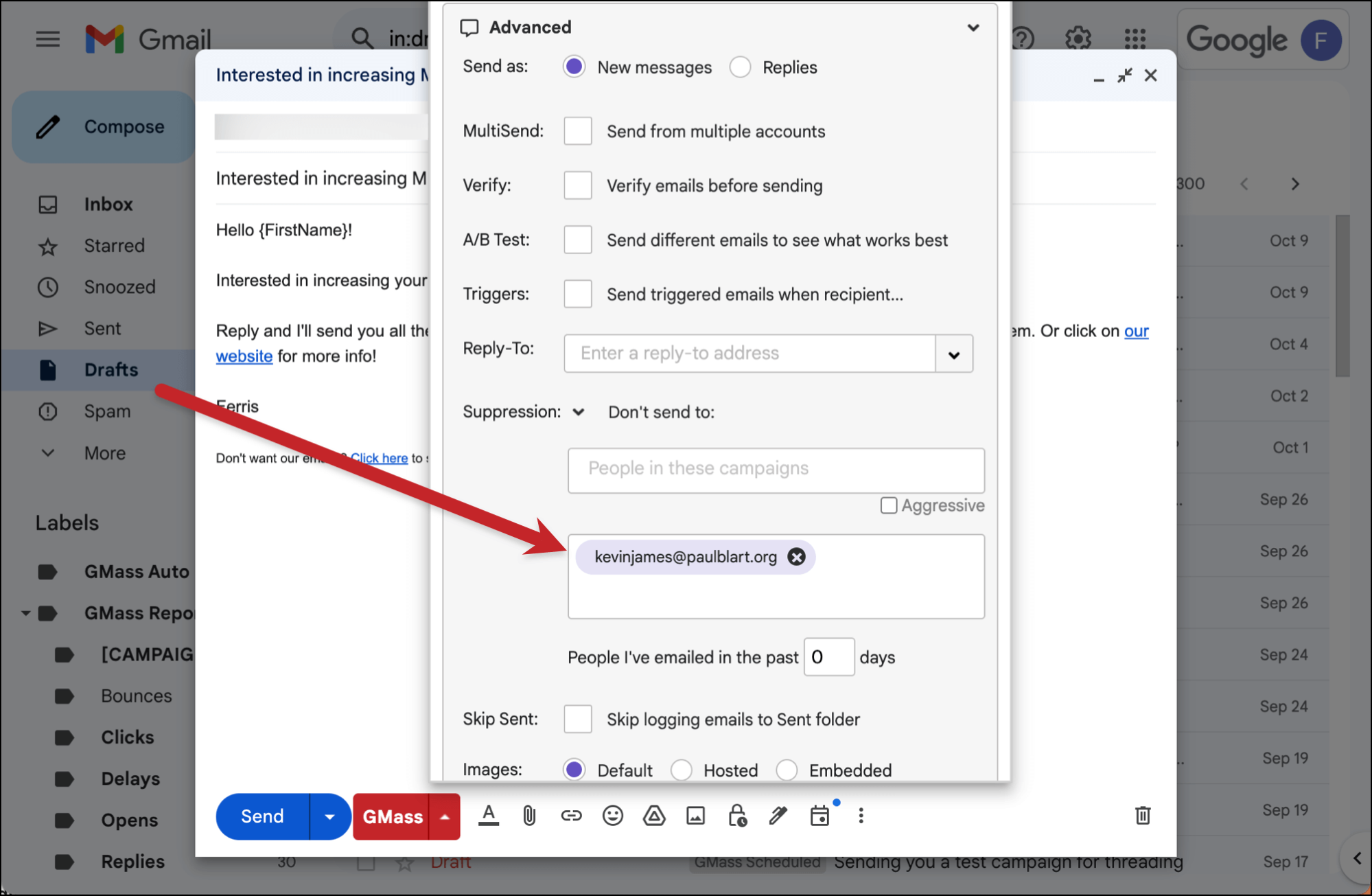
Note: If you want to use the API to suppress sending to people in specific campaigns or who have received another email from you in the past however many days, you’ll do both of those from the /api/campaigns/{campaignDraftId} endpoint. I cover that in this article on creating and sending campaigns using the GMass API.
Ready to Use the GMass API for Your Applications?
That’s everything you’ll need for unsubscribe management through the GMass API.
- Add and remove email addresses on your unsubscribe list with /api/unsubscribes
- Add and remove entire domains on your unsubscribe list with /api/unsubscribes/domain/{domain} to unsubscribe
- And temporarily “unsubscribe” someone to suppress messages to them in a single campaign with /api/unsubscribes/{campaignID}
Ready to get started using the GMass API to integrate GMass with your other software tools or your own apps and dashboards?
API access is included in GMass’s Premium, Professional, and Team plans. (You can see the pricing for those on our pricing page.)
And, of course, all those plans also give you email superpowers right inside Gmail with GMass. Send unlimited emails, use Spam Solver to hit the inbox, and so much more.
You can get started with a free trial of GMass by downloading the Chrome extension. There’s no credit card required.
And you’ll be hooked up and sending your first campaign in a matter of minutes.
Only GMass packs every email app into one tool — and brings it all into Gmail for you. Better emails. Tons of power. Easy to use.
TRY GMASS FOR FREE
Download Chrome extension - 30 second install!
No credit card required