How to transfer your subscription to another account

You can transfer your paid GMass subscription from one account to another, even if one account is a Gmail account and the other is a G Suite account..
Why would you want to transfer your subscription?
- Perhaps you accidentally subscribed the wrong account. Instead of canceling and re-subscribing, you can just transfer the subscription over.
- Maybe you misspelled your email address when you subscribed.
- Perhaps you entered a non-Google account, like a yahoo.com account or a hotmail.com account as the email address to subscribe.
- Maybe Google has deactivated the gmail.com account that you subscribed and so you no longer have access to it.
- Perhaps you changed your mind after subscribing, because you realized that a different Gmail account has a better reputation and more sending ability than the account you originally subscribed.
- Perhaps you are the leader of a Team Plan for your organization, and you want to transfer the ownership of the Team Plan to someone else, because you are leaving the organization.
How to transfer your GMass subscription
As of November 2020, you can now transfer your GMass paid subscription from one account to another through our web-based dashboard. If, however, the account that currently has the subscription is not a Google account that you can access, then you must use the “old way”.
New way
The account with the current subscription must exist to transfer it through the dashboard. If the account with the current subscription was misspelled or doesn’t exist, then you must use the old way.
Go to your account dashboard and log in if you’re not already logged in. Then click Settings at the top and My Account on the left, and then “Transfer Subscription.”
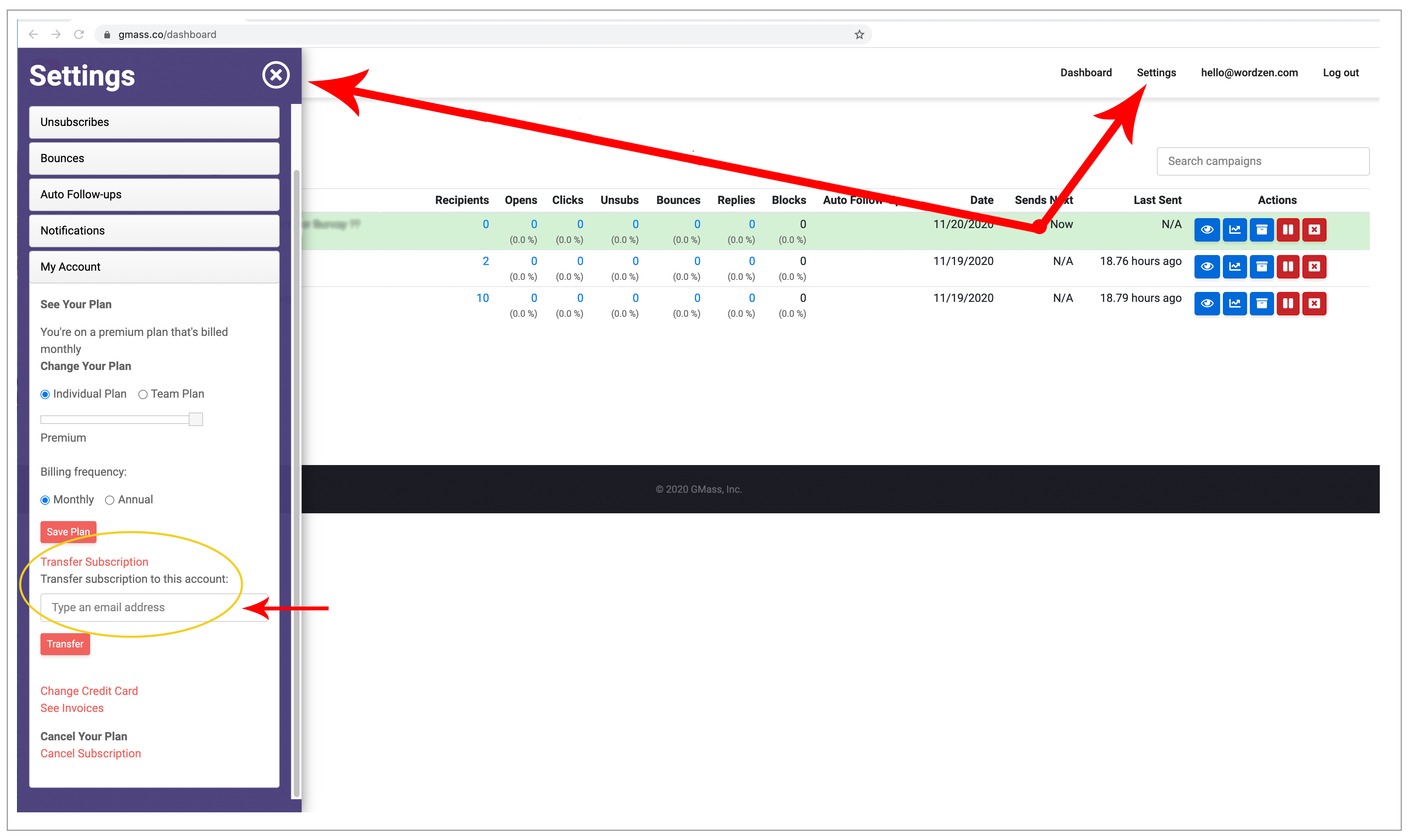
If the dashboard doesn’t work for you, you can still transfer your subscription the old way.
Old way

- Log into the account that currently has the subscription. If you don’t have access to that Gmail account anymore, then log into the account that you would like to transfer the subscription to.
- Launch a new Compose window in Gmail.
- Set the To field to transfer@gmass.co. Do not hit the Send button.
- If you are currently logged into the account that has the subscription, then set the Subject to the Gmail account that you wish to transfer the GMass subscription to.If you don’t have access to the account that has the subscription and are instead logged into the account that you wish to transfer the subscription to, then you need to specify the account that already has the subscription. Set the Subject to “from:email@domain.com” (without the quotes). For example, if you accidentally subscribed a hotmail.com or a yahoo.com address, log in to the account that you wish to have the subscription and use this method. Do not click the Send button. You must click the GMass button.

This is how you transfer a subscription when you DON’T have access to the account that currently has the subscription but DO have access to the account you WISH to have the subscription. Here I’m transferring the subscription from ajaygoel@gmail.com into the account I’m logged into, ajaygoel8477@gmail.com. - Hit the main GMass button. Do not hit the Send button. Your subscription will be immediately transferred.

Important notes about transferring a subscription
- You can only transfer a subscription from an account with an active subscription to an account that is currently not on a paid plan. So if the account you’re trying to transfer the subscription to is already subscribed on its own or is part of a Team Plan, then the transfer will fail.
- A GMass account must exist for the account you wish to transfer the subscription TO. That means the Gmail account must exist, and it must already be connected to GMass for the GMass account to exist. If a GMass account doesn’t exist, create it first.
- It’s okay if the account that currently has the subscription does not exist. Only the account that you wish to have the subscription must exist as a Google account for a transfer to work.
- Subscription transfers work for Stripe and PayPal-based subscriptions.
- Once a subscription has been transferred away from a particular Gmail or Google Workspace account, it cannot be transferred back to that same account.
- On that note, you can only transfer a subscription to an email address that has never had a paid subscription to GMass before.
- A single subscription can only be transferred a maximum of five (5) times.
Send incredible emails & automations and avoid the spam folder — all in one powerful but easy-to-learn tool
TRY GMASS FOR FREE
Download Chrome extension - 30 second install!
No credit card required

Ajay is the founder of GMass and has been developing email sending software for 20 years.