Understanding the timing of email campaigns

Campaign timing is a complex topic because of the different settings and types of campaigns that be sent through GMass, but generally speaking, GMass tries to send your emails out as quickly as possible while sticking to your desired schedule. When glitches occur, the timing of sending may be temporarily altered, but eventually GMass attempts to get your campaign timing back to the schedule that you intended.
GMass times the sending of your campaigns based on:
- Your Gmail account’s limits
- The max emails per day that you designate for your campaign
- The optional start and end times you choose for your campaign
You can also send beyond your Gmail account’s limits by connecting your GMass account to a third-party SMTP service like SendGrid. Even when sending natively through Gmail, and not using the SMTP option, you can send large campaigns, and GMass will distribute your campaigns over consecutive days. For example, if you’re a Google Workspace user with an account limit of 2,000 emails/day, you can schedule a campaign to 5,000 people, and GMass will send 2,000 emails the first day, 2,000 emails the second day, and 1,000 emails on the third day.
The timing of the various options introduces certain complexities which we’ll explain here.
Two important definitions
For clarity, let’s specify the meaning of a couple terms I’ll use throughout this article.
Distributed campaigns are large campaigns that take multiple days to send because of your limits or start+end time sending window. For example, sending a campaign to 10,000 people, where the campaign is distributed at 2,000 emails/day is a distributed campaign. A campaign to 500 people might also be distributed if you set a short sending window, say from 2:00 to 2:30 P.M.
In contrast, a daily recurring campaign is a campaign that is connected to a spreadsheet, and the campaign checks the spreadsheet for new rows of email addresses daily, and if found, sends the campaign to those new addresses. Depending on how many addresses are being added per day, a daily recurring campaign can also be a distributed campaign.
Sending a distributed campaign through Gmail
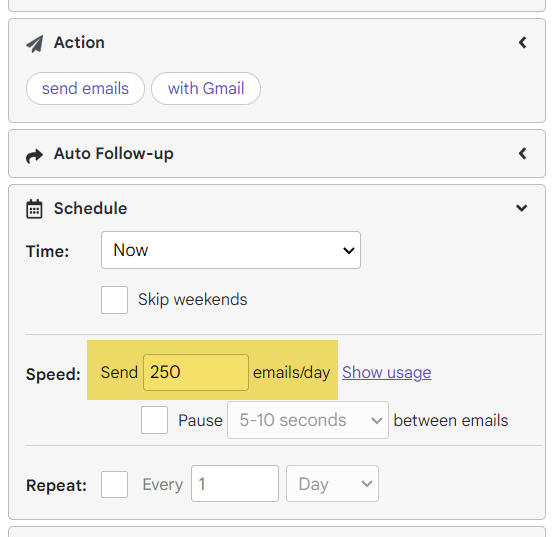
If you set your campaign’s daily limit to more than 50% of your account’s allowance
Let’s say you schedule 5,000 emails to be sent through your Google Workspace account for Monday at 9:00 AM.
Assuming you let GMass send the max allowed per day, GMass would send:
- 2,000 emails at 9:00 AM on Monday. Assume they finish at 9:30 AM.
- another 2,000 emails on Tuesday at 10:30 AM. Assume they finish at 11:00 AM.
- and the last 1,000 on Wednesday at 12:00 PM
If, however, GMass runs into limits imposed by Gmail unexpectedly, which often does happen if you’re trying to send the max allowed per day, GMass will wait 4 hours before trying again.
For example, on Monday at 9AM, when the first batch of 2,000 sends, if Gmail starts bouncing your email with “you have reached a limit” after just 1,500 emails, and those bounces start happening at 10:30 AM on Monday, then GMass will wait for 4 hours before attempting to resume your campaign, knowing that your account still has quota left in its daily sending ability. It will try every 4 hours to get that day’s emails out. After getting that day’s emails out, the campaign will schedule itself for the next day at either 24 hours from the time the last email was sent or 24 hours from when the day’s batch started sending if you have the “Force multi-day campaign to start at same time” setting enabled.
Now let’s say your account does NOT start bouncing your emails unexpectedly, which is what we, of course, hope for. Now, if you let GMass send your account’s full limits (the full 2,000), then the next batch will send 25 hours from the campaign end time. Sticking to the above example, if 2,000 emails send Monday at 9:00 AM and ends Monday at 10:30 AM, then the next batch of 2,000 won’t send until 25 hours later, which is Tuesday at 11:30 AM.
Why do we push it 25 hours instead of 24?
Because we’ve found that when using up Gmail’s daily limits, it’s better to use a buffer of 25 hours than 24 to get your full limits again.
Why do we advance 25 hours from the campaign end time rather than the campaign start time?
We do this in order to respect Gmail’s sending limits. If your batch of 2,000 started sending at Monday at 9:00 AM and finished at 10:30 AM, and then we started the next batch of 2,000 on Tuesday at 9:00 AM, then Gmail would calculate that you’ve sent 2,000 emails in the last 24 hours and would likely stop you from sending any more. That’s why it’s important to use the campaign end time as the basis for when to send the next batch, when you’re sending your max limits.
Want to keep the start time consistent from day to day regardless of your sending volume?
Turn on that setting.
What if you’ve set an end time for your campaign but haven’t hit the daily limit you set?
Let’s say you use GMass’s set end time feature to create a daily sending window (say, 9 AM to 12 PM). You put a long throttling pause in between emails. And during the sending window, GMass only sends 80 emails even though you’ve set your limit to 100.
In that case, your sending window takes precedence. GMass won’t continue sending for the day and will resume the next day.
If you set your campaign’s daily limit to less than 50% of your account’s allowance
If, however, you’ve set a campaign daily limit that is under your max allowed Gmail account limits, then different rules apply based on how much your campaign daily limit is under your account’s daily limits. If your campaign daily limit is less than 50% of your account’s max daily limits, then GMass would advance the next batch 24 hours after the campaign START time. Otherwise, GMass will advance the next batch 24 hours after the campaign END time.
For example, if you’ve set your campaign of 5,000 to send 200 emails/day, starting at Monday at 9:00 AM.
- The first 200 would send Monday at 9:00 AM, and let’s say it finished at 9:30 AM.
- The next batch of 200 would send Tuesday at 9:00 AM. (The end time of the first batch is irrelevant.)
In contrast, let’s say you’ve set your campaign of 5,000 to send 1,200 emails/day, starting at Monday at 9:00 AM.
- The first 1,200 would send Monday at 9:00 AM, and let’s say it finished at 10:00 AM.
- The next batch of 1,200 would send Tuesday at 10:00 AM. (24 hours from the prior batch’s end time)
In the latter scenario, it’s based on 24 hours after the campaign end time, not the campaign start time, because if we attempted to send the next batch Tuesday at 9:00 AM, GMass would examine your campaign and find that 1,200 emails have already been sent in the last 24 hours and would therefore NOT send any emails (actually it would send just one).
In the first scenario where your campaign’s daily limit is already less than half of your account’s daily limits, we assume the user values consistency of daily timing above all else, and we also assume that the second and subsequent batches won’t violate Gmail’s limits, even though they will technically violate the campaign’s daily limits from a strictly 24-hour standpoint. Meaning, in the first example, the second batch of 200 would send even though in the last 24 hours prior to Tuesday at 9:00 AM, 200 emails have “already” been sent. The algorithm checks the prior batch’s start time, and if it’s approximately 24 hours before the current batch’s start time, and the <= 50% rules applies, then GMass assumes that 0 emails have been sent for the campaign in the last 24 hours, which is what allows the full 200 emails to be sent “now”.
This mechanism also protects you from sending out more emails than desired if the campaign errors out due to a temporary Gmail API issue and is retried an hour later, or if you, the user, manually adjusts the campaign send time. For example, let’s say you have a big campaign set to send 200 emails/day at 9:00 AM daily. For the first 3 days, a batch of 200 emails will be sent daily starting at 9:00 AM. On day 3, after that day’s batch has sent, you adjust the time of the campaign to send next at 6:00 PM on that day. At 6:00 PM, no emails will be sent, because GMass will calculate that 200 emails have already been sent in the prior 24 hours for the campaign and that the prior batch’s start time wasn’t 24 hours ago. At 6:00 PM on the following day, however, a full batch of 200 emails will be sent.
Daily recurring campaigns
If you have a daily recurring campaign set that’s connected to a spreadsheet, then the timing is different. If your campaign sends to all the new rows in the spreadsheet and you don’t specify a daily limit, and the campaign doesn’t run into Gmail bounces, then the next batch will send 24 hours from the campaign start time, so that every day the campaign sends to new emails at a consistent time.
For example, let’s say your daily recurring campaign is connected to a spreadsheet called “My Contacts”. Your G Suite account allows 2,000 emails/day, and every day, no more than 100 rows are added to the spreadsheet.
- The first batch sends Monday at 9:00 AM to 50 people.
- Later that day, 150 rows are added to the sheet.
- The next batch sends Tuesday at 9:00 AM.
- Later that day, 100 rows are added.
- The next batch sends Wednesday at 9:00 AM.
- Later that day 2,500 rows are added. On Wednesday at 9:00 AM, the 2,000 emails start sending, since GMass will respect your account’s limits. That batch of 2,000 finishes on Wednesday at 10:30 AM.
- The next batch will send 25 hours from Wednesday at 10:30 AM, so Thursday at 11:30 AM.
Now let’s say that when those 2,500 rows were added, you modified your campaign to send only 1,000 emails/day max. On Wednesday at 9:00 AM, those 1,000 emails send and finish at 9:45 AM, and now the next batch of 1,000 won’t send until Thursday at 9:45 AM. If we sent it on Thursday at 9:00 AM, then GMass would analyze the last 24 hours and see that you’ve already sent 1,000 emails for that campaign in the last 24 hours and wouldn’t send any new emails.
The “Force multi-day campaigns to start at same time” setting

Here’s a direct link to this setting.
This setting only alters campaign behavior for distributed campaigns that are sending more than 50% of the account’s allowance daily. Without this setting on, the campaign will schedule itself for the next day at the point in time that is 24 hours from when the prior batch finishes. With this setting on, the campaign will schedule itself for the next day at a consistent start time. The 50% rule is in place to prevent your account from suffering “over limit” bounces, so only enable this setting if you’re sure your account can handle your campaign sending a large volume at a consistent time every day.
When an unexpected event occurs during sending
Occasionally when sending a batch of emails for your campaign, an unexpected event might temporarily alter the timing of your campaign. These unexpected events include:
- Running into over-limit bounces before you’ve exhausted your Gmail limits
- A temporary error with the Gmail API
- A temporary error with the GMass internal database. Timeout errors are rare but do happen every so often.
- A code update to our servers which temporarily halt your campaign sending
When such an event happens, your campaign will eventually continue sending and pick right back up where it left off. This, however, may break the day’s sending up into two batches instead of one. For example, if you have a distributed campaign that sends 50 emails/day every day at 9:00 AM, and on the second day, after sending 20 emails, there’s a glitch at 9:10 AM, the campaign might automatically continue sending starting 30 minutes later at 9:40 AM. Let’s say that the remaining 30 emails for the day are then sent and the campaign finishes at 10:05 AM. Even though this batch started at 9:40 AM, the campaign will intelligently schedule itself for the next day based on your intended schedule, so it will then schedule itself to send at 9:00 AM the next day. This will only happen if your campaign meets the “under 50% rule” or has the “Force next batch to send at start time” setting ON, as described above. If your campaign’s daily limit is set to more than 50% of your account’s allowance and doesn’t have the “Force batch…” setting ON, then the campaign’s next send time would be the next day at 10:05 AM.
Also, if we’ve tried to send 30 times and sent zero emails, you’ll receive an alert email and will need to manually continue trying your campaign. That many empty sends in a row can be indicative of a large issue when it comes to sending from your account.
TL; DR
Here are the rules:
- If GMass runs into your daily account limits, where Gmail isn’t bouncing the emails, GMass will send the next batch 25 hours from the batch end time. If, however, you have enabled the “Force multi-day campaigns to start at same time” setting, then it will send the next batch 24 hours from the batch start time, providing a consistent daily start.
- If GMass runs into a daily limit that you’ve set for your campaign, where Gmail isn’t bouncing the emails, GMass will send the next batch either 24 hours from the batch start time or batch end time, based on whether your campaign limits is less than or greater than 50% of your account’s daily limits and based on whether you have enabled the “Force multi-day campaign to start at same time” setting.
- If GMass detects that your account is bouncing emails, it will pause and re-attempt sending 4 hours later. After getting that cycle’s emails out, if it meets the 50% rule or the “Force multi-day…” setting is enabled, then the campaign will resume sending the next day on your set schedule. If it doesn’t meet the 50% rule and that setting isn’t enabled, it will resume sending the next day 24 hours from when it finished sending the last set of emails.
- If you’re sending a daily recurring campaign, and GMass doesn’t run into any limits, including your max account limits or a daily limit you’ve set, then each batch will send at the same time every day. If GMass runs into either your account’s daily limit or a limit you’ve set for sending, then rules 1 and 2 apply.
- Additionally, if you’re using the Skip Weekends setting, then the same logic applies, except the next batch would advance to the next day that isn’t a weekend.
- Additionally, if you’re using the Long Delay Between Emails setting, then that can make the batch ending time much greater than the start time. Your 200 email batch starting Monday at 9:00 AM may not end until Monday at 12:00 PM, and so if you’ve set your daily sending limit to be 200, the next batch wouldn’t then send until Tuesday at 12:00 PM.
Best Practices
All these rules can be confusing. But we’ve implemented the logic in a way that we think makes the most sense, doesn’t break Gmail’s rules while still getting your emails out as quickly as possible.
- If it’s important that each daily batch of emails is sent at the same time daily, then make sure your that either a) campaign’s max limit is set to less than 50% of your account’s daily limits or b) you’ve enabled the “Force multi-day” setting. To meet the 50% rule, if you’re using an @gmail.com account, set your campaign limits to 225/day or less. If you’re using a G Suite account, set your campaign limits to 950/day or less.
- If setting up a daily recurring campaign connected to a spreadsheet, don’t add more rows to your spreadsheet daily than you want sent daily. Also, make sure if you set a daily limit, that this number is higher than the number of new rows you add daily.
- Pay attention to the explanation of how many emails were sent and why, at the bottom of campaign email notifications you receive whenever a batch finishes sending.
Email marketing, cold email, and mail merge all in one tool — that works inside Gmail
TRY GMASS FOR FREE
Download Chrome extension - 30 second install!
No credit card required

Ajay is the founder of GMass and has been developing email sending software for 20 years.