How to Fix Gmail Error: You have reached a limit for sending mail. your message was not sent.

Gmail Error: You have reached a limit for sending mail. your message was not sent.
If you’re sending mail merge emails from your Gmail account, you’re likely aware of the basic limits that Gmail and G Suite set for your accounts. Generally, those limits are 500 emails/day for Gmail accounts and 2,000 emails/day for G Suite accounts. As is often the case though, users find that Gmail limits them below the stated values of 500 and 2,000 per day. For example, a new Gmail account can often only send 10-20 emails in its first 24-hour period. Similarly, a new G Suite account, especially when the domain is a new customer of G Suite, also has limits more restrictive than 2,000 emails/day.
Troubleshooting:
If you find that your sending volume is under the stated limits but are still getting the dreaded “You have reached a limit” bounce in Gmail, here are some strategies to help.
G Suite User? Contact G Suite Support
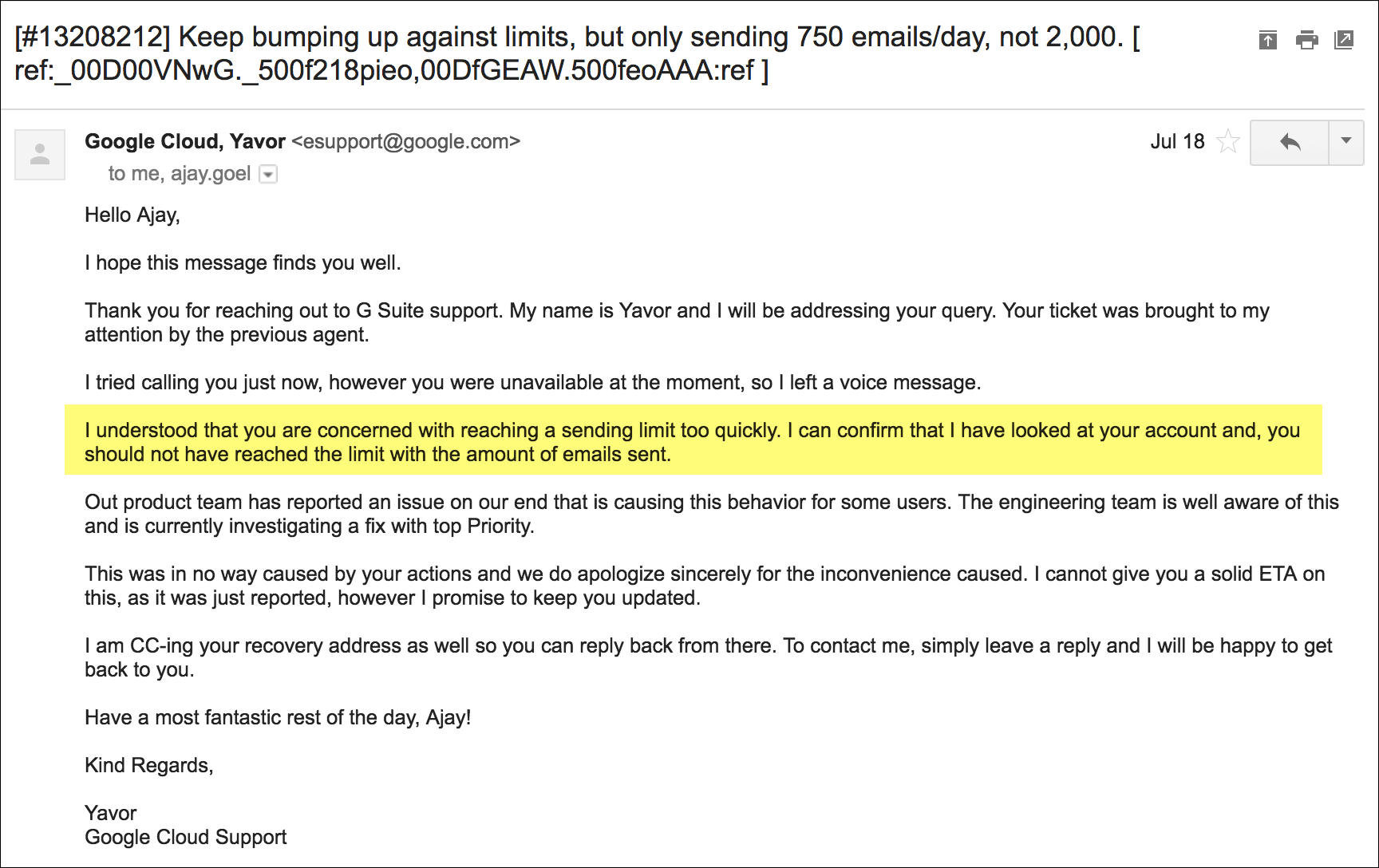
I’ve experienced cases where my own G Suite account was limited to 750 or 1,000 emails per 24 hours rather than 2,000. I contacted support, and they admitted that my account had been mistakenly limited and eventually resolved the issue and allowed me greater sending power. Here’s my correspondence with support:
Use the “throttle” setting to add a few seconds between emails
On Google’s official page describing Gmail sending limits, the 500 and 2,000 daily limits are mentioned. Anecdotally though, we’ve found that sending too many emails within too short a time span can also cause a limit to kick in. One support agent communicated that too many emails sent within a 10-minute period will set off red flags. Use the GMass throttle setting to add a few seconds in between emails. This will slow down the delivery of your messages, but help avoid any per-minute or per-hour limitations.
G Suite User? Perform an administrative reset
As a G Suite user, you can have your Admin reset your account’s quota if you are getting “You have reached your limit” bounces. However, this can only be done 5x/year.

Circumvent Gmail’s servers altogether
You can now use your Gmail account to send mail merge campaigns through any SMTP server, bypassing Gmail’s servers and sending limits. This will allow you to use GMass to send mail merge campaigns through your Gmail account, just like normal, but your emails will be routed through a third-party SMTP service like Sendgrid, Mailgun, or JangoSMTP.
How can you programmatically detect these bounces?
If you’re a software developer building your own mail merge system for Gmail, you may want to know how to write code to detect these “You have reached a limit” bounces. It used to be easy, because Gmail used to send these notifications from a special address, nobody@gmail.com.
In the summer of 2019, however, Google changed the address to the standard bounce notification address of mailer-daemon@googlemail.com, which then made it more difficult to detect “reached a limit” bounces from other types of bounces, like those indicating a bad recipient email address. There is however, one distinguishing factor that separates “reached a limit” bounces from all other kinds of bounces. The “reached a limit” bounce will have a Subject line of “Re: ” plus the original email’s Subject line. All other bounces from the “mailer-daemon” address will have the subject of “Delivery Status Notification (Failure)” or “Delivery Status Notification (Delay)”. For example, if the email you sent had the Subject “Company Newsletter”, and you receive an over-limit bounce, it will have the Subject of “Re: Company Newsletter”.
It’s also worth noting that the message will be in the same language as you’ve set your Gmail settings.
The full English message is:
You have reached a limit for sending mail. Your message was not sent.
The German message is:
Sie haben die Begrenzung zum Senden von E-Mails erreicht. Ihre Nachricht konnte daher nicht gesendet werden.
The Norwegian message is:
Du har nådd grensen for sending av e-post. Meldingen din er ikke sendt.
The Spanish message is:
Has llegado al límite de mensajes que puedes enviar. Tu mensaje no se ha enviado.
Further Reading
If you do find that you’re getting bounces because you’re over your Gmail limit, GMass will re-try sending those emails for you later automatically, but you can also manually re-send to the addresses that bounced.
Send incredible emails & automations and avoid the spam folder — all in one powerful but easy-to-learn tool
TRY GMASS FOR FREE
Download Chrome extension - 30 second install!
No credit card required

Ajay is the founder of GMass and has been developing email sending software for 20 years.