How Do I Share My GMass Account Data with Someone Else?

Want to give someone else access to your GMass data — or even access to your GMass account?
Good news: There are lots of different ways to share in GMass. It all depends on what you want to share and with whom you want to share it.
In this guide I’ll walk you through the different types of GMass account data and access you can share.
I’ll also let you know what to expect when you share, so you don’t wind up accidentally exposing something you wanted to keep private.
Sharing GMass Account Data: Table of Contents
- Things You Can Share With Anyone, Even If They Don’t Have a GMass Account
- Things You Can Share With Anyone With a GMass Account
- Things You Can Only Share With Someone on the Same Domain or Team Account
- Things You Can Only Share With a Team Account
- Sharing GMass Account Data: Summary and Next Steps
Things You Can Share With Anyone, Even If They Don’t Have a GMass Account
Let’s start with the broadest type of sharing, which is: Sharing GMass data with anyone, whether or not they’re a GMass user.
You can’t share things like account access or templates with them, but you can share campaign reports in a number of ways.
Sharing full individual campaign reports
GMass’s web-based campaign report is completely shareable. Anyone with the link to a campaign’s report can view the campaign results in real time.
If you want to give someone access to the report — including the ability to view and/or download all the email addresses of all recipients — simply copy the link to the page and share it.
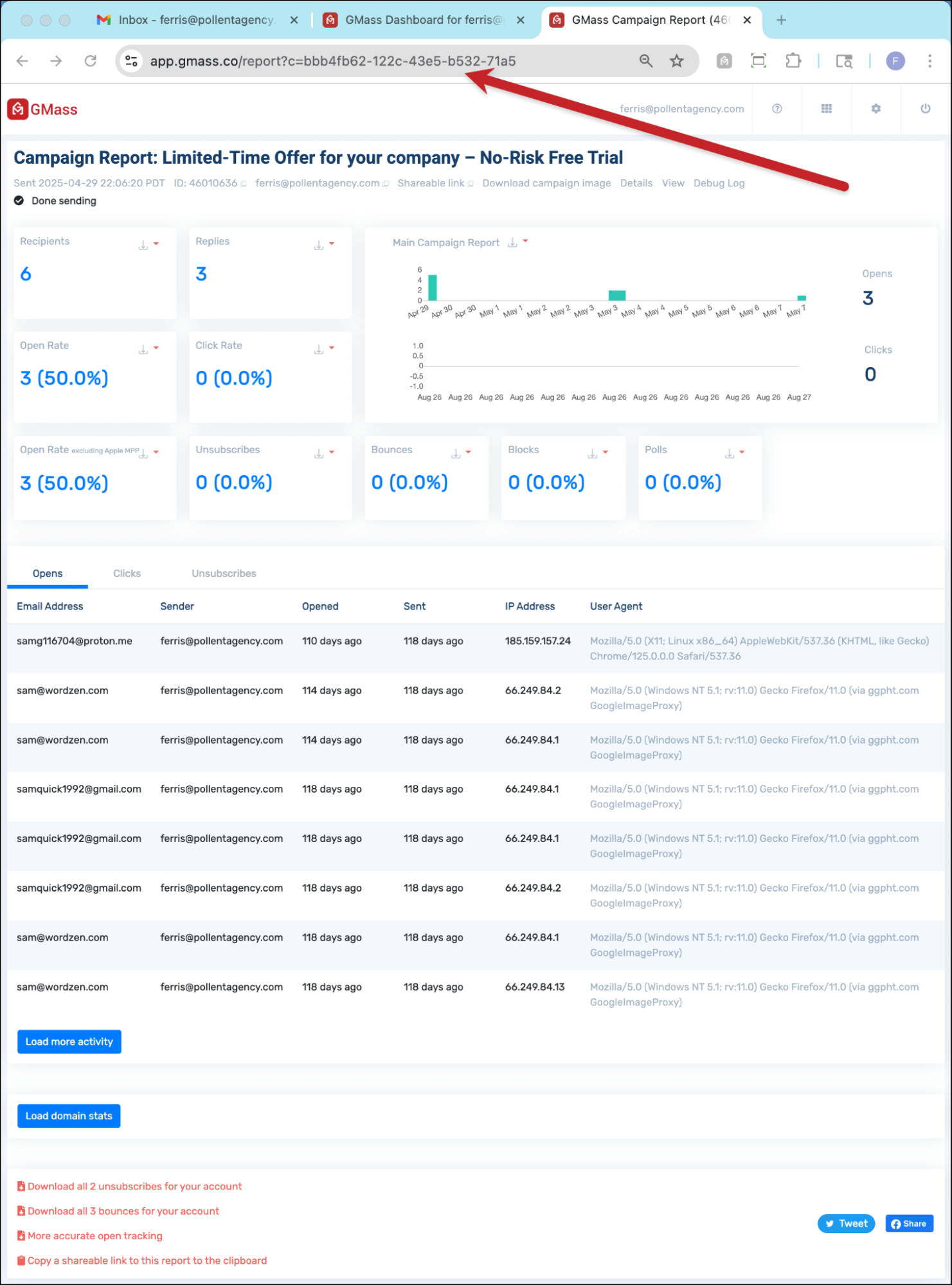
But again, be careful — because anyone with that link can see everything about your campaign. So you might want to give them a more truncated version, which you can also do…
Sharing individual campaign reports without the email addresses
If you want to share your report but not give someone the ability to see your recipient list, use the sharable link at the top of the screen.
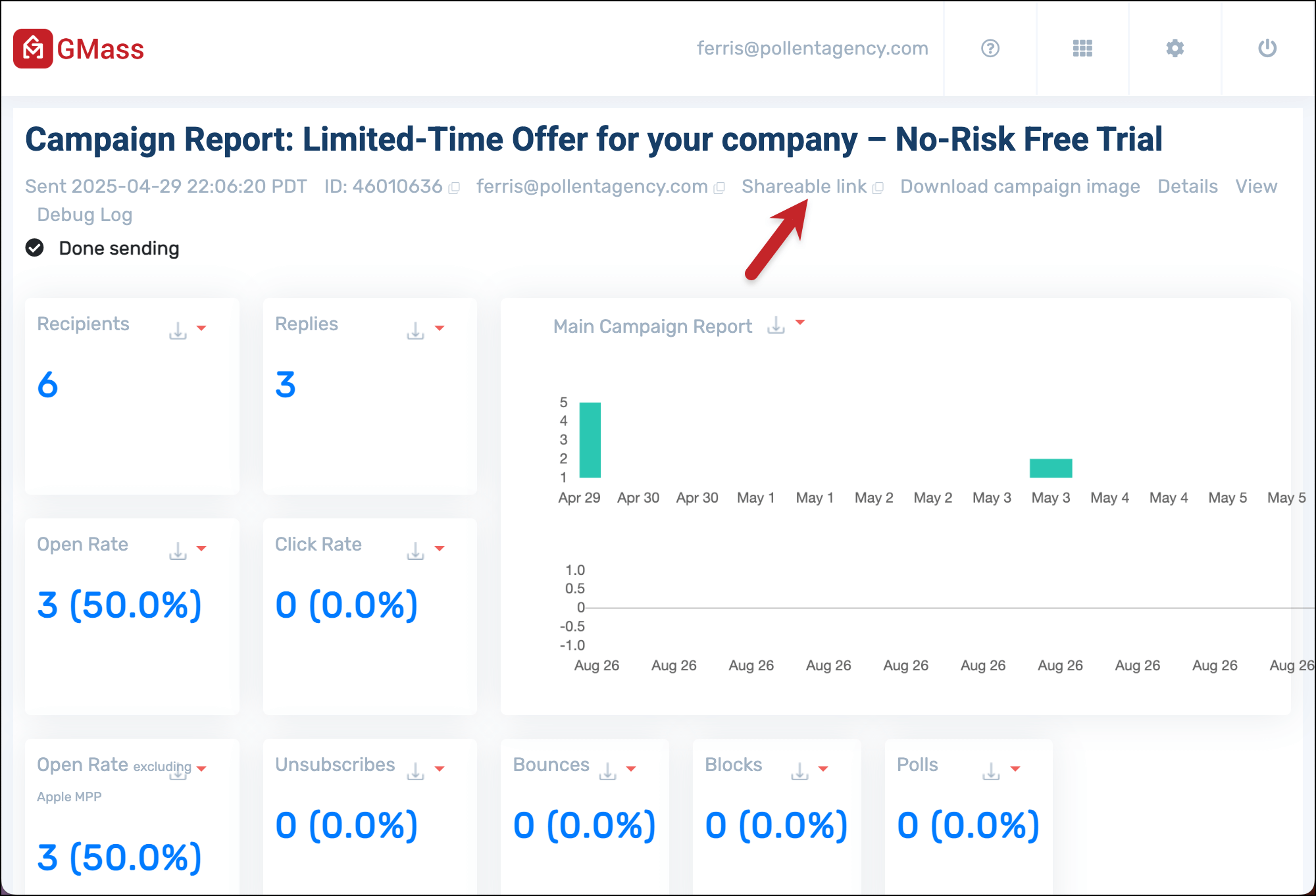
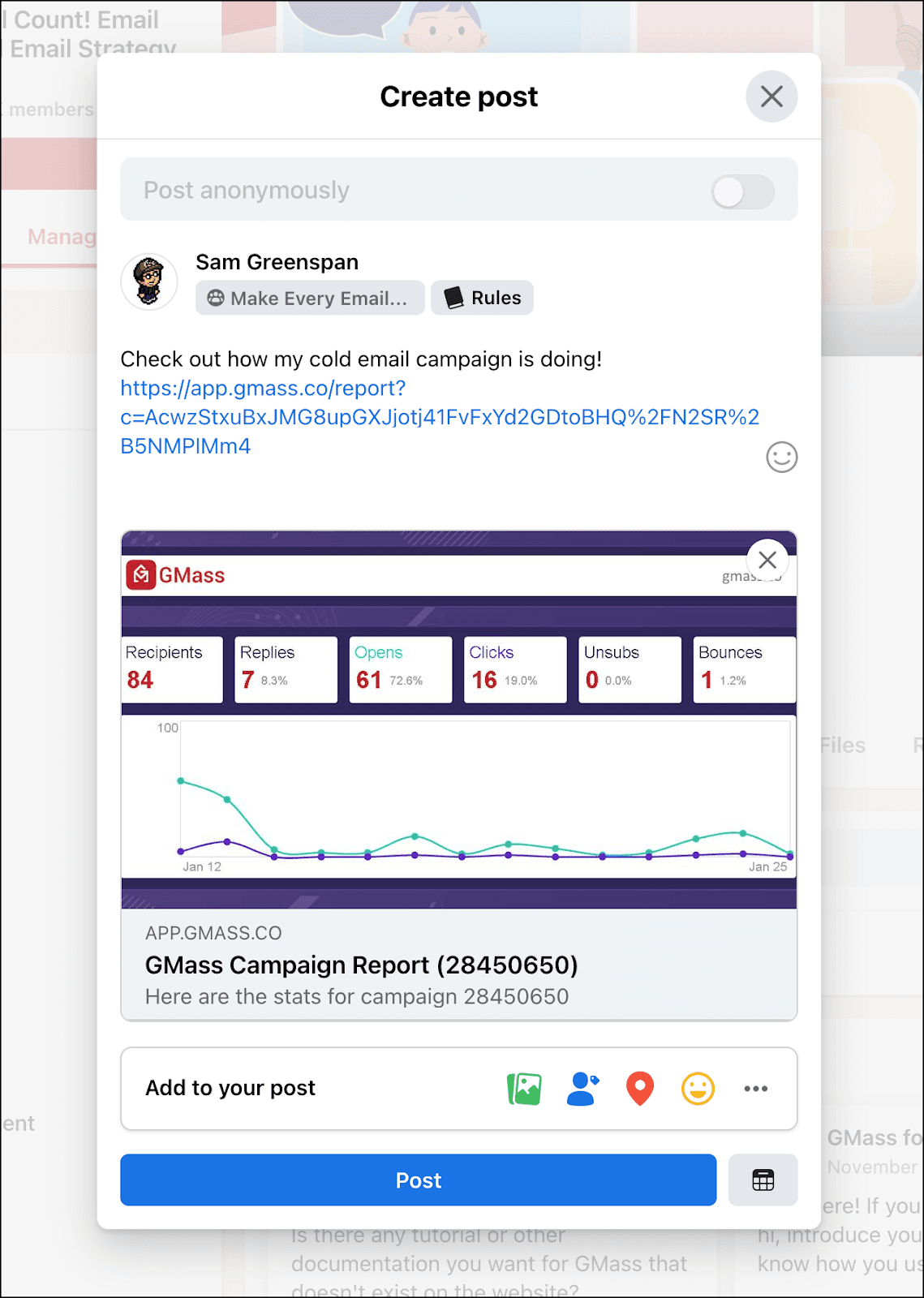
When someone has that link, they’ll see your aggregate campaign results without the specific recipient email addresses.
Note: This is also the link to use if you want to share your results on social media.
Sharing all campaign reports automatically
This is a lesser-known GMass feature… but you can actually automatically share all your campaign reports with another email address.
To do so, open a Gmail compose window and type share@gmass.co into the To field. Then, in the subject line, put the email address of the person with whom you want to share all your reports.
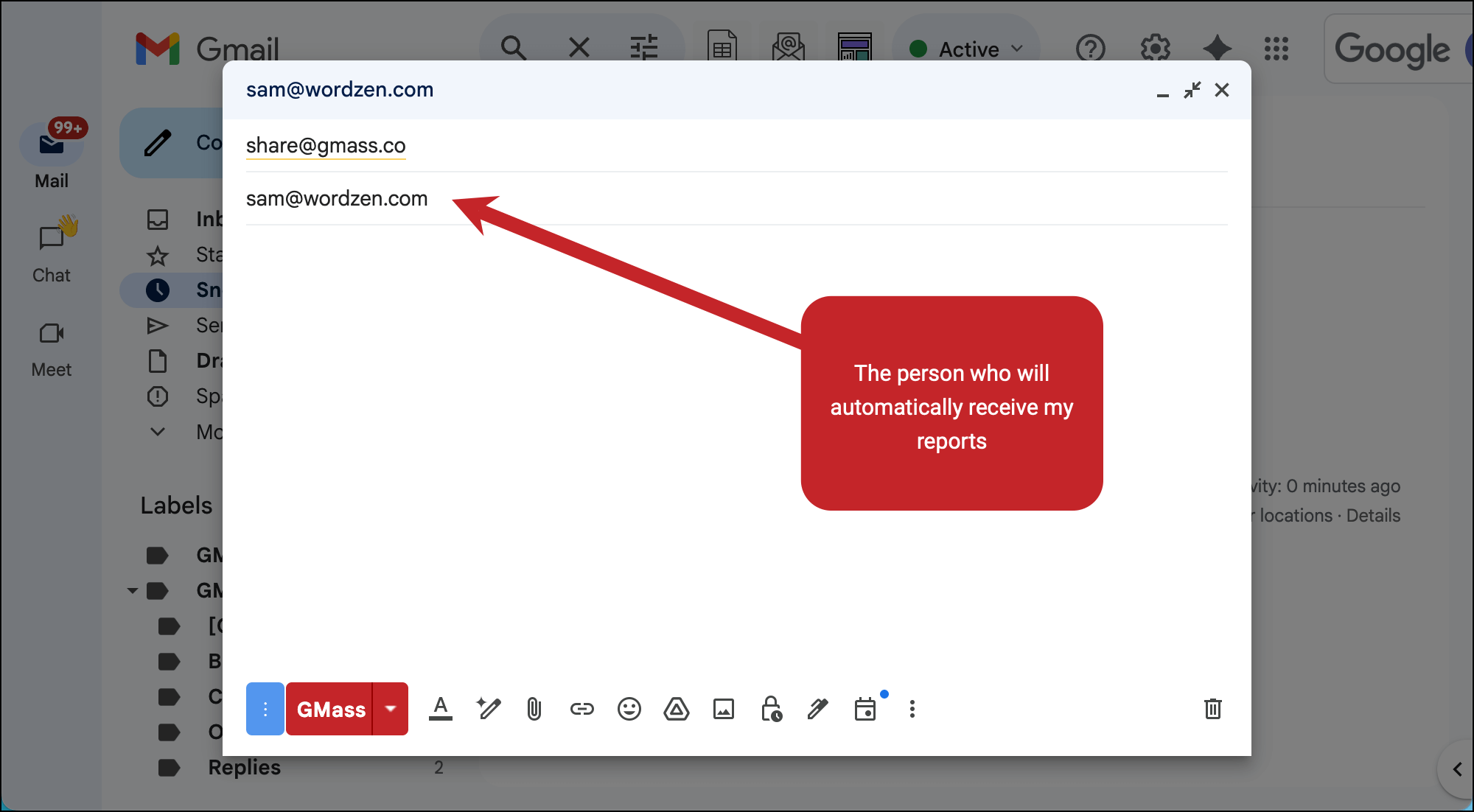
Click the red GMass button to send this message and start up this automation.
Use this with caution! The person will receive full access to the reports on every single campaign you send, including recipient addresses.
It’s also possible to forget you have this automation going, so down the road they might be receiving your reports without you realizing it.
If you ever want to reverse this automation, send another message to revoke@gmass.co, once again with their email address in the subject line.
Sharing campaign reports via the GMass API
Need to pass along your campaign reporting to another tool or app, whether it’s a dashboard, reporting system, or something else?
You can do that with the GMass API’s reports endpoint.
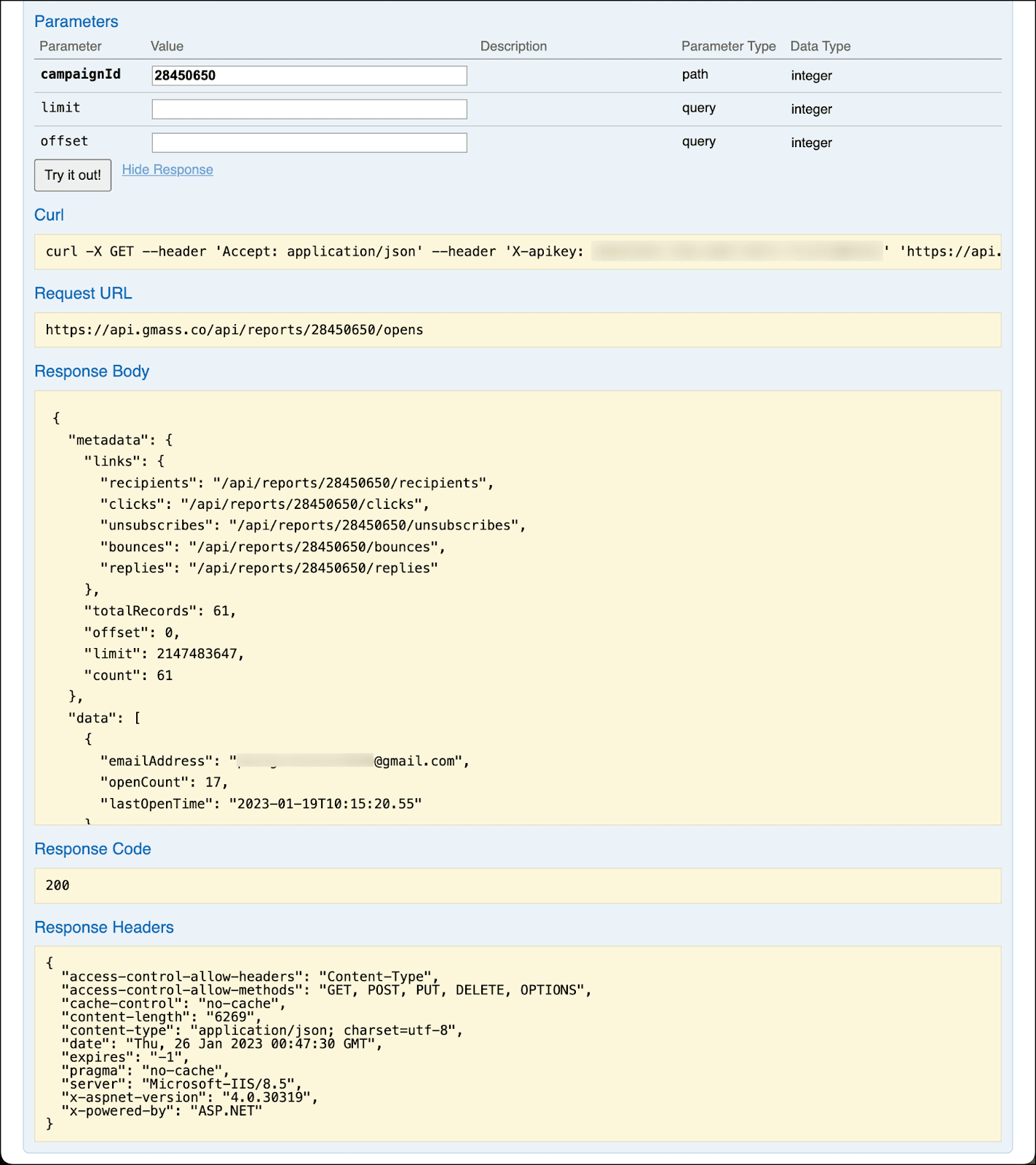
Just supply a campaign ID and the API can pass along campaign reporting data anywhere you need it.
Things You Can Share With Anyone With a GMass Account
Now that we’ve covered all the things you can share with anyone, now let’s add on the things you can share with anyone who has a GMass account.
You can share this data and access regardless of whether or not the person is on the same team plan as you. As long as they have a GMass account, they’re eligible.
Sharing templates
In GMass, every campaign you create becomes a reusable template.
And you can then share that template with any other GMass user.
Head to your GMass dashboard, go to the Templates section, and click the Manage Message Templates link.
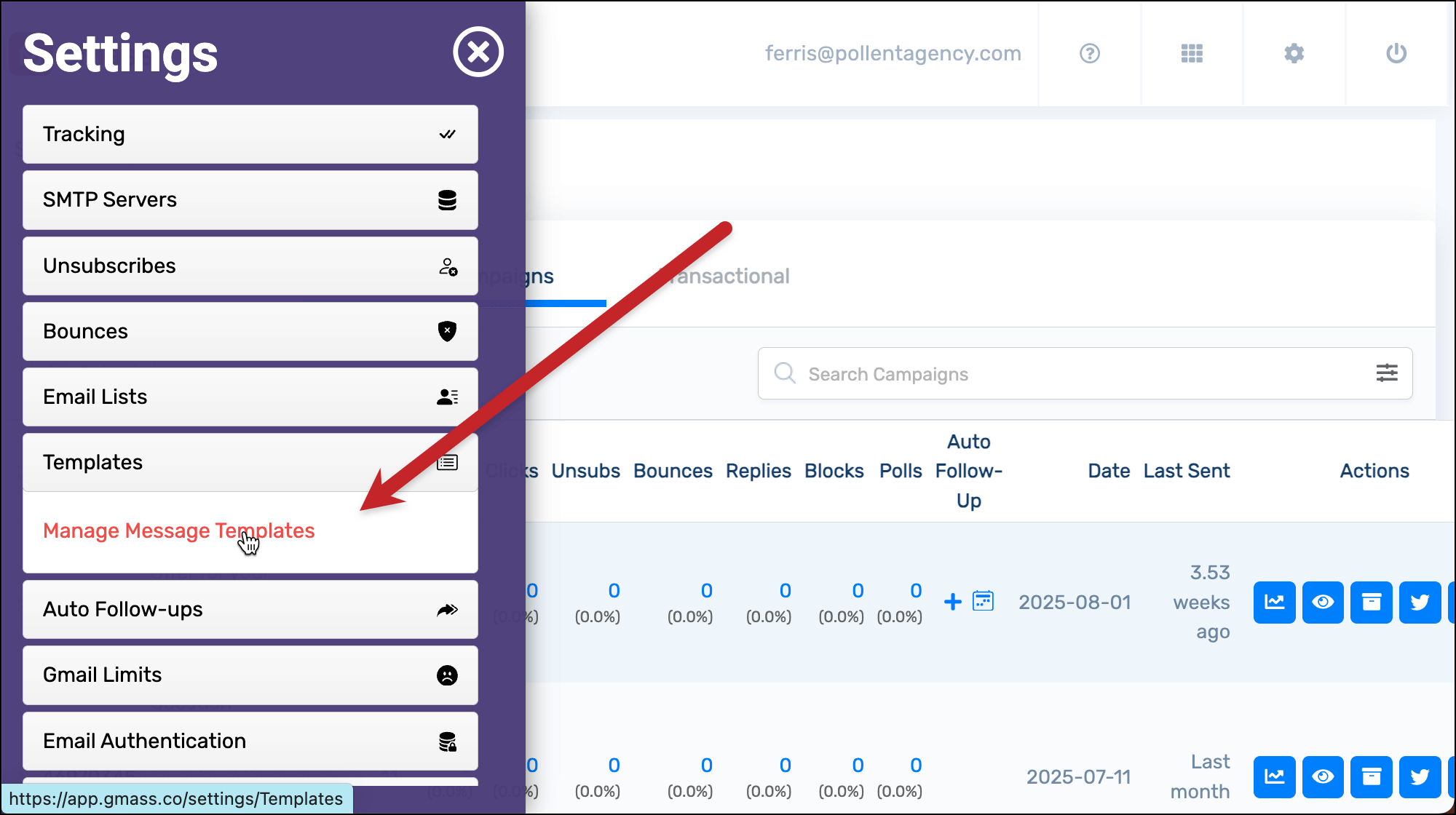
Find the template you want to share and click the Share button next to it. (You can search for templates using the search box above the list as well.)
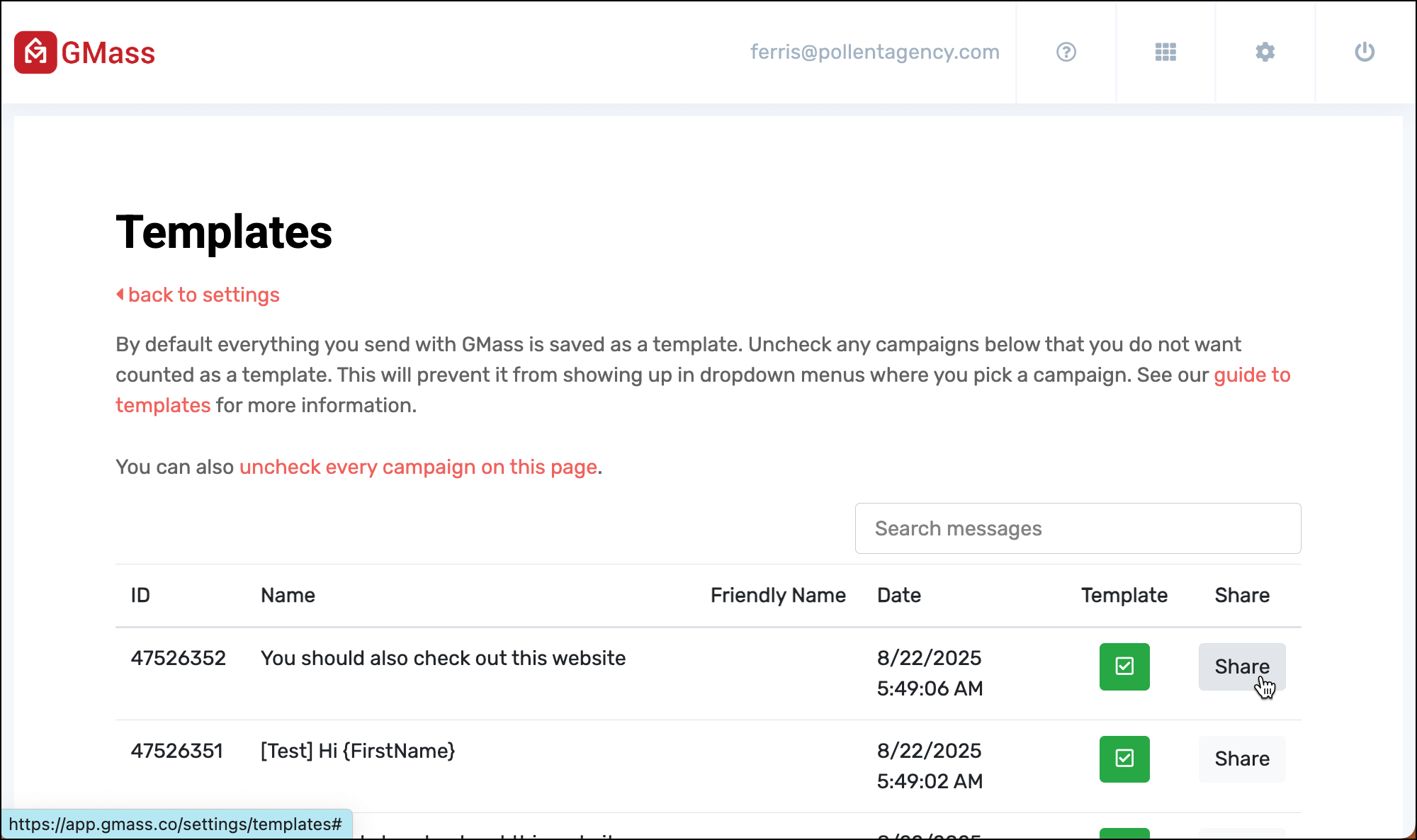
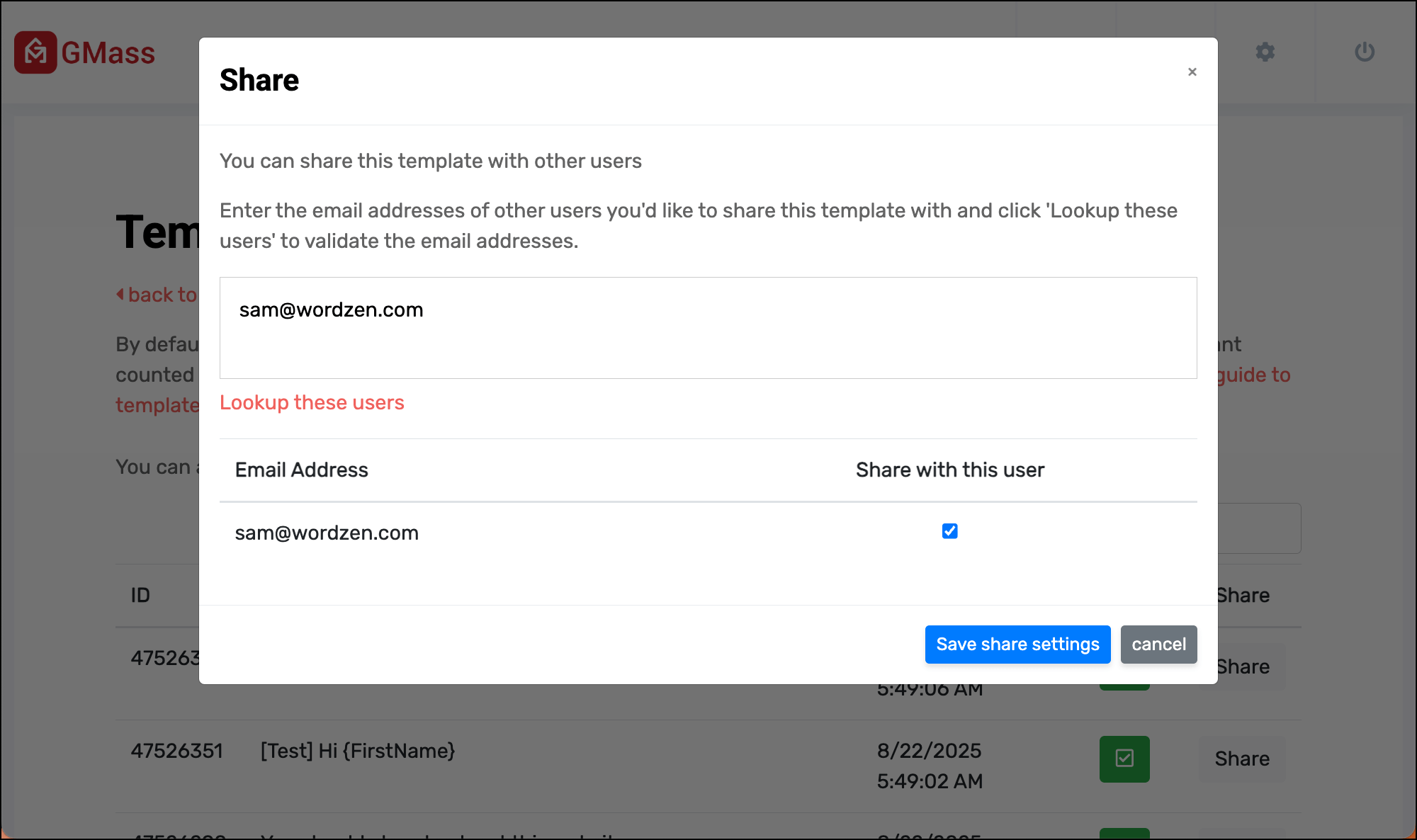
Now enter the email address(es) with whom you want to share your template.
Click Lookup these users. GMass will make sure they have accounts. Make sure the checkbox next to their email is checked, then click Save share settings.
The people with whom you shared will get an email letting them know you’ve shared your template with them. And they can now access it from the templates dropdown in the GMass campaign settings box.
Sharing GMass dashboard access
You can give a GMass user, either on your team plan or beyond, access to your account dashboard. This can be useful if you want them to manage your settings and is also another way of sharing your reports.
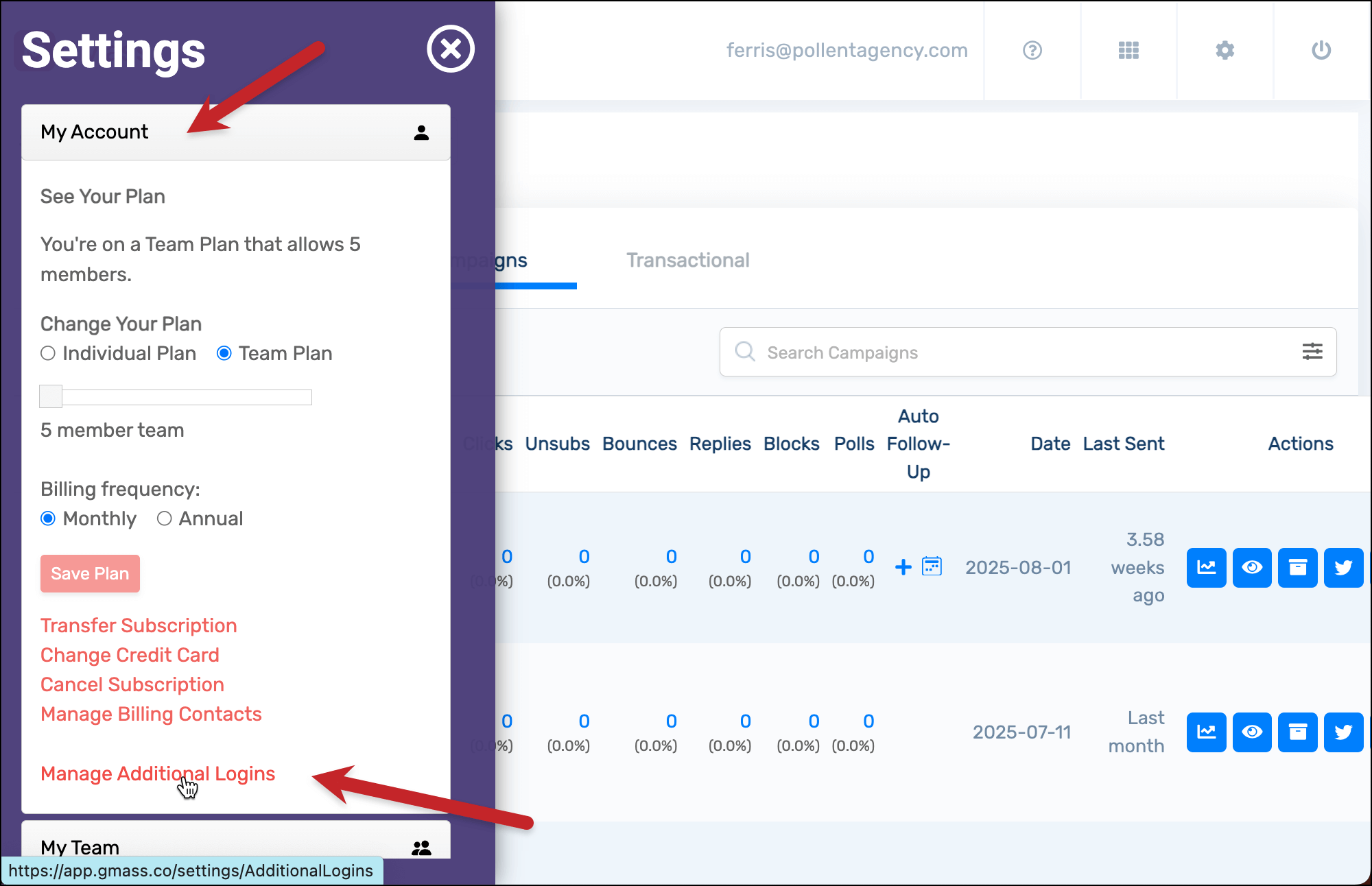
To share your dashboard, go into the GMass dashboard and head to the My Account section. Then click on Manage Additional Logins.
Type in the email address of the GMass user with whom you want to share.
Then decide on their permissions. The three options are:
- Settings, which enables the user to view and change your account settings.
- Aggregates, which shows the user your campaign stats but not detailed reports (so they couldn’t see the email addresses of your campaign recipients).
- Details, which shows the user your full campaign reports including recipients’ email addresses.
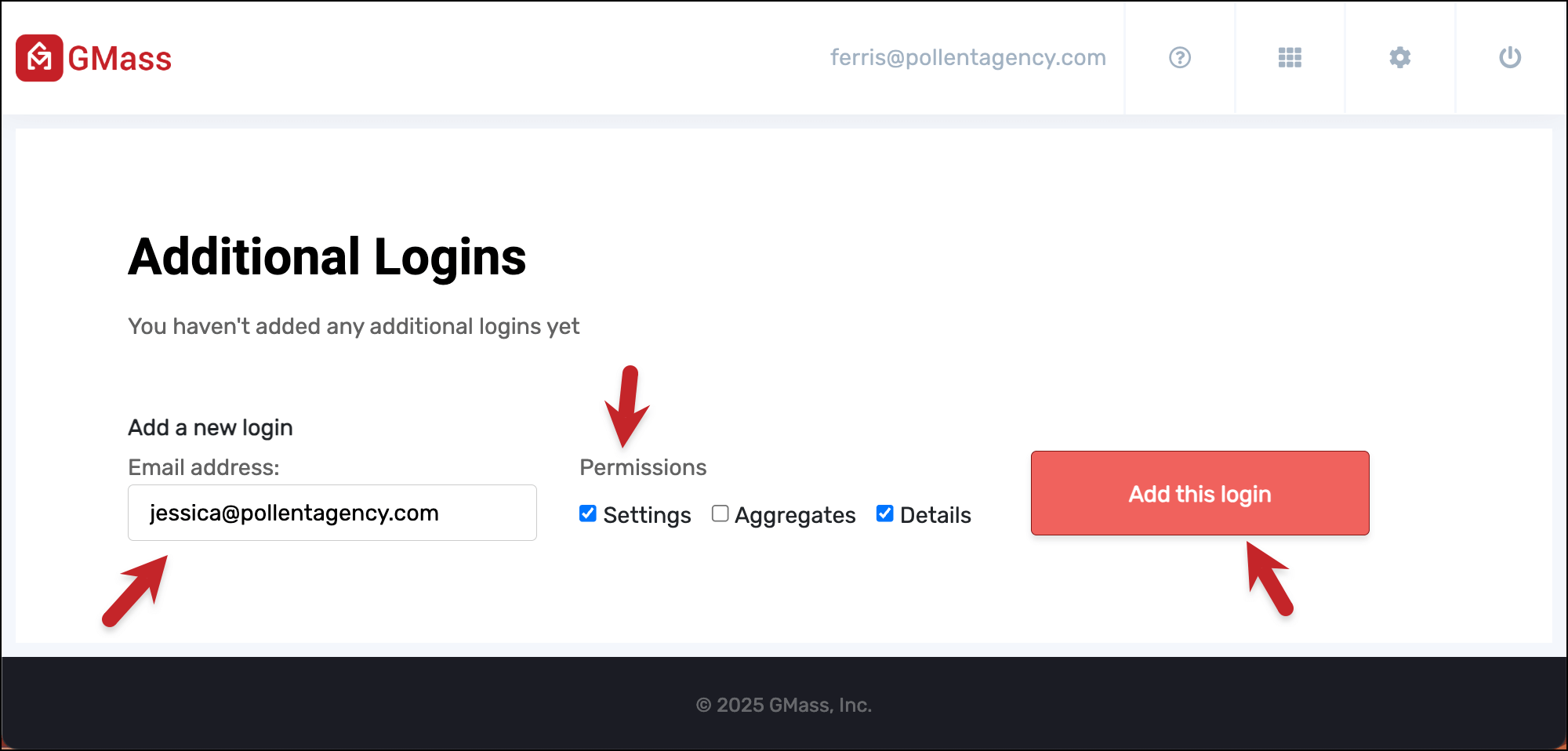
Click Add this login and that user will now be able to log into your dashboard.
Things You Can Only Share With Someone on the Same Domain or Team Account
Now we’re getting into an even tighter group of users — people whose email addresses are on the same domain (e.g., @whateveryourcompanyis.com) or on your team account.
Note: The “same domain” aspect does not apply if you are using a free gmail.com account. In that case you would NOT share global unsubscribes and bounces with everyone else on gmail.com. The only way you could share those lists is to be part of a team plan.
Sharing unsubscribe and bounce lists
With GMass’s global unsubscribes and bounces, you can automatically share your unsubscribe lists and bounce lists with other members of your team or domain.
If you turn on global unsubscribes…
When someone on your team plan or who’s using your same email domain tries to email a person who unsubscribed from you, GMass will automatically suppress that message.
It’s the same thing with global bounces. That way if you bounce an email to someone, no one in your organization will also bounce a message to them as well. GMass will automatically suppress any emails to that address.
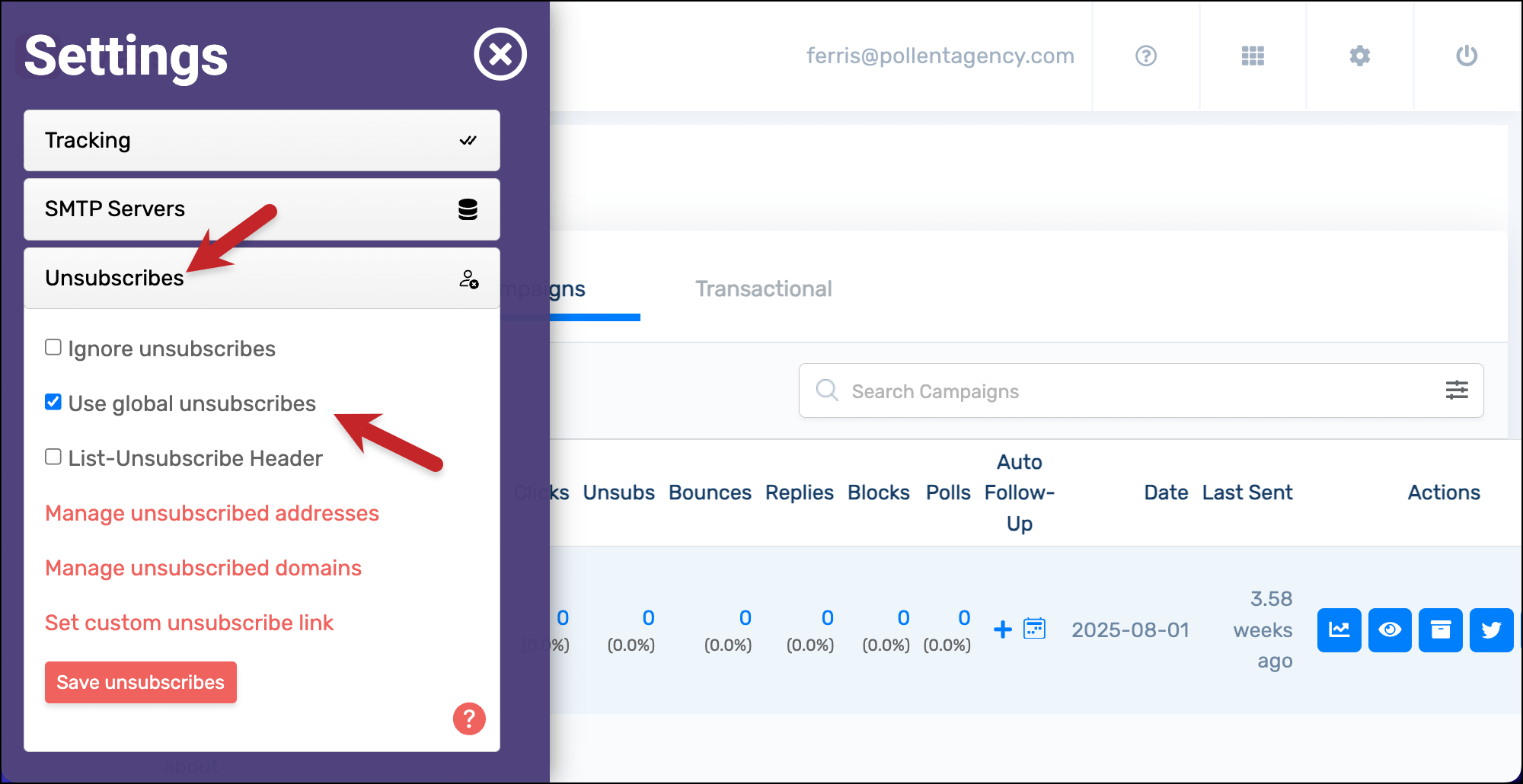
To turn on global unsubscribes or global bounces, go to the GMass dashboard. Open the Unsubscribes section of the settings and check the box next to Use global unsubscribes.
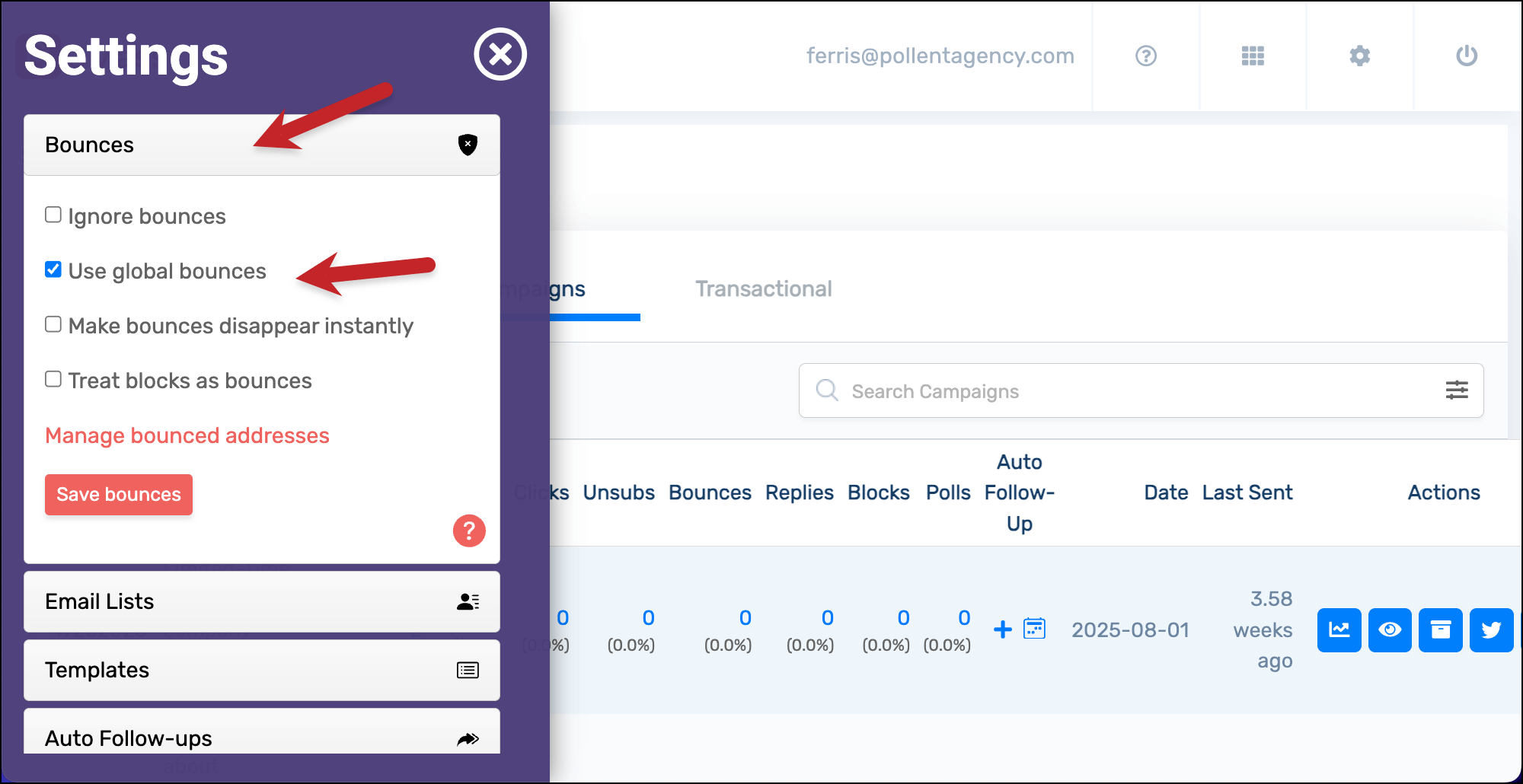
It’s the same process with global bounces. Open the Bounces section of the dashboard and check the box next to Use global bounces.
Now whenever anyone on your team or domain tries to send a GMass campaign to someone on your unsubscribe or bounce list, GMass will automatically suppress that message.
Things You Can Only Share With a Team Account
And finally, we’re down to the things that can only be shared within a team. (That is: Accounts on the same GMass team plan.)
Checking your team members’ campaign results, unsubscribes, and bounces
Here’s how, as team leader, you have shared access to your team members’ various campaigns and lists.
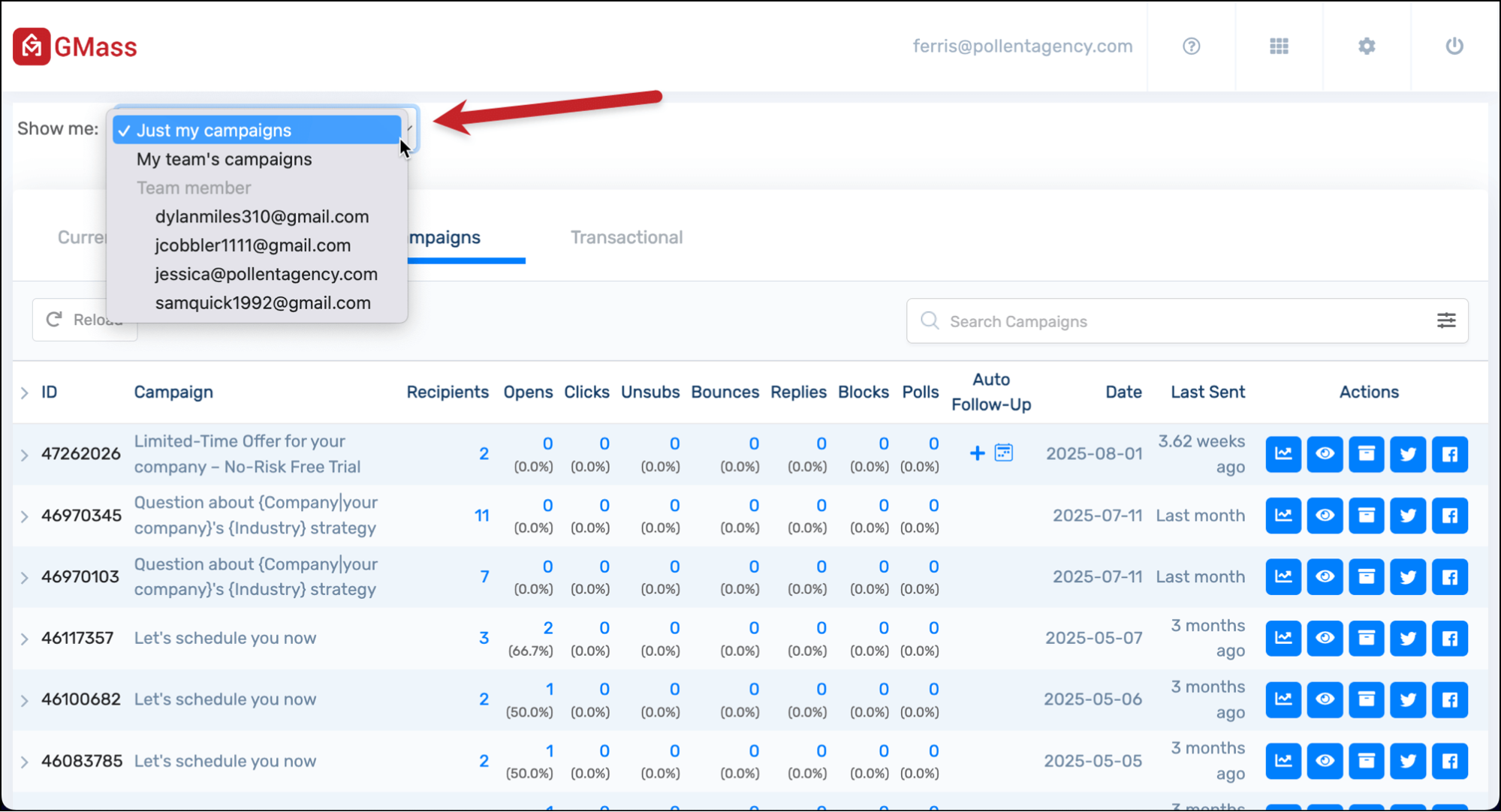
In the main section of the GMass dashboard, where you see various campaigns, look for the dropdown at the top that says Show me.
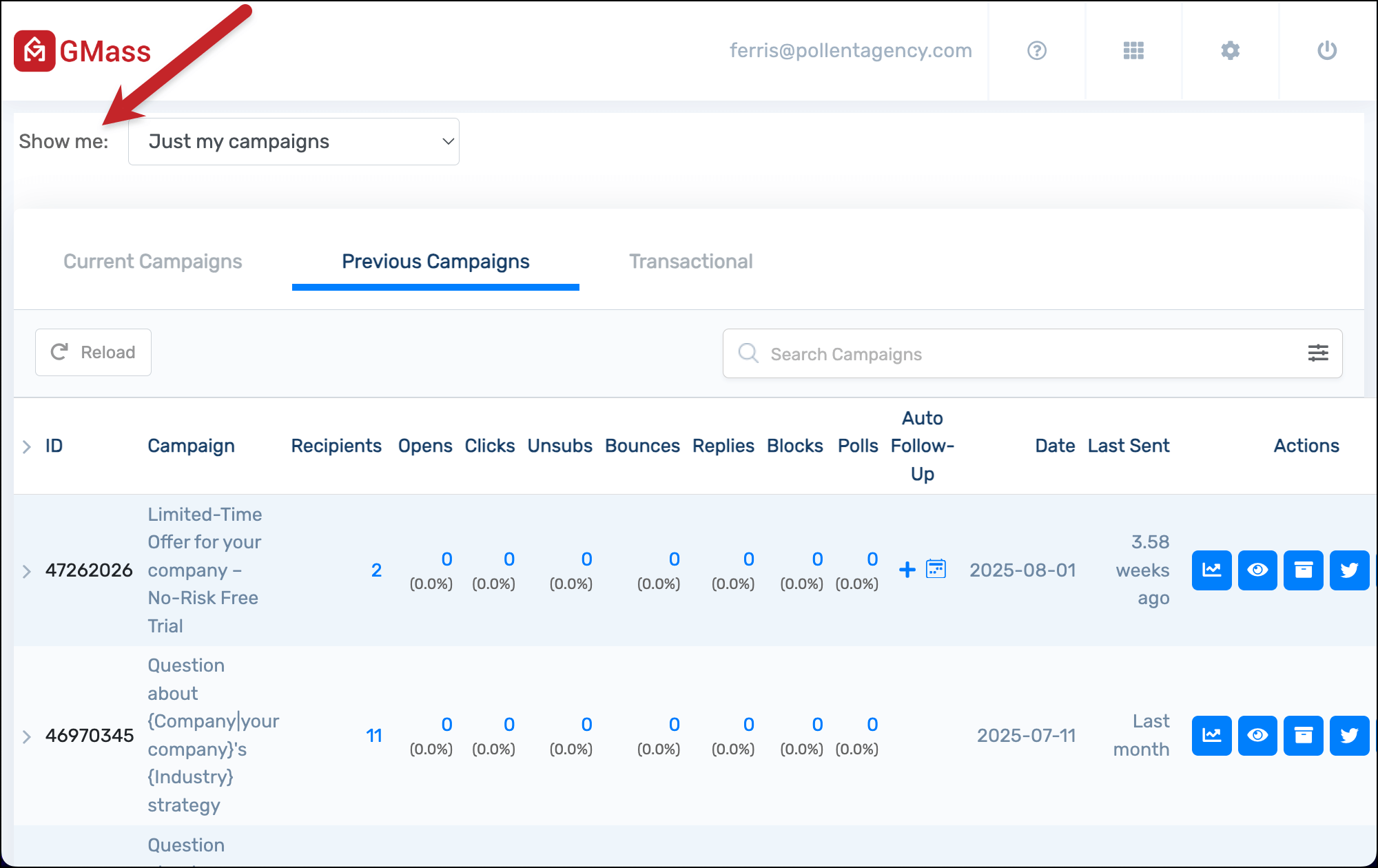
From there, you can choose to view your campaigns, all of your team’s campaigns, or an individual team member’s campaigns.
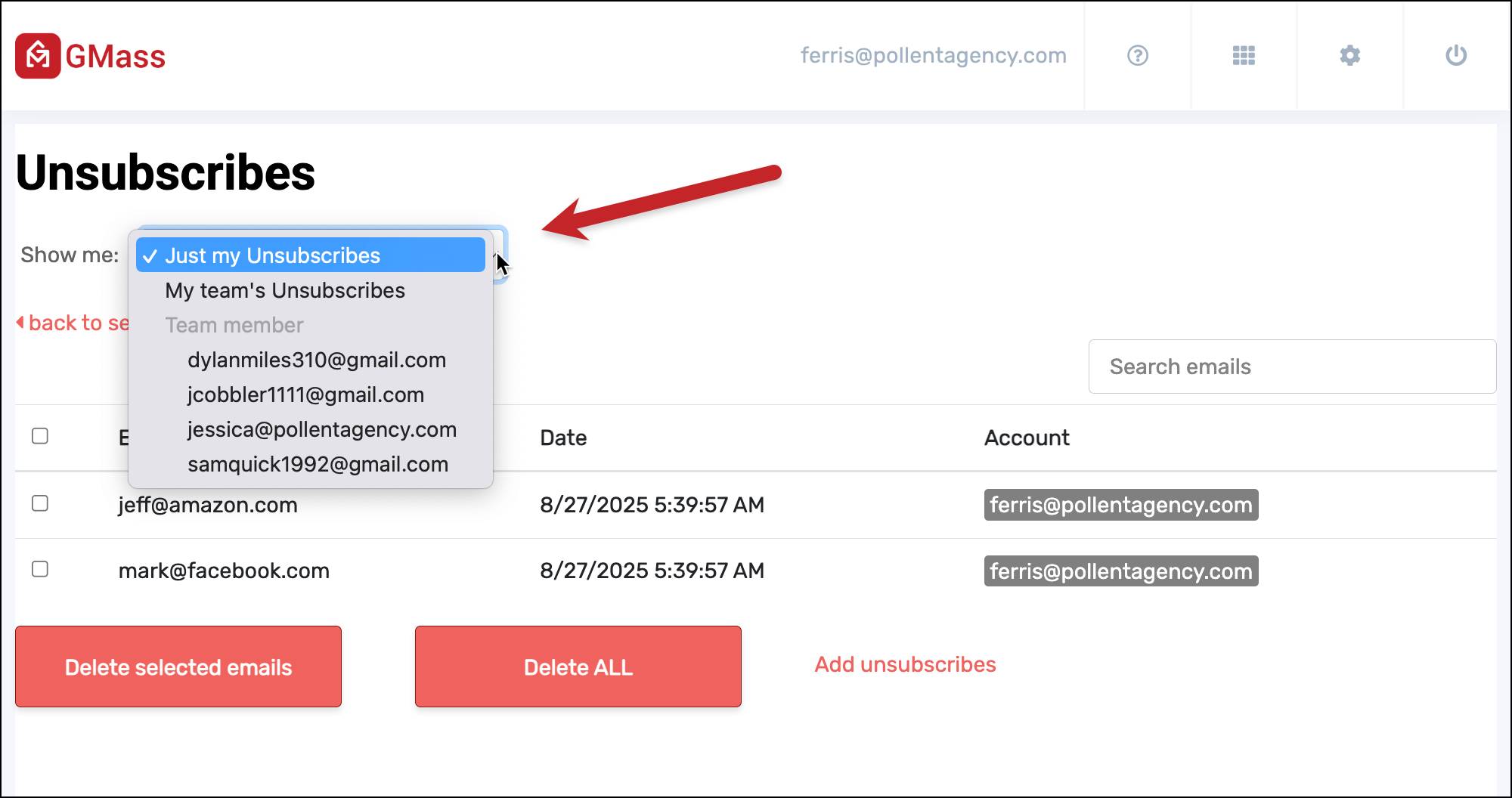
There are also similar dropdowns for unsubscribes and bounces.
In the dashboard settings, go to Unsubscribes and click Manage unsubscribed addresses.
There, you’ll again see the option to view your unsubscribes, everyone on your teams’ unsubscribes, or an individual team member’s list. You can actually manage these lists as well, like making manual additions or removals.
You’ll find the same option when you go to the Bounces section of the dashboard settings and click Manage bounced addresses.
Sharing GMass Account Data: Summary and Next Steps
There’s a lot you can share from your GMass account, and a serious range of people you can share it with.
To review:
Things you can share with anyone
- Full individual campaign reports
- Campaign reports without recipient email addresses
- Automated campaign reports
- Campaign reports via the GMass API
Things you can share with any GMass user
- Message templates
- GMass dashboard access
Things you can share with your team or people on the same domain
- Unsubscribe lists
- Bounce lists
Things you can only share with your team
- Viewing campaign reports as team leader
- Viewing and managing unsubscribe lists and bounce lists as team leader
Our goal at GMass with all of this? Make it incredibly easy to view, manage, and share everything necessary to run the most effective campaigns possible.
If you’re not a GMass user yet, you can give it a try for free — no credit card required.
Just install the Chrome extension and you’ll be up and running in minutes (and you can do all of the sharing we’ve talked about here during your trial).
Come see why nearly 400,000 users have given GMass an average rating of 4.8 out of 5 stars… for our sharing features and beyond.
Only GMass packs every email app into one tool — and brings it all into Gmail for you. Better emails. Tons of power. Easy to use.
TRY GMASS FOR FREE
Download Chrome extension - 30 second install!
No credit card required