Send a mail merge campaign to just selected rows of a spreadsheet

When connecting to a Google Sheets spreadsheet to send a mail merge campaign, you can now specify filter criteria to pull only certain email addresses that match the criteria.
You’ll notice a new Filter Rows box when connecting to a spreadsheet.
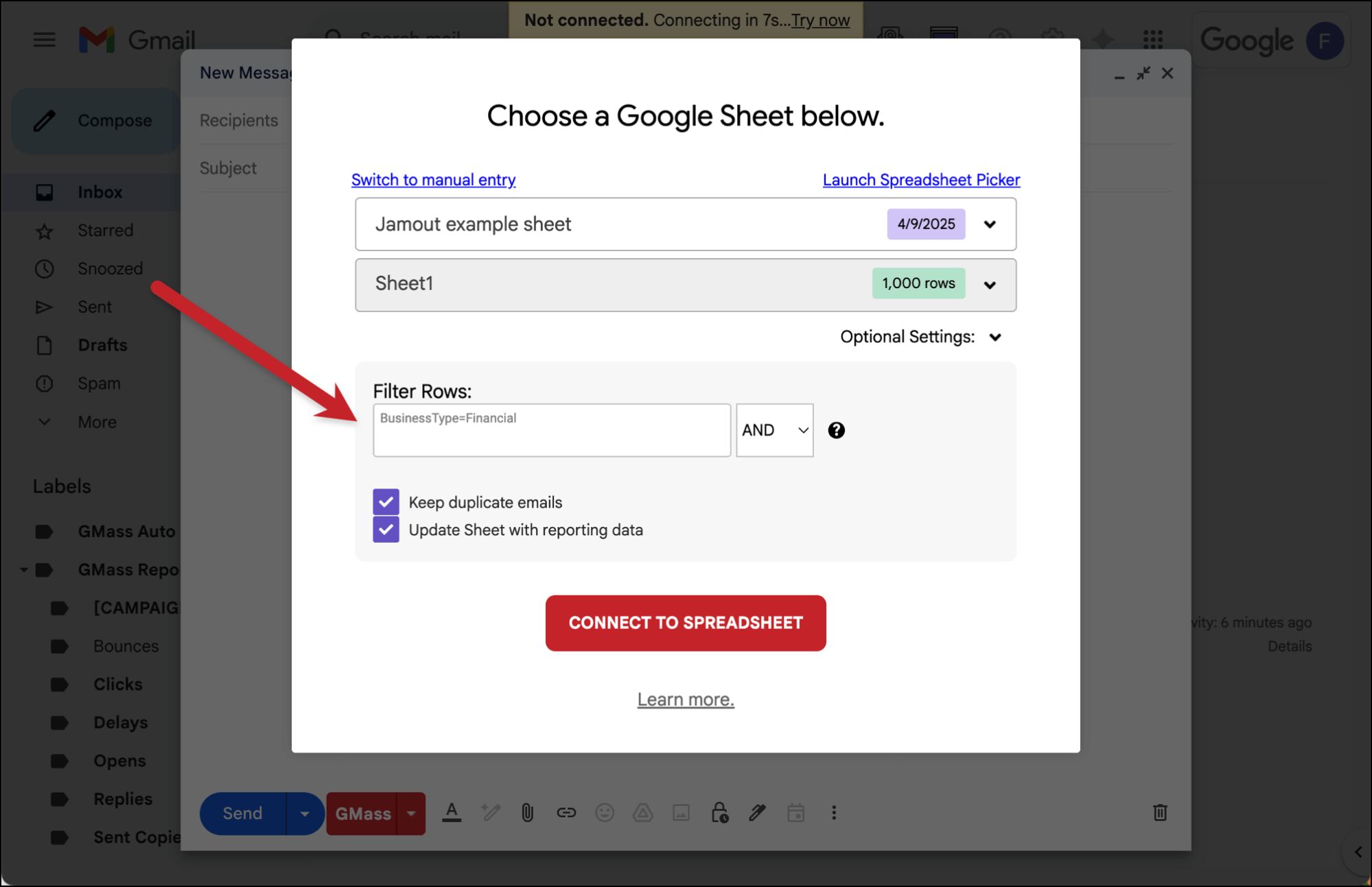
This post explains how to use the Filter Rows box and what to type to send email to just the rows that match your criteria. Specify one criteria per line, in the format:
ColumnName=Value
For example, if you have a spreadsheet column called Company, and you want to send a mail merge campaign to just everyone who’s Company is “Microsoft”, you would enter:
Company=Microsoft
Instead of the = sign, you can instead use the ~ operator to represent “contains”. For example, let’s say that your email addresses are in a column called Email. You want to send to only @yahoo.com addresses. You would enter:
Email~yahoo
meaning all rows where the Email value contains “yahoo”.
Full List of Operators
Along with = and ~ you can also use these operators:
!= for "not equals"

> for "greater than"

>= for "greater than or equal to"

< for "less than"

<= for "less than or equal to"

~ for "contains"

= for "equals"
Examples
You can use the operators above to compare strings, numbers, and dates. For example, if you have a spreadsheet column called Age, and you wanted to email just the adults in the spreadsheet, you could set:
Age >= 18
Or, let’s say you didn’t have an Age column but instead had a DateOfBirth column. Then you could set:
DateOfBirth <= 1/1/1999
assuming that anyone born before 1/1/1999 is an adult.
Special Values
There are two special values you can use to represent date values. These are:
CurrentDate

CurrentDateIgnoreYear
You can use these values to compare the data in your spreadsheet to the current system date (in the GMT time zone). For example, if you have a column in your spreadsheet called ShipDate, which represents when a customer’s order will be shipped, you could set:
ShipDate=CurrentDate
to pull just the rows where the order’s shipping date is today to let the customer know that their order has been shipped and will arrive soon.
Using CurrentDateIgnoreYear matches just the Month and Day parts of the date to the current Month and Day. For example, if you have a column called Birthday and you want to send an email to people only on their birthdays, but birthdays include the year the person was born, then this will be useful. If three of your birthday values are: 1/1/72, 4/5/80, and 3/1/90, then using “Birthday=CurrentDate” would never match the rows because the rows contain the birth year. Using “Birthday=CurrentDateIgnoreYear” however would match rows on a person’s birthday. Also, see the detailed guide to sending birthday emails with Gmail and GMass.
Multiple Criteria
You can also specify multiple criteria. Let’s say your spreadsheet has the columns Company and Position. Let’s say you want to send to everyone whose Company=Microsoft, and Position=Manager. You would enter:
Company=Microsoft
Position=Manager
Or, let’s say that in your actual spreadsheet, the Position column had values like “Product Manager” and “Technical Support Manager”, but you still wanted to email everyone at Microsoft that was some type of manager. In that case you would set the Position criteria to just “contain” the word “manager”. So:
Company=Microsoft
Position~Manager
In these cases, you want rows that match both criteria. So in these cases, the boolean operator should be set to AND. You might, however, want to switch to OR in certain cases. Let’s say your spreadsheet has all of your customers but you want to send a campaign to only customers with an email address at a consumer domain, like hotmail.com, yahoo.com, aol.com, and gmail.com. You would enter:
Email~gmail.com
Email~yahoo.com
Email~hotmail.com
Email~aol.com
And you would set the boolean dropdown to OR. Meaning you want to send to everyone where Email contains gmail.com OR Email contains yahoo.com OR Email contains hotmail.com OR Email contains aol.com.
As another example, let’s go back to our spreadsheet containing the Company column. You’re sending a mail merge campaign to executives at billion-dollar tech companies, so you want to only send to people where Company is either Microsoft, Apple, or Facebook. You would enter:
Company=Microsoft
Company=Apple
Company=Facebook
and set the boolean dropdown to OR. If you entered this criteria and set the boolean dropdown to AND, you would get an error saying that no rows could be selected, since there isn’t a single row where the Company is equal to all three of those values, as that would be impossible!
Email marketing. Cold email. Mail merge. Avoid the spam folder. Easy to learn and use. All inside Gmail.
TRY GMASS FOR FREE
Download Chrome extension - 30 second install!
No credit card required

Ajay is the founder of GMass and has been developing email sending software for 20 years.