Use Gmail to send birthday and date-driven emails automatically

Using a combination of Gmail, Google Sheets, and GMass, you can easily set up automated birthday emails to go out on people’s birthdays or any other specific date you like. In the Google Sheets spreadsheet containing your email addresses, you simply need a Date column that includes the date on which you’d like that particular email sent.
Overview
The basic steps to send automatic birthday emails in Gmail involve:
- Setting up a Google Sheets spreadsheet containing email addresses and birthdays.
- Using GMass to connect to the spreadsheet with a specific filter criteria.
- Composing the campaign and setting it to repeat daily.
Set up your spreadsheet
Your spreadsheet can contain any number of columns to personalize your emails, but at a minimum, for this to work, it should include a column for the actual email address and the date. In this case, we’ll assume we’re sending emails to people on their birthdays. In addition to the Email and Birthday columns, we’ll also include the first name and last name so that we can send a properly personalized email to each person on his/her birthday.
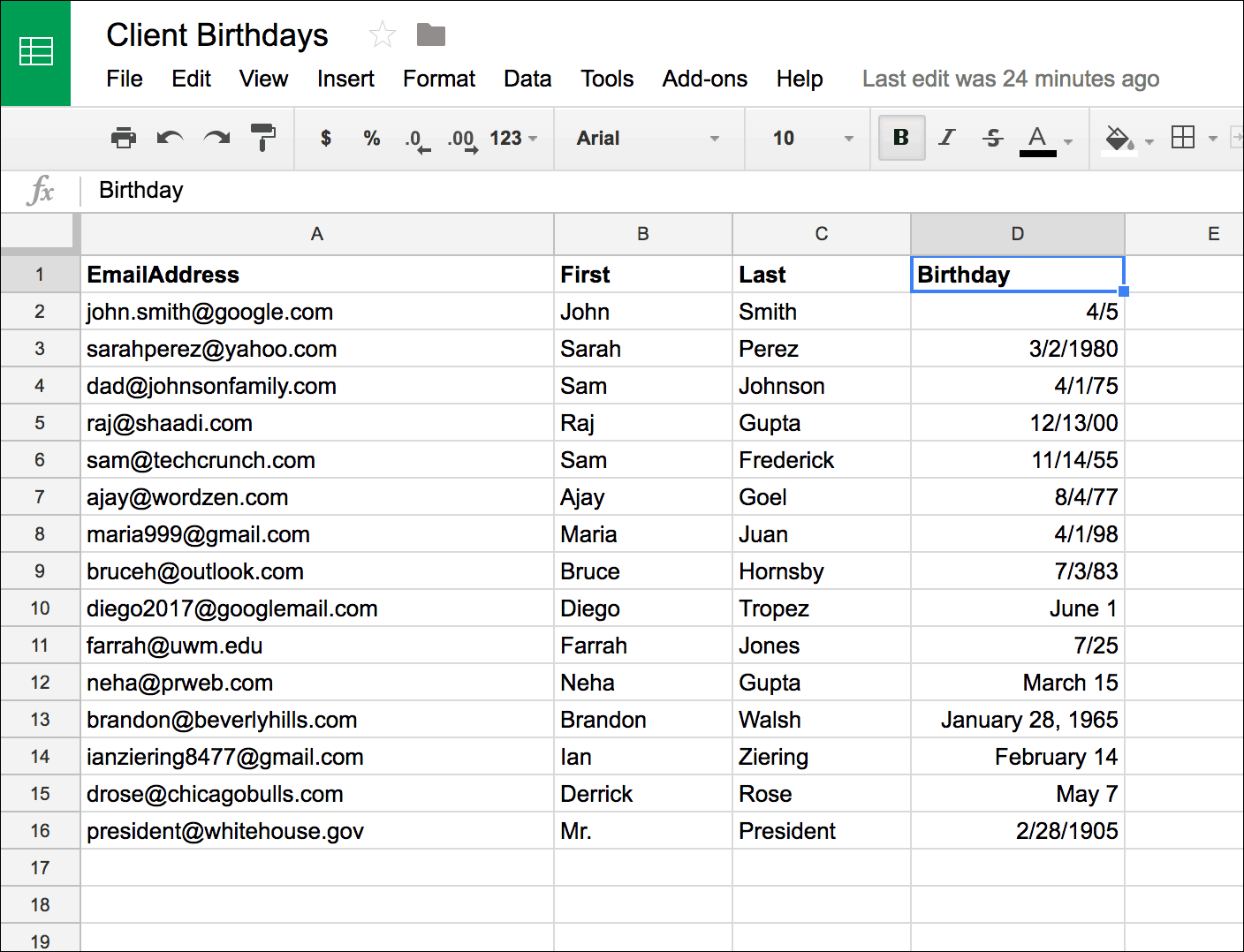
In what format should the date be? Your date column can contain dates with years or without years, and they can be in any recognizable U.S.-based date format. For the date of January 15, 1985 for example, the spreadsheet cell can contain “1/15/85”, “1/15/1985”, “01/15/85”, “January 15, 1985”. It should not contain, however, the European date format of “15/1/85”.
If you want to leave years off of the date, that’s fine too. “1/15” and “January 15” are acceptable date values also.
Set up the filter criteria in GMass
Click the GMass spreadsheet icon and choose the spreadsheet and worksheet that you just set up. Because we don’t want to send an email to everyone on the spreadsheet, we need to specify filter criteria so that emails only go out when today’s date matches the date in the Birthday column.
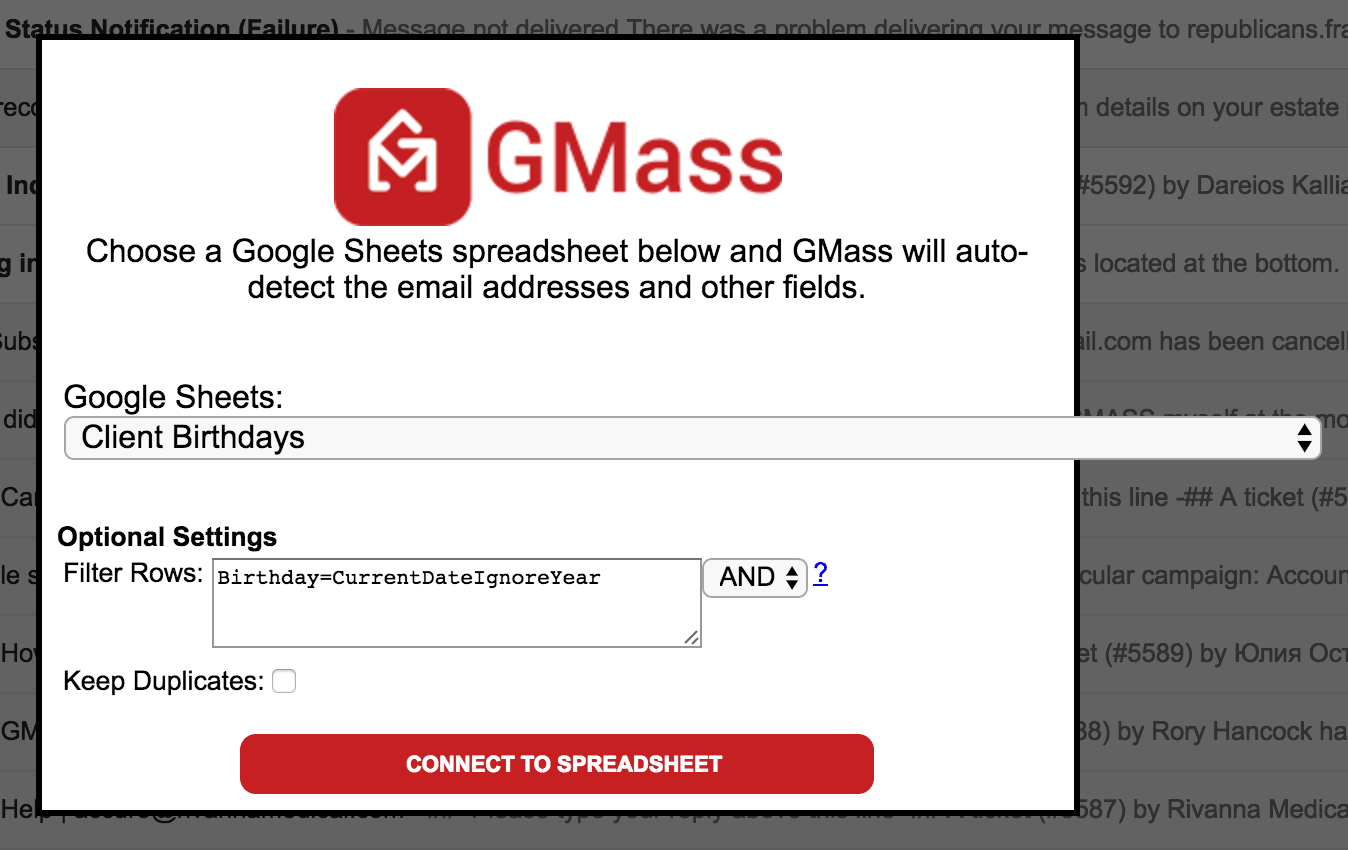
Once you’ve inputted the filter criteria, click the CONNECT TO SPREADSHEET button to continue.
Note: If it’s nobody’s birthday today, then the Gmail Compose window will launch with an alias address in the To field representing 0 addresses. That is normal. It just means that right now, 0 emails will be sent. Since you’re going to set up the campaign to repeat daily, it will check to see if it’s anybody’s birthday on each day the campaign runs.
Set up the actual mail merge
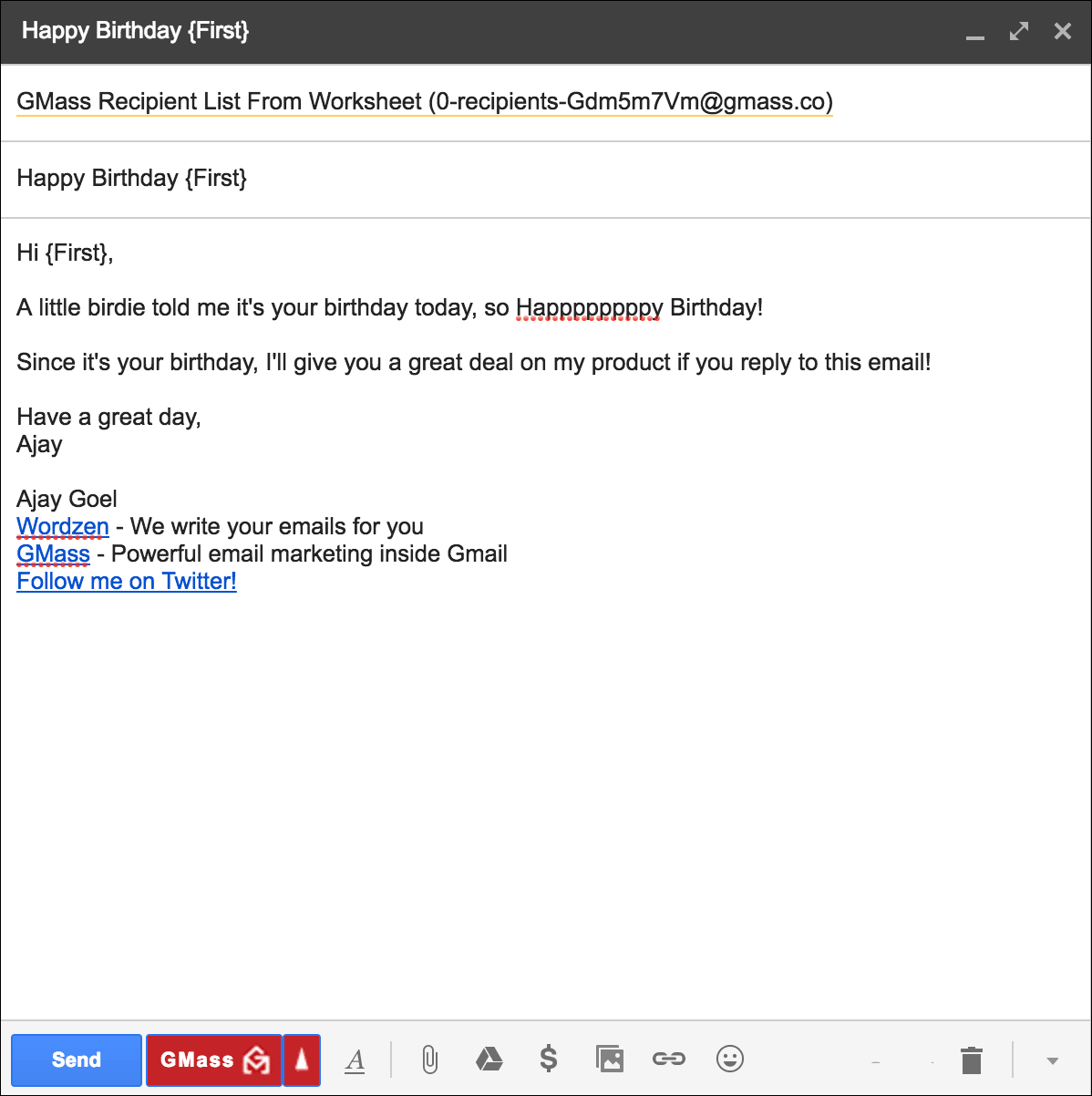
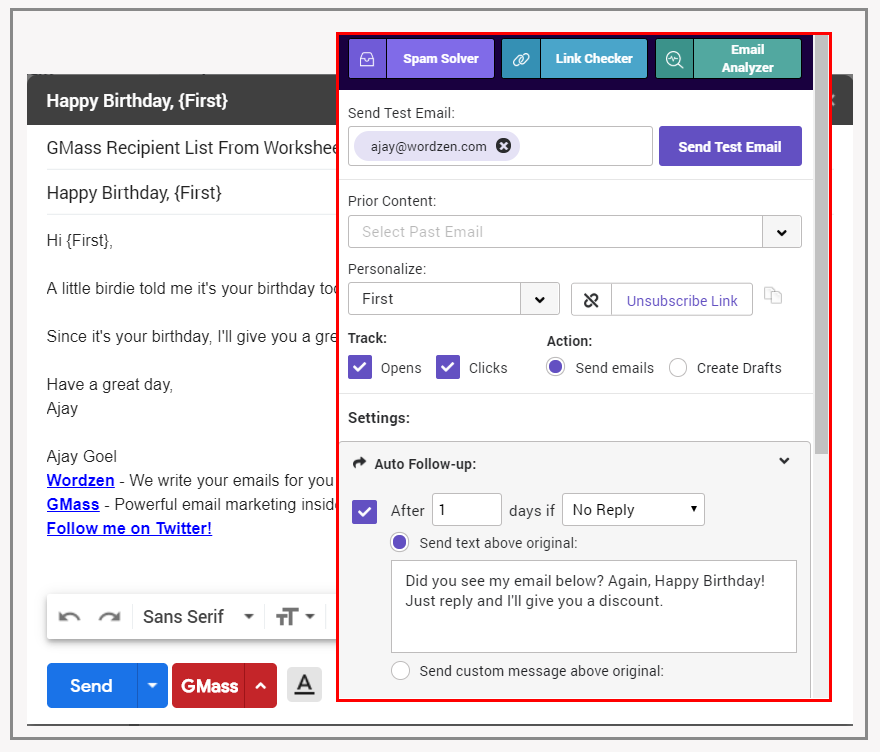
A Compose window in Gmail should have launched where you can enter the Subject and the Message for the birthday email. Here I’ve personalized the Subject with the recipient’s first name, and I’m personalizing the Message with the first name.
Now, in order to get this email to send every day to just the people whose birthday it is on that given day, you must check the Repeat daily checkbox.
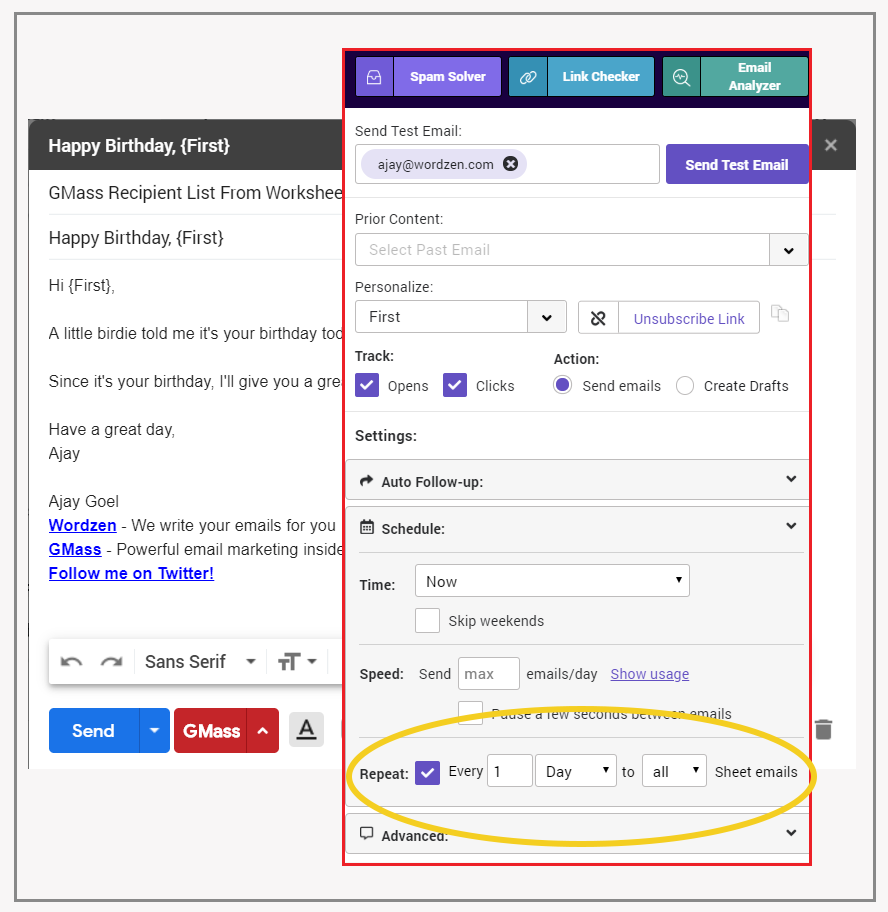
That will tell GMass to:
- Query the spreadsheet daily for rows where the current date is equal to the Birthday date.
- Send an email to just those people.
You can keep adding rows to your spreadsheet, even after the birthday campaign has started
You can add more rows to your spreadsheet anytime you wish, and GMass will automatically pick up the new email addresses and dates. You don’t need to edit your GMass campaign. Just add the new data to the spreadsheet and GMass will detect them and send the emails accordingly on the daily schedule you’ve already set.
Best Practices for Birthday Emails
What makes a good vs bad birthday email campaign? Check out The Pros & Cons of Birthday Emails, written by the folks at AWeber.
Get more replies with auto follow-up emails
Using this birthday email technique paired with automatic follow-up emails will get you even more responses to your birthday emails. In this example, setting just a Stage 1 auto follow-up will increase reply rates.
That’s all!
You can use this feature to send automated birthday emails or automated emails based on any date. For example, if you have a spreadsheet of orders your company has received, and one of the columns is the buyer’s email address, and the other is the buyer’s order ship date, you can have an email sent out automatically on the day that a buyer’s product ships, to let them know to expect their package in the mail soon.
Is your email list not in Google Sheets?
GMass integrates extensively with Google Sheets to make features like sending automatic birthday emails possible. What if you don’t use Google Sheets as the main warehouse for your email list data? Using one of the many Google Sheets integrations from Zapier, you can automatically sync data from almost any database system with Google Sheets.
Further Reading
You may be interested in an overview of how GMass sends mail merge campaigns with Google Sheets. You may also be interested in reading about setting up daily recurring campaigns using data in Google Sheets, which is what is necessary to send birthday and date-specific emails. And lastly, here’s a detailed guide to filtering rows in your spreadsheet for mail merges, in case you want to learn about techniques beyond just date filters in choosing which spreadsheet rows to send emails to.
Email marketing. Cold email. Mail merge. Avoid the spam folder. Easy to learn and use. All inside Gmail.
TRY GMASS FOR FREE
Download Chrome extension - 30 second install!
No credit card required

Ajay is the founder of GMass and has been developing email sending software for 20 years.