How to Send HTML Email in Gmail (3 Easy Options) - GMass

Gmail doesn’t have a native way to send HTML emails.
However, you can send an HTML email in Gmail — it’s just not as easy as pasting HTML code into the compose window.
Today, I’ll show you how to create HTML emails and send them in Gmail. The benefit of doing so is that you can design email campaigns and then edit and send them directly inside Gmail, either as a campaign or just as part of regular email correspondence.
And once you’ve done that, you can save your HTML email as a template to use again.
Why importing HTML into Gmail “doesn’t work”
If you take HTML code and paste it “raw” into the Gmail compose window, it won’t render anything else — it will just appear as HTML code. So, HTML on its own won’t help you format the shape or appearance of your emails.
Here’s how to work around that.
How to send HTML email with Gmail
There are three ways you can add custom HTML into the Gmail Compose window.
- Copy/paste the rendered HTML into the Gmail Compose window.
- Paste your HTML code into the Gmail Compose window using Chrome’s Developer Tools
- Use a Chrome extension to add an HTML editor to the Gmail Compose box
Option 1: Copy/paste rendered HTML into Gmail Compose Window
Once you’ve written your HTML, the process is basically just a matter of copy and paste. You create your page in HTML, load it into a browser, copy the contents of the browser, and then paste it into Gmail’s compose window. By “rendered” HTML, I mean what the HTML looks like in the browser, with colors, fonts, and images in place.
Let’s run through a quick example of that.
Creating and sending your HTML email in Gmail
Step 1: Write your HTML
For this example, I’m using some boilerplate HTML adapted for our purposes. HTML can be either written directly or, possibly, composed with an HTML authoring tool. Gmail is a little picky with what it will allow as HTML in its emails, so here are a few important guidelines:
- You can’t use external style sheets, though you can use inline CSS (e.g., <td style=bgcolor=”white” align=”center”>) as well as embedded CSS in the head. For more details about exactly what you can and should use in Gmail, see this page. Note: Gmail changed their support for CSS in 2016, so older posts online may claim they don’t support things they actually do. The post I linked to is up to date with that change.
- Some HTML tags may not be supported. This list shows HTML tags that are supported and some that are not. Sorry, no BLINK tag.
- Gmail does not support web fonts. So, either use the standard fonts they provide or, if you want another font for something like a logo, make an image of that text. Then, in the HTML, link to that image hosted online, which is what I have done for the “Binkman’s Books” logo in my sample email below.
- Either host your images while designing or embed them later. You can host images on Imgur, Amazon Web Services, or any other place intended for hosting images. Otherwise, you can embed the images in your file by uploading them to Gmail… but there’s a chance that’s going to break your design.
- Using tables to organize the display of contents is the recommended way to go for HTML emails. However, even using tables, there are still issues galore to watch out for.
- Google Docs for composing could be problematic. Although there are tutorials out there about using Google Docs to create your HTML email without coding, when I tried it, I found that what was displayed on Google Docs was not exactly what appeared in the email (e.g., something that was centered in Google Docs was left-aligned in the email).
- Remember, Gmail is a work-in-progress. Gmail keeps changing, so blog posts or online answers from a few years ago are already out of date. If you’re researching how to do anything with HTML and Gmail, try to find content that is as recently written as possible.
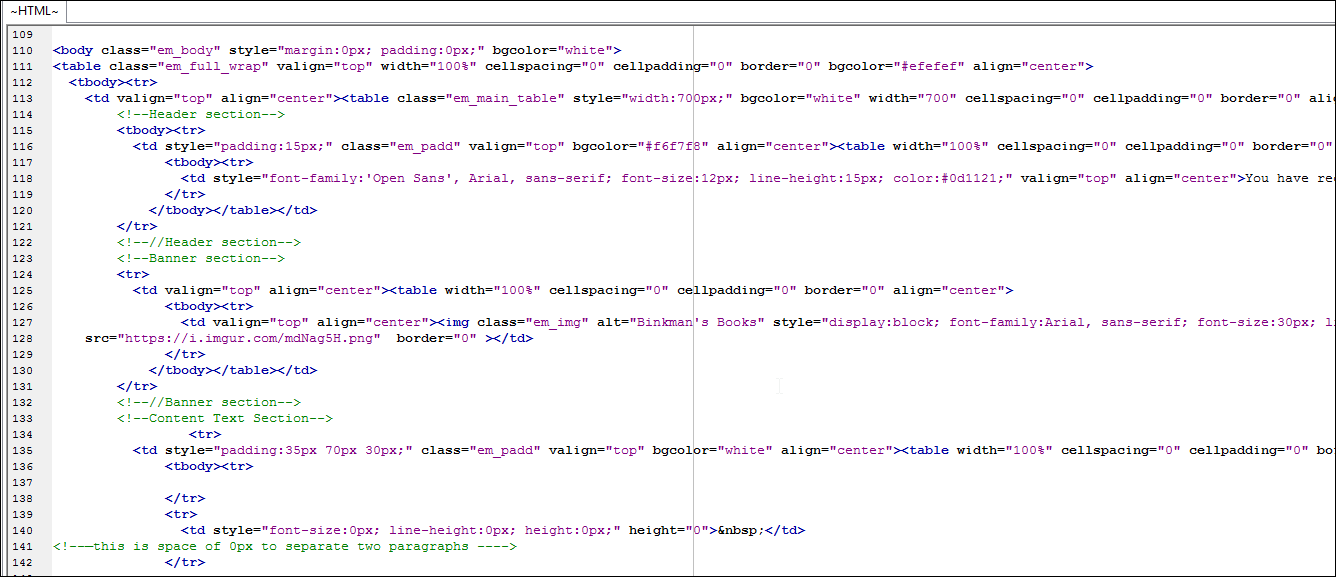
With this method, it’s best to keep it simple. Because what Gmail will support is somewhat unpredictable, it’s best to keep things fairly simple in terms of the HTML.
You never really know how Gmail is going to interpret your rendered HTML. And if something breaks, you won’t be able to fix it inside the Gmail window (at least not easily).
Step 2: Display the rendered HTML page in a browser.
I used Chrome and just opened (Ctrl-O) the .html file that was on my computer.

Step 3: Open a Gmail Compose window and paste it into the main text area.
The HTML email should appear in the compose window. Double-check (including scrolling down to the bottom) that everything looks appropriate before you send the email.

Pros and cons of this approach
Pros:
- A quick way to get your HTML designs into Gmail.
- You don’t need to install anything extra.
- You don’t need to do anything technical to pull it off.
Cons:
- You never know how your email is going to look once Gmail gets its hands on it.
- You can’t make quick and easy tweaks to the HTML once you’ve pasted it in.
- You have to use linked, not embedded, images — which might affect deliverability.
- You can’t store your template inside Gmail.
In my experience, the cons outweigh the pros for this approach except when I’m using extremely basic templates. (And in those cases… why not just build something similar inside Gmail to avoid the hassles?)
Option 2: Paste the HTML code into Gmail using Chrome’s Developer Tools
This technique is a Gmail and Chrome hack. You right-click in the Gmail Compose window, find the relevant HTML portion of the box’s element, and then paste in your HTML code.
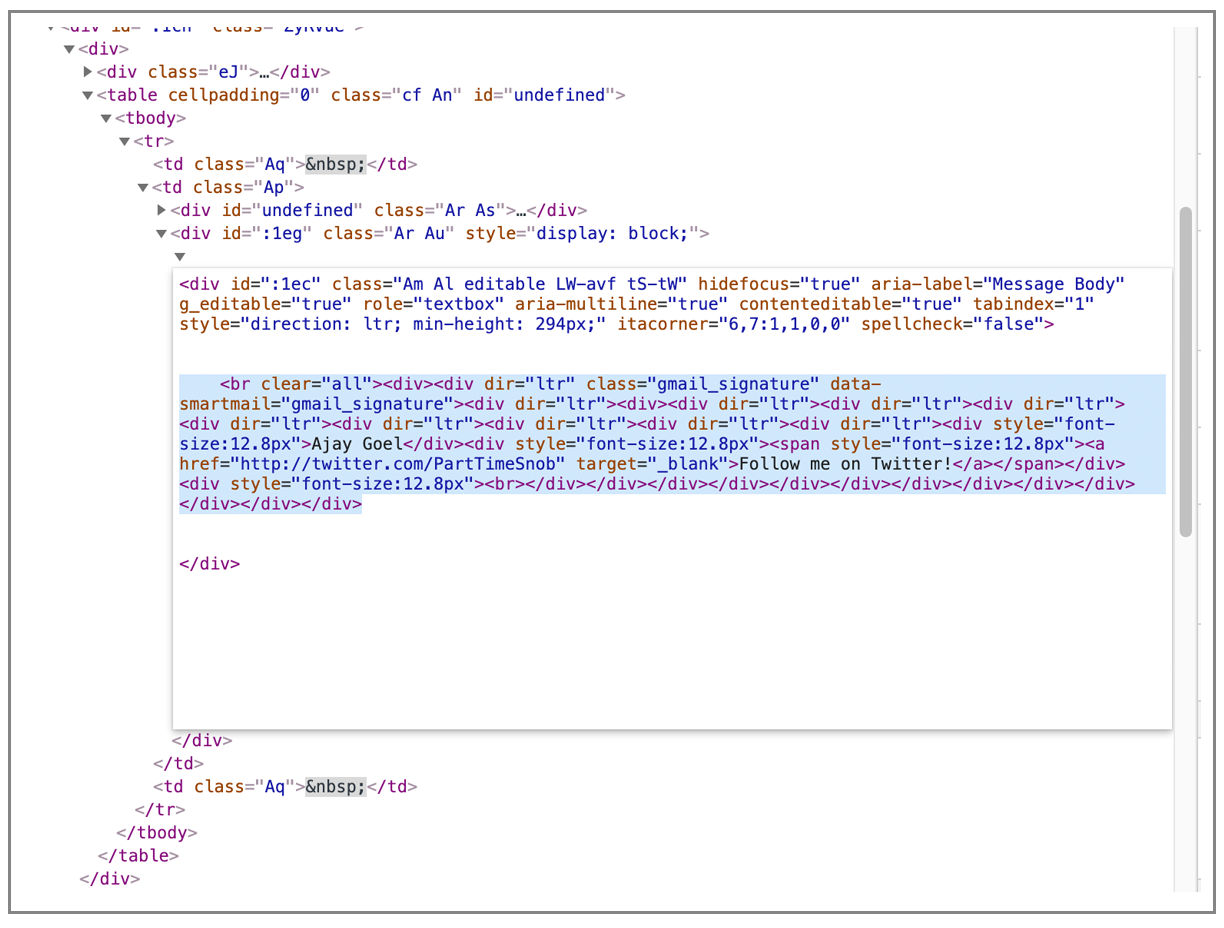
First, right-click anywhere in the Compose box and choose Inspect.
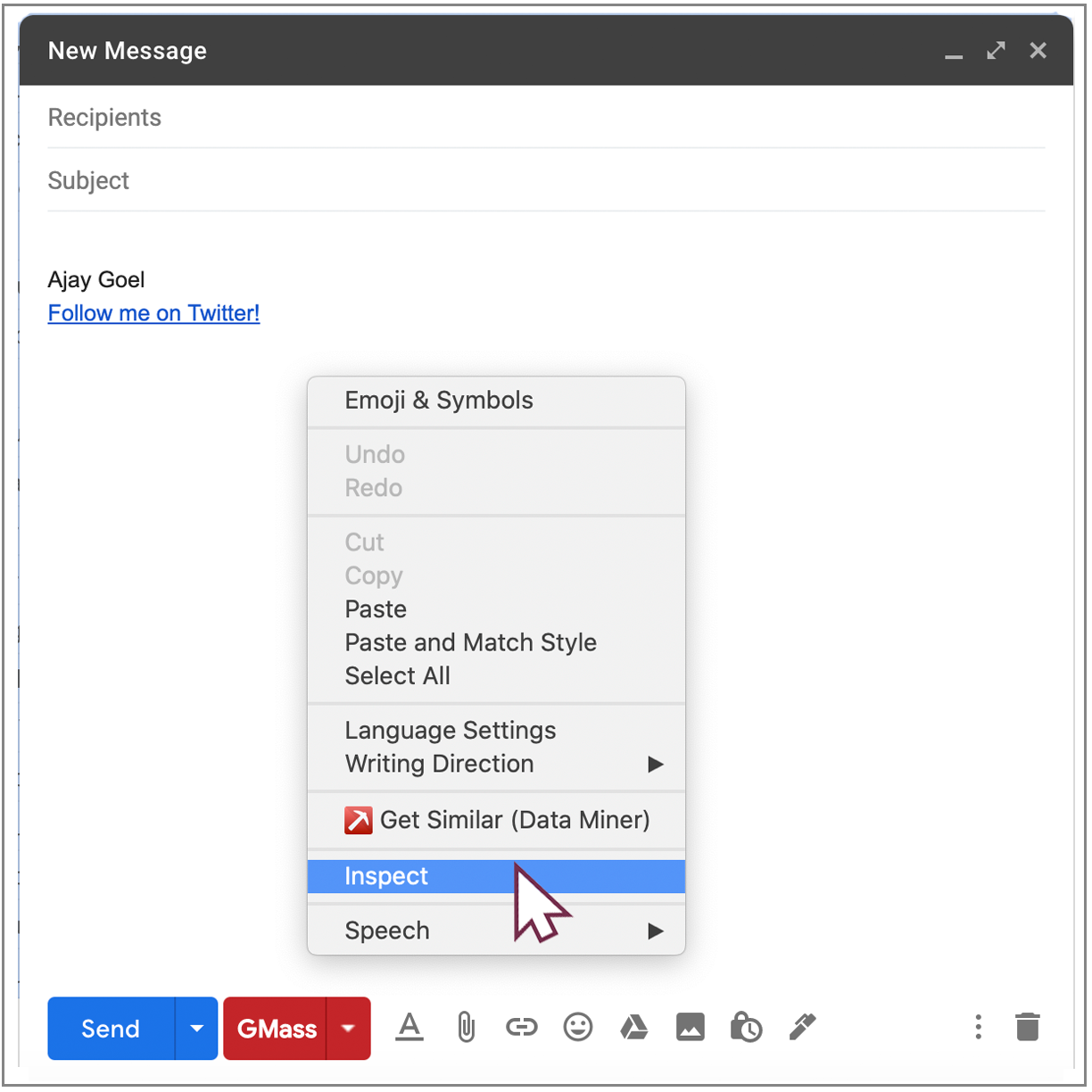
Chrome will then split itself and open up a pane showing the HTML of the Compose box, and one part will be highlighted.
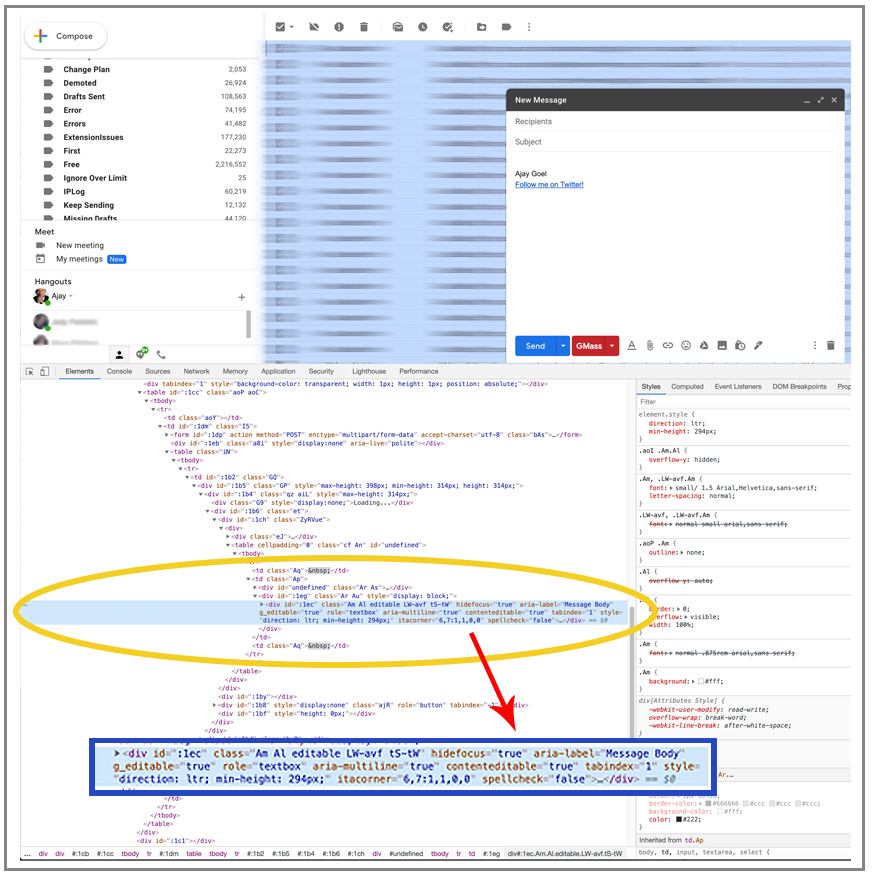
Find the “div” marked “contenteditable=true”, and then right-click and choose Edit as HTML.
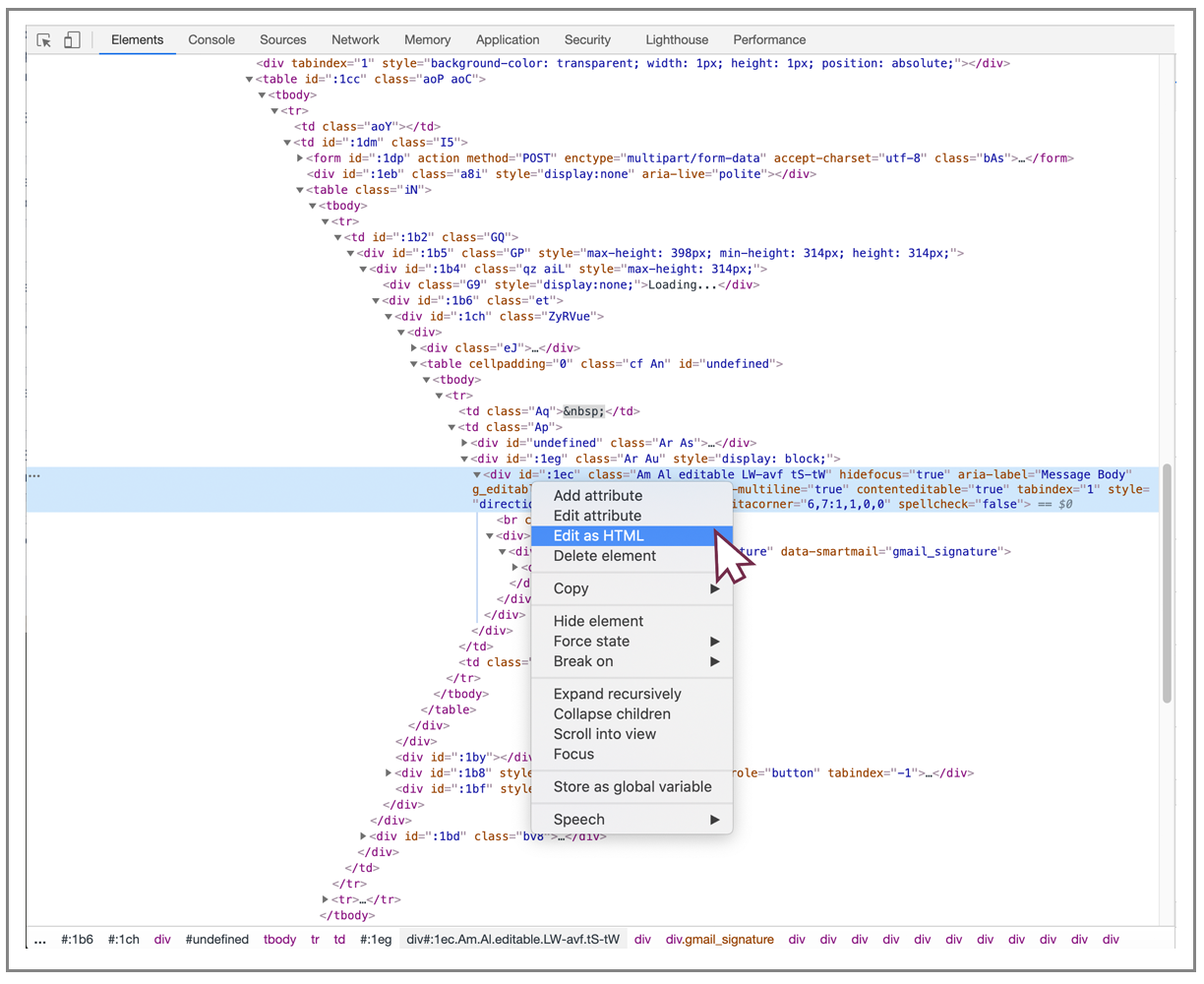
The part inside the “div” tag is the part you should replace with your custom HTML code.
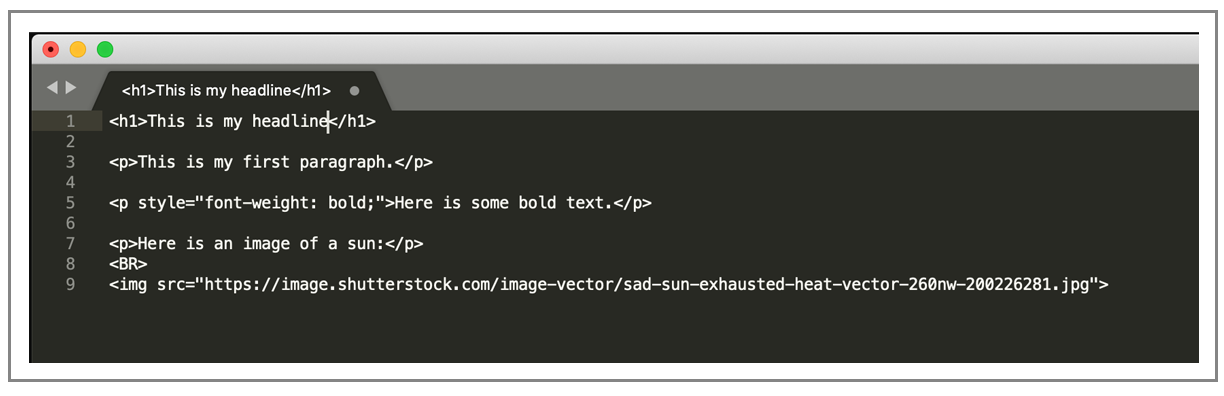
Here I have my custom HTML code in the Sublime text editor:
Finally, here is my code pasted in:
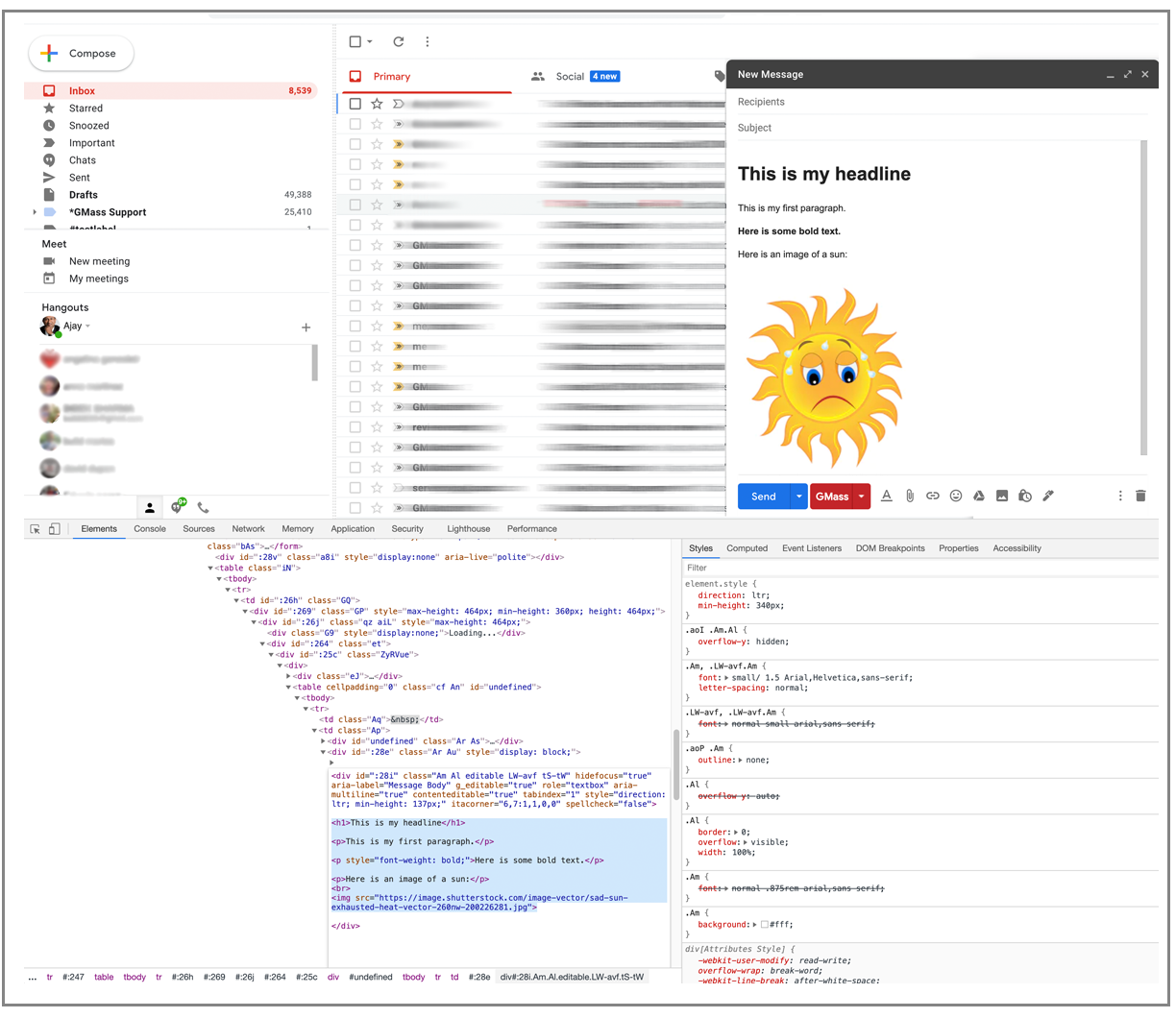
And as soon as I click away, the Compose window is filled with the rendered version of the HTML.
Pros and cons of this approach
Pros:
- Better control over the code inside Gmail than pasting in your rendered template
- Once you’re already in there, you can make edits as needed
- No extension or anything else to install
Cons:
- It’s not intuitive or easy to work inside the Chrome dev tools area
- This can be intimidating for people who don’t regularly work with code
- This is a hack (at best)
- This isn’t great for more complex designs with lots of code
- No way to save your templates inside Gmail
Option 3: Use a Chrome extension to Send HTML Email in Gmail
There are several Chrome extensions that add a slick HTML editor to the Gmail Compose window so that you can edit the HTML behind the scenes in an easy-to-use manner. In Option 2 from this article, you are also editing the HTML behind the scenes — but doing so directly by hacking the code behind the HTML page. Chrome extensions let you do the same thing but make the entire HTML code process easier.
We’ll show you the easiest one, which is GMass (and since you’re here, you might just have it installed already).
And it even has a built-in AI HTML template builder that creates HTML for you inside Gmail.
My own Chrome extension includes an “HTML” function so you can view and set the HTML into the Compose window.
Launch the Settings box and click “HTML”.
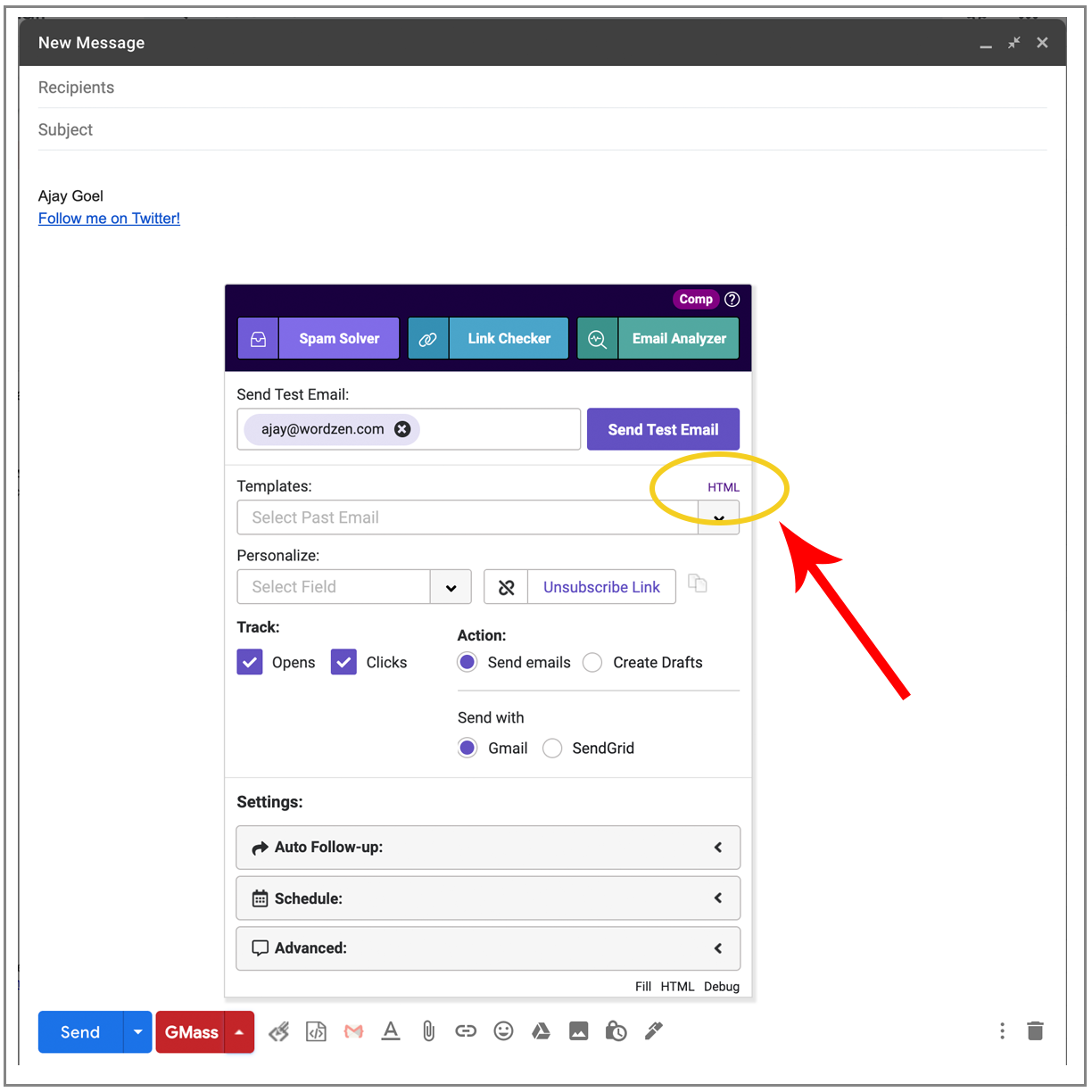
Paste in your HTML.
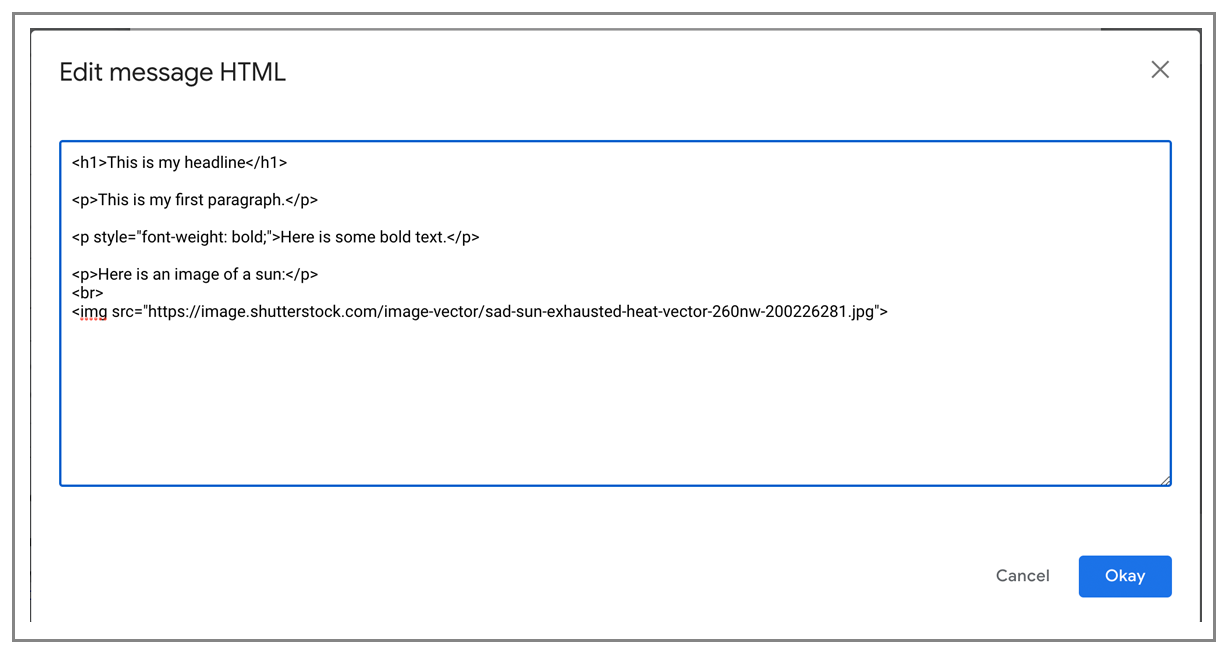
Hit Okay, and watch the magic happen.
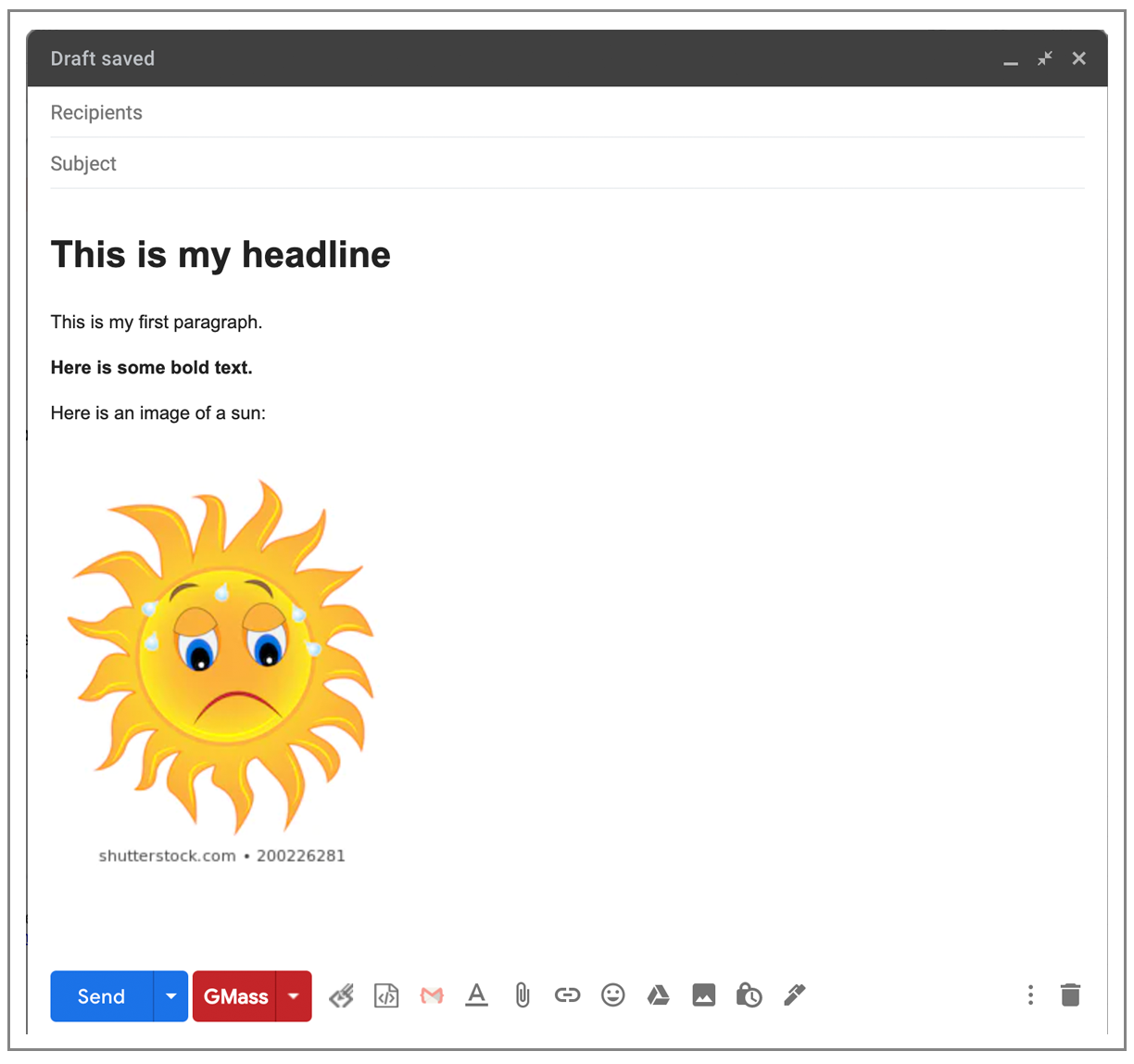
And if you need to edit or tweak anything, you can just go back into the HTML window to do so.
Pros and cons of this approach
Pros:
- Best for more complicated designs
- You can easily bring in embedded images for improved deliverability
- It’s easy to edit and tweak your HTML
- GMass automatically turns every message you send into a reusable template, so you won’t have to go through the whole HTML copying/pasting/tweaking process in the future
- Great control over how your email turns out
Cons:
- Requires installing the Chrome extension (if you’re not one of the 400,000+ people using GMass)
And, of course, GMass does a whole lot more than let you easily create HTML emails. (In fact, on our list of features, that probably ranks like #76 or so.) Here’s what makes GMass better and different than everyone else. It’s an email platform that works inside Gmail for all your email marketing, mail merge, and cold email campaigns.
If you want to try out GMass, you can get started by downloading the Chrome extension. You’ll be up and running in a matter of minutes — for pasting in HTML templates and beyond!
Email marketing. Cold email. Mail merge. Avoid the spam folder. Easy to learn and use. All inside Gmail.
TRY GMASS FOR FREE
Download Chrome extension - 30 second install!
No credit card required

Ajay is the founder of GMass and has been developing email sending software for 20 years.