How to troubleshoot a missing GMass button

If you suddenly find that the GMass button has disappeared from your Gmail interface, this guide will help you.
First, determine if the extension is failing completely or failing partially. If none of the GMass buttons show up, that means the extension is failing entirely. If some of the buttons show up but others don’t, then the extension is failing partially.
The three areas of buttons
There are three sections of buttons that the extension adds to Gmail.

Steps if some of the buttons are showing up
- Check for conflicting extensions. Perform step 5 under the section below.
- Check for blocking extensions. Perform step 6 under the section below.
If some of the buttons are showing but others are missing, it could also be the result of a change Gmail has made to its interface that GMass hasn’t adapted to yet. Usually Gmail rolls out changes slowly. So while the change may be affecting you, it may not be affecting other users. These are the most difficult situations to resolve, because if we can’t duplicate the issue on our end, it’s hard to fix. In these cases, we usually ask you to join us for a live screenshare so we can troubleshoot with you live. Go to the “Still not fixed?” section below.
Steps if no GMass buttons are showing up
- Make sure the GMass extension is enabled in Chrome. Go to chrome://extensions (copy/paste that into your address bar) and look for GMass in the list of extensions and make sure there’s a checkmark next to it, indicating that it’s enabled. You have to install the extension on each computer that you wish to use GMass. The installation of the extension is tied to an individual computer, not an individual Gmail account.

Make sure GMass is enabled in your list of Chrome extensions. - Check to see that the GMass icon shows to the right of the address bar in Chrome.

Ensure the GMass icon shows to the right of the Chrome address bar. - Try reloading Gmail again. Every time you reload Gmail, your browser will attempt to fetch the GMass buttons from our server. If there was a connection issue the last time you loaded Gmail, the buttons may not have loaded.
- Shut down all of Chrome, by making sure all Chrome windows are closed, and that Chrome is not an active running process anymore. Then relaunch Chrome and reload Gmail. Sometimes Chrome doesn’t properly load an extension and needs to be started from scratch in order for it to recognize a new browser extension.
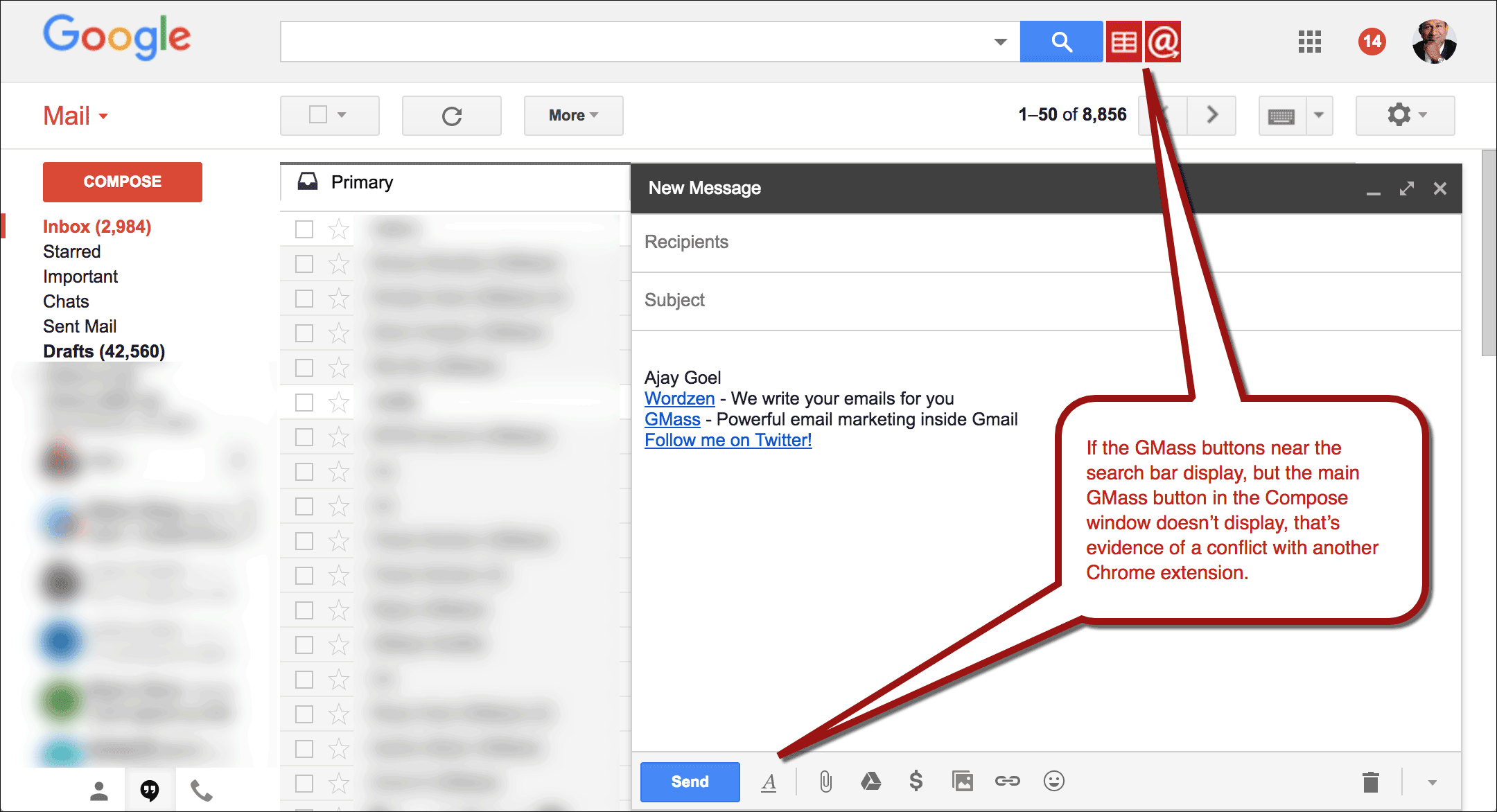
- Check for conflicting extensions. If the red GMass buttons appear to the right of the Gmail Search field, but the GMass button doesn’t appear when you Compose a new email, that’s a sign of a conflicting browser extension.

Do you have a conflicting Chrome extension installed? Go to chrome://extensions and see what might be conflicting with GMass. You may have to conduct some trial and error by disabling one extension at a time, reloading Gmail, seeing if that fixes it, and if not, re-enable that one, and disable a different one, and repeat.
- Check for blocking extensions. Some Chrome extension that attempt to protect your privacy by blocking trackers end up blocking GMass inadvertently. We’ve seen this happen with an extension called Privacy Badger. If you have Privacy Badger listed under chrome://extensions, try disabling it and then RELOADING Gmail.
- If you use multiple Chrome identities, make sure the GMass extension is enabled for the particular Chrome identity you’re currently signed onto. In certain cases, we’ve seen that browsers that have “Extension sync” turned on have trouble, so try turning off “Extension sync”.
- Ensure that your Chrome browser is able to access these URLs. These are the URLs that Gmail accesses behind the scenes in order to display the GMass buttons. In the past a firewall or web filter has been known to block GMass domains.Click each URL to make sure each loads:Main Site URL
https://www.gmass.coScript URLs
https://ext.gmass.us/gmass/getuserstatus (should load this)
https://cdn.gmass.us/ext2022/gmass.js (should load a long text script)
OR
https://ext.apigma3.net/gmass/getuserstatus (should load this)
https://cdn.apigma3.net/ext2022/gmass.js (should load a long text script)GMass has a built in failover system. If your network cannot access *.gmass.us, then it falls back to *.apigma3.net. For GMass to work, your computer must be able to access either both *.gmass.us URLs or both *.apigma3.net URLs.
- Sometimes the extension can become corrupted. Try a) removing the GMass extension entirely by going to chrome://extensions, and clicking the Trash icon next to GMass, b) reloading Gmail, c) re-installing the extension from our homepage, and then d) reloading Gmail again.
- If you’re technically inclined, open up the Chrome Developer Tools console, and monitor the activity under the Console and Network tabs as you load Gmail. Filter the Network log by the word “gmass”. The browser connects to the GMass server every time you reload Gmail. Determine if there are any errors while connecting to the GMass server.

Use Chrome Developer Tools to determine what’s happening when Chrome connects to the GMass server. - Check to see whether your network is using a proxy, by going to chrome://settings and going to Advanced settings. A proxy can interfere with GMass’s ability to function because the proxy isn’t granting the GMass Chrome extension the same privileges as the GMass server would. Opening the proxy settings will open a separate window that is different on Windows vs Apple machines.

Check to see if the browser is connecting directly to sites or using a proxy. In the example below, the browser is attempting to connect to the GMass server via a proxy, but the proxy is being blocked by the proxy’s CORS policy.

An example where GMass fails due to a proxy server. If a proxy is interfering with GMass, try adding a proxy exception for GMass.

Add a proxy exception for both gmass.co and gmass.us. This example shows how you would do it on a Mac. - Make sure Chrome’s Local Storage isn’t full. GMass, along with many other apps, use something called “Local Storage” in Chrome. Resource-hogging apps can fill up the 5 MB limit of Local Storage, and this can prevent the GMass button from appearing in the Compose window. If the buttons at the right of the search bar show, but the main GMass button doesn’t show in the Compose window, it could be because your “Local Storage” has reached its limits. You can confirm that this is indeed the issue by opening up Chrome’s Developer Tools, looking at the Console, and looking for errors that say: “Failed to execute ‘setItem’ on ‘Storage'”

- Do you work for a big company like Google or Salesforce? If your organization controls your Chrome browser’s setting, there’s a chance that running extensions inside Gmail has been disabled by your network administrator. If GMass is installed properly but there’s no trace of GMass in the Chrome Dev Tools Console, it’s likely that Chrome extensions are prevented from running on Gmail within your organization. Try installing another popular extension like Boomerang or Grammarly and see if they work inside Gmail. Most big companies have a “whitelist request” procedure that you can go through to ask that GMass be allowed to be used.




Still not fixed?
If these steps don’t resolve the issue, please contact our Support team and include:
- A screenshot of entire your Gmail interface, showing the search bar and a blank Compose window
- A screenshot of your extensions listing under chrome://extensions
If we still can’t determine the cause of the missing GMass buttons, we will schedule a remote screen share session with you to resolve the issue live. We use GoToMyAssistant to conduct screen share sessions.
Email marketing, cold email, and mail merge all in one tool — that works inside Gmail
TRY GMASS FOR FREE
Download Chrome extension - 30 second install!
No credit card required

Ajay is the founder of GMass and has been developing email sending software for 20 years.