
If you’ve subscribed to a Team Plan, you’ll want to manage the members of your Team.
A team plan allows you to subscribe one account that is the “team leader” and then add accounts to your team, each with the full powers of GMass.
Team plans can be purchased in packs of 5 users, 10 users, 25 users, 50 users, and 100 users. See pricing.
Managing Your Team Account
After you purchase a team account from the GMass pricing page, make sure you have the GMass Chrome extension installed.
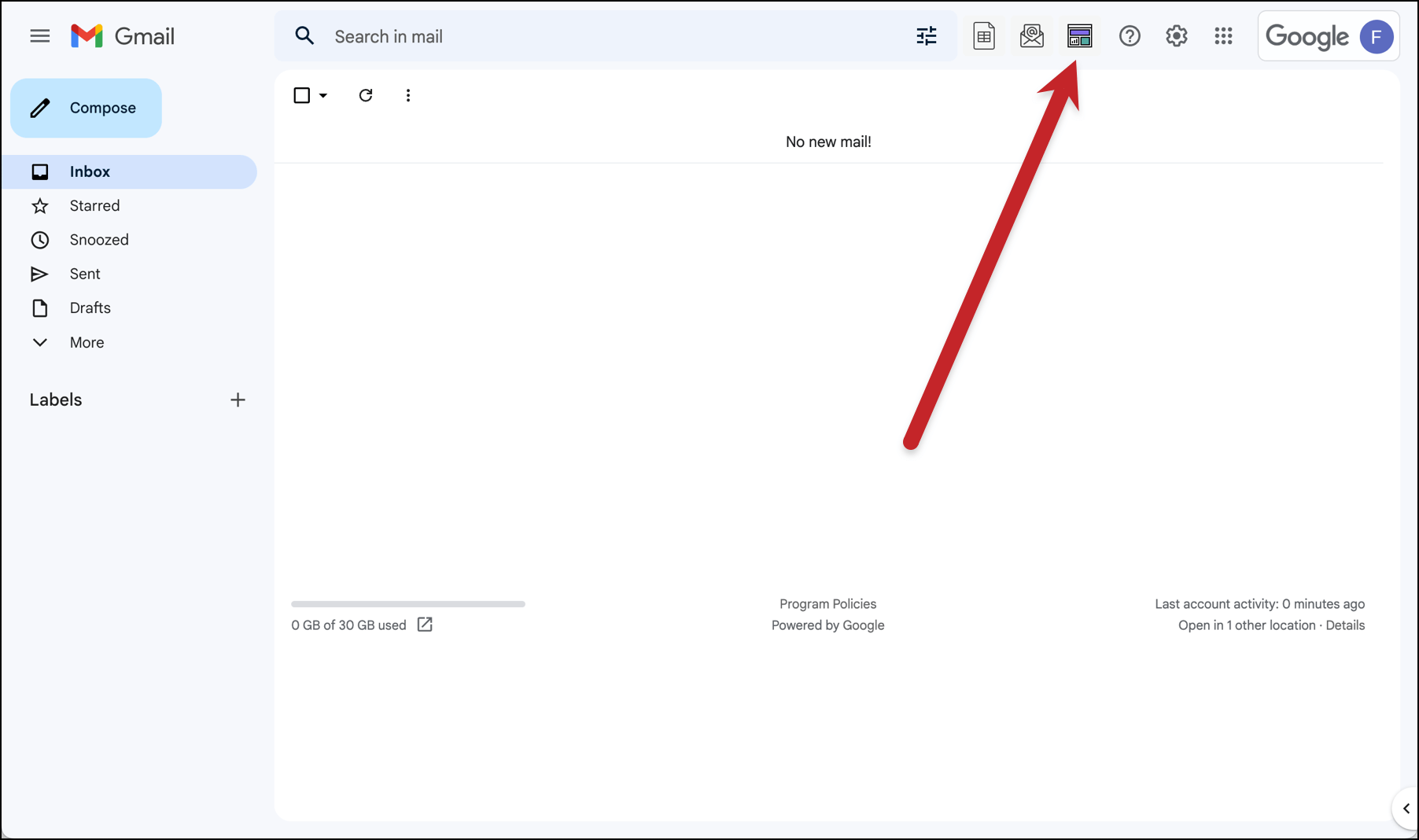
You can manage your team in the GMass dashboard (here’s a direct team management link ). You can also get there by clicking the dashboard icon in Gmail…
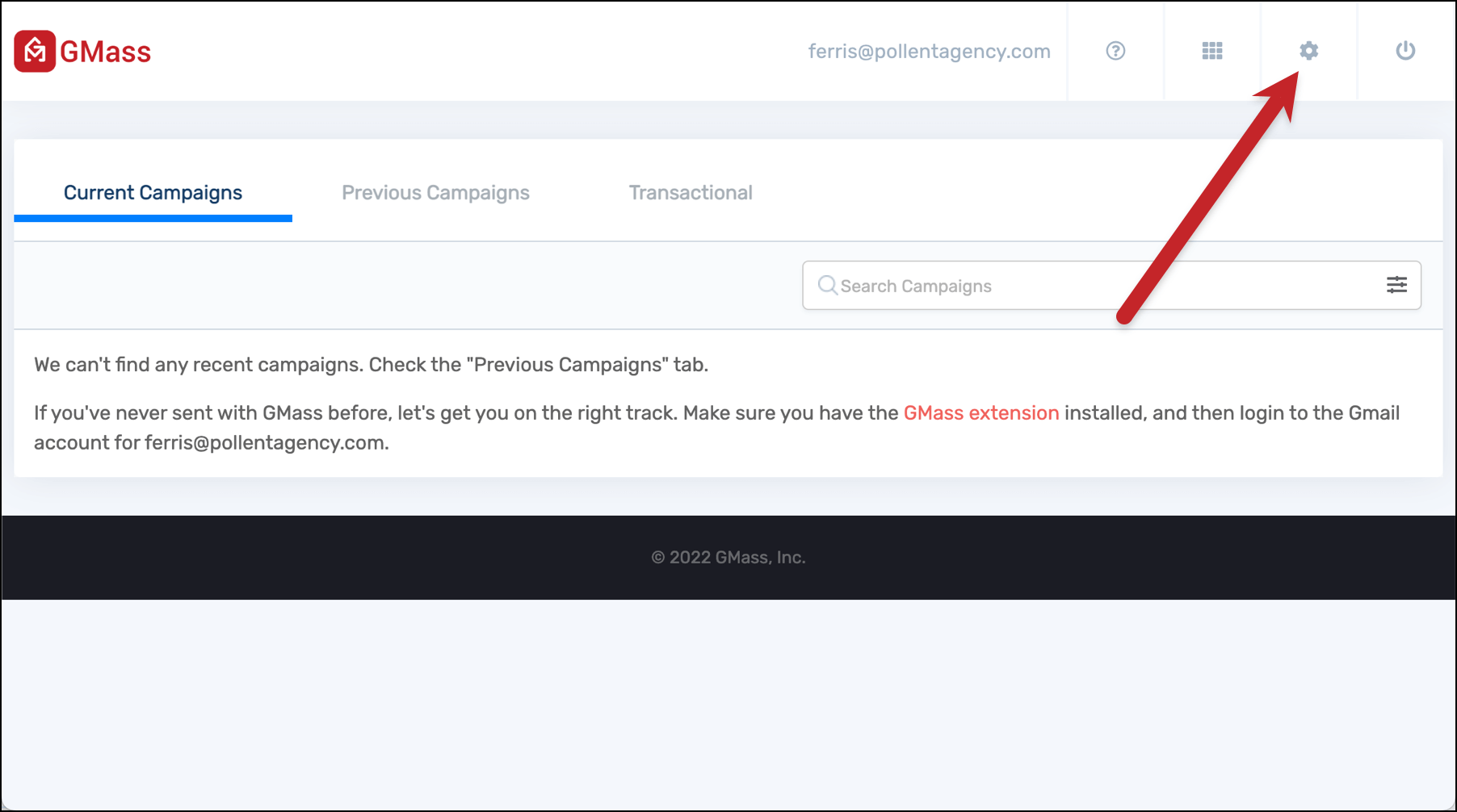
Then clicking the settings icon in the dashboard.
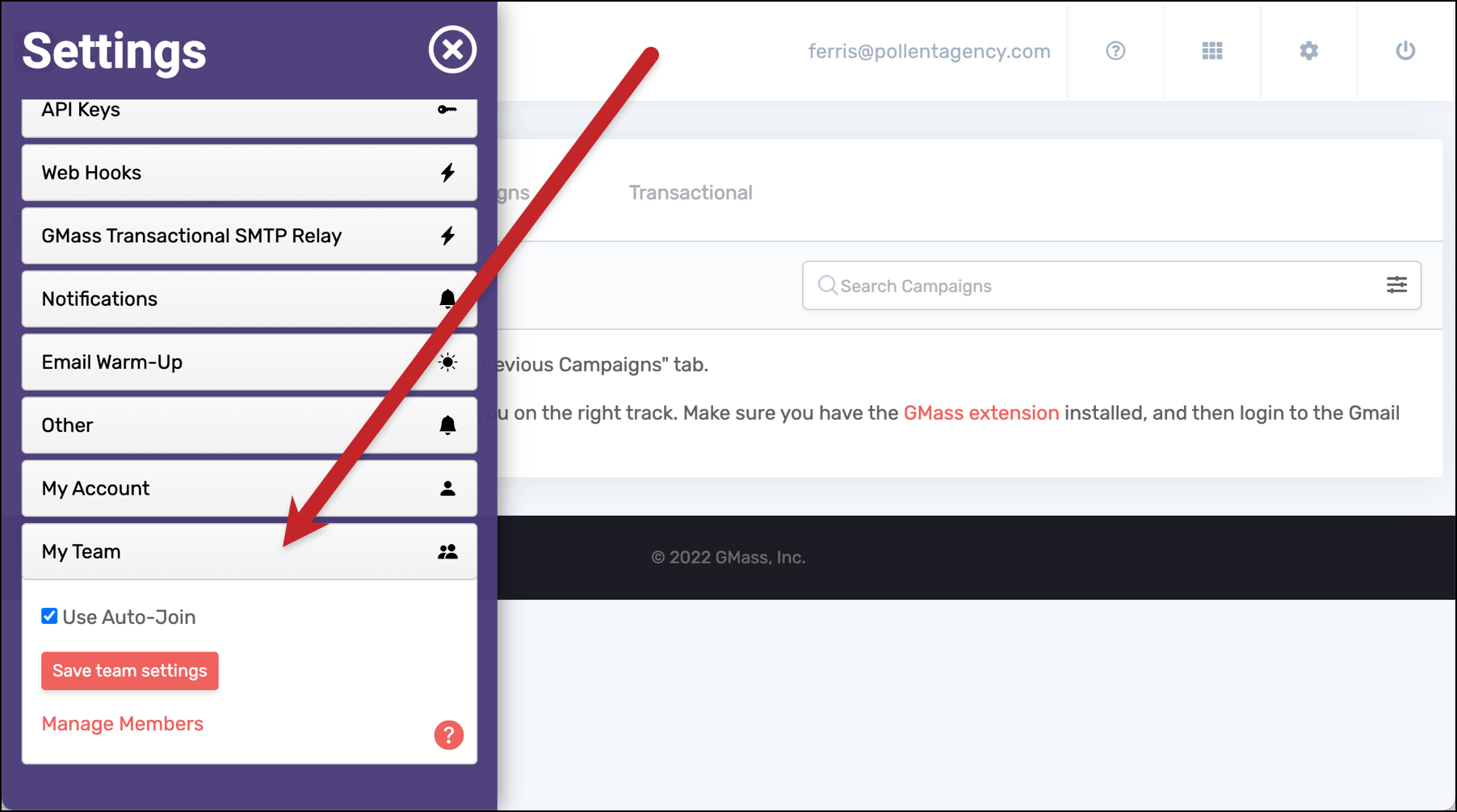
And opening up the My Team section at the bottom of the features.
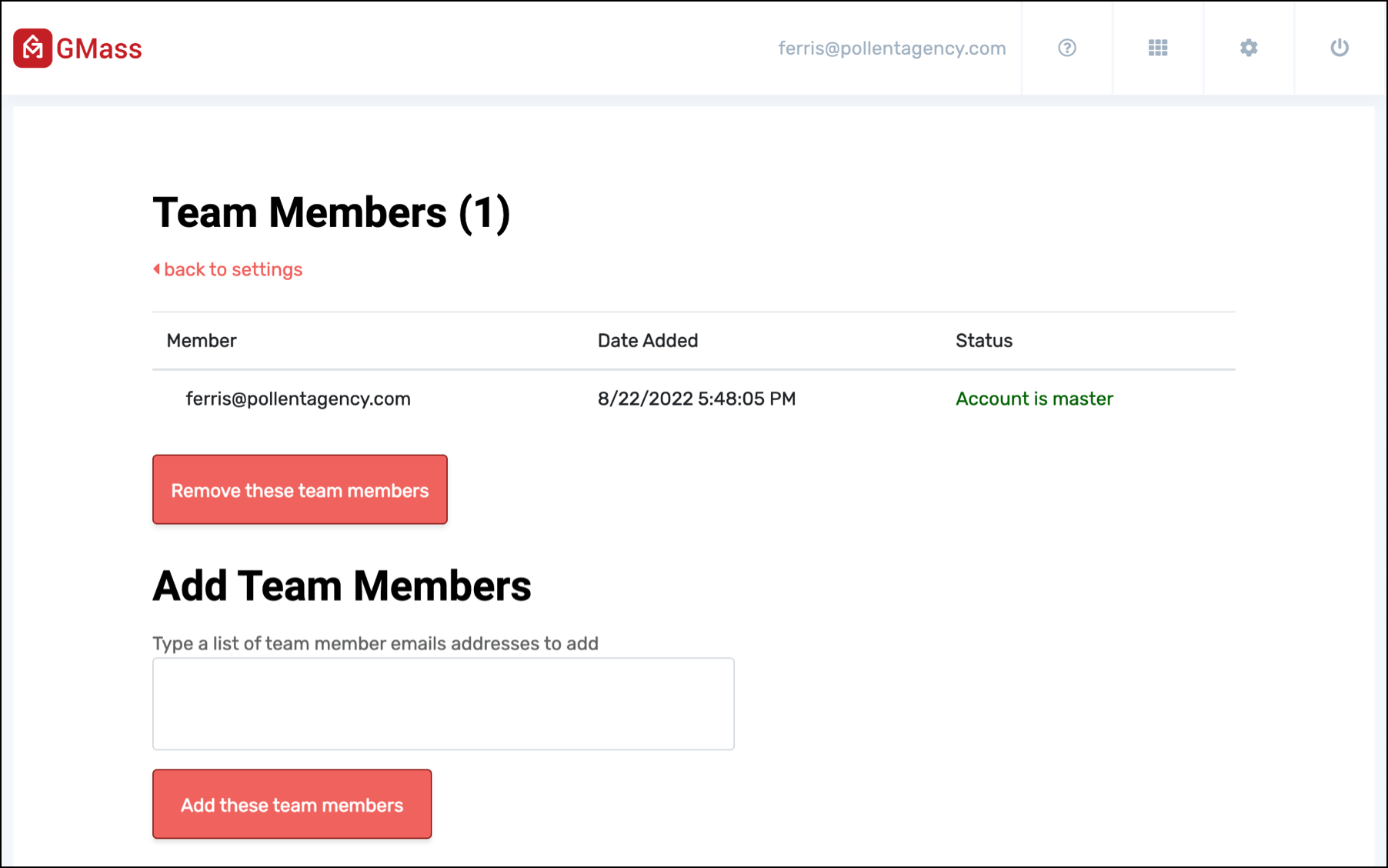
Click on the Manage Members link to bring up your page of members.
Adding new team members
To add a team member, type in their address into the Add Team Members box. Then click the Add these team members button.
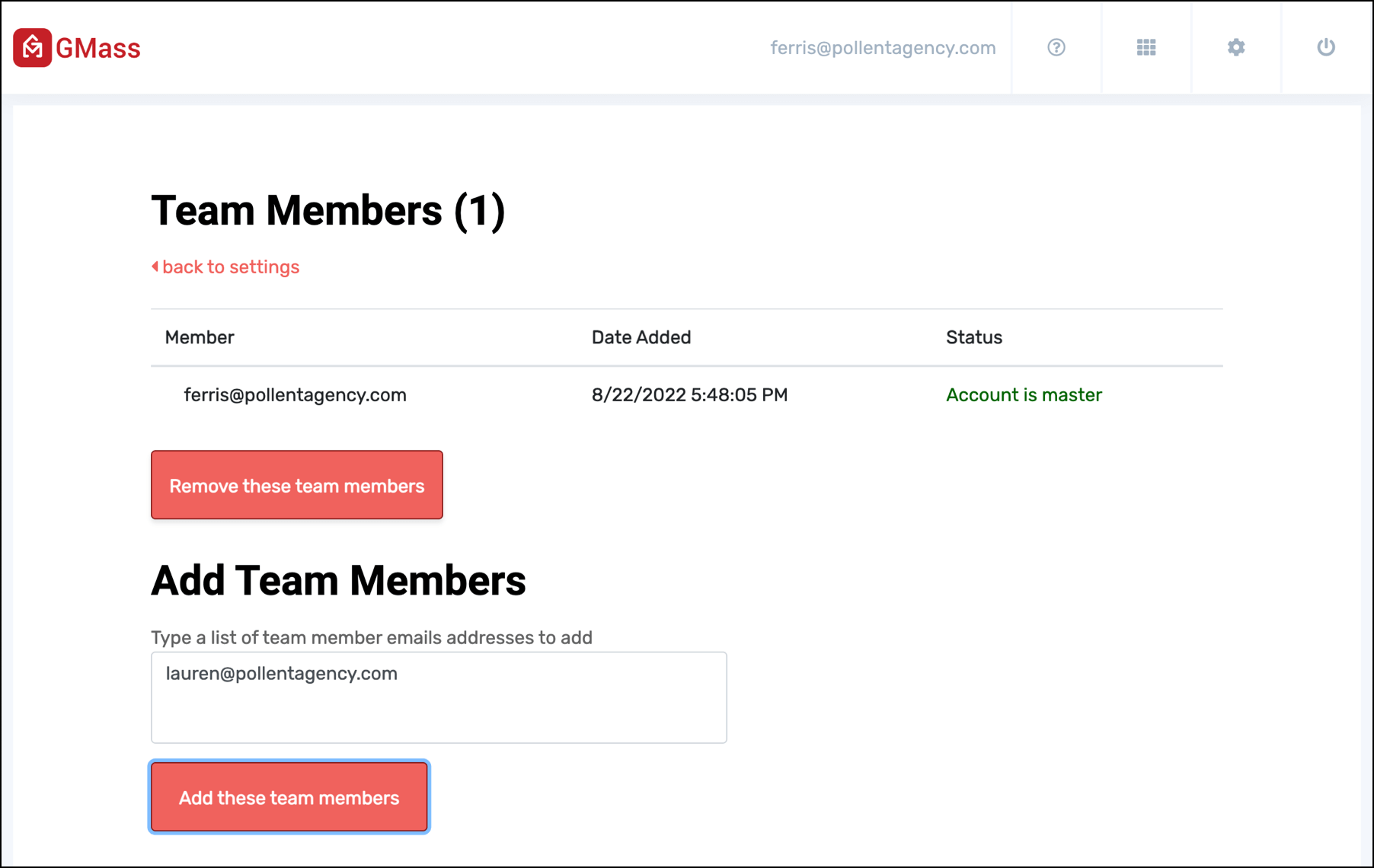
You can also add multiple team members at once.
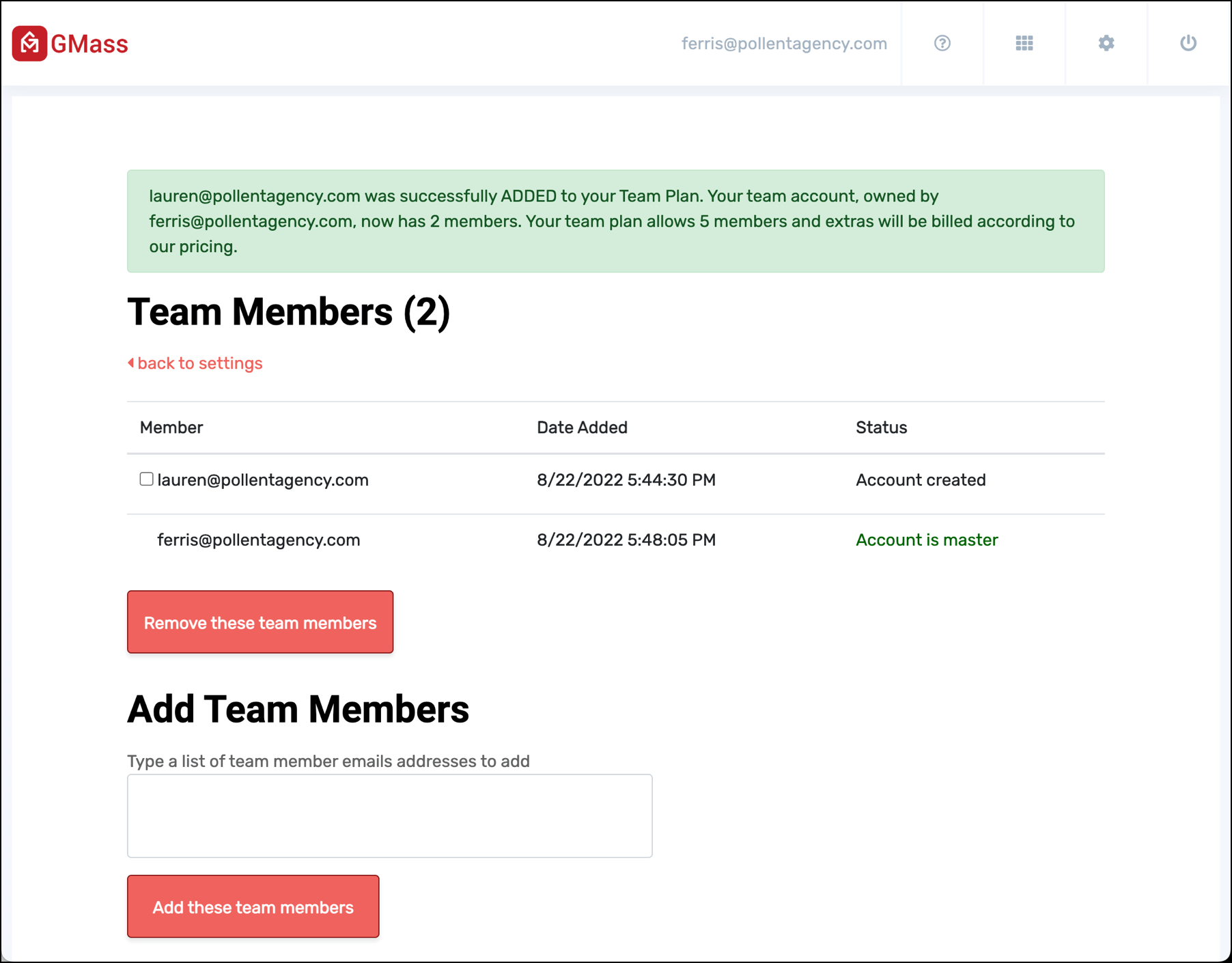
Your new team member will now appear in the list.
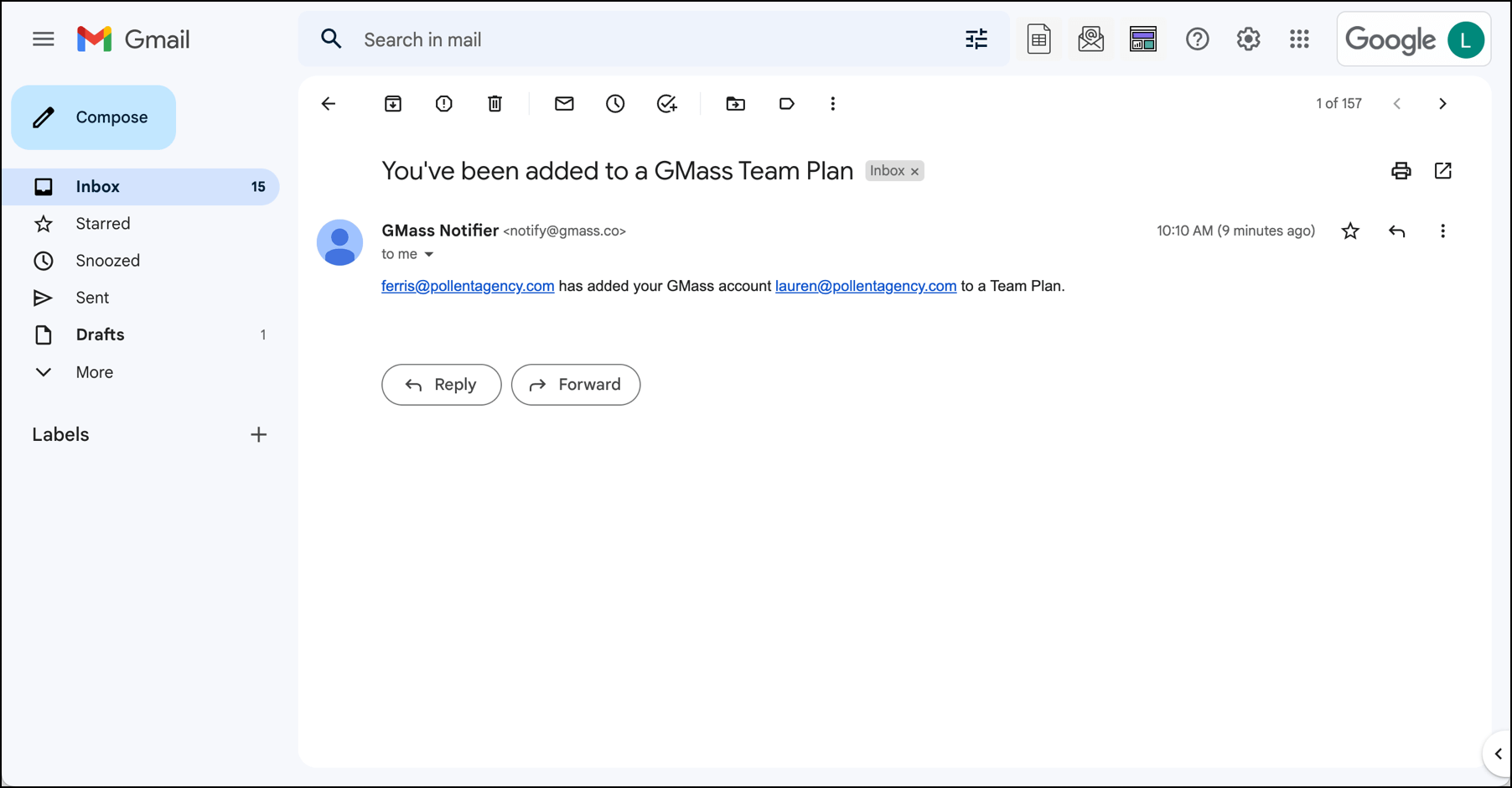
And they’ll receive an email letting them know they’re now part of your team plan.
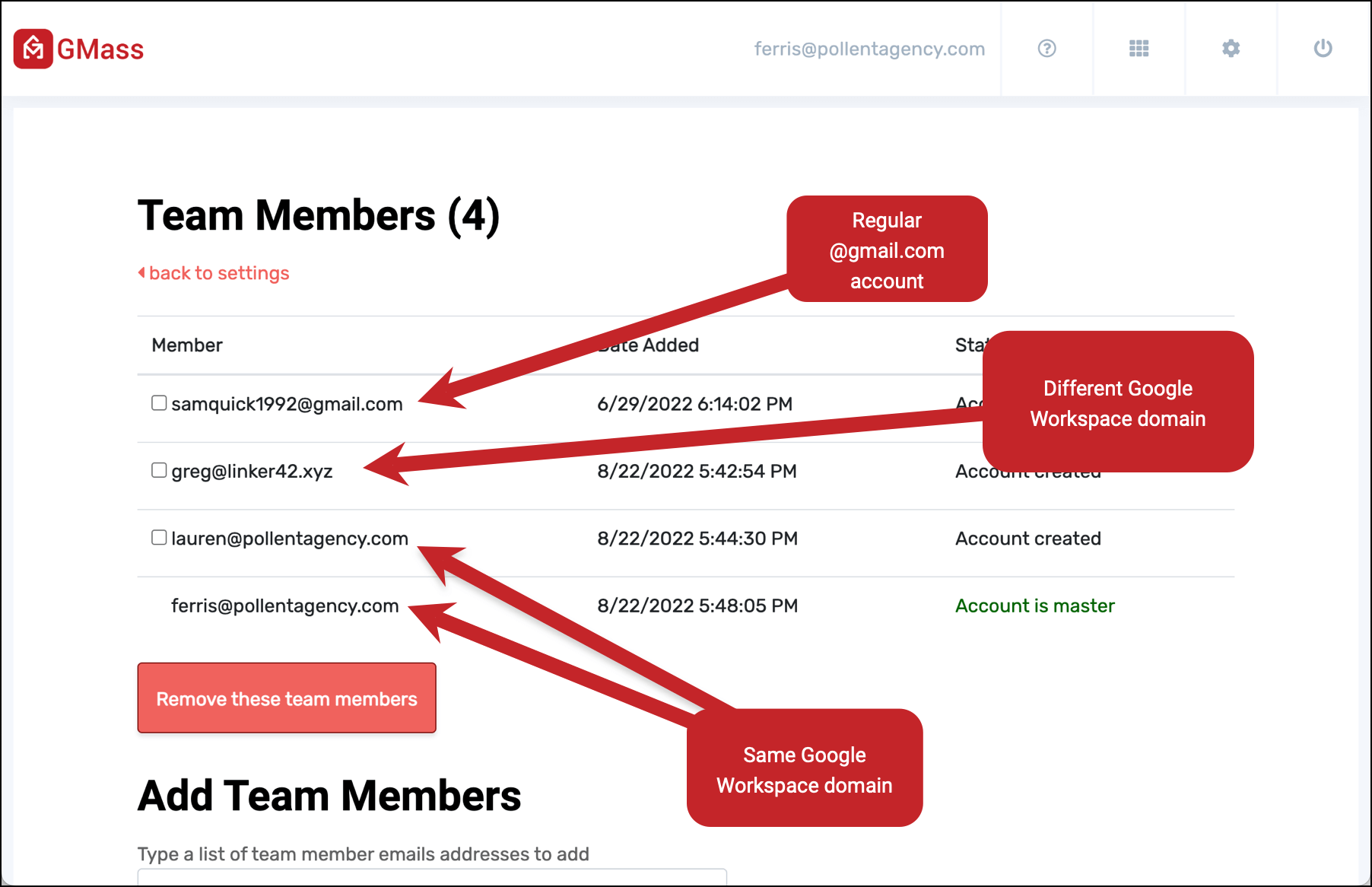
As you can see here, team members can have the same Google Workspace domain, different Google Workspace domains, or regular Gmail addresses.
Removing team members
You can remove team members by checking the box next to them, then clicking the Remove these team members button.
Managing Team Campaigns As the Team Leader
As the team leader, you can check any of your team members’ campaigns from the GMass dashboard.
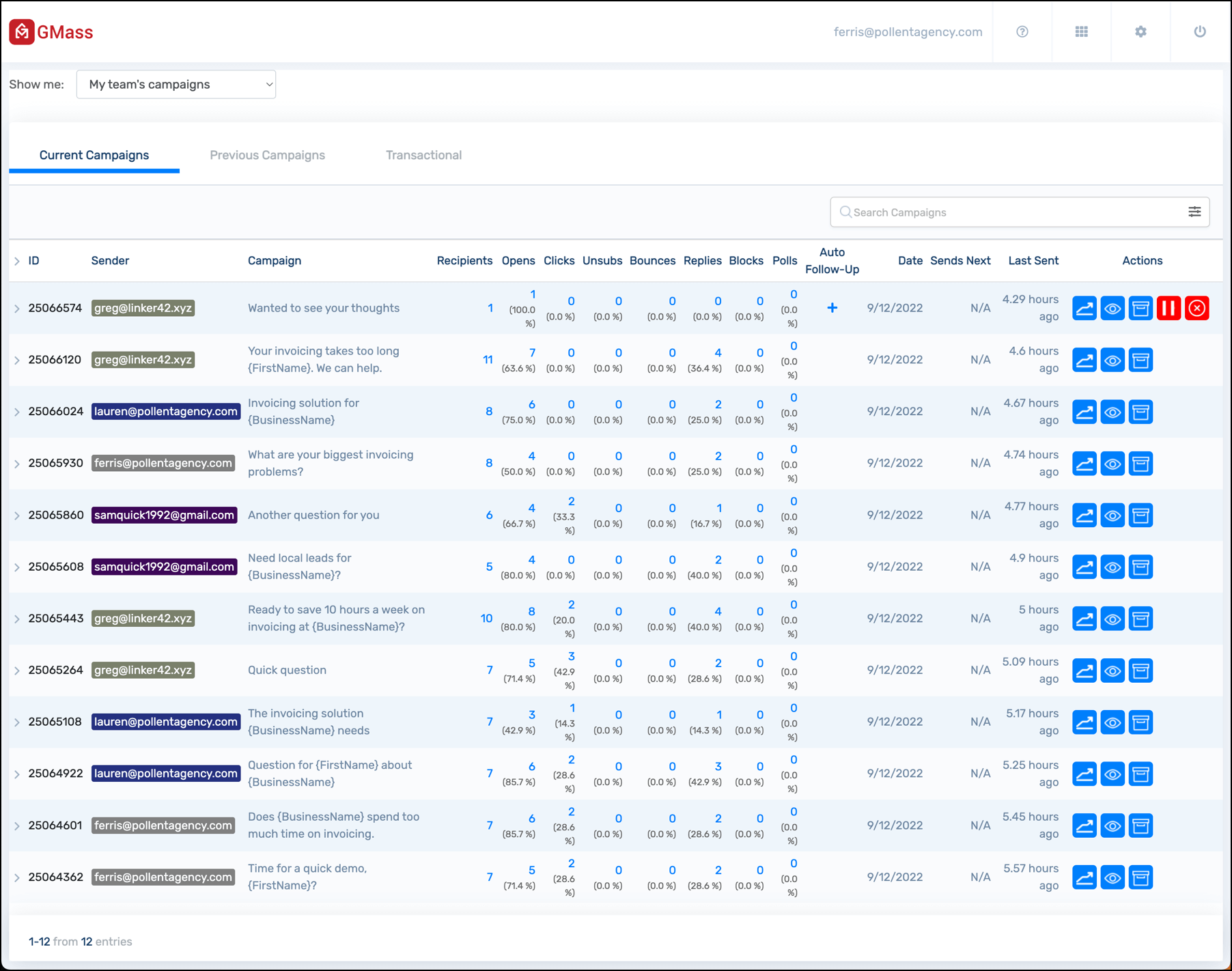
On the main dashboard screen you’ll see a dropdown menu which can show you:
- Just my campaigns
- My team’s campaigns (including your own)
- Just the campaigns from an individual Team member
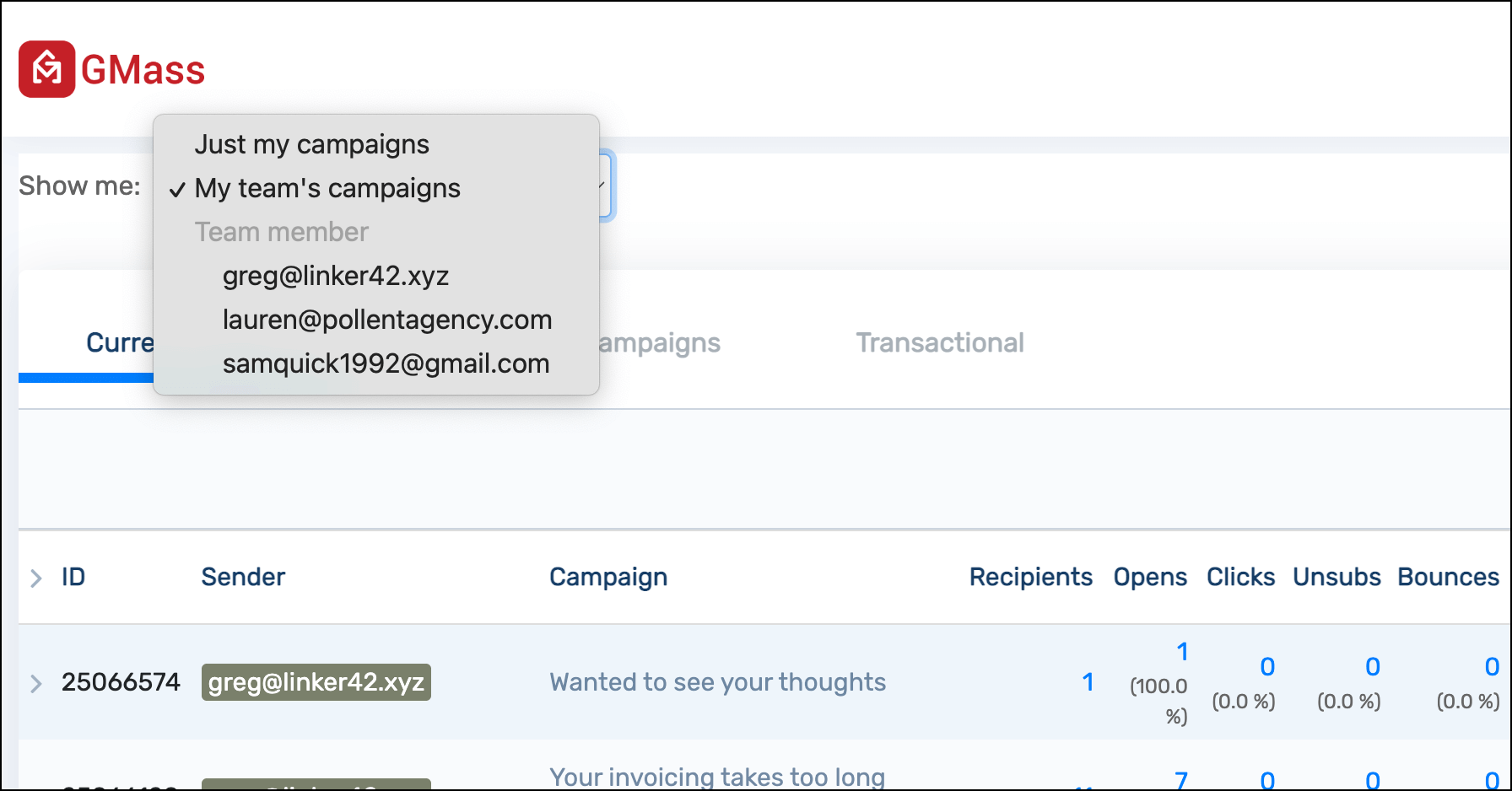
And for each of those options you can see Current Campaigns, Previous Campaigns, and Transactional emails, sorted from newest to oldest.
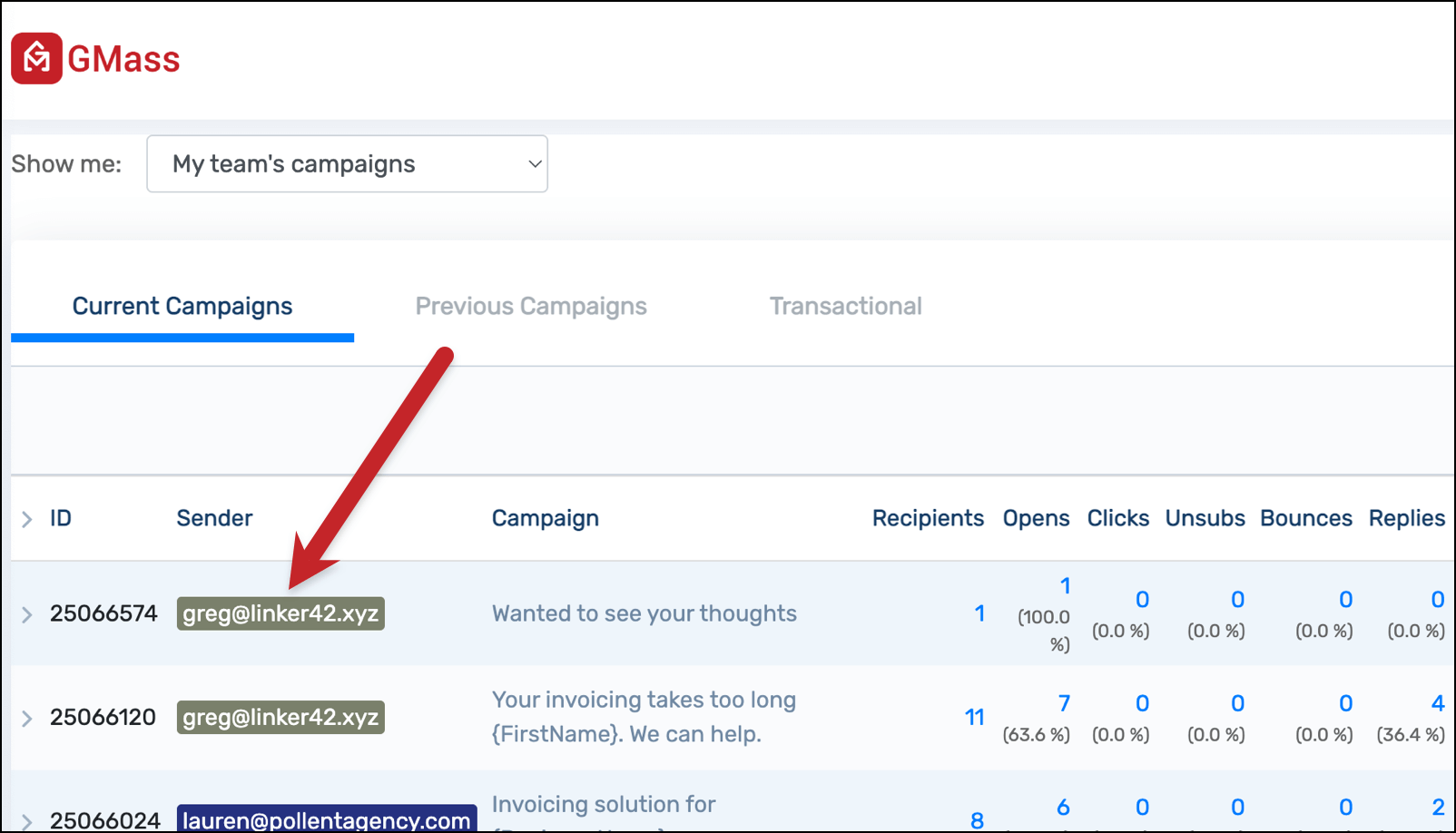
You can also view an individual team member’s campaigns by clicking on their email address in the Sender column.
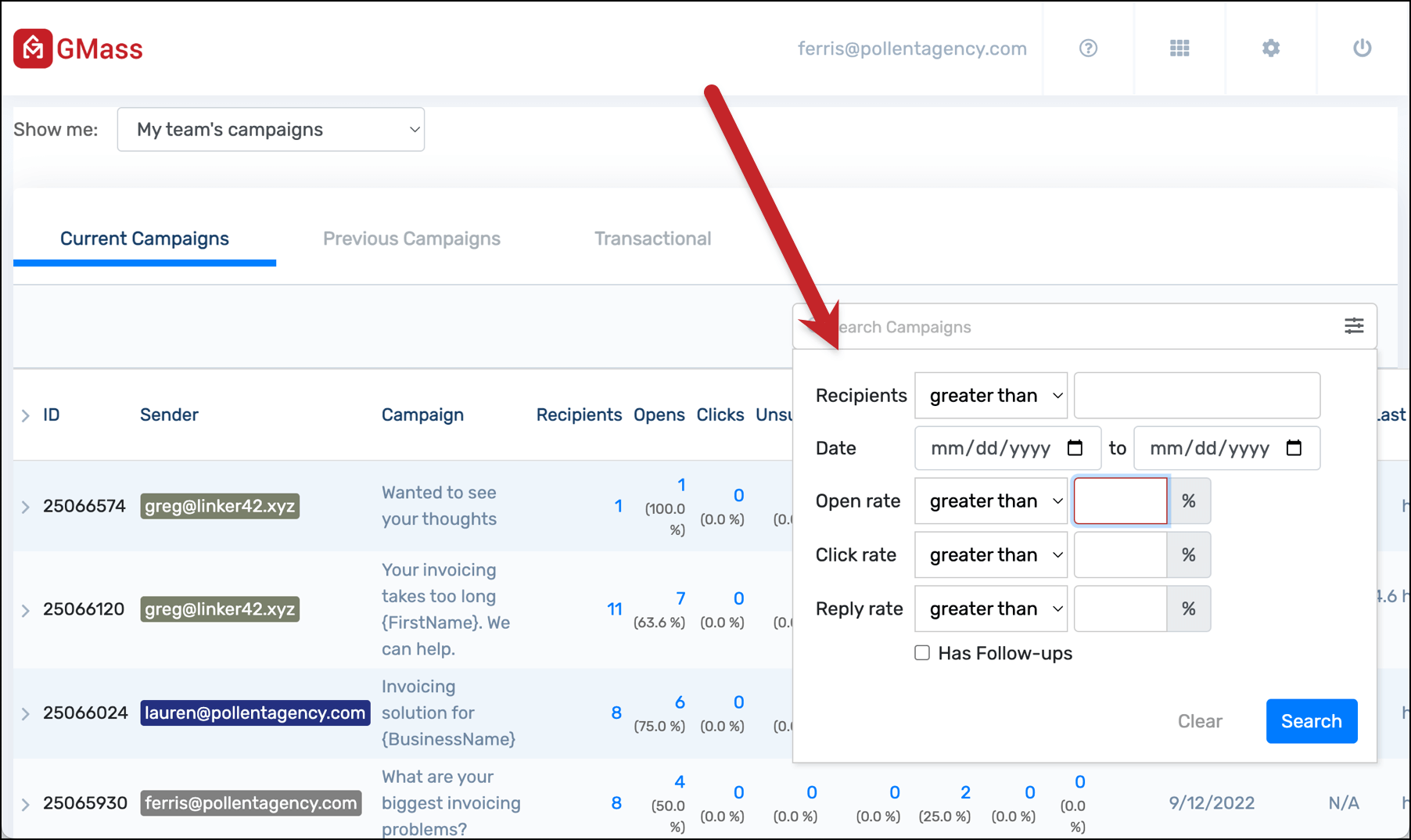
The advanced search works whether you’re viewing your own campaigns or everyone’s campaigns.
Filter by criteria including number of recipients, date, open rate, click-through rate, reply rate, and whether or not the campaign has follow-ups. You can toggle back and forth between just your campaigns, everyone’s campaigns, or individual team members’ campaigns and the filter will stay on.
As team leader you can view the detailed web report for anyone’s campaign (including recipient email addresses); click the graph icon to access the web report.
You can also view the email message by clicking the eye icon.
Archive a campaign from the view by clicking the box icon.
And finally, you can pause or cancel a recurring campaign or a campaign that has auto follow-ups from any team member.
What team members can and can’t see (plus sharing your dashboard)
Other team members will only see their own campaigns in the GMass dashboard.
You can share your dashboard with a team member, multiple team members, or any other GMass user. Those team members will then be able to see the campaign stats for everyone on the team.
Go into the My Account section of the GMass dashboard settings, then click on Manage Additional Logins to set up additional logins.
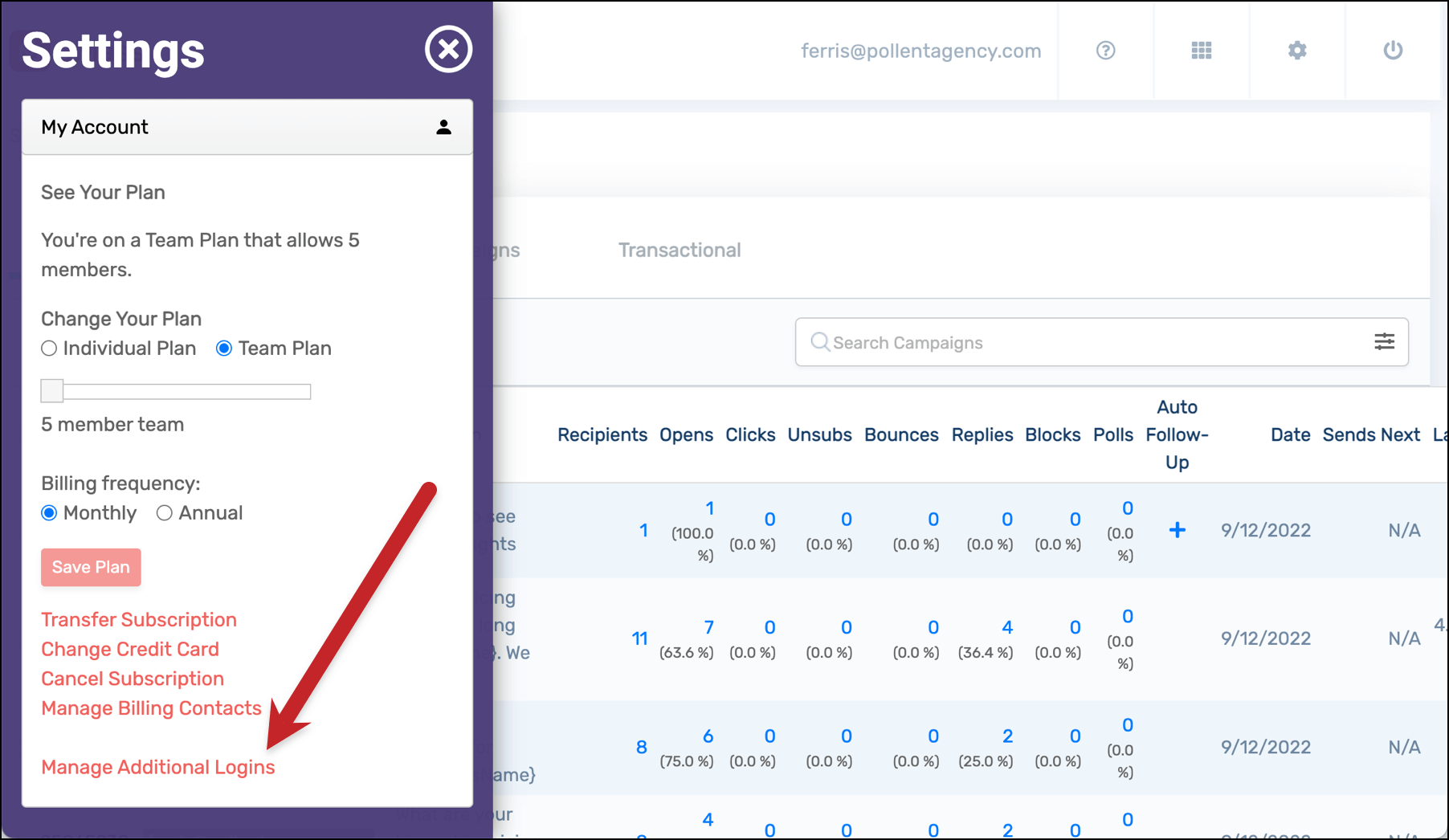
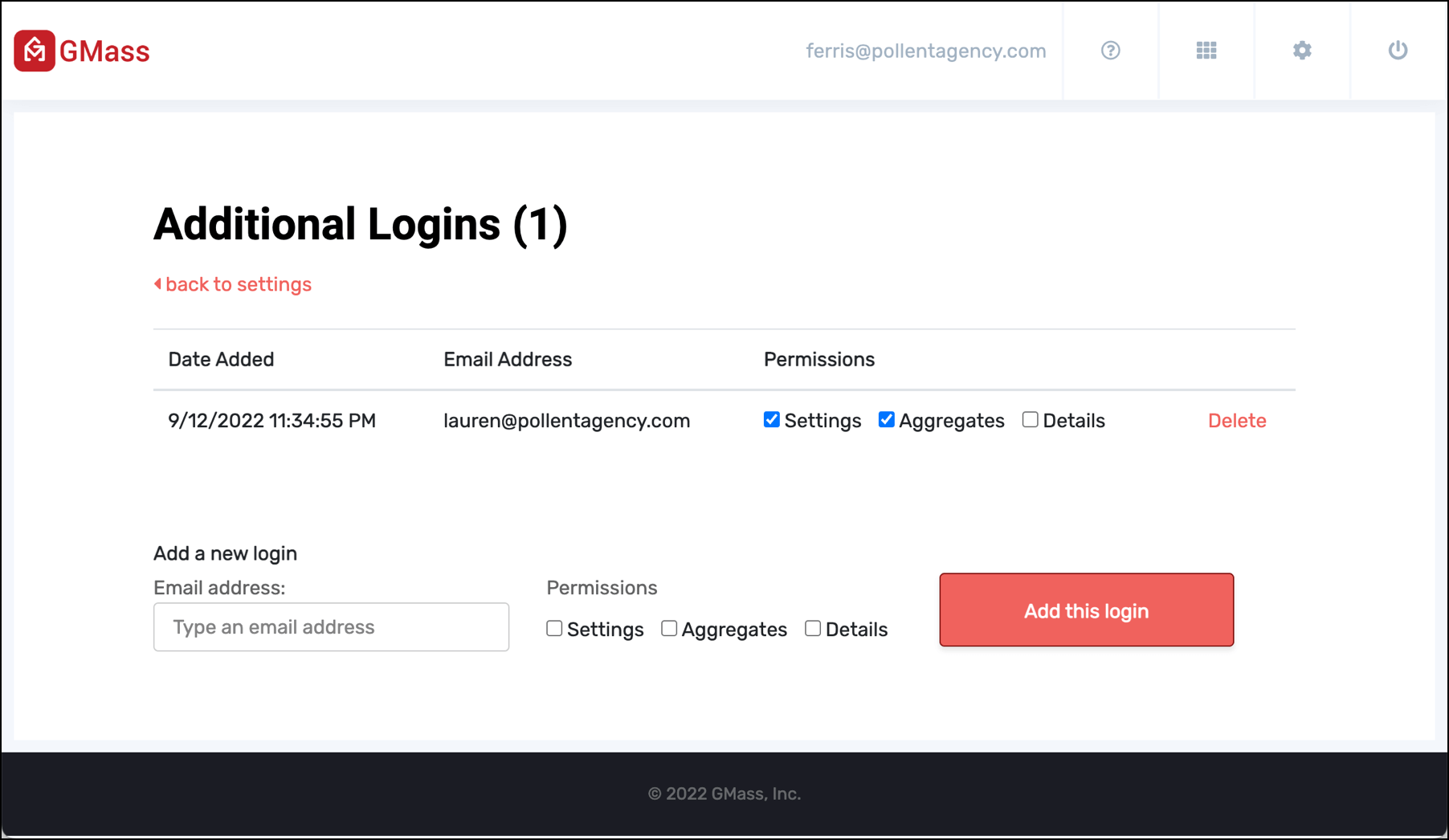
You can add new logins with different levels of permission:
- Settings lets the user view and change your account settings.
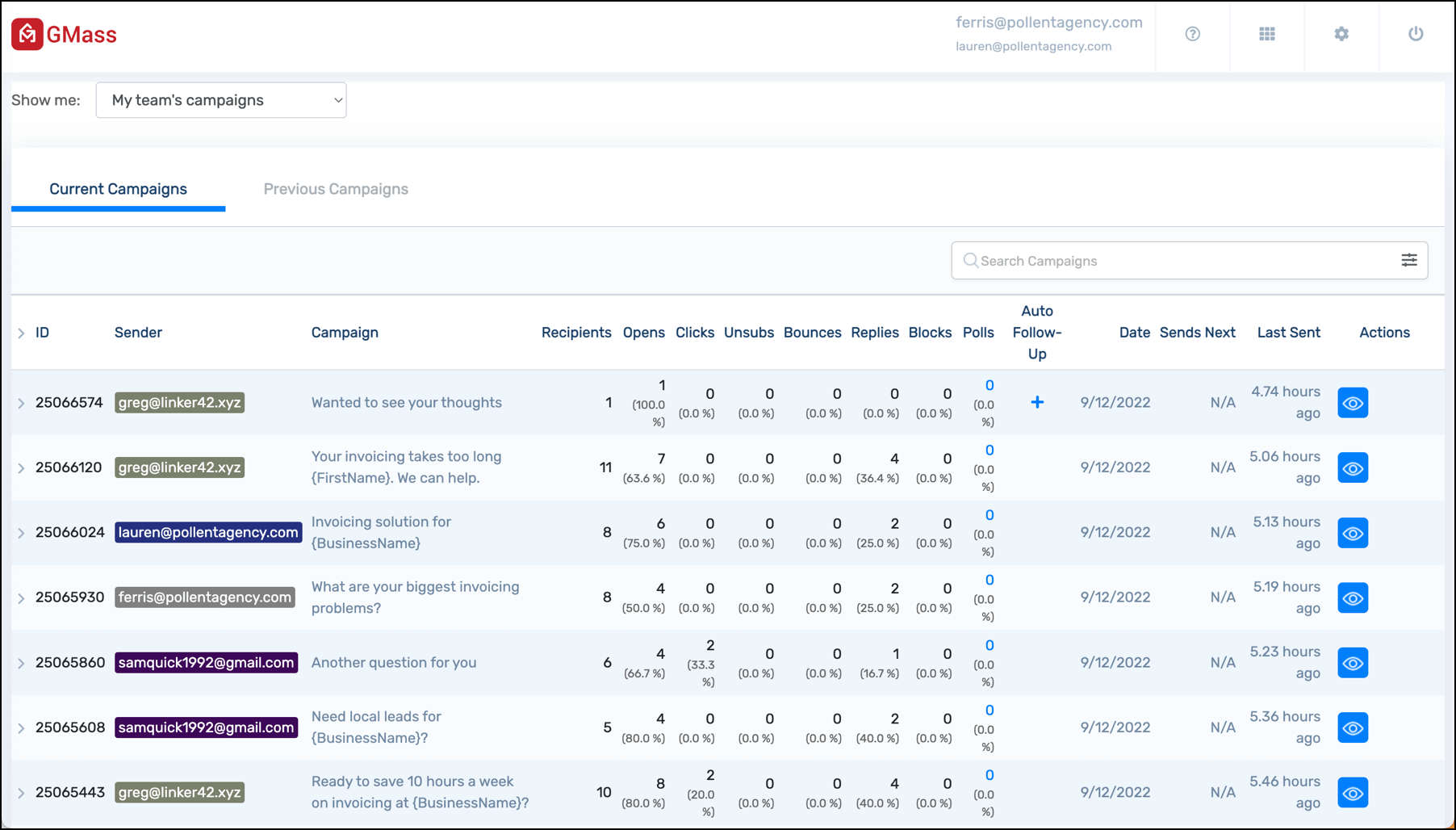
- Aggregates shows the user campaign stats but not detailed campaign reports (so they won’t be able to see recipient email addresses).
- Details shows allows the user to see detailed campaign reports, including recipients’ email addresses.
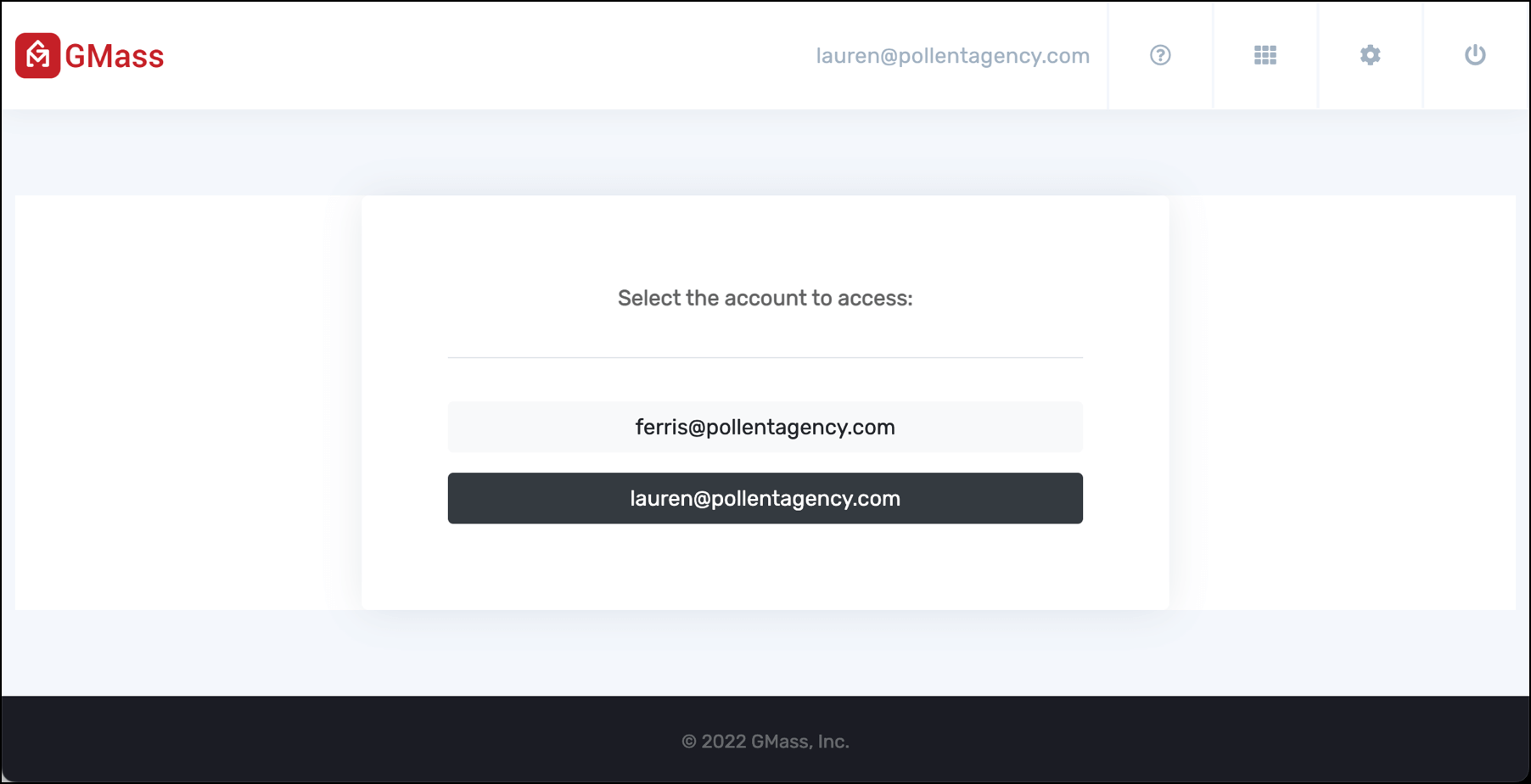
Here’s what that user will see when they log into their dashboard — a choice between their own dashboard and the shared dashboard:
And then, if you’ve chosen “Aggregates” rather than “Details,” here’s what the team dashboard will look like for that user.
Other Team Management Functions
To change the leader of your team plan
Using the account transfer process to transfer the team subscription to a new account. Transferring the team leader to a new person will transfer the Team Plan subscription to the new address. That new address will become the billing contact on the subscription and will assume the powers of managing the team. The current team leader will become a member of the team under the new owner.
To switch from individual subscriptions to a team plan
You can consolidate several individual subscriptions into one team plan.
Features for teams
GMass makes working with your team easy with its collaboration features. Share templates, share reports, log in to each other’s dashboards, share unsubscribe and bounce lists universally, and more. Read about team collaboration features here.
Only GMass packs every email app into one tool — and brings it all into Gmail for you. Better emails. Tons of power. Easy to use.
TRY GMASS FOR FREE
Download Chrome extension - 30 second install!
No credit card required

Ajay is the founder of GMass and has been developing email sending software for 20 years.