How to send a fast and simple mail merge in Gmail

Sending a mail merge in Gmail from a list of email addresses is very simple with GMass.
That list can be copied from many different applications and Gmail will automatically parse it into separate email addresses. For example, the list could be from a text file, an Excel spreadsheet, a CRM system, or any other text.
Even better, if the email addresses are also part of your Gmail Contacts, you can easily personalize those recipients’ emails.
Here’s how to quickly send a mail merge using copy and paste:
- Start with a list of email addresses. Again, the application where the list is saved can be anything as long as you can copy from it and into the clipboard as text. This would include such options as Notepad, Word, Excel, or a CRM, such as Salesforce. The email addresses in the list can be separated by, for example, commas, spaces, lines, tabs, or cells.
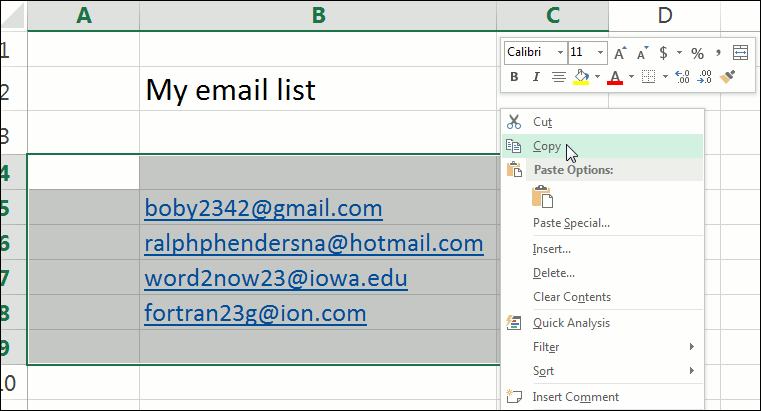
- Next, copy the text. You can select the text as you normally would in a word processing program and copy it using either the menu, or Ctrl-C for copy. You’ll find that you don’t have to bother to exactly end your selection area where your list ends—it’s fine to just highlight any area that includes only the list.
Copying a list of email addresses from Excel. Once you’ve copied it, that text is held in the clipboard, ready to be pasted somewhere.
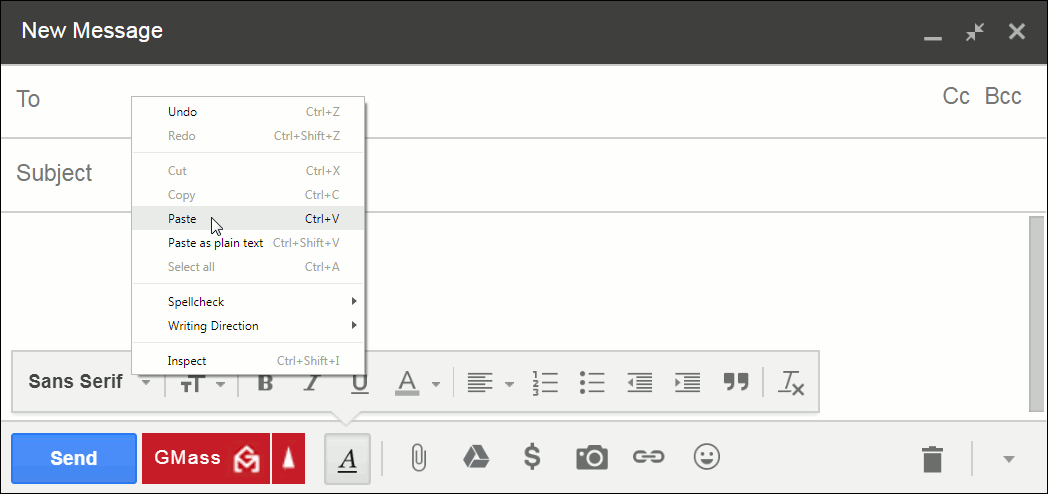
- Paste the text containing the email addresses into the “To” field in a Gmail compose window. Either right-click in the “To” field and select Paste:

Pasting the copied email addresses right into Gmail. Or, you can use Ctrl-V to paste in the email addresses.
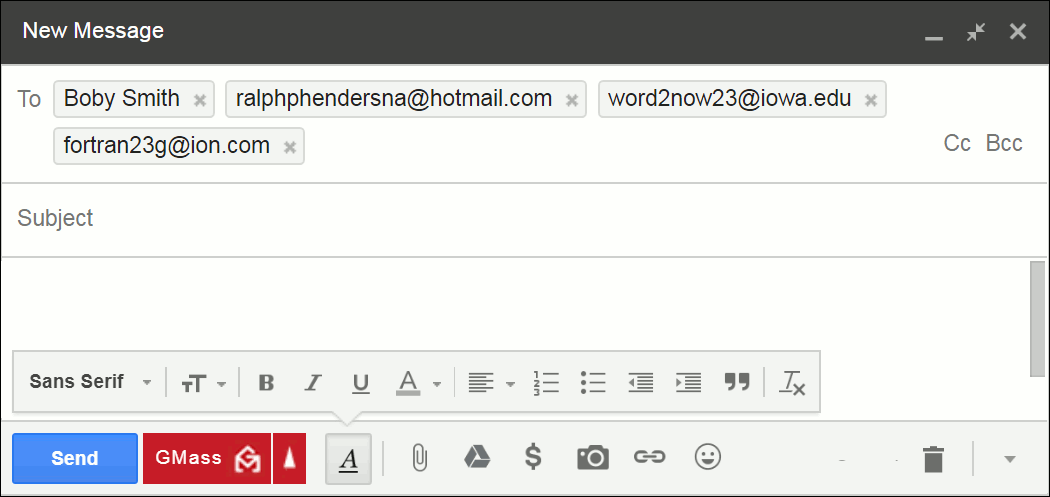
- You will immediately see that Gmail has parsed your list, recognized them as email addresses, and then populated the To field with them.

Gmail parses pasted-in email addresses. - You’re now ready to write your message . Write it as you normally would compose an email in Gmail (see the “Bonus” below for how to personalize emails that are in your Gmail Contacts!).

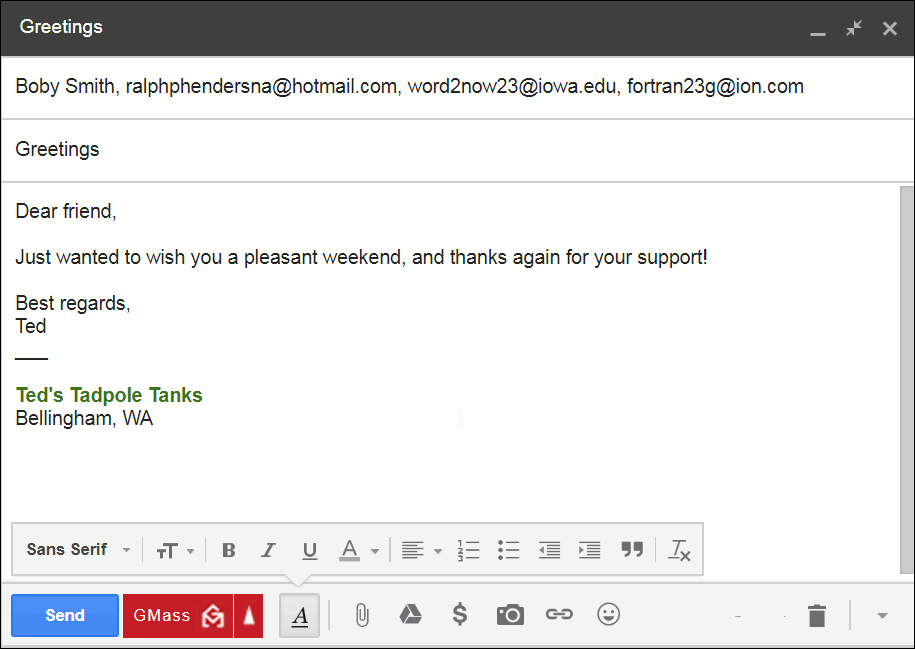
Email is written and ready to click the GMass button to send out. - When you’re ready to send, click the GMass button to send, and an individual email will be sent to each recipient in the list.

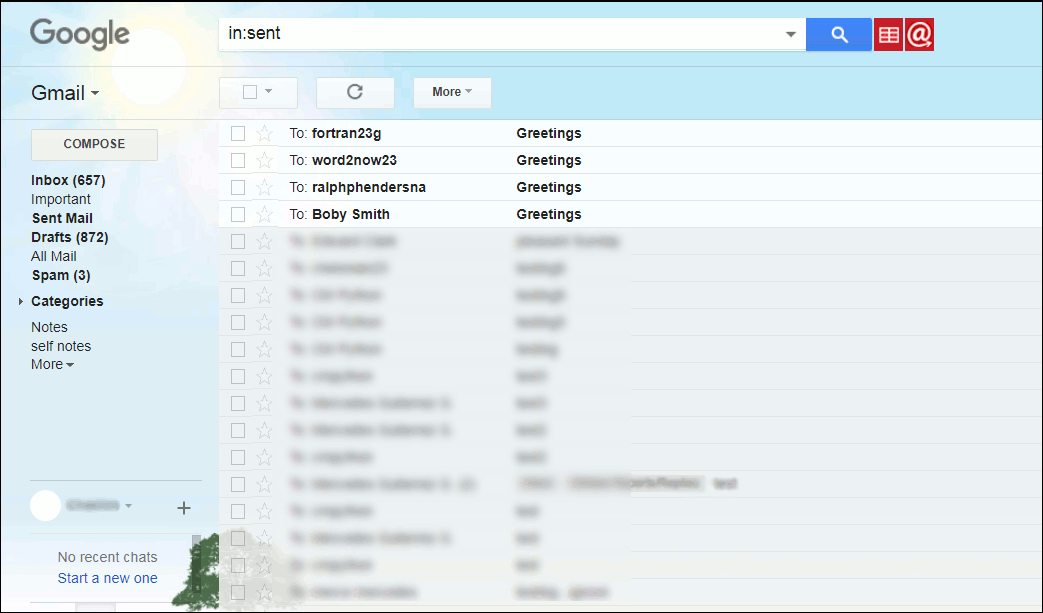
The emails from the pasted in list are now shown as having been sent.
Bonus: Personalizing emails that are in your Gmail Contacts.
For email addresses that are in your Gmail Contacts, there is an easy option to personalize them.
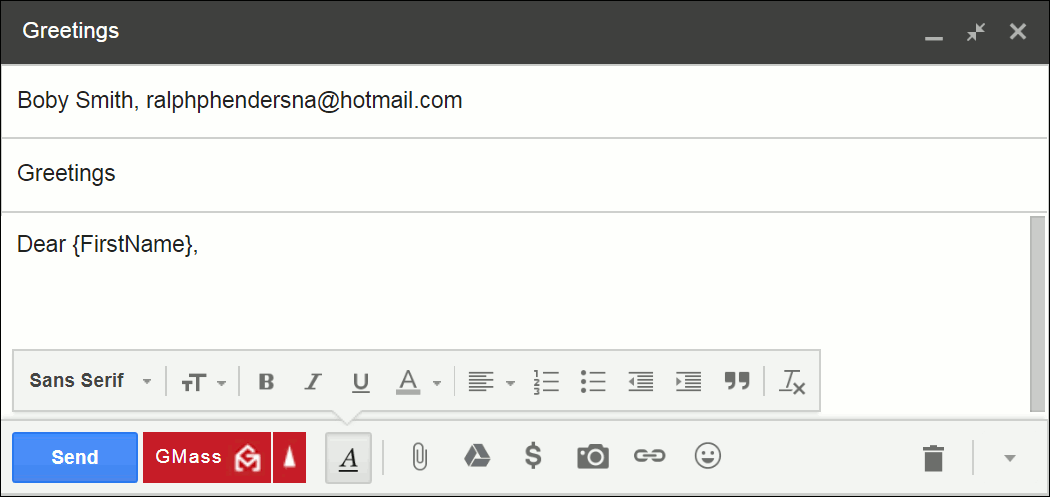
In the Gmail compose window’s message body area, when addressing the recipient, you can use GMass’s curly braces syntax. You can do this either by directly typing it in, like this:
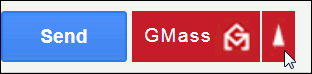
Or you can use the handy GMass Settings window. To do that, click the red upward pointing arrow
to pop up the GMass Settings window. In the green area of this window, find the dropdown to the right of “Personalize:”
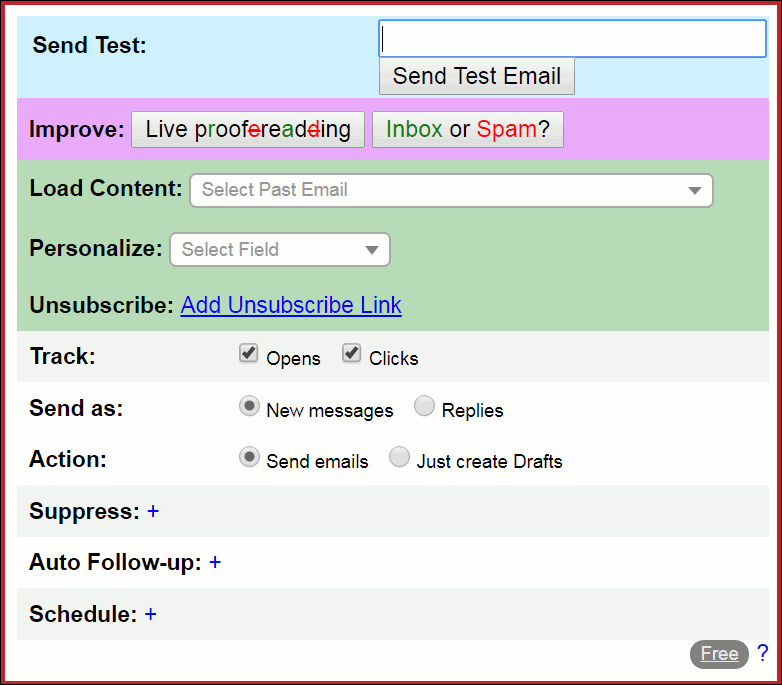
and select either the recipient’s first name (as shown above), last name, or email address. For example, selecting the first name option results in GMass automatically pasting this into the compose window: {FirstName|Friend}.
You can then use this in a salutation, something like:
Dear {FirstName|Friend},
The way GMass will interpret this line is as follows: if the email being processed is in your Gmail Contacts, it will substitute the recipient’s first name (producing, for example, “Dear Robert,”). If the email is not in your Gmail Contacts, it will simply substitute “Friend” (producing “Dear Friend,”).
Email marketing. Cold email. Mail merge. Avoid the spam folder. Easy to learn and use. All inside Gmail.
TRY GMASS FOR FREE
Download Chrome extension - 30 second install!
No credit card required

Ajay is the founder of GMass and has been developing email sending software for 20 years.