Excel Mail Merge: How to Send Bulk Emails in Gmail (The Best Way)

How to Send Personalized Mass Emails with Excel in Gmail (Step-by-Step Process)
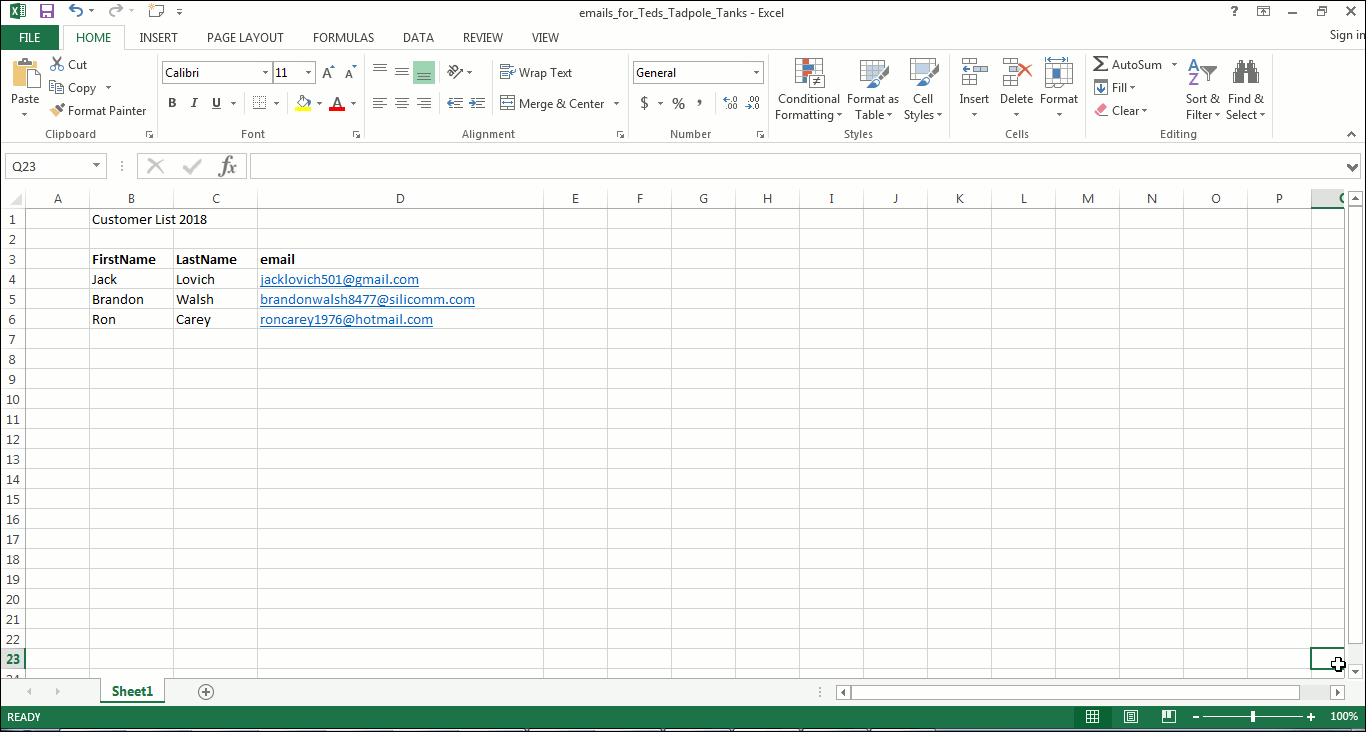
- First, we start with our Excel spreadsheet, in this case one with a few customers of Ted, our fictional shopkeeper, who wants to use his list to send personalized emails.

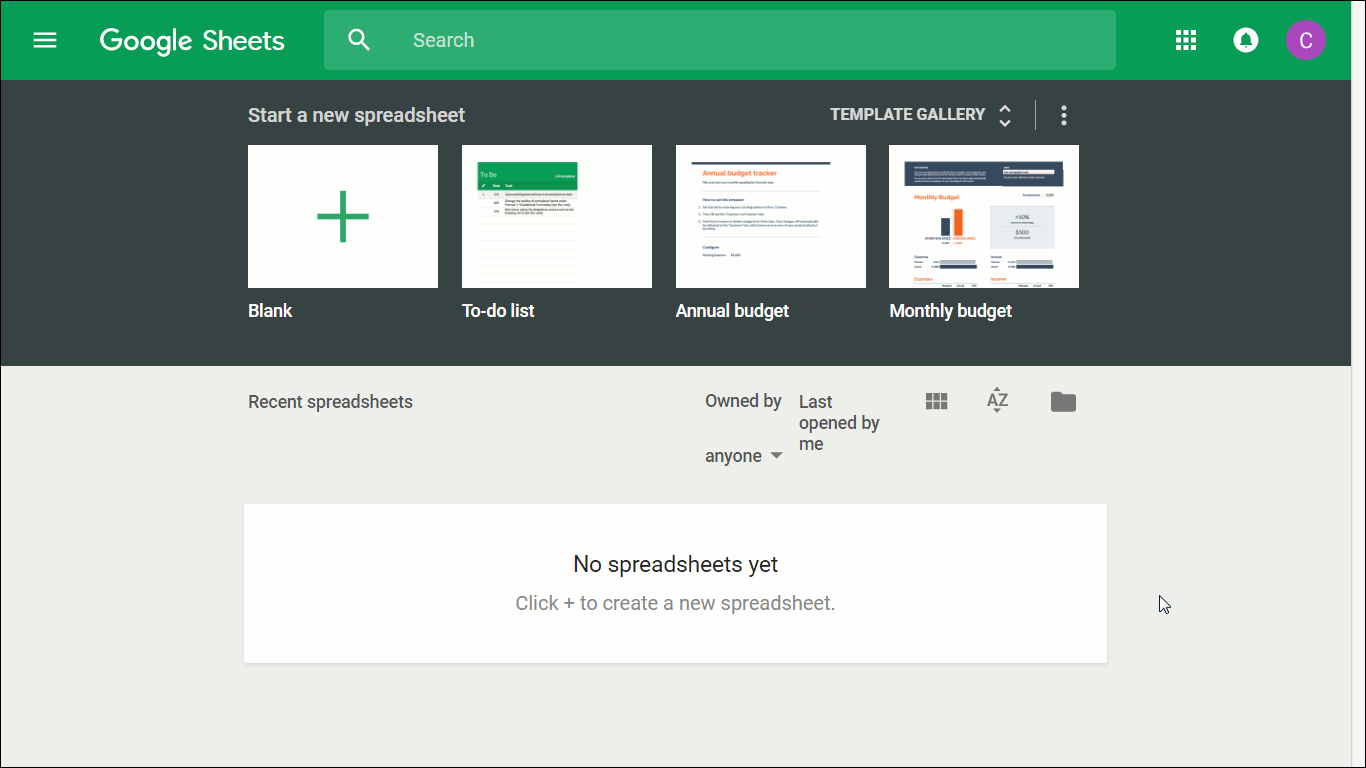
An Excel spreadsheet on your computer, with three customer names and their email addresses. - Now we want to import this list of email addresses into Google Sheets. To do that, make sure you are logged into your Google account, and then go to Google Sheets. (In our example, it will start with no sheets; in your case, you may have previous spreadsheets already there.)

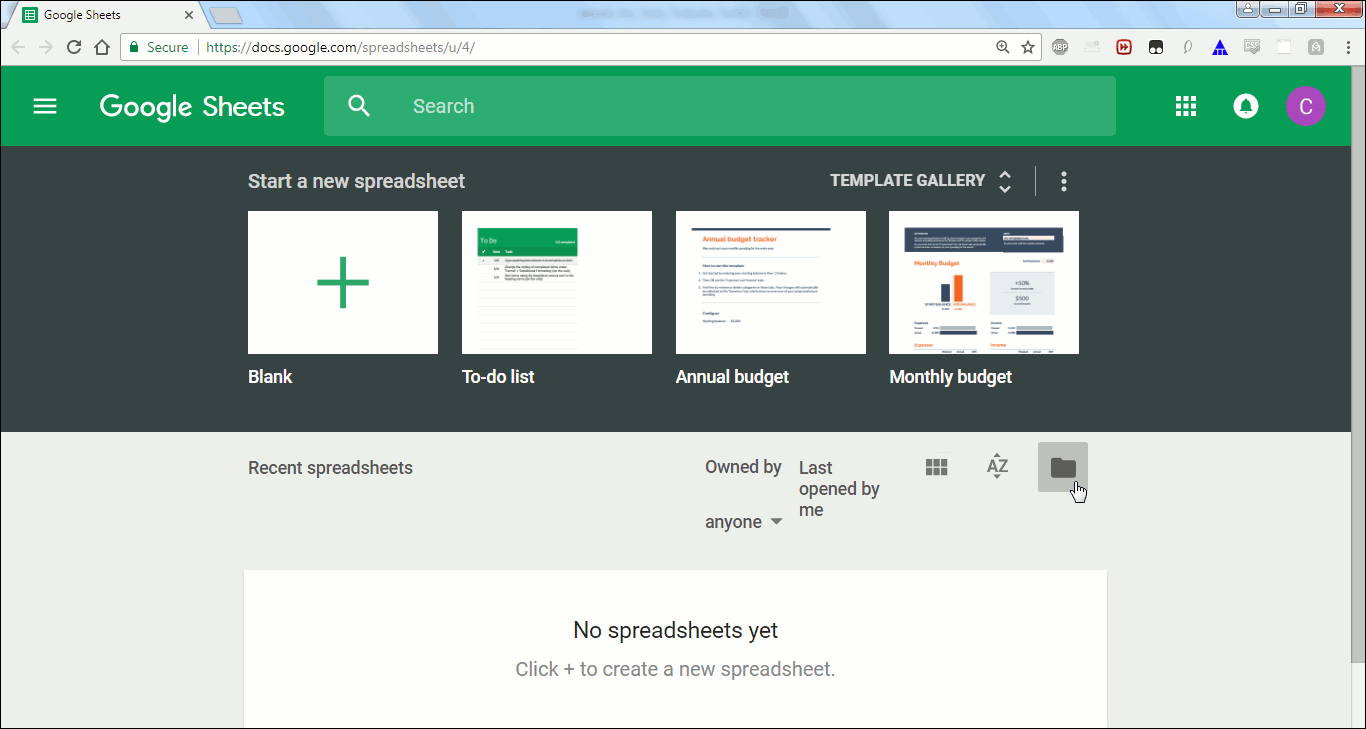
Google Sheets, with no sheets in it yet. - Click on the folder icon on the right to open the File Picker.

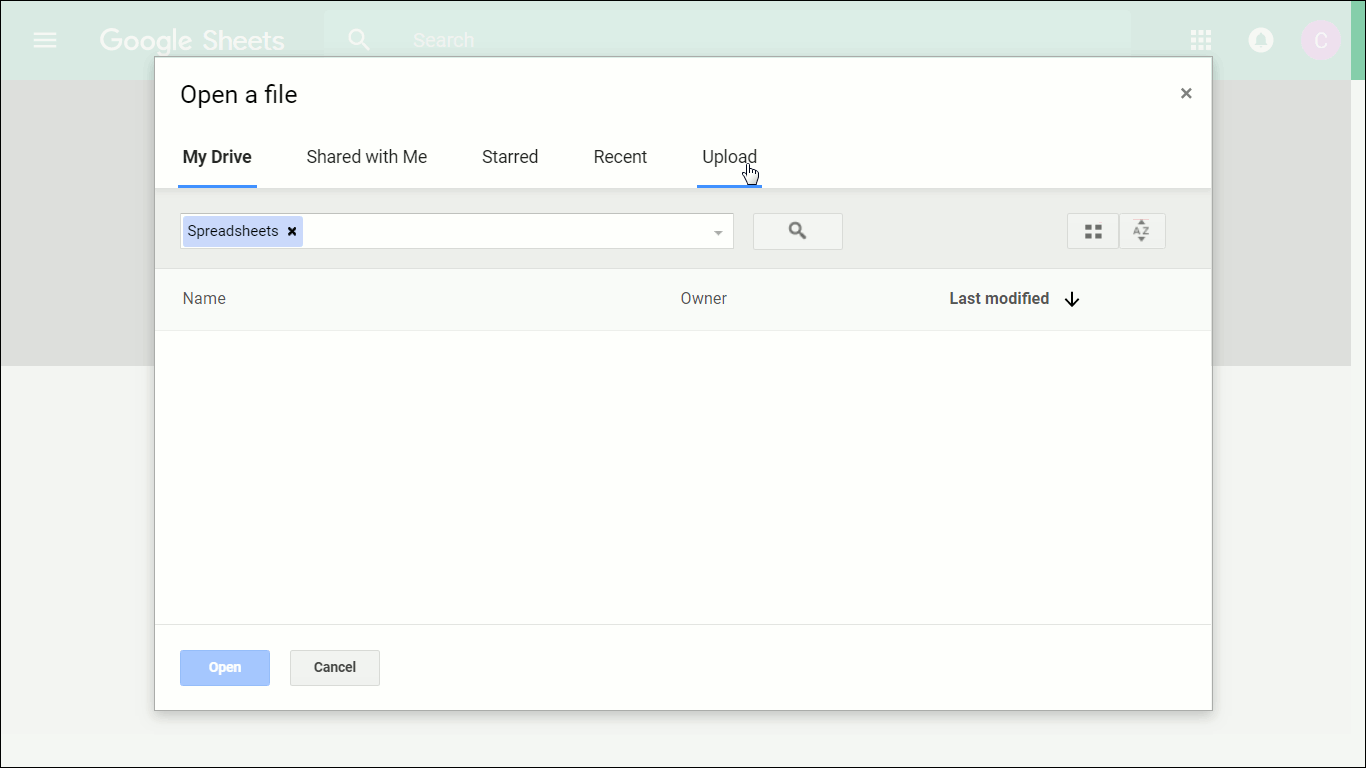
Click this folder icon to open the File Picker. - This will bring up the Google Sheets File Picker, allowing you to pick your Excel file to upload. Click on Upload.

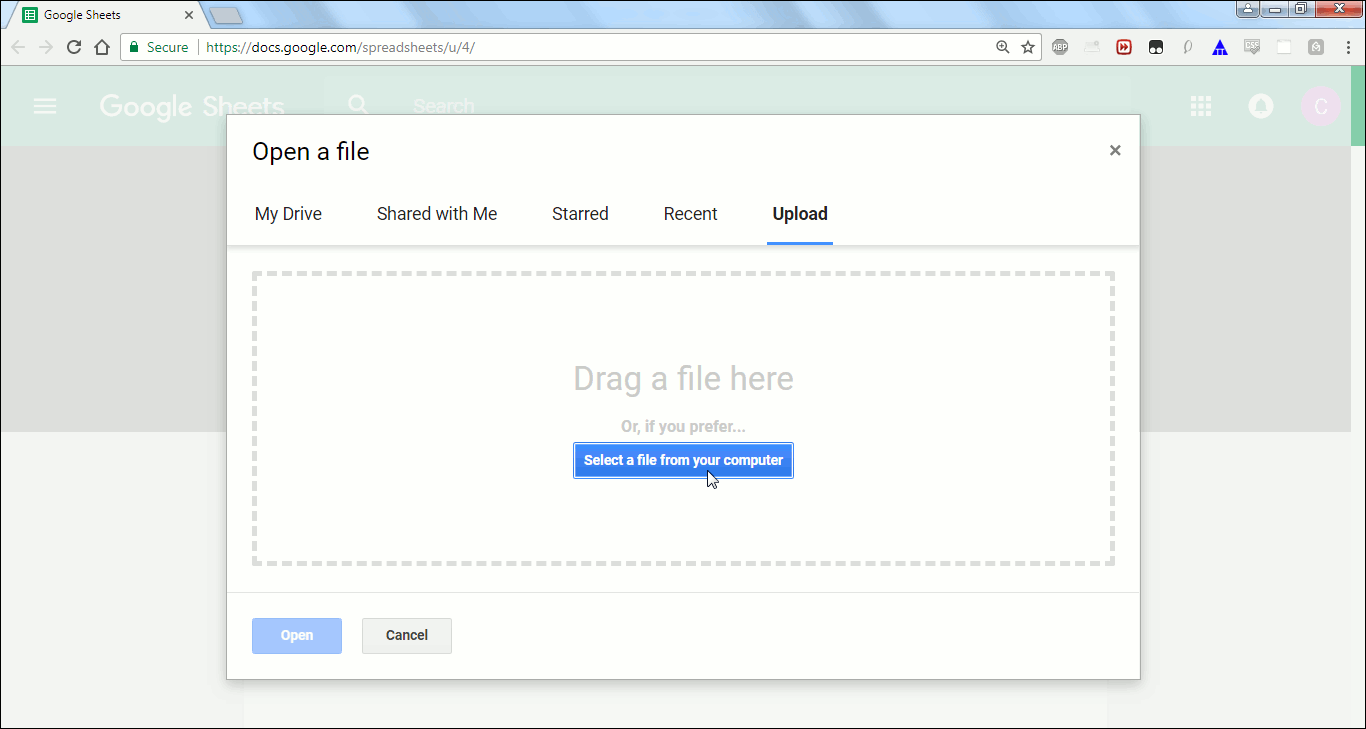
Click on Upload to select your Excel file. - The screen will change, asking you to either drag or select a file from your computer. In our example, we’ll select one. Click on the blue “Select a file from your computer” button.

About to select our Excel spreadsheet after clicking here. - From here, pick your Excel spreadsheet from the file manager on your computer.

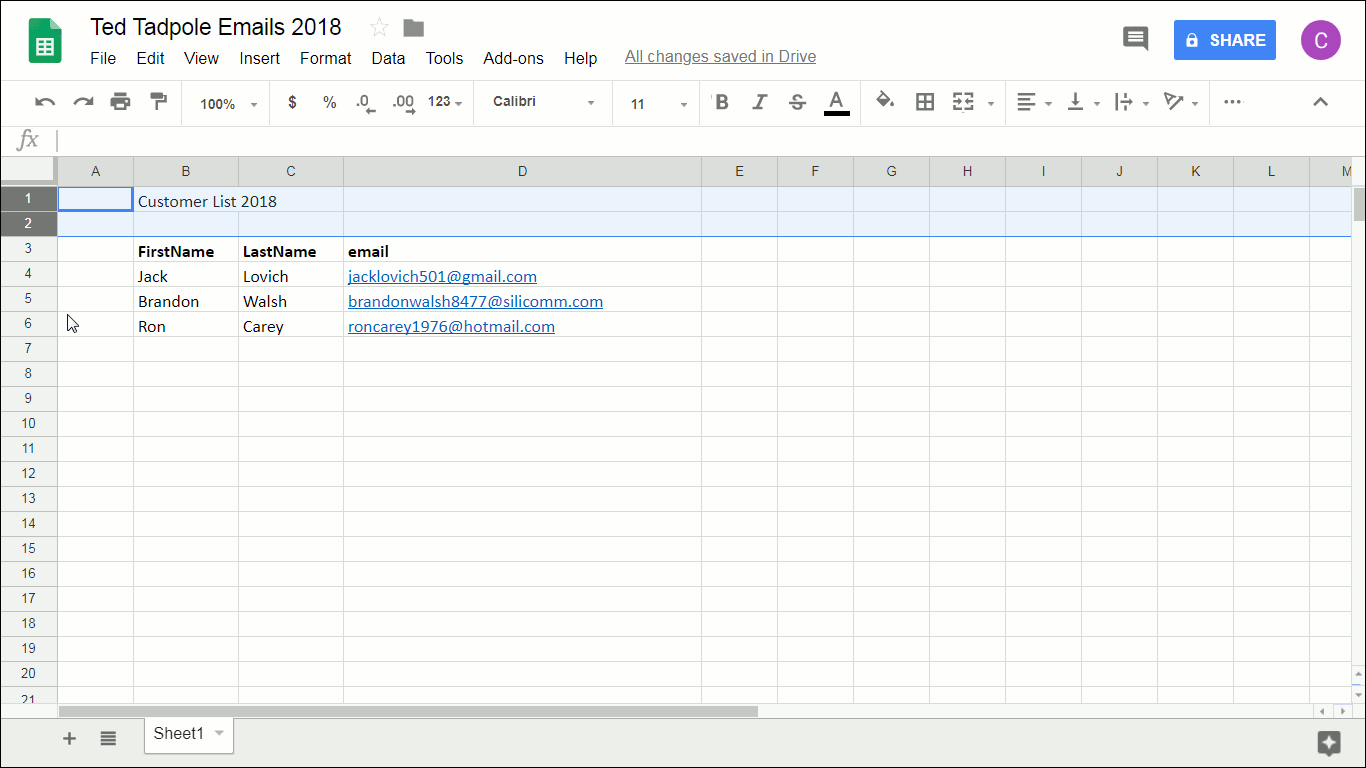
Selecting the Excel file from your desktop’s File Manager via Google Sheets. - This will then be uploaded to Google Sheets and converted into a new Google Sheet spreadsheet. However, before we can use it in GMass (which is the top tool for for mail merges in Gmail), we have to edit it, very slightly and quickly. That’s because this spreadsheet has text above the columns that hold the FirstName, LastName, and Email fields, and that will introduce an error. So, you will need to just make sure there is nothing above these columns. Let’s do that by selecting the two rows above and just deleting them. Do that by holding down shift, clicking on the row number, 1 and then row 2, which will select both these rows:

Two rows that we want to delete are selected. - Select Edit from the menu, and drop down to select “Delete rows 1 – 2”.

About to delete rows 1 and 2. Our quickly cleaned-up sheet should now looks like this and your list of email addresses is ready to use with GMass for your Gmail mail merge:

Sheet is now ready to use with GMass. - Now go to Gmail and click on GMass’s spreadsheet button near the top to connect to an email list in a Google Docs spreadsheet.

Click the spreadsheet button to connect to your Google sheet. - This will bring up a window allowing you to select the Google Sheets spreadsheet you want to use to populate the email addresses in your mail merge.

The GMass spreadsheet connection window. From this window, select a spreadsheet from the dropdown.

Selecting the spreadsheet we just uploaded into Google Sheets from Excel. [Note: in this simplified example, there is only one spreadsheet listed. For regular users of Google Sheets, there may be many sheets to select from. Make sure you choose the correct one.]
- Then, once you have selected a spreadsheet, the “CONNECT TO SPREADSHEET” button will turn red. Click on the “CONNECT TO SPREADSHEET” button.
[Note: For this tutorial, we are not going to address the Optional Settings.]
Click the red bar button to connect GMass to the Google Sheets spreadsheet. The screen will change at this point. The GMass Google Sheets chooser window will be gone, and now you’ll see a Gmail Compose Window is open. In the To field, the email addresses of the contacts from your Google Sheet have now been populated.

A new Gmail compose window, with email addresses from our spreadsheet. - From here, you can send out your personalized emails as you normally would in GMass. For example, you can send out a sales email with the GMass personalized greeting feature, as shown below.

Ready to send out individualized emails with GMass. Tip: Because you’ve used a spreadsheet that indicated the first name and last name of each email recipient, GMass will intelligently personalize the greeting for all of them. For example, the second recipient, Brandon Walsh, will have an email that starts, “Dear Brandon.” Without using a spreadsheet to indicate first and last names to GMass, only Gmail addresses would automatically use the first and last names of the recipient. That’s a nice advantage of using spreadsheets: everyone can receive a personalized email!
- Now, just click on the red GMass button to send out the individual emails, and your Gmail mail merge is done!
- You’ll get a message telling you “You did it!” Now let’s check that they went out as planned. Go to your Sent folder in Gmail.

Our three emails from the spreadsheet have gone out! It worked!
Of course, the real power comes when you have a large number of names and email addresses in your Excel file. Within a few minutes, you can be sending all of these Google contacts personalized mass emails with GMass.



If you aren’t using GMass yet — Excel mail merges isn’t all it can do. In fact, GMass is one of the most popular cold email and newsletter tools in the world. You can use it for automated follow-ups, A/B testing, email analytics, and pretty much any other email campaign needs you might have.
To get started with GMass, download the Chrome extension. You’ll start a free trial (no credit card required) where you can send up to 50 emails per day as you test it out.
Send incredible emails & automations and avoid the spam folder — all in one powerful but easy-to-learn tool
TRY GMASS FOR FREE
Download Chrome extension - 30 second install!
No credit card required

Ajay is the founder of GMass and has been developing email sending software for 20 years.