You can now toggle GMass Report notifications on and off

When you send a campaign with GMass, event notifications and campaign reports are generated as emails and placed under the GMass Reports label as activity takes place after you send.
Event notifications refer to anything actions that happen with your campaign. For example, every time an email is opened, an “open” notification goes into the Opens label, every time an email is clicked, a “click” notification goes into the Clicks label.
Campaign reports with detailed campaign analytics are placed in the [CAMPAIGNS] label.
In most cases, GMass report and event notifications are tucked away in these special Labels and won’t clog up your Inbox. In some cases, however, like if you’re using an email client like Apple Mail that doesn’t respect Gmail’s Labels, GMass report notifications will fill up your Inbox and you may wish to turn off GMass report notifications.
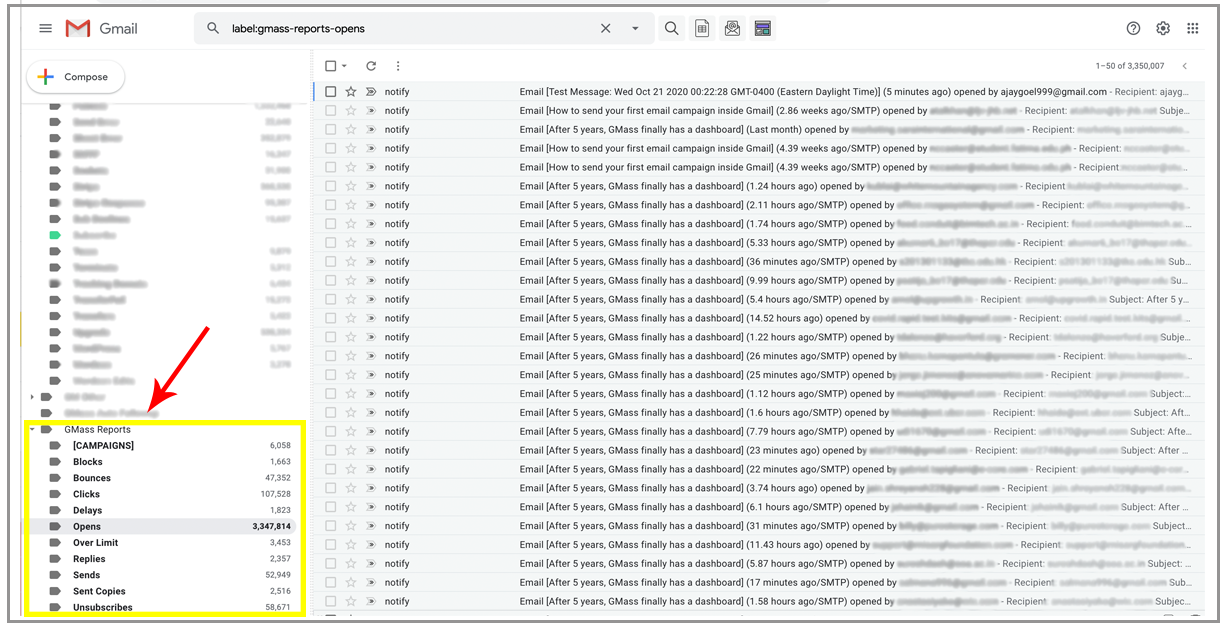
The benefit of this approach
While it may seem cumbersome to have every open and every click logged into a special Label like this, most users find it valuable to monitor what’s happening with their campaigns in real-time. This also makes it easy to monitor campaign activity on a mobile device running the Gmail app. Just pop into one of the GMass Report labels to see what’s happening.
Additionally, if you ever want to send a campaign to everyone that’s ever opened any email from you or anyone that’s ever clicked any email from you, all you have to do is go into the appropriate label and click the GMass build email list button.
Turn notifications OFF
You can turn off notifications in the GMass dashboard. Click on the gear icon in the top right to open the settings, then scroll down on to the Notifications section.
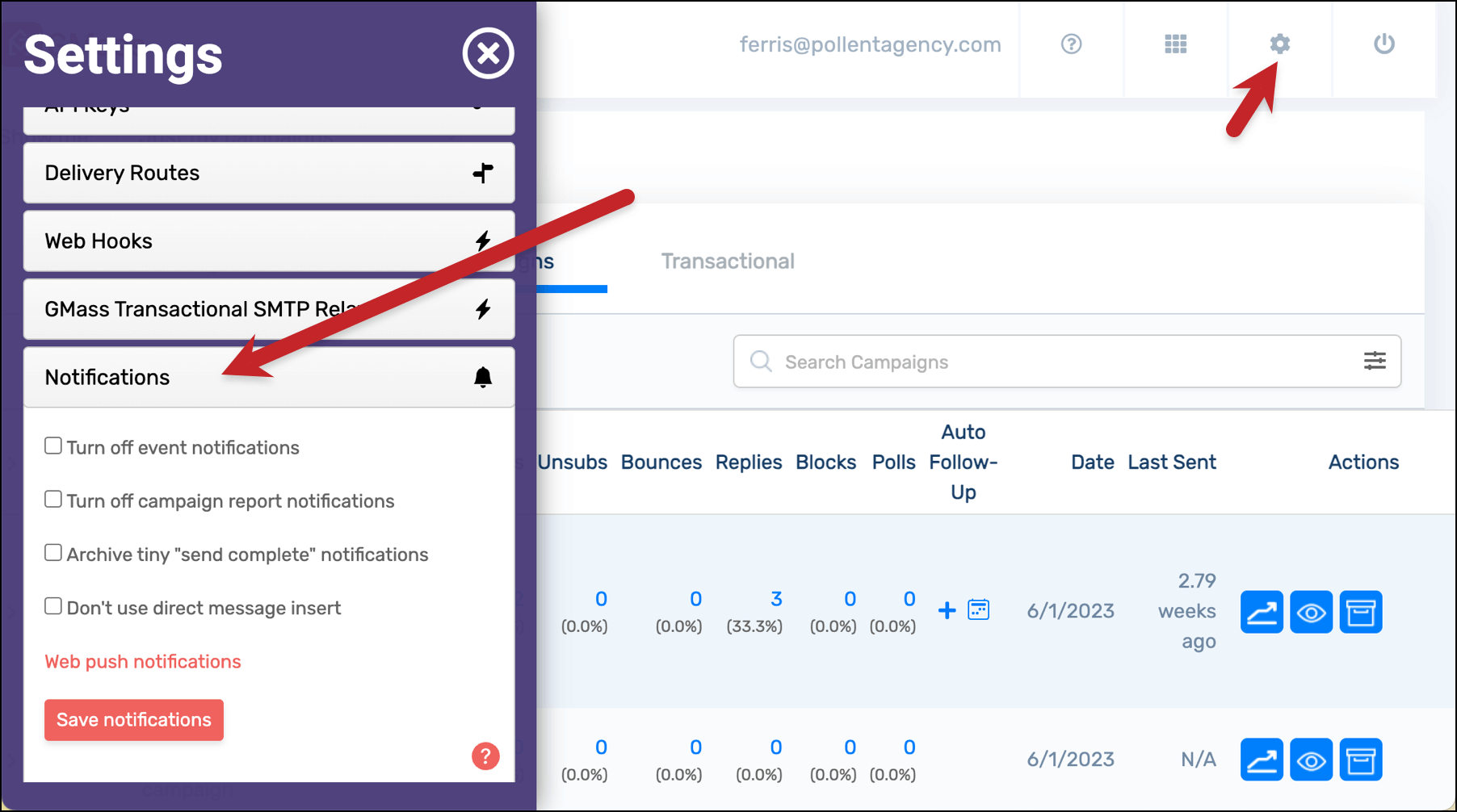
- Check the box next to Turn off event notifications to stop receiving messages about events (e.g., opens, clicks, unsubscribes).
- Check the box next to Turn off campaign report notifications to stop receiving messages with your campaign reports (e.g., the report in the [CAMPAIGNS] label).
- Check the box next to Archive tiny “send complete” notifications to stop receiving notifications on campaigns that send 10 or fewer emails. For instance, if you have a lot of recurring campaigns that often send 0 messages.
- Check the box next to Don’t use direct message insert if you’d prefer we not use the Gmail API to place these messages in your mailbox.
How to get reports if you turn notifications off
If you turn notifications off, you can still access the reporting data for your campaigns. There are a few ways to access your campaign reports.
- You can still manually request a campaign report which will then be placed under the GMass Reports–>[CAMPAIGNS] label at the time you request it.
- Any time you receive a notification that sending has been completed, there’s a link to a web-based campaign report in that notification. Notifications about completed sends cannot be turned off.
- You can access campaign reports from your dashboard at gmass.co/dashboard and you can always access your web-based campaign report as well.
Send incredible emails & automations and avoid the spam folder — all in one powerful but easy-to-learn tool
TRY GMASS FOR FREE
Download Chrome extension - 30 second install!
No credit card required

Ajay is the founder of GMass and has been developing email sending software for 20 years.