How to set the right From Name in your Gmail email marketing campaigns

If you’re using GMass to send email marketing campaigns through your Gmail account, note that the From Name that you set in your Gmail Settings may not be the From Name that is used when your email campaign is sent.
While this article is about ensuring the From Name is correct, please also see our recent post about ensuring the right From Address, which is relevant if your Gmail account is configured to use multiple From Addresses.
How to ensure the right From Name depends on whether you have multiple From Addresses configured for your account or just the default Gmail address.
Multiple From Addresses (dropdown shows up)
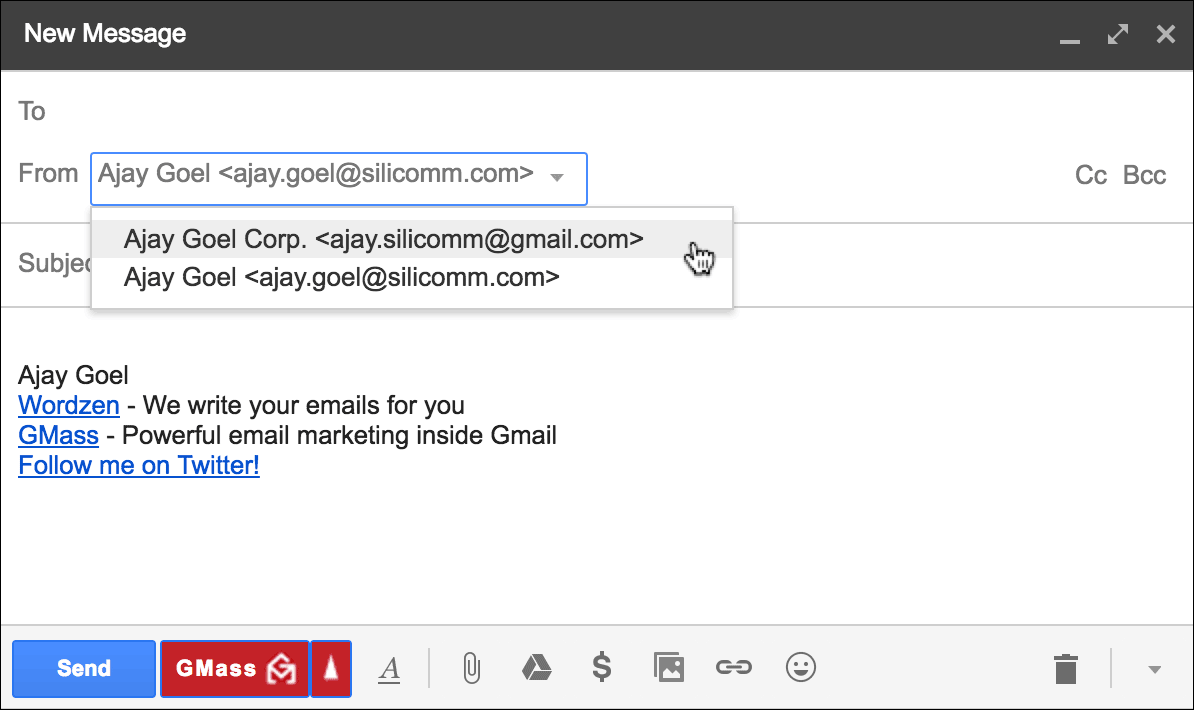
Do you have a From Address dropdown show up when you launch a new Compose window? If so, then you have multiple From Addresses configured. If this is the case, then everything will work as expected, and the From Name/Address that you choose from the dropdown menu will be used in your mail merge campaign when using the GMass button. You don’t need to read the rest of this article, because it doesn’t apply to you.
Just one From Address (no dropdown)

If you haven’t configured any alias From Addresses for your Gmail or G Suite account, meaning you do NOT have a From Address dropdown when you open a new Compose window, then setting the From Name for your GMass campaigns is a bit trickier. In this case, the From Name that GMass detects is the name set for your overall Google account, not the Name set in your Gmail settings.
In your Gmail Settings, you can change the From Name used when you send emails. Unfortunately this name will only be used when you use the regular Gmail Send button. Using the GMass button will not cause your set From Name to be used. GMass will use the From Name that is tied to your overarching Google Account.

You must change the name associated with your Google Account, not just your Gmail Settings, in order to set a different From Name for GMass campaigns. How do you do this? It depends on whether you have a Gmail or a G Suite account.
Regular Gmail Users
Go to https://accounts.google.com and navigate to the area where you can change your name. If you change your name, it will take at least 10 minutes for this change to be reflected in your Gmail account.

G Suite Users
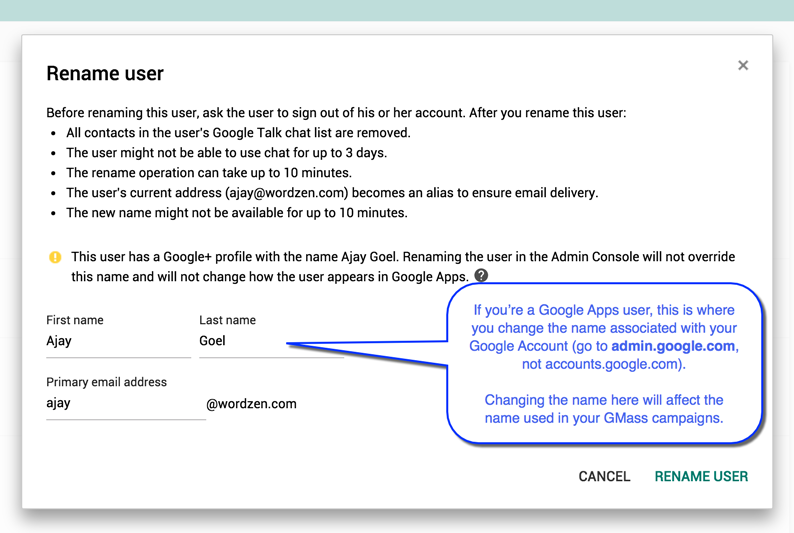
Go to https://admin.google.com and navigate to the area where you can rename a user. Note the various warnings associated with changing a user’s name. Also, you must be an administrator for your domain’s Google Suite account to be able to change a user’s name (even your own). If you change your name, it will take at least 10 minutes for this change to be reflected in your Gmail account.
Send incredible emails & automations and avoid the spam folder — all in one powerful but easy-to-learn tool
TRY GMASS FOR FREE
Download Chrome extension - 30 second install!
No credit card required

Ajay is the founder of GMass and has been developing email sending software for 20 years.