How to resend your Gmail mail merge campaign when you get errors

These errors are taking place on Google’s servers and are not indicative of anything being wrong with GMass.
Usually you will notice errors in the form of a “backend error” from the Gmail API and you will see these in the email confirmation that you get after a campaign finishes sending. You might see:
Google.Apis.Requests.RequestEr
Backend Error [500]
Errors [
Message[Backend Error] Location[ – ] Reason[backendError] Domain[global]
listed under the Individual Recipient Send Errors of the email confirmation.
If you see that your mail merge campaign resulted in these errors, you can resend your campaign to just the email addresses that didn’t receive it because of this error.
The GMass team is working on a way to automatically re-try sending these emails, but for now, you can follow the instructions below to manually resend your campaign to the errored addresses.
Using the GMass manual follow-up tool, doing so is just a matter of a few clicks.
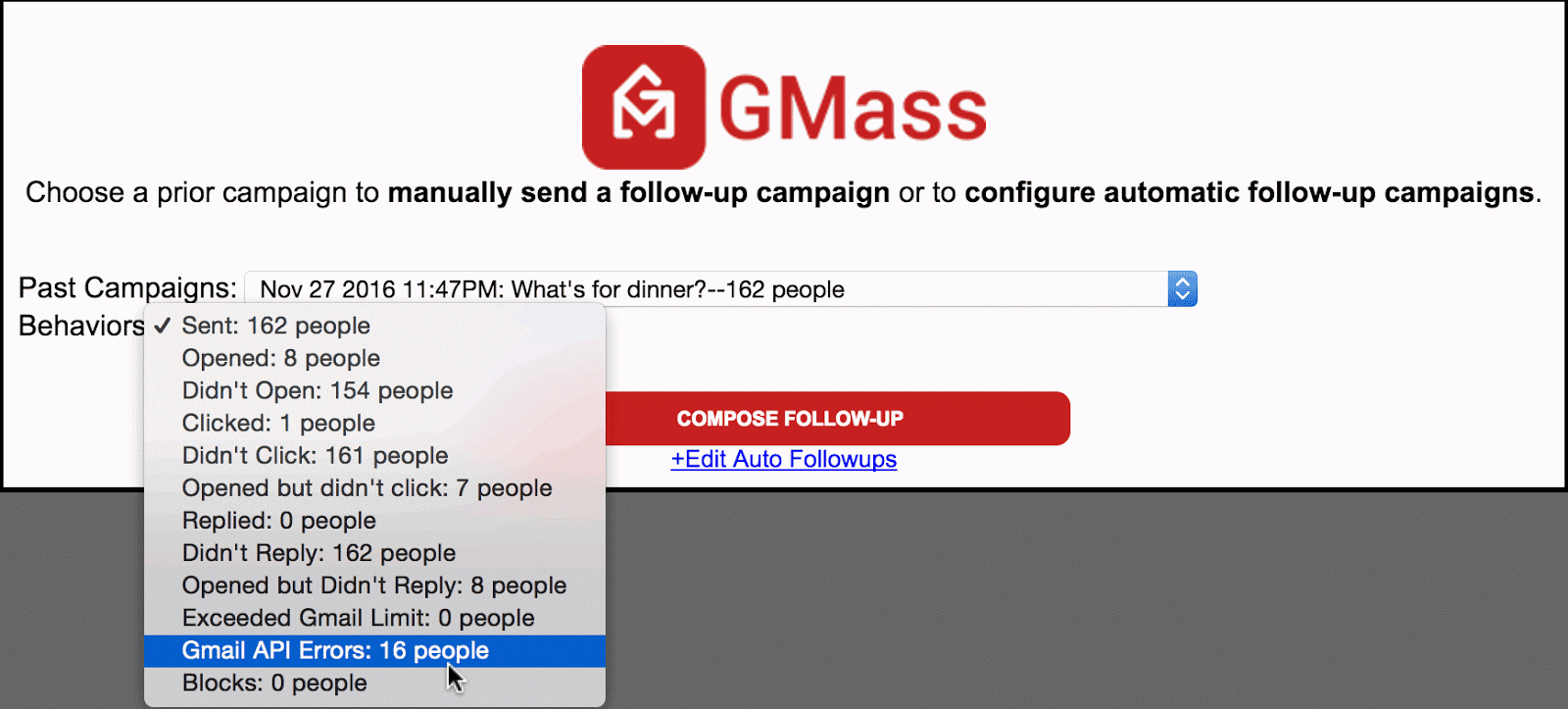
1. Click the red @ button near the Gmail Search bar. This is the manual follow-up tool.
2. Choose the campaign from the dropdown that experienced the blocking.
3. Under Behaviors, choose Gmail API Errors.
4. Next click the main COMPOSE FOLLOW-UP button.
5. A Gmail Compose window will launch and the To field will be filled with the addresses you want to send to, the addresses that previously blocked your campaign.
6. Next load up the content of your campaign by clicking the GMass Settings arrow and choosing your original campaign from the Load Content dropdown. Your Subject and Message will be set.
7. Lastly, ensure all other GMass Settings are how they should be, such as Tracking of opens and clicks, and make sure the Schedule is set to the desired time of sending.
8. Finally, hit the red GMass button to send. Your campaign will now go to the email addresses that errored out the first time.
GMass is the only tool for marketing emails, cold emails, and mail merge — all inside Gmail. Tons of power but easy to learn and use.
TRY GMASS FOR FREE
Download Chrome extension - 30 second install!
No credit card required

Ajay is the founder of GMass and has been developing email sending software for 20 years.