How to Use Google Gemini AI with GMass Email Campaigns

Google Gemini has been rolling out across Google Workspace accounts over the past few weeks — and, in particular, Gemini for Gmail.
Gemini brings a handful of AI powers inside Gmail; things like helping with writing emails and replies, summarizing threads, and scheduling meetings.
Since Gemini works inside Gmail and GMass works inside Gmail, we’re already getting questions from people wondering how these tools work together.
So I tested out everything Gemini can do to figure out all the ways Gemini can help with your email campaigns.
Unfortunately, right now… Gemini doesn’t do all that much. It’s underbaked (this isn’t the first time we’ve seen Google underbake a Gmail tool, either). I can’t see myself using it much, or regularly.
However, there are already a few ways it can help you with your GMass campaigns.
Plus, we don’t expect Gemini to stay underpowered forever. Google is deeply committed to AI (I mean, they’re willingly murdering their search business for its sake), so Gemini will get a lot of runway before it’s at risk of winding up in the infamous Google graveyard.
So as Gemini grows and gets more features and abilities, we’ll revisit and update this article.
Gemini with GMass: Table of Contents
- Get Personalized GMass Help in the Gemini Sidebar
- Using Google Gemini for Writing Emails in GMass
- Use Gemini for Replying to Emails
- Run Email Searches (and Turn Them Into New GMass Lists)
- Gemini with GMass: Next Steps
Get Personalized GMass Help in the Gemini Sidebar
I’m putting this Gemini feature first because after all my testing, I believe this is the one that will be most helpful to GMass users immediately.
In my test, I asked Gemini how to perform an action in GMass. I didn’t give it a softball either, I asked it to do something that isn’t super easy and would require referencing multiple docs.
Note: I start my prompt with “Use Google Search” — that’s how you get Gemini to do research.
And Gemini gave me the answer right there in the Gmail sidebar.
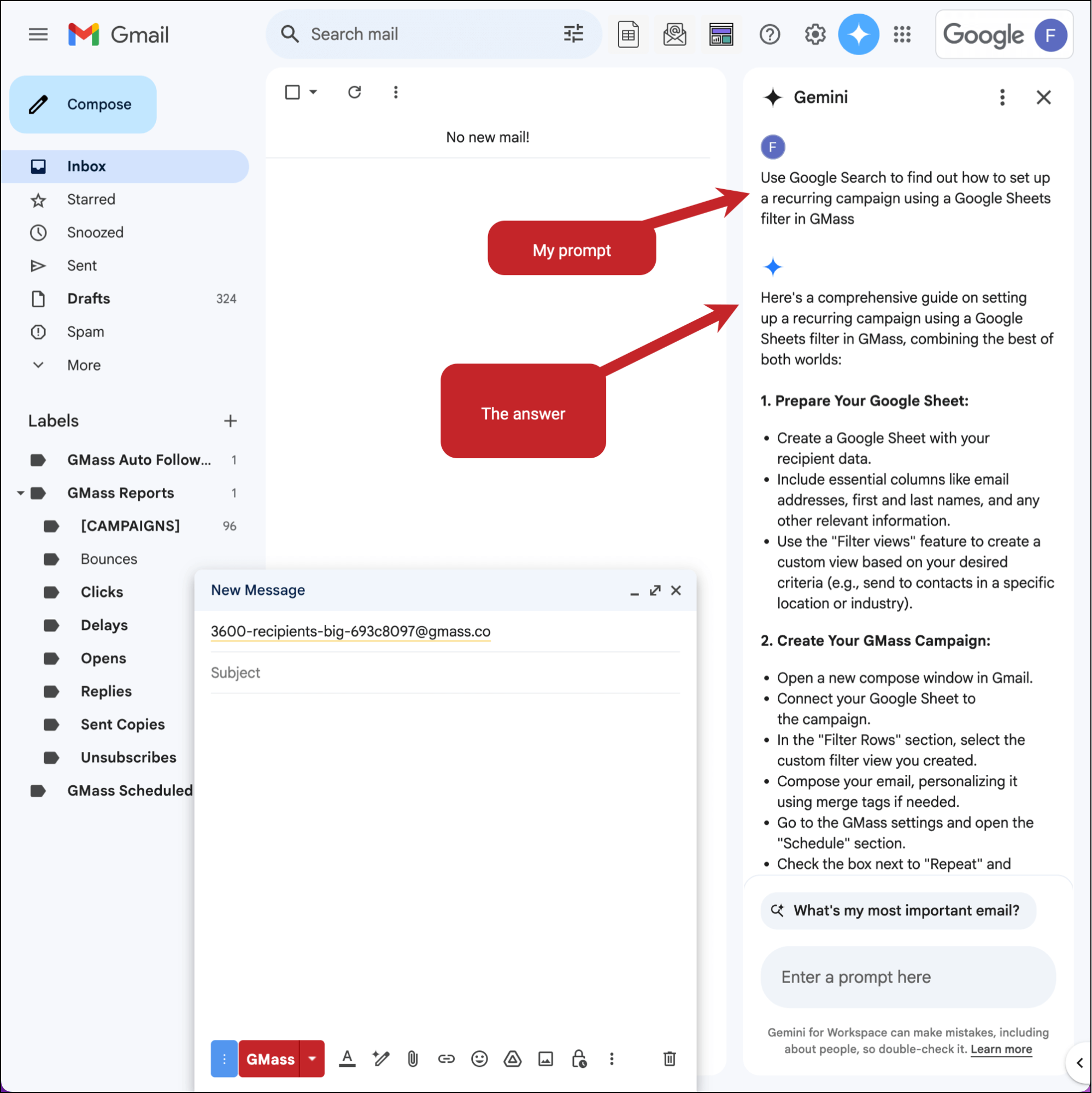
Outside of one extraneous but otherwise harmless step (the part about using “Filter views” in Google Sheets), Gemini nailed this answer.
I’m not surprised, as Google’s biggest AI strength thus far across all their tools has been synthesizing complex information. And they synthesized this GMass technique beautifully.
Asking Gemini is a super helpful way to get specific, case-by-case GMass advice while you’re working on your campaign. (Of course, GMass has its own GMass AI answers tool, but Gemini’s has the real estate edge by being in the sidebar.)
And if Gemini doesn’t put together its own answer, in my other testing I found it does a good job pointing you to a blog post on GMass that should be able to help you out.
Using Google Gemini for Writing Emails in GMass
Ultimately, composing emails is likely the most common way people will use Gemini in Gmail. (With GMass and beyond.)
Like all generative AI models to date, Gemini writes decent first drafts. It does NOT produce ready-to-send copy.
Its output needs your expertise and polishing, but it’s good for getting you started.
Here’s a prompt I fed it for a sample campaign…
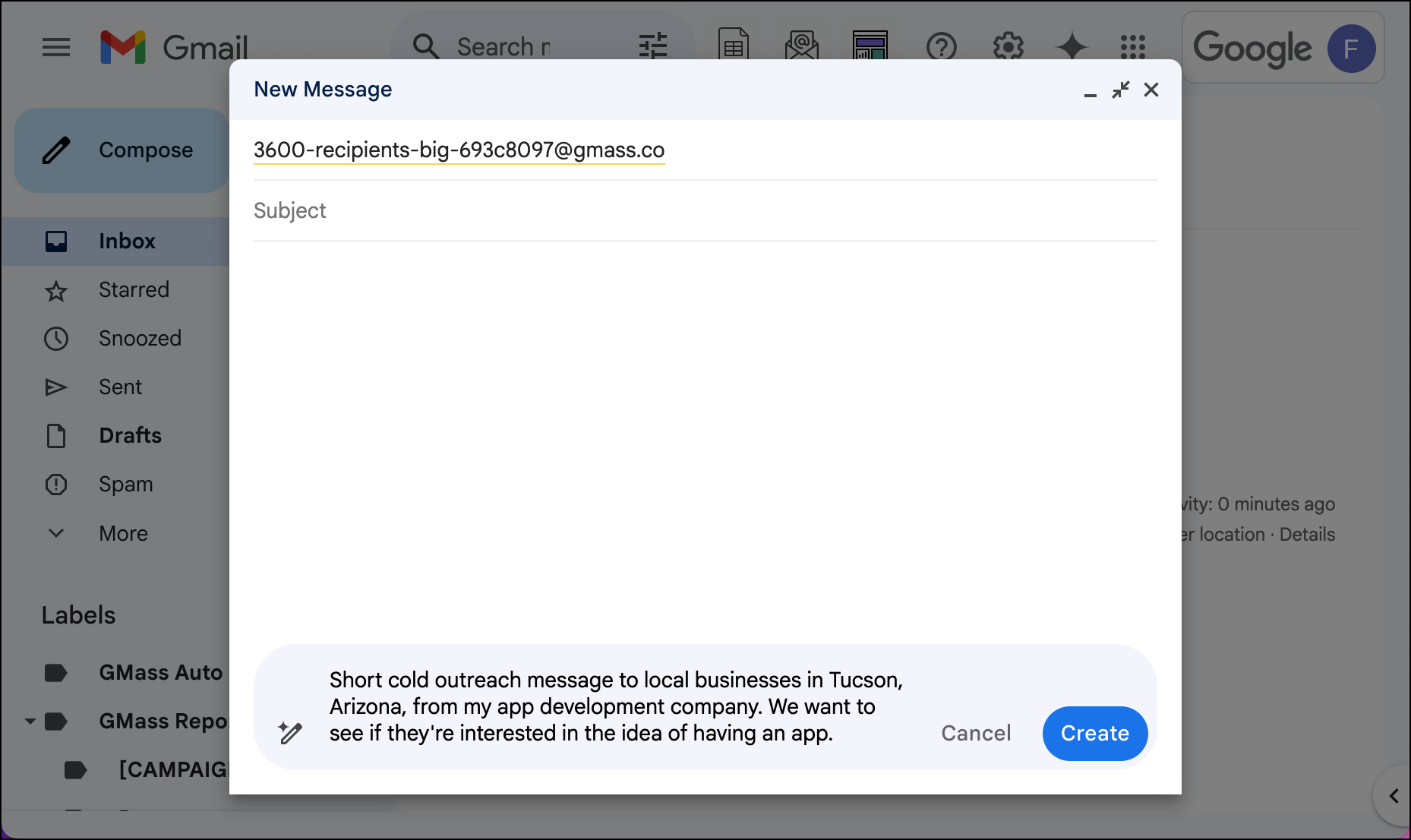
And here’s what it returned:
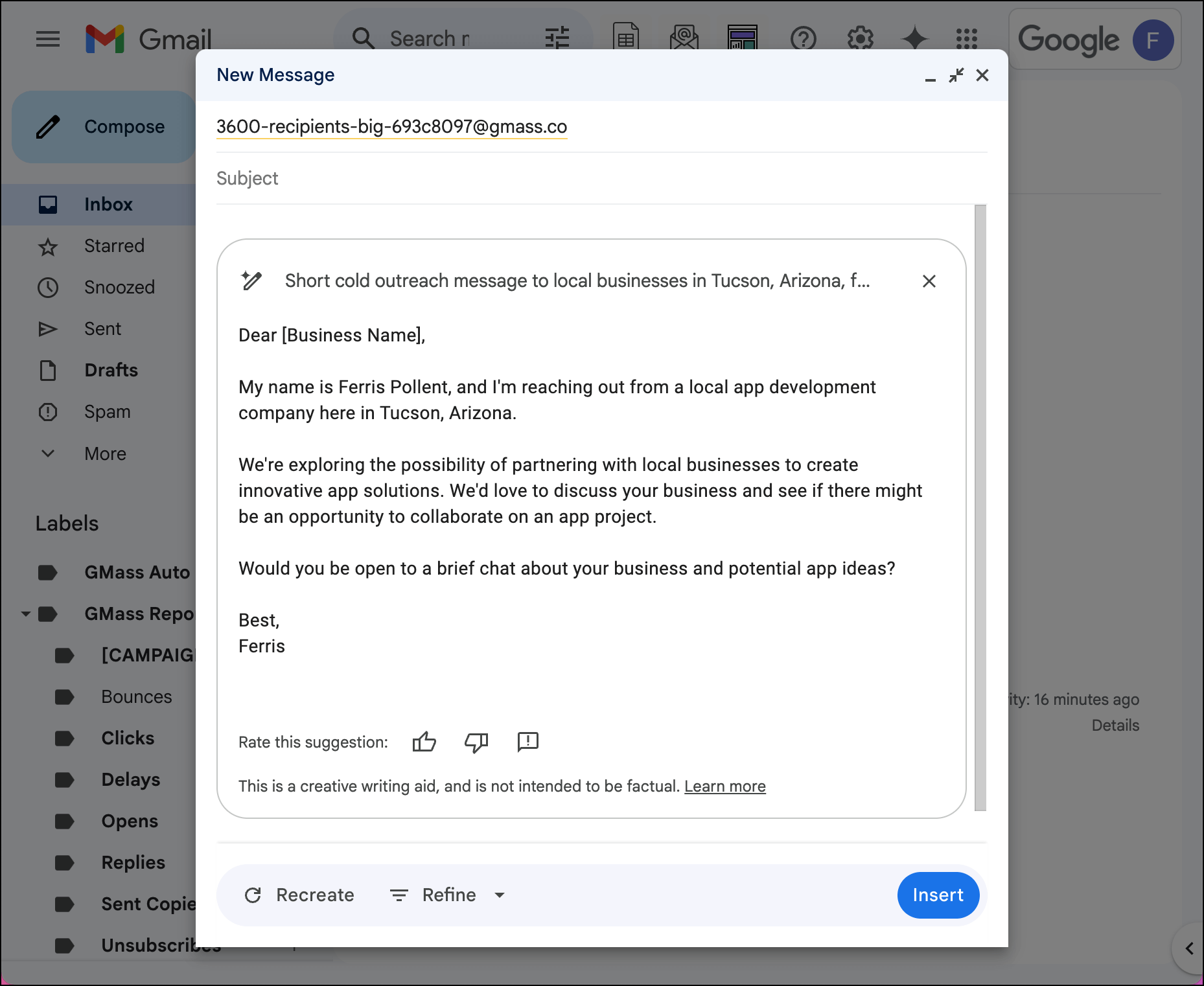
That’s bad cold email copy (starting with “My name is…” is certainly a choice) so I clicked the “Recreate” button to see if it could do any better. It couldn’t, so I’d need to clean up this draft significantly on my own.
I also couldn’t get Gemini to do subject lines (it just wants to type the email body) — even though when I asked Gemini if it could write subject lines, it told me it could.
Based on my results, I’d recommend using GMass’s built-in AI campaign creator instead of Gemini.
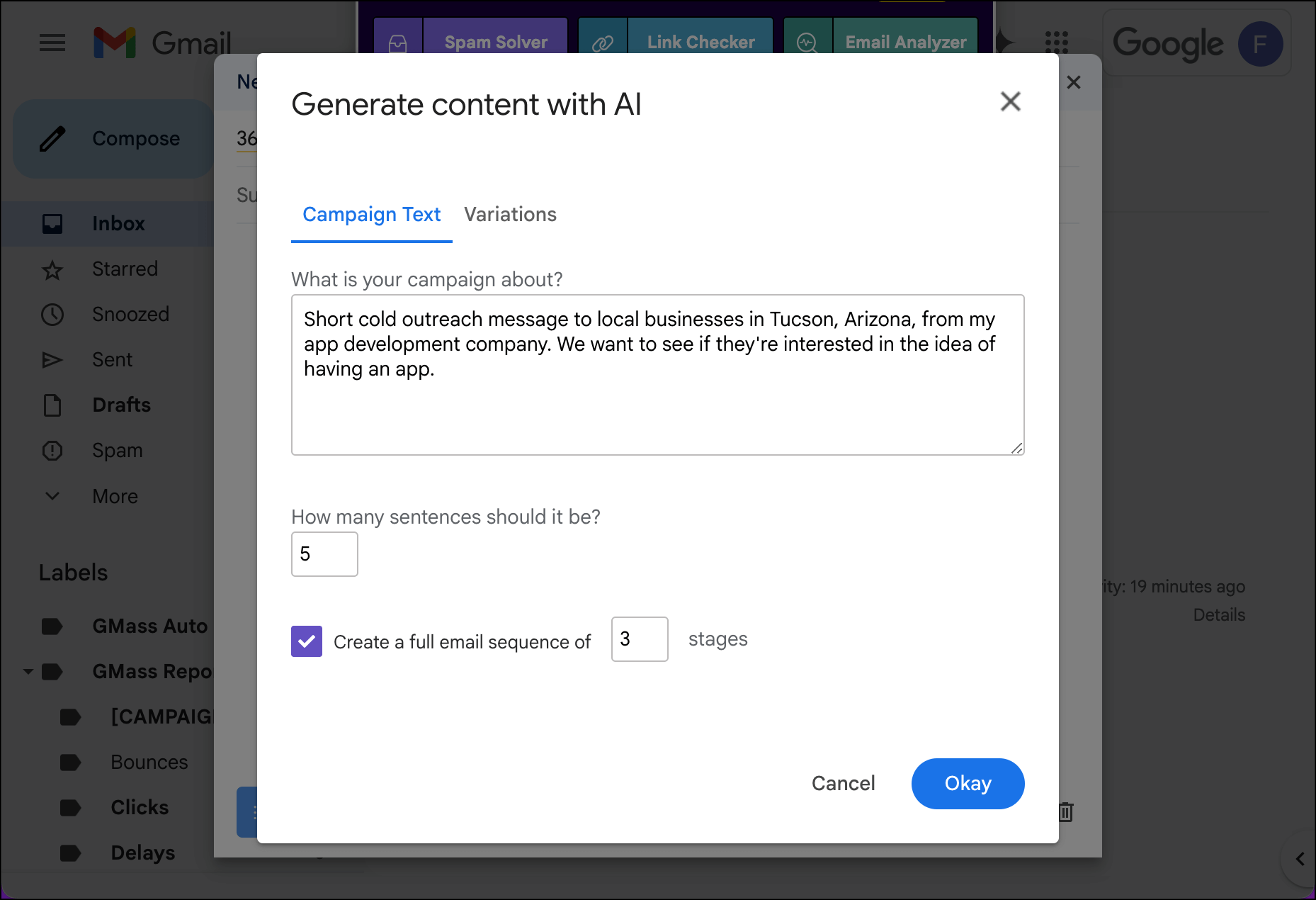
Not only is GMass’s tool better trained on quality email copy, GMass’s version can also automatically set up an entire auto follow-up sequence for you (including the settings).
Use Gemini for Replying to Emails
We, as email pros, are usually quite particular about every word in the campaigns we send. We’re less precious with our replies.
With replies, speed and authenticity are generally favored over endless revisions.
So perhaps Gemini is more ready for prime time with replies, since that copy will spark less editing.
Here’s a response I got to a (sample) email campaign. And I employed Gemini to write a reply. This is my prompt:
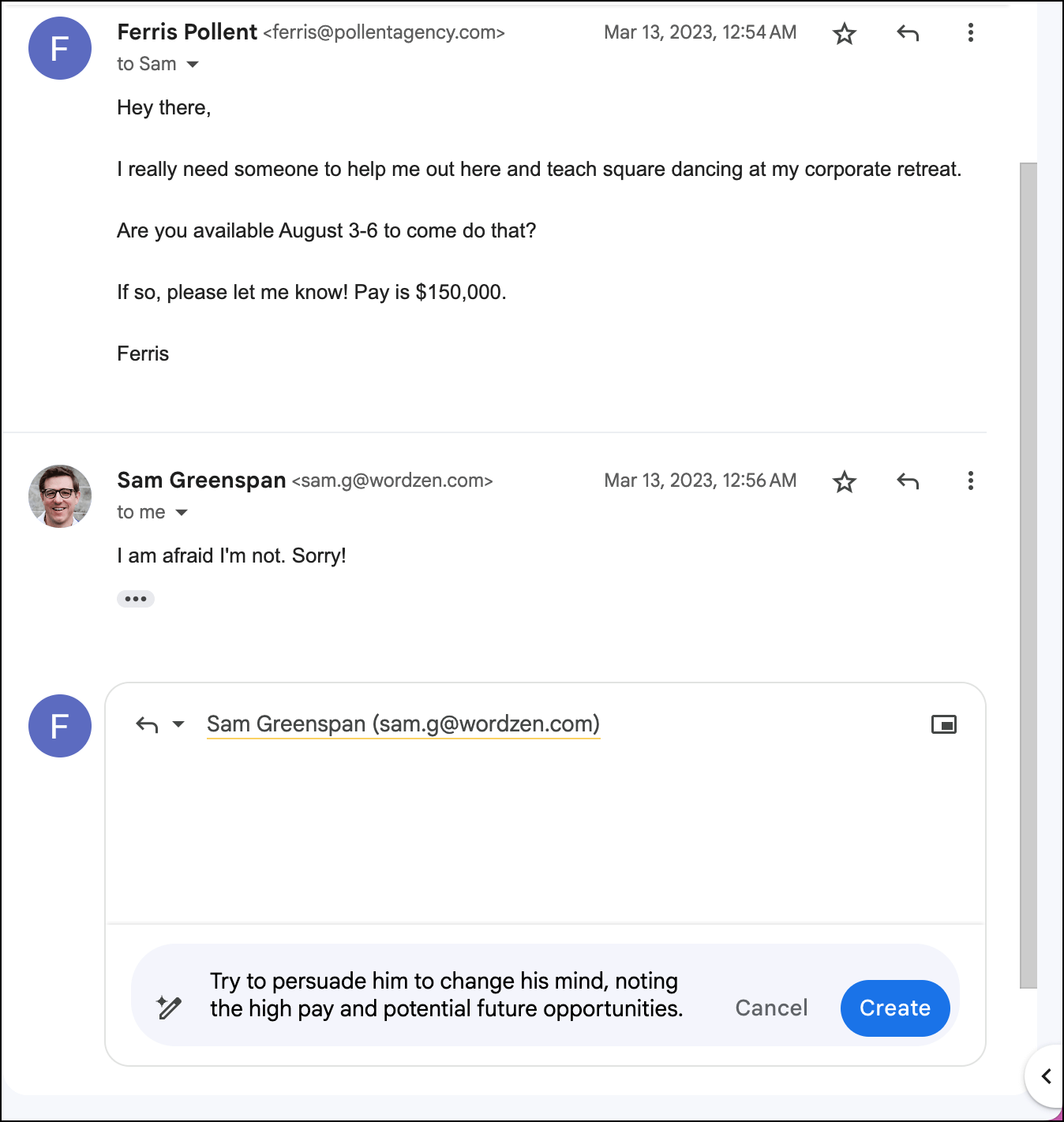
And here was the output:
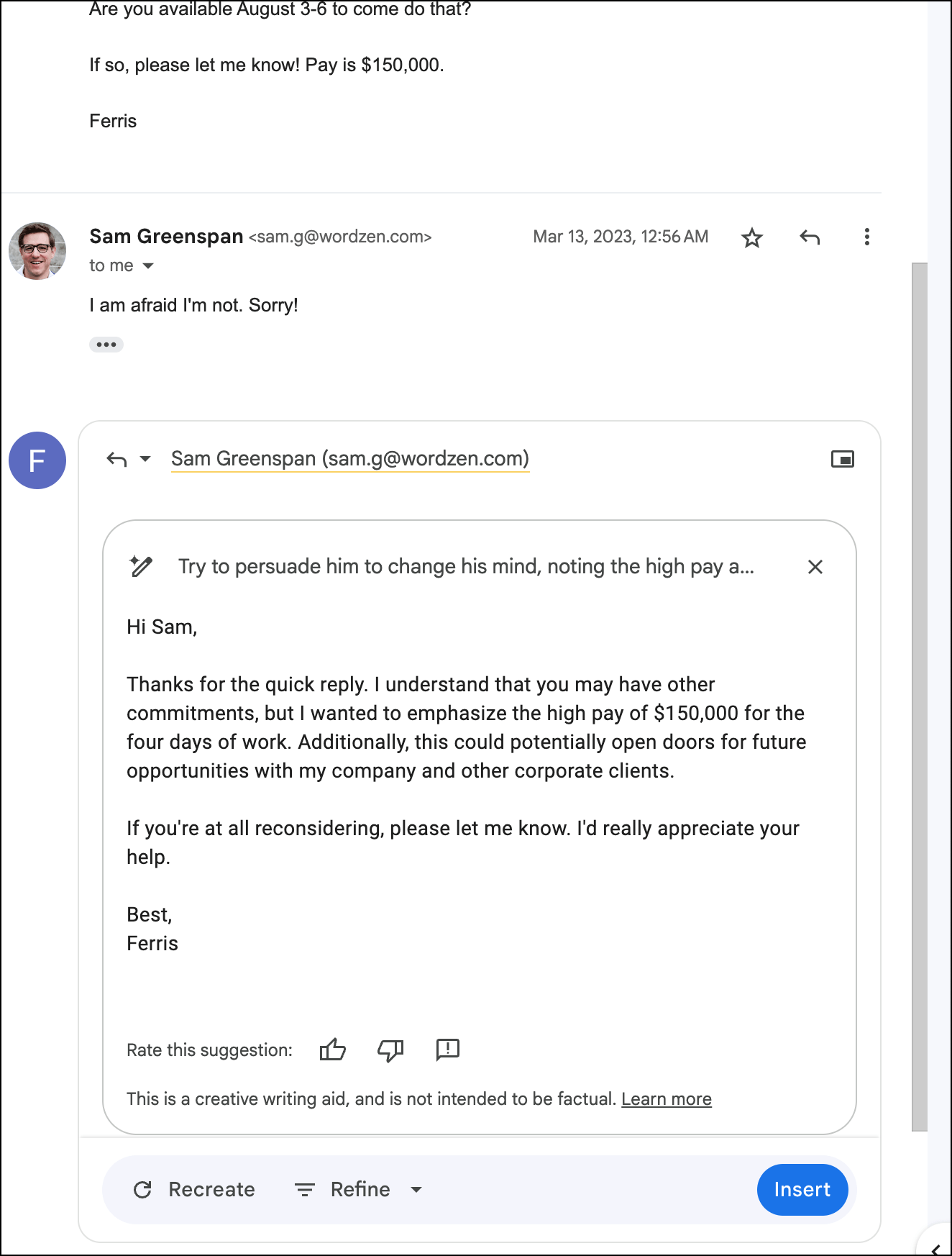
I give this about a 6/10. I’d definitely need to fix that line about “the high pay” — Gemini didn’t realize how gauche that was to actually say verbatim from my prompt — but there’s enough to work with here.
Once again, though, Gemini isn’t fully baked yet, so I’d recommend sticking with GMass’s native reply option, The Reply Project.
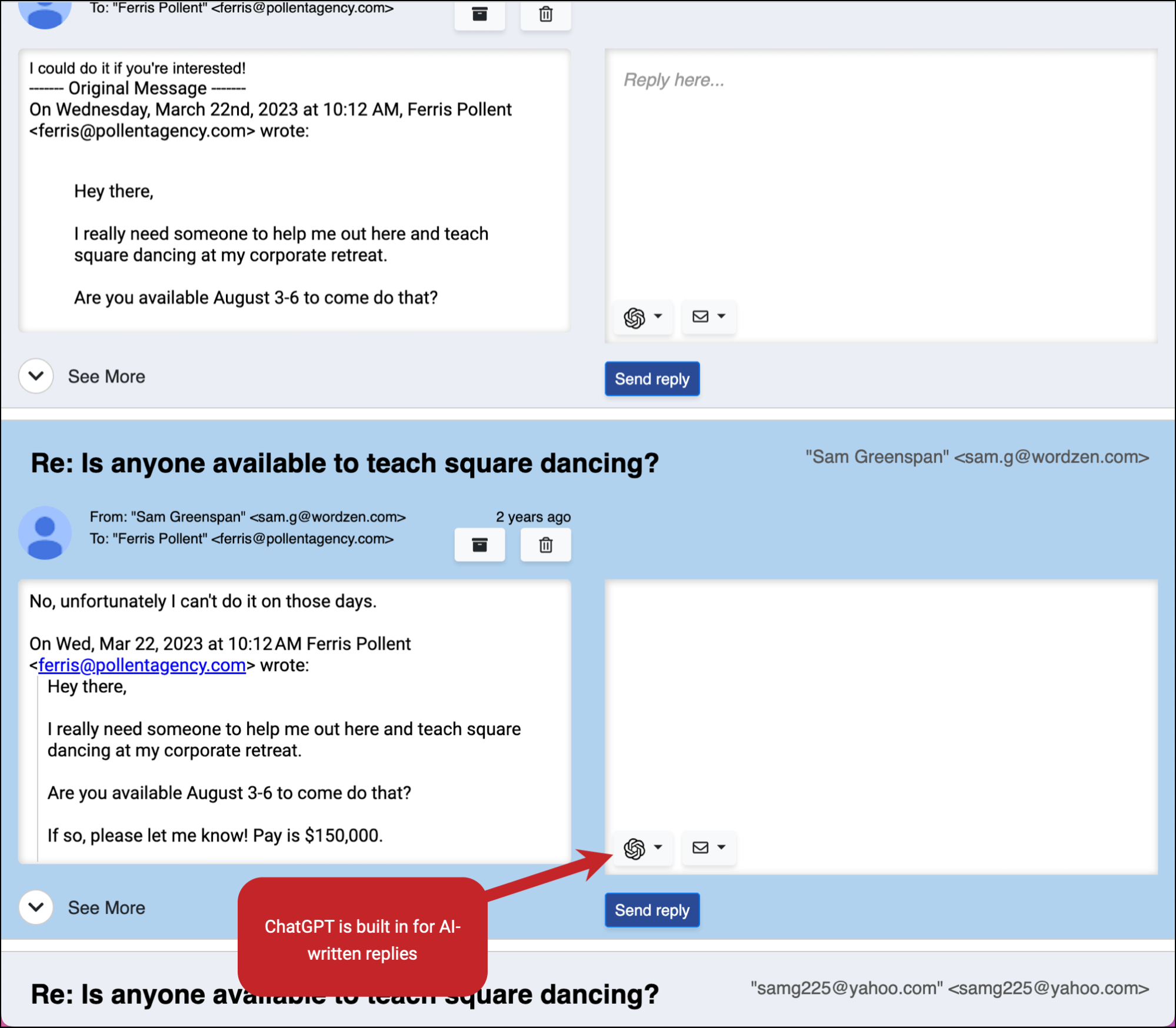
With The Reply Project you can use AI to write (better) responses to your campaign’s replies. You can also then edit those responses, save them as reusable templates, and get through a whole bunch of campaign replies in record time.
Run Email Searches (and Turn Them Into New GMass Lists)
For now, this Gemini usage is last on my list because, well, it’s AI doing a worse job than Google’s native, non-AI tools.
But for the sake of completeness, I’m including it.
You can use Gemini to run searches in Gmail.
The pro:
- You can type real language searches and not have to use Gmail’s sometimes-wonky search notation.
The cons:
- These AI-based searches are way slower than using the search bar.
- They’re generally less accurate.
- They can’t do advanced things you’d want an AI search to do, like detecting what’s in the emails (for instance, I couldn’t say: “find all the email responses that were negative”).
- And the search query itself doesn’t actually appear in the search bar (so you can’t see exactly what it is).
For instance, here’s a search example using Gemini:
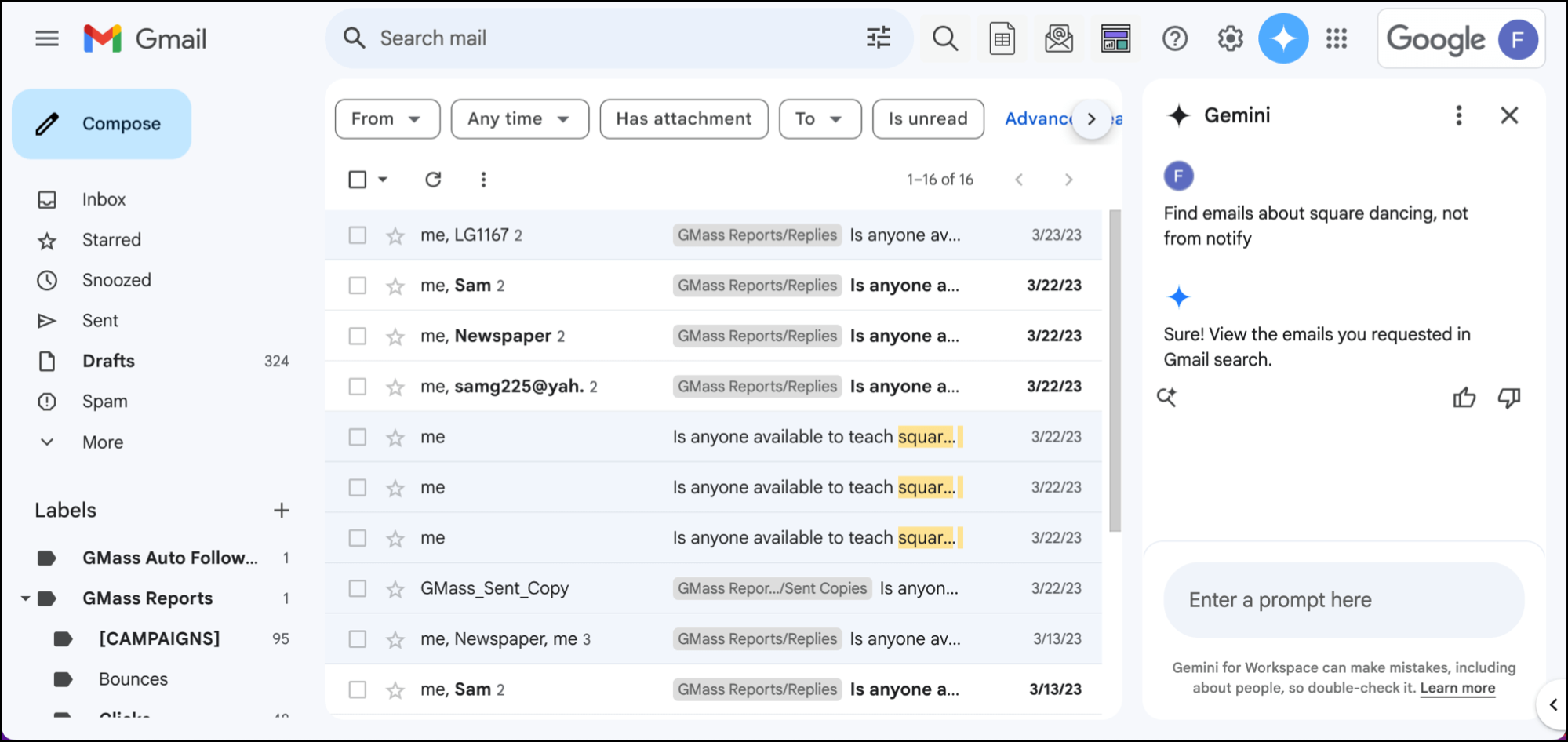
I tried this prompt 25 ways and this was the best I could get the results; I would’ve gotten the results I actually wanted much quicker manually (by searching by label, which Gemini couldn’t do right). Also, again, notice that Gmail doesn’t put the search in the search bar.
Despite the flaws with Gemini-based searches, I can still use GMass’s feature that builds a new email list based on a Gmail search.
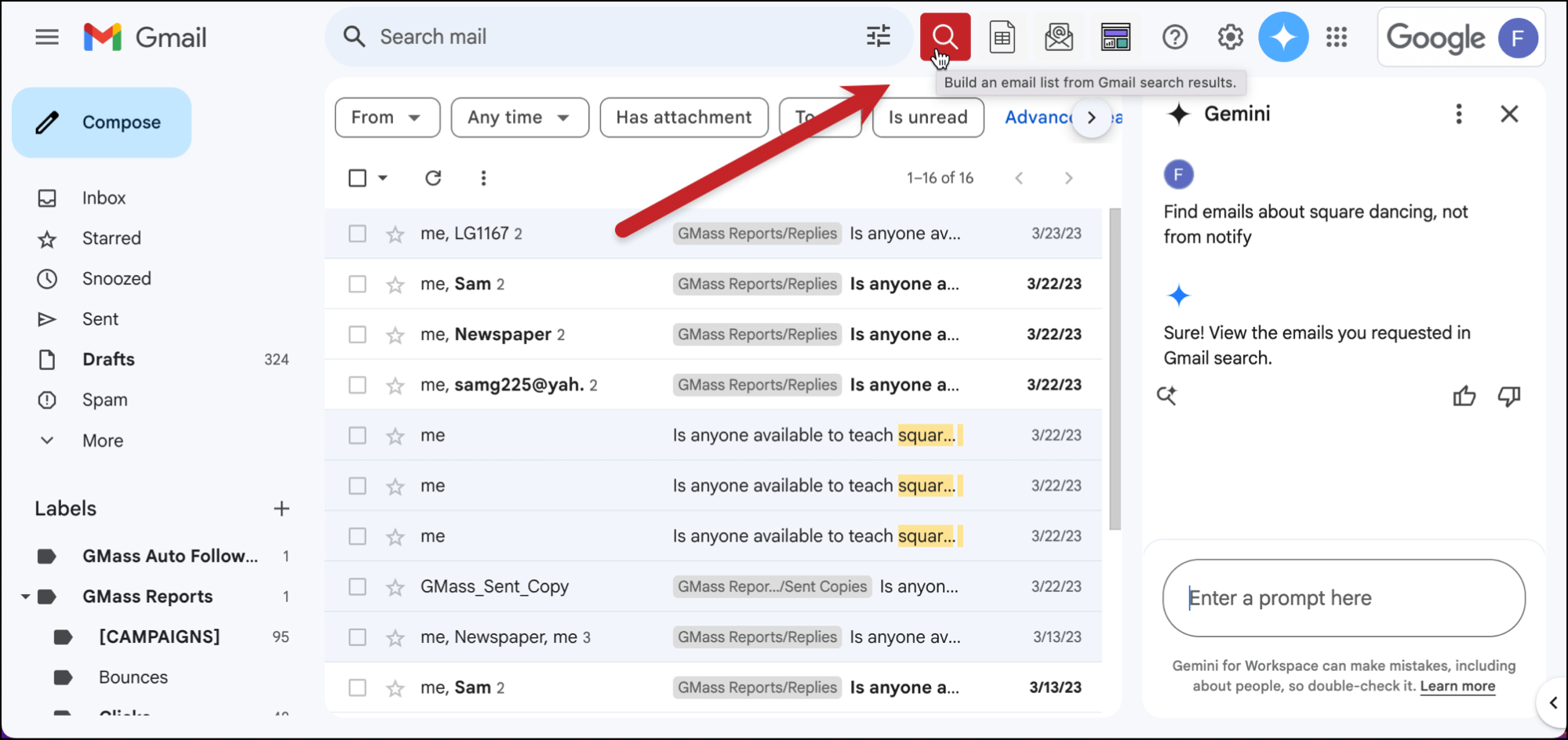
I’d recommend sticking with the native Gmail search rather than using Gemini.
In fact, you could ask Gemini how to use search notation in Gmail and get better results.
Gemini with GMass: Next Steps
As you can see, right now, there’s not that much utility for Gemini with GMass (or Gemini in general).
However, I do think the ability to ask for GMass advice right there in the sidebar is useful.
You may or may not want to use its email or reply writing features. I find GMass’s tools for both work better at this point.
But Gemini will evolve — it’s not a side project for Google, it’s a headliner — and, with that evolution, we should find even more uses for it with GMass.
(Note: There are some other things Gemini can do, like summarizing email threads or setting up events in Google Calendar, which I didn’t include here — as I didn’t find them especially relevant for the GMass/Gmail/Gemini trifecta.)
In the meantime, if you aren’t a GMass user yet — let’s get you in on the action.

Almost 400,000 emailers are using GMass to send their campaigns — from cold outreach to email marketing to mail merge — from right inside Gmail.
Come see why GMass has a 4.8 out of 5-star rating across 10,000+ reviews.
It’s totally free to try, with no credit card required. Just install the GMass Chrome extension and you’ll be sending your first campaign in a matter of minutes — with or without Gemini’s help.
Email marketing, cold email, and mail merge all in one tool — that works inside Gmail
TRY GMASS FOR FREE
Download Chrome extension - 30 second install!
No credit card required