
How to cancel your subscription to GMass’s mail merge tool depends on whether you subscribed with a credit card or PayPal.
Credit Card Subscriptions
Two ways to cancel a credit card-based subscription:
New Way:
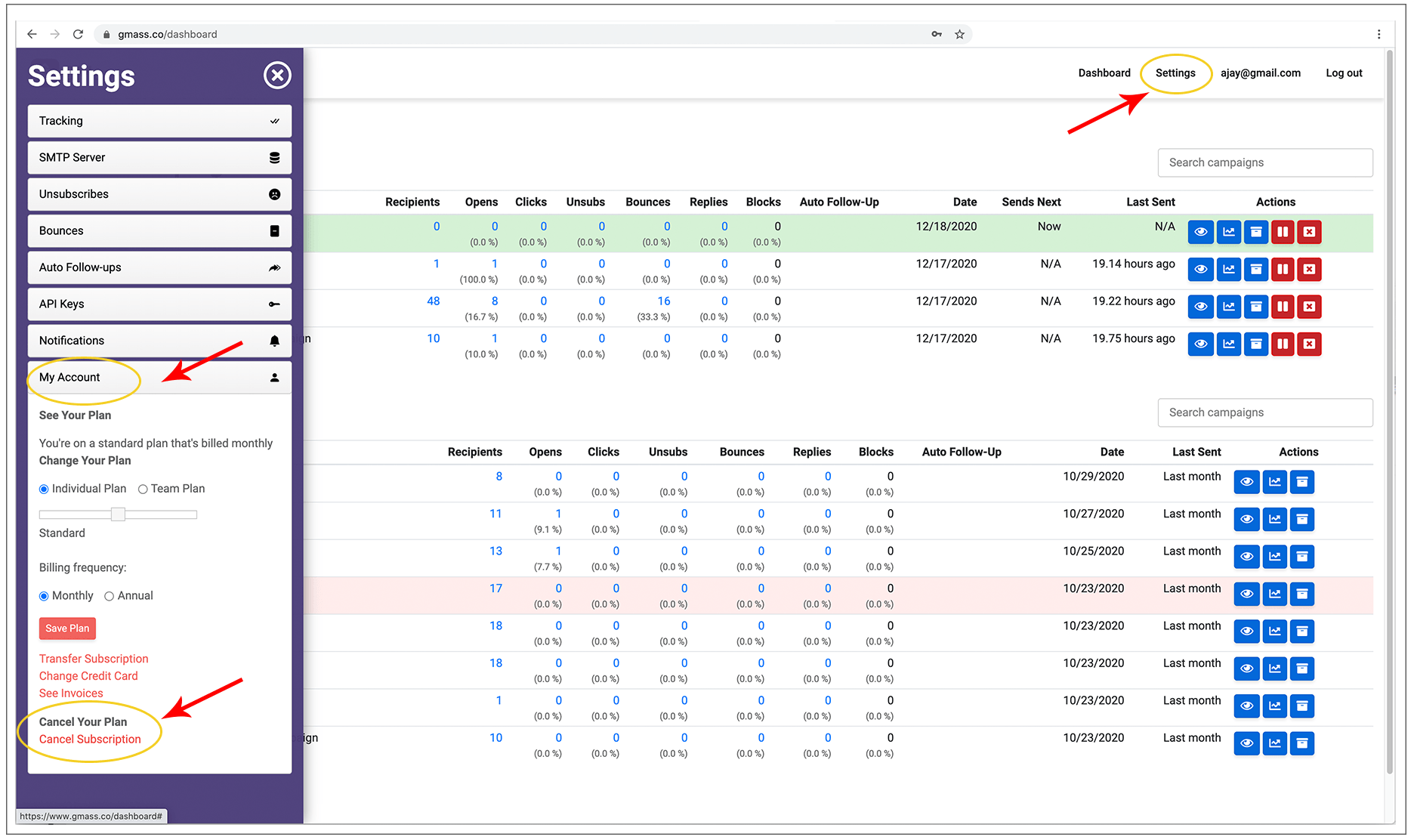
Log in to our dashboard at https://gmass.co/dashboard with the account you subscribed. Then click Settings at the top, then Account at the left, and then the Cancel option.
Old Way:
First, you must have the GMass extension installed. If the GMass buttons aren’t showing up in your Gmail interface, then it’s not installed. You can install it from our homepage.
Then, log in to the Gmail account whose GMass subscription you wish to cancel. If you don’t have access to that Gmail account anymore, log in to ANY Gmail account that is connected to GMass.
1. Launch a regular Gmail Compose Window.
2. Set the To field to cancel@gmass.co. Do not hit Send.
3. If you are logged into the Gmail account whose subscription you want to cancel, leave the Subject blank. Do not hit Send.

If you are logged into a different account, put the email address of the account whose subscription you are cancelling in the Subject line.

4. Optionally, please tell us the reason for your cancellation in the Body of the email. This is optional. Do not hit Send.
5. Do not click the Gmail Send button. Click the GMass button. Your subscription will end immediately, but your account will remain on its plan until your paid period is up. So if you’re a monthly subscriber, you can still use GMass until the end of your monthly period. The same applies if you’re an annual subscriber. You will receive a message in your Inbox telling you when your account will be demoted to free status.
Important: Be sure to hit the red GMass button, and not the regular Gmail Send button, because cancel@gmass.co is not a real email address; it is a command. Hitting the regular Send button will result in a bounce. If you do not have the GMass button because you uninstalled the extension, you must re-install the GMass extension to cancel your subscription.
So that means: If you receive a message from Mail Delivery Subsystem saying “Delivery to the following recipient failed permanently: cancel@gmass.co, ” then you have pressed the Gmail Send button. Try again, and be sure to hit the red GMass button.
Another note: It’s easiest if you’re logged into the Gmail account that has the GMass subscription you wish to cancel. But if you can’t log in to that account, you can log into ANY other Gmail account that is connected to GMass. We will then verify that the logged-in Gmail account has permission to cancel the subscription of the other account before the cancellation is final.
Last note: Uninstalling the GMass extension does not automatically cancel your subscription to GMass. Just like, if you remove the Netflix app from your mobile device, it doesn’t automatically cancel your Netflix subscription.
PayPal Subscriptions
If you paid with PayPal, you must log in to your PayPal account and cancel your GMass subscription from there. Your GMass account will be demoted to “free” account status within a few minutes after canceling. When you cancel a PayPal subscription to GMass, you do not get the unused time for the month or year. Your account will be demoted to “free” status right away and its limits will reset to the free account sending limits right away. With credit card subscriptions, you would get the unused time.
Bitcoin Subscriptions
If you paid with Bitcoin, your subscription already has a pre-determined life, and it will automatically cancel after your paid time has expired. Bitcoin transactions are one-time transactions and are not recurring.
Email marketing, cold email, and mail merge all in one tool — that works inside Gmail
TRY GMASS FOR FREE
Download Chrome extension - 30 second install!
No credit card required

Ajay is the founder of GMass and has been developing email sending software for 20 years.